

Check scheduled emails and reminders
Many of VirgilTrack’s emails go out on a schedule: Due tomorrow every weekday morning, report reminders on Fridays and Mondays, event and review reminders, and more. Each of these is a job that VirgilTrack runs by itself. The scheduled jobs screen lists these jobs, shows when each runs next and which ones failed, and lets you run one again.
Before you start
Section titled “Before you start”- You need a system administrator account. The screen doesn’t open for anyone else, including other administrators.
- Nothing in VirgilTrack’s menu links to the screen. You open it by its address.
Open the screen
Section titled “Open the screen”-
Sign in to VirgilTrack with your system administrator account.
-
In your browser’s address bar, type VirgilTrack’s address followed by /hangfire, for example
https://virgiltrack.virgilfinance.com/hangfire, and press Enter. You can also select Open in VirgilTrack on this page.The screen is headed Hangfire Dashboard. It looks different from the rest of VirgilTrack. It opens on graphs of the jobs that succeeded and failed recently.
-
When you have finished, select Back to site to return to VirgilTrack.
What the screen shows
Section titled “What the screen shows”The menu at the top has four parts.
| Part | What it shows |
|---|---|
| Jobs | Each time a job runs, grouped by state: Enqueued (about to run), Scheduled (waiting for a set time), Processing, Succeeded, Failed, Deleted and Awaiting. |
| Retries | Runs that failed and that VirgilTrack will try again by itself. |
| Recurring Jobs | The jobs that run on a schedule, with when each runs next (Next execution) and when it last ran (Last execution). |
| Servers | Technical details. You don’t need them. |
Single reminders also wait here. For example, each event reminder waits under Jobs as Scheduled until its time.
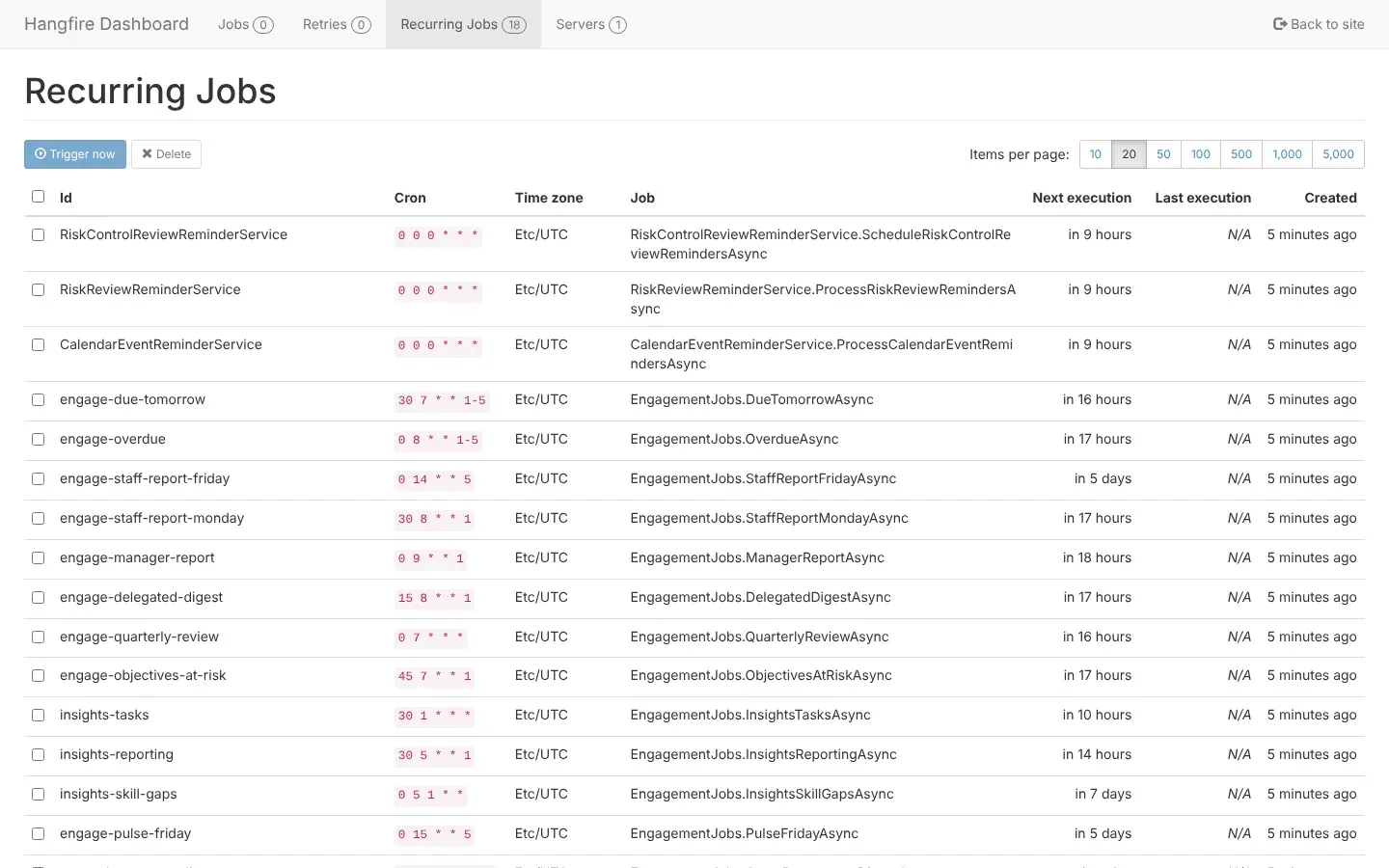
The scheduled jobs
Section titled “The scheduled jobs”The Recurring Jobs list names each job as in the first column below. The times follow VirgilTrack’s own clock, shown in the Time zone column, not anyone’s personal time zone. The Cron column gives the same schedule as a short code.
| Job | What it does | When it runs |
|---|---|---|
| RiskReviewReminderService | Prepares the Risk review due reminders for reviews due today, tomorrow, and in 3 and 7 days, for risks that aren’t mitigated. On the day of a review, it also moves the risk’s next review on by its review frequency. | Every day at 00:00 |
| RiskControlReviewReminderService | Prepares the Control review due reminders for controls whose next review is today, tomorrow, or in 3 or 7 days. | Every day at 00:00 |
| CalendarEventReminderService | Prepares the reminders for events today, tomorrow, and in 3 and 7 days. | Every day at 00:00 |
| engage-due-tomorrow | The Due tomorrow emails. | Monday to Friday at 07:30 |
| engage-overdue | The Overdue emails, and a text for work that became overdue the day before. | Monday to Friday at 08:00 |
| engage-staff-report-friday | Reminds staff whose report for this week isn’t submitted. | Fridays at 14:00 |
| engage-staff-report-monday | Reminds staff whose report for last week is still open. | Mondays at 08:30 |
| engage-manager-report | Reminds managers to submit their team report for last week. | Mondays at 09:00 |
| engage-delegated-digest | The weekly Work you delegated email. | Mondays at 08:15 |
| engage-quarterly-review | The quarterly review reminders to the CEO and department managers. It runs every day, but only sends 7 days before a quarter of the financial year ends, and 3 days after. | Every day at 07:00 |
| engage-objectives-at-risk | Tells the CEO about strategic objectives at risk. | Mondays at 07:45 |
| engage-pulse-friday | The How was your week? check-in email, to people who haven’t checked in that week. | Fridays at 15:00 |
| engage-ei-practice | The emotional intelligence practice email for managers and the CEO. | Wednesdays at 10:00 |
| cross-department-digest | The daily email of news from other departments. | Monday to Friday at 16:30 |
| insights-tasks, insights-reporting, insights-skill-gaps | Prepare the insights that Virgil Copilot offers on the work report pages, about tasks, reporting and skill gaps. They send no email. | Tasks every day at 01:30, reporting on Mondays at 05:30, skill gaps on the 1st of each month at 05:00 |
| demo-close-finished | Closes demos whose link has expired or been withdrawn. See Demo links. | Every 15 minutes |
The first three jobs only prepare reminders. Each reminder then waits under Jobs as Scheduled until 09:00, or until one hour before an event or review that is due that day. For who gets each reminder, see Reminders.
Run a job again
Section titled “Run a job again”Do this when a job failed. If VirgilTrack was down when a job was due, you don’t need to: VirgilTrack runs the missed job by itself when it starts again.
- Select Recurring Jobs.
- Tick the job.
- Select Trigger now.
The job runs straight away, and its Last execution changes.
To run a failed run again:
- Select Jobs, then Failed.
- Select a job’s name to see what went wrong.
- Tick the jobs you want to run again, and select Requeue jobs.
What happens when a job runs again
Section titled “What happens when a job runs again”- Each email and text goes out only once. For example, a person gets one Due tomorrow email a day, however often the job runs. If the job had already sent its emails, running it again sends no new ones.
- The reminder jobs skip reminders they have already prepared that day.
- Some jobs also add a notification under the bell in VirgilTrack, such as the Monday team report reminder. Running one of these again can give people that notification twice.
If something goes wrong
Section titled “If something goes wrong”| What you see | Why | What to do |
|---|---|---|
| The screen doesn’t open. | You aren’t signed in, or your account isn’t a system administrator. | Sign in to VirgilTrack first, in the same browser. If it still doesn’t open, ask a system administrator. |
| Someone says a reminder email didn’t arrive, but the job Succeeded. | A job prepares the emails; VirgilTrack sends them afterwards. People also don’t get emails they have switched off. | Ask the person to check their notification settings, and to test them with Email me. See Choose your notifications. |
| Many runs are under Failed or Retries. | Something stops the jobs from finishing. | Select a failed job to read its error, and send it to the VirgilTrack team. |