

The weekly check-in
Once a week, VirgilTrack asks “How was your week?”. You answer with one of five faces, from a hard week to a great week. Your answer is private to you unless you choose to share it with your manager.
The five answers
Section titled “The five answers”| Face | Answer |
|---|---|
| 😄 | A great week |
| 🙂 | A good week |
| 😐 | An OK week |
| 😕 | A tough week |
| 😣 | A hard week |
You can give one answer for each week. If you answer again in the same week, your new answer replaces the old one.
Check in from VirgilTrack
Section titled “Check in from VirgilTrack”-
Open Emotional Intelligence, then Me.
The first card is headed How was your week?.
-
Select the face that fits your week. Point to a face to see its answer, such as “A good week”.
-
If you like, write a note in Anything on your mind? (optional). It can be up to 500 characters.
-
To let your manager see your answer and note, tick Share this with my manager. Leave it unticked to keep it to yourself.
-
Select Save.
You see “Saved. Only you can see it.” or, if you shared it, “Saved and shared with your manager.”.
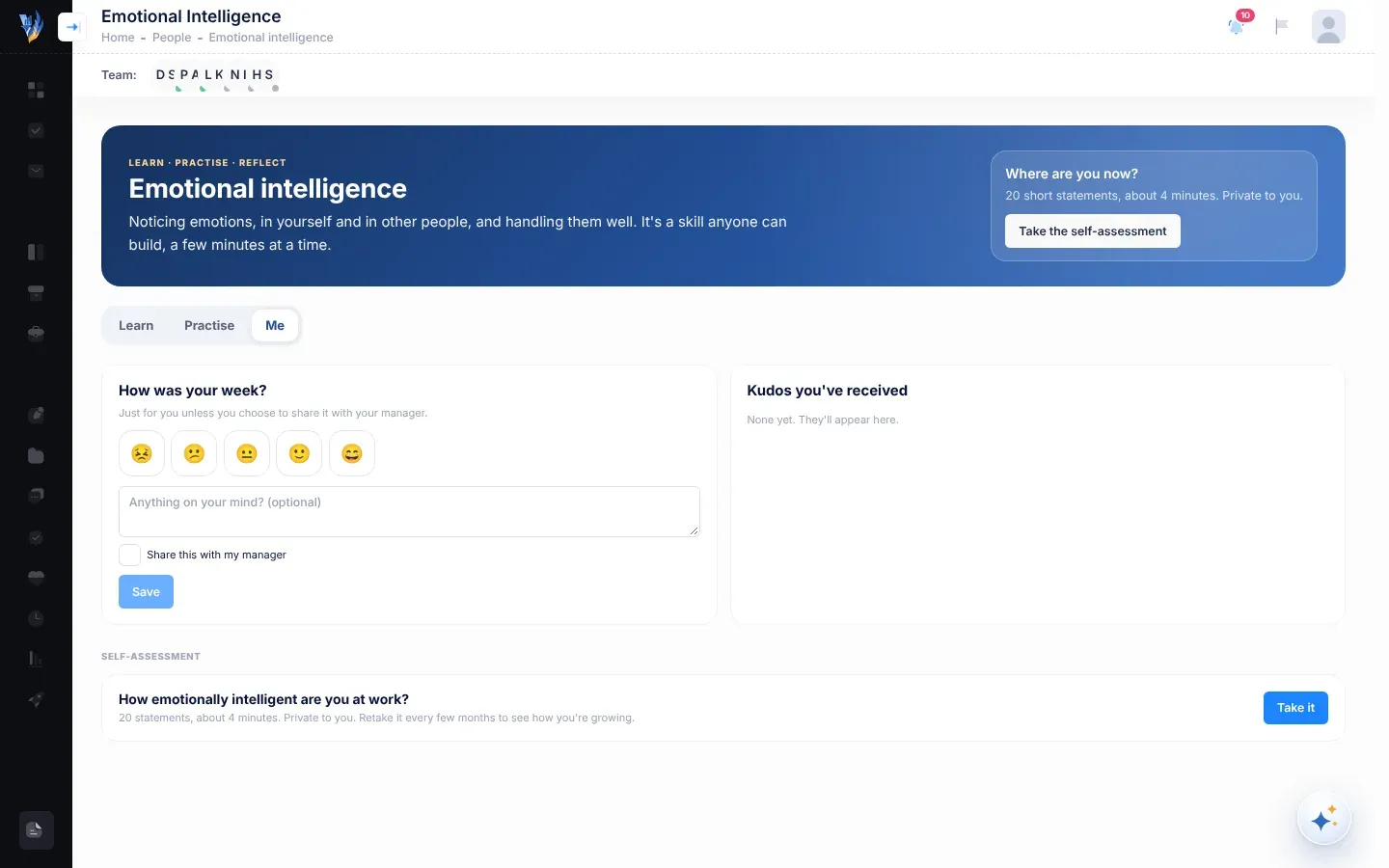
To change your answer later in the week, open the Me tab again. Your answer is already filled in, and the button says Update.
Check in from the email
Section titled “Check in from the email”On Friday afternoon, VirgilTrack emails everyone who hasn’t checked in that week. The email is headed How was your week? and lists the five answers.
-
In the email, select the answer that fits your week.
A VirgilTrack page opens and asks you to record it, for example: Record “A good week” 🙂 for this week? Only you can see it unless you share it.
-
Select Save.
You see Thanks for checking in, with your answer and “Only you can see it.”.
-
To add a note or share your answer, select Add a note or share it. This opens the Me tab in VirgilTrack.
You don’t need to sign in to answer from the email. The buttons in the email work for four days. Your answer counts for the week in which you select it, so a button you use on Monday records an answer for the new week.
Who sees your check-in
Section titled “Who sees your check-in”| If you | Who sees it |
|---|---|
| Don’t tick Share this with my manager | Only you. |
| Tick Share this with my manager | You, and the person you report to. In their Your team tab, they see your answer next to your name, with your note, for this week and last week. |
Your manager also sees a Team pulse, last 30 days figure: the average answer of everyone who reports to them, from 1 (a hard week) to 5 (a great week), and how many answers of each kind there were. It never shows names. Every answer counts towards it, shared or not. It only appears once at least 5 people have answered, “so no one can be identified”.
- Be honest. The check-in is for you. A run of tough weeks is worth noticing, and worth talking about with someone you trust.
- Share when it helps. If your week was hard because of work, sharing it gives your manager a reason to check in.
- A shared hard week is noticed. If you share A tough week or A hard week, your manager’s Your team tab suggests a check-in with you.
Stop the Friday email
Section titled “Stop the Friday email”The Friday email is the Weekly check-in notification. You can switch it off in the Notifications section of Settings. You can still check in from the Me tab. See Settings.
If something goes wrong
Section titled “If something goes wrong”| What you see | Why | What to do |
|---|---|---|
| Save can’t be selected. | No face is chosen. | Select a face first. |
| “This button has expired. Open VirgilTrack to continue.” | The email is more than four days old. | Check in from the Me tab instead. |
| No email on Friday. | You already checked in that week, or you switched the email off. | Nothing to do. You can check in from the Me tab any time. |