

Sign up your organisation
If your organisation doesn’t use VirgilTrack yet, you can ask for it with the sign-up form. In one go you describe the organisation, its departments and the people in each one. The CEO, or someone the CEO asks, can fill it in.
Before you start
Section titled “Before you start”Gather these details first. Every field on the form must be filled in.
- The organisation’s logo, as a PNG or JPG picture.
- The organisation’s details: name, registration number, email address, contact number, and full address (country, city, locality, street name, ERF and postal address).
- The CEO’s first name, last name and email address.
- Each department’s name, and the first name, last name and email address of everyone in it. Decide who manages each department.
- The month your financial year starts.
Everyone needs their own email address. The same address can’t be used twice, not even for the CEO.
Open the sign-up form
Section titled “Open the sign-up form”- Open the VirgilTrack Sign In page.
- Next to “Not a Member yet?”, select Sign up.
The sign-up form has five steps, listed on the left of the page: Organization Type, Organization Info, Department Details, Team Details and Completed. Select Continue to go to the next step, or Previous to go back.
Step 1: Choose the organisation type
Section titled “Step 1: Choose the organisation type”- Under Choose Organization Type, select the type that fits: Village Council, Town Council, Municipality or Other.
- Select Continue.
Step 2: Fill in the organisation’s information
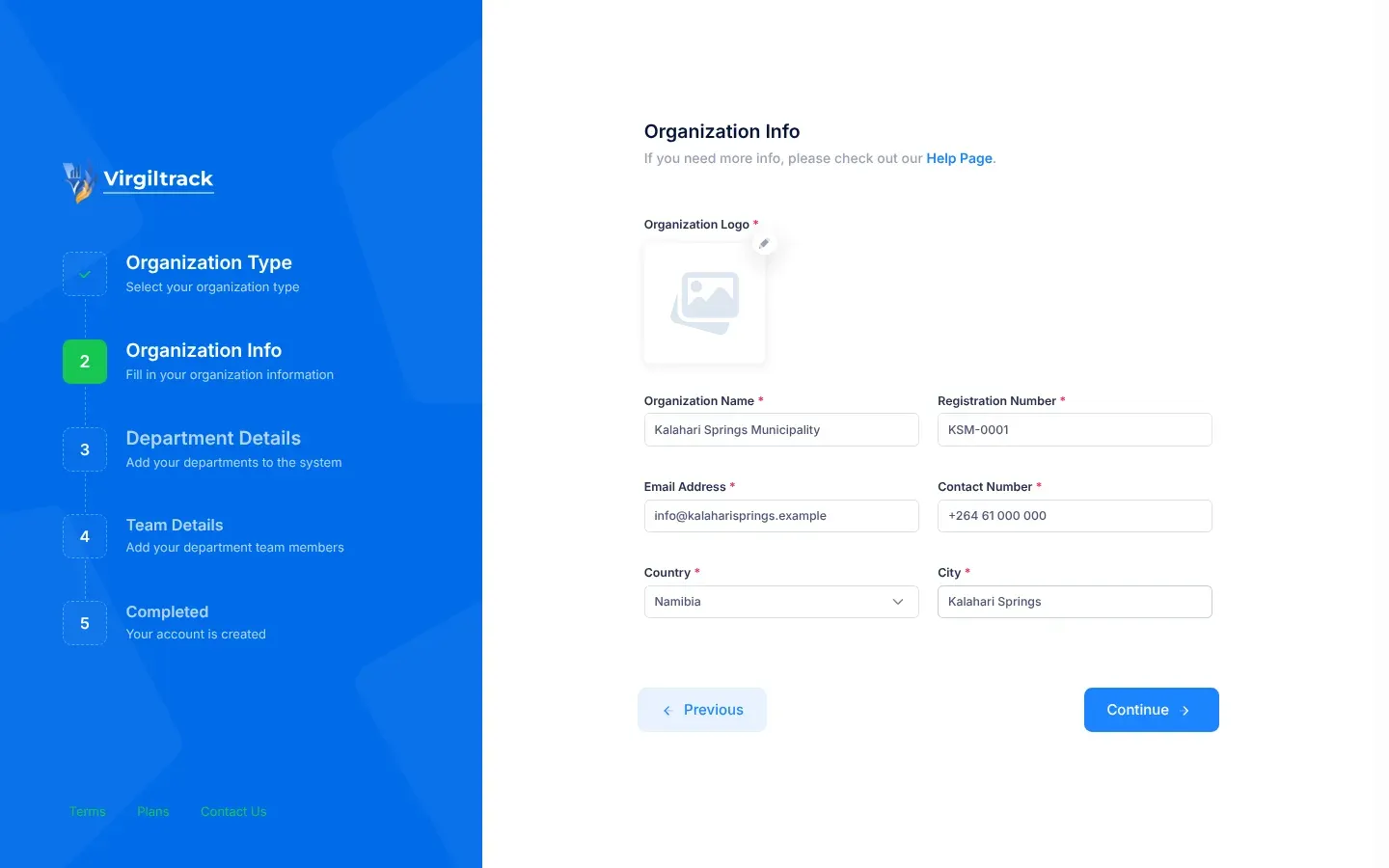
Section titled “Step 2: Fill in the organisation’s information”- Add the logo under Organization Logo. Select the pencil button (Upload logo) and choose the picture.
- In the Crop Logo window, drag the picture and zoom in until it fills the blue crop box. Then select Crop.
- Fill in Organization Name and Registration Number.
- Fill in the organisation’s Email Address and Contact Number.
- Check Country. It is set to Namibia; choose another country if you need to.
- Fill in City, Locality, Street Name, ERF and Postal Address.
- Select Continue.
Step 3: Describe the organisation’s structure
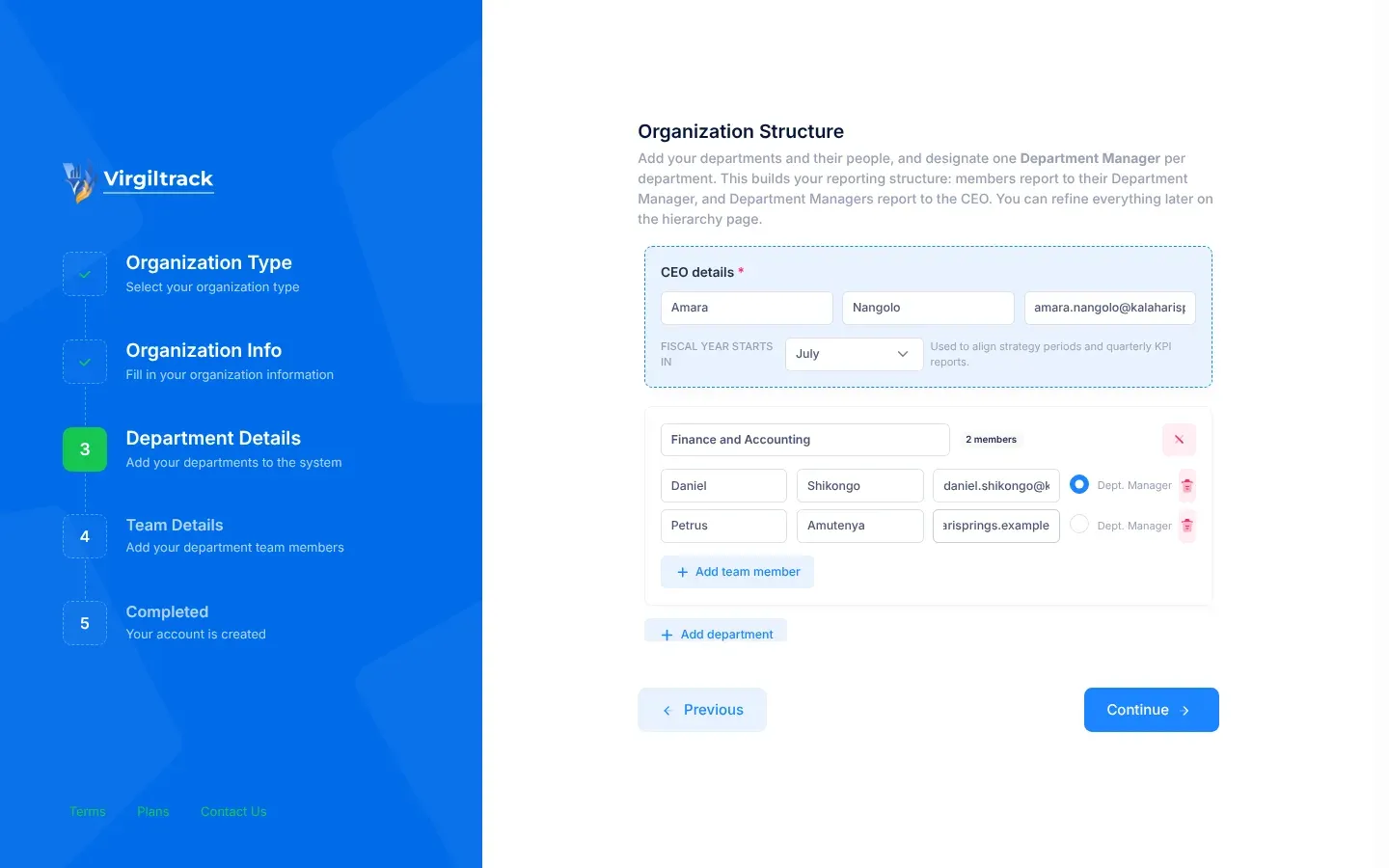
Section titled “Step 3: Describe the organisation’s structure”On Organization Structure you build your reporting structure: team members report to their Department Manager, and Department Managers report to the CEO. You can change it later.
- Under CEO details, type the CEO’s first name, last name and email address.
- Under Fiscal year starts in, choose the month your financial year starts. VirgilTrack uses it to line up strategy periods and quarterly KPI reports.
- One department is ready for you. Type its name in the box that says “Department name (e.g. Accounting)”. Names can use letters, numbers and spaces only.
- Type the first person’s first name, last name and email address. This person is marked Dept. Manager.
- Select Add team member for each other person in the department, and fill in their details.
- Make sure Dept. Manager is selected for the person who manages the department. Each department has exactly one.
- Select Add department and repeat steps 3 to 6 for every other department.
- Select Continue.
To take someone out, select the bin button (Remove member) at the end of their row. If you take out the department’s manager, the first person left in the department becomes its Dept. Manager. Check it, and change it if you need to. To take a whole department out, select the cross button (Remove department) in its box.
Don’t add the CEO to a department. The CEO has their own box at the top, and VirgilTrack places the CEO in a department called Executive Suite.
Step 4: Review and submit
Section titled “Step 4: Review and submit”Review Your Structure shows the reporting lines VirgilTrack will create: the CEO at the top, each Department Manager beneath, and their team members beneath them, marked Employee. Badges at the top show the number of departments, the number of people (including the CEO) and the month your fiscal year starts.
- Check every name, email address and manager.
- If something is wrong, select Previous and correct it.
- When everything is right, select Submit.
- When “Organization signed up successfully.” appears, select Ok, got it!.
The last step, Your Are Done!, thanks you and explains that VirgilTrack will now review your information. Its Sign In button takes you back to the Sign In page, but nobody can sign in until they have set up their account from their invitation email.
What happens next
Section titled “What happens next”- VirgilTrack’s administrators are told about your request. It appears on their Sign Ups page, waiting for review. See Review sign-ups.
- Until the request is approved, nobody from your organisation can sign in.
- When an administrator approves it, everyone you listed receives an email called “Invitation to Virgiltrack” with a Setup Account button. The CEO is invited first, then the managers, then everyone else.
- Each person sets up their own account. See Accept an invitation.
Each person’s role comes from the form:
| Where you listed them | Their role in VirgilTrack | Who they report to |
|---|---|---|
| CEO details | CEO | Nobody |
| A department, marked Dept. Manager | Manager, and manager of that department | The CEO |
| A department, not marked | Employee | Their Department Manager |
Weekly work reports follow these reporting lines upwards. The CEO can change roles and reporting lines later, under Roles & hierarchy in Settings. See Settings.
If something goes wrong
Section titled “If something goes wrong”| What you see | What to do |
|---|---|
| A red message under a field, such as “Organization logo is required”, “Organization name is required”, “Registration number is required”, “Organization email is required”, “Contact number is required” or “City is required” | Fill in that field, then select Continue again. |
| “Invalid email format” | Type the organisation’s whole email address. |
| Structure incomplete, with a list of problems | Select Okay, got it!. The same list appears under the departments. Fix each item, then select Continue. |
| “CEO first and last name are required.” or “A valid CEO email is required.” | Complete the CEO details box. |
| “Add at least one department.” | Select Add department. |
| “Every department needs a name.” | Type a name in each department’s box. |
| “…: add at least one member.” | Add at least one person to the department named, or remove the department. |
| “…: designate a Department Manager.” | Select Dept. Manager for one person in that department. |
| “…: every member needs a first and last name.” or “…: every member needs a valid email.” | Complete every row in that department. |
| “Duplicate emails: … Each person needs a unique email.” | Give each person a different email address. Check that the CEO isn’t listed again in a department. |
| “Duplicate department names: …” | Give each department a different name. |
| “Please read the following error message(s) carefully.” followed by a list such as “The OrganizationLocality field is required.” | A field was left empty, such as Locality, Street Name, ERF or Postal Address. Select Previous to go back to Organization Info and fill it in, then select Submit again. |
| “Sign-up failed because of a problem on our side. Please try again, or contact support if it keeps happening.” | Select Submit again. If it keeps happening, email support. |