

Add a risk
Add a risk when you spot something that could go wrong for your department. The Add a risk window takes you through four short steps, and the risk is assessed and scored as you go.
Before you start
Section titled “Before you start”Have these answers ready. They make the form quick to fill in.
- What could go wrong, and why could it happen?
- How likely is it, and how bad would it be?
- By when should it be dealt with, and how often should it be reviewed?
- Who should follow it until it is dealt with?
To link the risk to your strategic plan, your organisation needs an approved strategic plan. See Strategy and execution.
Add a risk
Section titled “Add a risk”-
Open Risk Register from the menu on the left.
-
Select Add risk at the top right.
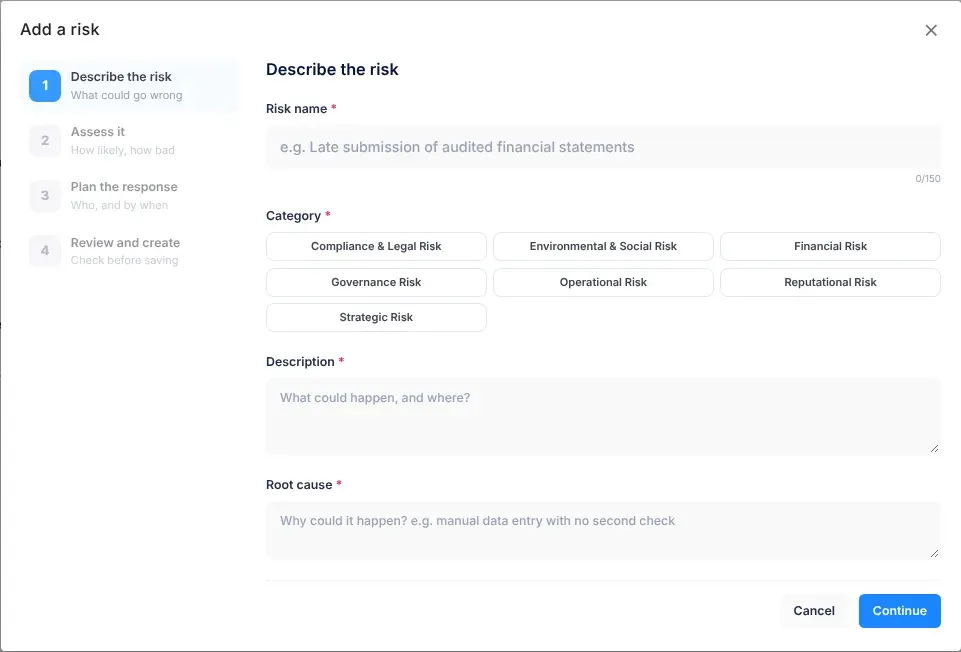
The Add a risk window opens. Its four steps are listed on the left: Describe the risk, Assess it, Plan the response and Review and create.
-
In Describe the risk, fill in Risk name, choose a Category, and fill in Description and Root cause. Then select Continue.
-
In Assess it, choose a Likelihood and an Impact. Check Affected departments, and fill in the other fields if they apply. Then select Continue.
A box below them shows the score your choices give, for example 6.6 and High risk.
-
In Plan the response, set Mitigate by, Review every, Next review and Responsible people. Then select Continue.
-
In Review and create, check what you entered. To change something, select Edit next to that part.
-
Select Create risk.
Moving between the steps
Section titled “Moving between the steps”- Continue checks the step you’re on before it moves on. If something is missing, a red message appears under the field.
- Back returns to the previous step without losing what you typed.
- You can also select a step you’ve already reached in the list on the left.
- Cancel on the first step, the close button (×) at the top of the window, or the Esc key closes the window. Nothing is saved.
Step 1: Describe the risk
Section titled “Step 1: Describe the risk”| Field | Required | What to enter |
|---|---|---|
| Risk name | Yes | A short name for what could go wrong, up to 150 characters. A counter shows how many you’ve used. For example, “Late submission of audited financial statements”. |
| Category | Yes | The kind of risk. Select one of the category buttons; its description appears underneath. |
| Description | Yes | What could happen, and where. |
| Root cause | Yes | Why it could happen. For example, “Manual data entry with no second check”. |
Categories
Section titled “Categories”| Category | Code letters | What it covers |
|---|---|---|
| Compliance & Legal Risk | CLR | Failing to comply with laws, regulations or internal policies, including compliance issues found in audits. |
| Environmental & Social Risk | ESR | Environmental factors, climate change or social unrest that affect community services or infrastructure. |
| Financial Risk | FIN | Funding, budgeting, financial management and revenue collection, including financial issues found in audits. |
| Governance Risk | GOV | Weak leadership, decision-making or oversight, or a lack of accountability. |
| Operational Risk | OPS | Daily operations, service delivery, internal processes, staff, technology and projects. |
| Reputational Risk | REP | Public trust and the image of the organisation, for example after service failures or poor engagement. |
| Strategic Risk | STR | The ability to reach long-term goals, policy objectives or strategic initiatives. |
The code letters start the risk’s code. See What happens next.
Step 2: Assess it
Section titled “Step 2: Assess it”| Field | Required | What to enter |
|---|---|---|
| Likelihood | Yes | How likely the risk is to happen, from 1 Very Low to 5 Very High. |
| Impact | Yes | How bad it would be if it happened, from 1 Very Low to 5 Very High. |
| Affected departments | Yes | The departments the risk would affect. Your own department is selected at first. Select a department’s name to add it or take it away. |
| Threatened strategic objectives | No | Tick the objectives in your strategic plan that this risk puts in danger. Leave them all unticked for an operational risk. |
| Financial exposure | No | In Namibian dollars (N$): the possible loss if the risk happens. It can’t be negative. |
| Mitigation budget | No | In N$: the expected cost of reducing the risk. It can’t be negative. |
| Implications | No | What happens to the organisation if the risk happens. |
When you choose a likelihood or an impact, its meaning appears underneath. For what each level means and how the score is worked out, see How risk scores work.
If you tick objectives whose initiatives have a budget, VirgilTrack shows the total, for example “Initiatives under the selected objectives are budgeted N$ 1,200,000”. Select Use as exposure to copy that amount into Financial exposure.
Step 3: Plan the response
Section titled “Step 3: Plan the response”| Field | Required | What to enter |
|---|---|---|
| Mitigate by | Yes | The date by which the risk should be dealt with. It can’t be in the past. |
| Review every | Yes | How often the risk should be reviewed until it is mitigated. |
| Next review | Yes | The date of the first review. It must be in the future, and on or before the Mitigate by date. |
| at | No | The time of the review. It is 10:30 unless you change it. |
| Responsible people | Yes | The people who follow this risk until it is mitigated. You are added at first. |
| Proposed mitigation | No | How you plan to reduce the risk. You add concrete controls after saving. |
| Existing controls | No | What is already in place against the risk, if anything. |
Choosing how often to review
Section titled “Choosing how often to review”The choices in Review every are Ad-Hoc, Weekly, Biweekly, Monthly, Quarterly, Annually and Semi-Annually. Ad-Hoc means the risk is reviewed case by case, as things come up, rather than on a set schedule.
- The list only offers frequencies that fit before your Mitigate by date. Ad-Hoc is always offered. If you change Mitigate by and your choice no longer fits, it is cleared and you choose again.
- If Next review is empty when you choose a frequency other than Ad-Hoc, VirgilTrack fills in a suggested date. It is never later than Mitigate by. You can change it.
Choosing responsible people
Section titled “Choosing responsible people”Type part of a name or a department in the Search by name or department box under Responsible people. Select a person to add them; select them again to take them away. People you’ve added appear above the box. Select × next to a name to remove it.
The list shows six people at a time. If more match, a line such as “Showing 6 of 24. Type a name to narrow down.” tells you to type more of the name.
Step 4: Review and create
Section titled “Step 4: Review and create”The last step shows everything in three boxes: The risk, Assessment and Plan. Check the name, category, score, affected departments, alignment (Operational, or Strategic with the objectives), deadline, reviews and responsible people. Select Edit on a box to go back to that step.
What happens next
Section titled “What happens next”- The window closes and a message says “Risk FIN0012C created.”, with your risk’s code. The new risk appears in the register under Active, highlighted so you can spot it.
- Its status is New. You are its Owner, and it belongs to your department.
- Its code is the category’s code letters, a number, and the first letter of the risk’s name. The code stays the same even if you change the category later.
- The responsible people and the CEO get a “New risk created” notification in VirgilTrack. Selecting it opens the risk’s page.
- Before each review, VirgilTrack reminds the responsible people. See Risk reviews and reminders.
- VirgilTrack’s AI may suggest a line about the new risk for your weekly work report. See Your weekly report.
Next, open the risk and add the controls that will reduce it. See Add a control to a risk.
- Name the risk after what could go wrong, not after its cause. Put the cause in Root cause.
- Before you add a risk, look in the Risk Repository. The risk may already be suggested there, ready to copy. See The risk repository.
- Choose Affected departments carefully. They describe who would feel the effect, but the risk stays in your department’s register only.
If something goes wrong
Section titled “If something goes wrong”| What you see | Why | What to do |
|---|---|---|
| Continue doesn’t move on, and red messages appear under fields | A required field is empty or not valid. A count such as “2 fields need attention” appears at the bottom. | Fix each field with a message. The messages are listed below. |
| The frequency you want isn’t in Review every | It doesn’t fit before your Mitigate by date. | Choose a later Mitigate by date, or a more frequent review. |
| Create risk takes you back to an earlier step | Something there stopped being valid while the window was open. For example, the review time passed. | Fix the field with the red message, then continue to the last step again. |
| “Couldn’t create the risk. Nothing was saved. Please try again.” | Saving failed. | Select Create risk again. If it keeps failing, try again later. |
| Threatened strategic objectives says “There’s no approved strategic plan yet.” | Your organisation has no approved strategic plan. | Leave it empty. The risk is saved as Operational. |
| “Nobody matches” and your search under Responsible people | No one in your organisation has that name or department. Locked accounts aren’t listed. | Check the spelling, or search by department. |
The messages under the fields are:
| Message | Field |
|---|---|
| “Give the risk a short name.” | Risk name |
| “Choose a category.” | Category |
| “Describe the risk.” | Description |
| “What causes it?” | Root cause |
| “Choose how likely it is.” | Likelihood |
| “Choose how bad it would be.” | Impact |
| “Pick at least one department.” | Affected departments |
| “Can’t be negative.” | Financial exposure or Mitigation budget |
| “Set a deadline.” or “The deadline can’t be in the past.” | Mitigate by |
| “Choose how often to review.” | Review every |
| “Set the next review date.”, “The review must be in the future.” or “Review on or before the deadline.” | Next review |
| “Add at least one person.” | Responsible people |