

Objectives
An objective is something your organisation wants to achieve under one of the plan’s themes, such as “Improve revenue collection”. The Objectives page lists every objective in the approved plan, shows how far each one has got this year, and lets you open it to see everything linked to it.
Open the Objectives page
Section titled “Open the Objectives page”Open Execution, then Objectives. The CEO has this page. Other people can open it if the CEO has given them access. See Manage plans and page access.
The page at a glance
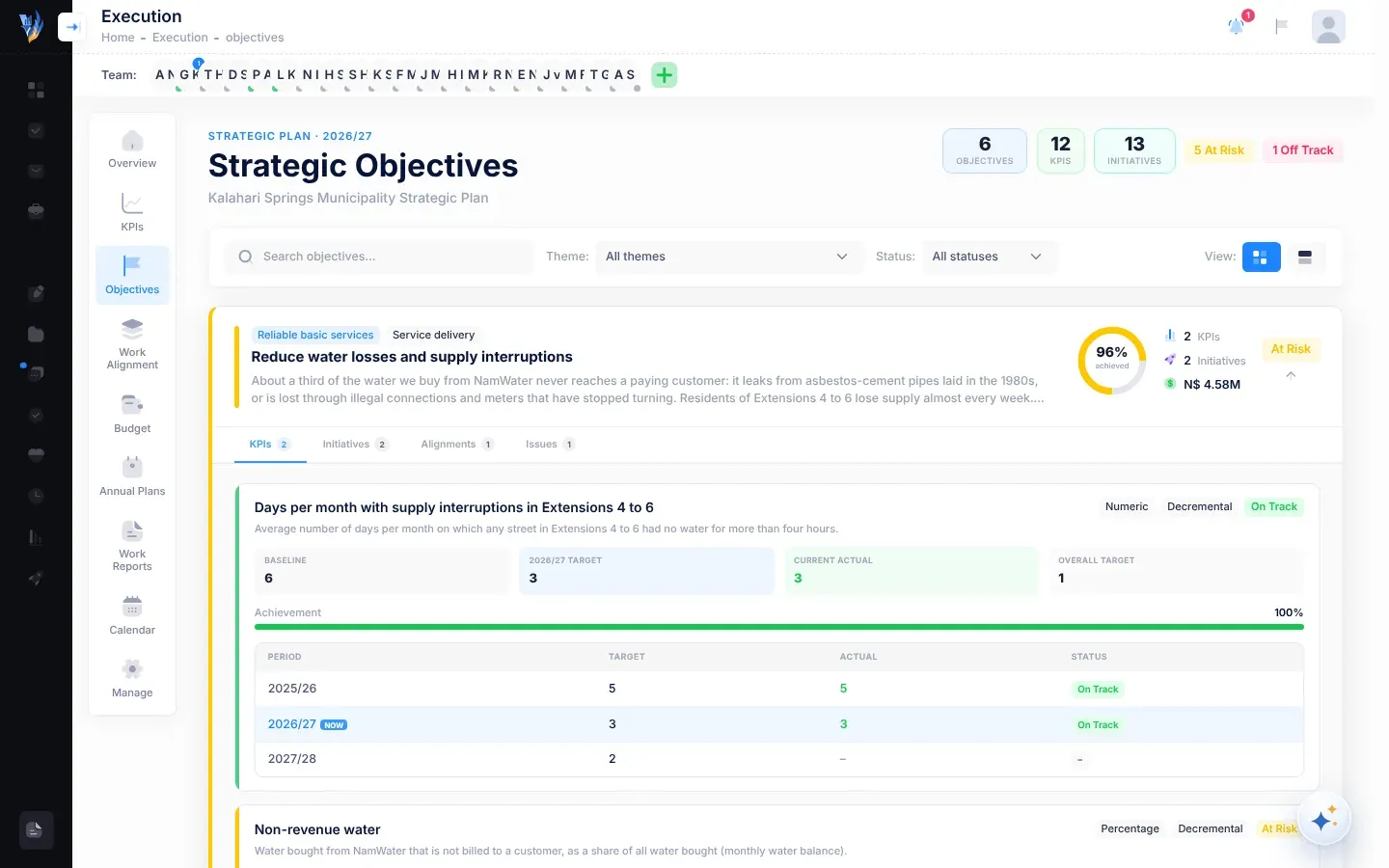
Section titled “The page at a glance”- At the top: the current plan year, the title Strategic Objectives and your plan’s name. On the right are the number of Objectives, KPIs and Initiatives, and badges counting the objectives that are On Track, At Risk and Off Track. A badge only appears when its count is more than 0.
- The filter bar: Search objectives…, the Theme and Status lists, and the View buttons.
- The objectives: one card per objective. The first one is open when the page loads.
Find an objective
Section titled “Find an objective”- Search objectives…: type part of an objective’s title or description.
- Theme: show the objectives of one theme, or All themes.
- Status: show only objectives that are On Track, At Risk, Off Track or No Data, or All statuses.
- View: Card view (the first button) shows a card per objective; List view (the second) shows a table.
If nothing matches, the page says “No objectives match your filters”. Clear the search or change the filters.
An objective’s card
Section titled “An objective’s card”Each card shows:
- the objective’s theme, and its perspective if the plan gives one;
- its title and description;
- a ring with its achievement this year, for example 82% achieved;
- how many KPIs and Initiatives it has, and this year’s budget for its initiatives, if any;
- its status badge: On Track, At Risk, Off Track or No Data. The coloured edge of the card matches it.
Select the card to open it, and select it again to close it.
What achievement means
Section titled “What achievement means”An objective’s achievement is the average of its KPIs’ achievement this year. Only KPIs with both a target and a result for this year count. An objective with no such KPIs, or whose average comes to 0%, shows No Data. See How progress and status are worked out.
Inside an objective
Section titled “Inside an objective”An open card has tabs. KPIs and Initiatives are always there. Alignments, Risks and Issues appear only when the objective has some. Each tab shows how many items it holds.
For each KPI:
- its name and definition;
- badges for its unit and direction (see the table below) and its status this year;
- four figures: Baseline, this year’s target (for example 2026/27 Target), Current Actual and Overall Target (the target for the whole plan);
- an Achievement bar, once there is a result;
- a table of every year with its Period, Target, Actual and Status. The current year is marked NOW.
The unit and direction badges use these words:
| Badge | Meaning |
|---|---|
| Percentage, Currency, Numeric, Boolean, Text | The KPI’s unit: a percentage, an amount in N$, a number, yes or no, or words. |
| Incremental | Higher is better. |
| Decremental | Lower is better. |
| Absolute | The value should stay at the target. |
Initiatives
Section titled “Initiatives”For each initiative: its name, description and responsible unit, its funding status this year (for example Fully Funded or Unfunded), and its department. If it has a budget this year, you also see its Budget, Secured amount, Gap, funding Source, and a Funding secured bar. If it has tasks, Tasks completed shows how many are done, for example 3 / 8.
The funding status is one of Fully Funded, Partially Funded, Unfunded, Seeking Grant, Awaiting Ministry or Unspecified. An initiative is an unfunded mandate when part of this year’s budget isn’t secured and its status is Unfunded, Seeking Grant or Awaiting Ministry. Its card has a red border.
Alignments
Section titled “Alignments”The goals of national or global frameworks that the objective contributes to, for example SDGs, with each goal’s code and title, the reason given in the plan, and its contribution as a percentage when the plan gives one.
Risks linked to the objective, each shown as Risk ID: followed by a long reference code. Select View in Register to open the risk register.
Issues
Section titled “Issues”The strategic issues the objective sets out to address, with their description and, under Consequences:, what happens if they aren’t addressed.
The list view
Section titled “The list view”Select List view to see the objectives as a table with the columns Objective, Theme, KPIs, Initiatives, Achievement and Status. Select the arrow in the Detail column to go back to the cards with that objective’s card open.
The weekly “objectives at risk” alert
Section titled “The weekly “objectives at risk” alert”Every Monday morning, VirgilTrack checks each objective of the approved plan. If any objective has a KPI whose latest review is Off Track, or has at least 3 overdue tasks making up at least 30% of its open tasks, the CEO gets a “Strategic objectives at risk” notification listing them. See Notifications.