

Users
Users lists everyone on VirgilTrack, in every organisation. Use it to find someone quickly, to lock an account when there’s a security concern, and to tidy up accounts made by mistake.
Leadership changes and people leaving are handled on the organisation’s page instead, so that work is handed over properly. See Organisations.
The users page
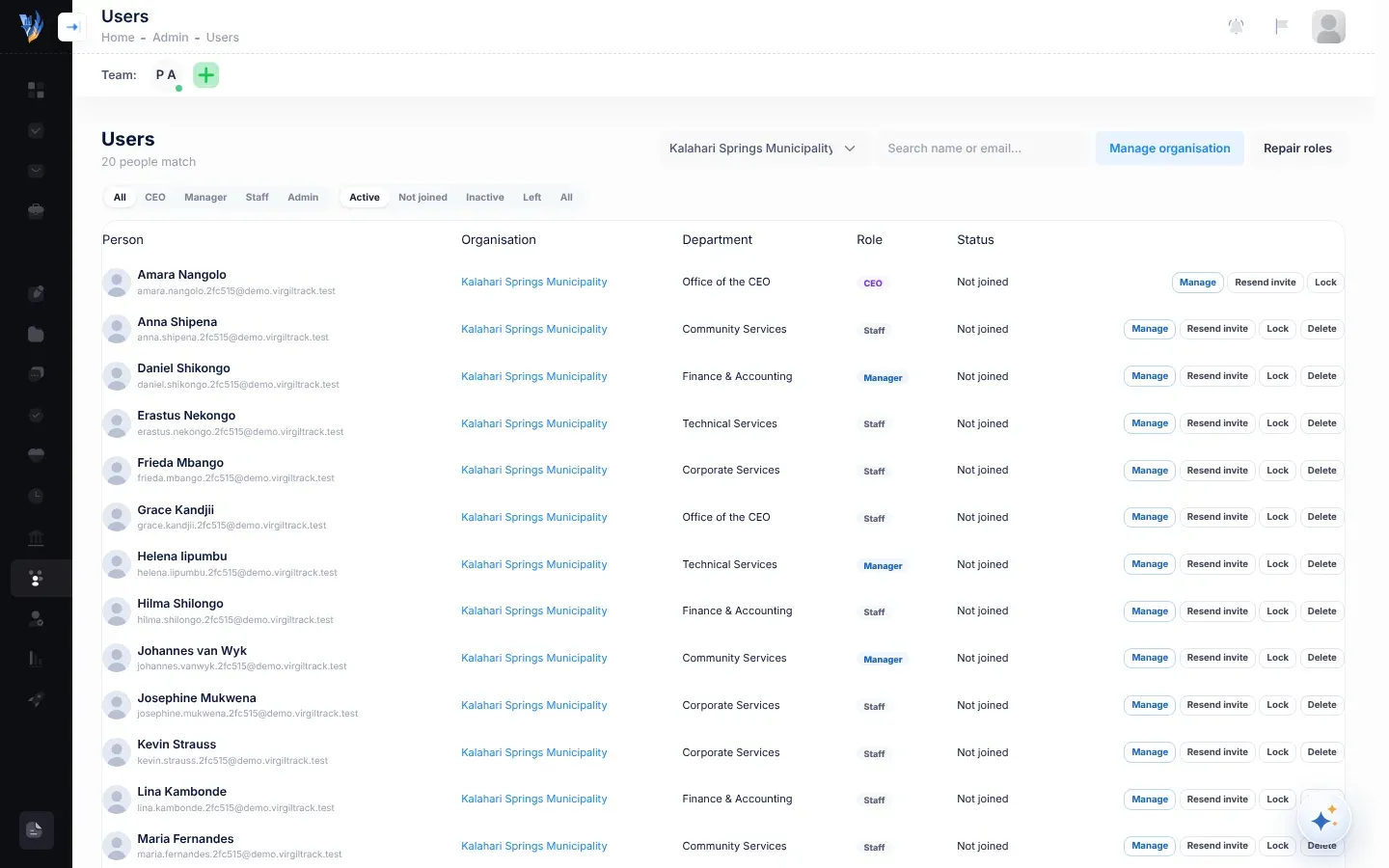
Section titled “The users page”Open Users from the menu on the left. The page shows how many people match your filters (“… people match”), 25 at a time. Use Previous and Next at the bottom to move between pages.
Finding someone
Section titled “Finding someone”- Choose an organisation in the list that starts with All organisations.
- Type in Search name or email…. The list updates as you type.
- Choose a role: All, CEO, Manager, Staff or Admin (platform administrators).
- Choose a status: Active (chosen to start with), Not joined, Inactive, Left or All.
| Status filter | Who it shows |
|---|---|
| Active | Everyone whose account is open, including people who haven’t joined yet. |
| Not joined | People with an account who haven’t set a password yet. |
| Inactive | Accounts that were closed but still belong to an organisation, such as the people in a demo that has ended. |
| Left | People who have left their organisation. |
| All | Everyone. |
Columns
Section titled “Columns”| Column | What it shows |
|---|---|
| Person | Their picture, name and email. |
| Organisation | Their organisation. Select it to open the organisation’s page. “Left …” means they left that organisation. |
| Department | Their department. |
| Role | Admin, CEO, Manager or Staff. |
| Status | Active, Not joined or Inactive (the account is closed, including people who have left). “· locked out” is added when the account is locked: by you, or because the person left their organisation. |
Buttons on each row
Section titled “Buttons on each row”| Button | What it does |
|---|---|
| Manage | Opens the support panel for that person. See Help someone with their account. |
| Password link or Resend invite | Both email them “Set your VirgilTrack password”, with a link to set a password. Resend invite is shown for people who haven’t set a password yet. |
| Lock | Stops them signing in straight away. See below. Not shown for system administrators or closed accounts. |
| Unlock | Shown instead of Lock when the account is locked out. Removes the lock. |
| Delete | Deletes an account that has never been used. See below. Not shown for CEOs or system administrators. |
Lock an account
Section titled “Lock an account”Lock an account when you need to stop someone signing in at once, for example if their password may be known to someone else. They stay a member of their organisation and keep all their work.
- Open Users and find the person.
- Select Lock.
- Your browser asks “Lock …’s account? They’ll be signed out and can’t sign in until unlocked.” Select OK.
“… is locked.” confirms it, and their status shows “· locked out”. VirgilTrack also ends their current sign-ins, though this can take a little while on a device they’re using. If they try to sign in, they see “Your account was locked out. Please contact the administrator.”; the lock stays until you remove it.
To remove the lock, select Unlock. “… can sign in again.” confirms it. Clear the lockout, in the person’s Manage panel, removes your lock too.
Delete an account
Section titled “Delete an account”Only delete an account that was made by mistake and never used. VirgilTrack refuses to delete an account with any work history: a submitted weekly report, a task given to them or created by them, or someone reporting to them.
- Open Users and find the person.
- Select Delete.
- Your browser asks “Delete …’s account permanently? This can’t be undone.” Select OK.
“… was deleted.” confirms it.
If the account has work history, you see “… has work history, so the account can’t be deleted. Use ‘Leaving…’ on their organisation’s page: it deactivates them and hands over their work.” See When people join or leave.
Repair an organisation’s roles
Section titled “Repair an organisation’s roles”If people’s roles or weekly reports look wrong in an organisation, for example someone who manages a department doesn’t have the Manager role, VirgilTrack can work them out again.
-
Open Users.
-
Choose the organisation in the organisation list.
Manage organisation and Repair roles appear.
-
Select Repair roles.
“Roles and the report chain were repaired for this organisation.” confirms it. VirgilTrack makes sure the organisation has exactly one CEO. Anyone else who manages a department, or has people reporting to them, gets the Manager role; the rest get the Employee role. It then rebuilds the chain that this week’s work reports follow up to the CEO.
Roles are only worked out again for approved organisations.
If something goes wrong
Section titled “If something goes wrong”| What you see | Why, and what to do |
|---|---|
| “The account is still referenced elsewhere, so it wasn’t deleted. Lock it instead.” | VirgilTrack found other records linked to the account. Lock it instead, or use Leaving… if the person has left. |
| “Repair failed: …” | Something stopped the repair. Read the reason and try again. If it keeps happening, report it to the VirgilTrack developers. |
| Someone you’re looking for isn’t listed | Check the status filter: it starts on Active. Choose All. With an organisation chosen, people who have left it only show under Left. People who were invited but haven’t set up their account yet aren’t users yet. Look on their organisation’s sign-up page. See Review sign-ups. |
| A locked person still can’t sign in after you select Unlock | Check their other details in Manage, on the Sign-in tab: their email may not be confirmed, or they may have left their organisation. See Help someone with their account. |