

Your profile and sign-in details
Your profile is how colleagues see you across VirgilTrack: your photo and name appear on tasks, reports, chat and your work record. This page also shows how to keep your sign-in details up to date and set your time zone.
Open your settings
Section titled “Open your settings”- Select your picture in the top-right corner of the screen.
- Select Settings.
Settings opens at Profile. The list on the left has these sections:
| Section | What it holds |
|---|---|
| Profile | Your photo, name, office number and privacy, and what your organisation has recorded about you. |
| Sign-in & security | Your sign-in email, password and mobile number, and where you’re signed in. |
| Notifications | What reaches you, and how: email, texts or calls. |
| Mailboxes | Connecting your mailbox, so the work in your email becomes trackable. |
| Preferences | Your time zone, for quiet hours and Virgil Copilot’s clock. |
| Organisation | Tools for running your organisation. CEO and administrators only. |
| Roles & hierarchy | Who reports to whom, and each person’s role. CEO and administrators only. |
| Your account | Your work record, and asking to close your account. |
This page covers Profile, Sign-in & security and Preferences. For the other sections, see Settings.
Your profile
Section titled “Your profile”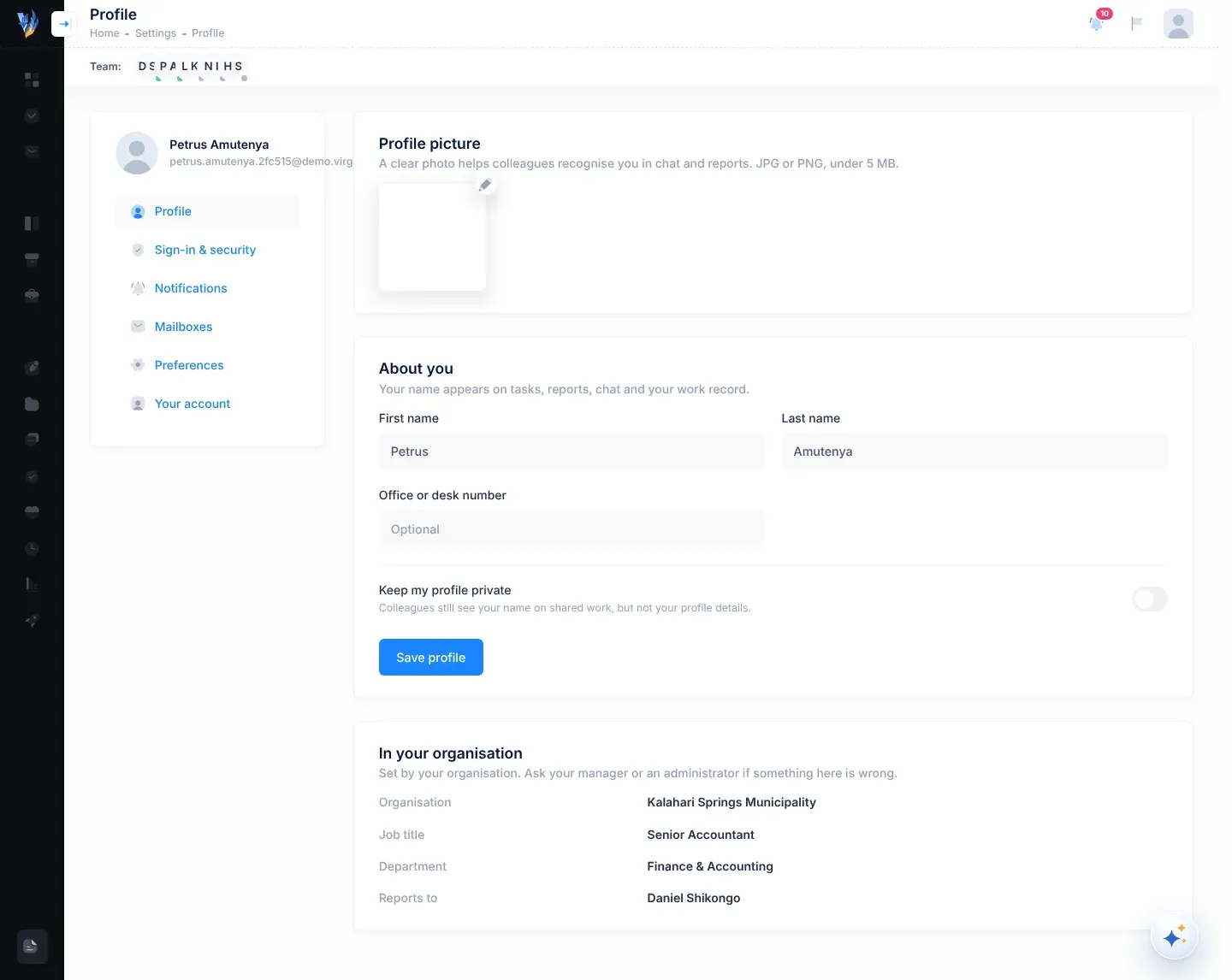
Change your profile picture
Section titled “Change your profile picture”- Under Profile picture, select the pencil button (Upload avatar).
- Choose a JPG or PNG picture under 5 MB.
- Drag and zoom the picture until it fills the blue crop box, then select Crop.
VirgilTrack saves the picture straight away and shows “Profile picture updated.”
Change your name or office number
Section titled “Change your name or office number”- Under About you, change First name, Last name or Office or desk number. The office number is optional.
- Select Save profile.
When “Profile saved.” appears, your changes are saved, and VirgilTrack uses your new name from then on.
Keep your profile private
Section titled “Keep your profile private”Switch on Keep my profile private and select Save profile. Colleagues still see your name on shared work, but not your profile details.
In your organisation
Section titled “In your organisation”In your organisation shows your Organisation, Job title, Department and who you Reports to (“Nobody” if no one). Your organisation sets these, so you can’t change them here. If something is wrong, ask your manager or an administrator.
Sign-in and security
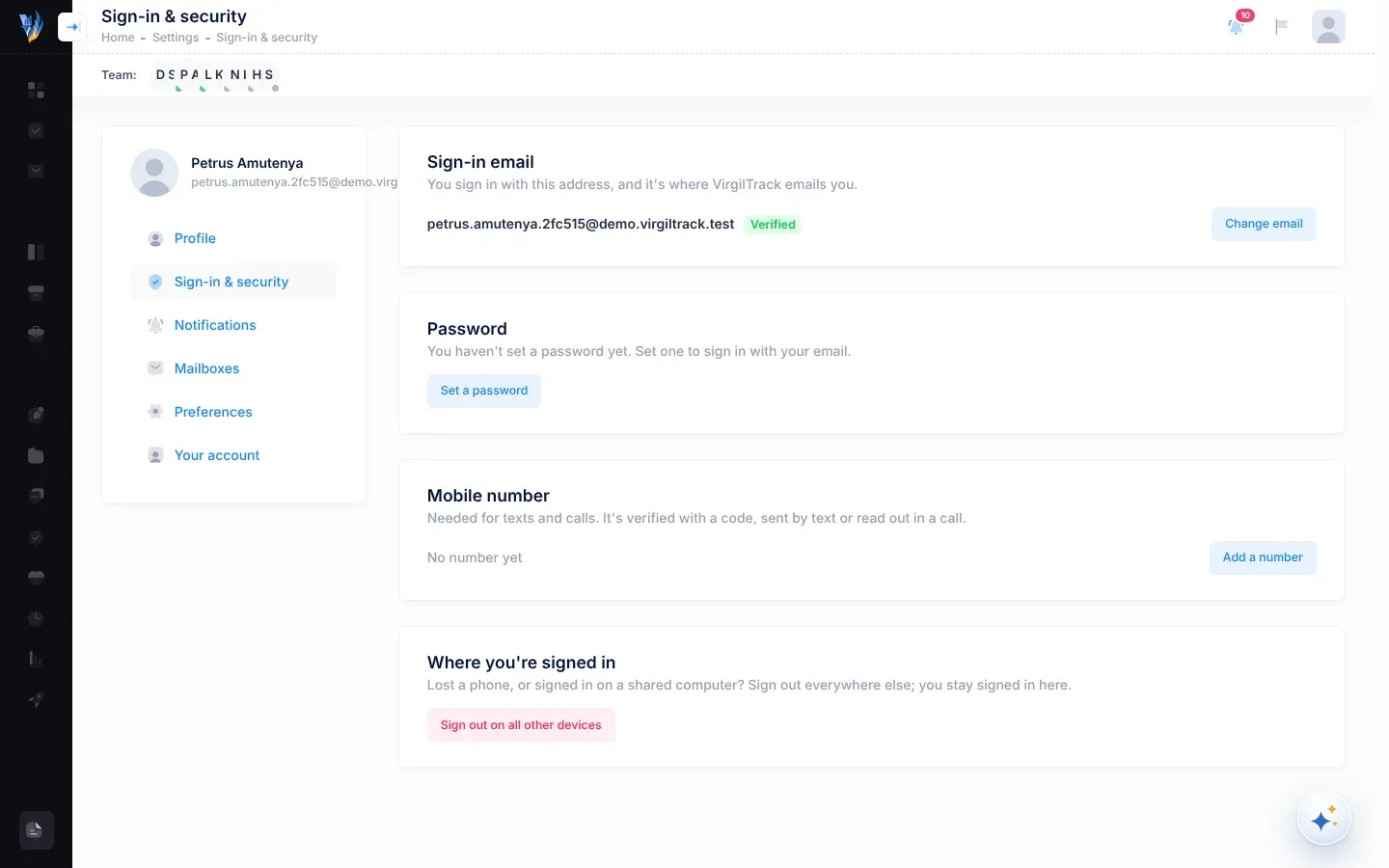
Section titled “Sign-in and security”Open Sign-in & security from the list on the left.
Change your password
Section titled “Change your password”-
Under Password, select Change password.
-
Type your Current password.
-
Type your new password in New password and again in Repeat it.
Use at least 8 characters, with a capital letter, a number and a symbol. The button stays greyed out until the new password is long enough and both boxes match.
-
Select Change password.
VirgilTrack changes your password and reloads the page. You stay signed in on this device, and your other devices are signed out. VirgilTrack also emails you a security notice called “Your VirgilTrack password was changed”.
If you have never set a password, the button says Set a password instead, and you don’t need a current password.
Forgotten your current password? Select Forgot it? Email me a reset link. VirgilTrack emails you a link and tells you where it went. See Reset a forgotten password.
Change your sign-in email
Section titled “Change your sign-in email”The email address you sign in with is also where VirgilTrack emails you. A badge next to it says Verified or Not verified.
-
Under Sign-in email, select Change email.
-
Type your new address in New email address and select Send code.
VirgilTrack emails a 6-digit code to the new address.
-
Type the code in 6-digit code from that inbox and select Confirm.
VirgilTrack changes your sign-in email and reloads the page, with the new address shown under Sign-in email. Use it to sign in from now on. VirgilTrack sends a security notice to your old address.
If the code doesn’t arrive, select Send again. To stop, select Cancel.
Add or verify your mobile number
Section titled “Add or verify your mobile number”VirgilTrack needs your mobile number to send you texts and calls, such as reminders. You confirm the number with a code.
- Under Mobile number, select Add a number. If you already have a number, the button says Verify or Change.
- Type your number in international format, for example “+264 81 234 5678”.
- Select Text me a code, or Call me with a code to hear the code in a phone call.
- Type the code in The code you received.
- Leave Allow VirgilTrack to text and call me (choose what under Notifications) ticked if you want texts and calls. You choose which ones under Notifications.
- Select Verify.
When your number shows Verified, you’re done. If a text doesn’t arrive, select Call me instead. To take your number off, select Remove: texts and calls then stop.
Sign out on all other devices
Section titled “Sign out on all other devices”Lost a phone, or signed in on a shared computer? Under Where you’re signed in, select Sign out on all other devices. You stay signed in on the device you’re using.
Set your time zone
Section titled “Set your time zone”Your time zone decides two things:
- Quiet hours. VirgilTrack doesn’t send you notification texts or calls between 20:00 and 07:00 in your time zone. See Quiet hours.
- Virgil Copilot’s clock. When you ask Virgil, or the quick bar, to remind you “at 15:00” or “tomorrow”, it uses your time zone.
The page says “Reminders fire, quiet hours apply and Copilot tells the time by this zone.” In this version, though, VirgilTrack’s regular reminders don’t follow your time zone. Emails such as Due tomorrow (07:30), Overdue (08:00), report reminders and event reminders go out by VirgilTrack’s own clock, whatever your time zone. See Reminders.
-
Open Preferences from the list on the left.
-
Type a place in the search box, for example “Windhoek”, or select Use this device’s time zone.
-
Select your time zone in the list.
Your time with this zone shows the day and time it gives you, so you can check it.
-
Select Save time zone.
The button stays greyed out until you choose a time zone other than the one selected when the page opened.
When “Time zone saved. Reminders, quiet hours and Copilot now use it.” appears, you’re done. (“Reminders” here means the ones you ask Virgil Copilot for.)
You may see “Your previous time zone setting wasn’t a real time zone, so VirgilTrack was using Windhoek time. Choose yours and save.” This often appears after you first set up your account. VirgilTrack uses Windhoek time until you save another time zone, so if you’re in Namibia you don’t need to change anything. If you’re somewhere else, choose your time zone and select Save time zone.
If something goes wrong
Section titled “If something goes wrong”| What you see | What to do |
|---|---|
| “Use a picture under 5 MB.” | Choose a smaller picture. |
| “The picture couldn’t be uploaded. Try again in a moment.” or “That file couldn’t be read.” | Try again, or try another JPG or PNG picture. |
| “Your first and last name are required.” | Fill in both First name and Last name. |
| “Your current password isn’t right.” | Type your current password again, or select Forgot it? Email me a reset link. |
| “That isn’t a valid email address.” | Type the whole new address. |
| “That’s already your email address.” | You’re already using that address. Nothing needs to change. |
| “Another account already uses that email.” | Choose a different address, or ask your administrator. |
| “That code is wrong or has expired. Send a new one.” | Select Send again and use the newest code. |
| “The code couldn’t be emailed. Check the address and try again.” | Check the new address for mistakes. |
| “That doesn’t look like a phone number. Use international format, e.g. +264 81 234 5678.” | Start with + and the country code. |
| “That number is already verified on another account.” | Use a different number, or ask your administrator. |
| “Your device says …, which this server doesn’t list. Pick it from the list.” or “Couldn’t read your device’s time zone. Pick it from the list.” | Search for your time zone and select it in the list. |
| “That didn’t work. Try again in a moment.” | Wait a moment and try again. |
| “This is a demo, so sign-in details can’t be changed here.” | You’re in a demo. Sign-in details stay as they are. See Try VirgilTrack with a demo link. |