

Your first week as a manager
As a manager, you look after your department’s risks, hand out and follow up work, and pass your team’s weekly reports on. This checklist spreads your first steps over a week. Each item links to the page with the details.
Before you start
Section titled “Before you start”- You need an account with the Manager role. You have it if you manage a department or people report to you. See Roles and what each can do.
- Know which kind of manager you are. A department manager heads a whole department. A team manager leads the people who report to them, without heading a department. Team managers don’t see some Execution pages, such as Department Performance and Budget. See Find your way around Execution.
Day 1: Sign in and set up
Section titled “Day 1: Sign in and set up”-
Sign in with your email address and password. VirgilTrack opens your department’s Risk Register. See Sign in and sign out.
-
Open Your picture, then Settings. Check your photo and name on Profile, verify your mobile number in Sign-in & security, and check your time zone in Preferences. See Your profile and sign-in details.
-
In Notifications, in the same list, choose what reaches you by email, text or call. For example, Team report reminders (managers) is the Monday email about your team report. See Choose your notifications.
-
Learn the parts of the screen: the menu on the left, the bell in the header, the Team: bar and the Virgil Copilot button. See Find your way around.
-
Select Execution in the menu. A department manager starts on Department Performance, and a team manager on Initiatives. See Find your way around Execution.
If your organisation hasn’t brought in its strategic plan yet, Execution shows the page for uploading it instead. Leave that to your CEO.
Day 2: Get to know your team and department
Section titled “Day 2: Get to know your team and department”- Your department’s page. Open Departments and select View Department on your department’s card. 1 Overview lists what needs attention, and 2 People shows the department’s managers and everyone in it. See A department’s page.
- The people who report to you. Open Work Reports. Your team this week lists everyone who reports to you. See Review your team’s reports.
- Your team’s workload. Open Emotional Intelligence, then Your team to see, for each person who reports to you, their open and overdue tasks and missed weekly reports. See Your team.
- Something wrong? Only the CEO and administrators can change who reports to you, who belongs to a department and who manages it. Only they can invite new people. If someone is missing or in the wrong place, ask your CEO. See Reporting lines and roles and Invite team members.
Day 3: Go through your risk register
Section titled “Day 3: Go through your risk register”A risk is something that could go wrong for your department. Each one has a score, people responsible for it, review dates and controls: the actions that reduce it.
- Open Risk Register. The Active group shows the risks still being worked on. A Next review date in red, marked overdue, means a review date has passed. See The risk register.
- Open Risk Repository and copy the suggestions that apply to your department. Risks from your organisation’s strategic plan arrive here. See The risk repository.
- Assess each risk you copied. You find them in the Not assessed group of the register. Only you can assess them, because you are their owner. See Assess a risk.
- Record any other risks with Add risk. See Add a risk.
- Open each risk and select Add control to plan who will do what, and by when. See Add a control to a risk.
From then on:
- Each risk’s responsible people are reminded before its reviews. See Review a risk and Risk reviews and reminders.
- As a manager, you can mark any control as implemented, and reopen it. See Mark a control as implemented.
- When every control of a risk is done, mark the risk as mitigated. See Mark a risk as mitigated or archive it.
- The Kanban Board shows the same risks as cards, by status. See The Kanban board.
Day 4: Hand out and follow up work
Section titled “Day 4: Hand out and follow up work”- Open Execution, then Initiatives to see your department’s initiatives, month by month. See The Initiatives page.
- To give someone a task, point at a month’s box on an initiative’s row and select Add task.
- Fill in Task, choose the person in Assigned to, and check the Due date and Priority. Then select the button that names the person, for example Delegate to Petrus. See Delegate a task.
- Follow the work in Tasks. I delegated lists the tasks you gave out. Department managers also have My team: the tasks on their departments’ initiatives, person by person. See Your tasks.
- When someone starts, is blocked, asks for more time or finishes, you are told. Answer them, change the due date or verify the work from the task’s page. See Follow up work you delegated.
Every Monday morning, if work you delegated is overdue or was finished in the past week, VirgilTrack emails you a summary of it.
If you are a department manager, also open Execution, then Budget to check your initiatives’ budgets, and record spending as it happens. See The Budget page and Record spending on an initiative.
Day 5: Your team’s weekly reports
Section titled “Day 5: Your team’s weekly reports”The people who report to you send you their weekly reports. You pick the points that matter, and VirgilTrack builds your own report from them. Staff are reminded on Friday afternoon if their report isn’t in.
-
Open Work Reports.
-
Under Your team this week, check who has submitted. Select Remind beside anyone you are still waiting for.
-
Under Team submissions, select each person and tick the points that belong in your report.
Let Virgil pick ticks the points that matter at your level, with a reason for each. Read its picks before you go on.
-
Select Open editor. VirgilTrack writes your draft from the points you ticked.
-
Check and change the draft in the Report Editor, then select Submit Report.
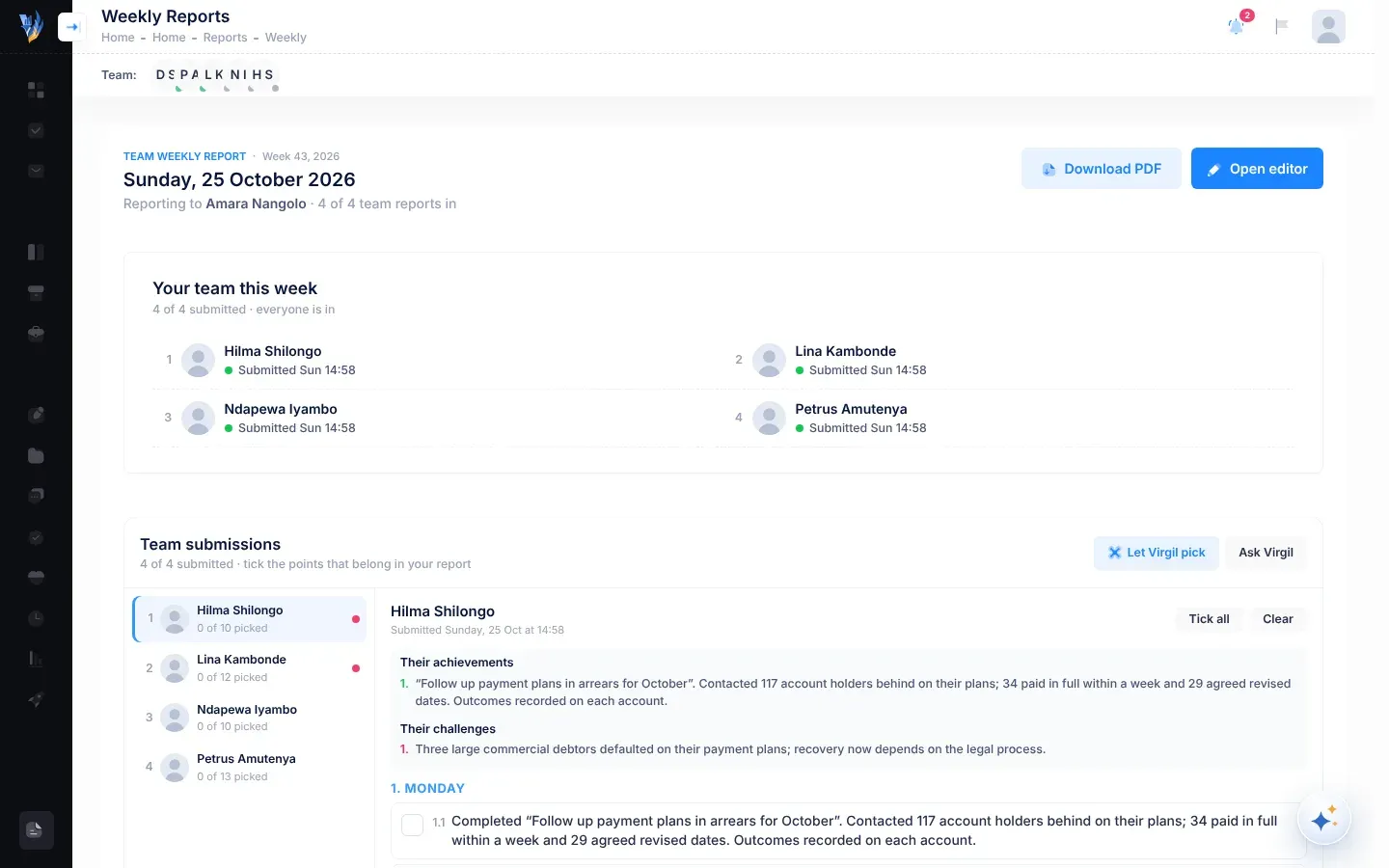
Your report goes to the person you report to, usually the CEO. The page always shows the current week, Monday to Sunday, so submit your report before the week ends. See Review your team’s reports and Submit your team report.
Every day: your dashboard and notifications
Section titled “Every day: your dashboard and notifications”- Your dashboard. Select Dashboard to open the Manager Dashboard: your department’s risk figures, your department’s risk reviews and control reviews by day of the week in What’s up Today, and your department’s risk heat map. See The Manager Dashboard.
- Notifications. The bell in the header shows what’s new, such as tasks, controls, risks, mentions and reminders. A red number shows how many you haven’t read. See Notifications.
- Tasks that need you. A red number beside Tasks in the menu counts your overdue tasks and the tasks with messages you haven’t read. See The numbers in the menu.
- Virgil Copilot. Select the round Virgil Copilot button, or press Ctrl + K, and ask in your own words, for example “What’s overdue?”. When you ask Virgil to change something, it prepares the change for you to confirm first. See Ask Virgil Copilot.