

Keyboard shortcuts
These keys help you work faster in VirgilTrack. On a Mac, press Cmd wherever this page says Ctrl.
Anywhere in VirgilTrack
Section titled “Anywhere in VirgilTrack”| Keys | What they do |
|---|---|
| Ctrl + K | Opens Virgil Copilot, the AI assistant. Press again to close it. |
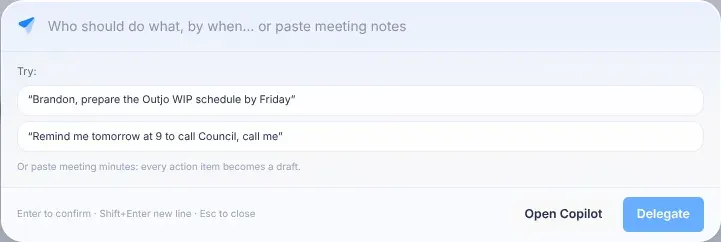
| Ctrl + J | Opens the quick bar, to delegate work or set a reminder in one sentence. |
| Esc | While Virgil Copilot is working on an answer, stops it. Otherwise, closes the Copilot panel. |
Point at the round Virgil Copilot button in the bottom-right corner to see “Virgil Copilot (Ctrl+K)”.
In Virgil Copilot
Section titled “In Virgil Copilot”| Keys | What they do |
|---|---|
| Enter | Sends your message. |
| Shift + Enter | Starts a new line in your message. |
| Esc | Stops Virgil while it works, or closes the panel. |
| Enter or Esc while renaming a conversation | Enter saves the new name. Esc keeps the old one. |
| Esc while Virgil shows you where something is | Stops the guide. |
See AI assistant.
In the quick bar
Section titled “In the quick bar”| Keys | What they do |
|---|---|
| Ctrl + J | Opens the quick bar. |
| Enter | Confirms: Delegate for a task (Delegate 3 when there are three), or Set reminder for a reminder. |
| Shift + Enter | Starts a new line, for example when you paste meeting notes. |
| Esc | Closes the quick bar. |
The bottom of the quick bar reminds you: “Enter to confirm · Shift+Enter new line · Esc to close”.
You can also start from text on any page: select at least three characters of text (not inside a box you type in), and a small bar appears with Delegate, Remind me and Ask Virgil.
Sending messages and comments
Section titled “Sending messages and comments”Different message boxes send in different ways, so you don’t send a long message by accident.
| Where | Send | New line |
|---|---|---|
| Private Chat | Enter | Shift + Enter |
| A reply in a chat pop-up (“Reply…”) | Enter | |
| A task’s conversation, on the task’s page | Ctrl + Enter | Enter |
| The Discussion of an event or strategy task opened from the calendar (“Write a comment… use @ to bring someone in”) | Ctrl + Enter | Enter |
| A message about news from another department (“Message … about this…”) | Enter | |
| A practice conversation in Emotional Intelligence | Enter | Shift + Enter |
| Asking Virgil to change the CEO’s monthly report | Enter | Shift + Enter |
Mentioning someone
Section titled “Mentioning someone”In the Discussion of an event or strategy task opened from the calendar, type @ and the start of a name. A list of people appears. (On a task’s own page, typing @ also shows a list of people: select a name in it. The keys below don’t work there.)
| Keys | What they do |
|---|---|
| ↓ and ↑ | Move through the list. |
| Enter or Tab | Picks the highlighted person. |
| Esc | Closes the list. |
On a task’s page
Section titled “On a task’s page”| Keys | What they do |
|---|---|
| Enter in “Add a step, then press Enter” | Adds the step to the task’s checklist. |
| Ctrl + Enter in the message box | Sends your message. |
See Tasks.
In the monthly report editor
Section titled “In the monthly report editor”The CEO writes the monthly report in an editor, with a toolbar above the report. Point at a toolbar button to see its keys, for example “Bold (Ctrl+B)”.
| Keys | What they do |
|---|---|
| Ctrl + B | Bold. |
| Ctrl + I | Italic. |
| Ctrl + U | Underline. |
| Ctrl + Z | Undoes your last change. |
| Ctrl + Y | Redoes it. |
Reviewing your team’s reports
Section titled “Reviewing your team’s reports”Managers can pick points from their team’s weekly reports with single keys. First select the list of points, or move to it with Tab. Then:
| Key | What it does |
|---|---|
| J | Moves to the next point. |
| K | Moves to the previous point. |
| X | Ticks or unticks the point. |
| A | Ticks all of this person’s points, or unticks them if they are all ticked. |
| ] | Moves to the next person who submitted. After the last one, it goes back to the first. |
| [ | Moves to the previous person who submitted. |
See Review your team’s reports.
With the mouse
Section titled “With the mouse”| Action | What it does |
|---|---|
| Shift + click a column heading in the risk register | Adds a second sort, after the first. A number on each heading shows the sort order. |
See The risk register.
In this manual
Section titled “In this manual”| Keys | What they do |
|---|---|
| / or Ctrl + K | Opens search. |
| Esc | Closes search. |
| Tab | Moves between links and buttons. The first press offers Skip to content. |
| Ctrl + P | Prints the page you are reading. |
| Ctrl and + | Makes the text bigger. Ctrl and - makes it smaller. |