

Set up your organisation, step by step
This page takes a new organisation from the sign-up form to its first weekly reports. Do the steps in order, because each one needs the one before it. Each step says who does it and links to the page with the details.
Before you start
Section titled “Before you start”- Agree who fills in the sign-up form. The CEO can do it, or someone the CEO asks.
- Gather the details the form asks for: the logo, the organisation’s details, the CEO’s details, each department with the name and email address of everyone in it, who manages each department, and the month your financial year starts. See Sign up your organisation.
- Have your strategic plan ready as a PDF. You need it in step 8.
The steps at a glance
Section titled “The steps at a glance”| Step | Who does it | Details |
|---|---|---|
| 1. Sign up your organisation | The CEO, or someone the CEO asks | Sign up your organisation |
| 2. Approve the sign-up | A VirgilTrack administrator | Review sign-ups |
| 3. Set up your account | Everyone invited, starting with the CEO | Accept an invitation |
| 4. Watch your departments appear | The CEO | Departments |
| 5. Check each department’s managers | The CEO or an administrator | Manage a department |
| 6. Invite anyone who is missing | The CEO or an administrator | Invite team members |
| 7. Check who reports to whom | The CEO or an administrator | Reporting lines and roles |
| 8. Bring in and approve your strategic plan | The CEO | Bring in your strategic plan and Review and approve an imported plan |
| 9. Set budgets and plan initiative tasks | Department managers and the CEO | Allocate an initiative’s budget and Plan an initiative’s tasks |
| 10. Fill the risk registers | Managers and their staff | The risk repository and Add a risk |
| 11. Start weekly reporting | Everyone | Work reports and records |
Step 1: Sign up your organisation
Section titled “Step 1: Sign up your organisation”Who can use this:CEO
Open the VirgilTrack Sign In page and, next to “Not a Member yet?”, select Sign up. The form asks for the organisation’s type and details, then its structure: the CEO, the month your financial year starts, and each department with its people.
In each department, mark the person who manages it as Dept. Manager. The form decides everyone’s first role:
- the person under CEO details becomes the CEO;
- each Dept. Manager becomes a Manager, and the manager of that department;
- everyone else becomes an Employee.
List every department now. VirgilTrack has no button for adding a department later.
The form isn’t saved part-way, so finish it in one sitting. See Sign up your organisation.
Step 2: Virgil Finance approves the sign-up
Section titled “Step 2: Virgil Finance approves the sign-up”Who can use this:Administrator
VirgilTrack’s administrators, the Virgil Finance staff who run the platform, check every new sign-up. Until one of them approves it, nobody from your organisation can sign in.
If you are the administrator:
- Open Sign Ups and select the organisation’s name.
- Check its details and the Team Members table. Every department should have someone marked Manager in Role.
- Select Approve, then Yes, I confirm!.
- Wait for the window that says how the invitations went. If some didn’t go out, select Retry Failed Deployments on the same page.
Approving the sign-up invites everyone on the form by email: the CEO first, then the managers, then everyone else. See Review sign-ups.
Step 3: Set up your account
Section titled “Step 3: Set up your account”Who can use this:Everyone
Everyone on the form receives an email called “Invitation to Virgiltrack”. Each person selects Setup Account, fills in their details, chooses a password, and confirms their email address with the 6-digit code VirgilTrack sends them. Then they can sign in.
As CEO, you are invited first. Set up your account as soon as the email arrives, so you are in place when your managers and staff join. When you sign in, VirgilTrack opens the CEO Dashboard.
Tell everyone on the form to look out for the email, and to check their spam or junk folder if it doesn’t arrive. See Accept an invitation and Sign in and sign out.
Step 4: Watch your departments appear
Section titled “Step 4: Watch your departments appear”Who can use this:CEOAdministrator
VirgilTrack creates each department when the first person invited to it sets up their account. Until then, the department isn’t on the Departments page, and nobody can choose it, for example when inviting someone or giving an initiative to a department.
- Open Departments to see the departments so far. Each card shows the department’s manager and the pictures of the people who have joined.
- The Team: bar under the header shows you everyone in the organisation who has joined.
- Your own department, Executive Suite, isn’t listed on the Departments page.
- A department with no risks recorded yet this year shows 0% and High Risk. That doesn’t mean something is wrong: there is nothing to measure yet.
See Departments and The Departments page.
Step 5: Check each department’s managers
Section titled “Step 5: Check each department’s managers”Who can use this:CEOAdministrator
Each person marked Dept. Manager on the form becomes their department’s manager when they set up their account. A department without a manager shows No manager: assign on its card.
To choose a department’s managers yourself:
- Open Departments and select View Department on the department’s card.
- Select 2 People.
- Under Managers, type part of a person’s name and select them. A department can have more than one manager.
- Select Save managers.
You can only choose people who have set up their account. See Manage a department.
Step 6: Invite anyone who is missing
Section titled “Step 6: Invite anyone who is missing”Who can use this:CEOAdministrator
If someone wasn’t on the sign-up form, or joins the organisation later, invite them yourself.
- In the Team: bar under the header, select the green plus button, Invite a team member.
- Fill in First name, Last name and Email Address.
- In Department, choose the department they will join. Only departments that already exist are listed.
- If they will manage that department, tick Tick if the person will be a manager in this department?
- Select Invite.
The person receives the same “Invitation to Virgiltrack” email and sets up their account from it. See Invite team members.
Step 7: Check who reports to whom
Section titled “Step 7: Check who reports to whom”Who can use this:CEOAdministrator
Weekly work reports travel up the reporting lines, so check them before reporting starts. As people join, VirgilTrack places each employee under their department’s manager, and each manager under you. An employee whose department has no manager in VirgilTrack yet is placed under you.
- Open Your picture, then Reporting hierarchy.
- Check that everyone sits under the person they report to.
- To change someone’s manager, drag their row onto their new manager’s row. Wait for “Hierarchy updated successfully!”.
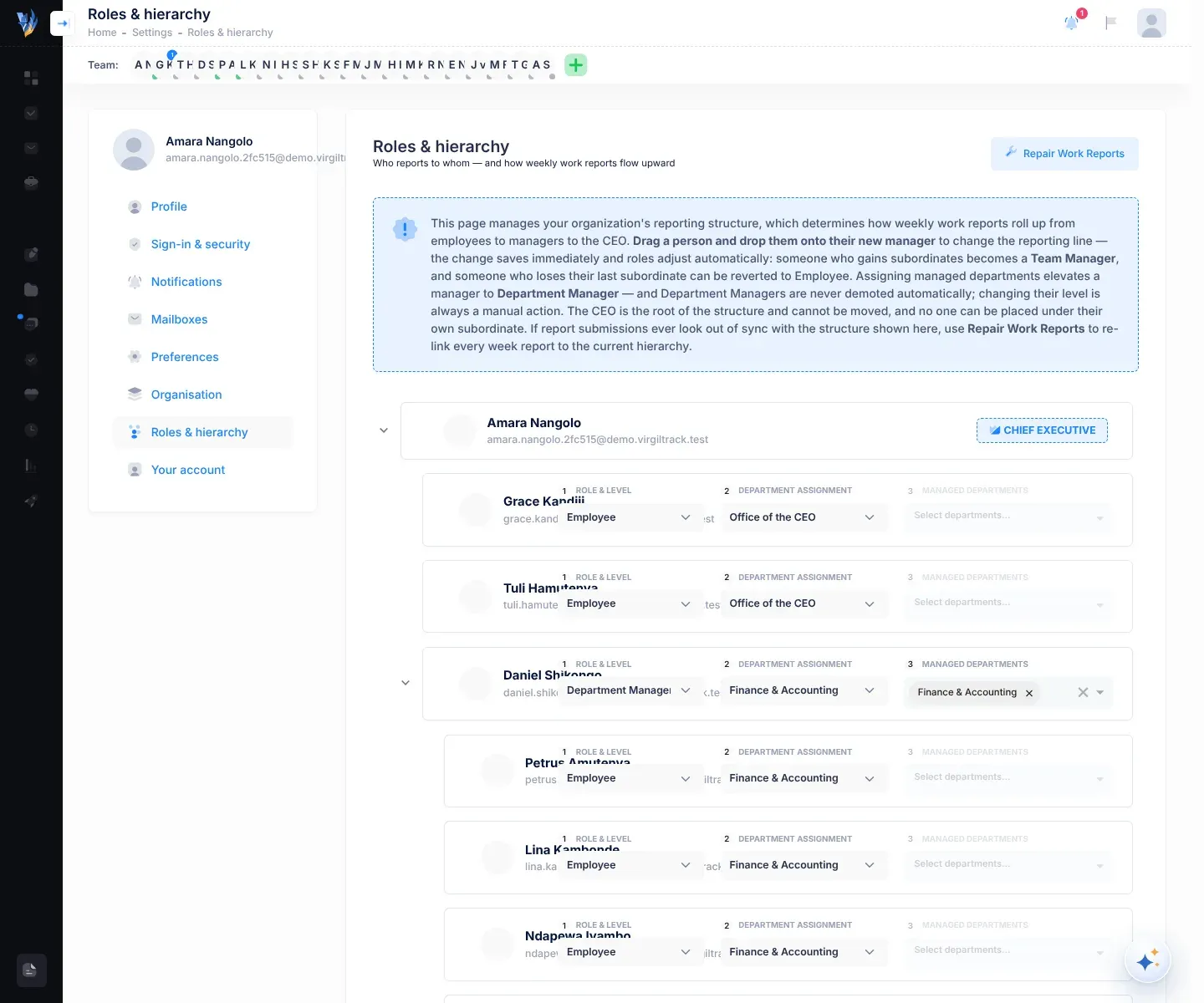
- To set up a team inside a department, drag its members onto the team leader. The team leader becomes a Team Manager.
- Choosing a department’s managers on its page doesn’t move anyone. Drag the department’s people onto their new manager here.
- Every change on this page saves straight away.
See Reporting lines and roles.
Step 8: Bring in and approve your strategic plan
Section titled “Step 8: Bring in and approve your strategic plan”Who can use this:CEO
Wait until every department named in your plan has appeared in VirgilTrack. Each initiative in the plan must be given to one of your departments before you can approve it, and you can only choose departments that exist.
-
Open Execution. While your organisation has no strategic plan, it shows the upload page.
-
Drag your PDF onto the box that says [ Drop Strategic Plan as PDF Here ], then select Begin Upload.
Reading the plan takes a few minutes. You can keep working elsewhere in VirgilTrack.
-
When the review opens, go through each section. Settle the points under points need your decision, and complete the items to complete.
-
When the top of the page says Ready to approve, select Approve the plan. In “Approve this strategic plan?”, select Approve the plan again.
Anyone who opens Execution while there is no plan sees the upload page, so agree beforehand who brings the plan in. See Bring in your strategic plan and Review and approve an imported plan.
Step 9: Set budgets and plan initiative tasks
Section titled “Step 9: Set budgets and plan initiative tasks”Who can use this:ManagerCEO
The plan’s budgets come in with it. Once it is approved:
- Budgets. On Execution, then Budget, you and your department managers check each initiative’s Allocated Budget for the year, and record its Secured Amount, Budget Type and Funding Source. See Allocate an initiative’s budget.
- Tasks. Managers break their department’s initiatives into tasks, month by month, on Execution, then Initiatives. As CEO, you add tasks from Execution, then Annual Plans. See Plan an initiative’s tasks.
- Extra pages. To give someone an Execution page their role doesn’t include, use Execution, then Manage. See Manage plans and page access.
Step 10: Fill the risk registers
Section titled “Step 10: Fill the risk registers”Who can use this:EmployeeManager
When the plan is approved, the risks it describes go to the Risk Repository as suggestions, marked Strategic AI Suggestion. You and the department managers get a notification about them.
Each department then builds its own Risk Register. Managers and their staff:
- Open Risk Repository, tick the suggestions that apply to their department and select Copy Selected.
- Assess each risk they copied, to give it a score, a deadline and reviews.
- Record any other risks with Add risk on the Risk Register.
- Add controls, the actions that reduce each risk, each with a responsible person and a deadline.
As CEO, you don’t have Risk Register, Kanban Board or Risk Repository in the menu on the left. You follow risks across the organisation on the CEO Dashboard and on each department’s page.
See The risk repository, Add a risk, Add a control to a risk and The CEO Dashboard.
Step 11: Start weekly reporting
Section titled “Step 11: Start weekly reporting”Who can use this:EmployeeManagerCEO
Everyone is added to the weekly work reports when they set up their account, so reporting can start in your first week. Each week:
- Staff write a few lines for each day, and submit their report to the person they report to.
- Managers tick the points that matter in their team’s reports, and submit their own report.
- You read the reports sent to you under Work Reports, and turn a month of them into a report to Council.
VirgilTrack reminds people while a report is still open: staff on Friday afternoon and Monday morning, and managers on Monday morning. See Work reports and records and Reminders about reports.
What happens next
Section titled “What happens next”- Follow the whole organisation on the CEO Dashboard: its figures, weekly report submissions and risks. See The CEO Dashboard.
- When someone new joins, invite them as in step 6. When someone leaves, see Your organisation’s settings.
- To change who is CEO, ask a VirgilTrack administrator. See Change the CEO or a department manager.
If something goes wrong
Section titled “If something goes wrong”| What you see | Why, and what to do |
|---|---|
| Nobody can sign in after the sign-up | The sign-up hasn’t been approved yet. Wait for VirgilTrack’s administrators, or contact Virgil Finance. |
| A department is missing from Departments, or you can’t choose it | Nobody invited to it has set up their account yet. Ask them to look for “Invitation to Virgiltrack”, including in their spam or junk folder. |
| A department’s card shows No manager: assign | Its manager hasn’t set up their account yet, or none was chosen. See step 5. |
| An employee’s report page says “Your reporting line isn’t set up yet” | Nobody is set as the person they report to. Place them under their manager in Roles & hierarchy. See step 7. |
| Your Work Reports page says “No one reports to you yet” | Nobody in the hierarchy reports to you. Check Roles & hierarchy. See step 7. |
| An initiative in the plan review “needs its responsible department” | The department named in the plan doesn’t match one of yours. Choose one under Responsible department. See Review and approve an imported plan. |