

Manage a department
As CEO or administrator, you keep each department’s leadership and membership up to date from the department’s own page. Do this when someone becomes a manager, joins a department or moves to another one.
Before you start
Section titled “Before you start”- You need to be the CEO or an administrator. Other people see the People section but can’t change it.
- The people must already have VirgilTrack accounts. To add someone new, invite them first. See Invite team members.
- Open the department: Departments, then View Department.
Choose the department’s managers
Section titled “Choose the department’s managers”A department can have one manager or several.
-
On the department’s page, select 2 People.
-
Under Managers, select the box of managers. When the department has none, it says “Choose this department’s managers”.
-
Type part of a person’s name and select them. Repeat for each manager.
You can choose anyone in your organisation except the CEO, including people from other departments.
To remove a manager, remove their name from the box.
-
Select Save managers.
The button only works when you have changed something.
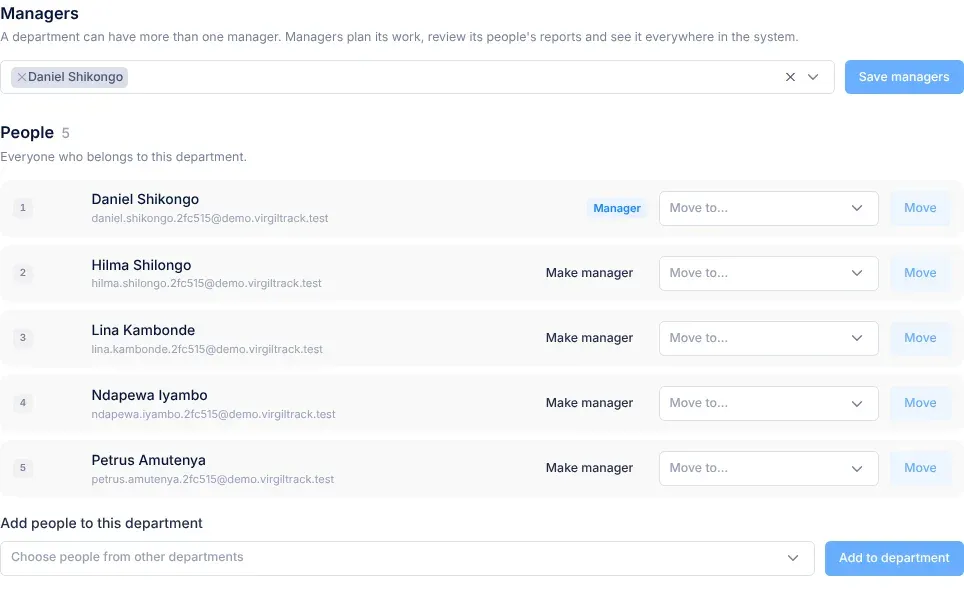
To make someone who is already in the department a manager, you can also select Make manager next to their name in the People list. It saves straight away.
What happens next
Section titled “What happens next”- VirgilTrack shows “Managers saved: …”, or “This department now has no manager.” if you removed everyone.
- Each new manager gets the Manager role, if they didn’t have it already.
- A new manager who didn’t belong to any department now belongs to this one. Managers who belong to another department stay there: they manage this department from their own.
- In Settings, then Roles & hierarchy, each manager now shows as a Department Manager, with this department under Managed Departments.
- Removing someone as a manager doesn’t change their role straight away. If nobody reports to them and they manage no other department, VirgilTrack makes them an Employee the next time Roles & hierarchy is opened. See Reporting lines and roles.
Add people to the department
Section titled “Add people to the department”- On the department’s page, select 2 People.
- Under Add people to this department, select the box that says “Choose people from other departments”.
- Type part of a person’s name and select them. You can choose several people.
- Select Add to department.
VirgilTrack shows, for example, “2 people added to Technical Services.” The people now belong to this department and leave their old one. The CEO isn’t in the list and can’t be added to a department here.
Move someone to another department
Section titled “Move someone to another department”-
On the department’s page, select 2 People.
-
In the People list, find the person. In the Move to… list next to their name, choose the department they are moving to.
-
Select Move.
-
In Move …?, read the message, for example “… will belong to Technical Services from now on.”, and select Move. To stop, select Cancel.
If the person is one of this department’s managers, the message adds: “They stay a manager of this department until you change its managers.”
VirgilTrack shows “… now belongs to …”. To stop a moved manager managing this department, remove them under Managers and select Save managers.
Rename a department or change its description
Section titled “Rename a department or change its description”- On the department’s page, select 5 Settings.
- Change Name, Description or both.
- Select Save details.
VirgilTrack shows “Details saved.” The new name appears everywhere the department is shown.
- Moving or adding people changes the department they belong to, not who they report to. Check their reporting line in Settings, then Roles & hierarchy.
- The description appears under the department’s name at the top of its page. Use it to say what the department does, in a sentence or two.
- You can also change a person’s department, role and managed departments in one place, in Settings, then Roles & hierarchy.
If something goes wrong
Section titled “If something goes wrong”| What you see | Why, and what to do |
|---|---|
| “A department needs a name.” | Name is empty. Type a name and select Save details again. |
| “That name is reserved.” | “Executive Suite” is the name of the CEO’s own department. Choose another name. |
| “Another department already has that name.” | Two departments can’t share a name. Choose a different one. |
| “Nothing was changed. The system said: …” | The change couldn’t be saved, and nothing was half-saved. Try again. If it keeps happening, note the message and contact your administrator. |
| You can’t find a person in the boxes | They may not have accepted their invitation yet, so they have no account. See Invite team members. |
| There is no Settings section, and no Save managers, Make manager or Move buttons | Only the CEO and administrators can manage departments. |