

When people join or leave
People join and leave organisations all the time. From the organisation’s People tab you can invite someone new, record that someone is leaving, and let a former member come back. Their work and history are never lost.
To change who is CEO or a department manager, see Change the CEO or a department manager instead.
Invite someone
Section titled “Invite someone”-
Open Organizations and select the organisation.
-
Select the People tab, then Invite someone.
The Invite someone panel opens.
-
Under Who are you inviting?, type their first name, last name and email.
-
In Department, choose the department they’ll join.
-
Select Send invitation.
Send invitation stays greyed out until you’ve typed a first name, a last name and an email address.
What happens next
Section titled “What happens next”- They receive the usual invitation email, “Invitation to Virgiltrack”, with a Setup Account button. They choose a password and a photo, and confirm their email. See Accept an invitation.
- They join as staff (the Employee role). To make them a manager later, see Change the CEO or a department manager.
- A message confirms it: “Invitation sent to [their email]. They’ll set up their account from the email.” The History tab records it, labelled Invited.
- The invitation is added to the Team Members table on the organisation’s sign-up page, where you can see whether it was emailed.
- They appear on the People tab once they’ve set up their account.
The CEO can also invite people from inside the organisation. See Invite team members.
Record that someone is leaving
Section titled “Record that someone is leaving”When someone leaves the organisation, don’t delete their account. Use Leaving…: it closes their account, keeps their record and hands their open work to a colleague.
-
Open Organizations and select the organisation.
-
Select the People tab and find the person.
-
Select Leaving… on their row.
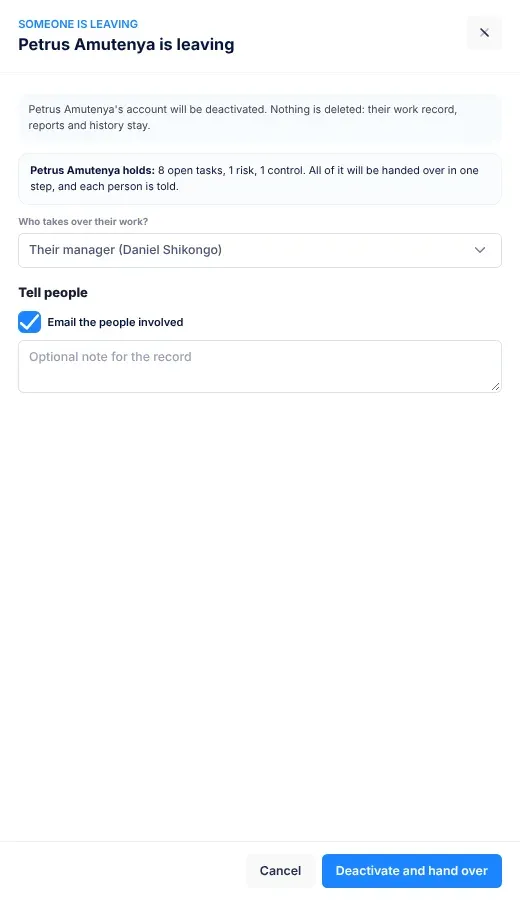
The panel … is leaving opens. It says their account will be deactivated, and that “Nothing is deleted: their work record, reports and history stay.”
-
Read what they hold, for example “3 open tasks, 1 risk, 2 controls”. All of it is handed over in one step.
-
In Who takes over their work?, keep Their manager or choose someone else.
-
Under Tell people, leave Email the people involved ticked to tell the person taking over. Add a note for the record if you like.
-
Select Deactivate and hand over.
What happens next
Section titled “What happens next”- Their account is deactivated. If they try to sign in, they see “Your account was locked out. Please contact the administrator.” They no longer appear in the organisation’s own lists of people, such as people pickers and dashboards.
- Their role becomes staff, and they’re no longer a department manager.
- Their open tasks, the initiatives they lead, their open risks, controls not yet in place and upcoming calendar tasks go to the person you chose. So do any departments they managed.
- The people who reported to them now report to the leaver’s manager. If the leaver had no manager, they report to the person taking over.
- The person taking over gets an email and a notification: “You’ve taken over …’s work”, with See your work. This only happens if there was work to hand over.
- “… has been deactivated; handed over …” confirms it. The History tab records it, labelled Left.
- On the People tab, they move to Left, with a Rejoin button.
When someone asks to close their account
Section titled “When someone asks to close their account”People can’t delete their own accounts. Instead, they select Ask to close my account in Settings, then Your account. See Settings.
Their CEO and every system administrator then receive an email, “… asked to close their VirgilTrack account”, with the reason they gave. They also get an Account closure request notification in VirgilTrack. The email’s Open their organisation button takes you to the organisation’s page. Use Leaving… as described above.
Let someone rejoin
Section titled “Let someone rejoin”- Open the organisation’s People tab.
- Select Left to see people who have left.
- Select Rejoin on the person’s row.
“… can sign in again.” confirms it. They’re back in the organisation as staff, reporting to the CEO, and the History tab records it, labelled Reactivated.
They come back without a department. Select Manage on their row and set their Department and Reports to on the Profile tab. See Help someone with their account.
Work that was handed over when they left stays with the person who took it over.
If something goes wrong
Section titled “If something goes wrong”| What you see | Why, and what to do |
|---|---|
| “That person is already a member.” | They’re already in this organisation. Find them on the People tab. If they can’t sign in, see Help someone with their account. |
| “… belongs to another organisation. Use Move on the Users page.” | They work for another organisation in VirgilTrack. Move them instead. See Move someone to another organisation. |
| “… had left before; their account is active again.” | You invited someone who had left this organisation. VirgilTrack reactivated their old account instead of inviting them again. |
| “Person not found.” when you invite someone | The email belongs to someone who left a different organisation. Move them into this one from their Manage panel instead. See Move someone to another organisation. |
| “The invitation was saved but the email didn’t go out. Try again from the sign-up page.” | The email failed. Open the organisation’s sign-up page and use Retry Failed Deployments. See Review sign-ups. |
| “Choose who takes over their work.” | The person has no manager and the organisation has no CEO. Choose someone in Who takes over their work?. |
| “The change couldn’t be completed, and nothing was changed. …” | Something stopped the change. Read the reason, then try again. |
Related
Section titled “Related”- Organisations
- Users, to lock an account for security reasons
- Accept an invitation