

Add, change or delete KPIs
Plans change, and a plan read from a document isn’t always perfect. On the KPIs page, the CEO can add a KPI to any objective, change a KPI, or delete KPIs that don’t belong, for example a KPI that measures a single initiative rather than an objective.
Before you start
Section titled “Before you start”- You need to be the CEO. Manage KPIs is the CEO’s button.
- The plan must be approved.
Start managing KPIs
Section titled “Start managing KPIs”- Open Execution, then KPIs.
- Select Manage KPIs at the top right.
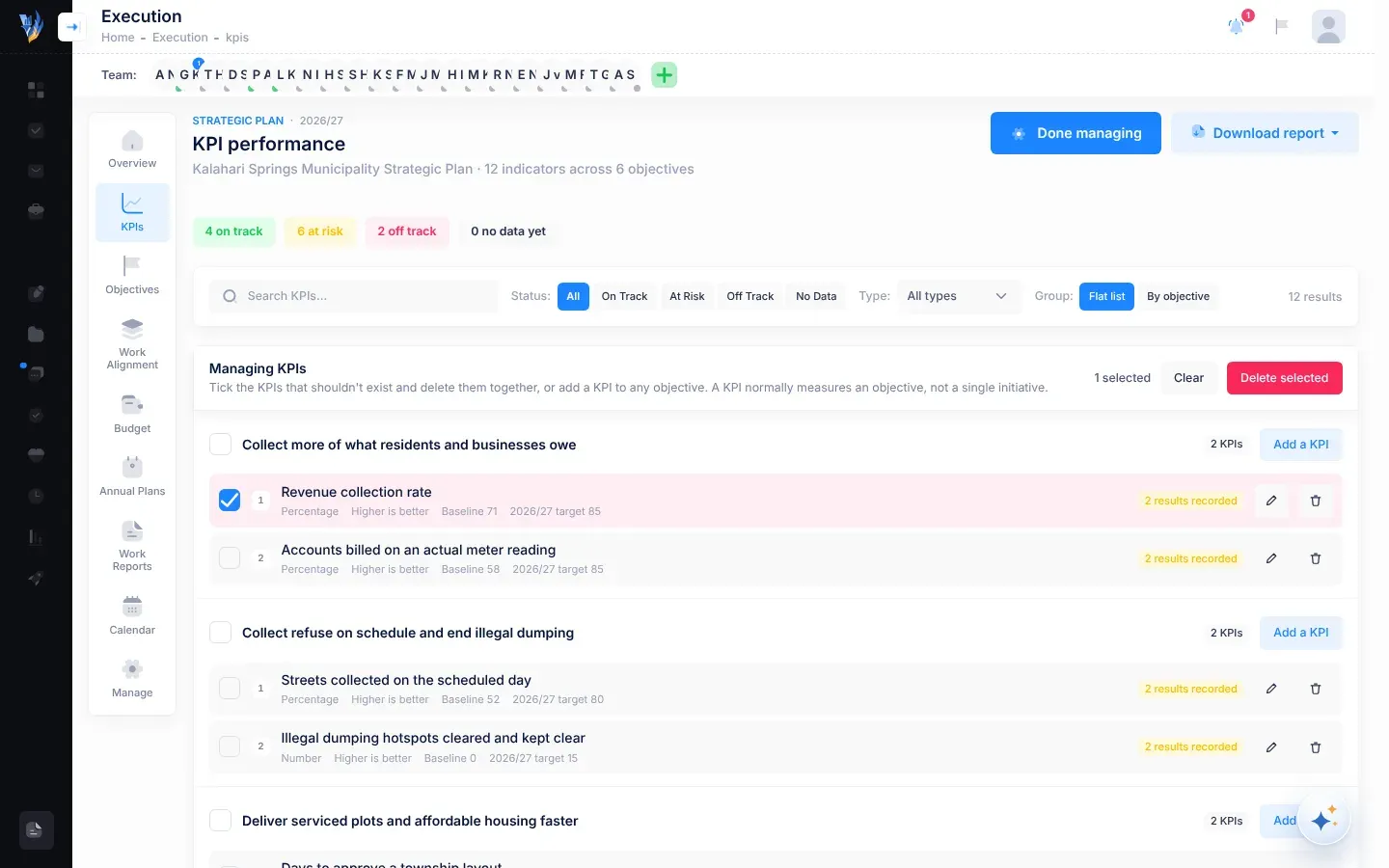
The list changes to Managing KPIs. It shows every objective in the plan, each with its KPIs, including objectives that have none yet (“No KPIs yet.”). Each KPI row shows its unit, its direction, its baseline and this year’s target. If results have been recorded for it, a badge says how many, for example 3 results recorded.
The search and filters still work. While you filter, only objectives with matching KPIs are shown.
When you have finished, select Done managing.
Add a KPI
Section titled “Add a KPI”-
Under the objective the KPI measures, select Add a KPI.
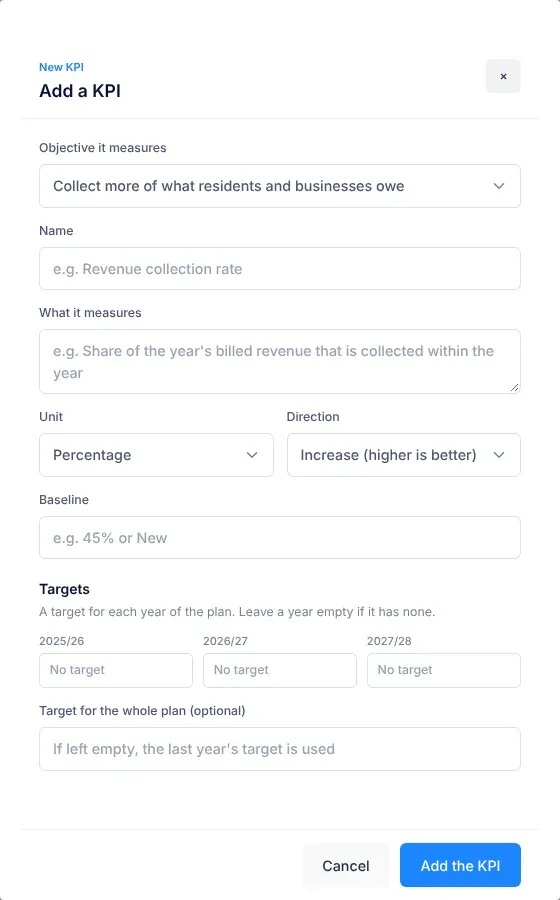
The Add a KPI panel opens on the right.
-
Check Objective it measures. It is filled in with the objective you chose.
-
Fill in Name, and describe in What it measures exactly what is counted.
-
Choose a Unit and a Direction. See the table below.
-
Fill in Baseline: where the KPI starts. Type “New” if it has no baseline yet.
-
Under Targets, enter a target for each year of the plan. Leave a year empty if it has none.
-
If you like, fill in Target for the whole plan. If you leave it empty, the last year’s target is used.
-
Select Add the KPI.
| Field | Choices |
|---|---|
| Unit | Percentage, Currency, Number, Yes/No or Text. |
| Direction | Increase (higher is better), Decrease (lower is better) or Maintain (hit the target). |
Change a KPI
Section titled “Change a KPI”-
In the KPI’s row, select the pencil button (Edit this KPI).
The Edit KPI panel opens with the KPI’s details.
-
Change what you need. To move the KPI to another objective, choose it in Objective it measures.
-
Select Save changes.
Changing a target doesn’t change results already recorded.
Delete KPIs
Section titled “Delete KPIs”-
Tick the KPIs you want to delete. To tick all the KPIs of one objective, tick the box next to the objective’s title.
The bar at the top shows how many are selected. Select Clear to untick them all.
-
Select Delete selected.
To delete a single KPI, you can also select the bin button in its row (Delete this KPI).
-
Read the message. It says how many KPIs will be removed with their targets, and how many have recorded results.
-
Select Delete to delete them, or Keep it (or Keep them) to stop.
What happens next
Section titled “What happens next”- A message confirms the change: “KPI added.”, “KPI saved.” or, for example, “2 KPIs deleted.”
- The KPI’s targets and status update on every Execution page.
- VirgilTrack keeps a record of every addition, change and deletion in the plan’s audit trail, with who made it and when.
If something goes wrong
Section titled “If something goes wrong”The panel lists what must be fixed under “Before it can be saved:”.
| Message | What to do |
|---|---|
| “Choose the objective it measures.” | Choose an objective in Objective it measures. |
| “Give the KPI a name.” | Fill in Name. |
| “Give it a baseline (type “New” if it doesn’t have one yet).” | Fill in Baseline. |
| “Give it a target for at least one year.” | Enter at least one target under Targets. |
| “This objective already has a KPI with that name.” | Give the KPI a different name, or change the existing KPI instead. |
| “This KPI no longer exists. Close this panel and refresh the page.” | Someone else deleted it. Close the panel and refresh the page. |
| “Nothing was saved. The system said: …” or “Nothing was deleted. The system said: …” | Saving failed. Try again. If it keeps failing, contact your VirgilTrack administrator with the message. |