

Notifications
The bell in the header collects notices about things that concern you: work delegated to you, risks and controls, events, mentions, reminders and more. Select a notification to go straight to what it is about.
Your notification settings decide which notices also reach you by email or text. Switching an email off doesn’t remove the notice from the bell. A few reminders, such as the morning “Due tomorrow” email, come only by email. See Choose your notifications.
Open your notifications
Section titled “Open your notifications”-
In the header, select the bell, Notifications.
A red number on the bell shows how many notifications you haven’t read. Above 99, it shows “99+”.
-
Read the list that opens.
-
Select a notification to open what it is about.
To close the list without opening anything, select the bell again, or select anywhere outside the list.
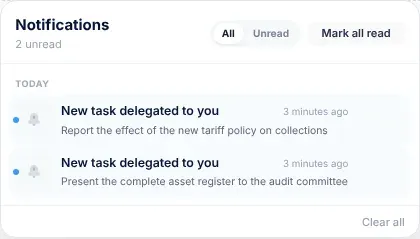
The notifications list at a glance
Section titled “The notifications list at a glance”| Part | What it shows |
|---|---|
| Notifications heading | Under it, how many you haven’t read, such as “3 unread”, or “You’re all caught up”. |
| All and Unread | Show every notification, or only the ones you haven’t read. |
| Mark all read | Marks every notification as read. It only appears when you have unread ones. |
| Groups | Notifications are grouped by when they arrived: Today, Yesterday, This week and Earlier. The newest are at the top. |
| A notification | An icon for its kind, a title, how long ago it arrived (for example “5 minutes ago”) and a short message. Unread ones have a blue dot and a shaded background. |
| Clear all | Removes every notification in the list. If you had more than 50, older ones take their place when you next load a page. |
The icon tells you the kind of notification at a glance: a calendar for new events, a shield for risks and for controls, a speech bubble for mentions, and a bell for most other notifications.
The list holds your 50 most recent notifications.
If you have none, the list says “No notifications yet”, or “Nothing unread” on the Unread tab, and “Mentions, tasks, risks and messages will show up here.”
Work with your notifications
Section titled “Work with your notifications”| To | Do this |
|---|---|
| Open what a notification is about | Select it. It is marked as read, the list closes and VirgilTrack opens the page it’s about. |
| Mark one notification as read | Point at it and select Mark as read (the tick). |
| Mark all of them as read | Select Mark all read at the top. |
| Remove one notification | Point at it and select Remove (the cross). |
| Remove all of them | Select Clear all at the bottom. |
| See only what you haven’t read | Select Unread. Select All to see everything again. |
Removing a notification only removes it from your own list. It doesn’t change the task, risk or event it was about, and other people keep their own notifications.
When a new notification arrives
Section titled “When a new notification arrives”You don’t need to reload the page. A new notification:
- appears at the top of the list straight away,
- adds one to the red number on the bell,
- plays a short sound, and
- pops up on screen for a moment, with its title and message.
Private chat messages have their own pop-ups, with a box to reply. See Message pop-ups.
What you are notified about
Section titled “What you are notified about”Here are some of the notifications you may see, and what they mean.
| Notification | What it means |
|---|---|
| “New task delegated to you” | Someone gave you a task. See Delegate a task. |
| “A task was reassigned to you” | A task that was someone else’s is now yours. |
| “A task was reassigned” | A task that was yours is now with someone else. |
| “Due date changed” | Someone moved the due date of your task. |
| “New message from …” | Someone wrote in the conversation of a task you work on or delegated. See Messages and mentions. |
| “… mentioned you”, “… mentioned you on: …” | Someone mentioned you with @ in a conversation, such as a task’s messages. |
| “… started a task”, “… is blocked on: …”, “… is unblocked”, “… finished: …”, “… asks for more time on: …” | News about a task you delegated. See Follow up work you delegated. |
| “Reopened: …”, “… verified your work”, “… kept the due date” | News about a task delegated to you: it was reopened, your finished work was checked and verified, or your request for more time was turned down. See Work on a task. |
| “Risk control assigned to you” | You are now responsible for putting a risk control in place. See Risk controls. |
| “New risk created” | A risk was added and assigned to you. The CEO gets it too. |
| “Control created” | A colleague in your department added a control to a risk, or made you responsible for one. The CEO gets it too. |
| “Risk Status Changed” | A colleague in your department moved a risk to another status on the Kanban board. The CEO gets it too. See The Kanban board. |
| “New risk identified”, “… new risks identified” | VirgilTrack’s AI found possible risks while reading your strategy. The CEO and the department managers are told. |
| “Control suggested by VirgilTrack” | VirgilTrack’s AI suggests a control for a risk you created. |
| “New Calendar Event” | An event was put in the calendar for you or your department. The CEO gets it too. See Events and calendar tasks. |
| “Today”, “Coming up” | A reminder about something in your calendar. See Reminders. |
| “Risk review due”, “Control review due” | A review you are responsible for is due. See Reminders. |
| “Overdue”, “… items overdue” | Some of your work became overdue yesterday. The message lists what is overdue. See Reminders. |
| “Last week’s report is still open” | You haven’t submitted last week’s report yet. Sent on Monday mornings. See Your weekly report. |
| “Complete your team report”, “Week … report requested” | For managers: your report for last week isn’t submitted yet, or the CEO has asked for it. See Submit your team report. |
| “KPI off track”, “KPI at risk”, “KPI stalled” | A KPI was reviewed with that result. The CEO and the managers of the departments working on its objective are told. |
| “Q1 review” (or Q2, Q3, Q4), “Strategic objectives at risk” | For the CEO and managers: a quarter ends in a week, or its reviews are still outstanding. “Strategic objectives at risk” goes to the CEO on Mondays. |
| “Reminder”, “Reminder from …” | A reminder you, or a colleague, set with Virgil Copilot. |
| “Kudos from …” | A colleague recognised your work. See Kudos. |
| “Couldn’t email …”, “Couldn’t text …” | VirgilTrack couldn’t deliver a message about work you assigned. See See who was told about work you assign. |
Who is told about what is explained on each feature’s own page.
Service notices
Section titled “Service notices”When the VirgilTrack team plans maintenance or downtime, everyone in the organisations concerned gets a service notice. It comes:
- under the bell, with the notice’s title and a message that starts with when it happens,
- by email, with the label SERVICE NOTICE, a When line and what you should know, and
- as a text message too, when the VirgilTrack team sends it that way for urgent or unplanned downtime. You get the text only if you have a verified mobile number and allow texts. A text sent at night waits until 07:00.
You can’t switch service notices off.
If something goes wrong
Section titled “If something goes wrong”| What you see | Why, and what to do |
|---|---|
| A notification you expected isn’t there. | Check the All tab: on Unread you only see what you haven’t read. You may have removed it, or it may be older than your 50 most recent notifications. |
| Selecting a notification doesn’t open anything. | Some notifications have no page to open. Selecting one still marks it as read. |
| You got a notification about something you did yourself. | Sometimes, for example when you add a risk or a control, or move a risk on the Kanban board, VirgilTrack also keeps a copy of the notification in your own list. Remove it if you don’t need it. |
A “Risk Status Changed” message shows <b> and </b> around the status names. |
These are formatting codes that show as plain text in the list. The status names between them are the old and the new status. |
| You don’t hear a sound. | Check your device’s volume. Some browsers only play sounds after you’ve selected something on the page. |
| You get a notification but no email about it. | Emails depend on your notification settings. See Choose your notifications. |