

Role Management
The Role Management page lists everyone in your organisation in one table, with their role. Use it to change several people’s roles in one go, choose departmental managers, and check that every department has one.
Unlike Roles & hierarchy, nothing here is saved until you select Save All Changes.
Open Role Management
Section titled “Open Role Management”Use either of these:
- Your picture, then Roles & permissions
- Settings, then Organisation, then Roles & permissions
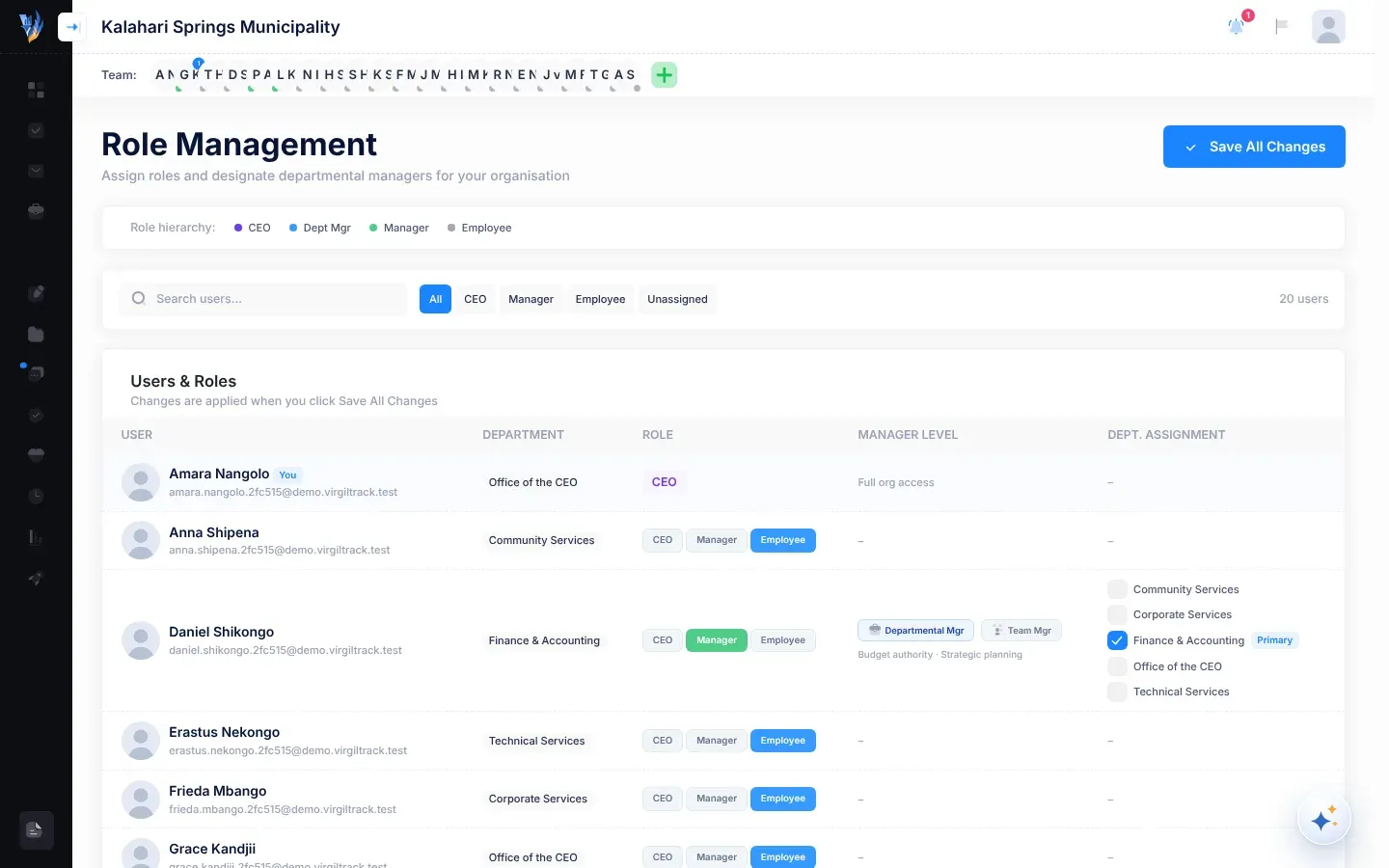
The page at a glance
Section titled “The page at a glance”- Role hierarchy: a legend of the roles: CEO, Dept Mgr, Manager and Employee. Point at one to see a short description.
- Search users…: type part of a name or email address to narrow the table.
- All, CEO, Manager, Employee, Unassigned: show only people with that role. Unassigned shows the same people as Employee, because everyone without another role counts as an employee. The number of people shown is on the right.
- Users & Roles: the table of people. See The table.
- Department Coverage: one card per department. See Department Coverage.
The table
Section titled “The table”| Column | What it shows |
|---|---|
| User | The person’s picture, name and email address. Your own row has a You badge. |
| Department | The department the person belongs to, or a dash. |
| Role | Buttons for CEO, Manager and Employee, with the person’s role highlighted. Your own role and administrators’ roles are shown as a badge and can’t be changed here. |
| Manager Level | For managers: Departmental Mgr or Team Mgr. Under it, “Budget authority · Strategic planning” or “Task delegation · Team monitoring” reminds you what each level does. For the CEO: “Full org access”. |
| Dept. Assignment | For departmental managers: a tick box for each department. Tick the departments they manage. A Primary badge appears next to each department you tick. |
Change people’s roles
Section titled “Change people’s roles”-
Find the person. Use Search users… or the filter buttons if the list is long.
-
In Role, select CEO, Manager or Employee.
-
If you chose Manager, choose the Manager Level:
- Departmental Mgr for someone who manages whole departments. Then tick their departments under Dept. Assignment.
- Team Mgr for someone who leads a team without managing a whole department.
-
Repeat for anyone else.
-
Select Save All Changes at the top of the page.
VirgilTrack shows Saved, with the number of role changes and department assignments it applied.
If you choose Employee or CEO for someone who was a departmental manager, VirgilTrack clears their managed departments when you save. Choosing Team Mgr does the same.
The CEO button doesn’t make someone the organisation’s CEO, at the top of the reporting hierarchy, and the CEO role it gives is taken away again when roles are next set from the reporting lines. To hand the CEO’s job to someone else, ask a VirgilTrack administrator. See Organisations.
Department Coverage
Section titled “Department Coverage”The Department Coverage card shows “Which departments have a designated departmental manager”.
- A department with a departmental manager says Managed and lists them.
- A department without one says No departmental manager and “Assign a departmental manager above to cover this department.”
The cards follow your choices in the table straight away, so you can check coverage before you save.
What changes, and what doesn’t
Section titled “What changes, and what doesn’t”- A person’s role decides what they can see and do in VirgilTrack. See Roles and what each can do.
- Changing roles here doesn’t change who reports to whom. Weekly work reports follow the reporting lines in Settings, then Roles & hierarchy. See Reporting lines and roles.
- Ticking departments for a Departmental Mgr makes them a manager of those departments, as on each department’s own page. It doesn’t change the department they belong to.
If something goes wrong
Section titled “If something goes wrong”| What you see | Why, and what to do |
|---|---|
| “No users match your search” | Nobody matches your search and filter. Clear Search users… and select All. |
| Error: “Failed to save changes: …” | Nothing was saved. Try again. If it keeps happening, note the message and contact your administrator. |
| You can’t change your own role | Nobody can change their own role here. Ask a VirgilTrack administrator. |
| A role you saved has changed back | Roles follow the reporting lines. Set the person’s reporting lines or managed departments in Settings, then Roles & hierarchy. See How VirgilTrack keeps roles in step. |
| A department still shows No departmental manager after you saved | The manager needs Departmental Mgr as their level, with the department ticked under Dept. Assignment. |