

Private chat
Private Chat is for one-to-one messages with a colleague in your organisation. Use it for a quick question, to share a file, or to follow something up, and see straight away when your message has been read.
Only you and the colleague you are talking to can see your conversation.
Open Private Chat
Section titled “Open Private Chat”You can open a conversation in three ways:
- From the menu. Select Private Chat in the menu on the left. A small dot on its icon means you have unread messages. Point at the dot to see how many, for example “3 unread”.
- From the team bar. Under the header, beside Team:, select a colleague’s picture. A chat panel opens at the side of the screen, so you don’t lose your place. See Chat from the team bar.
- From a pop-up or an email. Select Open on a message pop-up, or Reply in an email about an unread message. The conversation with that person opens.
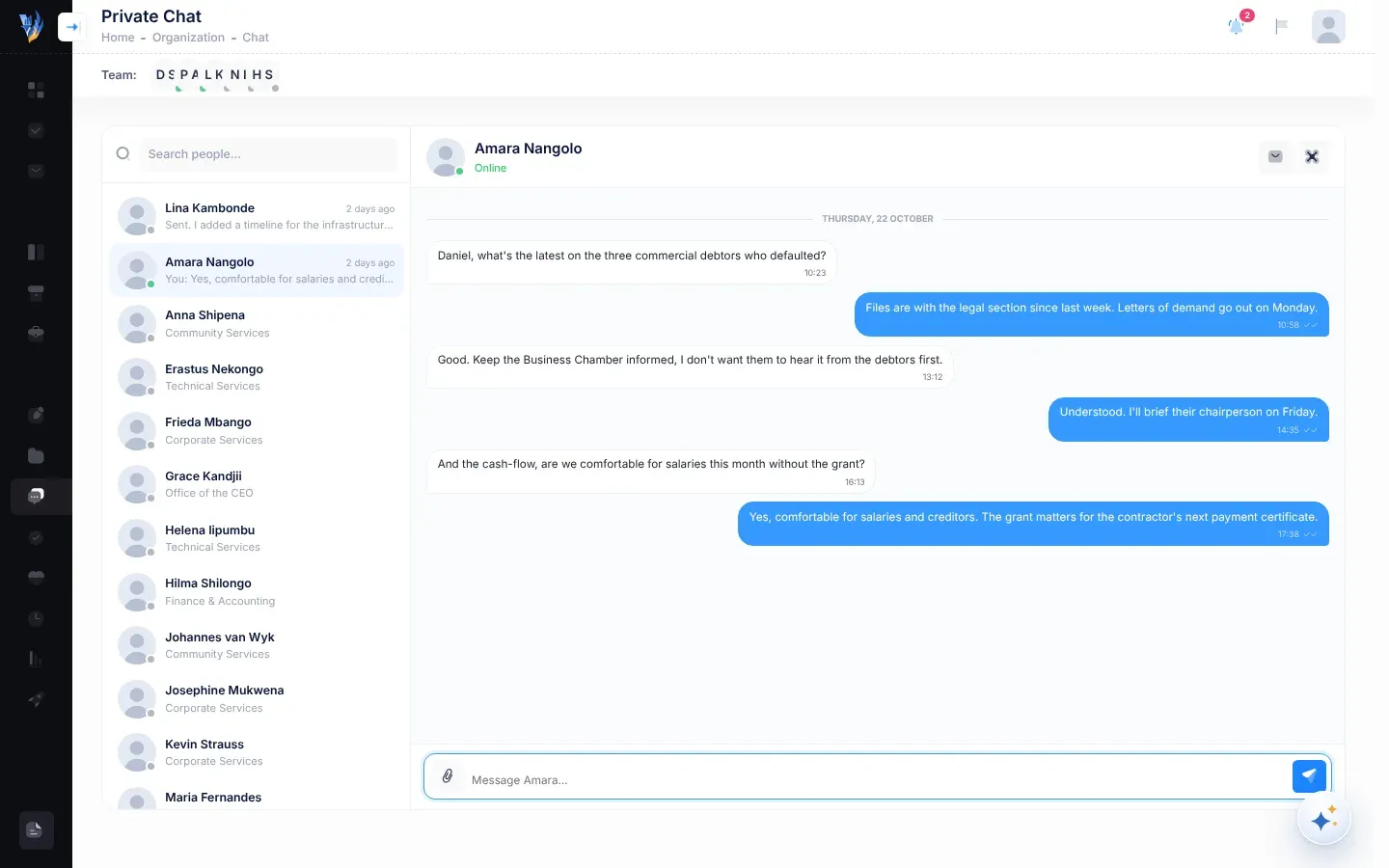
The Private Chat page at a glance
Section titled “The Private Chat page at a glance”The page has two parts: your colleagues on the left, and the conversation you’ve chosen on the right.
The list of colleagues
Section titled “The list of colleagues”The list shows everyone in your organisation, with the people you talked to most recently at the top. People whose accounts are deactivated are not listed.
Each row shows:
- the person’s picture, with a dot that shows whether they are online (see See who’s online),
- their name, and how long ago the last message was sent, for example “2 hours ago”,
- the last message. “You: “ in front of it means you sent it. A paper clip and a file name, or “📎 3 attachments”, means the last message was files. “Message deleted” means the last message was deleted. If you’ve never written to each other, you see their department, or “Start a conversation”.
- a blue number: how many messages from them you haven’t read yet.
To find someone, type part of their name in Search people… at the top of the list.
The conversation
Section titled “The conversation”Until you choose someone, the right side says “Pick someone to start chatting.” Select a person in the list to open your conversation with them.
At the top you see the person’s name and their status, such as Online or Last seen 5 minutes ago. The buttons beside them are described further down this page.
Send a message
Section titled “Send a message”-
Select the person in the list. Use Search people… if the list is long.
-
Type your message in the box at the bottom. It says Message and the person’s first name, for example “Message Petrus…”.
A message can be up to 4,000 characters. To start a new line, press Shift + Enter.
-
Press Enter, or select the Send (Enter) button beside the box.
What happens next
Section titled “What happens next”- Your message appears straight away, for you and for your colleague, in every VirgilTrack window you both have open.
- If your colleague is working elsewhere in VirgilTrack, a pop-up shows them your message, with a sound. They can reply from the pop-up.
- If they haven’t read it after 10 minutes, and their status isn’t Online at that moment, they get an email, “New message from …”. See Emails about unread messages.
Send files and pictures
Section titled “Send files and pictures”-
Open the conversation.
-
Select the paper clip button beside the message box, Attach files (up to 10, 25 MB each).
-
Choose one or more files on your computer or phone. Choose no more than 10 at a time.
Each file appears above the message box with its name and size. To take one off, select Remove (×) beside it.
-
Type a message if you want to say something about the files. You can also send files on their own.
-
Press Enter or select Send (Enter).
You can send up to 10 files in one message, and each file can be up to 25 MB. Any kind of file can be sent.
- Pictures appear in the message itself. Select a picture to open it full size in a new browser tab.
- Other files appear as a link with the file’s name and size. Select the link to open or download the file.
Files you send in chat stay in the conversation. They are not added to the File Manager. To keep a document where your whole organisation can find it, upload it to the File Manager. See Files and documents.
Chat from the team bar
Section titled “Chat from the team bar”The team bar under the header, marked Team:, shows the people in your department; the CEO sees everyone in the organisation. Select a colleague’s picture to chat without leaving the page you’re on.
- In the team bar, select the colleague’s picture. A panel opens at the side of the screen with your messages with that person.
- Type in Type a message.
- Select Send.
- To close the panel, select the cross at its top.
The panel is a simpler view of the same conversation. It shows no files, ticks or message buttons, and messages appear only when you open it: new replies don’t arrive while it’s open. Under your colleague’s name it always says Active, whether or not they are online; look at the dot on their picture in the team bar instead.
Opening the panel marks your colleague’s messages to you as read. Your colleague doesn’t get a pop-up or an email about a message sent from the panel; they see it when they next open Private Chat. When you need a quick answer, or want to send a file, use Private Chat in the menu instead.
If you select Send with an empty box, you see “Invalid Input” and “Please submit a valid message”.
Read a conversation
Section titled “Read a conversation”- Days. Messages are grouped by day, under Today, Yesterday or the date, such as “Monday, 20 October”.
- Who wrote what. Your messages are on the right, in blue. Your colleague’s messages are on the left, in white.
- Time and changes. Each message shows the time it was sent. “edited” in front of the time means the sender changed it.
- Typing. Three moving dots below the last message mean your colleague is typing.
- Older messages. In a long conversation, select Show earlier messages at the top to see more.
Know when your message was read
Section titled “Know when your message was read”Your own messages show ticks after the time:
| You see | It means |
|---|---|
| ✓ (one tick) | Your message was sent. Point at the tick to see “Sent”. |
| ✓✓ (two ticks) | Your colleague has read it. Point at the ticks to see when, for example “Read 14:32”. |
A message only counts as read when the person has the conversation open, in the VirgilTrack window they are using at that moment. A conversation left open in a window in the background doesn’t mark messages as read until they come back to it.
See who’s online
Section titled “See who’s online”A dot on each person’s picture, in the list, in the conversation and in the team bar, shows their status. The status is also written under their name at the top of the conversation, and appears when you point at their picture in the team bar.
| Status | Dot | It means |
|---|---|---|
| Online | Green | They have VirgilTrack open and are using it. |
| Away | Yellow | VirgilTrack is open, but they haven’t used it for 3 minutes, or it’s in a tab they aren’t looking at. |
| Last seen … | Grey | They’ve closed VirgilTrack. The time says when they were last there, for example “Last seen 2 hours ago”. |
| Offline | Grey | They aren’t in VirgilTrack, and it doesn’t know when they were last there. |
Statuses change by themselves, without reloading the page.
Edit, pin or delete a message
Section titled “Edit, pin or delete a message”Point at a message to see its buttons, beside the bubble.
| Button | What it does | Which messages |
|---|---|---|
| Edit (pencil) | Change the text. | Your own |
| Pin / Unpin (pin) | Mark a message as important, or take the mark away. | Anyone’s |
| Delete (bin) | Remove the message for both of you. | Your own |
Edit a message
Section titled “Edit a message”- Point at your message and select Edit.
- Change the text in the box that opens.
- Select Save. To leave it as it was, select Cancel.
The message now shows “edited” before its time, for both of you. If you clear all the text and select Save, the message stays as it was.
Pin a message
Section titled “Pin a message”Select Pin to mark a message you’ll want to find again, such as an agreed date. A pinned message has a pin beside its time and a coloured outline. You and your colleague both see it. Select Unpin to take the pin away.
Delete a message
Section titled “Delete a message”Select Delete on one of your own messages. It is replaced by “Message deleted”, for you and for your colleague, together with any files it had.
Mark a conversation as unread
Section titled “Mark a conversation as unread”If you’ve opened a message but want to come back to it later, mark it as unread.
- Open the conversation.
- Select Mark as unread (the envelope button) at the top of the conversation.
The newest message from your colleague counts as unread again, and its number comes back in the list, the team bar and the menu. The conversation closes, so that the message isn’t read again straight away.
You only see Mark as unread when the person has sent you at least one message.
Summarise a conversation with Virgil
Section titled “Summarise a conversation with Virgil”In a long conversation, let the assistant pick out what matters.
- Open the conversation.
- Select Summarise this conversation with Virgil at the top of the conversation.
Virgil Copilot opens and asks for a summary of your recent chat with that person: what was agreed, what’s still open, and anything you need to do. See Ask Virgil Copilot.
When a message arrives
Section titled “When a message arrives”Message pop-ups
Section titled “Message pop-ups”When a colleague writes to you while you are working elsewhere in VirgilTrack, a pop-up appears in the bottom-left corner of the screen, with a sound. It shows who wrote and the start of the message.
- To answer, type in Reply… and press Enter, or select Send. The pop-up closes once your reply has gone.
- To see the whole conversation, select Open.
- To close the pop-up, select Dismiss (×).
A pop-up disappears by itself after about 12 seconds. You see at most three at a time. You get no pop-up for the conversation you already have open.
Unread counts
Section titled “Unread counts”The dot on Private Chat in the menu, the numbers on your colleagues’ pictures in the team bar, and the numbers in the list update by themselves as messages arrive and as you read them on the Private Chat page.
Emails about unread messages
Section titled “Emails about unread messages”If a message is still unread 10 minutes after it was sent, and your status isn’t Online at that moment, VirgilTrack emails you: “New message from …”, or “… unread messages from …” if there are several. The email has the label PRIVATE MESSAGE and shows the message. Select Reply in the email to open the conversation.
You get at most one such email an hour for each colleague who writes to you. To stop these emails, untick Email for Private messages in Settings, then Notifications, or select Stop these emails at the bottom of one. See Choose your notifications.
- Talk about a task on the task itself. A task’s conversation keeps everything about the work together, for everyone involved. See Messages and mentions.
- Reply to another department’s report. When a colleague’s work report mentions something that affects you, you can message them from the report. The message arrives in Private Chat. See News from other departments.
If something goes wrong
Section titled “If something goes wrong”| What you see | Why, and what to do |
|---|---|
| A colleague isn’t in the list. | The list only shows people in your organisation whose accounts are active. Check the spelling in Search people…. If they should be there, ask your CEO or administrator. |
| “… is over 25 MB.” | Each file can be up to 25 MB. Make the file smaller, or send it in parts. |
| “Up to 10 files per message.” | You can attach 10 files to one message. Send the others in another message. |
| “… couldn’t be uploaded.”, or another error, when you send a message with files. | A file couldn’t be uploaded, so the message wasn’t sent. Your files stay above the box, but your text is cleared. Type it again and send. |
| Your message still shows one tick. | Your colleague hasn’t read it yet. They may be away, or have the conversation open in a window they aren’t looking at. |
| You didn’t get a pop-up for a new message. | You had that conversation open, or VirgilTrack wasn’t open, or your colleague wrote from the chat panel in the team bar. Check the numbers in Private Chat. |
| You keep getting emails about messages you’ve seen. | The email comes when a message is still unread after 10 minutes. A message only counts as read once you’ve had the conversation open in front of you. Open the conversation in Private Chat, or switch the emails off for Private messages. |