

Review a risk
When a risk is due for review, check whether it has changed and whether its controls are working. Then record what you found and make sure the next review is booked. VirgilTrack reminds the risk’s responsible people before each review. See Risk reviews and reminders.
Before you start
Section titled “Before you start”- Be one of the risk’s responsible people, or agree with them that you will do the review. They are listed under Responsible people on the risk’s page.
- The risk must be open and assessed. A risk that is mitigated or archived, or hasn’t been assessed yet, can’t be edited, so you can’t change its scores or dates.
Review the risk
Section titled “Review the risk”-
Open the risk’s page.
Select Review the risk in the reminder email, or the Risk review due notification. Or select Risk Register in the menu on the left and select the risk. The CEO, who has no Risk Register in that menu, can select their picture, then Risk Register.
-
Check the risk’s likelihood and impact.
At the top of the page, the score and the line under the small grid, such as “High likelihood, medium impact”, show the current assessment. Ask whether either has changed since the last review. See How risk scores work.
-
Check the controls on the Controls tab.
Look under To do for controls that are late; their status is Overdue and their date is red. Ask the responsible people about them, or add a control if the risk needs another action. See Add a control to a risk.
-
Write down what you found on the Discussion tab.
For example: “Collection rate up to 83%. Three large debtors still in arrears; follow-up control added.” See A risk’s page.
-
Check the Next review date at the top of the page.
VirgilTrack normally moves it on by itself on the review day. You need to change it if it is in the past, or if you want the next review on another date.
-
If the likelihood or impact has changed, or the next review needs a new date, select Edit risk.
If nothing needs to change, you have finished.
-
If the likelihood or impact has changed, choose the new Likelihood or Impact under Assessment.
-
If the next review needs a new date, change Next review and at under Plan and people.
-
Select Save changes.
See Edit a risk for the other fields on this page.
What happens next
Section titled “What happens next”- After you save on Edit risk, you see “Changes saved.” and return to the risk’s page.
- A new likelihood or impact changes the risk’s score and moves it to another cell of the heat map. See The risk heat map.
- If you changed the Next review date, VirgilTrack adds a scheduled review for each responsible person. It appears in their calendar and on their dashboard. The reminders count down to the new date.
Record a scheduled review in the calendar
Section titled “Record a scheduled review in the calendar”If your review appears in the calendar, record its outcome there as well. A scheduled review is called Risk Review: followed by the risk’s code.
-
Open Execution, then Calendar.
Managers and the CEO: make sure Risk Activities is ticked under Calendars. The calendar opens on the current week. See Calendar and reminders to move between weeks and months.
-
Select the review, for example “Risk Review: FIN-002”.
The Risk Review Details panel opens. It shows Pending Review and, if the date has passed, Overdue. Under Target Risk: you see the risk’s code and name. View Full Risk Profile opens the risk’s page.
-
In Review Comments, write your findings.
The box may already say “Scheduled review”. Replace it with what you found.
-
Switch on Mitigation Effective? if the risk’s controls are working.
-
Switch on Mark Review as Completed.
-
Select Save Review.
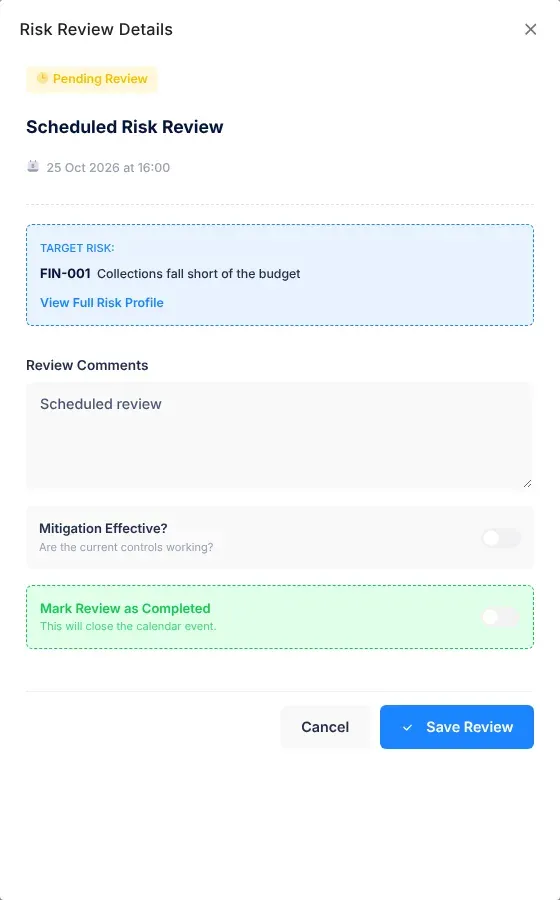
You see “Risk review updated successfully!”. The review stays in the calendar, even though the switch says “This will close the calendar event.” When you open it again, it shows Review Completed.
Recording the review here doesn’t change the risk itself. To change its scores or its next review date, use Edit risk as described in Review the risk.
If something goes wrong
Section titled “If something goes wrong”| What you see | Why | What to do |
|---|---|---|
| “Mitigated and archived risks can’t be edited.” | The risk has been marked as mitigated or archived, so its scores and dates can’t be changed. | If the risk has come back, record it again as a new risk. See Add a risk. |
| “Assess this risk from the register before editing it.” | The risk was copied from the Risk Repository and hasn’t been assessed yet. | Assess it from the register first. See Assess a risk. |
| “The review must be in the future.” | The new Next review date and time have already passed. | Choose a later date or time. |
| “Review on or before the deadline.” | The new Next review date is after Mitigate by. | Choose an earlier date, or move Mitigate by later. |
| “Choose how often to review.” | Review every is empty, for example because the risk was assessed without one. | Choose a frequency under Plan and people. |
| “Couldn’t save. Nothing was changed. Please try again.” | Saving the changes failed. | Try again. |
| There are no reviews in your calendar. | Scheduled reviews are only added when someone changes a risk’s Next review date on Edit risk. | Review the risk from its page, as in Review the risk. |
| “Risk Review not found.” | The scheduled review no longer exists. | Review the risk from its page. |