

Demo links
A demo link lets someone try VirgilTrack before their organisation signs up. Each link opens a private copy of VirgilTrack, filled with a sample council called Kalahari Springs Municipality. You create the link, send it to the person, and later see what they did.
How demo links work
Section titled “How demo links work”- Personal. Each link is made for one named person. Their name appears in the demo.
- One browser only. The first browser that opens the link claims it. That browser can come back until the link expires; any other browser is turned away.
- Private. Each link gets its own demo organisation, made when the link is first opened. Nobody else sees it, and nothing in it touches real organisations.
- Time-limited. A link lasts 6, 24, 48 or 72 hours from when you create it. When it expires, or you withdraw it, the link stops working and the demo closes.
The person opening the link is signed in as the sample council’s CEO. From the demo bar, they can switch to anyone else in the council to see VirgilTrack through that person’s eyes. The Getting started chapter explains what they see.
Open the demo links page
Section titled “Open the demo links page”Only system administrators can manage demo links.
- Select Dashboard at the top of the menu on the left.
- On the Admin Dashboard, select Manage Demos.
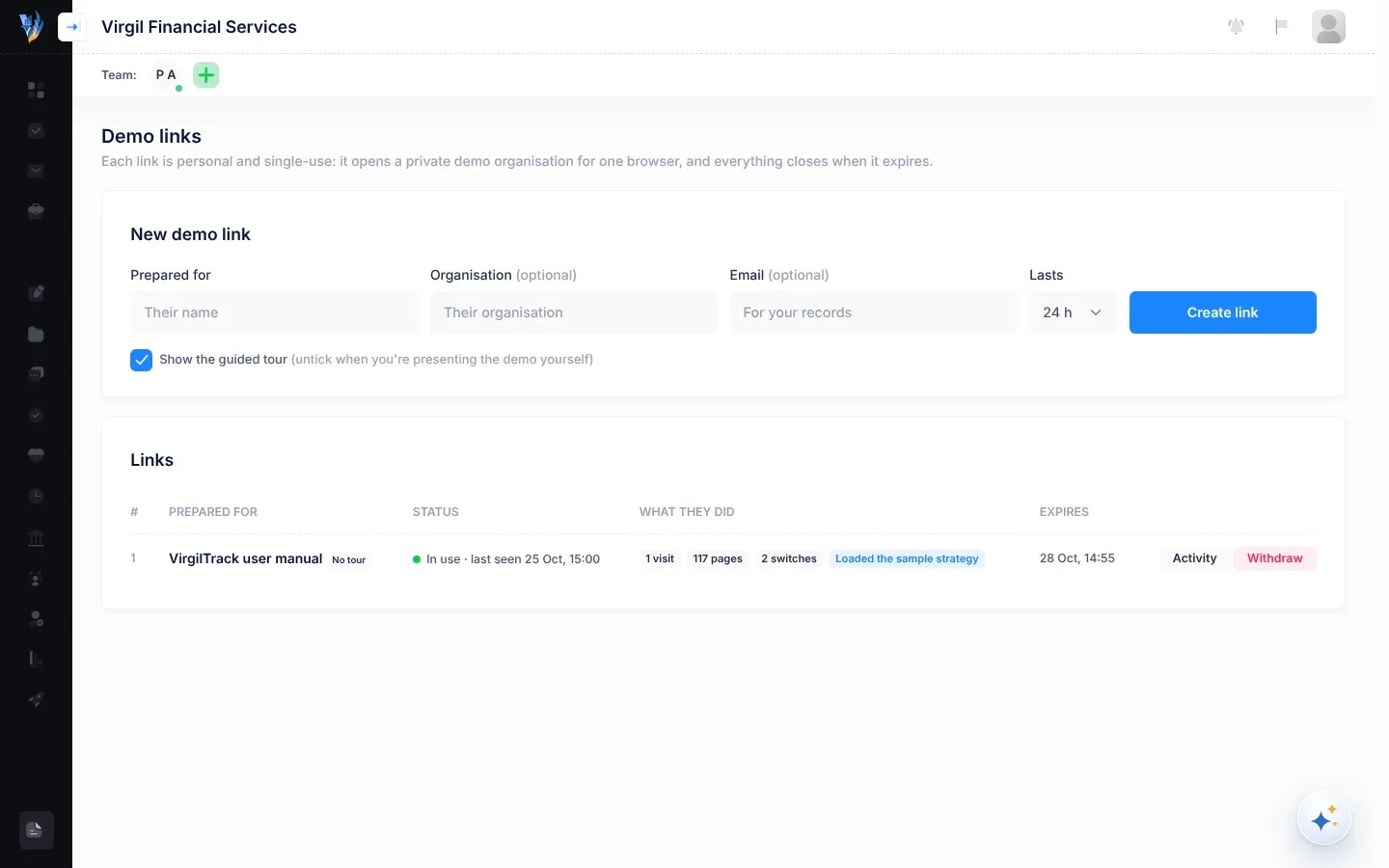
The Demo links page opens. It has two parts: New demo link and Links.
Create a demo link
Section titled “Create a demo link”-
Under New demo link, type the person’s name in Prepared for.
Their name appears in the demo, for example “Your private demo, prepared for …”. Spell it the way they would.
-
If you like, type their Organisation and Email. Both are optional. The organisation appears in the demo bar; the email is for your records only. VirgilTrack doesn’t email the link.
-
In Lasts, choose 6 h, 24 h, 48 h or 72 h.
-
Choose whether to keep Show the guided tour ticked.
Untick it when you’ll present the demo yourself. The person then gets no tour, and the link shows No tour in the list.
-
Select Create link.
A green box shows “Link for …, valid until …” and the link.
-
Select Copy link. The button changes to Copied.
-
Send the link to the person, for example by email.
Presenting a demo yourself
Section titled “Presenting a demo yourself”If you’ll show the demo on your own computer, untick Show the guided tour, and open the link in the browser you’ll present from. That browser claims the link, so the person can’t open it on their own device afterwards.
Opening a demo link signs that browser in as the demo’s CEO, in place of your own account. Use a private window or a different browser for the demo, so you stay signed in as yourself.
Follow up on a link
Section titled “Follow up on a link”The Links table lists the last 100 links, newest first.
| Column | What it shows |
|---|---|
| # | The link’s number in the list. |
| Prepared for | The person’s name, with their organisation and email if you gave them. “Named their organisation: …” shows the name they gave their demo when they chose to upload their own plan. No tour marks links made without the guided tour. |
| Status | Not opened yet, In use (with “last seen” and a date and time), Expired or Withdrawn. |
| What they did | A summary of their activity. See below. “Nothing yet” if they haven’t opened it. |
| Expires | When the link stops working. |
What they did
Section titled “What they did”The What they did column shows badges like these:
| Badge | Meaning |
|---|---|
| “… visits” | How many times they opened or came back to the demo. |
| “… pages” | How many pages they looked at. |
| “… switches” | How many times they switched to another person in the demo. |
| Loaded the sample strategy | They loaded the sample council’s plan, for example by choosing Take the tour. |
| Uploaded their own strategy | They uploaded their own plan, and how many times. |
| Started the tour, Skipped the tour (…) or Finished the tour | How far they got with the guided tour. |
| Turned back at the own-plan warning | They chose Use my own plan and saw the warning, but didn’t go on. |
| Went past the warning, didn’t upload | They accepted the warning but haven’t uploaded a plan. |
For the full story, select Activity. A list opens under the link, newest first, with the time, what happened (for example Opened the link, Came back, Viewed a page, Switched to, Ran a quick action), the details, and which demo person they were signed in as. Select Hide activity to close it.
Withdraw a link
Section titled “Withdraw a link”To stop a link before it expires, select Withdraw on its row. It is there while a link is still live. There’s no confirmation: the link is withdrawn as soon as you select it.
The status becomes Withdrawn, and the link can’t be opened again. Anyone who tries sees “This demo link has been withdrawn.” VirgilTrack closes the demo straight away and ends everyone’s sign-in to it, though someone using it at that moment may stay in for a little while.
What happens when a link expires
Section titled “What happens when a link expires”When a link’s time runs out, its status becomes Expired and the person’s sign-in ends. Within about 15 minutes, VirgilTrack also closes the demo, so nobody can get back in. Anyone who opens the link sees “This demo link has expired. Ask for a new one.”
Each demo organisation stays in your lists afterwards, with the status Pending. Its people show as Inactive on the Users page. You don’t need to do anything with them.
If something goes wrong
Section titled “If something goes wrong”| What you see or hear | Why, and what to do |
|---|---|
| “Say who the demo is for: their name appears in the demo.” | Fill in Prepared for, then select Create link again. |
| “Only system administrators can manage demo links.” | Your account can’t manage demo links. Ask a system administrator. |
| The person says “This demo link has already been opened on another device.” | Someone opened the link in another browser first, perhaps you. Create a new link for them. |
| The person says “This demo link isn’t valid.” | The link was cut short when it was copied or sent. Send the whole link again. If you no longer have it, create a new one. |
| The person says “We couldn’t prepare your demo just now.” | Ask them to open the link again in a minute. The link isn’t used up by a failed attempt. |
| The person’s link expired before they used it | Create a new link with a longer Lasts time. |
Related
Section titled “Related”- Getting started, for what the person sees
- Platform administration