

Submit your team report
Your own weekly report tells the person you report to what your team achieved. VirgilTrack builds it from the points you ticked in your team’s reports. You edit it in the Report Editor and submit it.
Before you start
Section titled “Before you start”Tick the points you want from your team’s reports, and any Activity prompts. See Review your team’s reports.
You can also open the editor with nothing ticked and write your report yourself.
Build and submit your report
Section titled “Build and submit your report”-
Open Work Reports.
-
Select Open editor, at the top of the page or at the bottom of Team submissions.
If you ticked points from your team and have no draft yet, VirgilTrack writes one from them. A please wait… message shows while it works.
-
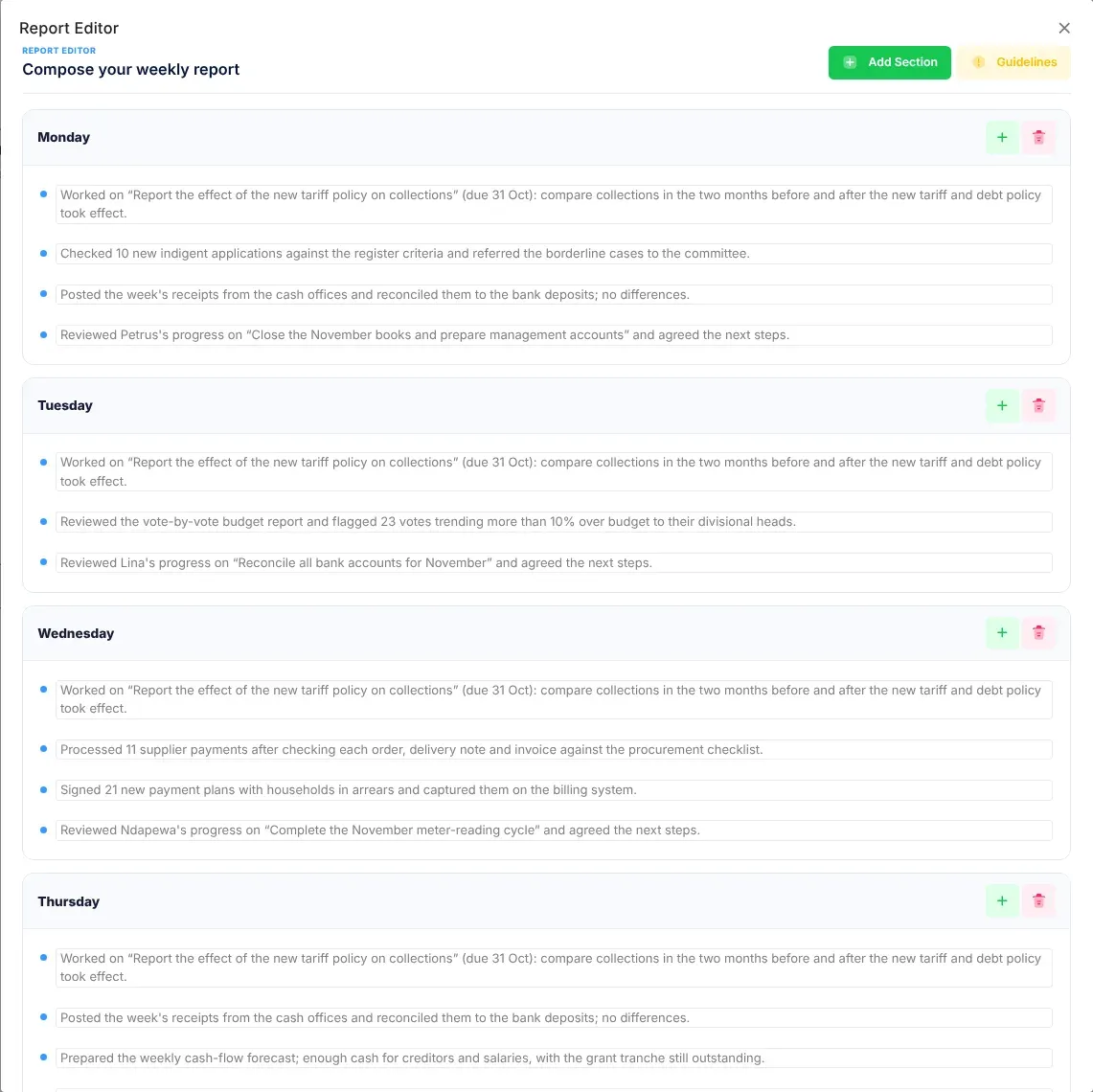
The Report Editor opens, headed Compose your weekly report. Read each section.
A draft that VirgilTrack wrote has a section for each day of the week. A day with no points says “No activities reported.”
-
Change anything that isn’t right. See Change the draft.
-
Check the Summary at the bottom: Key Achievements and Challenges or Issues.
-
Select Submit Report.
Select Guidelines in the editor to see what a good report entry includes. See What to write.
Change the draft
Section titled “Change the draft”- Change a point: select its text and type. Your change is saved as you type.
- Add a point to a section: select the plus button beside the section’s name (Add report point), then type in the new, empty point. You see “New report point was added”.
- Remove a section: select the bin button beside its name (Delete section), then Yes, delete.
You can’t remove a single point. Change its words, or delete the whole section. You can’t change the summary in the editor.
To add a section of your own:
-
Select Add Section.
-
Type the section’s name in Enter Section Name.
-
Select Create Section.
The window closes, and the new section appears with one empty point. Type in it.
How your draft is built
Section titled “How your draft is built”VirgilTrack writes your draft the first time you open the editor with points from your team ticked. It sorts the ticked points and any ticked activity prompts into the days of the week, and writes the summary from them. Once the draft is written, your ticks are cleared.
Ticked activity prompts on their own don’t start a draft. Tick at least one point from your team’s reports.
If you tick or clear points after your draft is written and then open the editor, VirgilTrack asks “Your picks changed”:
- Rebuild draft throws away the draft and writes a new one from your current ticks. If nothing is ticked, the editor opens empty.
- Keep my draft opens the draft you have.
When the editor opens on a draft while points are ticked, it says how many, for example “4 report points are selected”. Select Re-generate report to write the draft again from them. Or close the message (✕) to keep your draft as it is.
What happens next
Section titled “What happens next”- You see “Report successfully submitted to your manager.”
- The page says Report submitted, with when you sent it, for example “Sent Friday, 23 October • 2:15 PM”.
- If you report to the CEO, your report appears on the CEO’s monthly view. If you report to another manager, it appears under their Team submissions. See Who your report goes to.
- VirgilTrack checks your points for anything other departments need to know. See News from other departments.
Change a report you already submitted
Section titled “Change a report you already submitted”-
Open Work Reports.
-
Select Reopen and edit.
You see “Your report is open for editing again.” The team cards and Open editor come back.
-
Make your changes in the editor, then select Submit Report again.
The page shows the current week only, so you can reopen this week’s report, but not an earlier week’s.
Download a PDF
Section titled “Download a PDF”-
Select Download PDF at the top of the page.
-
Choose what to download:
- My report: your own report, with its sections, its summary and any news from other departments.
- Consolidated team report: the reports of everyone in your team who has submitted, one after another, with any news from other departments. It only appears once someone has submitted.
The button says Preparing… while the PDF is made. The PDF carries your organisation’s name and logo. It is named, for example, “Weekly Report - Daniel Shikongo - Week 43, 2026.pdf” or “Team Report - Daniel Shikongo - Week 43, 2026.pdf”.
You can download My report before you submit. It then says “Draft — not yet submitted”.
If something goes wrong
Section titled “If something goes wrong”| What you see | Why | What to do |
|---|---|---|
| “Request Failed” and “Unable to combine report due to service issues. Try refreshing your browser and try again.” | VirgilTrack couldn’t write the draft just then. Your ticks are kept. | Refresh the page in your browser and select Open editor again. |
| The editor opens empty. | No points from your team were ticked when you opened it, and you had no draft. | Close the editor, tick points, and open it again. Or add sections and write the report yourself. |
| “Section name is required” | You selected Create Section without a name. | Type a name, then select Create Section. |
| “A section with the same name already exists” | The report already has a section with that name. | Add your points to that section, or choose another name. |
| “An unexpected error occured. Please refresh your browser and try again” | A point or section couldn’t be added or removed. | Refresh the page, open the editor and try again. |
| “Download failed” and “We couldn’t generate the PDF. Please try again.” | The PDF couldn’t be made. | Try again in a moment. |