

The risk heat map
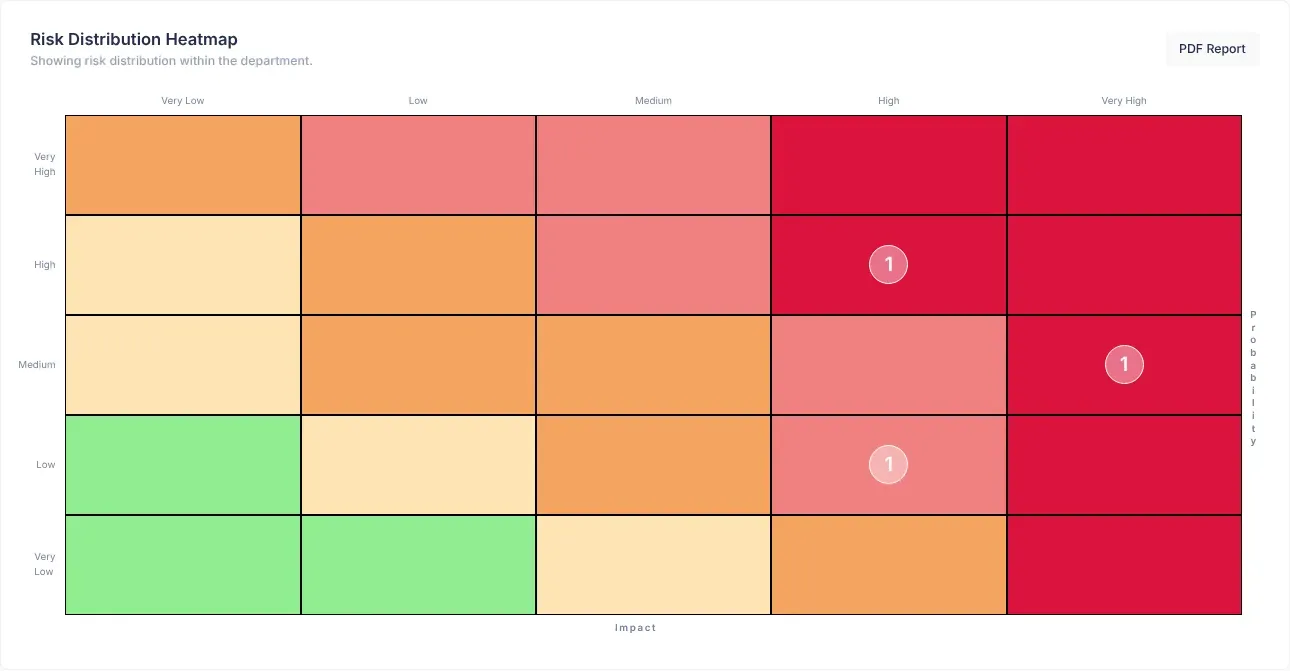
The Risk Distribution Heatmap shows how your open risks are spread by probability and impact. Probability is how likely a risk is to happen; impact is how serious it would be if it did. The heat map helps you see at a glance whether risks are bunching up in the serious, red part of the grid.
Where to find it
Section titled “Where to find it”The heat map is on both dashboards:
| Dashboard | Which risks it counts | The line under the title |
|---|---|---|
| Manager Dashboard, for managers and employees | Your department’s risks | “Showing risk distribution within the department.” |
| CEO Dashboard | Your whole organisation’s risks | “Showing risk distribution within the organization.” |
Open it with Dashboard in the menu on the left.
Which risks are counted
Section titled “Which risks are counted”The heat map counts only open risks: risks with the status New or In Progress that haven’t been marked as mitigated.
- Risks that are Unassessed, Deferred, Mitigated or Archived aren’t counted.
- A risk needs both a Likelihood and an Impact to be placed on the grid. See How risk scores work.
How the grid is laid out
Section titled “How the grid is laid out”The grid has five columns and five rows, one for each level from Very Low to Very High.
- The columns are impact. They run from Very Low on the left to Very High on the right. Their names are above the grid, and the word Impact is under it.
- The rows are probability. They run from Very High at the top to Very Low at the bottom. Their names are on the left of the grid, and the word Probability runs down the right-hand side.
“Probability” on the heat map means the same as Likelihood on a risk’s form and page.
| Level | Probability (likelihood) means | Impact means |
|---|---|---|
| Very Low | The risk is highly unlikely to happen. | No real effect on operations or objectives. |
| Low | Unlikely, but possible. | A slight disruption, with little effect on objectives. |
| Medium | It may happen in certain conditions. | A noticeable effect; it may delay operations. |
| High | It is likely to happen. | A big effect on operations; objectives are at risk. |
| Very High | It is almost certain to happen. | A critical effect, with a high chance of failure. |
What the colours mean
Section titled “What the colours mean”Each cell’s colour shows how serious that mix of probability and impact is. The colours go from light green (least serious), through pale yellow, orange and light red, to deep red (most serious).
| Probability (row) and impact (column) | Very Low | Low | Medium | High | Very High |
|---|---|---|---|---|---|
| Very High | Orange | Light red | Light red | Deep red | Deep red |
| High | Pale yellow | Orange | Light red | Deep red | Deep red |
| Medium | Pale yellow | Orange | Orange | Light red | Deep red |
| Low | Light green | Pale yellow | Orange | Light red | Deep red |
| Very Low | Light green | Light green | Pale yellow | Orange | Deep red |
The whole Very High impact column is deep red: a risk that would have a critical effect always needs attention, however unlikely it is.
What the numbers mean
Section titled “What the numbers mean”A number in a circle shows how many risks are counted in that cell. A cell with no number has no risks in it. The heat map shows only counts, not the names of the risks.
Find the risks behind a number
Section titled “Find the risks behind a number”You can’t select the cells. To see the risks themselves:
- Managers and employees: open the Risk Register from the menu. It lists your department’s risks. See The risk register.
- CEO: in Departments Overview on the CEO Dashboard, select a department to open its page and see its risks. See Departments.
Each risk’s own page has a small grid of likelihood by impact with the risk’s place marked, and a line such as “High likelihood, medium impact”. Use it to check exactly where a single risk sits. See A risk’s page.
How risks move on the map
Section titled “How risks move on the map”- When someone changes a risk’s likelihood or impact, the risk moves to another cell.
- When a risk’s status changes to anything other than New or In Progress, such as Mitigated, Deferred or Archived, it leaves the map. So does a risk marked with Mark as mitigated.
- The heat map is worked out when the dashboard opens. To see the latest picture, reload the page in your browser.
Get a report
Section titled “Get a report”Select PDF Report at the top of the card to open the Generate Reports page, where you can create a risk report to share or print. See Make a risk report.