

The Initiatives page
An initiative is a piece of work, such as a project or programme, that helps reach one of the plan’s objectives. Each initiative belongs to one department. The Initiatives page, titled Annual execution plan, shows each initiative’s tasks for the year, month by month: what has been done, what is late and what comes next.
Open the Initiatives page
Section titled “Open the Initiatives page”Open Execution, then Initiatives. Department managers and team managers have this page. Others can open it if the CEO has given them access. See Manage plans and page access.
You see:
- if you are a manager: the initiatives of the departments you head, and of your own department;
- if you lead initiatives: those initiatives.
The line under the title says which: the names of your departments, or Initiatives you lead.
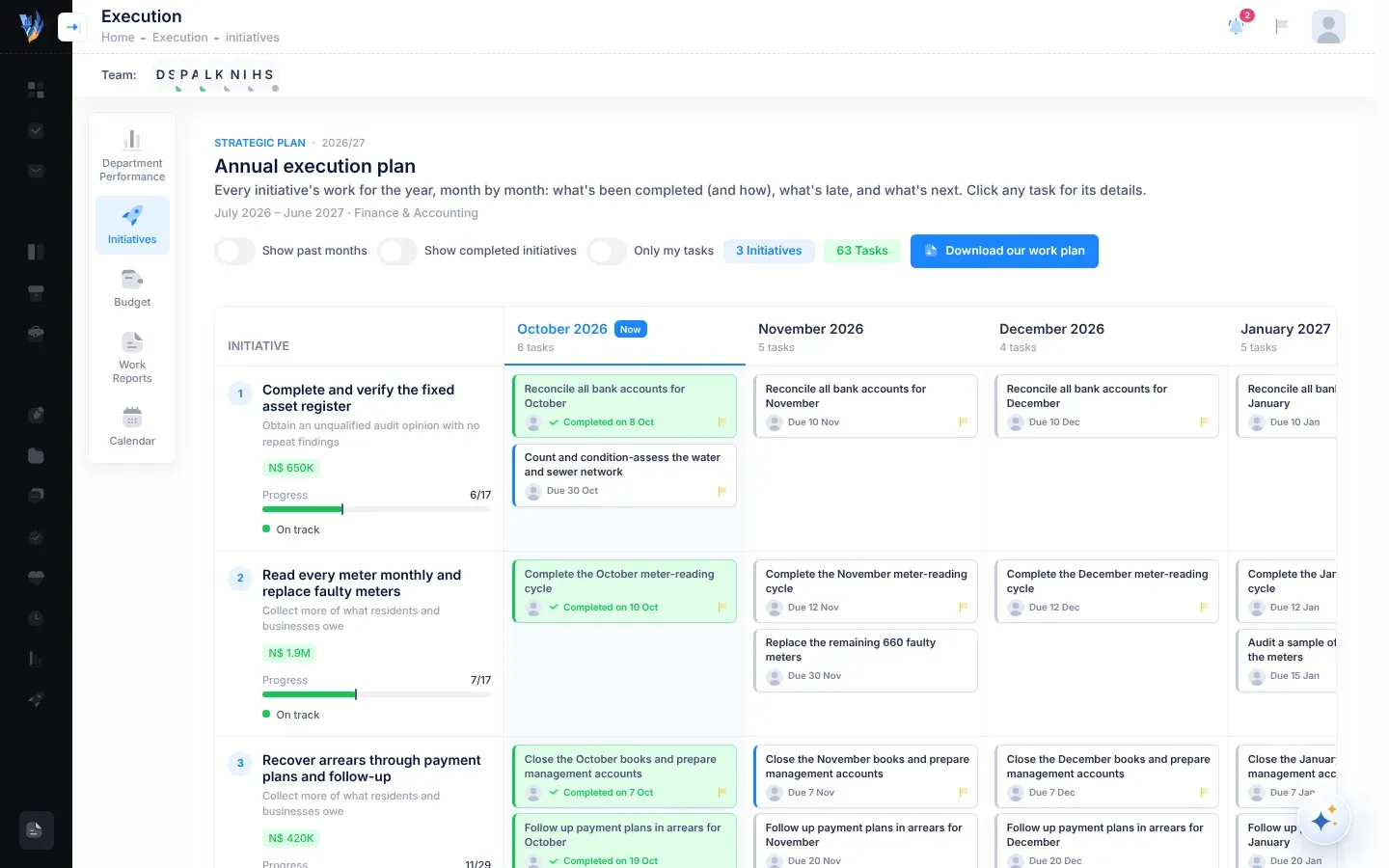
The top of the page
Section titled “The top of the page”- The title Annual execution plan, with the plan year and its months, and the departments shown.
- Show past months: also show the months of this year that have already passed. At first, the grid starts at the current month.
- Show completed initiatives: also show initiatives whose tasks are all done. The label says how many there are.
- Only my tasks: show only the tasks given to you.
- Counts of Initiatives, Tasks and, if any, Overdue tasks.
- Download annual plan, Download our work plan or Download a work plan, depending on your role. See Download KPI and annual plan reports.
Needs your attention
Section titled “Needs your attention”When some initiatives are slipping, a list called Needs your attention appears above the grid. It lists each initiative that has Missed work, is Behind or is Stalled, most urgent first, with the reasons. For example: “Prepaid meters · Behind: 2 tasks overdue; 20% done, against 45% due by now”.
The grid
Section titled “The grid”Each row is an initiative. Each column is a month of the plan year. The current month is marked Now, and each month’s heading says how many tasks are due in it.
An initiative’s cell
Section titled “An initiative’s cell”On the left of each row:
- the initiative’s number and name, and the objective it serves;
- its budget for this year, or Unfunded if it has no budget this year;
- its department, when you see more than one department;
- Progress: how many of this year’s tasks are done, for example 3/8, as a bar. A mark on the bar shows where it should be by now;
- its status, with the main reason. See Initiative statuses.
A task card
Section titled “A task card”Each task is a small card in the month it is due. The card shows:
- the task’s title;
- the picture or initial of the person it is assigned to;
- Completed on and the date, Due and the date, or, if it is late, for example “Due 12 Mar · 5 days late”;
- a flag for High or Critical priority, how many times the task has been rescheduled, and how many messages it has, with a dot for unread ones.
Select a task’s title to see its details beside the card: its status, priority, description, who it is assigned to, its due date, how often it was rescheduled and why, and, for a completed task, How it was done. Select Edit task to open the task’s own page. See Tasks.
Adding tasks
Section titled “Adding tasks”If you can plan an initiative’s work, each month in its row has an Add task button. It appears when you point at the month’s box, or move to it with the Tab key. You can add tasks to the initiatives of the departments you head, of your own department if you are a manager, and to initiatives you lead. See Plan an initiative’s tasks.
Initiative statuses
Section titled “Initiative statuses”VirgilTrack works out each initiative’s status from its tasks due this year.
| Status | Meaning |
|---|---|
| On track | The work is keeping up with the year. |
| Behind | Some tasks are overdue, or the share of tasks done is more than 10 points below the share that should be done by now. |
| Missed work | At least one task is more than 7 days past its due date and not done. |
| Stalled | No task has been completed for more than 45 days, while work is still left. |
| No work planned | The initiative has no tasks due this year. |
| Done | Every task due this year is done. |
A task is “due by now” if its due date has passed. Archived tasks aren’t counted. For the detail, see How progress and status are worked out.
If something looks wrong
Section titled “If something looks wrong”| What you see | Why | What to do |
|---|---|---|
| “No Active Period Found” | There is no approved plan, or the plan has no years. | See Bring in your strategic plan. |
| “No initiatives for you in this period.” | None of the plan’s initiatives belong to your departments, and you don’t lead any. | Check that your department is set correctly. Ask your CEO if initiatives should be assigned to it. |
| “Every initiative is complete. Switch on “Show completed initiatives” to see them.” | All your initiatives’ tasks are done. | Switch on Show completed initiatives. |
| A task you expect isn’t in the grid | It may be due in a past month, or it isn’t yours while Only my tasks is on. | Switch on Show past months, or switch off Only my tasks. |