

The Kanban board
The Kanban board shows your department’s risks as cards in three columns, one for each stage of the work. Drag a card to another column to change the risk’s status. It is a quick way to see, and talk through, where each risk stands.
Open the board
Section titled “Open the board”Select Kanban Board in the menu on the left. The page is called Kanban Collaboration.
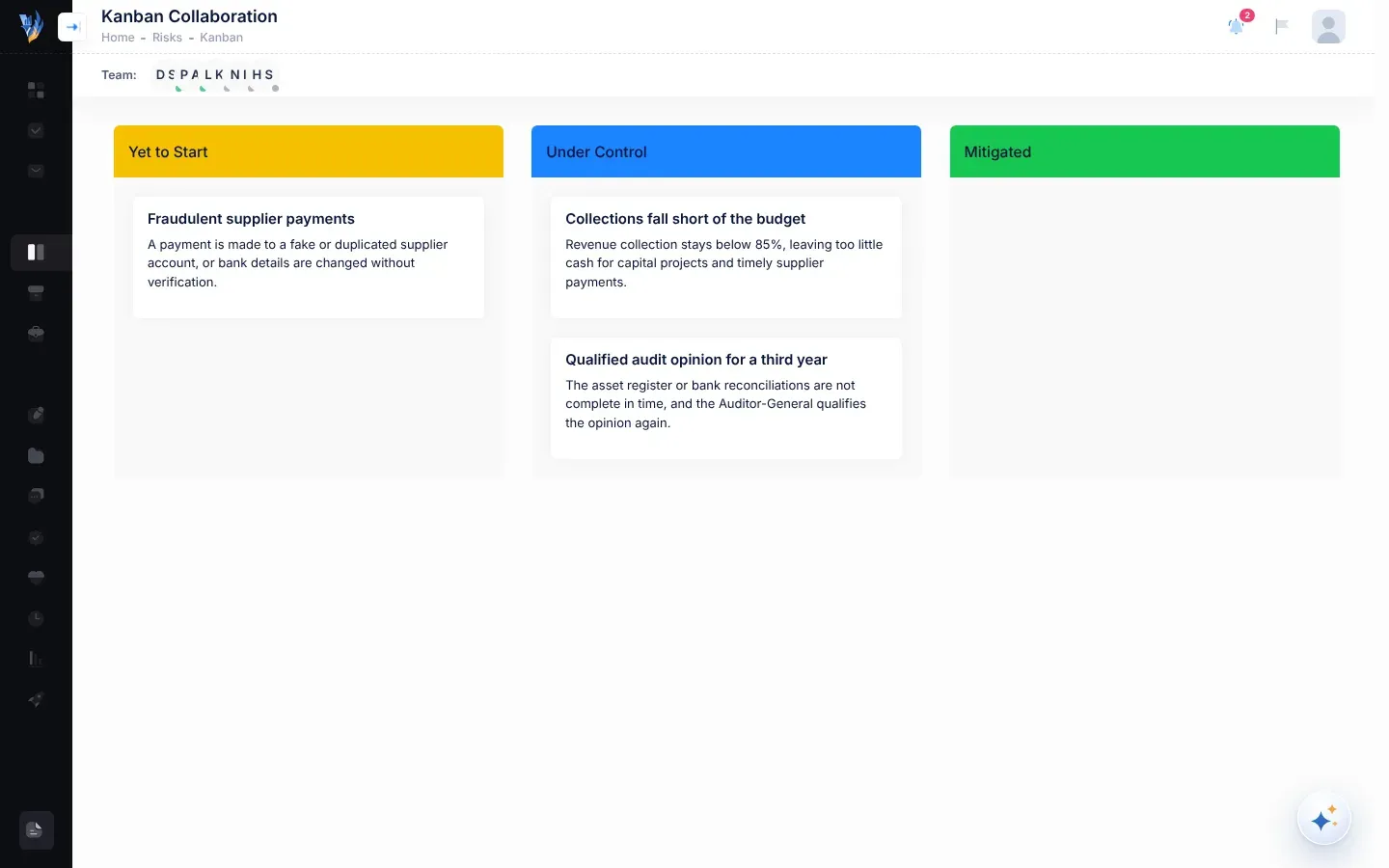
The columns
Section titled “The columns”| Column | Status of the risks in it |
|---|---|
| Yet to Start | New: the risk has been identified, but no actions have been taken yet. |
| Under Control | In Progress: actions are being taken to reduce the risk. |
| Mitigated | Mitigated: the risk has been dealt with. |
Each card shows the risk’s name and description. The board shows only your department’s risks.
Risks that are Not assessed or Archived aren’t on the board. Assessed risks you copied from the repository appear under Under Control. To open a risk, or to work on one that isn’t on the board, use the Risk Register. See The risk register.
Move a card
Section titled “Move a card”- Point at the card you want to move.
- Hold down the mouse button and drag the card to the new column.
- Let go of the mouse button.
A message says “Risk Updated Successfully!” and the risk’s new status shows everywhere in VirgilTrack.
Which moves are allowed
Section titled “Which moves are allowed”| From | You can move the card to |
|---|---|
| Yet to Start | Under Control |
| Under Control | Mitigated, or back to Yet to Start |
| Mitigated | Nowhere. A mitigated risk stays in Mitigated. |
While you drag a card, the columns you can’t drop it into fade out. If you drop it there anyway, the card goes back where it was, and Invalid Drag appears with the words “You can’t dray this risk to that board.”
The order of cards inside a column isn’t saved. Moving a card up or down within Yet to Start or Under Control also shows Invalid Drag.
What happens next
Section titled “What happens next”When you move a card, the people in your department and the CEO get a “Risk Status Changed” notification. It names the risk and its old and new status, for example New and In Progress. Selecting the notification doesn’t open the risk: find it in the Risk Register.
- The board shows the risks as they were when you opened it. To see your colleagues’ latest changes, reload the page.
- Moving a card from Yet to Start to Under Control is a good way to show that work on a new risk has begun.
If something goes wrong
Section titled “If something goes wrong”| What you see | Why | What to do |
|---|---|---|
| The card goes back, or Invalid Drag appears | That move isn’t allowed, or you moved the card within its own column. | Check which moves are allowed. |
| Error! and a message, and the card goes back | The change couldn’t be saved. | Reload the page and try again. |
| A risk you expect isn’t on the board | It is Not assessed or Archived, or it belongs to another department. | Find it in the Risk Register. Assess it if it is Not assessed. |