

Try VirgilTrack with a demo link
A demo link lets you explore VirgilTrack before your organisation signs up. It opens a private copy of VirgilTrack filled with a sample organisation, so you can try everything without affecting anyone’s real work.
Before you start
Section titled “Before you start”- Demo links are personal. Virgil Finance prepares each one for a named person. If you’d like one, contact Virgil Finance.
- Each link works in one browser only: the first browser that opens it. Use the same computer and browser every time you come back.
- Don’t open the link in a private or incognito window, and don’t clear that browser’s cookies while your demo lasts. Otherwise the browser is no longer recognised and the link won’t open again.
- A demo lasts for a limited time. The demo bar shows how much time is left.
Open your demo
Section titled “Open your demo”-
Open the demo link you were sent.
VirgilTrack signs you in as the CEO of the sample organisation. You don’t need a password.
-
On the welcome page, check the badge “Your private demo, prepared for …” shows your name.
-
Choose how to start: Take the tour or Use my own plan. Both are explained below.
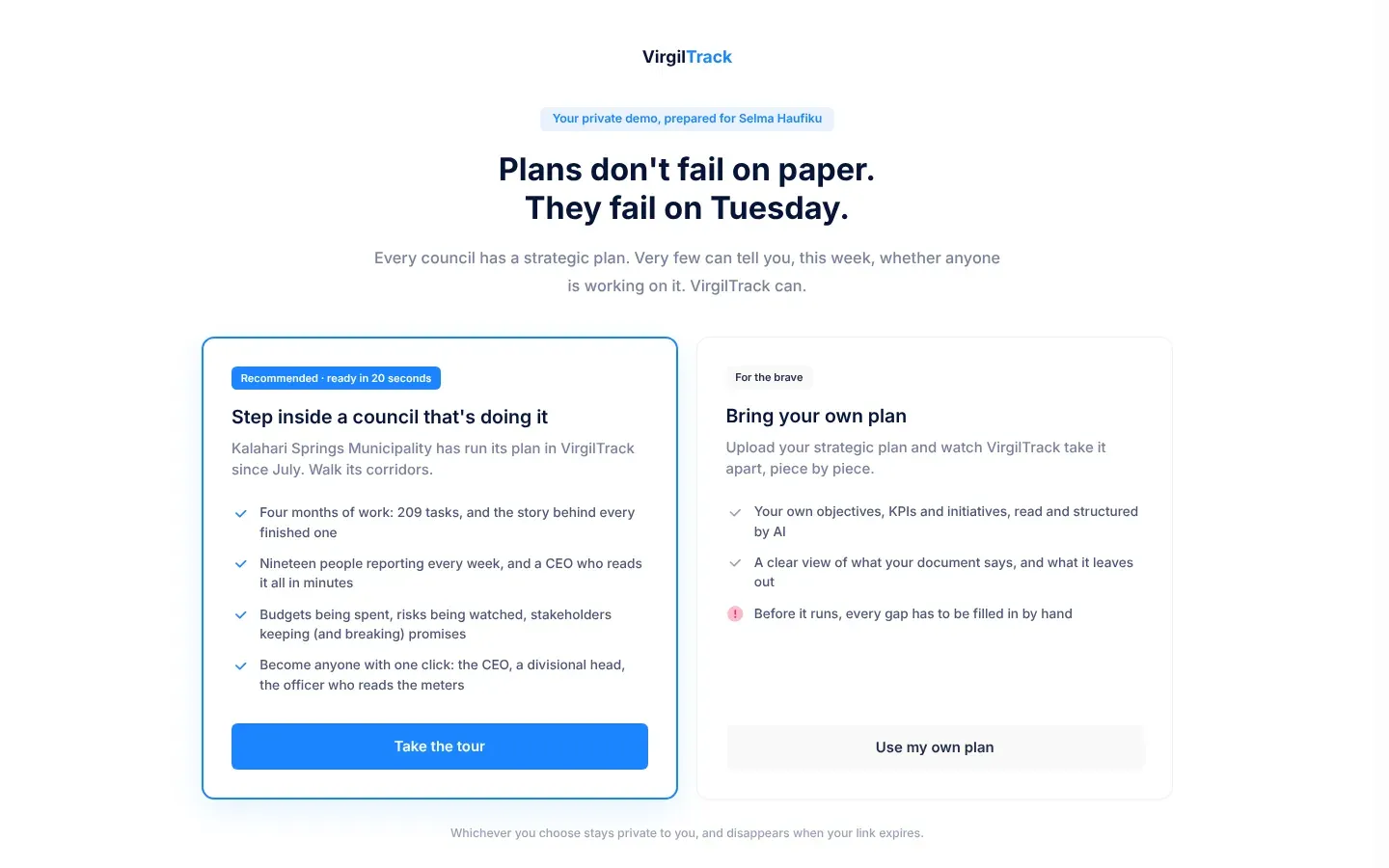
Your demo is a separate copy of VirgilTrack, so nothing you do in it affects a real organisation. It disappears when your link expires. Once your demo has a plan, for example after you take the tour, the link takes you straight into VirgilTrack next time.
The VirgilTrack team that sent your link can see a record of your visits to the demo, such as when you opened it, which pages you viewed and how far you got through the tour.
Take the tour
Section titled “Take the tour”Take the tour is the recommended choice. It opens Kalahari Springs Municipality, a sample council that already runs its plan in VirgilTrack. Its tasks, weekly reports, budgets and risks are already there.
-
Select Take the tour.
The button shows Opening the doors… while VirgilTrack prepares the sample organisation. Then the guided tour starts, if your demo includes one.
-
Read each bubble. Step … of … shows how far through the tour you are.
-
Select Next (or the button shown in the bubble), or press Enter, to go on. When a bubble says Click the highlighted item, select the item that is lit up.
-
To stop at any time, select Skip the tour.
To take the tour again later, select Tour on the demo bar. The tour follows the CEO: if you’re viewing as someone else, Tour switches you back to the CEO first. Not every demo includes the tour; if yours doesn’t, the Tour button isn’t there.
Use your own plan
Section titled “Use your own plan”Use my own plan lets you upload your own strategic plan and see VirgilTrack read it. Be aware that it is real work, not a quick look: VirgilTrack won’t run a plan with gaps in it, and you’ll be asked to fill in every gap by hand.
-
Select Use my own plan.
A warning appears: Stop. This is the deep end.
-
Select I understand. Let me upload anyway. To change your mind, select Take the tour instead.
-
Under Whose plan is it?, type your organisation’s name in Organisation name, for example “Okahandja Town Council”.
-
Select Continue to the upload.
VirgilTrack opens the Execution area, ready for you to upload your plan. See Bring in your strategic plan.
To go back to the two choices, select Back to the two options.
The demo bar
Section titled “The demo bar”While you’re in a demo, a bar floats at the bottom of every page.
| Part of the bar | What it does |
|---|---|
| Demo | Shows that you’re in a demo, who it was prepared for, and the time left. |
| Quick actions | Makes things happen instantly for the demo, such as everyone submitting this week’s work reports. |
| Viewing as … | Shows whose eyes you’re seeing VirgilTrack through. Select it to become someone else. |
| Tour | Starts the guided tour again. |
| Back to CEO | Switches back to the CEO. Shown when you’re viewing as someone else. |
See VirgilTrack as someone else
Section titled “See VirgilTrack as someone else”- On the demo bar, select Viewing as ….
- Type in “Search people, roles or departments…” to find someone, or scroll the list.
- Select the person.
The page reloads, signed in as that person, so you see their notifications, tasks and report. A CEO or Manager badge marks people with those roles.
Use quick actions
Section titled “Use quick actions”Quick actions work on the Work Reports page in Execution. Select Quick actions, then Run next to the action you want. If there are none on the page you’re on, the menu offers a Go to Work reports button.
| Viewing as | Quick actions |
|---|---|
| The CEO | Everyone submits this week’s reports; Reset this week to drafts |
| A manager | My team submits this week’s reports; Submit my report to the CEO; Reset my team’s week |
| An officer | Fill in my week so far; Reset my report to draft |
After an action runs, VirgilTrack tells you what happened and reloads the page.
What you can’t do in a demo
Section titled “What you can’t do in a demo”- The people in a demo are made up, so their sign-in details can’t be changed. In Settings you see “This is a demo, so sign-in details can’t be changed here.”
- When the demo’s time runs out, you’re signed out and the demo is gone.
If something goes wrong
Section titled “If something goes wrong”| What you see | What to do |
|---|---|
| “This demo link isn’t valid.” | Check that you opened the whole link from your email. |
| “This demo link has expired. Ask for a new one.” or “This demo link has been withdrawn.” | Contact Virgil Finance for a new link. |
| “This demo link has already been opened on another device. Each link is personal; ask for your own.” | Open the link in the browser you first used, or ask for your own link. |
| “We couldn’t prepare your demo just now. Please open the link again in a minute.” | Wait a minute and open the link again. |
| “This demo isn’t available any more.” | Contact Virgil Finance for a new link. |
| “Please enter your organisation’s name.” | Type your organisation’s full name (at least two letters), then select Continue to the upload. |
| “That name is too long; 120 characters at most.” | Shorten the name. |
| “This week’s reports haven’t been set up yet. Open Work reports once, then try again.” or “You don’t have a report for this week yet. Open Work reports once, then try again.” | Open Work Reports in Execution, then run the quick action again. |
| “That didn’t work just now. Please try again in a moment.” | Wait a moment, then run the quick action again. |
Related
Section titled “Related”- Sign up your organisation
- Demo links, for administrators who create them
- What is VirgilTrack?