

Write the monthly report
Each month, you report to Council on the organisation’s operations and its progress on the strategic plan. VirgilTrack writes the first draft for you, from the month’s weekly reports and the plan’s own figures. You decide what goes in, edit the draft with Virgil’s help, and download it as a PDF.
Before you start
Section titled “Before you start”- Open the month you want on your Work Reports page. See The CEO’s monthly view.
- If you want only some points in the report, tick them first under Read and pick points. See Read and pick points.
Write the first draft
Section titled “Write the first draft”-
Open Work Reports.
-
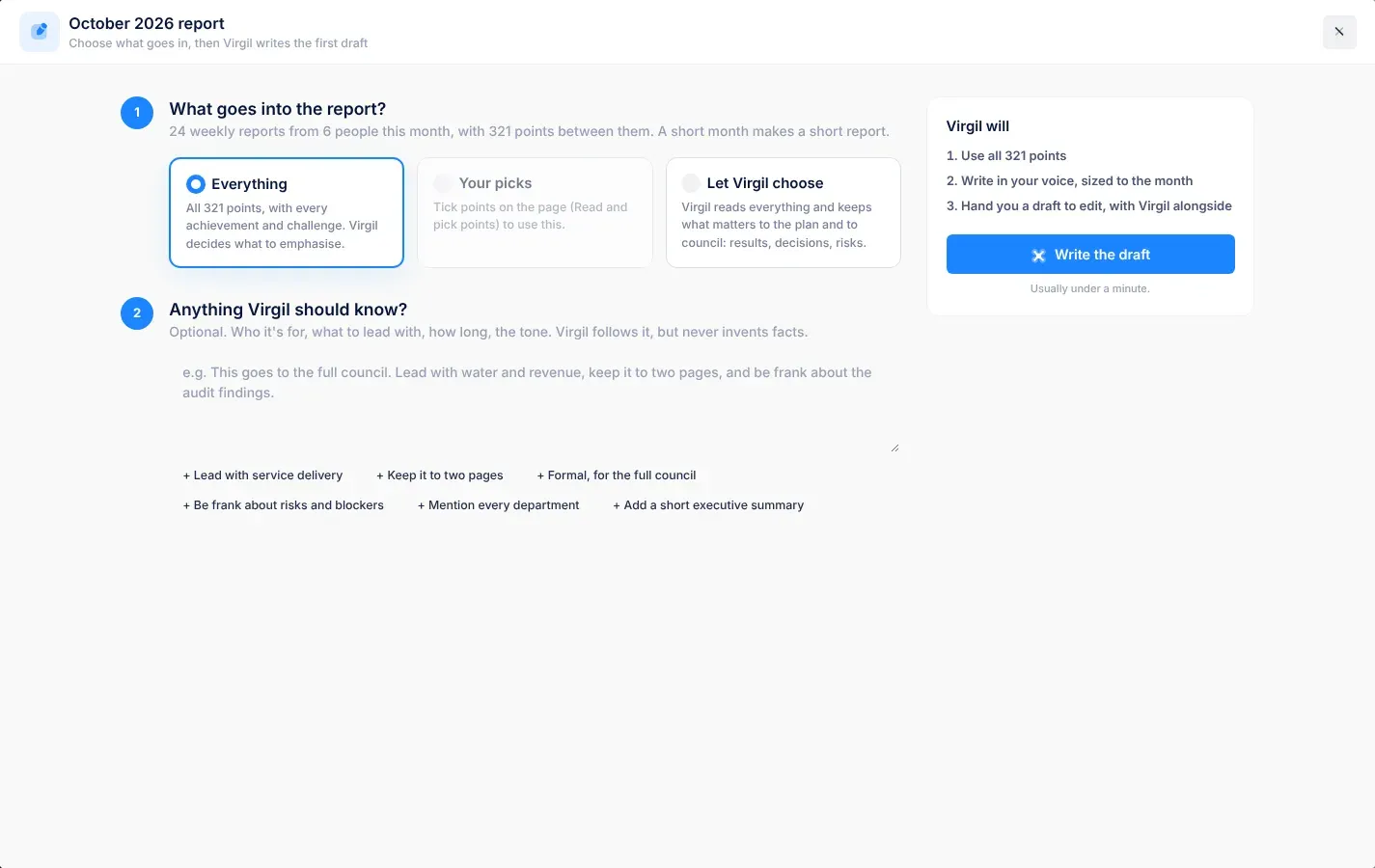
Select the month’s report button, for example October’s report. Or, under Read and pick points, select Open the report editor.
The report window opens, for example October 2026 report. If you already have a draft for the month, it opens in the editor instead: see Edit the draft, or Start again.
-
Under What goes into the report?, choose one:
- Everything: all the month’s points, with every achievement and challenge. Virgil decides what to emphasise.
- Your picks: only the points you ticked on the page. You can choose it once you have ticked some, and it is chosen for you if you have.
- Let Virgil choose: Virgil reads everything and keeps what matters to the plan and to Council: results, decisions and risks. You can choose it once some weekly reports are in.
-
If Activity prompts are listed, tick any you want in the report.
-
Under Anything Virgil should know?, you can say who the report is for, what to lead with, how long it should be, or the tone. This is optional.
Select a suggestion such as + Keep it to two pages to add it to your instructions.
-
Check the list under Virgil will, then select Write the draft.
While Virgil works, the window shows Virgil is writing your report and each step as it is done, for example “Reading 12 weekly reports”, “Writing the draft” and “Laying it out”. It usually takes under a minute.
If no weekly reports are in yet, Virgil can still write the report from the plan’s own figures: KPIs, initiatives, budget and risks.
Virgil follows your instructions, and is told to use only the month’s reports and VirgilTrack’s own figures, never to invent facts. Always read the draft before you share it.
What’s in the draft
Section titled “What’s in the draft”The draft reads like a report from a Chief Executive Officer to Council. It attributes work to departments, not to individual staff. A quiet month gives a short report.
| Part | What it holds |
|---|---|
| The cover | Your organisation’s name and logo, “Report of the Chief Executive Officer to Council”, the month, who it is submitted by, the period under review, the strategic plan and a reference. |
| Contents | The report’s headings. It updates itself when you change the headings. |
| The month at a glance | The month’s key figures, such as KPIs on target and risks rated high, and Matters for Council’s attention. |
| The body | Purpose, Executive summary, sections named after the month’s work, Way forward and Recommendations. Progress on the Strategic Plan, Budget performance and Risks and challenges appear when VirgilTrack has those figures. Recommendations always starts with Council taking note of the report. |
| Annex: Sources | The departmental reports the report’s statements rest on. Small numbers in the text point to them. |
Tables and charts, such as the KPI scorecard, the budget table and the risk heat map, are drawn by VirgilTrack from its own figures.
Edit the draft
Section titled “Edit the draft”The draft opens in an editor, with Virgil alongside on the right. Your changes are saved as you go: the top of the window shows the number of words and when it was last saved, for example “860 words · saved 14:05”.
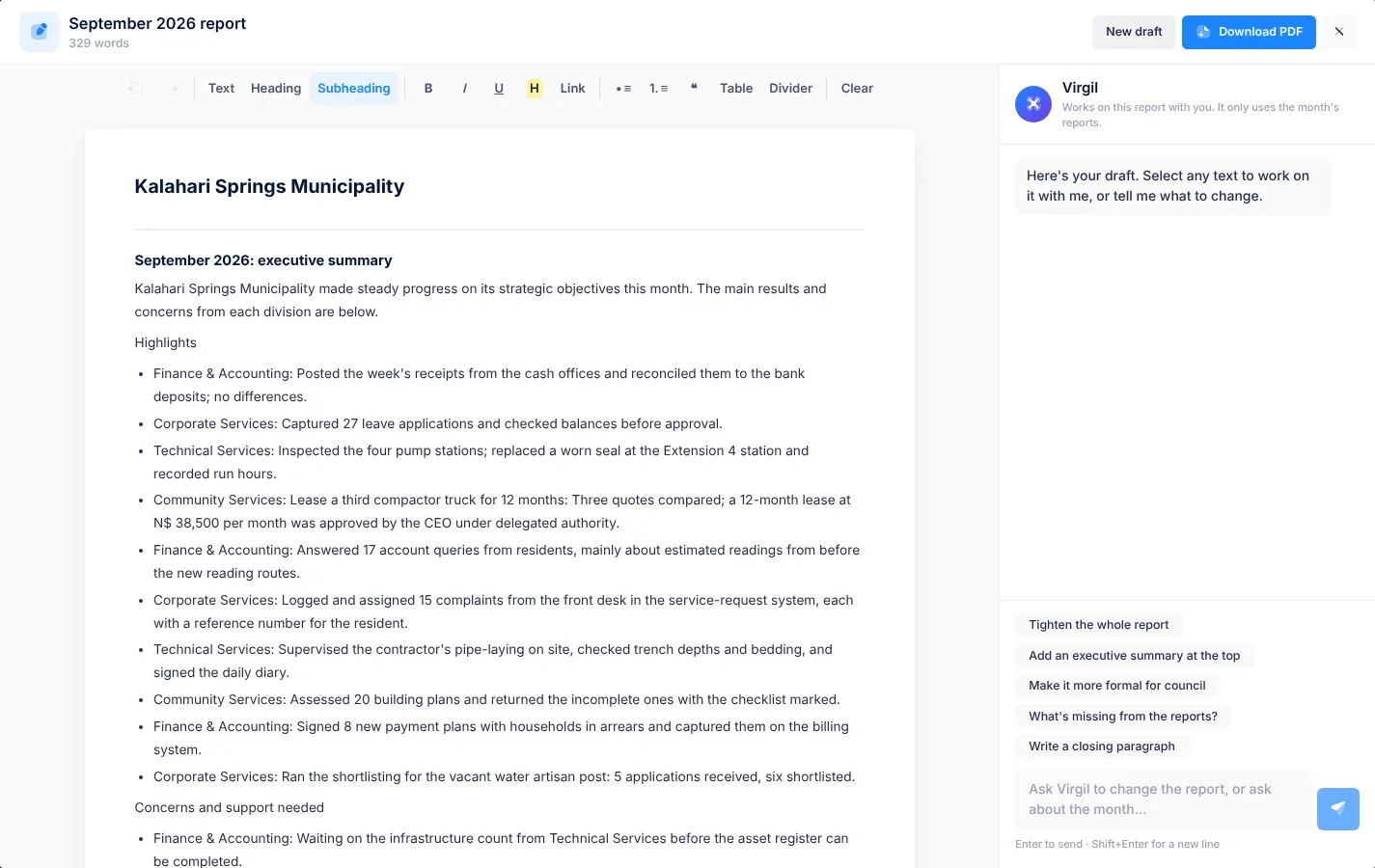
- Type straight into the body of the report, as in a word processor.
- The toolbar has Undo, Redo, Text, Heading, Subheading, bold, italic, underline, highlight, Link, bulleted and numbered lists, quote, Table, Divider and Clear (clear formatting).
- Keyboard shortcuts: Ctrl + Z to undo, Ctrl + Y to redo, Ctrl + B for bold, Ctrl + I for italic and Ctrl + U for underline.
The cover, Contents, The month at a glance and Annex: Sources are set apart from the body. You edit the body.
Work with Virgil
Section titled “Work with Virgil”Virgil only uses the month’s reports. You can ask it to change the whole report, or just some text you select.
| To | Do this |
|---|---|
| Change the whole report | Select a request such as Tighten the whole report, Add an executive summary at the top, Make it more formal for council, What’s missing from the reports? or Write a closing paragraph. Or type your own request in the box and press Enter. |
| Change some text | Select the text in the report. It appears under Your selection. Choose Rewrite more clearly, Shorten, Expand with detail from the reports, Make more formal or Turn into a bulleted list, or type what to do. |
| Ask a question | Type it in the box, for example “Which departments reported delays?”. Virgil answers without changing the report. |
| Undo Virgil’s last change | Select Undo this change under Virgil’s reply. |
Press Shift + Enter for a new line in the box. On a narrow screen, the Virgil panel is hidden.
Bring the figures up to date
Section titled “Bring the figures up to date”Select Refresh figures to redraw the cover, The month at a glance, the tables and the charts from VirgilTrack’s latest figures. Your words stay as they are. Virgil confirms “The figures, tables and charts are up to date with VirgilTrack. Your wording is unchanged.”
Download the PDF
Section titled “Download the PDF”Select Download PDF. The button says Preparing… while VirgilTrack makes the PDF, which is named after the month, for example “October 2026 report.pdf”.
To close the window, select the close button (✕) at the top right. Your draft is kept. Next time you open the month’s report, the draft opens straight away in the editor.
Start again
Section titled “Start again”Select New draft at the top of the window. You go back to What goes into the report?, with a warning: “You have a draft already. Writing a new one replaces it, including your edits.” Select Back to my draft if you change your mind.
What happens next
Section titled “What happens next”- Your draft is saved with the month. When you open the month’s report again, the draft opens in the editor.
- Once Virgil has written a draft, the points and activity prompts you ticked for it are cleared.
- Share the PDF with Council in the usual way. VirgilTrack doesn’t send it for you.
If something goes wrong
Section titled “If something goes wrong”| What you see | Why | What to do |
|---|---|---|
| “There is nothing to report on for this month yet: no weekly reports have been submitted, and there is no approved strategic plan to report against.” | Virgil has nothing to write from. | Wait for weekly reports to come in, or approve your strategic plan. See Strategy and execution. |
| “Virgil couldn’t write the draft just now. Your choices are kept; please try again in a moment.” | Virgil wasn’t available. | Wait a moment, then select Write the draft again. |
| Your picks can’t be chosen. | You haven’t ticked any points on the page. | Close the window, tick points under Read and pick points, then open it again. |
| “The editor couldn’t load. It needs an internet connection the first time, for its components. Check the connection and reopen the report.” | The editor’s parts couldn’t be downloaded. | Check your internet connection, close the window and open the report again. |
| “Your latest change couldn’t be saved. Keep this window open and try again.” | A change wasn’t saved. | Keep the window open and make the change again. |
| “I couldn’t do that just now. Please try again in a moment.” | Virgil couldn’t finish your request. | Try again, or make the change yourself. |
| “The PDF couldn’t be made just now. Please try again.” | The PDF couldn’t be made. | Try Download PDF again in a moment. |
| “The figures couldn’t be refreshed just now. Please try again.” | Refresh figures couldn’t finish. Your report is unchanged. | Try Refresh figures again in a moment. |
| “I couldn’t keep every table and chart in place with that change, so I left the report as it was. Try asking about one section.” | Virgil’s change would have moved or lost a table or chart. | Ask about one section at a time, or select the text you want changed. |