

A department's page
A department’s page brings together everything about one department: who leads it and who is in it, how its planned work and budget are going this year, and its open risks. Start here when you want to know how a department is doing.
Who can open it
Section titled “Who can open it”You can open your own department and any department you manage. The CEO and administrators can open every department. See Who can do what.
Open a department’s page
Section titled “Open a department’s page”- Select Departments in the menu on the left.
- On the department’s card, select View Department.
The page opens at Overview.
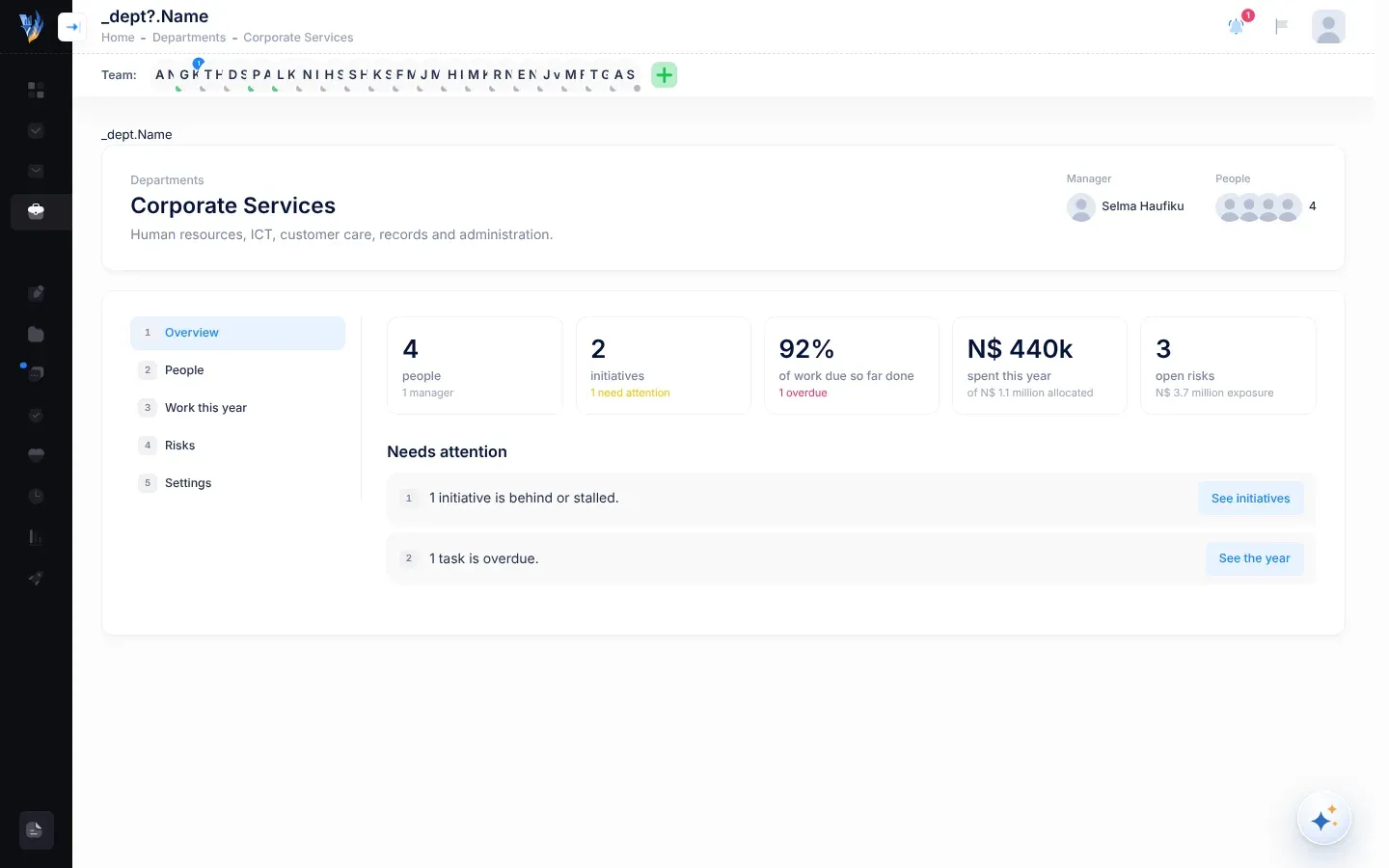
The header
Section titled “The header”At the top of the page you see:
- Departments: a link back to the list of departments.
- The department’s name and description. “No description yet.” means nobody has written one.
- Manager or Managers: pictures and names of the department’s managers. If it has none, a red button says No manager: none assigned (or No manager: assign one for the CEO and administrators). It opens the People section.
- People: pictures of the department’s people and how many there are.
The sections
Section titled “The sections”The numbered list on the left switches between the sections of the page.
| Section | What it shows |
|---|---|
| 1 Overview | Key figures and a list of what needs attention. |
| 2 People | The department’s managers and everyone who belongs to it. |
| 3 Work this year | Tasks month by month, initiatives, budget and work alignment. |
| 4 Risks | The department’s open risks, with the largest financial exposure first. |
| 5 Settings | The department’s name and description. Only the CEO and administrators see this section. |
A number next to a section’s name counts the serious problems waiting in it, such as a missing manager or initiatives with missed work.
Overview
Section titled “Overview”Five tiles give the key figures:
| Tile | What it counts |
|---|---|
| people | Everyone in the department. Underneath: how many managers it has, or no manager. |
| initiatives | The department’s initiatives in your organisation’s most recent approved strategic plan. Underneath: how many need attention (behind, missed work or stalled), or none behind. |
| of work due so far done | Of this plan year’s initiative tasks that were due before today, the percentage that are completed. A dash means nothing is due yet. Underneath: how many are overdue, none overdue or nothing due yet. |
| spent this year | Money spent on the department’s initiatives in this plan year, and how much was allocated (“of … allocated”). |
| open risks | Risks not yet mitigated, and their total financial exposure. |
Under Needs attention, VirgilTrack lists what to look at. Serious items come first, in red. Each item has a button that opens the right section.
| What you may see | Button |
|---|---|
| “No manager is assigned, so nobody plans this department’s work or reviews its reports.” | Assign a manager (CEO and administrators) or See people |
| “Nobody belongs to this department yet.” | Add people (CEO and administrators) or See people |
| “… initiatives have missed work.” | See initiatives |
| “… initiatives are behind or stalled.” | See initiatives |
| “… tasks are overdue.” | See the year |
| “… months ahead have nothing planned.” | See the year |
| “Spending is … over this year’s allocation.” | See the budget |
| “… open risks have no proposed mitigation.” | See risks |
When nothing needs attention, you see “Nothing needs attention right now.”
People
Section titled “People”Managers lists the department’s managers. A department can have more than one. People lists everyone who belongs to the department, numbered, with a Manager badge next to its managers.
If the department has no manager, other people see “No manager is assigned. Ask the CEO or an administrator to assign one.”
The CEO and administrators can change the managers and people here. See Manage a department.
Work this year
Section titled “Work this year”This section uses your organisation’s most recent approved strategic plan, and the plan year you are in now. (If today falls outside the plan’s years, it shows the plan’s last year.)
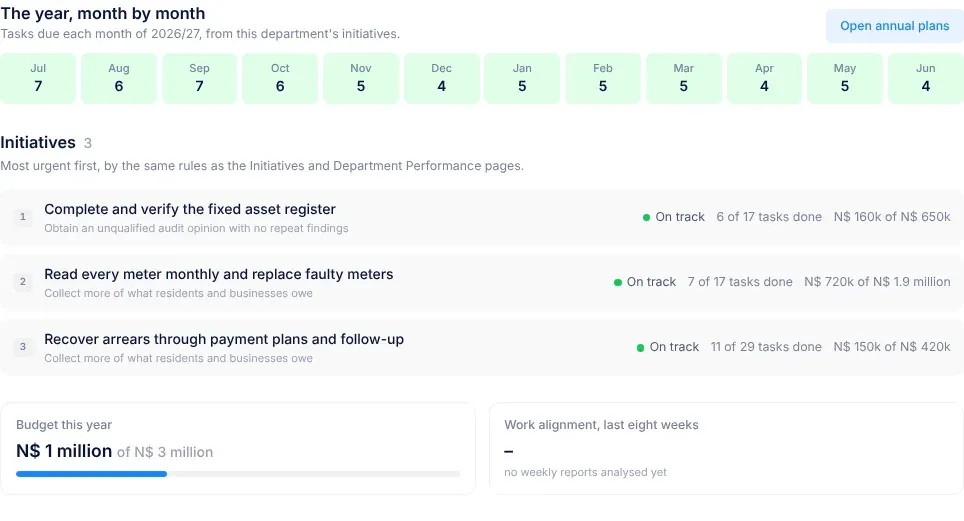
- The year, month by month shows how many of the department’s initiative tasks are due in each month of the plan year. A dash means nothing is due that month. Point at a month to see, for example, “March 2026: 4 tasks”. Open annual plans opens the Annual plans page, which compares every department’s plan for the year, if you have access to it. See Find your way around Execution.
- Initiatives lists the department’s initiatives, most urgent first. Each shows its objective, its status (On track, Behind, Missed work, Stalled, No work planned or Done), how many of its tasks are done, and what was spent against what was allocated.
- Budget this year shows the total spent against the total allocated, with a bar.
- Work alignment, last eight weeks shows, as a percentage, the average alignment score of the weekly work reports written by the department’s people in the last eight weeks. It says “no weekly reports analysed yet” until there are some.
If your organisation has no approved strategic plan yet, you see “There’s no approved strategic plan yet, so this department has no work planned against one.” See Strategy and execution.
Four tiles count the department’s open risks, its mitigated risks, and the financial exposure and mitigation budget of the open risks.
Open risks, largest exposure first lists each open risk by its summary and code, with its financial exposure in Namibian dollars (N$). To work on a risk, select Open the risk register. See The risk register.
If there are none, you see “This department has no open risks.”
Settings
Section titled “Settings”Only the CEO and administrators see this section. It holds the department’s Name and Description. See Rename a department.
If something goes wrong
Section titled “If something goes wrong”| What you see | Why, and what to do |
|---|---|
| “Only the CEO, administrators, and this department’s own people can open it.” | You don’t belong to this department or manage it. Ask its manager or the CEO for the information you need. |
| “This department doesn’t exist, or isn’t one you can open.” | The link you followed is wrong, or points to a department outside your organisation. Select Back to departments and open the department from its card. |
| “No initiatives in … belong to this department.” | None of the initiatives in the approved strategic plan is given to this department, so Work this year has nothing to show. See The Initiatives page. |