

Work on a task
When someone gives you a task, you move it along on its page: start it, work through it, and mark it as done with a few words on how you did it. Each step tells the person who asked, so they don’t need to chase you.
Before you start
Section titled “Before you start”Open the task: select it in Tasks, on the For me tab, or use Open the task in the email that told you about it. See A task’s page.
Start a task
Section titled “Start a task”- Open the task.
- Select Start working on it.
The task becomes In progress, and “started working on it” is added to the conversation. The person who delegated it gets a notification, for example “Petrus Amutenya started a task”.
You can also start a task from the email that tells you about it: select Start working on it in the email, then Yes, I’m on it on the page that opens. VirgilTrack shows “You’re on it”, with an Open the task button. The button in the email works for 14 days. Started this way, a task that was Not started becomes In progress, but no line is added to the conversation and the person who delegated it isn’t sent a notification.
On the Tasks page board, you can also drag the task’s card to In progress.
Break a task into steps
Section titled “Break a task into steps”Steps help you plan the work, and show everyone how far you have got.
- Open the task.
- Under Steps, type a step in the box, Add a step, then press Enter. A step can be up to 300 characters.
- Press Enter, or select Add.
- Repeat for each step.
- Tick a step’s box when it’s done.
Each step you add or finish appears in the conversation, for example “finished a step: Collect meter readings from Zone 3”. To remove a step you added, select × beside it.
Add details
Section titled “Add details”Write anything that helps under Details: context, links, people to talk to, or what a good result looks like. It can be up to 4,000 characters.
Your text is saved when you click away from the box. “Saved” and the time appear under it.
Say you’re blocked
Section titled “Say you’re blocked”If something stops you from moving forward, say so. The person who asked can then help.
- Open the task.
- Select I’m blocked.
- In What’s in the way?, explain what is stopping you.
- Select I’m blocked under the box.
The task becomes Blocked, and the page shows “Blocked since” and the date, with your reason. The person who delegated it gets an email and a notification, “… is blocked on: …”, with a Help unblock it button.
When you can carry on, open the task and select I’m unblocked. The task goes back to In progress, and the person who delegated it gets a notification, “… is unblocked”.
Ask for more time
Section titled “Ask for more time”If you can’t finish by the due date, ask the person who delegated the task for a new date.
- Open the task.
- Select Ask for more time.
- In Until when?, choose the date you need. Or select +1 day, +1 week, +2 weeks or +1 month to add that much to the current due date (or to today, if the due date has passed).
- In Why?, explain why you need more time.
- Select Ask for more time under the box.
The page shows “… asked for more time: until …” and Waiting for an answer. The person who delegated the task gets an email and a notification, “… asks for more time on: …”, and answers on the task.
- If they select Agree, the due date moves to the date you asked for, and the task’s status becomes Rescheduled. You get an email and a notification, Due date changed.
- If they select Keep the date, you get a notification, “… kept the due date”.
You can’t ask again while a request is waiting for an answer.
Mark a task as done
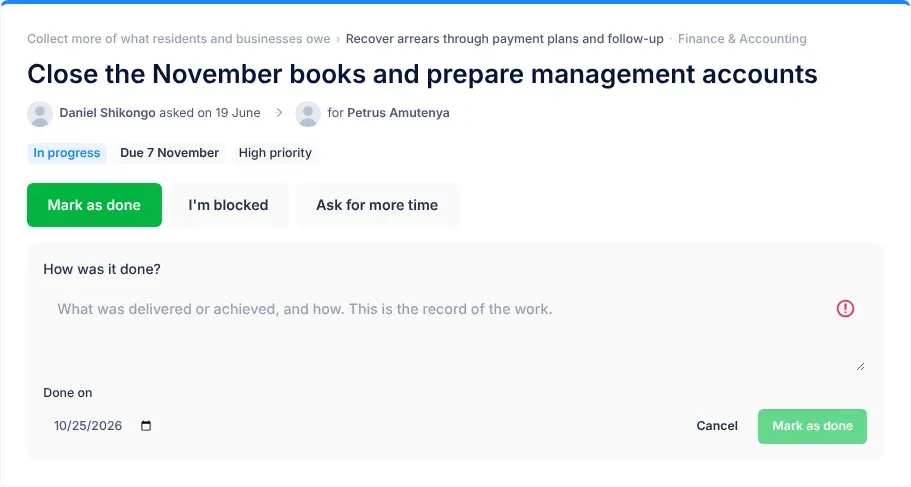
Section titled “Mark a task as done”- Open the task.
- Select Mark as done.
- In How was it done?, write what was delivered or achieved, and how. This is the record of your work.
- Check Done on. It is today unless you change it. You can choose an earlier date if you finished before today, but not a later one.
- Select Mark as done under the box.
The page shows “Done on” and the date, with how many days the task took and your note. The person who delegated it gets an email and a notification, “… finished: …”, with a See and verify it button.
Your note is kept with the task. Colleagues given similar work later see it under How colleagues did similar work, and it counts in your work record. See Your work record.
Reopen a task
Section titled “Reopen a task”If a finished task needs more work, open it, select Reopen, write what still needs doing in Why reopen it?, and select Reopen under the box. The task goes back to In progress. If someone verified it, the verification is removed.
What happens next
Section titled “What happens next”- Everything you do is added to the task’s conversation, so the history is always complete.
- The person who delegated the task hears about the moments that matter: you start, you’re blocked or unblocked, you ask for more time, and you finish.
- How they hear depends on their notification settings. See Notifications.
If something goes wrong
Section titled “If something goes wrong”| What you see | Why | What to do |
|---|---|---|
| The I’m blocked, Mark as done or Ask for more time button under the box stays grey. | The box above it is empty. | Write a few words in the box. |
| There’s no Ask for more time button. | A request is already waiting for an answer, or the task is done. | Wait for the answer, or write to the person in the conversation. |
| There’s no Start working on it button. | The task isn’t yours, or it has already been started. | Check who the task is for, at the top of its page. |
| There’s no Mark as done or I’m blocked button. | The task is blocked. | Select I’m unblocked first. |
| “This item no longer exists or isn’t yours.” or “This task no longer exists or isn’t assigned to you.” after selecting the email’s button | The task was removed or given to someone else. | Open VirgilTrack and check your Tasks page. |
| “This button has expired. Open VirgilTrack to continue.” after selecting the email’s button | The email is more than 14 days old. | Open the task in VirgilTrack and select Start working on it there. |