

Who can do what
This page lists what each role can see and do in VirgilTrack. Use it when a menu item or button you expected isn’t there, or when you need to decide who should do a piece of work.
For a gentler introduction to the four roles, see Roles and what each can do.
How access works
Section titled “How access works”Two things decide what you can do.
- Your role. Everyone has one role: Employee, Manager, CEO or Administrator. Your role decides your menu, your dashboard, your work report page and your pages in Execution.
- Your part in the work. Some actions belong to the people involved, whatever their role. For example, only a risk’s owner can assess it, and only the person a task is for can start it.
Managers come in two kinds, and some screens treat them differently:
- A department manager manages a whole department.
- A team manager has people reporting to them, without managing a whole department.
On top of their role, people can get extra Execution pages from the CEO. See Extra Execution pages.
The menu on the left
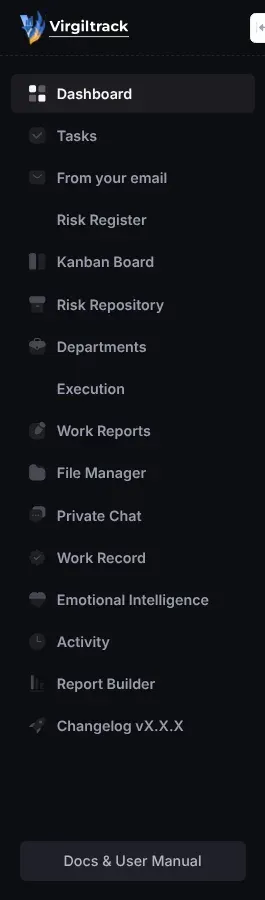
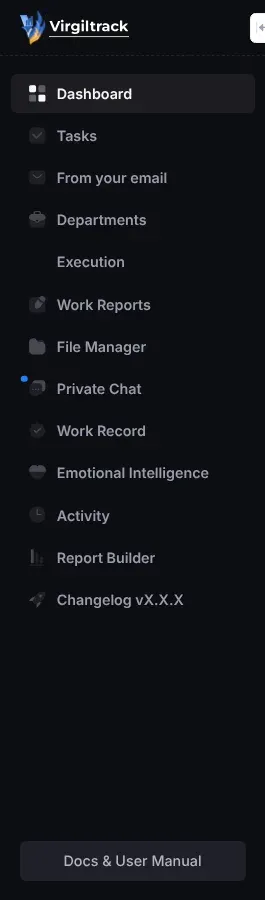
Section titled “The menu on the left”| Menu item | Employee | Manager | CEO | Administrator |
|---|---|---|---|---|
| Dashboard | Opens the Manager Dashboard | Opens the Manager Dashboard | Opens the CEO Dashboard | Opens the Admin Dashboard |
| Tasks | Yes | Yes | Yes | Yes |
| From your email | Yes | Yes | Yes | Yes |
| Risk Register | Yes | Yes | No | Yes |
| Kanban Board | Yes | Yes | No | Yes |
| Risk Repository | Yes | Yes | No | Yes |
| Departments | Yes | Yes | Yes | Yes |
| Execution | Yes | Yes | Yes | Yes |
| Work Reports | Opens your weekly report | Opens your team’s weekly reports | Opens the reports sent to you this month | No work report page |
| File Manager | Yes | Yes | Yes | Yes |
| Private Chat | Yes | Yes | Yes | Yes |
| Work Record | Listed, but doesn’t open | Listed, but doesn’t open | Listed, but doesn’t open | Yes |
| Emotional Intelligence | Yes | Yes | Yes | Yes |
| Activity | Yes | Yes | Yes | Yes |
| Organizations, Users, Sign Ups | No | No | No | Yes |
| Report Builder | Yes | Yes | Yes | Yes |
| Changelog vX.X.X | Yes | Yes | Yes | Yes |
Your account menu and Settings
Section titled “Your account menu and Settings”Select your picture in the top-right corner to open your account menu.
| Item | Employee | Manager | CEO | Administrator |
|---|---|---|---|---|
| Risk Register (a shortcut in the account menu) | Yes | Yes | Yes | Yes |
| Upcoming Reviews (a count of your risk reviews from today on; it can’t be selected) | Yes | Yes | Yes | Yes |
| Roles & permissions | No | No | Yes | Yes |
| Reporting hierarchy (opens Roles & hierarchy in Settings) | No | No | Yes | Yes |
| Settings | Yes | Yes | Yes | Yes |
| Sign Out | Yes | Yes | Yes | Yes |
In Settings, everyone has Profile, Sign-in & security, Notifications, Mailboxes, Preferences and Your account. The CEO and administrators also have Organisation and Roles & hierarchy. If you open a section you don’t have, VirgilTrack shows Profile instead. See Settings.
Roles are changed under Roles & permissions, or in Roles & hierarchy in Settings, where the CEO and administrators also set who reports to whom.
Inviting people
Section titled “Inviting people”The green plus button in the Team: bar under the header, “Invite a team member”, is for the CEO and administrators. They see it only when their own account belongs to a department. See Invite team members.
The Team: bar itself shows the CEO everyone in the organisation, and shows everyone else the people in their own department. Locked accounts aren’t shown. If your own account has no department, the bar shows “None”.
Dashboards
Section titled “Dashboards”| Dashboard | Who it is for | What it covers |
|---|---|---|
| Manager Dashboard | Employees and managers | Your department. |
| CEO Dashboard | The CEO. Administrators can open it too. | The whole organisation. |
| Admin Dashboard | Administrators only | A Manage Demos link to the Demo links page. |
Some cards show different things by role:
- Risk Distribution Heatmap: the CEO sees the whole organisation’s open risks; everyone else sees their department’s. See The risk heat map.
- What’s up Today: the CEO sees risk reviews and controls across the organisation, a manager sees their department’s, and an employee sees their own: the controls they are responsible for or added, and their own reviews.
See Dashboards.
Risk work depends on your part in each risk more than on your role. The CEO’s menu on the left has no risk screens, but the CEO can still open the risk register from the account menu, and a risk’s page from a link, for example in a notification.
| What | Who can do it |
|---|---|
| See the risk register | Anyone. It lists the risks of your own department. If your account has no department, it lists the whole organisation’s risks. |
| See the Kanban board | Anyone with Kanban Board in their menu. It shows your own department’s risks. |
| Add risk | Anyone who can open the risk register. |
| Copy Selected suggestions from the Risk Repository | Anyone who can open the risk repository. You become the owner and a responsible person of each risk you copy. |
| Assess a risk that is Not assessed | Only the risk’s owner, the person who recorded or copied it. Others see “Awaiting” and the owner’s first name. |
| Open a risk’s page | Anyone in your organisation. |
| Edit risk and Add control | Anyone who can open the risk. A risk that is Not assessed, Mitigated or Archived can’t be edited. |
| Mark as mitigated | Anyone who can open the risk, once all its controls are implemented. |
| Archive | Anyone who can see the risk in the risk register. |
| Move a card on the Kanban board | Anyone who can see the board. Some moves aren’t allowed, such as New straight to Mitigated. See The Kanban board. |
| Mark as implemented on a control, or Accept as a control for a control the AI suggested | The control’s responsible person, the person who added it, the risk’s owner, managers and the CEO. |
| Reopen an implemented control | The person who marked it as implemented, managers and the CEO. |
See Managing risks and Risk controls.
Execution (strategy)
Section titled “Execution (strategy)”Pages by role
Section titled “Pages by role”Each role sees a different set of pages in the Execution menu.
| Execution page | Employee | Team manager | Department manager | CEO |
|---|---|---|---|---|
| Overview | No | No | No | Yes |
| KPIs | No | No | No | Yes |
| Objectives | No | No | No | Yes |
| Work Alignment | No | No | No | Yes |
| Department Performance | No | No | Yes | No |
| Initiatives | No | Yes | Yes | No |
| Budget | No | No | Yes | Yes |
| Annual Plans | No | No | No | Yes |
| Work Reports | Yes | Yes | Yes | Yes |
| Calendar | Yes | Yes | Yes | Yes |
| Manage | No | No | No | Yes |
If you open an Execution page you don’t have, VirgilTrack says “You don’t have access to this page” and “Your role doesn’t include it. Ask your CEO to grant it under Execution → Manage.”
Extra Execution pages
Section titled “Extra Execution pages”The CEO can give anyone else in the organisation extra pages, under Execution, then Manage, in Workspace access. These pages can be given: Overview, Department Performance, KPIs, Objectives, Work Alignment, Initiatives, Budget and Annual Plans.
Extra pages only add to what a role already has; they never take anything away. Manage can’t be given to anyone else. See Find your way around Execution.
Workspace access also has a KPI Review row. In this version, tagging someone there has no effect: it doesn’t let them record KPI results. See the table below and Known limitations.
Who can change what
Section titled “Who can change what”| What | Who can do it |
|---|---|
| Bring in a strategic plan | Anyone who opens Execution while the organisation has no strategic plan sees the upload page. Agree beforehand who will do it. See Bring in your strategic plan. |
| Manage KPIs (add, change or delete KPIs) | The CEO. |
| Review KPIs (record KPI results) | Only people whose account has the permission to record KPI results. No role has it, not even the CEO, and nobody in your organisation can give it: only Virgil Finance can switch it on, at support@virgilfinance.com. The CEO can record a result through Virgil Copilot instead. See Record KPI results. |
| Plan an initiative’s tasks (Add task) | On the Initiatives page: the managers of the initiative’s department (any manager, for their own department) and the initiative’s leads. On the Annual Plans page: the CEO, and people the CEO has given Annual Plans. See Plan an initiative’s tasks. |
| Update an initiative’s progress note | The CEO, the head of the initiative’s department, and the initiative’s lead. Everyone else sees “Only the CEO, the department’s head or the initiative’s lead can update this”. |
| The Budget page | The CEO sees and changes every department’s initiatives. Anyone else with the page sees and changes the initiatives of their own department and of the departments they manage. |
| Department Performance | The CEO sees every department with initiatives. Anyone else with the page sees their own department and the departments they manage. |
| Annual Plans, and adding tasks to a department’s month there | The CEO, and people the CEO has given Annual Plans. |
| Delete a strategic plan, and give people extra pages | The CEO only. |
| What | Who can do it |
|---|---|
| The For me and I delegated tabs | Everyone. |
| The My team tab | The CEO (everyone else’s tasks in the organisation) and department managers (their departments’ tasks). |
| Open a task and write in its conversation | Anyone in your organisation. |
| Start working on it, I’m blocked, I’m unblocked and Ask for more time | The person the task is for. |
| Mark as done and Reopen | The person the task is for, and the task’s leads. |
| Add steps to the task’s checklist, and tick them off | The person the task is for, and the task’s leads. |
| Edit the title, change the priority, Change due date, Reassign, and answer a request for more time with Agree or Keep the date | The task’s leads. |
| Verify the work | The task’s leads, but not on a task that was given to them. |
| Drag a task to another lane on the board view of the Tasks page | The person it is for, the person who delegated it, the CEO and administrators. |
A task’s leads are the person who delegated it, the managers of the department its initiative belongs to, the CEO and administrators. See Tasks.
Work reports
Section titled “Work reports”| Page | Who can open it |
|---|---|
| Your weekly report (Weekly work report) | Employees. |
| Your team’s weekly reports (Team weekly report) | Managers. |
| The month’s reports (Executive briefing) | The CEO. |
Your report goes to the person you report to in the reporting hierarchy. Only the CEO and administrators can change the hierarchy. See Work reports and records.
Departments
Section titled “Departments”| What | Who can do it |
|---|---|
| See the Departments page | Everyone. It lists every department except the Executive Suite. |
| Open a department’s page | The CEO, administrators, and the department’s own managers and members. Anyone else sees “Only the CEO, administrators, and this department’s own people can open it.” |
| Manage a department: its Settings, its managers and its people | The CEO and administrators. |
See Departments.
Calendar
Section titled “Calendar”| What | Who can do it |
|---|---|
| Add an event by selecting today or a later day | Everyone. |
| The Calendars filters and the Create Event button | Managers and the CEO. |
| Drag an item to another day | Managers and the CEO. |
| Mark as done on a calendar task | Its creator, the people assigned to it, and members of a department assigned to it. |
| Reopen a calendar task that is done | The person who marked it as done, and its creator. |
| Archive task… | Its creator, managers and the CEO. |
What appears on your calendar also depends on your role:
| Item | Employee | Manager | CEO |
|---|---|---|---|
| Events | Events you created, or that you or your department are assigned to | The same, plus your department’s events | The same, plus all your organisation’s events |
| Strategy tasks not yet done | The ones given to you | All of your organisation’s | All of your organisation’s |
| Risk controls not yet implemented | The ones you added or are responsible for | The same, plus your department’s | The same, plus all your organisation’s |
| Risk reviews | Your own reviews, and reviews of risks you are responsible for | The same, plus your department’s | The same, plus all your organisation’s |
Other areas
Section titled “Other areas”| Area | Who | Notes |
|---|---|---|
| Emotional Intelligence | Everyone | The Your team tab is only for managers and the CEO. Others see “The team view is for managers.” See Emotional intelligence. |
| Report Builder | Everyone | The CEO reports on every department except the Executive Suite. Everyone else reports on their own department. See Make a risk report. |
| File Manager | Everyone | Everyone in your organisation uses the same files and folders. See Files and documents. |
| Private Chat | Everyone | You can message people in your organisation whose accounts are active. See Private chat. |
| Activity | Everyone | Everyone in your organisation sees the same timeline. See The activity timeline. |
| Virgil Copilot and the quick bar | Everyone | With the quick bar, anyone can set reminders and create calendar tasks. Only managers, the CEO and an initiative’s leads can delegate tasks under an initiative. See AI assistant. |
Platform administration
Section titled “Platform administration”These tools are for administrators only.
| Tool | Where |
|---|---|
| Organizations | The menu on the left. Each organisation’s own page, with its leadership and people. See Organisations. |
| Users | The menu on the left. Everyone on VirgilTrack, across all organisations. See Users. |
| Sign Ups | The menu on the left. New organisations’ sign-up requests. See Review sign-ups. |
| Demo links | Manage Demos on the Admin Dashboard. Only system administrators can manage demo links. Others see “Only system administrators can manage demo links.” See Demo links. |
If you need more access
Section titled “If you need more access”- A missing Execution page: ask your CEO to give it to you under Execution, then Manage.
- A different role: ask your CEO. The CEO changes roles under Roles & permissions in the account menu, or in Settings, then Roles & hierarchy.
- A department you can’t open: ask the department’s manager or the CEO.
- A message such as “You are not authorized to view this page.”: see Troubleshooting.