

Reporting lines and roles
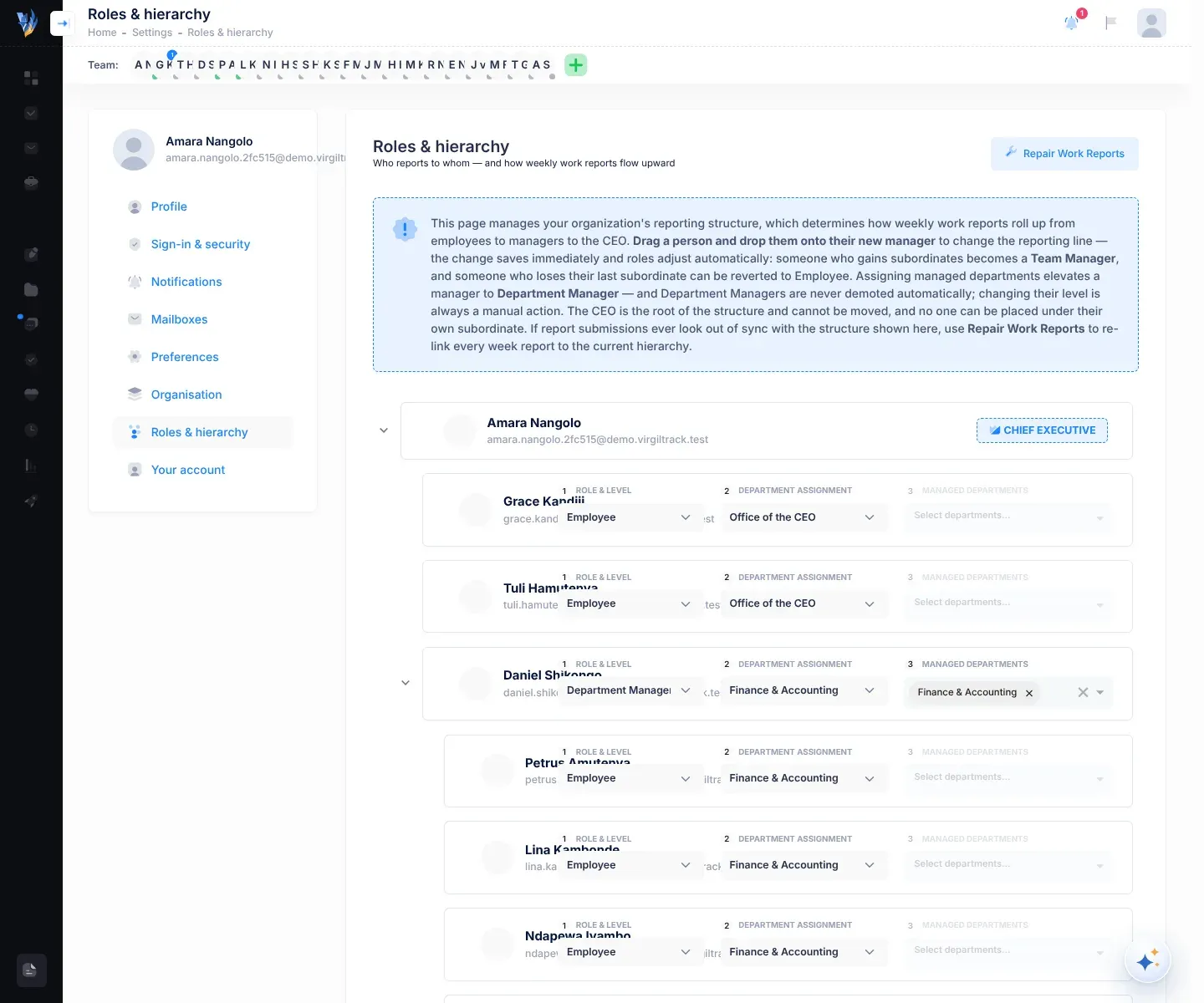
Roles & hierarchy shows who reports to whom in your organisation, as a tree with the CEO at the top. It decides how weekly work reports flow upwards, from employees to managers to the CEO. Here you can also change each person’s role, department and the departments they manage.
Every change on this page saves straight away.
Open Roles & hierarchy
Section titled “Open Roles & hierarchy”Use either of these:
- Your picture, then Reporting hierarchy
- Your picture, then Settings, then Roles & hierarchy
Only the CEO and administrators can open it.
Reading the tree
Section titled “Reading the tree”- The CEO is at the top, with a Chief Executive badge. Everyone else sits under the person they report to.
- Each row shows the person’s picture, name and email address.
- Next to each person (except the CEO) are three boxes:
| Box | What it sets |
|---|---|
| 1 Role & Level | Employee, Team Manager or Department Manager. |
| 2 Department Assignment | The department the person belongs to, or – No Department –. |
| 3 Managed Departments | The departments a Department Manager manages. It is faded and can’t be used for other levels. |
Anyone who reports to nobody is placed under the CEO when the page opens.
The levels
Section titled “The levels”| Level | What it means |
|---|---|
| Employee | Has no one reporting to them. |
| Team Manager | Has the Manager role and leads the people who report to them, without managing a whole department. |
| Department Manager | Has the Manager role and also manages one or more whole departments, chosen in Managed Departments. |
Team Managers and Department Managers have the same Manager role. The difference is that a Department Manager oversees whole departments. See Roles and what each can do.
Change who someone reports to
Section titled “Change who someone reports to”-
Point at the person’s row. A grip symbol appears at its start.
-
Drag the row and drop it onto the row of their new manager.
The row you are over is highlighted. While VirgilTrack saves, the person’s picture turns into a spinner.
-
Wait for “Hierarchy updated successfully!”.
VirgilTrack adjusts roles for you:
- If the new manager wasn’t a manager yet, they become one (Team Manager). This doesn’t apply when you drop someone onto the CEO.
- If the person you moved is a Team Manager with no one reporting to them, and you drop them onto someone other than the CEO, VirgilTrack asks, in Notice!: “… is a Manager without any subordinates. Do you wish to remove their managerial role?” Select Yes, remove or Cancel. Cancel doesn’t keep their Manager role: either way, once the move is saved they become an Employee, because nobody reports to them. The same happens, without the question, when you drop them onto the CEO. See How VirgilTrack keeps roles in step.
- If their previous manager now has no one reporting to them, the previous manager becomes an Employee.
- Department Managers are never changed automatically. Only you change their level.
You can’t move the CEO, and you can’t drop someone onto a person who reports to them. That shows Invalid Move: “You cannot assign a manager to report to one of their own subordinates. This creates an infinite loop.”
Change someone’s level
Section titled “Change someone’s level”-
Find the person in the tree.
-
In Role & Level, choose Employee, Team Manager or Department Manager.
VirgilTrack saves straight away and says, for example, “Lina Kambonde is now a Manager”.
-
If you chose Department Manager, choose at least one department in Managed Departments.
For someone who was already a Team Manager, nothing is saved until you choose a department.
- Choosing Employee removes the Manager role and clears their managed departments.
- Choosing Team Manager for a Department Manager clears their managed departments.
- A Department Manager with no managed departments counts as a Team Manager.
Changing a level doesn’t move anyone in the tree. People who report to the person keep reporting to them. So if you make someone an Employee while people still report to them, they become a manager again the next time this page opens. Drag the people who report to them onto someone else first.
Change someone’s department
Section titled “Change someone’s department”In Department Assignment, choose the person’s new department, or – No Department –. VirgilTrack says “… moved to …” or “… removed from department”.
This changes the department the person belongs to, not who they report to. If they now report to someone else, drag them onto their new manager too.
Choose the departments a manager manages
Section titled “Choose the departments a manager manages”-
Make sure the person’s Role & Level is Department Manager.
-
In Managed Departments, choose each department they manage. Remove a department by removing it from the box.
VirgilTrack saves after each change and says “…’s managed departments updated”.
A department can have several managers. You can also choose a department’s managers on its own page. See Manage a department.
How VirgilTrack keeps roles in step
Section titled “How VirgilTrack keeps roles in step”Each time Roles & hierarchy opens, and after every move, VirgilTrack checks everyone’s role against the tree:
- The organisation’s CEO keeps the CEO role.
- Anyone who has people reporting to them, or who manages a department, gets the Manager role.
- Everyone else gets the Employee role.
This also happens at other times, for example when a new person finishes setting up their account. So a role that doesn’t match the reporting lines, such as one set on Role Management, may change back. To change someone’s role for good, change their reporting lines or managed departments here.
Repair Work Reports
Section titled “Repair Work Reports”If report submissions ever look out of step with the tree, select Repair Work Reports at the top. In Confirm (“Repair work reports for the whole organization? …”), select OK.
The button says Repairing… while VirgilTrack re-links every week report in the organisation to the current reporting lines. Then it says “Work reports repaired successfully!”.
If something goes wrong
Section titled “If something goes wrong”| What you see | Why, and what to do |
|---|---|
| Invalid Move | You tried to put someone under a person who reports to them. Move the other person first, or choose a different manager. |
| Error: “Failed to update hierarchy: …” | The move couldn’t be saved. Refresh the page and try again. |
| Error: “Could not change …’s role. Please try again.” | The level wasn’t saved. Try again. The same applies to “Could not change …’s department. Please try again.” and “Could not update …’s managed departments. Please try again.” |
| Error: “An error occurred: …” after Repair Work Reports | The repair didn’t finish. Try again later. If it keeps happening, note the message and contact your administrator. |
| Someone you made an Employee is a manager again | People still report to them. Drag those people onto their new manager, then choose Employee again. |
| A person you made a Department Manager shows as Team Manager later | No department was chosen in Managed Departments. Choose Department Manager again and pick their departments. |
| You can’t drag the CEO | The CEO is always at the top of the tree. To change who is CEO, ask a VirgilTrack administrator. See Organisations. |