

Sign in and sign out
You sign in to VirgilTrack with the email address your organisation invited and the password you chose. Sign out when you finish, especially on a shared computer.
Before you start
Section titled “Before you start”- You need a VirgilTrack account. If you have an invitation email but haven’t set up your account yet, see Accept an invitation.
- You must have confirmed your email address, either with the 6-digit code VirgilTrack emailed you or by choosing your password from an emailed link. Until you do, you can’t sign in.
Sign in
Section titled “Sign in”-
Open VirgilTrack in your web browser, or select Open in VirgilTrack at the top of this page.
If you aren’t signed in, the Sign In page opens.
-
Type your email address in the first box (it shows “name@example.com” until you type).
-
Type your password in the box below it.
-
Select Sign In.
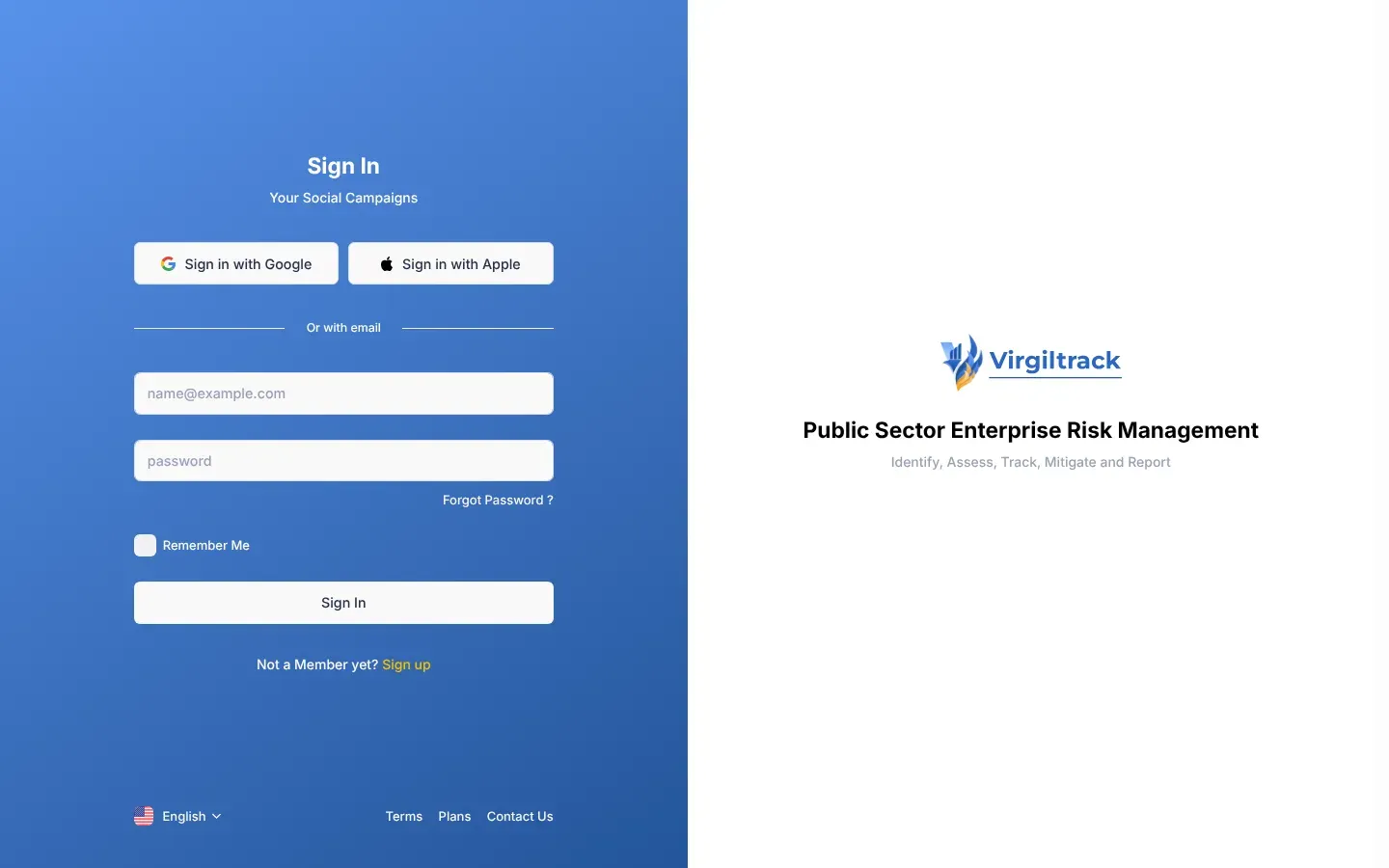
Where you land
Section titled “Where you land”After you sign in, VirgilTrack opens the page that suits your role.
| Your role | First page you see |
|---|---|
| Administrator | Admin Dashboard |
| CEO | CEO Dashboard |
| Manager | Risk Register |
| Employee | Risk Register |
If you opened a link to a VirgilTrack page before you signed in, such as a task in an email, VirgilTrack often takes you straight to that page instead.
Not sure what your role is? See Roles and what each can do.
Sign out
Section titled “Sign out”-
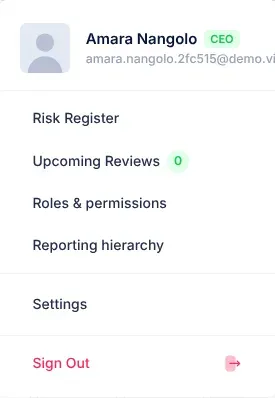
Select your picture in the top-right corner of the screen.
Your account menu opens.
-
Select Sign Out at the bottom of the menu.
VirgilTrack signs you out and shows the Sign In page again.
Lost a phone, or signed in on someone else’s computer? You can sign out of every other device at once. See Sign out on all other devices.
What happens next
Section titled “What happens next”- VirgilTrack keeps a record of each sign-in, and of each attempt that failed because of a wrong password. You can see your own in Activity Logs: select the flag button in the header. See Find your way around.
- Your sign-in lasts for some hours, whether or not you tick Remember Me. After that, VirgilTrack asks you to sign in again.
If something goes wrong
Section titled “If something goes wrong”| What you see | What it means | What to do |
|---|---|---|
| “Email or password was incorrect.” | No account uses that email address. | Check the spelling. Use the address your invitation was sent to. |
| The Sign In page opens again with empty boxes and no message | The password was wrong. | Check that Caps Lock is off and try again. If you’ve forgotten it, select Forgot Password ? and see Reset a forgotten password. |
| “Please confirm your email first to log in. Click here to confirm” | You haven’t confirmed your email address yet. | Select Click here to confirm and type the 6-digit code from your email. See Confirm your email address. |
| “Your account was locked out. Please contact the administrator.” | Your account has been locked or switched off, for example because you left the organisation. | Ask your CEO or a VirgilTrack administrator to check your account. |
| “The Email field is required.” or “The Password field is required.” | A box was left empty. | Fill in both boxes. |
| “The Email field is not a valid e-mail address.” | The email address isn’t complete. | Type the whole address, for example “name@council.gov.na”. |
| “Your email was already confirmed! Please use this page to log in with your email and password.” | You opened an old set-up or confirmation link. | Nothing is wrong. Sign in with your email address and password. |
| “No user ID was provided for the requested page.” or “The user with the provided Id was not found” | The confirmation link you opened is incomplete or out of date. | Select OK and sign in. If VirgilTrack then says you must confirm your email first, see Confirm your email address. |
| “You are not authorized to view this page.” | You’re signed in, but the page isn’t available to your role. | Use the menu on the left to go to a page you can use. |
| “An unhandled error has occurred.” at the bottom of the screen | Something went wrong on the page. | Select Reload. |