

Delegate a task
To give someone work on the strategic plan, you add a task to an initiative, in the month it should be done. VirgilTrack tells the person straight away, and the task appears on their Tasks page.
This page explains who can delegate a task and what happens afterwards. The steps, and every field in the window, are in Plan an initiative’s tasks.
Before you start
Section titled “Before you start”- Who can delegate a task under an initiative:
- on the Initiatives page: department managers, for the departments they head; any manager, for their own department; and the people who lead the initiative;
- on the Annual Plans page: the CEO, and people the CEO has given the Annual Plans page.
- Initiatives is in the Execution menu of department managers and team managers. The CEO doesn’t have it, and uses Annual Plans instead. If you lead an initiative but don’t see Initiatives, ask your CEO for access. See Manage plans and page access.
- A task can only be due in the current month or a later one.
Delegate a task
Section titled “Delegate a task”You delegate a task by adding it to an initiative, in the month it is due.
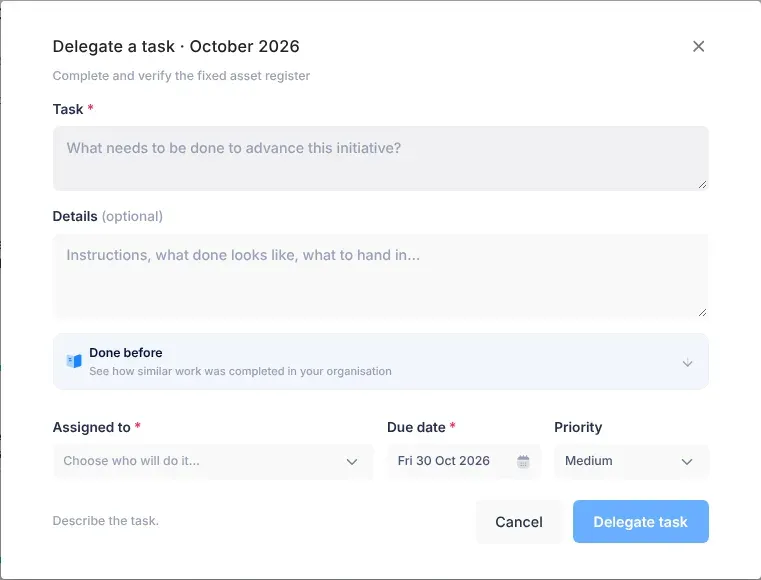
- On the Initiatives page: open Execution, then Initiatives, point at the initiative’s box for that month and select Add task. Fill in the Delegate a task window, then select the button that names the person, for example Delegate to Petrus.
- On the Annual Plans page: open Execution, then Annual Plans, select the department or one of its months, then select Add a task. Fill in the form and select Assign the task.
For each step and field, see Add a task.
What happens next
Section titled “What happens next”- You see it was saved. A short message confirms it, for example “Task delegated to Petrus Amutenya, due 30 November”.
- The person is told. They get an email, “… delegated a task to you: …”, with the due date, priority, initiative and objective, and two buttons: Start working on it and Open the task. They also get a notification, New task delegated to you, and a text message if their settings allow it.
- You see how they were told. VirgilTrack tells you, for example, “Petrus Amutenya will get an email and a text.”, and later “The email to Petrus Amutenya was sent.” If they won’t get a text, it says why, for example “no text (no confirmed phone number)”. See See who was told about work you assign.
- The task appears on the person’s Tasks page under For me, and on yours under I delegated. It shows as Not started there (and Pending on the Initiatives page) until they start it.
To follow the task up, see Follow up work you delegated.
Other ways work is delegated
Section titled “Other ways work is delegated”- By email. If you connect your mailbox, VirgilTrack finds tasks you handed out by email, and creates them when you confirm them. See Tasks from your email.
- Through Virgil Copilot. Ask the AI assistant to delegate a task for you. See AI assistant.
- In the calendar. Assign people to an event, such as a deadline. It becomes a calendar task for them. See Add an event.
Whichever way the work reaches them, the person is told by email and in VirgilTrack.
If something goes wrong
Section titled “If something goes wrong”| What you see | Why | What to do |
|---|---|---|
| “You assigned it to yourself, so no notification was sent.” | You chose yourself. | Nothing: the task is on your own For me tab. |
| “… will only see it in VirgilTrack: no email (no address on file).” | VirgilTrack has no email address for the person. | Tell them yourself, and ask them or your CEO to add their email address. |
| No Add task in the initiative’s months | You can’t plan this initiative’s work. | Ask a manager of its department, or your CEO. |
For problems inside the Delegate a task window, see Plan an initiative’s tasks.