

Organisations
Organizations shows every organisation on VirgilTrack at a glance: who leads it, how many people are active and where it needs attention. Select one to manage it.
The organisations page
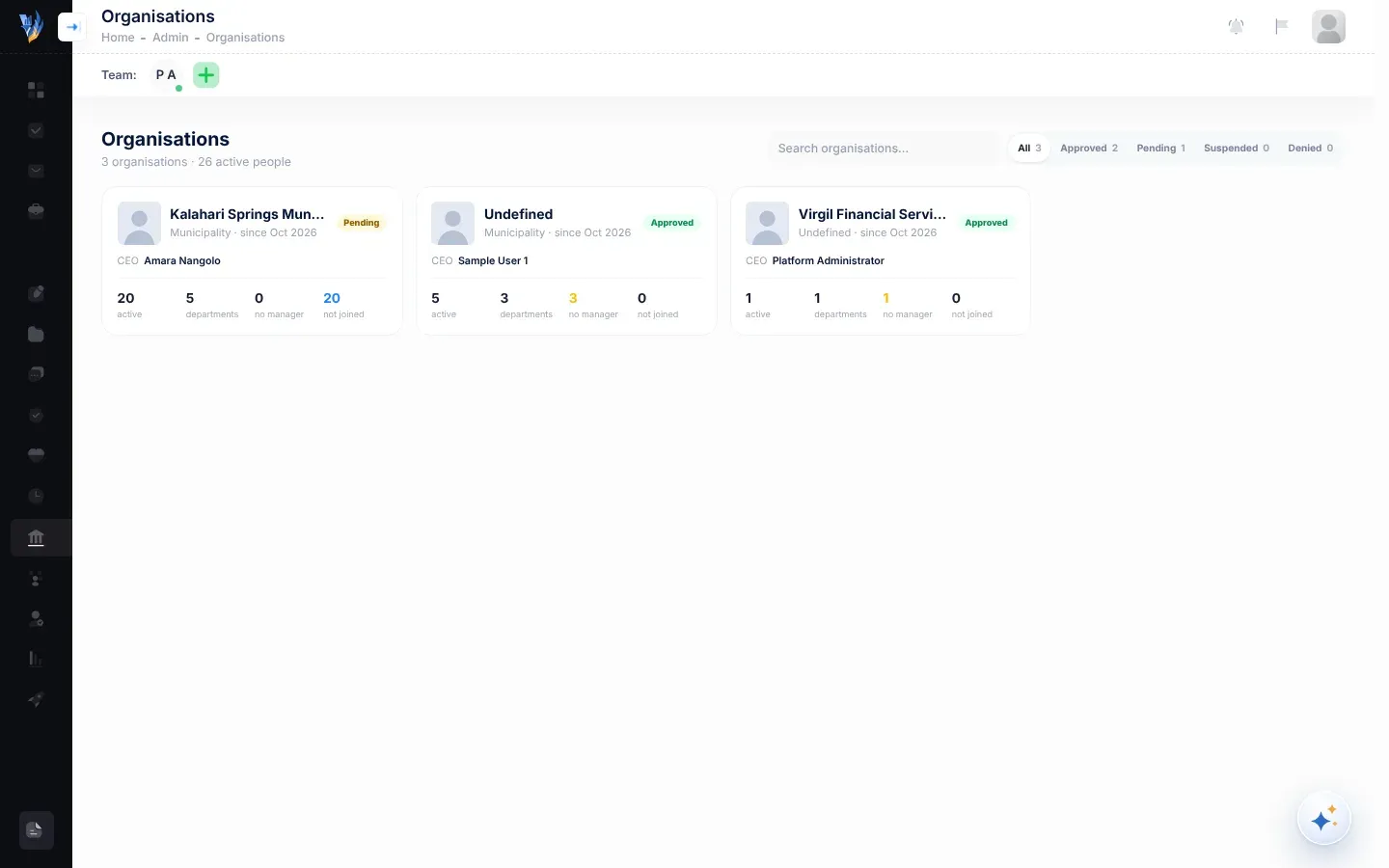
Section titled “The organisations page”Open Organizations from the menu on the left. The top of the page says how many organisations there are, and how many active people they have between them.
Finding an organisation
Section titled “Finding an organisation”- Type in Search organisations… to find an organisation by its name or its CEO’s name.
- Select a status to show only those organisations: All, Approved, Pending, Suspended or Denied. Each shows how many organisations have it.
If nothing matches, you see “No organisations match.”
What each card shows
Section titled “What each card shows”| Part of the card | What it tells you |
|---|---|
| Logo and name | The organisation, with its type and the month it joined (“since …”). |
| Status badge | Approved, Pending, Suspended or Denied. See Platform administration. |
| CEO | Its CEO’s name. “No CEO” means nobody leads it at the moment. |
| active | People with an open account, including those who haven’t joined yet. |
| departments | How many departments it has. |
| no manager | Departments without a manager. Highlighted when it is more than 0. |
| not joined | People with an account who haven’t set a password yet. |
Select a card to open the organisation’s page.
An organisation’s page
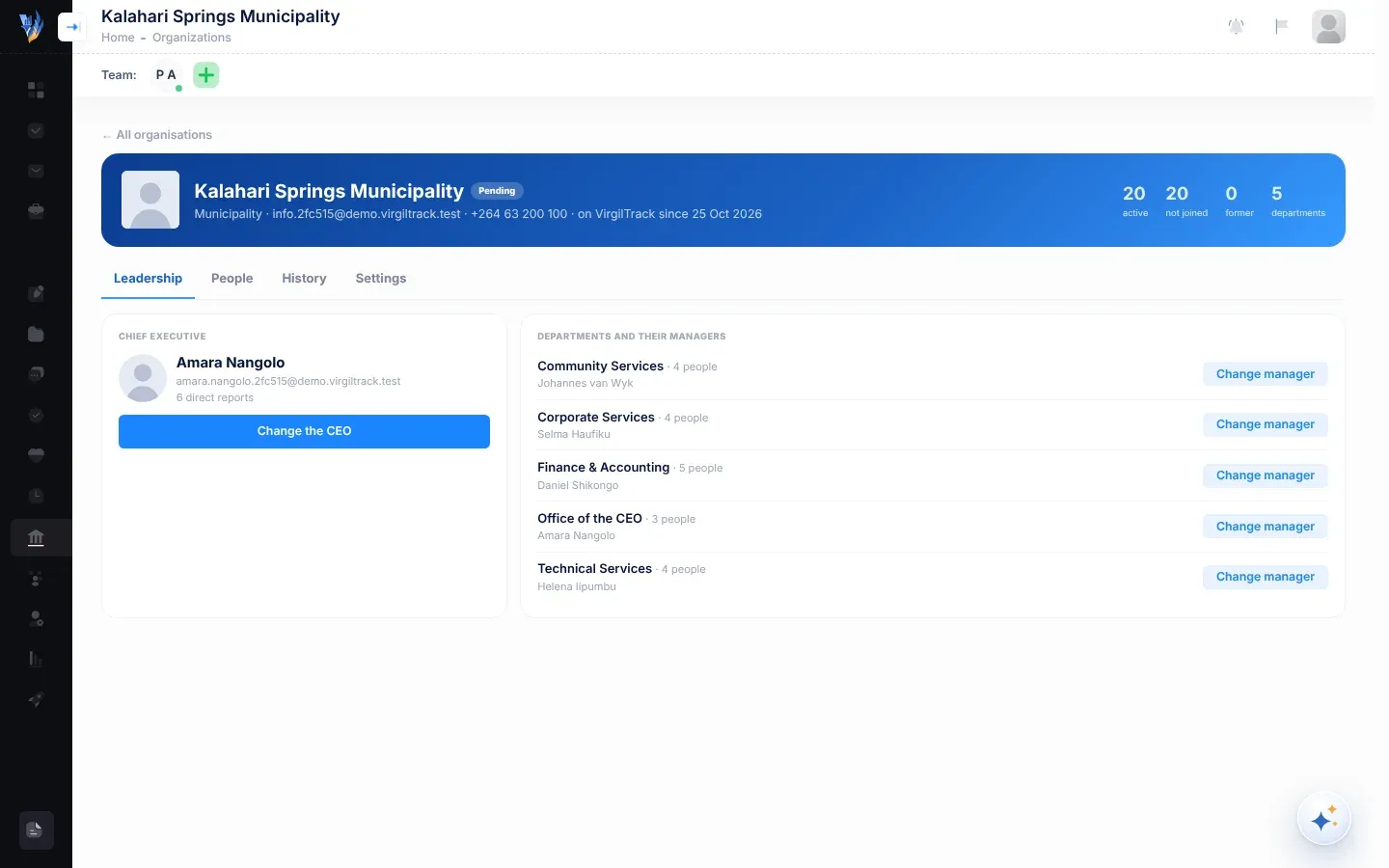
Section titled “An organisation’s page”The top of the page shows the organisation’s name, status, type, contact email and number, and the date it joined VirgilTrack. Beside them are four counts: active, not joined, former (people who have left) and departments. To go back, select ← All organisations.
The page has four tabs: Leadership, People, History and Settings.
Leadership
Section titled “Leadership”Leadership opens first. It shows who leads the organisation.
- Chief executive shows the CEO, their email and how many people report directly to them. If there is none, it says “No CEO. Reports can’t be consolidated until one is appointed.” Select Change the CEO (or Appoint a CEO) to change it.
- Departments and their managers lists each department, how many people it has, and its managers. A department without one shows “No manager”, and a badge at the top counts them. Select Change manager (or Appoint manager) beside a department.
See Change the CEO or a department manager.
New organisations may show “No departments yet.” A department appears when the first person in it sets up their account.
People
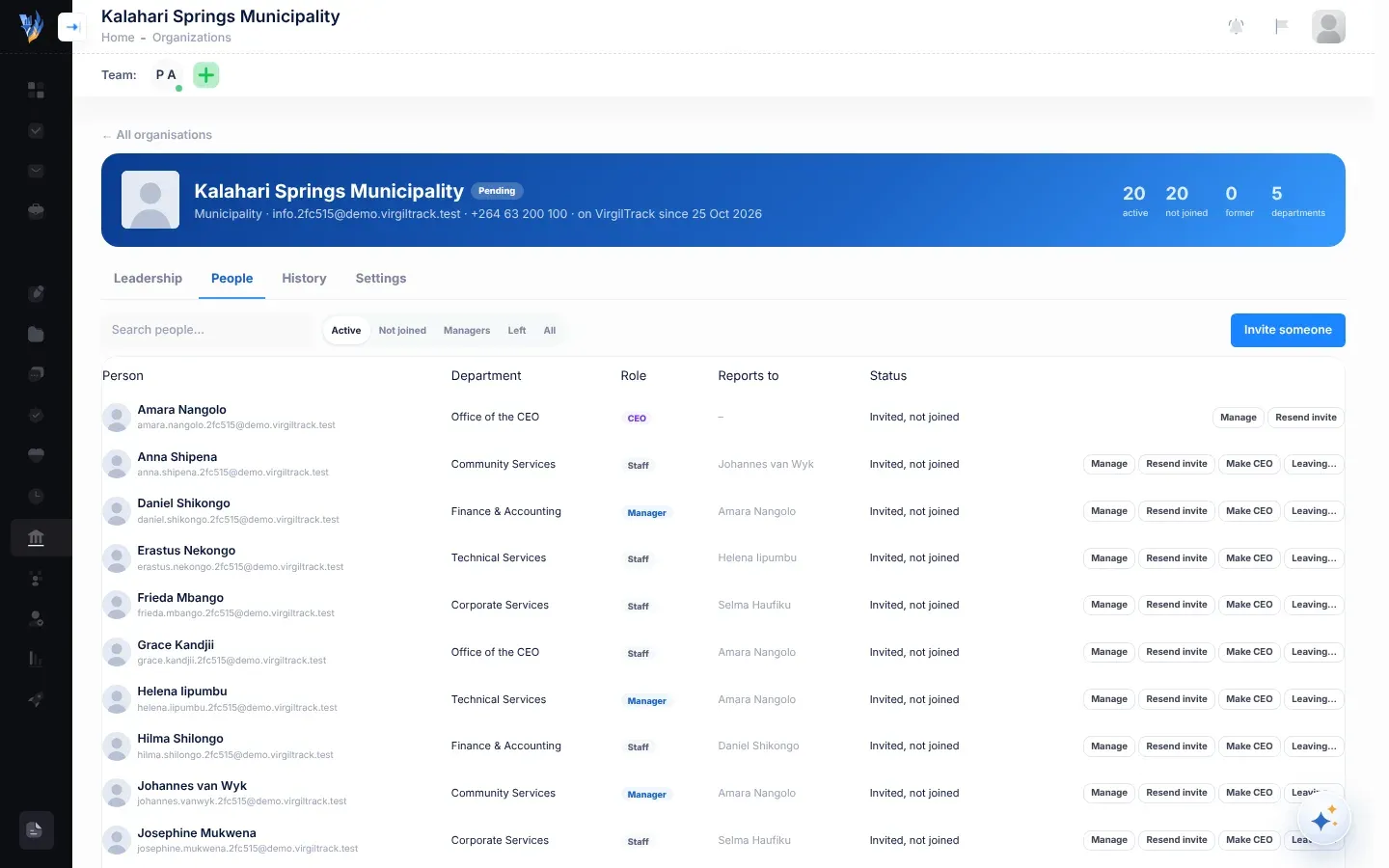
Section titled “People”People lists the organisation’s people. At first it shows Active people; choose Not joined, Managers, Left or All to see others. Type in Search people… to find someone by name or email.
| Column | What it shows |
|---|---|
| Person | Their picture, name and email. |
| Department | Their department. |
| Role | CEO, Manager or Staff. |
| Reports to | Their manager. “Nobody” means they have no manager set; the CEO shows “–”. |
| Status | Active, Invited, not joined (they have an account but haven’t set a password) or Left. |
People who were invited by email but haven’t set up their account yet aren’t listed here. You’ll find them in the Team Members table on the organisation’s sign-up page. See Review sign-ups.
Each row has buttons for that person:
| Button | What it does | More |
|---|---|---|
| Manage | Opens the support panel: profile, sign-in help and moving them to another organisation. | Help someone with their account |
| Password link or Resend invite | Both email them “Set your VirgilTrack password”, with a link to set a password. Resend invite is shown for people who haven’t set a password yet. | Help someone with their account |
| Make CEO | Starts a CEO change with this person already chosen. | Change the CEO or a department manager |
| Leaving… | Records that they’re leaving: their account is deactivated and their work handed over. | When people join or leave |
| Rejoin | Shown for people who have left. Lets them sign in again. | When people join or leave |
Invite someone, above the table, invites a new person. See When people join or leave.
History
Section titled “History”History lists the organisation’s last 100 recorded changes, newest first. Each entry has a label, a summary, the date and time, and who made the change (“by system” if VirgilTrack did it).
| Label | What happened | Example |
|---|---|---|
| CEO | The CEO changed. | “Helena Iipumbu became CEO, replacing Amara Nangolo (left).” |
| Manager | A department manager was appointed or replaced. | “Lina Kambonde now manages Finance & Accounting, replacing Daniel Shikongo.” |
| Left | Someone left, and their work was handed over. | “Petrus Amutenya left; work handed to Daniel Shikongo.” |
| Reactivated | Someone who had left rejoined. | “Petrus Amutenya was reactivated.” |
| Invited | An administrator invited someone. | “Maria Nangula (maria@example.com) was invited to Finance & Accounting.” |
| Access | Access was suspended or restored. | “Access suspended.” |
| support | An administrator helped someone with their account. | “Cleared Lina Kambonde’s sign-in lockout.” |
| move | Someone moved to or from another organisation. | “Kevin Strauss moved from Kalahari Springs Municipality to Oshana Plains Town Council.” |
If nothing has happened yet, you see “No changes recorded yet.”
Settings
Section titled “Settings”Settings has two cards: Details and Access.
Details holds the organisation’s Name, Contact email, Contact number, the month its financial year starts (Fiscal year starts) and its Team size. Change what you need and select Save details. “Saved.” confirms it. The name can’t be empty: if it is, you see “The organisation needs a name.”
Access shows the organisation’s status and lets you pause it. See the next section.
Suspend or restore an organisation’s access
Section titled “Suspend or restore an organisation’s access”Suspending marks an organisation’s access as paused, for example when a subscription is unpaid. Nothing is deleted.
-
Open Organizations and select the organisation.
-
Select the Settings tab.
-
Under Access, select Suspend access.
-
Your browser asks “Suspend access for everyone in this organisation?” Select OK.
“Access suspended.” confirms it. The status becomes Suspended.
To give access back, open the same card and select Restore access. Confirm “Restore access for this organisation?”. The status goes back to Approved.
Both changes are recorded on the History tab, labelled Access. The organisation’s card on the Organizations page shows its status, and the Suspended filter lists it.
Other ways in
Section titled “Other ways in”- On the Users page, select an organisation’s name in the Organisation column, or choose the organisation and select Manage organisation. See Users.
- On an approved organisation’s sign-up details page, select Manage organisation. See Review sign-ups.
- If your own account belongs to an organisation, Settings, then Organisation has a Leadership and people card. It opens that organisation’s page. See Settings.