

The File Manager at a glance
The File Manager shows your organisation’s folders and files as a list. This page explains each part of the screen, and how to move from folder to folder.
Open it with File Manager in the menu on the left.
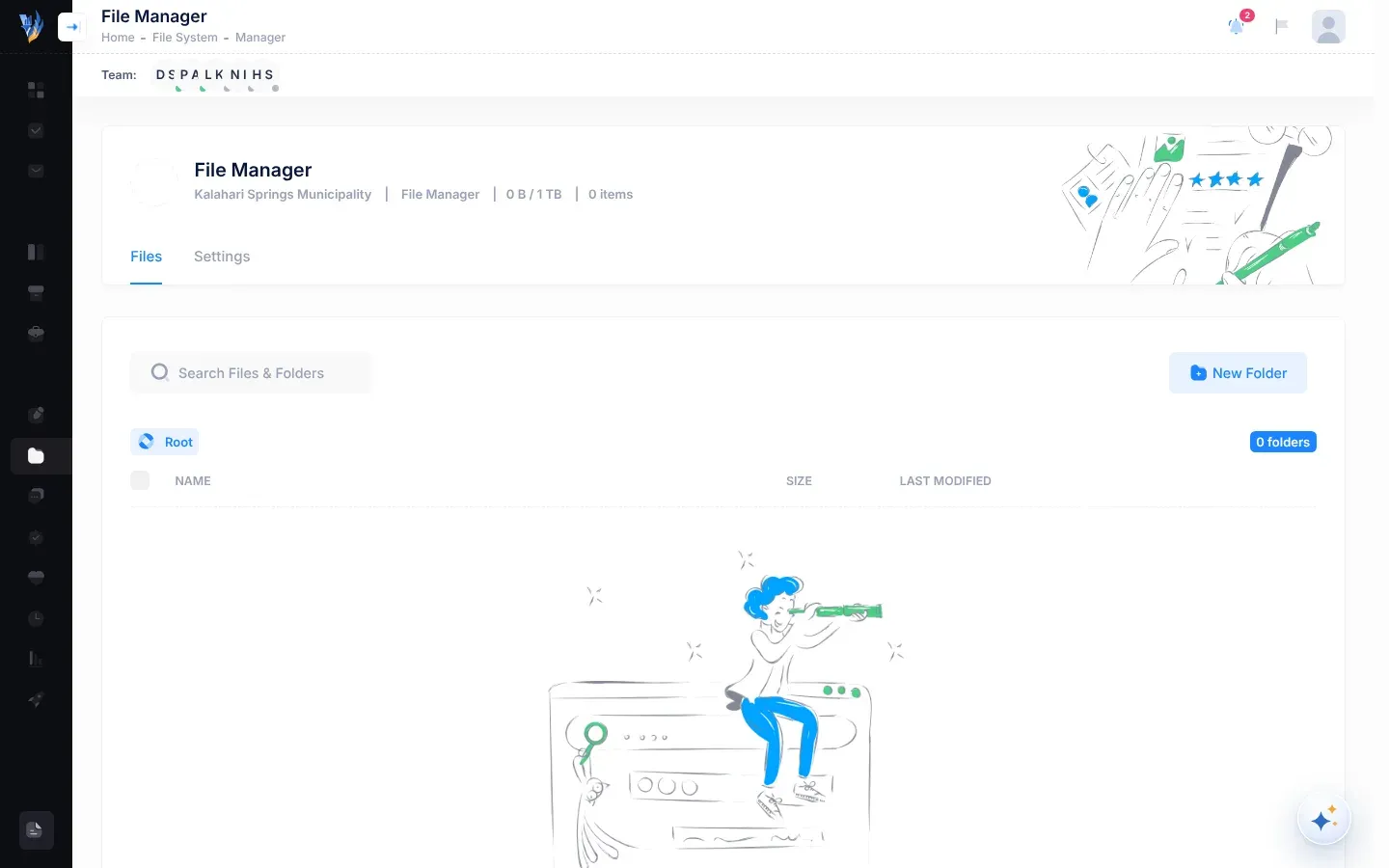
The header
Section titled “The header”At the top, under File Manager, a line shows:
- your organisation’s name,
- how much space your organisation’s files use, shown against 1 TB, for example “24.5 MB / 1 TB”,
- how many items there are in all, folders and files together, for example “36 items”.
The buttons above the list
Section titled “The buttons above the list”| Button | What it does | Where you see it |
|---|---|---|
| New Folder | Adds a folder to the folder you are in. See Create and organise folders. | Everywhere |
| Upload Files | Adds files to the folder you are in. See Upload files. | Inside a folder only. Root can’t hold files. |
The folder path
Section titled “The folder path”Above the list, the folder path shows where you are, starting with Root, for example Root > Finance > Audit 2025.
- Select Root to go back to the top.
- Select a folder’s name in the path to go back to that folder.
Beside the path, a count shows what is in the folder you are in: at Root, the number of folders, such as “4 folders”; inside a folder, for example “2 folders, 7 files”, or “0 files” when it’s empty.
The list
Section titled “The list”Folders come first, then files. The newest are at the top.
| Column | What it shows |
|---|---|
| Name | The folder or file name, with an icon for its kind. Long names are shortened. Select a folder’s name to open it. Select a file’s name to open the file in a new browser tab. |
| Size | A file’s size, such as “1.2 MB”. Folders show “-”. |
| Last Modified | For a file, the date it was uploaded. For a folder, the date and time it was created. |
At the end of each row, the button with three dots opens the actions for that folder or file:
| For a folder | For a file |
|---|---|
| View, Rename, Move to folder, Delete | Download File, Rename, Move to folder, Delete |
See Create and organise folders and Open, download and manage files.
When there is nothing to show
Section titled “When there is nothing to show”- At Root with no folders yet, you see “Root folder is empty.” and “Start creating new folders or uploading a new file!”
- In an empty folder, you see “This folder is empty.” and “Create new folders or upload some files!”
Move between folders
Section titled “Move between folders”- Select a folder’s name in the list, or select View in its actions.
- Keep selecting folders to go deeper.
- To go back, select Root or a folder’s name in the folder path.
Each folder has its own web address. To send a colleague straight to a folder, open it, copy the address from your browser’s address bar and send it to them. They must be in your organisation and signed in to VirgilTrack.
If something goes wrong
Section titled “If something goes wrong”| What you see | Why, and what to do |
|---|---|
| There is no Upload Files button. | You are at Root, which holds folders only. Open a folder, or create one first. |
| Typing in Search Files & Folders doesn’t change the list. | Search doesn’t work in the File Manager at the moment. Open the folders to find the file. |
| The button beside the three dots only shows “Generating Share Link…”. | The File Manager can’t create share links. Everyone in your organisation can already open the file in the File Manager. Send a colleague the folder’s address, or attach the file in Private chat. |
| Ticking the boxes beside the names doesn’t let you do anything with them. | You can’t act on several items at once. Use the button with three dots on each row instead. |
| Selecting Files or Settings under the header takes you away from the File Manager. | These tabs don’t work at the moment. Open File Manager from the menu on the left again. |