

Accept an invitation
When your organisation adds you to VirgilTrack, you receive an invitation by email. You use it once to set up your account. After that you sign in with your email address and password.
Which email did you get?
Section titled “Which email did you get?”| Button in the email | What to do | |
|---|---|---|
| “Invitation to Virgiltrack” | Setup Account | Fill in your details and choose a password. See Set up your account below. |
| “You’ve been invited to … on VirgilTrack” | Set my password | Your account already exists: you only choose a password. See If your email has a Set my password button below. |
| “Set your VirgilTrack password” | Set my password | You, or a VirgilTrack administrator, asked for a link to choose a password. Follow the same steps. See Reset a forgotten password. |
You get the first email when your organisation’s sign-up is approved, or when your CEO or an administrator invites you. You get the second when a VirgilTrack administrator makes you a new CEO or department manager.
Before you start
Section titled “Before you start”- Have your mobile phone with you. VirgilTrack can text a code to check your number.
- Have a photo of yourself ready, as a PNG or JPG file. The set-up form requires one.
- Keep your email inbox open. You’ll need a code from it at the end.
Set up your account
Section titled “Set up your account”-
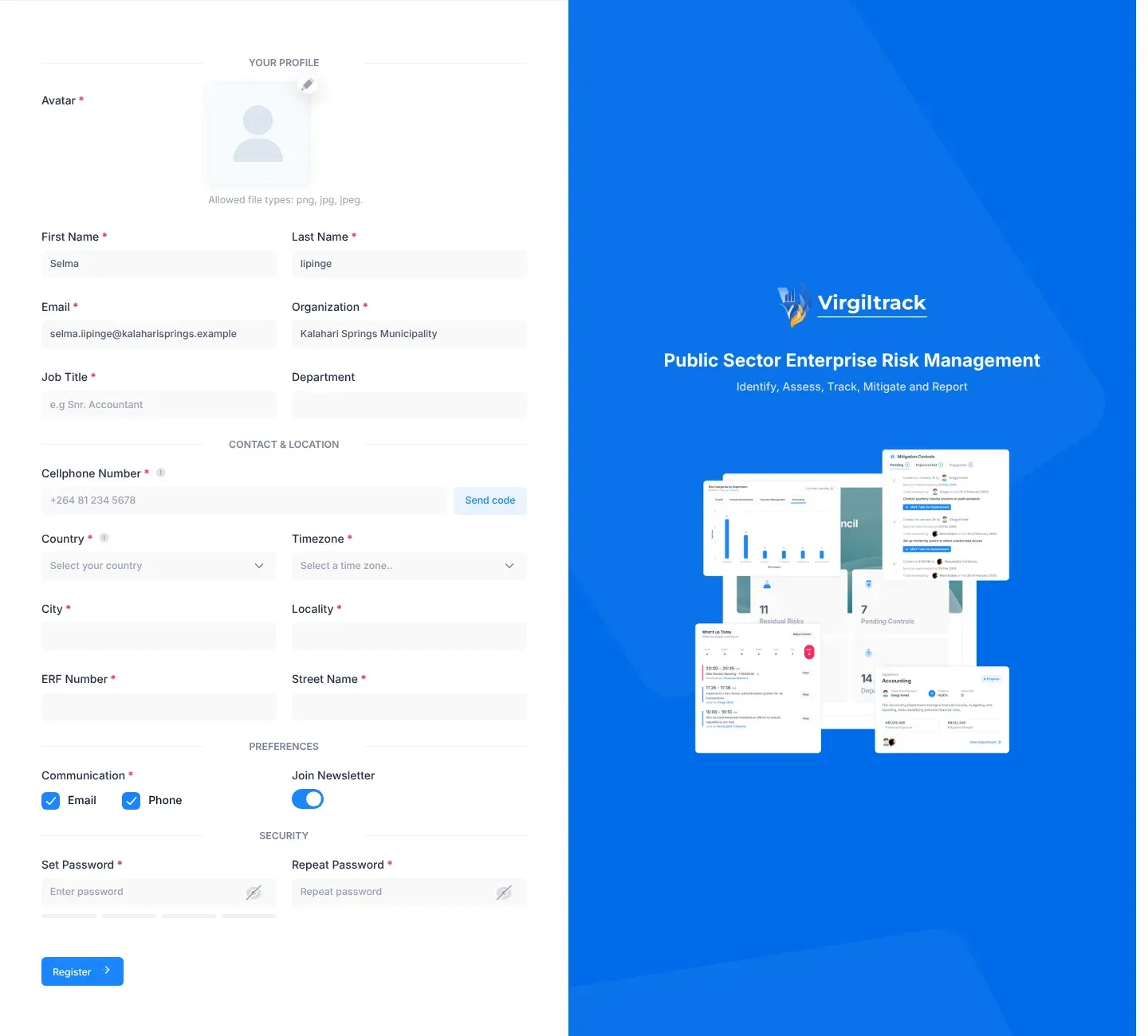
Open the email “Invitation to Virgiltrack” and select Setup Account.
The set-up page opens. Your name, Email, Organization and Department are already filled in. You can’t change the email address, organisation or department here.
-
Under Your profile, add your photo. Select the pencil button (Upload avatar), choose your picture, drag and zoom it until it fills the blue crop box, then select Crop.
-
Check your First Name and Last Name, and type your Job Title, for example “Snr. Accountant”.
-
Under Contact & location, type your Cellphone Number in international format, for example “+264 81 234 5678”.
-
To confirm the number now, select Send code. Type the code from the text message in Verification code and select Verify.
A message under the number confirms that it’s verified. You can skip this and verify your number later in Settings.
-
Choose your Country and Timezone, and fill in City, Locality, ERF Number and Street Name.
-
Under Preferences, Communication has Email and Phone, both ticked. Untick one if you don’t want VirgilTrack to contact you that way. Switch Join Newsletter off if you don’t want the newsletter.
-
Under Security, type a password in Set Password and type it again in Repeat Password.
Use at least 8 characters, with capital and small letters, a number and a symbol. The bar under the password fills up as it gets stronger.
-
Select Register.
The button shows Please wait (Registering)…. When you see “Account created successfully! Please check your email to confirm your account.”, select Okay, got it.
Confirm your email address
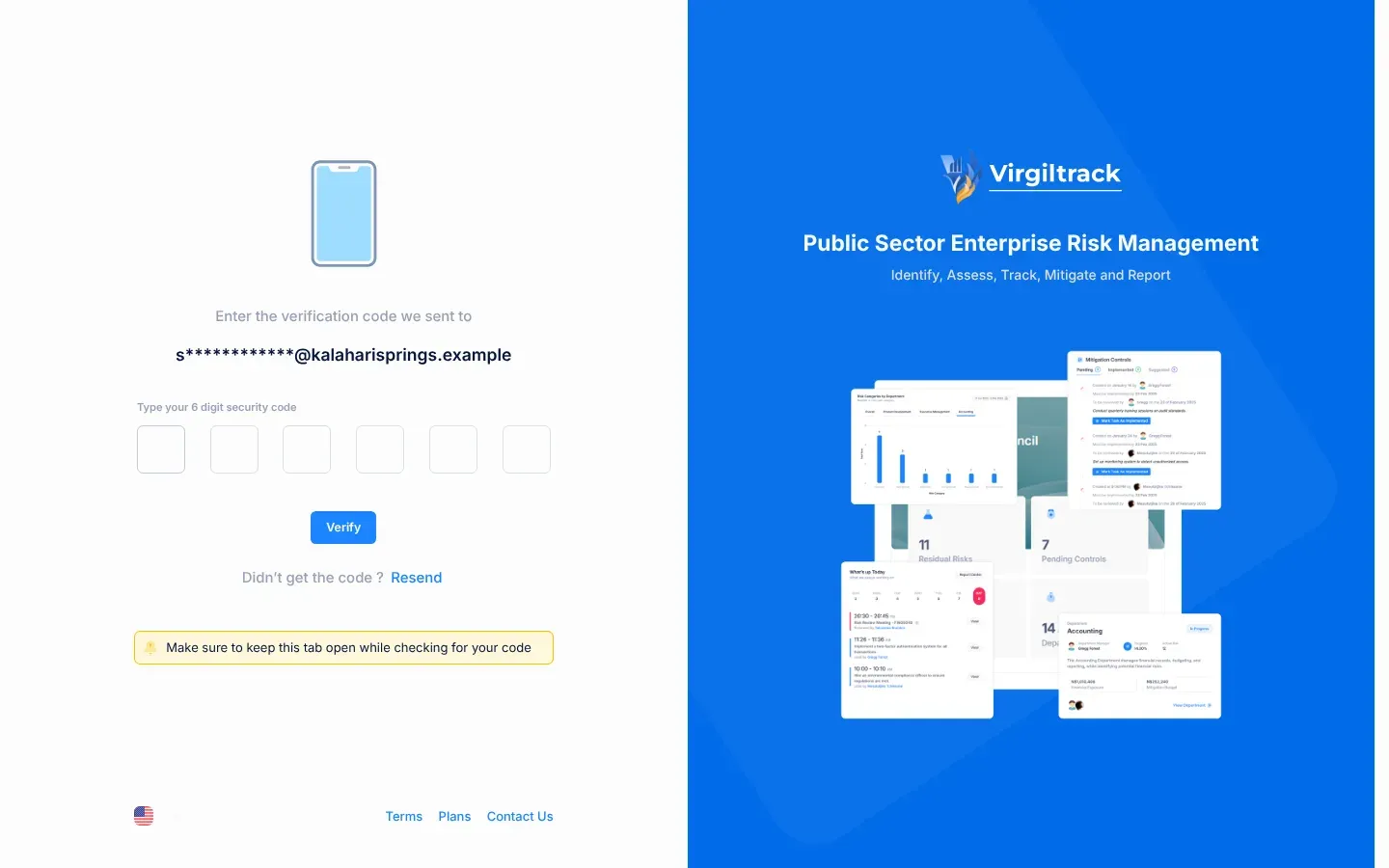
Section titled “Confirm your email address”After you select Register, VirgilTrack shows a page that says “Enter the verification code we sent to”, with your email address partly hidden. Keep this browser tab open.
-
Open the email “Verify your email address on Virgiltrack” and find the 6-digit code.
-
Type the code into the six boxes under “Type your 6 digit security code”.
VirgilTrack checks the code as soon as you type the last digit. You can also select Verify.
-
When “Your email has been verified successfully! You will now be redirected to login” appears, select Ok, got it!.
-
On the Sign In page, sign in with your email address and the password you chose.
No code? Check your spam or junk folder. Then select Resend, next to “Didn’t get the code ?”. When “A new verification code has been sent to your email.” appears, use the newest code.
If your email has a Set my password button
Section titled “If your email has a Set my password button”-
Open the email and select Set my password.
A page opens that greets you by name: “Hi …, set your password”.
-
Type a password in New password and again in Repeat it. Use at least 8 characters, with a capital letter, a number and a symbol.
-
Select Set password.
-
When Password set appears, select Sign in and sign in with your email address and new password.
The link in the email works once. If it has already been used or has run out, you see This link has expired. Select Send me a new link and follow Reset a forgotten password.
What happens next
Section titled “What happens next”- Your role comes from your invitation: CEO, Manager or Employee. See Roles and what each can do.
- VirgilTrack places you in your organisation’s reporting lines. Employees report to their department’s manager, and managers report to the CEO. If you were invited as a department’s manager, you become that department’s manager.
- You’re added to your organisation’s weekly work reports. See Work reports and records.
- If you verified your mobile number, VirgilTrack can send you reminders by text message.
If something goes wrong
Section titled “If something goes wrong”| What you see | What to do |
|---|---|
| “Please ensure that you have entered all required fields before submitting” | Look for red messages under the fields, such as “An avatar is required”, “Job title is required”, “Cellphone number is required”, “Please select your country of residence” or “Please select your timezone”. Fill in each one and select Register again. |
| “Use 8 or more characters with a mix of letters, numbers & symbols.” | Make your password stronger: use capital and small letters, a number and a symbol. |
| “The password and its confirm are not the same” | Type exactly the same password in Set Password and Repeat Password. |
| “Enter your phone number first.” | Type your number before you select Send code. |
| “Code sent — check your phone. It expires in 10 minutes.” | This is not an error. Type the code from the text message and select Verify within 10 minutes. |
| “That code didn’t verify.” | Check the code and try again, or select Resend code. |
| “Your account has already been created. Use your email and password to login.” | Your account exists. Go to the Sign In page and sign in. |
| “Invalid team member invite.” or “This invitation is not valid or has already been used.” | The invitation can’t be used any more. Ask your CEO or an administrator to invite you again. |
| “Your account couldn’t be created because of a problem on our side. Please try again.” | Select Register again. If it keeps happening, contact your administrator. |
| Verification Failed: “The code provided is invalid or has already expired. Please check again or resend a new code using the Resend button below.” | The code is wrong or too old. Select Resend and use the new code. |
| Verification Failed: “Please enter valid verification code and try again.” | One of the six boxes is empty. Type all six digits. |
| Already Verified! | Your email address is already confirmed. Select Ok, got it! and sign in. |
If you select Setup Account again after you’ve registered, VirgilTrack takes you to the right place: the code page if you haven’t confirmed your email yet, or the Sign In page if you have.