

Your first week as an employee
In VirgilTrack, work comes to you as tasks, you help keep your department’s risks under control, and each week you tell your manager what you did. This checklist spreads your first steps over a week. Each item links to the page with the details.
Before you start
Section titled “Before you start”You need a VirgilTrack account. If you have an invitation email but haven’t set up your account yet, see Accept an invitation.
Day 1: Sign in and set up your profile
Section titled “Day 1: Sign in and set up your profile”- Sign in with your email address and password. VirgilTrack opens your department’s Risk Register. See Sign in and sign out.
- Open Your picture, then Settings. On Profile, check your photo and your name. See Your profile and sign-in details.
- In Sign-in & security, add or verify your mobile number, so VirgilTrack can send you texts such as reminders. See Add or verify your mobile number.
- In Preferences, check your time zone. VirgilTrack doesn’t send you texts or calls at night in your time zone, and Virgil Copilot uses it for reminders you ask for. See Set your time zone.
- Learn the parts of the screen: the menu on the left, the bell in the header, the Team: bar with your colleagues, and the Virgil Copilot button. See Find your way around.
Day 2: Your tasks
Section titled “Day 2: Your tasks”- Open Tasks. The For me tab lists the work given to you, grouped by when it is due. See Your tasks.
- Open a task and select Start working on it. The person who gave it to you is told.
- If you’re stuck, or need more time, say so on the task’s page. See Say you’re blocked and Ask for more time.
- When the work is finished, select Mark as done. In How was it done?, write what you delivered and how, then select Mark as done under the box.
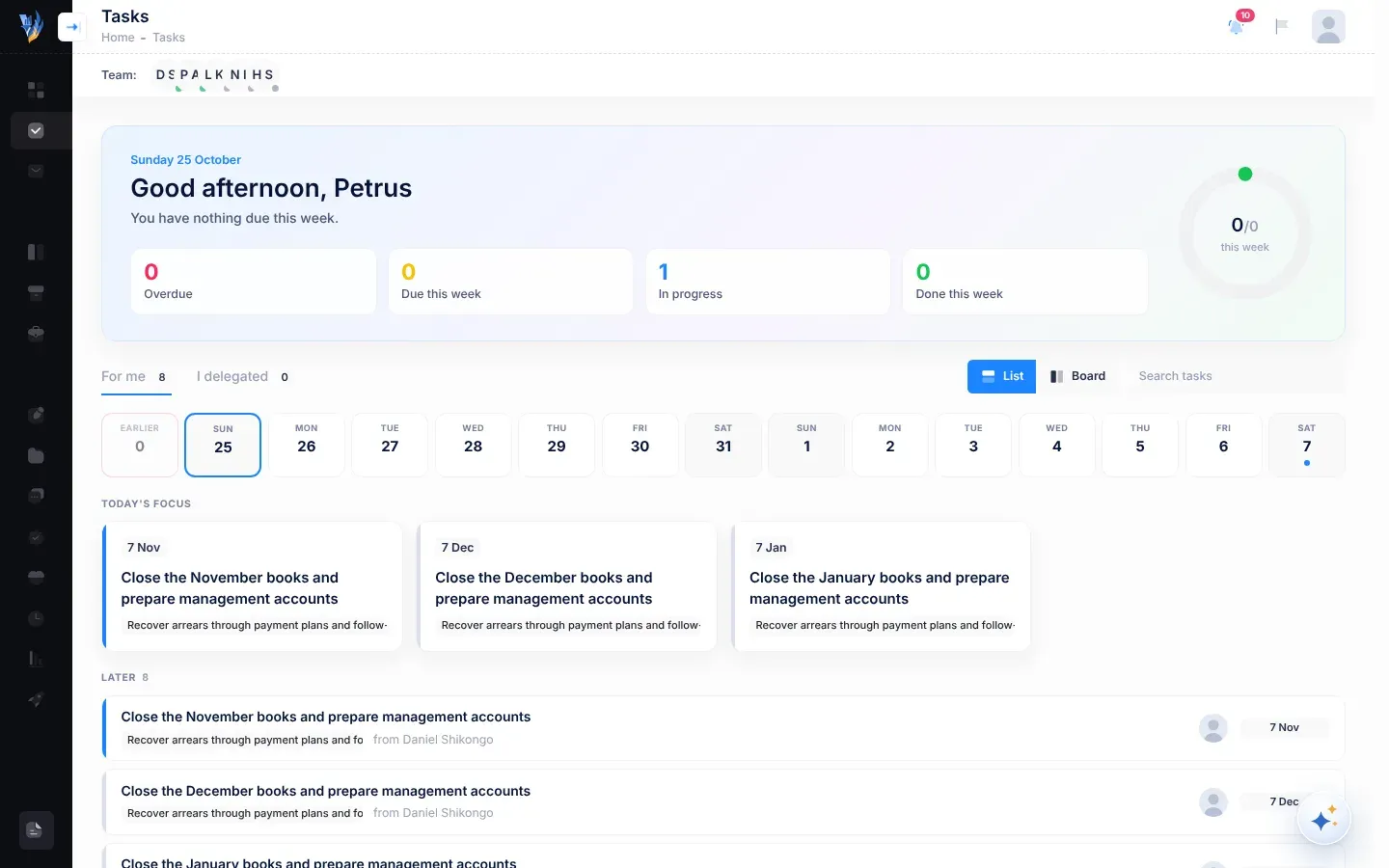
How you hear about your work:
- When someone gives you a task, you get a New task delegated to you notification.
- On weekday mornings, VirgilTrack emails you about work due the next day, and about work that is overdue. See Reminders.
- A red number beside Tasks in the menu counts your overdue tasks and the tasks with messages you haven’t read.
See Work on a task.
Day 3: The risks you look after
Section titled “Day 3: The risks you look after”Your department records its risks in the Risk Register: things that could go wrong, how serious they are, and the actions that reduce them, called controls.
- Read your department’s register. Open Risk Register and select a risk to open its page, with its score, its controls and its discussion. See The risk register and A risk’s page.
- Your reviews. If you are one of a risk’s Responsible people, VirgilTrack reminds you 7, 3 and 1 days before each review, and on the day. At the review, check whether the risk has changed and whether its controls are working, and write what you found on the Discussion tab. See Review a risk.
- Your controls. When someone makes you responsible for a control, you get Risk control assigned to you. When the work is done, open the control, write in How did you implement it? and select Mark as implemented. See Mark a control as implemented.
- What’s coming up. Select Dashboard. What’s up Today lists, day by day from SUN to SAT, the risk reviews scheduled for you and the controls you are responsible for or created. It isn’t limited to this week, so open the risk to check a review’s date. See The What’s up Today card.
- Spotted a new risk? Record it with Add risk on the register. See Add a risk.
Every day: write your weekly report
Section titled “Every day: write your weekly report”- Open Work Reports. Today’s card is selected.
- Write what you did in the box under the day’s name, for example Tuesday’s work. It is saved as you type.
- Check Reporting to at the top of the page. Your report goes to that person, usually your manager.
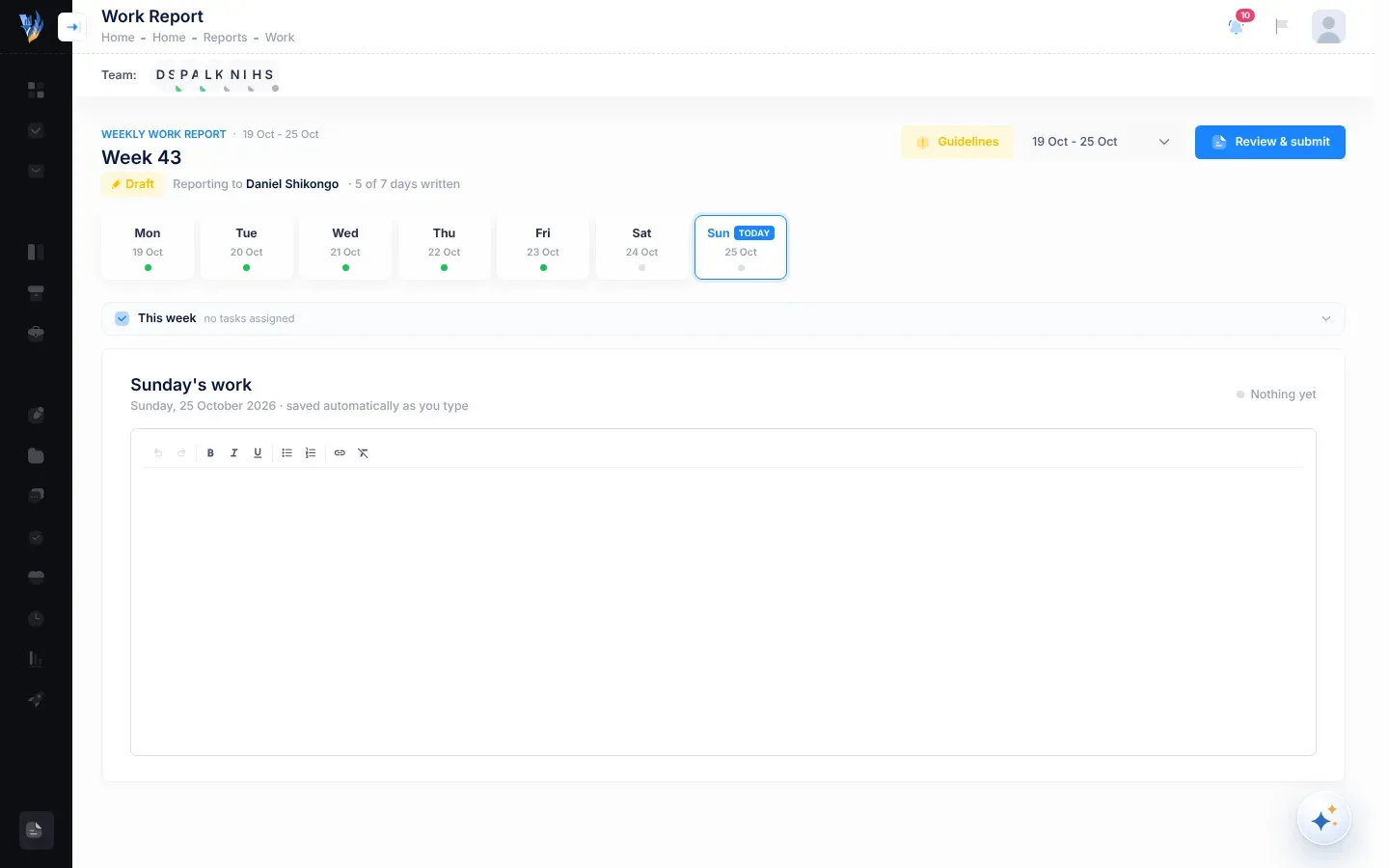
Say what you did, what came of it and why it matters. Select Guidelines to see what a good entry includes. To have Virgil write an entry about a piece of work, open the This week bar and select Draft beside it. See Your weekly report.
If the page says “Your reporting line isn’t set up yet”, ask your CEO to set your manager. See Who your report goes to.
Friday: submit your report and check in
Section titled “Friday: submit your report and check in”- Open Work Reports and select Review & submit. VirgilTrack turns your entries into a short report.
- In Edit report before submitting, read each section and the Summary, and change anything that isn’t right.
- Select Submit Report. You see “Report successfully submitted to your manager.”
- Open Emotional Intelligence, then Me and answer How was your week?. Your answer is private unless you tick Share this with my manager. See The weekly check-in.
You can submit your report at any time, and VirgilTrack reminds you while it is still open:
| When | What you get |
|---|---|
| Friday at 14:00, if this week’s report isn’t submitted | An email, for example “Your week 43 report is ready to submit”, with an Open my report button. |
| Monday at 08:30, if last week’s report still isn’t submitted | An email, for example “Last week’s report (week 42) is still open”, with a Finish and submit button, and a notification in VirgilTrack. |
Aim to submit by Friday afternoon: your manager builds their own report from the reports their team has submitted. To change a report you have sent, select Reopen and edit. See Submit your weekly report.
On Friday afternoon, VirgilTrack also emails you How was your week? if you haven’t checked in that week. You can answer straight from the email.
Any time: ask Virgil Copilot
Section titled “Any time: ask Virgil Copilot”Select the round Virgil Copilot button in the bottom-right corner, or press Ctrl + K. Ask in your own words, for example:
- “What’s overdue?”
- “Draft today’s entry from what I did”
- “Remind me tomorrow at 9 to call the auditors”
See Ask Virgil Copilot and What Virgil can do.