

Find your way around
Every VirgilTrack page is built the same way, so once you know the parts of the screen you can find your way anywhere. What you see in the menu depends on your role.
The screen at a glance
Section titled “The screen at a glance”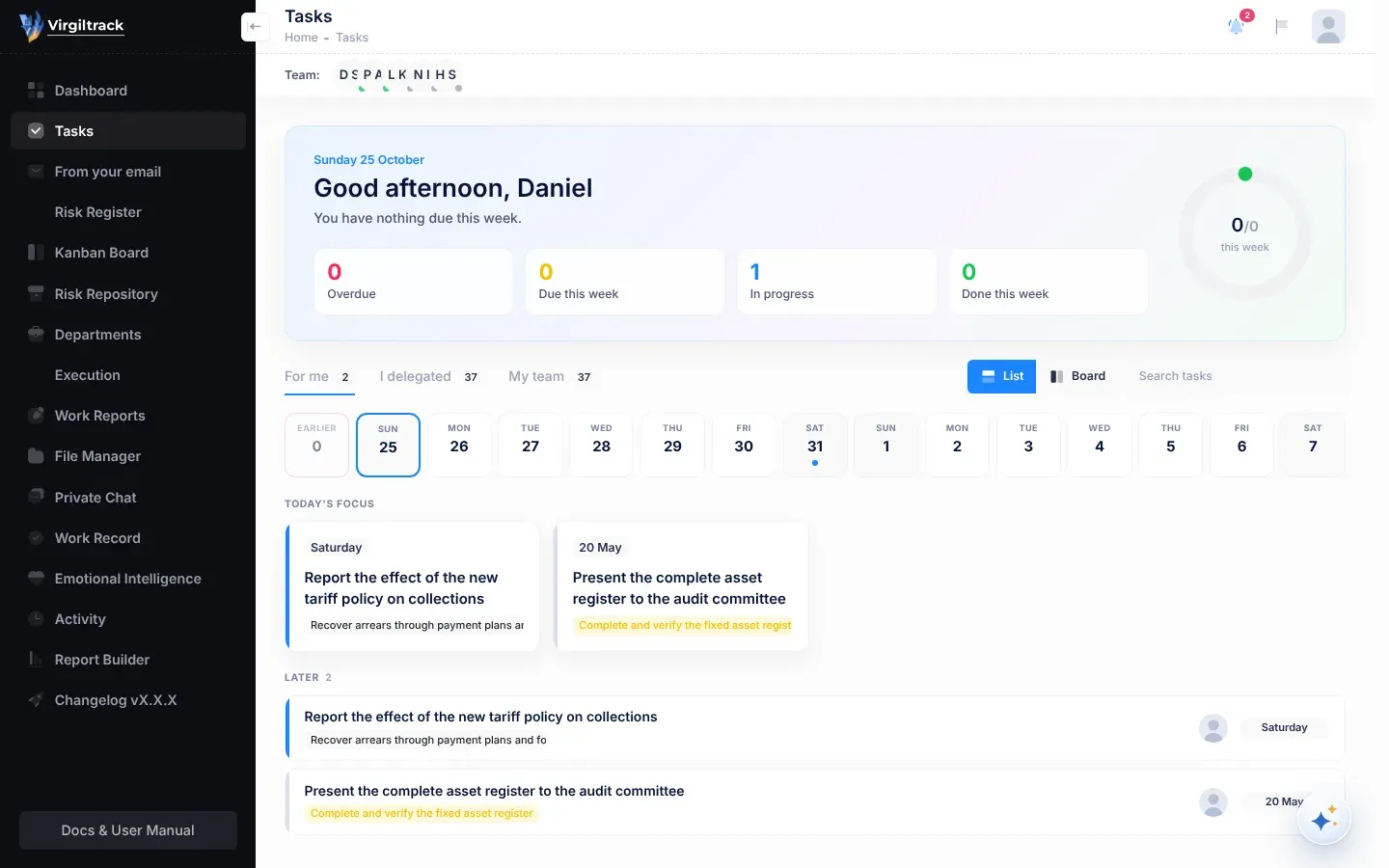
- The menu on the left takes you to each area of VirgilTrack.
- The header at the top shows the page title, and holds your notifications and your account menu.
- The team bar, just under the header, shows the people you work with.
- The page itself fills the rest of the screen.
- The Virgil Copilot button, the round button in the bottom-right corner, opens the assistant.
The menu on the left
Section titled “The menu on the left”On a large screen the menu may show only icons. Point at it to see the names, or select the arrow button on its edge to keep it open. On a phone, select the Show sidebar menu button at the top left to open it.
| Menu item | What it opens | Who sees it |
|---|---|---|
| Dashboard | Your dashboard: Admin Dashboard, CEO Dashboard or Manager Dashboard. Managers and employees both open the Manager Dashboard. See Dashboards. | Everyone |
| Tasks | The work given to you and the work you’ve given others. A red number shows tasks that need you: tasks of yours that are overdue, and tasks with messages you haven’t read. Point at the number to see which. See Tasks. | Everyone |
| From your email | Work VirgilTrack found in your connected mailbox, waiting for you to confirm. The number shows how many are waiting. See Tasks from your email. | Everyone |
| Risk Register | Your department’s risks. See The risk register. | Everyone except the CEO |
| Kanban Board | Your department’s risks as cards in columns, by status. See The Kanban board. | Everyone except the CEO |
| Risk Repository | A catalogue of common risks you can copy into your department. See The risk repository. | Everyone except the CEO |
| Departments | Your organisation’s departments. See Departments. | Everyone |
| Execution | The strategic plan and the work that delivers it. Which pages you see inside depends on your role. See Strategy and execution. | Everyone |
| Work Reports | Your weekly work report, or your team’s reports: the page matches your role. See Work reports and records. | Everyone. Administrators have no work report, so for them it opens their dashboard. |
| File Manager | Your organisation’s shared folders and files: open, upload, download and organise them. See Files and documents. | Everyone |
| Private Chat | One-to-one messages with colleagues. A dot shows when you have unread messages. See Private chat. | Everyone |
| Work Record | The record of work VirgilTrack keeps for a person. See Your work record. | Everyone sees the item, but at present only administrators can open the page. Others see “You are not authorized to view this page.” |
| Emotional Intelligence | Short lessons, practice and reflection on handling emotions at work. See Emotional intelligence. | Everyone |
| Activity | A timeline of what has happened in your organisation this year, by Today, Week, Month and year. See Activity timeline. | Everyone |
| Organizations, Users, Sign Ups | The platform’s organisations, people and sign-up requests. See Platform administration. | Administrators |
| Report Builder | The Generate Reports page for risk reports. See Make a risk report. | Everyone |
| Changelog vX.X.X | A list of changes in VirgilTrack’s versions. | Everyone |
At the bottom of the menu, Docs & User Manual opens the Virgil Finance website.
The header
Section titled “The header”The left of the header shows the page title. On many pages, the breadcrumbs under it show the path to the page, starting with Home. Select Home to go back to your first page. On pages without a title of their own, the header shows your organisation’s name.
On the right of the header are three buttons.
| Button | What it does |
|---|---|
| The bell (Notifications) | Opens your notifications. A red number shows how many are unread. Choose All or Unread, select a notification to go to what it’s about, or select Mark all read. See Notifications. |
| The flag | Opens Activity Logs, a list of your own sign-ins, including attempts that failed because of a wrong password. Select the cross to close it. |
| Your picture | Opens your account menu. |
Your account menu
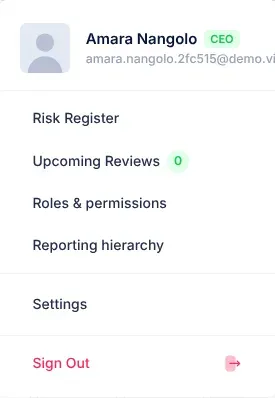
Section titled “Your account menu”Select your picture to open it. It shows your name, a badge with the short form of your job title, and your email address. Select your email address to go straight to your sign-in and security settings.
- Risk Register opens your department’s risk register.
- Upcoming Reviews shows how many risk reviews you have coming up. It’s a count only, not a link.
- Roles & permissions opens the Role Management page, and Reporting hierarchy opens Roles & hierarchy in Settings. Only the CEO and administrators see these two items. They use them to manage people’s roles and reporting lines.
- Settings opens your personal settings. See Your profile and sign-in details.
- Sign Out signs you out. See Sign in and sign out.
The team bar
Section titled “The team bar”Under the header, Team: shows the pictures of the people in your department. The CEO sees everyone in the organisation.
- A small dot on each picture shows whether the person is online, away or offline. Point at a picture to see their name and status in words, such as “Online”, “Away” or “Last seen …”.
- A number on a picture shows how many unread messages that person has sent you.
- Select a picture to open a chat with that person at the side of the screen.
Some pages add their own buttons at the right of this bar.
Who can use this:CEOAdministrator
The CEO also sees a green plus button, Invite a team member, at the end of the bar. So do administrators who belong to a department. See Invite team members.

Virgil, the assistant
Section titled “Virgil, the assistant”Virgil Copilot is the assistant built into VirgilTrack. Ask it questions about your work, or ask it to do things for you.
- Select the round Virgil Copilot button in the bottom-right corner, or press Ctrl + K (Cmd + K on a Mac). Press Esc to close it.
- Press Ctrl + J (Cmd + J on a Mac) to open the quick bar. Type one sentence, such as “Brandon, prepare the Outjo WIP schedule by Friday”, check what VirgilTrack fills in, and press Enter.
- Select some text on a page (not inside a box you type in) to see three buttons: Delegate, Remind me and Ask Virgil.
See The AI assistant to learn what Virgil can do.
Messages and loading
Section titled “Messages and loading”- New notifications pop up briefly in a corner of the screen, with a sound.
- When a colleague sends you a chat message while you’re elsewhere, it pops up at the bottom of the screen for a few seconds. Type in Reply… and select Send, or select Open to go to the conversation.
- Loading… appears while VirgilTrack opens a page.
- If “An unhandled error has occurred.” appears at the bottom of the screen, something went wrong on the page. Select Reload.