

Allocate an initiative's budget
Hierdie inhoud is nog nie in jou taal beskikbaar nie.
Each initiative needs a budget for each year of the plan: the money set aside for it, and how much of that is actually secured. You set and change budgets on the Budget page. VirgilTrack keeps a history of every change, with who made it and why.
Before you start
Section titled “Before you start”- You need the Budget page: the CEO and department managers have it. See The Budget page.
- Know the amount set aside for the initiative this year, and how much of it is confirmed.
- If you are changing an existing allocation, have the reason ready, for example a council resolution number.
Set or change a budget
Section titled “Set or change a budget”-
Open Execution, then Budget.
-
Under Year, select the plan year.
-
Find the initiative’s card and select Allocate budget, or Edit if it already has an allocation.
The card opens a form: “The 2026/27 budget for” and the initiative’s name.
-
Fill in Allocated Budget: the total set aside for the initiative this year.
-
Fill in Secured Amount: the money actually confirmed in hand. It can’t be more than the allocated budget.
-
Check Funding Status. See How the funding status is set.
-
Choose a Budget Type: OPB — Operating Budget, CPB — Capital Budget, Mixed (OPB + CPB) or Unspecified.
-
If you like, fill in Funding Source, for example “Internal”, “MURD” or “World Bank”.
-
If you changed an existing allocation, fill in Why is the allocation changing?. The reason is kept with the change.
-
Select Save Allocation.
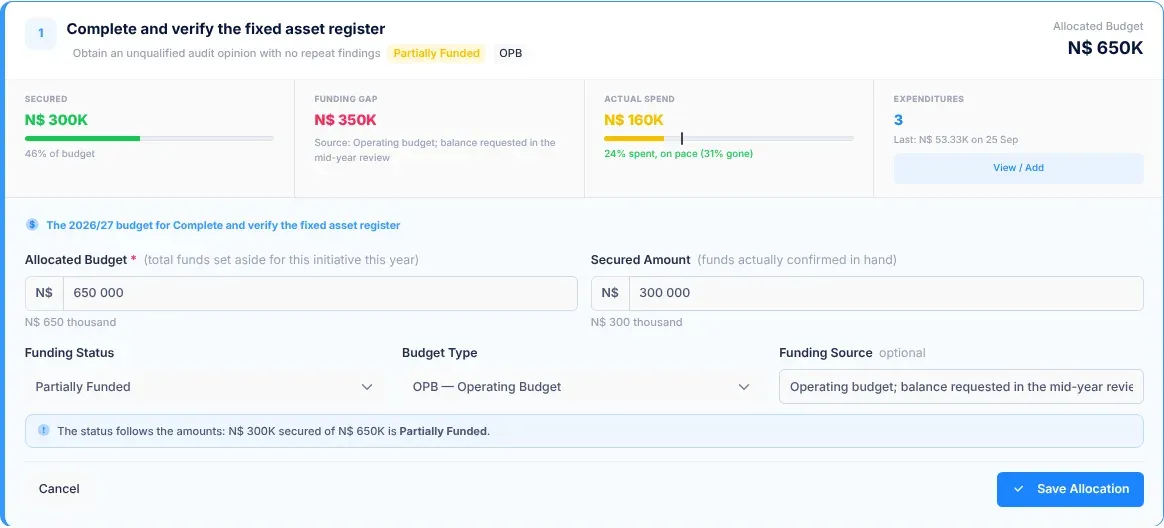
To close the form without saving, select Cancel.
How the funding status is set
Section titled “How the funding status is set”The funding status follows the amounts, so it can never contradict them. A note under the form says which status your amounts give, for example “The status follows the amounts: N$ 400K secured of N$ 1.2M is Partially Funded.”
- With no allocation, the field says “Set an allocation first”.
- When the secured amount covers the allocation, the status is Fully Funded.
- When money is still missing, you choose how the rest is being found:
- Partially Funded (some money is secured) or Unfunded (none is), if the rest isn’t being sought yet;
- Seeking External Grant, if it is being sought from a grant or donor;
- Awaiting Ministry Approval, if it depends on the Ministry.
What happens next
Section titled “What happens next”- A message says “Budget saved.”, and the card shows the new figures.
- The change is added to the budget’s history, with who made it, when, what changed and why. The last change shows on the card, and the whole list shows under Changes to this budget when you open the form again.
- The new budget is used everywhere: the plan overview, the Objectives page, Department Performance and the annual plan.
- Keep Secured Amount up to date as money comes in. The funding gap and the status follow it.
- Record spending as it happens, so the spending pace stays meaningful. See Record spending on an initiative.
If something goes wrong
Section titled “If something goes wrong”| What you see | Why | What to do |
|---|---|---|
| Save Allocation can’t be selected | The secured amount is more than the allocation, the allocation is zero for a new budget, or a changed allocation has no reason. | Fix the amounts, or fill in Why is the allocation changing?. |
| “Secured cannot exceed the allocated budget of …” | The secured amount is more than the allocation. | Lower Secured Amount, or raise Allocated Budget. |
| “Nothing changed.” | You saved without changing anything. | No action needed. |
| “Unsaved Changes” when you select another year | A budget form is still open. | Select Stay to keep editing, or Discard & Switch to close the form without saving. |
| “The budget couldn’t be saved just now. Please try again.” | Saving failed. | Try again in a moment. |