

Make a risk report
Hierdie inhoud is nog nie in jou taal beskikbaar nie.
The Report Builder makes a PDF report of your risks. Choose the type of report and which risks to include, then download it. It takes a few seconds.
Before you start
Section titled “Before you start”- There must be risks to report on: in your department, or for the CEO, anywhere in the organisation. If there is nothing to report, the page shows “You cannot currently Generate Reports as you don’t have sufficient Risks Recorded” instead of the settings. Add or copy risks first. See Managing risks.
- Assess your risks. Only risks with a review frequency (Review every) go into a report. See The risk register.
- Know roughly when the risks were added. The report picks risks by the date they were recorded in VirgilTrack.
Make and download a report
Section titled “Make and download a report”-
Open Report Builder from the menu on the left.
The page is headed Report Builder. Its settings are under the Risk Management Reporting tab.
-
Under Within Date Range, select the date box and choose when the risks were recorded.
The last 30 days are selected at first. Pick a quick range, such as This Month or Last Month. Or choose a start date and an end date in the calendars, then select Apply. To report on older risks, widen the range: risks recorded before the start date are left out.
-
Under Report Type, choose Risk Register Report or IPSAS Readiness Risk Report.
Point to the information icon next to a report type to read what it contains.
-
Check Risk Categories. Every category that has risks is selected at first. To leave a category out, select × on it.
-
Check With Risk Status. Untick any status you don’t want in the report.
-
Check From Department(s).
Employees and managers see only their own department. The CEO can choose any of the organisation’s departments. The Executive Suite isn’t listed.
-
Switch on or off Include Introduction Page, Include Closed Risks and Include Achieved Risks. See The settings below.
-
Select Download at the top right.
You see “Compiling report, please wait…”. When the report is ready, your browser saves the PDF and you see “File Downloaded Successfully!”.
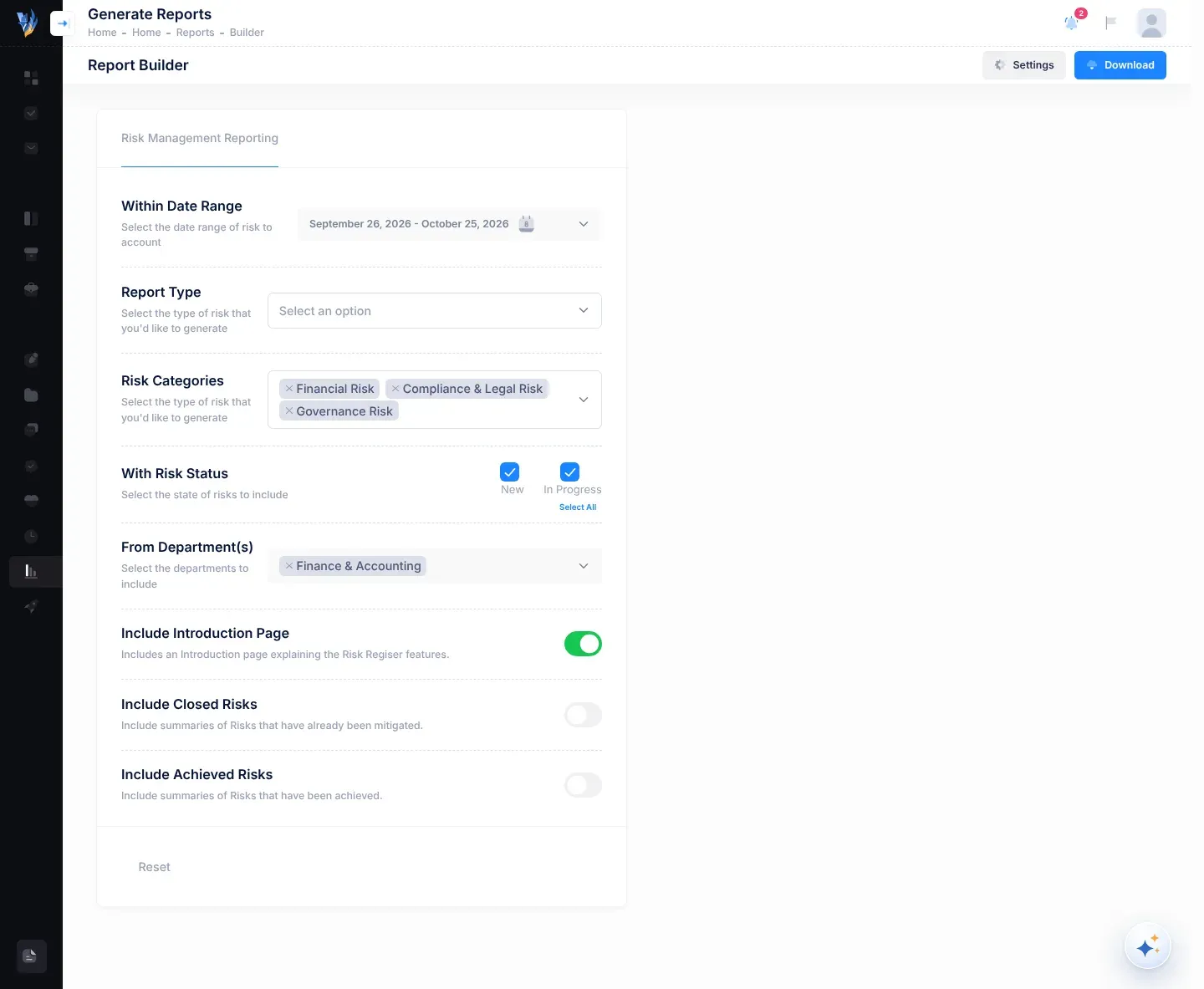
The settings
Section titled “The settings”| Setting | What it does |
|---|---|
| Within Date Range | Includes only risks recorded between these two dates. The quick ranges are Today, Yesterday, Last 7 Days, Last 30 Days, This Month and Last Month. Custom Range lets you pick both dates in the calendars. |
| Report Type | The kind of report. Risk Register Report and IPSAS Readiness Risk Report can be chosen. Risk Ownership Report and Heatmap Report are greyed out: they are not available yet. |
| Risk Categories | The risk categories to include, such as Financial Risk or Governance Risk. Only categories that your risks use are listed. |
| With Risk Status | The risk statuses to include, such as New or In Progress. Only statuses that your risks have are listed; risks already marked as mitigated don’t count. All are ticked at first. |
| From Department(s) | The departments whose risks are included. Employees and managers have their own department only. The CEO can choose any department. |
| Include Introduction Page | Adds a first page that explains the register and the scoring scale. It is on at first. It applies to the Risk Register Report only. |
| Include Closed Risks | Includes risks that have been mitigated. It is off at first. |
| Include Achieved Risks | Includes risks that have been archived. It is off at first. |
The Settings button at the top right opens Filter Options, with a Save My Current Settings: switch and Reset and Apply buttons. In this version they have no effect, and your choices aren’t saved for next time. The Reset button at the bottom of the page doesn’t do anything either. See Known limitations.
Choosing several categories or departments
Section titled “Choosing several categories or departments”Risk Categories and From Department(s) can hold several choices. Each choice shows as a small label in the box.
- To remove a choice, select × on its label.
- To add one back, select the box and choose it from the list.
Ticking or unticking every status
Section titled “Ticking or unticking every status”Under the status boxes, Select All ticks them all and Deselect All unticks them all. At first every status is ticked but the link reads Select All: to untick them all, select Select All, then Deselect All.
What happens next
Section titled “What happens next”- The PDF is saved by your browser, usually in your Downloads folder. Its name starts with the report type, for example
RiskRegisterReport-orIPSASReadinessRiskReport-. - Every page has your organisation’s logo and name and the report type at the top, and your organisation’s name, the date and the page number (“Page 2 of 5”) at the bottom.
- Nothing in VirgilTrack changes. You can make the same report again at any time.
To find out what each page and column of the report shows, see What’s in a risk report.
- Report on the whole register. Choose a start date before your first risk was recorded, and keep every category, status and department selected. To include closed risks too, switch on Include Closed Risks and Include Achieved Risks.
- Prepare for an audit or a council meeting. Use Risk Register Report with Include Introduction Page switched on, so readers understand the scores.
- For IPSAS readiness. Use IPSAS Readiness Risk Report. Only risks copied from the IPSAS readiness suggestions in the Risk Repository are included. See IPSAS readiness risks.
- Print it wide. The report pages are wide, landscape pages. Choose landscape and “fit to page” when you print.
If something goes wrong
Section titled “If something goes wrong”| What you see | Why | What to do |
|---|---|---|
| “You cannot currently Generate Reports as you don’t have sufficient Risks Recorded” | There are no risks that aren’t mitigated in your department (for the CEO, in the organisation). | Add or copy risks, then come back. |
| Select “Report Type”: “Please select the Type of Report you want to generate.” | No report type is chosen. | Choose a Report Type. |
| Select “Risk Categories”: “Please select at least 1 Risk Category” | Every category was removed. | Choose at least one category. |
| Select “With Risk Status”: “Please select at least 1 Risk Status” | Every status is unticked. | Tick at least one status. |
| Select “From Departments”: “Please select at least 1 Department” | Every department was removed. | Choose at least one department. |
| Filtered 0 Risks: “The selected 1 department(s) do not have risks in question” (the number is how many departments you chose) | The departments you chose have no risks at all. | Choose other departments. |
| Filtered 0 Risks: “The selected 1 department(s) have risks but not in the selected date range.” | No risk in those departments was recorded between the dates you chose. | Widen Within Date Range. |
| An Error message that starts “An error occurred while generating the report.” | VirgilTrack couldn’t make the PDF. | Try again. If it keeps happening, tell your administrator. |
| The report downloads but a risk is missing, or the table is empty. | The risk has no review frequency, was recorded outside the date range, or its category, status or department wasn’t selected. Mitigated and archived risks also need their switch on. | Check the risk’s details and your choices, then make the report again. |