

Risk controls
Hierdie inhoud is nog nie in jou taal beskikbaar nie.
A control is a concrete action that reduces a risk, such as “Phone-verify every change to supplier bank details”. Each control has one responsible person, a date by which it must be done and a review date. When all of a risk’s controls are done, the risk can be marked as mitigated.
Where you find controls
Section titled “Where you find controls”A risk’s controls live on the risk’s own page:
- Managers and employees: select Risk Register in the menu on the left, then select the risk.
- The CEO has no Risk Register in the menu on the left. Select your picture, then Risk Register, and select the risk. You can also open a risk from a notification about it. See A risk’s page.
On the risk’s page you see controls in two places:
- Controls implemented, near the top, shows how many controls are done, for example “1 of 2”, with a progress bar.
- The Controls tab lists every control. The number on the tab counts the risk’s controls, but not AI suggestions that nobody has accepted.
You also meet controls elsewhere in VirgilTrack:
- The Controls column of the risk register. See The risk register.
- The calendar, on the review date of each control that isn’t implemented yet. See Calendar and reminders.
- The This week bar of your weekly report, for controls you are responsible for. See Your weekly report.
- Your Work Record. See Your work record.
The Controls tab
Section titled “The Controls tab”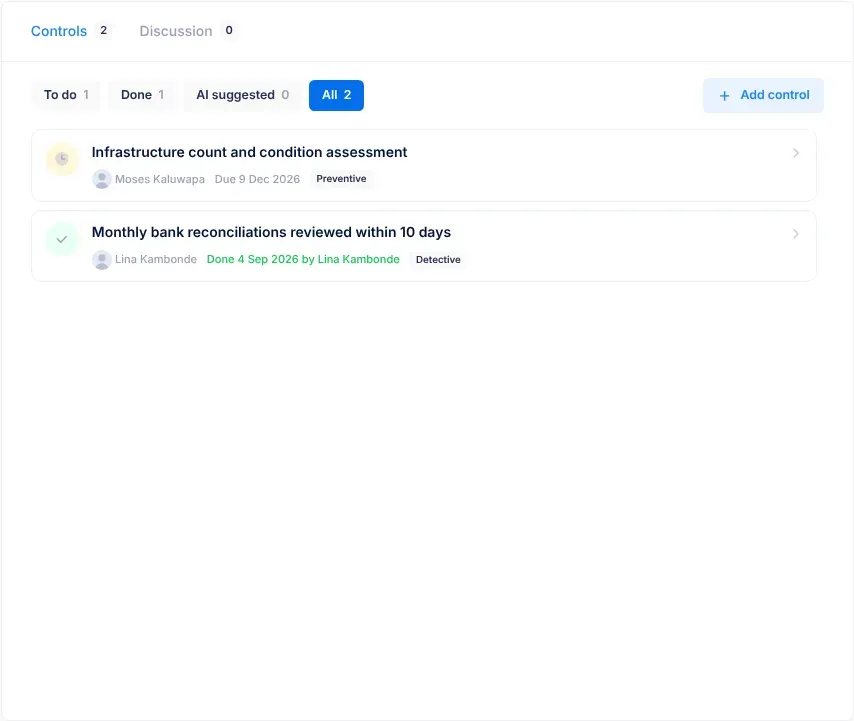
Filter buttons
Section titled “Filter buttons”The buttons above the list choose which controls you see. Each button shows how many controls it holds.
| Button | What it shows |
|---|---|
| To do | Controls that haven’t been implemented yet. AI suggestions aren’t included. The tab opens on this button. |
| Done | Controls that someone has marked as implemented. If nothing is left to do but some controls are done, the tab opens here instead. |
| AI suggested | Controls that VirgilTrack’s AI suggested and nobody has accepted yet. |
| All | Every control on the risk. |
Open controls come first, with the soonest deadline at the top. Implemented controls follow, the most recently finished first.
Add control, beside the buttons, opens the window for a new control. See Add a control to a risk.
What each row shows
Section titled “What each row shows”- A state icon. Point at it to read its status: To do, Overdue, Implemented or AI suggestion.
- The description of the control.
- The responsible person, with their picture.
- The date. For an open control, “Due” and its deadline, for example “Due 12 Dec 2026”. The date is red when the deadline has passed. For an implemented control, “Done”, the date and who did it, for example “Done 3 Oct 2026 by Hilma Shilongo”.
- The control type, such as Preventive.
- The number of comments and files, when there are any.
Select a row to open the control’s panel.
When the list is empty
Section titled “When the list is empty”| Button | What you see |
|---|---|
| To do | “Nothing left to do” and “Every control for this risk has been implemented, or none have been added.” |
| Done | “No controls implemented yet” and “Implemented controls appear here with who did them and how.” |
| AI suggested | “No AI suggestions” and “Suggestions from the AI appear here for you to accept.” |
| All | “No controls yet” and “Add a control to start reducing this risk.” |
Control statuses
Section titled “Control statuses”| Status | What it means |
|---|---|
| To do | The control hasn’t been implemented, and its deadline hasn’t passed. |
| Overdue | The control hasn’t been implemented, and its deadline has passed. |
| Implemented | Someone has marked the control as implemented. |
| AI suggestion | VirgilTrack’s AI suggested the control. It isn’t part of the risk’s plan until someone accepts it. |
Types of control
Section titled “Types of control”When you add a control, you say what kind of control it is.
| Type | What it is for |
|---|---|
| Preventive | Aimed at preventing the occurrence of the risk. |
| Detective | Aimed at identifying the occurrence of the risk. |
| Corrective | Aimed at reducing the impact or correcting the risk after it has occurred. |
Expected effectiveness
Section titled “Expected effectiveness”You also say how well you expect the control to work.
| Effectiveness | What it means |
|---|---|
| Ineffective | The control does not address the risk. Risks remain at the same level as before the control was implemented. |
| Minimally Effective | The control provides minimal reduction in risk, partially mitigating the risk but leaving significant exposure. |
| Moderately Effective | The control reduces risk to a moderate degree but is not comprehensive. Some gaps remain. |
| Effective | The control significantly reduces the risk to an acceptable level and works as intended. |
| Highly Effective | The control virtually eliminates the risk or reduces it to a negligible level. It is robust and consistently applied. |
| Not Evaluated | The control’s effectiveness has not yet been assessed or is under review. |
The control panel
Section titled “The control panel”Selecting a control opens its panel, Control, at the side of the screen.
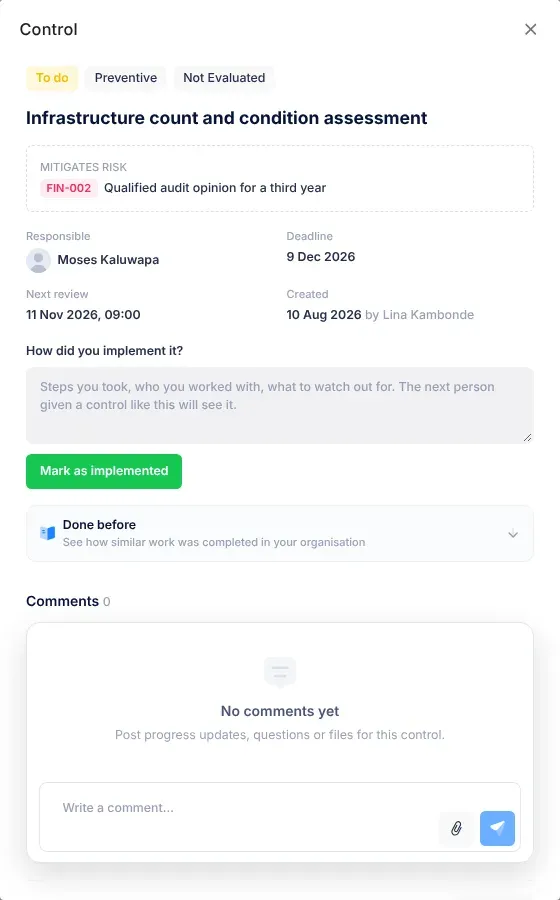
From top to bottom, the panel shows:
- Badges for the control’s status, its type and its expected effectiveness.
- The description of the control, as the heading.
- Mitigates risk, with the code and name of the risk the control belongs to. Open risk takes you to the risk’s page. It isn’t shown when you opened the panel from the risk’s own page.
- Responsible, Deadline, Next review (date and time) and Created (date and who added the control). The deadline is red when it has passed. Not assigned means the control has no responsible person.
- The completion area, which depends on the control:
- An open control shows How did you implement it? and Mark as implemented, if you are allowed to complete it. See Mark a control as implemented.
- An implemented control shows “Implemented by”, the person’s name and the date, with their notes, and Reopen if you may reopen it.
- An AI suggestion shows “The AI suggested this control. Accept it to add it to the risk’s to-do list.” and, if you are allowed to complete it, Accept as a control.
- Done before: “See how similar work was completed in your organisation”. Select it to see finished work like this control, with who did it, when, and how it was done. Summarise how others did it asks the AI for a short summary of that history. Check the summary against the details listed.
- Comments, where people post updates and attach files. See Comment on a control.
- Close, which closes the panel.
You can also open a control’s panel from the Open the control button in an email, from a notification, from the calendar or from the This week bar of your weekly report. In the calendar the panel is called Risk Control Details. When you open it from any of these places, notes on how you implemented the control are required. See Mark a control as implemented.
Who can do what
Section titled “Who can do what”| Action | Who can do it |
|---|---|
| Add a control | Anyone in your organisation who can open the risk’s page. |
| Mark a control as implemented | The control’s responsible person, the person who added the control, the risk’s owner, any manager and the CEO. |
| Accept an AI suggestion | The same people who can mark a control as implemented. |
| Reopen an implemented control | The person who marked it as implemented, any manager and the CEO. |
| Comment and attach files | Anyone who can open the control. |
| Move a control’s review date | Managers and the CEO, by dragging the control to another day in the calendar’s month view. See Move an item to another day. |
Reminders and notifications
Section titled “Reminders and notifications”VirgilTrack keeps the responsible person informed without anyone having to chase them.
| When | Who is told | What they get |
|---|---|---|
| A control is added | The responsible person | Risk control assigned to you, in VirgilTrack and by email. The email’s subject says who made them responsible, for example “Daniel Shikongo made you responsible for a risk control: …”. It shows Implement by, Mitigates and From, with Open the control and See the risk buttons. They also get a text message if they have a verified mobile number, allow texts from VirgilTrack and haven’t switched off texts for Work delegated to you. |
| A control is added | Everyone in the department of the person who added it, the responsible person and the CEO | A Control created notification, such as “Daniel Shikongo created a control: …”. Selecting it opens the risk’s page. The person who added the control also finds it in their own notifications. |
| On a weekday morning, when the deadline is the next day | The responsible person | A Due tomorrow email. |
| Every weekday morning after the deadline has passed | The responsible person | An Overdue email listing all their overdue work. When the deadline was the day before, they also get a notification in VirgilTrack and, if they allow texts, a text message. Texts are never sent between 20:00 and 07:00 in their time zone; they wait until the morning. |
| 7, 3 and 1 days before the control’s review date, and on the day | The responsible person | Control review due, in VirgilTrack and by email. See Risk reviews and reminders. |
If you make yourself responsible for a control, you don’t get the Risk control assigned to you message.
Deadline reminders stop once a control is implemented. To choose which messages reach you by email or text, see Notifications.
Pages about controls
Section titled “Pages about controls”- Add a control to a risk: plan a new action, its owner and its dates.
- Mark a control as implemented: record finished work, reopen a control or accept an AI suggestion.
- Comment on a control: post progress updates and attach evidence.
- Risk reviews and reminders: how reviews of risks and controls are scheduled and reminded.