

Choose your notifications
Hierdie inhoud is nog nie in jou taal beskikbaar nie.
VirgilTrack tells you about work that needs you: tasks given to you, overdue work, reminders, reports to write and more. On Notifications you choose which of these also reach you by email, text message or phone call.
Switching an email or text off doesn’t stop the notice appearing under the bell in VirgilTrack. See Notifications.
Open your notification settings
Section titled “Open your notification settings”- Select your picture in the top-right corner of the screen, then select Settings.
- In the list on the left, select Notifications.
You can also select Notification settings at the bottom of a notification email from VirgilTrack.
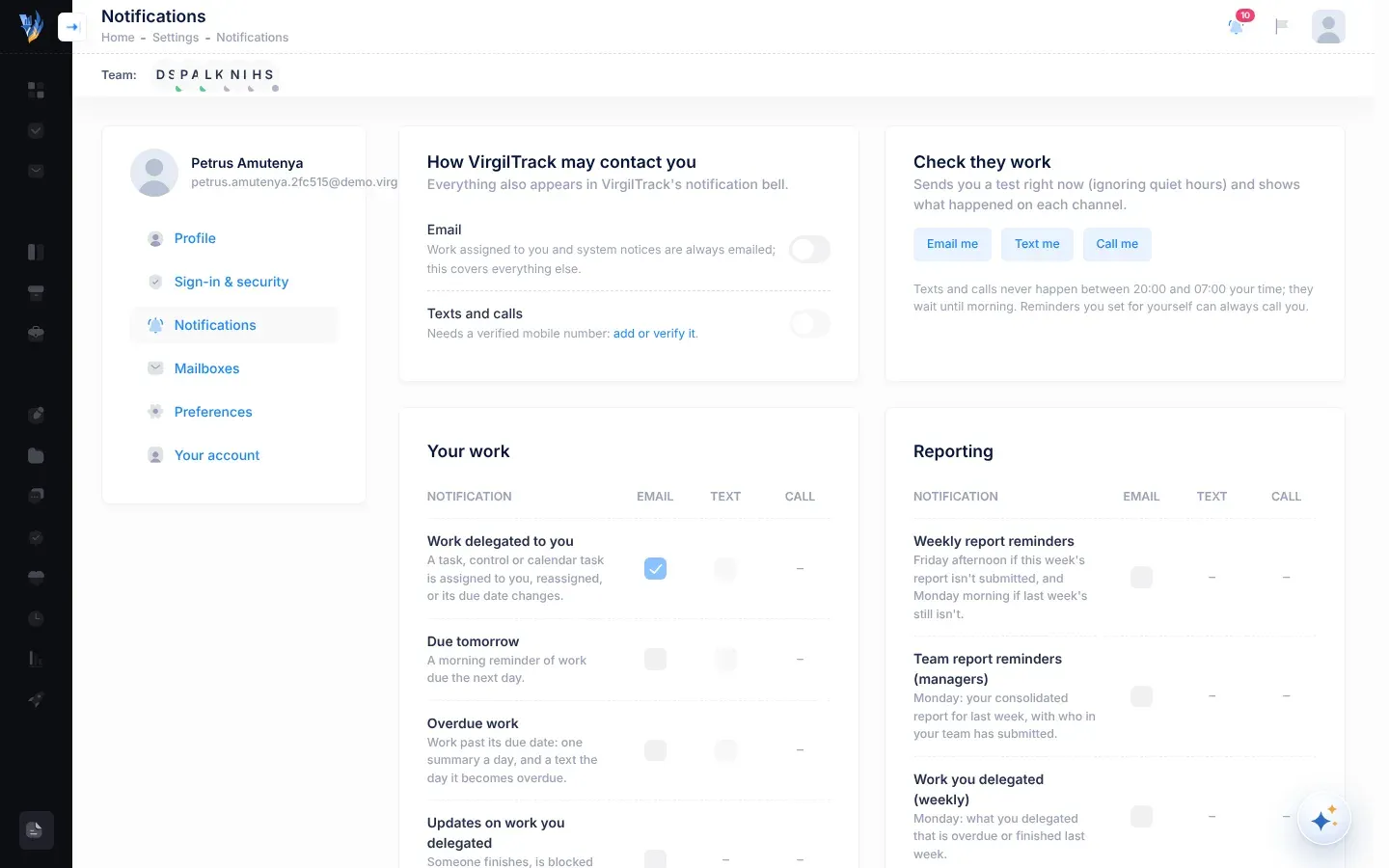
How VirgilTrack may contact you
Section titled “How VirgilTrack may contact you”The two switches at the top decide whether VirgilTrack may use each channel at all.
| Switch | What it does |
|---|---|
| Allows emails about everything you tick below. When it is off, you still get emails about work given to you, and system notices: “Work assigned to you and system notices are always emailed; this covers everything else.” | |
| Texts and calls | Allows text messages and phone calls to your mobile number. It only works once your number is verified. Until then it says “Needs a verified mobile number: add or verify it.” Select add or verify it to do that. See Your profile and sign-in details. |
When your number is verified, the switch shows the number VirgilTrack will use.
Choose what reaches you
Section titled “Choose what reaches you”Below the switches, the notifications are grouped into Your work, Reporting, Strategy and risk, People and System. Each row has up to three tick boxes:
- Email: send this to your email address.
- Text: send a short text message. A dash means this kind of message is never sent by text.
- Call: phone you. Only Reminders can call you.
-
Find the notification in its group. The line under its name says when it is sent.
-
Tick or untick Email, Text or Call.
VirgilTrack saves straight away and shows “Saved.”
Some boxes can’t be changed:
- The Email box for Work delegated to you and System notices is always ticked and greyed out. Point at it to see “Always sent: it’s part of your work”.
- The Text and Call boxes are greyed out until your number is verified and Texts and calls is on.
The notifications
Section titled “The notifications”All emails start switched on. Texts start switched on only for Work delegated to you and Overdue work. Calls start switched off.
Your work
Section titled “Your work”| Notification | When it is sent | Text? |
|---|---|---|
| Work delegated to you | A task, control or calendar task is assigned to you, reassigned, or its due date changes. The email can’t be switched off. | Yes |
| Due tomorrow | A morning reminder of work due the next day. | Yes |
| Overdue work | Work past its due date: one summary a day, and a text the day it becomes overdue. | Yes |
| Updates on work you delegated | Someone finishes, is blocked on, or asks for more time on a task you delegated. | No |
| Mentions | Someone mentions you in a comment. You get the email only if you haven’t seen it in VirgilTrack within 10 minutes. | No |
| Private messages | A message you haven’t read within 10 minutes. | No |
| Reminders | Reminders you or a colleague set with Virgil Copilot. These can also phone you. | Yes |
Reporting
Section titled “Reporting”| Notification | When it is sent | Text? |
|---|---|---|
| Weekly report reminders | Friday afternoon if this week’s report isn’t submitted, and Monday morning if last week’s still isn’t. | No |
| Team report reminders (managers) | Monday: your consolidated report for last week, with who in your team has submitted. | No |
| Work you delegated (weekly) | Monday: what you delegated that is overdue or finished last week. | No |
| Events from other departments | One email a day when something written in another department’s report affects yours. You also see them in VirgilTrack as they happen. | No |
Strategy and risk
Section titled “Strategy and risk”| Notification | When it is sent | Text? |
|---|---|---|
| Quarterly reviews (CEO and heads) | A week before each fiscal quarter ends, and when reviews are still outstanding after it. | No |
| KPIs off track | A KPI review is recorded as off track, at risk or stalled. | Yes |
| Strategic objectives at risk (CEO) | Monday: objectives whose KPIs are off track or whose initiatives are slipping. | Yes |
| Risks identified by VirgilTrack | VirgilTrack’s AI identifies a new risk, or suggests a control for one of your risks. | No |
People
Section titled “People”| Notification | When it is sent | Text? |
|---|---|---|
| Kudos | A colleague recognises your work. | No |
| Weekly check-in | Friday: how was your week? One tap in the email. Only you see it unless you share it. | No |
| Emotional intelligence practice (managers) | Wednesday: a five-minute practice conversation or drill. | No |
System
Section titled “System”| Notification | When it is sent | Text? |
|---|---|---|
| System notices | Planned maintenance and downtime. Can’t be switched off. Urgent notices may also come by text. | Yes |
Quiet hours
Section titled “Quiet hours”VirgilTrack doesn’t send notification texts or calls between 20:00 and 07:00 in your time zone. A text or call due in that time waits until 07:00. Emails are sent at any time. The tests under Check they work ignore quiet hours.
Quiet hours follow the time zone in Settings, then Preferences. Make sure it is right. See Your profile and sign-in details.
Calls from reminders
Section titled “Calls from reminders”Only reminders can phone you. Your own reminders can always call you, as long as your number is verified and Texts and calls is on. Tick Call on the Reminders row to let colleagues’ reminders phone you as well. See Reminders.
Check that they work
Section titled “Check that they work”Under Check they work, send yourself a test straight away. Tests ignore quiet hours.
-
Select Email me, Text me or Call me.
“Sending…” appears while VirgilTrack tries.
-
Read the result. A line with ✓ means it worked, for example “Email: ✓ sent to …”. A line with ✗ says why it didn’t, for example “Text: ✗ you have no phone number on your profile.”
-
Check your inbox or phone.
You can test with your own number before it is verified. If a line with ✗ says “Email isn’t configured on the server” or “Calls aren’t configured on the server”, tell your administrator: VirgilTrack can’t send that kind of message yet.
Stop an email from the email itself
Section titled “Stop an email from the email itself”Notification emails from VirgilTrack end with Notification settings and, for messages you can switch off, Stop these emails.
-
In the email, select Stop these emails.
-
On the page that opens, select Stop these emails.
You see “Done” and “You won’t get … emails any more.”
This also stops texts for that kind of message. You still see the notices in VirgilTrack. To turn them back on, tick them again on Notifications.
If the page says “Link expired”, change the setting in Settings, then Notifications instead.
If something goes wrong
Section titled “If something goes wrong”| What you see | Why, and what to do |
|---|---|
| The Text and Call boxes are greyed out | Your number isn’t verified, or Texts and calls is off. Verify your number in Settings, then Sign-in & security, then switch Texts and calls on. |
| “…your profile doesn’t allow texts and calls (cellphone communication is off).” | Texts and calls is off. Switch it on, then test again. |
| You switched the Email switch off but still get emails about work delegated to you | Those emails, and system notices, can’t be switched off: they tell you about work that is now yours. |
| Texts arrive in the morning, not when things happen | That’s quiet hours. Texts wait until 07:00 in your time zone. Check your time zone in Settings, then Preferences. |
| You don’t get emails you ticked | Check that the Email switch at the top is on, and look in your spam or junk folder. Then use Email me to test. |