

Add a control to a risk
Hierdie inhoud is nog nie in jou taal beskikbaar nie.
Add a control when you have decided on a concrete action that will reduce a risk. You choose who will do it, by when, and when it will first be reviewed. The person you choose is told straight away.
Before you start
Section titled “Before you start”- Agree the work with the person who will do it. They get a message as soon as you save.
- The person must be in your department. The list of people shows the active people in your own department. If you don’t belong to a department, it shows the people in the risk’s department.
- Check the details before you save. A control can’t be changed or deleted after it is added.
Add a control
Section titled “Add a control”-
Open the risk’s page.
Managers and employees: select Risk Register in the menu on the left, then select the risk. The CEO: select your picture, then Risk Register, and select the risk, or open the risk from a notification about it.
-
Select Add control.
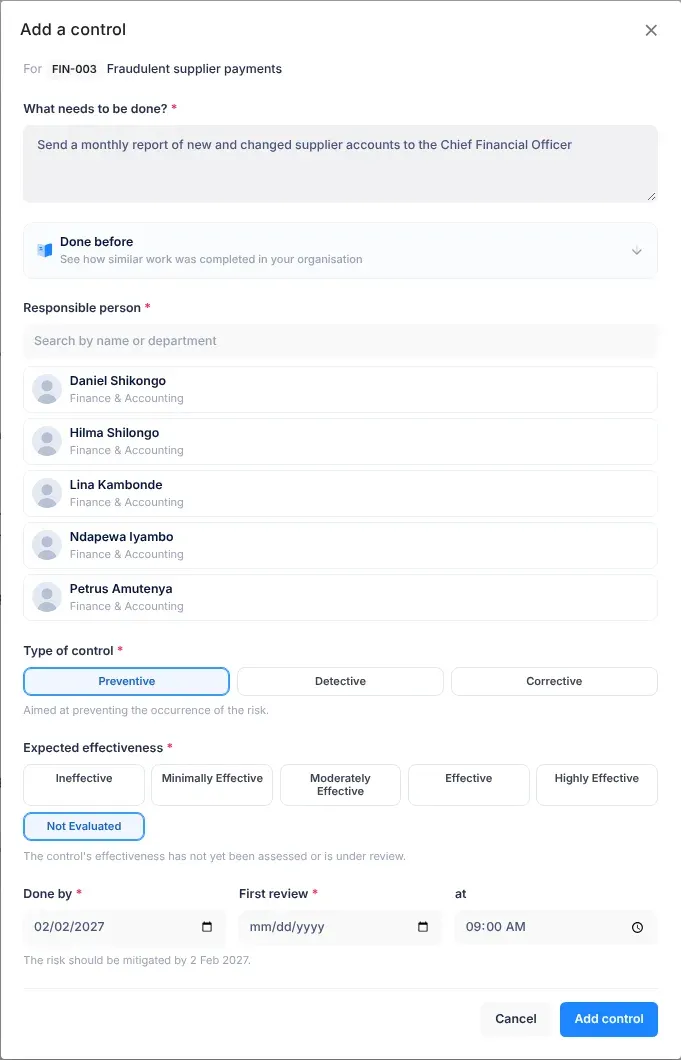
You find it at the top of the risk’s page and on the Controls tab. The Add a control window opens. Under its title, “For” is followed by the risk’s code and name.
-
In What needs to be done?, describe the action.
Start with a verb and be specific, for example “Install a firewall and restrict admin access to the finance server”.
-
Optional: select Done before to see how similar work was completed in your organisation.
It looks for finished work like the text you typed, and shows who did it, when and how long it took. It can help you choose a realistic date and the right person.
-
Under Responsible person, type part of a name or a department in the box that says “Search by name or department”, then select the person.
The list shows up to six people at a time. To choose someone else after you have picked a person, select Change.
-
Under Type of control, select Preventive, Detective or Corrective.
The meaning of your choice appears under the buttons. See Types of control.
-
Under Expected effectiveness, select how well you expect the control to work.
If you can’t tell yet, choose Not Evaluated. See Expected effectiveness.
-
In Done by, choose the date by which the control must be implemented.
VirgilTrack fills in the risk’s Mitigate by date for you if it is today or later. The line under the dates, “The risk should be mitigated by …”, reminds you of the risk’s own deadline.
-
In First review, choose the date of the control’s first review, and in at, the time.
The time is 09:00 unless you change it.
-
Select Add control.
What happens next
Section titled “What happens next”- You see the message “Control added.” The control appears under To do on the risk’s Controls tab.
- If the risk’s status was New, it changes to In Progress.
- The responsible person gets Risk control assigned to you, in VirgilTrack and by email, and by text message if they have a verified mobile number and allow texts.
- A short message tells you how they will be told, for example “Hilma Shilongo will get an email and a text.”, and later when the email was sent. If you chose yourself, it says “You assigned it to yourself, so no notification was sent.” See See who was told about work you assign.
- Everyone in your department, the responsible person and the CEO get a Control created notification, such as “Daniel Shikongo created a control: …”.
- The responsible person is reminded before the deadline and before the review date. See Reminders and notifications.
- The control appears on the responsible person’s Work Record. If you gave it to someone else, it also appears on yours as work you delegated. See Your work record.
If something goes wrong
Section titled “If something goes wrong”When something is missing, the window tells you how many fields need attention, for example “2 fields need attention”, and shows a message under each one.
| What you see | Why | What to do |
|---|---|---|
| “Describe the control.” | What needs to be done? is empty. | Describe the action. |
| “Choose who will do it.” | Nobody is selected under Responsible person. | Select a person. |
| “Choose a type.” | No Type of control is selected. | Select Preventive, Detective or Corrective. |
| “Choose how effective it should be.” | No Expected effectiveness is selected. | Select one of the six levels. |
| “Set a date.” | Done by or First review is empty. | Choose a date. |
| “Can’t be in the past.” | Done by is before today. | Choose today or a later date. |
| “Must be in the future.” | The First review date and time have already passed, for example today at 09:00 when it is already 10:00. | Choose a later time or date. |
| The person you need isn’t in the list. | The list only shows active people in your own department. | Ask someone in that person’s department to add the control. |
| “Couldn’t add the control. Please try again.” | Saving failed. Nothing was saved. | Try again. If it keeps happening, tell your administrator. |
- One action per control. “Clear all storm-water drains before the rains” is easier to complete and check than a list of several jobs.
- Leave time between the deadline and the first review, so the review can show whether the control is working.
- Plan the whole risk. The risk can only be marked as mitigated when every control is done, so add every action the risk needs.