

Your tasks
Hierdie inhoud is nog nie in jou taal beskikbaar nie.
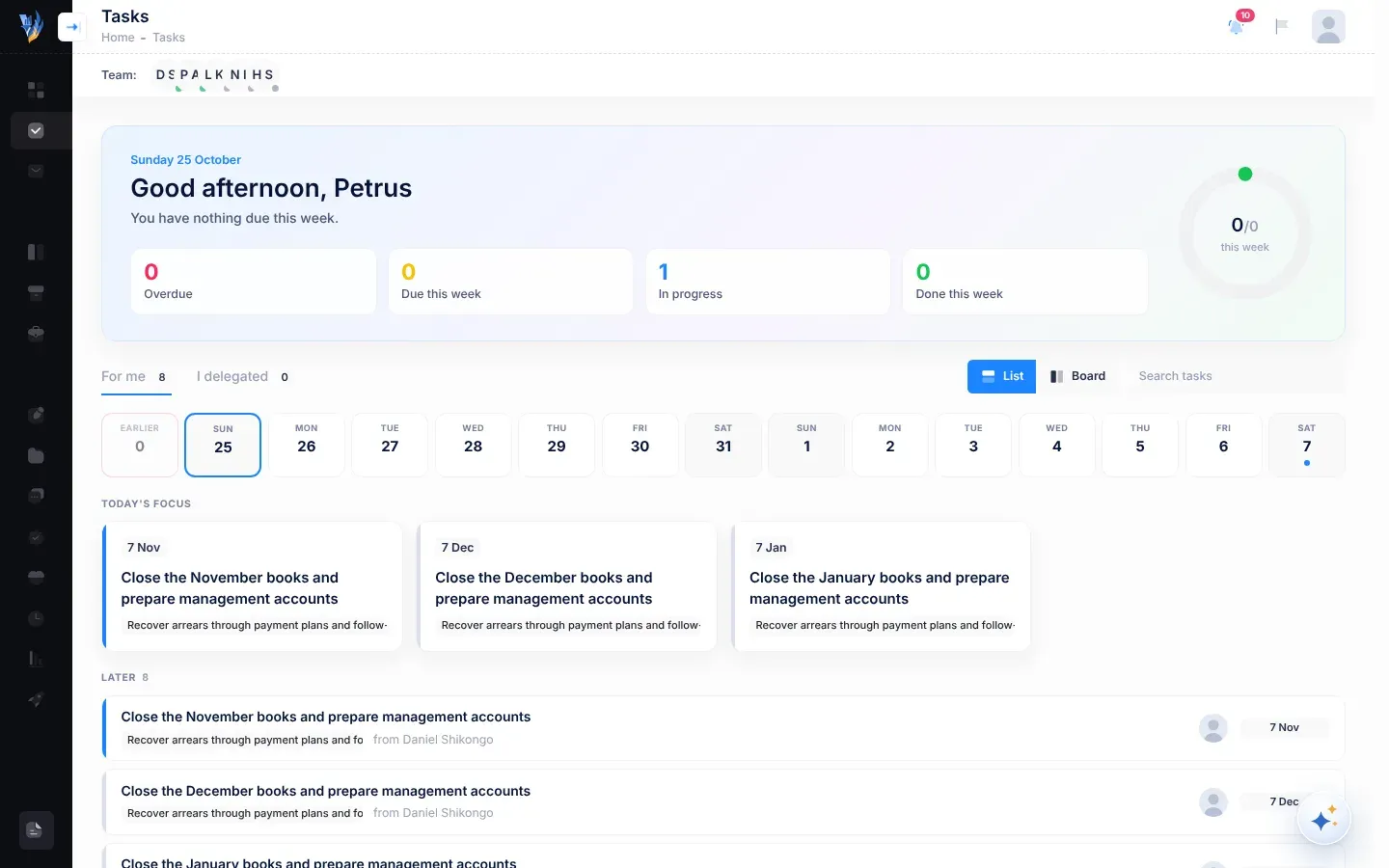
The Tasks page is your way into your work. It shows what needs you now, what is due over the next two weeks, and every open task, as a list or as a board.
Open it with Tasks in the menu on the left.
What the page shows
Section titled “What the page shows”The Tasks page lists strategy tasks: work on the initiatives of your organisation’s strategic plan. It shows every open task, and tasks finished in the last two weeks.
Calendar tasks and risk controls are not on this page. You find them in the calendar and on the risk’s page. See Tasks.
Your week
Section titled “Your week”The top of the page greets you and sums up your week, for example “You have 2 overdue tasks and 3 due this week. 1 done so far this week.” A week runs from Monday to Sunday.
Four figures follow. Each one is also a filter: select it to show only those tasks, and select it again to show everything.
| Figure | Counts |
|---|---|
| Overdue | Tasks that aren’t done and whose due date has passed. |
| Due this week | Tasks that aren’t done and are due between today and Sunday. |
| In progress | Tasks with the status In progress. Blocked tasks aren’t counted here. |
| Done this week | Tasks finished since Monday. |
The ring beside them shows how much of this week’s work is done, for example 2/5 this week.
If tasks found in your email are waiting for you, a banner says so, for example “2 tasks from your email are waiting for you to confirm”. Select Review to check them. See Tasks from your email.
The tabs
Section titled “The tabs”| Tab | Shows | Who sees it |
|---|---|---|
| For me | Tasks given to you, including ones you gave yourself. | Everyone |
| I delegated | Tasks you gave to someone else. | Everyone |
| My team | For a manager: tasks on the initiatives of the departments you manage. For the CEO: everyone’s tasks in the organisation. Your own tasks aren’t included. | Department managers and the CEO |
The number beside each tab is how many of its tasks are still open. The figures in Your week follow the tab you are on. Changing tab clears any filter, but keeps what you typed in Search tasks.
What’s due when
Section titled “What’s due when”Under the tabs, a strip shows the next two weeks, starting today. Each day shows its date and a dot for each task due that day. After four dots, a number shows how many more, for example +3. Today has a stronger border, and weekends are shaded.
- Select a day to show only the tasks due that day. Select it again to show everything.
- Earlier, at the start of the strip, shows how many tasks are overdue. Select it to show only those.
When a filter is on, its name appears above the list, for example “Due Thursday 29 October”. Select Show everything to clear it.
Searching
Section titled “Searching”Type in Search tasks to find tasks by their title, their initiative, or the name of the person they are for. The list narrows as you type.
The list
Section titled “The list”Select List to see your tasks as a list. This is how the page opens.
Today’s focus
Section titled “Today’s focus”On the For me tab, Today’s focus picks up to three tasks to do first: overdue ones first, then the ones due soonest, then the most important. It doesn’t show while a filter or a search is on.
Groups
Section titled “Groups”The list is grouped by when tasks are due. Empty groups don’t show.
| Group | Tasks in it |
|---|---|
| Overdue | Not done, and the due date has passed. |
| This week | Due between today and Sunday. |
| Later | Due after this week. |
| No due date | Tasks without a due date. |
| Done in the last two weeks | Finished tasks, the most recent first. Their titles are crossed out. |
Each task in the list
Section titled “Each task in the list”- The title. Select the task to open its page. See A task’s page.
- The initiative it belongs to, in a coloured label. Tasks on the same initiative always have the same colour.
- Who. On For me, “from” and the name of the person who delegated it. On the other tabs, “for” and the name of the person doing it.
- Steps, if the task has any, for example “2/5 steps”, with a small bar.
- A green, pulsing dot when a colleague has the task open right now. Point at it to see who, for example “Maria Haufiku is on it now”.
- A blue number when there are messages you haven’t read. Point at it to see, for example, “2 unread messages”.
- When it’s due, at the end of the row: for example 3 days late (in red), Today, Tomorrow, a weekday such as Friday, a date such as 12 Nov, No date, or Done 20 Oct.
A coloured edge on the left of each task also shows how urgent it is: red when it is overdue or blocked, amber when it is due today or tomorrow, blue when it is in progress, and green when it is done.
On the I delegated tab, each open task has a Nudge button. It opens the task with a message already typed in the message box: the person’s name after an @, then “How is this going?”. Change it if you like, and send it. See Follow up work you delegated.
The board
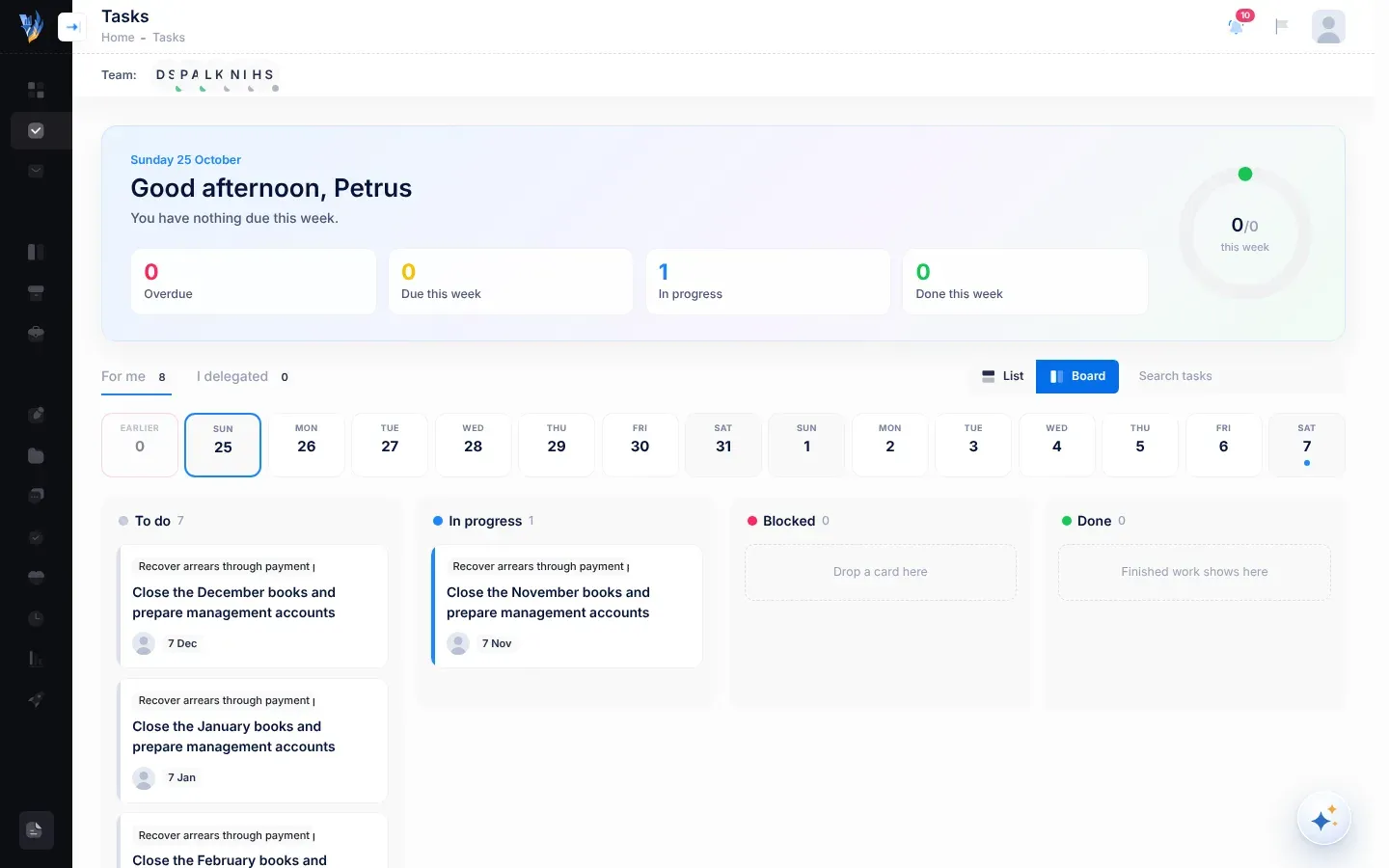
Section titled “The board”Select Board to see your tasks as cards in four columns. Each column shows how many cards it has.
| Column | Tasks in it |
|---|---|
| To do | Tasks that are Not started, Rescheduled or Overdue. |
| In progress | Started. |
| Blocked | The person doing it is blocked. |
| Done | Finished in the last two weeks. |
Moving a card
Section titled “Moving a card”Drag a card to another column to move the task along. You can move a card if the task is for you or you delegated it. The CEO can move any card. Other cards stay where they are.
| You drag a card to | What happens |
|---|---|
| In progress | The task starts straight away, or carries on if it was blocked. The person who delegated it gets a notification. |
| To do, from In progress | The task goes back to Not started. |
| Blocked | The task opens with the What’s in the way? box ready to fill in. Only the person doing the task can do this. |
| Done | The task opens with the How was it done? box ready to fill in. |
| To do or In progress, from Done | The task opens with the Why reopen it? box ready to fill in. |
Moving to Blocked, Done or back out of Done always needs a few words, so it happens on the task’s page. See Work on a task.
Your team’s pulse
Section titled “Your team’s pulse”Wie kan dit gebruik:BestuurderHUB
On the My team tab, a row of cards appears under the tabs, before the two-week strip: one card for each person who has work on the tab, up to 24 people. The people with the most overdue work come first. Tasks that aren’t given to anyone yet share a card named Unassigned.
Each card shows the person’s name, how many of their tasks are open and how many are overdue, for example “4 open, 1 overdue”. A bar shows the same: open work, with the overdue part in red. Under it, you see how many they finished this week.
Select a person’s card to show only their work, for example “Johannes Iipinge’s work”. Select it again to show everyone.

When there’s nothing to show
Section titled “When there’s nothing to show”- “Nothing on your plate” on For me, “You haven’t delegated anything open” on I delegated, and “Nothing open in your team” on My team mean there are no open tasks on that tab.
- “Nothing matches” means a filter or your search hides every task. Try another day, filter or search, or select Show everything.