

Submit your weekly report
Hierdie inhoud is nog nie in jou taal beskikbaar nie.
When your week is written, VirgilTrack turns your daily entries into a short report: a few points for each day, and a summary of your achievements and challenges. You check it, change anything that isn’t right, and send it to the person you report to.
Before you start
Section titled “Before you start”Write an entry for each day you worked. See Your weekly report.
You can submit at any time. If this week’s report is still open at 14:00 on Friday, VirgilTrack sends you a reminder. See Reminders about reports.
Submit your report
Section titled “Submit your report”-
Open Work Reports.
-
Select Review & submit.
If you changed your entries since VirgilTrack last prepared your report, it reads them and writes the report again. The button shows Preparing… while it works, which can take a little while. If nothing has changed, the window opens straight away.
-
In the Edit report before submitting window, read each section.
-
Change anything that isn’t right. See Change the report before you submit.
-
Check the Summary at the bottom.
-
Select Submit Report.
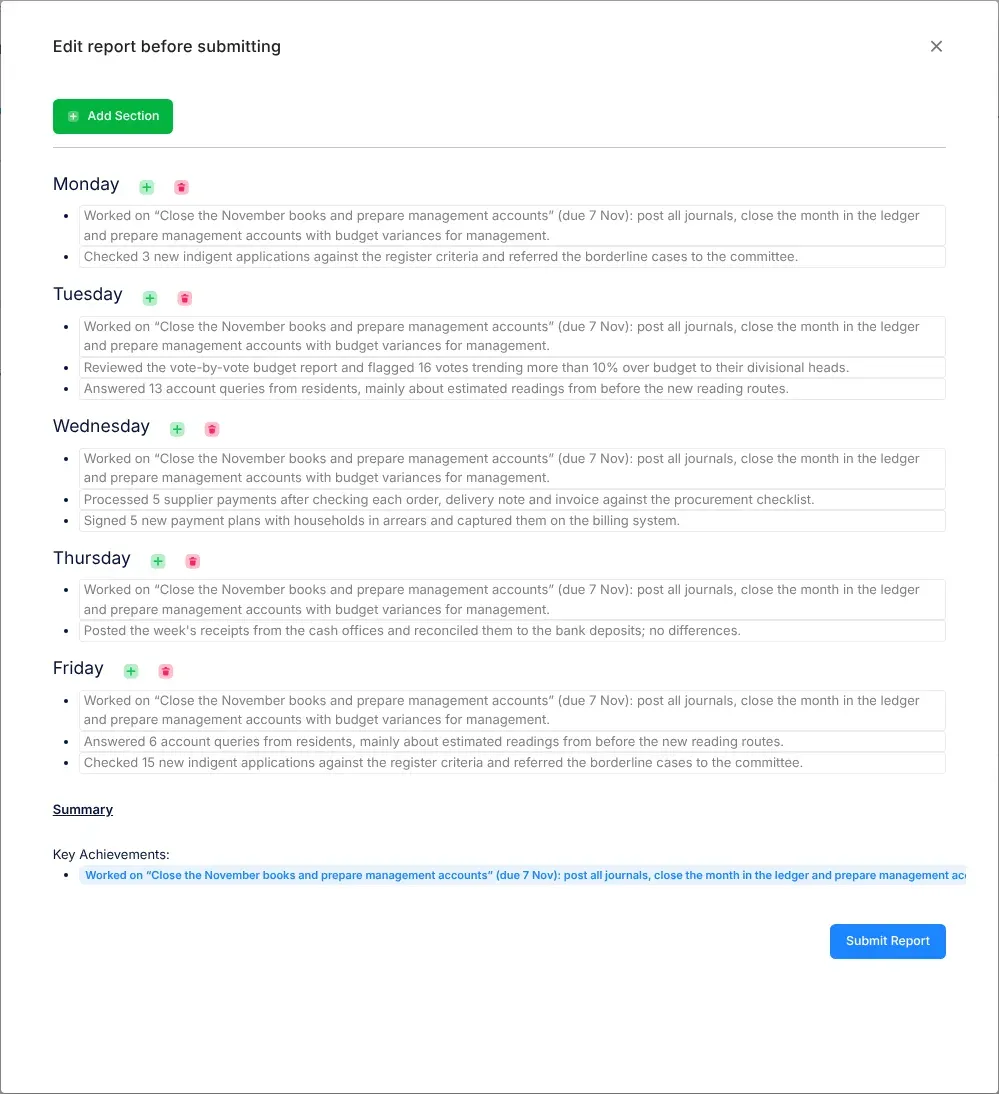
The report VirgilTrack prepares
Section titled “The report VirgilTrack prepares”| Part | What it is |
|---|---|
| A section for each day | The points VirgilTrack took from that day’s entry. Days without points aren’t shown. |
| Summary | Key Achievements and Challenges or Issues, written from the whole week. |
You can’t change the summary in this window. It is written from your entries: to change it, change your entries, then select Review & submit again.
Change the report before you submit
Section titled “Change the report before you submit”- Change a point: select its text and type. Your change is saved as you type.
- Add a point to a section: select the plus button beside the section’s name (Add report point), then type in the new, empty point.
- Remove a section: select the bin button beside its name (Delete Section), then Yes, delete.
You can’t remove a single point. Change its words, or delete the whole section.
To add a section of your own:
- Select Add Section.
- Type the section’s name in Enter Section Name.
- Select Create Section. You see “Section added successfully!”.
- Close the Add New Section window.
- Type in the new section’s empty point.
What happens next
Section titled “What happens next”- You see “Report successfully submitted to your manager.”
- The page now says Report submitted, with who it went to and when, for example “Sent to Daniel Shikongo on Friday, 23 October at 2:15 PM”.
- The person you report to can now read your report and pick your points for their own report. If you report to a manager, see Review your team’s reports. If you report to the CEO, see The CEO’s monthly view.
- VirgilTrack checks your points for anything other departments need to know, such as a system outage or a land transfer. See News from other departments.
- Your points become part of your work record. See Your work record.
Change a report you already submitted
Section titled “Change a report you already submitted”-
Open Work Reports. If the report is for an earlier week, choose that week in the week list beside Guidelines.
-
Select Reopen and edit.
The report goes back to Draft, and you can change your entries again.
-
When you are ready, submit it again: select Review & submit, check the report, then select Submit Report.
While your report is reopened, the person you report to sees it as not submitted and can’t read your points. They come back when you submit it again.
If you change your entries after reopening, VirgilTrack prepares the report again, so any of your points your manager had already ticked are no longer ticked.
If something goes wrong
Section titled “If something goes wrong”| What you see | Why | What to do |
|---|---|---|
| “Request Failed” and “Unable to combine report due to service issues. Try to refresh your browser and try again.” | VirgilTrack couldn’t prepare the report just then. Your entries are safe. | Refresh the page in your browser and select Review & submit again. |
| “Section name is required” | You selected Create Section without a name. | Type a name, then select Create Section. |
| “A section with the same name already exists” | The report already has a section with that name, for example Monday. A day’s section is hidden while it has no points, but it is still there. | Choose another name, or add your point to that day’s entry instead. |
| “An error occurred while submitting the report: …” | The report couldn’t be sent. | Try Submit Report again. If it keeps happening, tell your administrator what the message says. |