

The CEO's monthly view
Hierdie inhoud is nog nie in jou taal beskikbaar nie.
As CEO, your Work Reports page brings together a month of weekly reports from the people who report to you, usually your managers. It shows who has reported, what needs your attention, and every point they reported, so you can choose what goes into your monthly report to Council.
Before you start
Section titled “Before you start”The people who report to you are set in your organisation’s reporting hierarchy. Until someone reports to you, the page says “No one reports to you yet”. See Who your report goes to.
The page at a glance
Section titled “The page at a glance”Open Work Reports in the menu on the left.
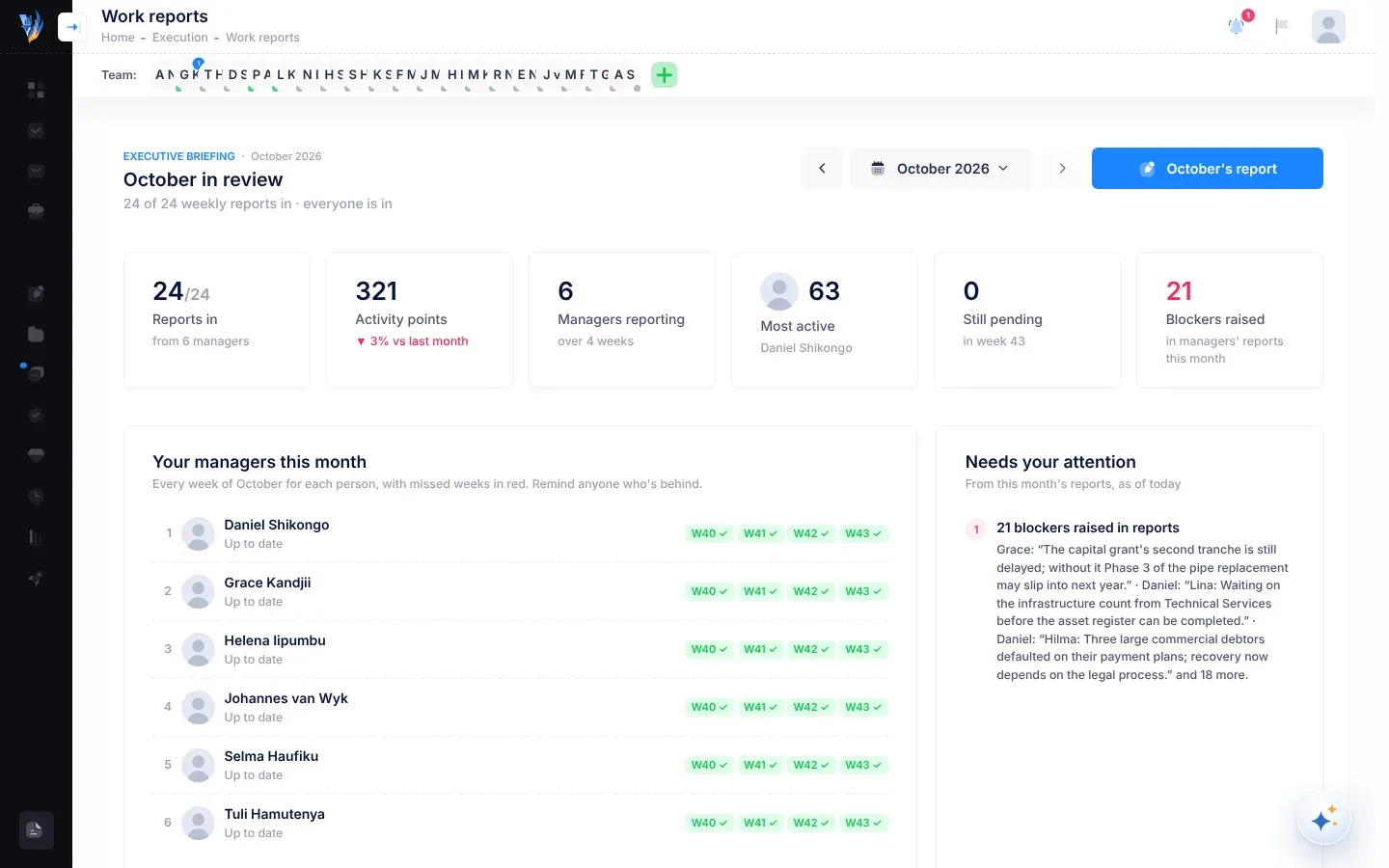
The top of the page names the month, for example October in review, and says how many weekly reports are in, for example “5 of 8 weekly reports in · 3 outstanding”.
The report button is named after the month, for example October’s report. It opens the report window, and shows how many points you have picked. See Write the monthly report.
Choose the month
Section titled “Choose the month”- Select the arrow buttons (Previous month and Next month) to move to the nearest month that has reports.
- Or select the month button, for example October 2026, to see the months of the financial year, for example “Financial year 2026/27”, and choose one. Use the arrows beside the year to change year.
The current month is outlined. Months still to come, and months without reports, can’t be opened.
The month in figures
Section titled “The month in figures”| Figure | What it counts |
|---|---|
| Reports in | Weekly reports submitted out of those expected this month, for example 5/8, and from how many of the people who report to you, for example “from 4 managers”. |
| Activity points | The points in the month’s submitted reports, and the change since last month, for example “▲ 12% vs last month”. |
| Managers reporting | How many people have a report this month, over how many weeks. |
| Most active | The person with the most points this month, and how many. |
| Still pending | Reports not yet submitted for the latest week of the month. |
| Blockers raised | Challenges people raised in their weekly summaries this month. |
Your managers this month
Section titled “Your managers this month”This list shows each person who reports to you, with one badge for each week of the month.
| Badge | What it means |
|---|---|
| A week with a tick, for example W42 ✓ | Submitted. |
| A week with a cross, for example W41 ✕ | Missed: the week is over and the report wasn’t submitted. |
| A week with dots, for example W43 … | This week, not in yet. |
| A week with a dash, for example W40 – | No report expected. |
Point at a badge to see more, for example “Week 42: submitted Fri 23 Oct”. Under each name, a line sums up the person: Up to date, This week not in yet, or the weeks they missed, for example Missed week 41.
Remind a manager
Section titled “Remind a manager”Select Remind beside the person. It appears when this week’s report isn’t in yet, or a week was missed.
You see “Reminder sent to 1 manager.”, and the button changes to Reminded. The person gets a notification, “Week 43 report requested”. If their settings allow it, they also get an email headed “Your week 43 report is due”, with an Open my report button. Both open the manager’s Work Reports page.
Needs your attention
Section titled “Needs your attention”This list picks out what you can act on today, from the month’s reports.
| What you may see | What it means |
|---|---|
| For example “2 reports still outstanding for week 43” | Who hasn’t submitted for the latest week. Select Remind them to remind them all at once. |
| For example “1 manager hasn’t reported at all this month” | Nothing has come from them this month, so their teams’ work is missing from your picture. |
| For example “Activity dropped sharply for 1 manager” | Someone’s points this month are well below last month’s. It names them, with the numbers. |
| For example “3 blockers raised in reports” | Challenges raised in the month’s reports, with who raised them. |
When there’s nothing to act on, the list says “Nothing needs you right now: reports are in, activity is steady and nobody raised a blocker.”
Read and pick points
Section titled “Read and pick points”To read what people reported, and choose what goes into your monthly report:
-
In Read and pick points, switch on Show points.
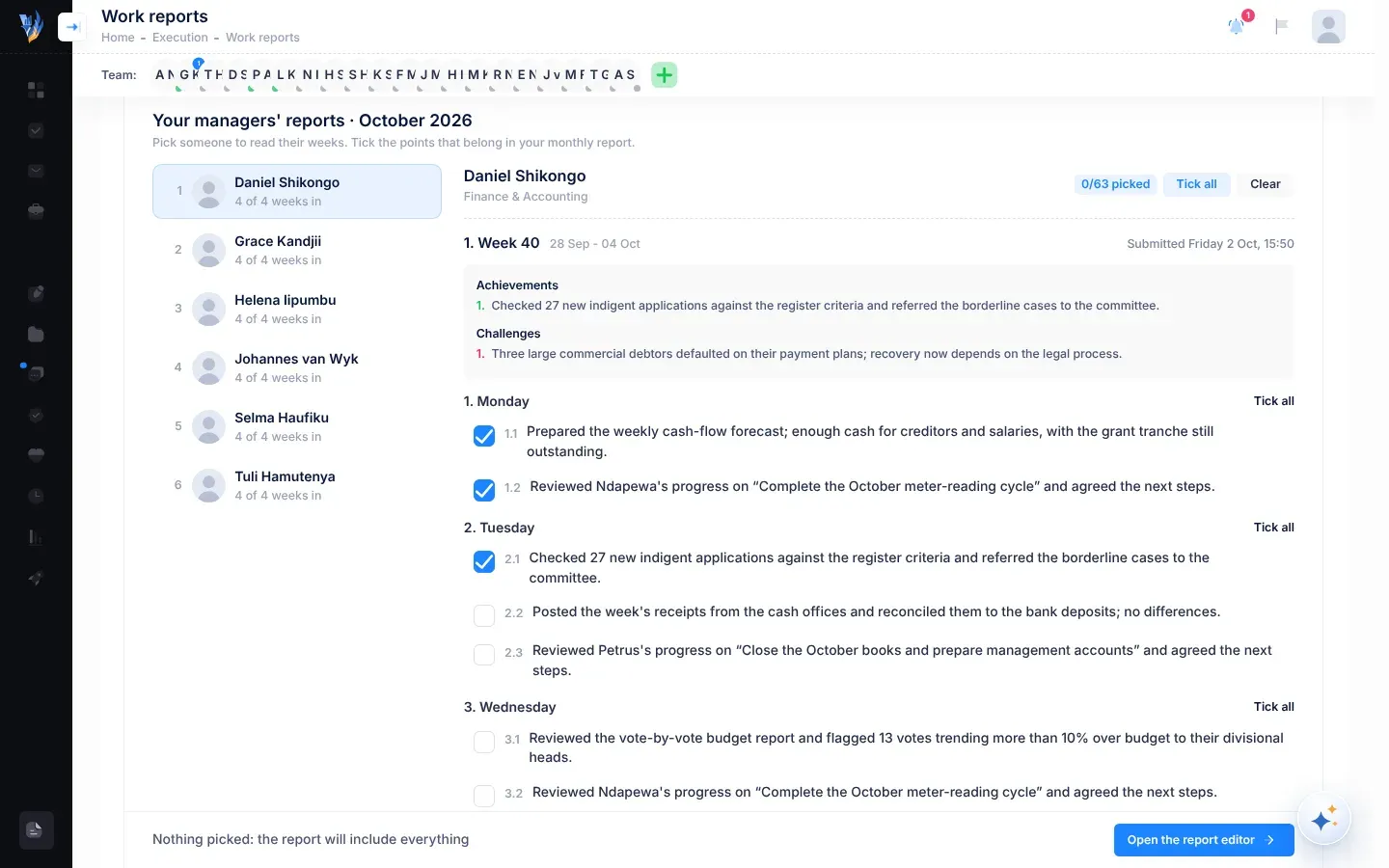
The Your managers’ reports card opens, for example Your managers’ reports · October 2026.
-
Select a person on the left. Each person shows how many weeks are in and how many points you picked, for example “2 of 3 weeks in · 4 picked”.
-
Read their weeks on the right. Each week shows when it was submitted, or Not submitted yet, with its Achievements, Challenges and points.
-
Tick the points you want in your report. To tick or clear a whole day, select Tick all or Clear beside it. To do the same for all of a person’s points, use the buttons beside their name.
-
Tick any Activity prompts you want in, below the reports. See Suggestions and activity prompts.
-
Select Open the report editor.
The bar at the bottom counts your picks, for example “6 points from 2 people picked”. With nothing picked, it says “Nothing picked: the report will include everything”. Select Clear to take all your ticks off.
Ticks on Activity prompts aren’t saved: if you reload the page, tick them again. You can also tick prompts in the report window.
Across departments
Section titled “Across departments”Across departments, at the end of the page, lists everything written in work reports this past month that affects other departments, with which department it came from and which it affects. See News from other departments.
When Virgil Copilot notices something
Section titled “When Virgil Copilot notices something”A card may appear in the bottom right-hand corner of the screen: “VirgilCopilot noticed something in your team’s work”. Select Show me to open Virgil Copilot with the evidence and what it recommends, or Later to hide it until tomorrow. See When Virgil Copilot notices something.
If something goes wrong
Section titled “If something goes wrong”| What you see | Why | What to do |
|---|---|---|
| “No one reports to you yet” | Nobody reports to you in the reporting hierarchy. | Set up the hierarchy. See Who your report goes to. |
| “The reminder couldn’t be sent just now.” | Something went wrong sending it. | Try Remind again in a moment. |