Annual plans
Hierdie inhoud is nog nie in jou taal beskikbaar nie.
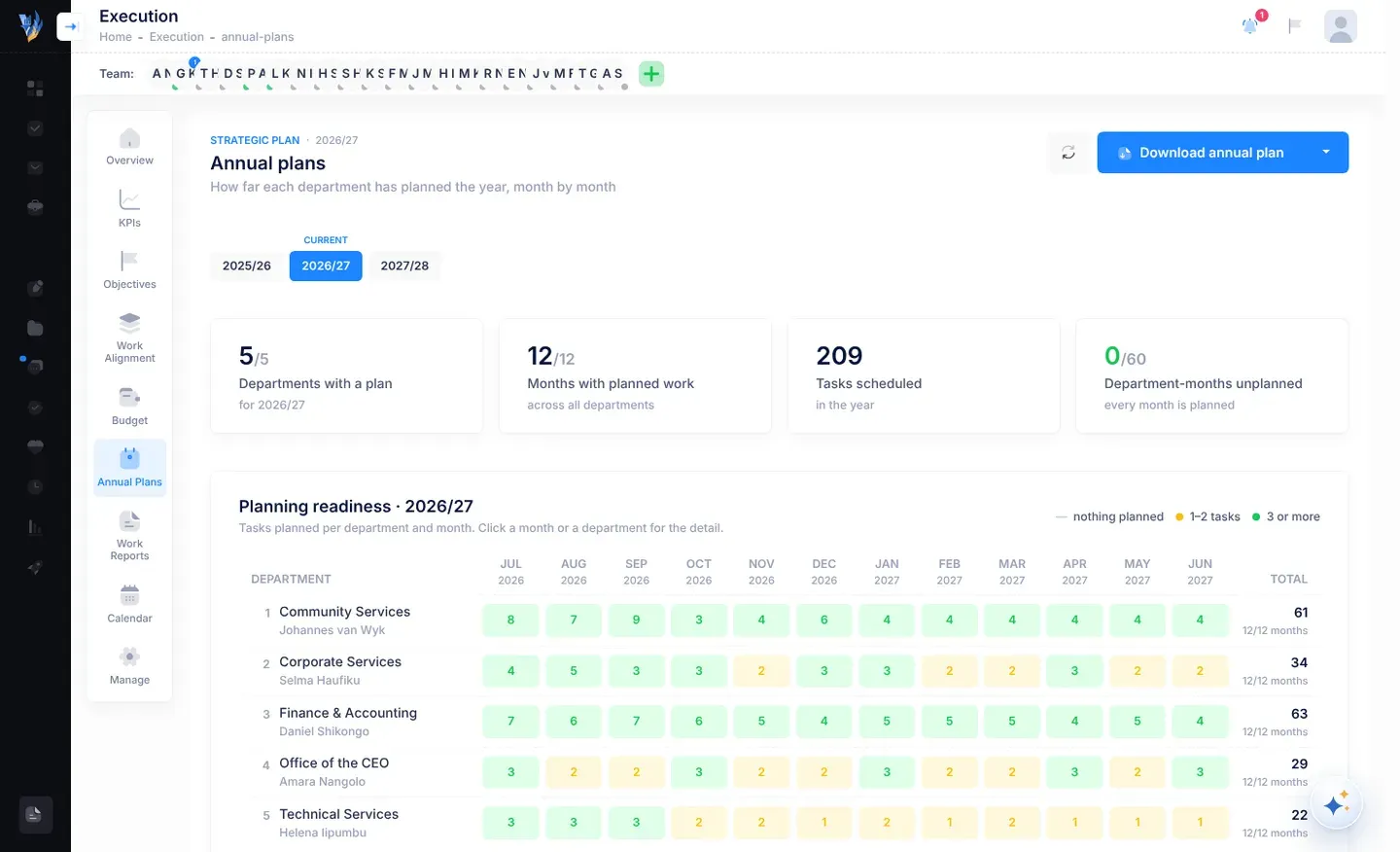
Before a plan year starts, every department should have planned its work for each month. The Annual plans page shows how far each department has got: a grid of departments and months, with the number of tasks planned in each. It makes empty months easy to spot and to chase.
Open Annual plans
Section titled “Open Annual plans”Open Execution, then Annual Plans. This page is for the CEO, and for people the CEO has given it. See Manage plans and page access.
The top of the page
Section titled “The top of the page”- The title Annual plans, with the plan year shown.
- If your organisation has more than one plan, a list to choose the plan.
- Refresh (the circular-arrows button), and Download annual plan. See Download KPI and annual plan reports.
- The plan’s years, as buttons. Current is shown above this year. Select a year to see its planning.
The four tiles
Section titled “The four tiles”| Tile | What it shows |
|---|---|
| Departments with a plan | How many departments have at least one task this year, out of all departments. |
| Months with planned work | How many months of the year have at least one task in any department. |
| Tasks scheduled | How many tasks are due in the year. |
| Department-months unplanned | How many department-and-month boxes in the grid are still empty, out of all of them. “every month is planned” when there are none. |
The planning readiness grid
Section titled “The planning readiness grid”The grid Planning readiness has one row per department and one column per month of the year.
- Department: the department’s name, with its managers under it. If it has no manager, it says No manager assigned: assign one. Select that to open the department’s people.
- Each month: how many tasks the department has due that month. A dash (—) means nothing is planned. The key above the grid explains the colours: 1–2 tasks and 3 or more.
- Total: the department’s tasks for the year, and how many months have work, for example 9/12 months.
A task counts for the department of its initiative. If the initiative has no department, it counts for the department of the person doing it. Tasks that fit neither go in a last row, Unallocated, marked Tasks without a department.
See a department’s or a month’s tasks
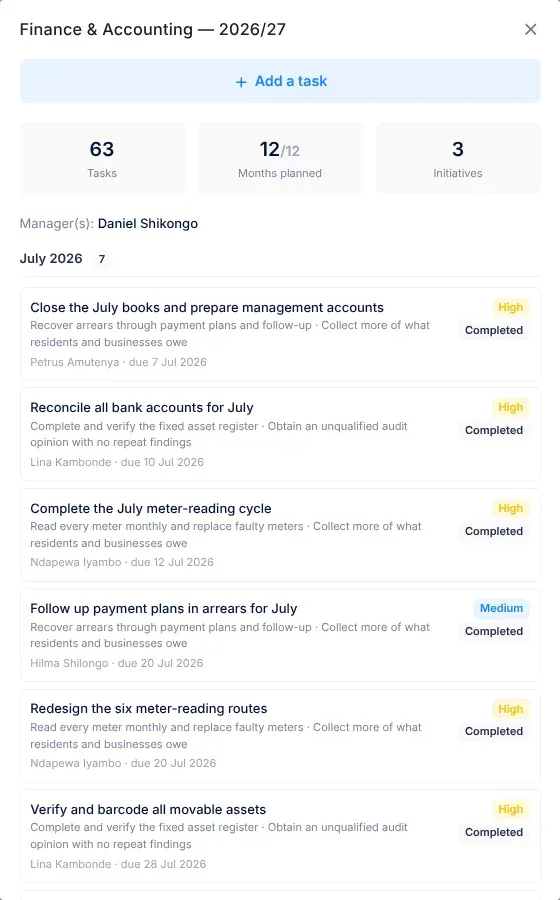
Section titled “See a department’s or a month’s tasks”Select a department’s name, or one of its month boxes. A panel opens on the right.
- For a month: how many tasks and how many are high priority, the department’s manager, and each task with its initiative and objective, who does it, its due date, its priority and its status. If nothing is planned, it says so.
- For the whole year: the department’s Tasks, Months planned and Initiatives, its managers, the months Still unplanned, and each month’s tasks.
From the panel, you can add a task. See Plan an initiative’s tasks. The grid updates when you add one.