

Edit a risk
Hierdie inhoud is nog nie in jou taal beskikbaar nie.
Edit a risk when something about it changes: a review shows it has become more likely, the deadline moves, or someone else takes it over. The Edit Risk page has the same fields as the Add a risk window, all on one page.
Before you start
Section titled “Before you start”You can edit risks that are New or In Progress.
- A risk that is Not assessed must be assessed first. See Assess a risk.
- Risks that are Mitigated or Archived can’t be edited.
Edit a risk
Section titled “Edit a risk”-
Open the risk’s page. For example, select the risk in Risk Register.
-
Select Edit risk.
The Edit Risk page opens, with the risk’s code at the top and three sections: The risk, Assessment and Plan and people.
-
Change what you need.
-
Select Save changes at the bottom.
To leave without saving, select Cancel, or the arrow at the top (Back to the risk).
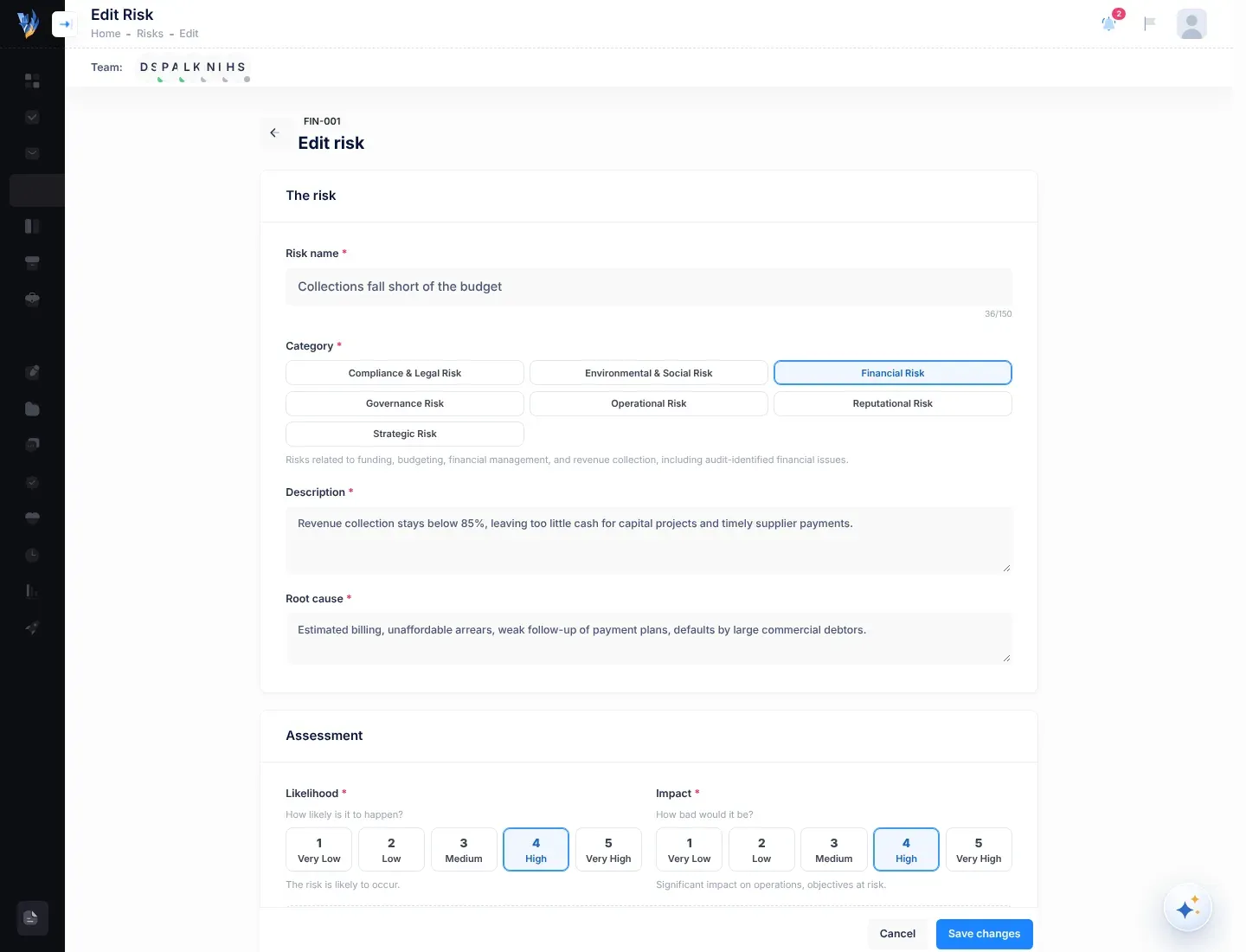
What you can change
Section titled “What you can change”| Section | Fields |
|---|---|
| The risk | Risk name, Category, Description, Root cause |
| Assessment | Likelihood, Impact, Affected departments, Threatened strategic objectives, Financial exposure, Mitigation budget, Implications |
| Plan and people | Mitigate by, Review every, Next review and at, Responsible people, Proposed mitigation, Existing controls |
The fields work and are checked the same way as when you add a risk. For what each one means, see Add a risk.
Things to know
Section titled “Things to know”- Dates that have passed. If the saved Mitigate by or Next review date is already in the past, you can still save other changes without touching it. If you change a date, the new date must follow the usual rules: no deadline in the past, and a review in the future and on or before the deadline.
- The code stays the same. Changing the category doesn’t change the risk’s code, because people use the code to refer to the risk.
- Moving the next review. When you change Next review, VirgilTrack schedules a review on the new date for each responsible person. See Risk reviews and reminders.
- Taking someone off the risk. When you remove someone from Responsible people, they stop following the risk. Their past reviews stay in the risk’s history.
- The score. If you change Likelihood or Impact, the risk’s score changes. See How risk scores work.
What happens next
Section titled “What happens next”A message says “Changes saved.” and the risk’s page opens again, showing your changes.
If something goes wrong
Section titled “If something goes wrong”| What you see | Why | What to do |
|---|---|---|
| “Assess this risk from the register before editing it.” | The risk is Not assessed. | Assess it first. See Assess a risk. |
| “Mitigated and archived risks can’t be edited.” | The risk is closed. | Nothing to do. If the risk has come back, add it again as a new risk. |
| “Risk not found.” | The risk was removed, or it belongs to another organisation. | Select Back to the register. |
| Needs attention on a section, and a count such as “2 fields need attention” at the bottom | A field in that section is empty or not valid. | Look for the red message under the field and fix it. |
| “Couldn’t save. Nothing was changed. Please try again.” | Saving failed. | Select Save changes again. |
| “This risk no longer exists.” | The risk was removed while you were editing it. | Go back to the register. |