

Your organisation's settings
Hierdie inhoud is nog nie in jou taal beskikbaar nie.
The Organisation section of Settings is the starting point for running your organisation in VirgilTrack. It shows your organisation at a glance and opens the tools for people’s roles and reporting lines.
Open the Organisation section
Section titled “Open the Organisation section”- Select your picture in the top-right corner of the screen, then select Settings.
- In the list on the left, select Organisation.
Only the CEO and administrators see this section.
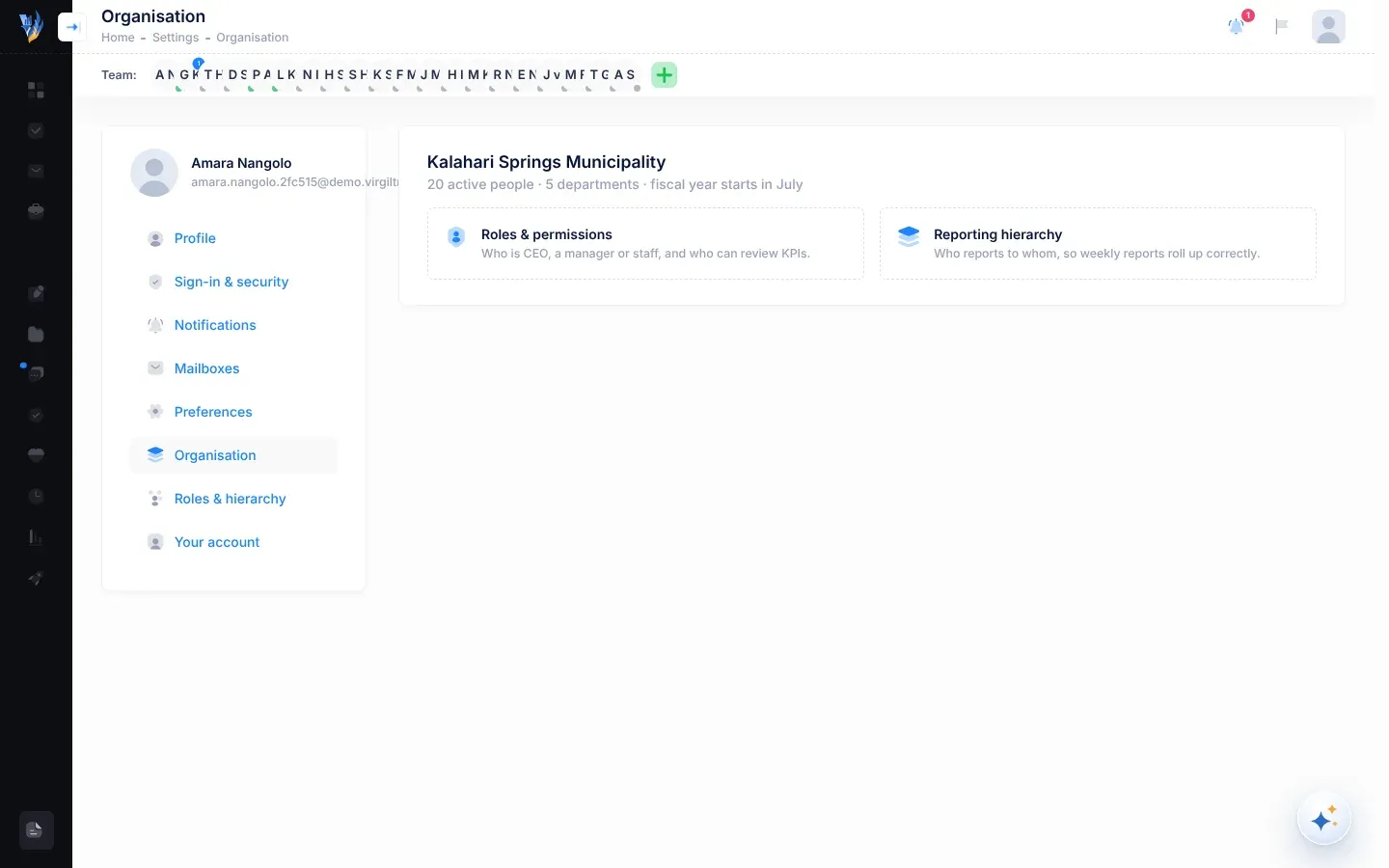
Your organisation at a glance
Section titled “Your organisation at a glance”The heading is your organisation’s name. Under it, one line shows:
- active people: everyone in the organisation who hasn’t left;
- departments: how many departments the organisation has. This can include the CEO’s own department, Executive Suite, which the Departments page doesn’t list;
- fiscal year starts in: the month your financial year begins. It is set when your organisation signs up. VirgilTrack uses July if no month was set.
To change your organisation’s name, contact details or fiscal year, ask a VirgilTrack administrator. They change them on your organisation’s page.
Your financial year
Section titled “Your financial year”Your organisation’s financial year is the 12 months it plans and accounts for, starting in the month shown as fiscal year starts in. VirgilTrack’s screens use both words for the same thing: Fiscal year starts in when your organisation signs up, and Financial year, for example “Financial year 2026/27”, on the CEO’s Work Reports page. This manual says “financial year”.
VirgilTrack uses it, for example, for This financial year on the Work Alignment page and for the quarters of the quarterly review reminders.
The tools
Section titled “The tools”| Card | What it opens | Use it to |
|---|---|---|
| Roles & permissions | The Role Management page | Change several people’s roles and choose department managers, then save them all at once. See Role Management. |
| Reporting hierarchy | Settings, then Roles & hierarchy | Set who reports to whom, “so weekly reports roll up correctly”, by dragging people onto their manager. Each change saves straight away. See Reporting lines and roles. |
| Leadership and people | Your organisation’s page in Platform administration | Change the CEO or managers, handle people leaving, and manage invitations. Only administrators see this card. See Organisations. |
Which tool should I use?
Section titled “Which tool should I use?”| You want to | Use |
|---|---|
| Change who someone reports to | Settings, then Roles & hierarchy: drag them onto their new manager. |
| Make someone a team’s manager | Settings, then Roles & hierarchy: drag each team member onto them. They become a Team Manager. |
| Move someone to another department | Settings, then Roles & hierarchy (Department Assignment), or the department’s page. See Manage a department. |
| Choose a department’s managers | The department’s page, Settings, then Roles & hierarchy (Managed Departments), or Role Management. |
| Change many people’s roles in one go, and check every department has a manager | Role Management. Its Department Coverage card shows departments with no departmental manager. Roles there still follow the reporting lines: see Role Management. |
| Invite someone new | The green plus button in the Team: bar. See Invite team members. |
| Change who is CEO | Ask a VirgilTrack administrator. |
When someone leaves
Section titled “When someone leaves”People can’t delete their own accounts, because their work belongs to the organisation. Instead:
- The person asks to close their account in Settings, then Your account. See Your work record and leaving.
- You, as CEO, and VirgilTrack’s administrators get the request by email and under the bell, with any note the person added.
- A VirgilTrack administrator uses Leaving… on your organisation’s page to hand the person’s work over and close the account. Their work record stays theirs. See Organisations.