

Ask Virgil Copilot
Hierdie inhoud is nog nie in jou taal beskikbaar nie.
Ask Virgil Copilot anything about your work in your own words, such as “What’s overdue?” or “Remind me tomorrow at 9 to call the auditors”. Virgil answers in the panel, and prepares any change for you to confirm.
Ask a question
Section titled “Ask a question”-
Select the round Virgil Copilot button in the bottom-right corner, or press Ctrl + K (Cmd + K on a Mac).
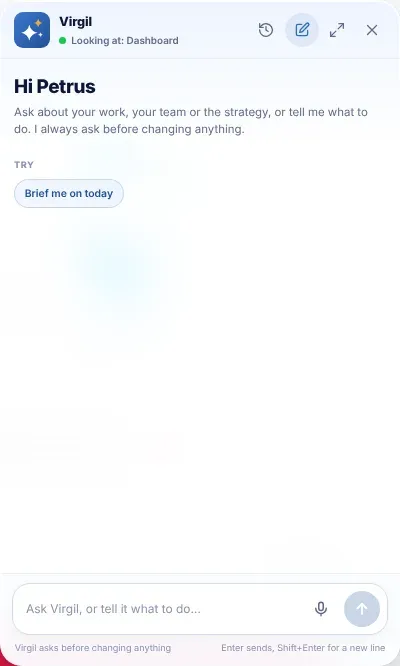
The panel opens over the page. When you start fresh, it greets you by name. If you used Virgil in the last two hours, your last conversation opens instead.
-
Type your question in the box at the bottom, where it says “Ask Virgil, or tell it what to do…”.
Or select one of the cards or suggestions in the panel. Most of them ask a question for you. A suggestion with an arrow, such as Change my password, opens that page instead.
-
Press Enter, or select the send button (the arrow).
To start a new line instead, press Shift + Enter.
-
Watch Virgil work. Each step it takes appears in a list, with a timer.
-
Read the answer. If Virgil prepared a change, check the card and select Confirm or Not now. See Confirm what Virgil prepares.
The panel at a glance
Section titled “The panel at a glance”The top of the panel
Section titled “The top of the panel”The name Virgil is shown with a line underneath that says what Virgil is doing:
| The line says | It means |
|---|---|
| “Ready when you are” or “Looking at: …” | Virgil is waiting. “Looking at” names the page you are on, for example “Looking at: Weekly report, Monday”. |
| “Thinking…”, “Writing the answer…”, “Retrying…” or a step such as “Checking your tasks…” | Virgil is working on your question. |
| “Listening” | Virgil is taking dictation. |
| “That didn’t work” | The last answer ended with a problem. |
The buttons at the top right are:
- Conversations (a clock): your saved conversations. See Your saved conversations.
- New conversation (a pencil): start again with an empty panel. You can’t use it while Virgil is working.
- Widen or Narrow: make the panel bigger or smaller. Not shown on small screens.
- Close: close the panel. Esc does the same.
When you open it
Section titled “When you open it”A fresh panel says “Hi” and your first name. If nothing needs your attention, it says “Ask about your work, your team or the strategy, or tell me what to do. I always ask before changing anything.” Otherwise it says “Here’s what I noticed on your work today.” and shows up to three cards about the strategy tasks assigned to you:
| Card | What it tells you | Selecting it asks |
|---|---|---|
| … overdue | How many of your tasks are past their due date, and the oldest one. | “What’s overdue, and what should I do first?” |
| … behind pace | Tasks with steps where the share of steps done is well behind the share of time used up, for example “40% done, 70% of its time gone”. | “Which of my tasks are behind pace, and how do I catch up?” |
| … due in the next 7 days | How many tasks are due this week, and the next one. | “What’s on my plate this week? Help me plan it.” |
Below the cards, under Try or Or ask, are suggestions for the page you are on. See Suggestions on each page.
The message box
Section titled “The message box”- A message can be up to 4,000 characters.
- If you close the panel while you are typing, your words are still there when you open it again.
- While Virgil works, you can type your next message. It waits, shown as “Queued: … goes when I’m done”, and is sent when Virgil finishes. Select Remove to cancel it.
- Under the box, a reminder says “Virgil asks before changing anything”.
While Virgil works
Section titled “While Virgil works”Virgil shows a box headed Thinking or Working on it, with a timer and each step it takes. A step such as “Checking your tasks…” becomes “Checked your tasks”, with what it found underneath, such as “6 tasks”. A tick shows a step that worked. A cross and “didn’t work” show one that didn’t.
To stop Virgil, press Esc or select the stop button (the square). Anything it had already written stays, marked “(stopped)”.
You can close the panel while Virgil works. A small dot appears on the Virgil Copilot button when a reply is waiting.
Using the answer
Section titled “Using the answer”Under each answer are small buttons:
- Copy: copies the answer, so you can paste it into an email or a document.
- Helpful and Not helpful: record whether the answer helped you. Select the same button again to take it back.
- Regenerate: asks the same question again for a new answer. Only on the latest answer.
Virgil may also add:
- Follow-up suggestions: up to three buttons with what you might want next. Select one to ask it.
- Choices: when Virgil needs you to pick, such as a person or a date, it shows the options as buttons. Select one, or type something else.
- Place buttons: a button with the name of a place in VirgilTrack and an arrow opens it. On a small screen, the panel closes as the place opens. Show me where, beside it, points the way on your screen. See Ask Virgil where something is.
Speak instead of typing
Section titled “Speak instead of typing”If your browser supports it, a microphone button appears in the message box.
-
Select Dictate (the microphone).
The line at the top of the panel says “Listening”.
-
Speak. Your words appear in the box as you talk. You can correct them as you go.
-
Select Stop dictation, then send the message as usual. Sending the message also stops dictation.
Your browser may ask for permission to use the microphone the first time.
Suggestions on each page
Section titled “Suggestions on each page”The suggestions change with the page you are on. You see at most four. Some only appear when there is something behind them: “What’s overdue · 3” and “Behind pace · 2” show how many of your tasks they are about, and “Plan my week” appears when you have tasks due in the next 7 days.
| Page | Suggestions |
|---|---|
| Dashboard | “Brief me on today”, “What’s overdue”, “Behind pace”, “Plan my week” |
| Tasks and From your email | “What’s overdue”, “Behind pace”, “Plan my week”, and for managers and the CEO, “Help me delegate a task” |
| A task’s own page | “Summarise this task for me”, “How did others handle work like this?”, “Draft an update on this task” |
| Your weekly report | “Draft today’s entry from what I did”, “What did I forget to report this week?”, “Plan my week”, “How did others handle my open tasks?” |
| Team weekly reports (managers) | “What needs my attention in my team’s work?”, “Who hasn’t submitted their report yet?”, “Summarise my team’s week”, “What is blocking my team?” |
| Work reports (the CEO) | “Compile this month’s report from everything”, “Who hasn’t reported this week?”, “Summarise this month’s reports”, “What needs my attention this month?” |
| Execution and the strategy pages | “How is our strategy doing this period?”, “Which KPIs are off track?”, “Which initiatives have overdue tasks?”, and for everyone except the CEO, “How does my work connect to the strategy?” |
| Calendar | “Plan my week” (or “What’s on my plate this week?”), “Remind me about something later” |
| Settings | “Use this device’s time zone” (only when it differs from the one you saved, or you haven’t saved one), “Change my password” (opens Sign-in & security), “Test my notifications” |
| Private Chat | “Summarise my recent chats” |
| Work Record | “What does my work record show this month?” |
| Emotional Intelligence | For managers and the CEO, “Help me prepare a difficult conversation” |
| The risk pages | No suggestions. You can still ask your own questions. |
| Any other page | “What’s overdue”, “Behind pace” and “Plan my week”, when they apply |
If you move to another page during a conversation, a strip headed “Now on …” offers the suggestions for that page. Select × on the strip to hide it.
- Ask the way you would ask a colleague. “Who hasn’t sent their report?” works as well as a long, careful question.
- Say “this” on a page. On a task’s page, “summarise this” means that task.
- Give names and dates when you know them. “Remind Thandi on Friday at 10” saves Virgil asking.
- Check what matters. Virgil is an AI and can make mistakes. Check names, dates and numbers before you rely on them, and read every card before you confirm it.
- On a phone, the panel fills the screen. Close it to see the page again.
If something goes wrong
Section titled “If something goes wrong”| What you see | Why | What to do |
|---|---|---|
| “That’s a lot of questions in an hour. Please wait a little before asking more.” | You can send up to 60 messages an hour. | Wait a while, then ask again. |
| “Something went wrong on my side. Please try again.” | Virgil couldn’t finish its answer. | Select Try again. |
| “The assistant isn’t set up on this server yet (missing AI key).” | The AI isn’t switched on for your VirgilTrack. | Tell your administrator. |
| “Stopped.” | You stopped Virgil before it wrote anything. | Ask again. |
| An answer ends with “(stopped)” | You stopped Virgil, or it ran for three minutes, the longest one answer can take. | Ask a shorter or simpler question. |
| Virgil says it can’t look something up at the moment. | Its connection to your data is briefly unavailable. | Try again shortly. |
| Virgil says it can’t do something, and has passed it on to the VirgilTrack team. | VirgilTrack doesn’t support that yet. | Do it on the page in VirgilTrack, if there is one. |
| There is no microphone button. | Your browser doesn’t support dictation. | Type instead, or use another browser. |