

Review your team's reports
Hierdie inhoud is nog nie in jou taal beskikbaar nie.
Each week, the people who report to you send you their weekly reports. On your Work Reports page you see who has submitted, remind anyone you are still waiting for, read each report, and tick the points that belong in your own report.
Before you start
Section titled “Before you start”- You see the reports of the people who report to you in your organisation’s reporting hierarchy. See Who your report goes to.
- The page always shows the current week, from Monday to Sunday.
The page at a glance
Section titled “The page at a glance”Open Work Reports in the menu on the left.
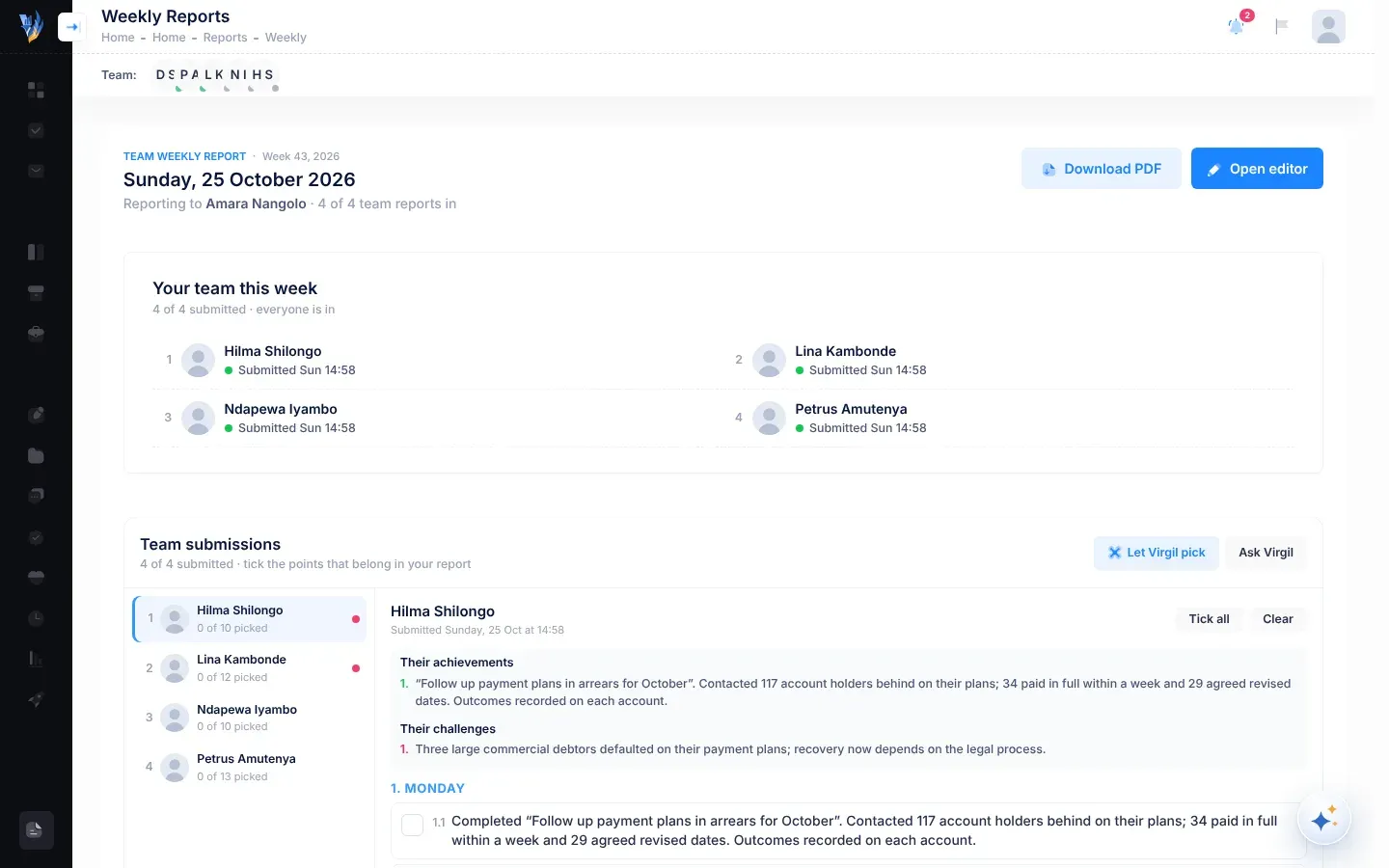
| Part | What it shows |
|---|---|
| Team weekly report and the week | The week you are reporting on, for example “Week 43, 2026”, with today’s date below. |
| Reporting to | The person who receives your own report. |
| … of … team reports in | How many of your team have submitted, for example “3 of 4 team reports in”. |
| Download PDF | Your own report, or your team’s reports together, as a PDF. See Submit your team report. |
| Open editor | Builds your own report from the points you ticked. See Submit your team report. |
| Activity prompts | Sentences about things you did this month, to tick into your report. See Activity prompts. |
| Your team this week | Each person and how far they are. See the next section. |
| From other departments | Things other departments wrote that affect yours. See News from other departments. |
| Team submissions | Each submitted report, to read and pick from. See Pick your team’s points. |
| Strategy Alignment | How well your own report lines up with the strategic plan. See Strategy alignment. |
Once you have submitted your own report, the page shows Report submitted instead, with the day and time you sent it.
Your team this week
Section titled “Your team this week”Your team this week lists everyone who reports to you, with a status:
| Status | What it means |
|---|---|
| Submitted and a day and time, for example “Submitted Fri 14:20” | Their report is in. You can read it under Team submissions. |
| Writing: and a count, for example “Writing: 3 of 5 days so far” | They have written entries for some of this week’s working days, Monday to Friday up to today. Their report isn’t in yet. |
| Nothing written yet | They haven’t written anything this week. |
You see how many days someone has written, but not what they wrote: a report only appears under Team submissions once it is submitted.
Remind someone
Section titled “Remind someone”- Find the person under Your team this week.
- Select Remind beside their name.
You see “Reminder sent to Petrus.”, and the button changes to Reminded. The person gets a notification in VirgilTrack: “Daniel Shikongo is waiting for your weekly report.” Selecting it opens their work reports.
Activity prompts
Section titled “Activity prompts”Activity prompts are sentences VirgilTrack wrote from things you did in VirgilTrack this month, such as adding a risk or implementing a control. If you have connected your mailbox, work VirgilTrack found in your email this week is added here when you open the page, and while it is open.
Tick any prompt you want in your report. VirgilTrack uses the ticked prompts when it builds your report, together with the points you ticked from your team. See Suggestions and activity prompts.
Pick your team’s points
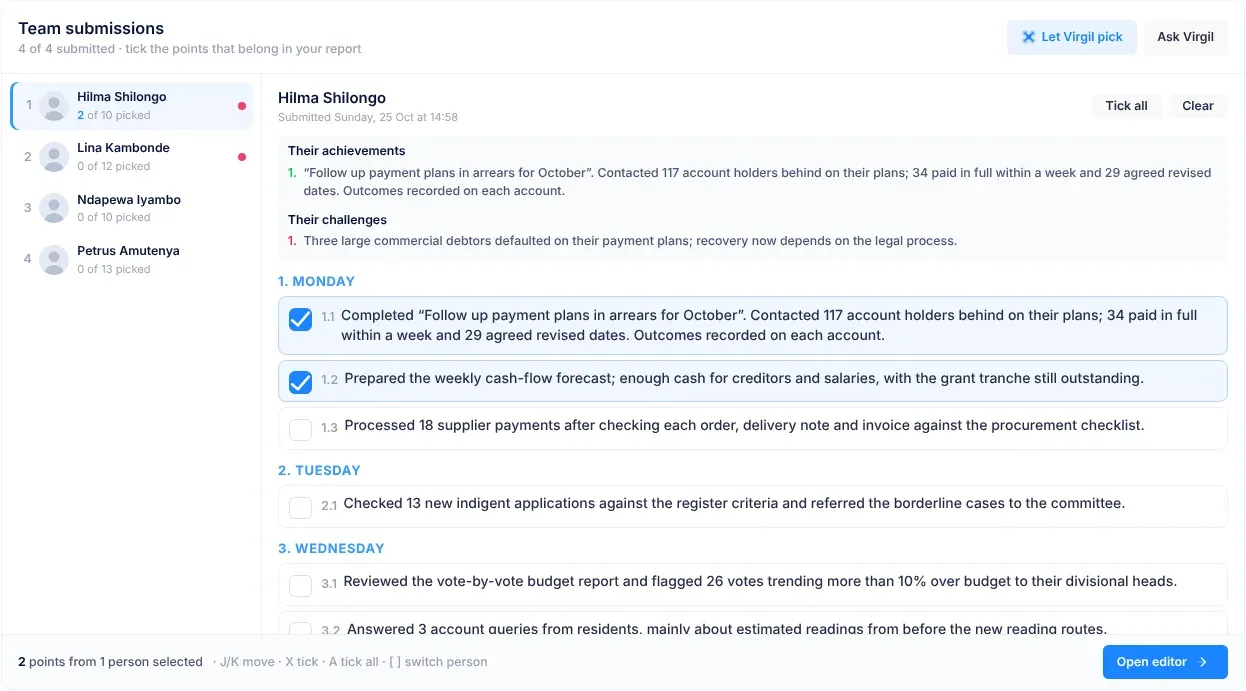
Section titled “Pick your team’s points”The Team submissions card has your team on the left and one person’s report on the right.
-
Select a person on the left.
People who haven’t submitted are greyed out and say Not submitted yet. You can’t open their report.
-
Read Their achievements and Their challenges at the top.
-
Read their points, which are grouped by day and numbered, for example 1.1, 1.2.
-
Tick each point that belongs in your report. To tick or clear all of one person’s points, select Tick all or Clear.
Your ticks are saved as you go. The bar at the bottom counts them, for example “6 points from 3 people selected”.
-
Repeat for each person.
-
When you have ticked everything you need, select Open editor.
On the left, each person shows how many of their points you picked, for example “2 of 9 picked”. A red dot beside a name means they reported challenges this week: point at it to see how many. Days on which someone wrote nothing are listed at the end, for example “No entries on Sat, Sun.”
Let Virgil pick
Section titled “Let Virgil pick”Select Let Virgil pick to have Virgil read all your team’s submitted reports and tick the points that matter at your level. While it works, the button says Reading the reports….
- Each point Virgil ticked shows a short reason beside it.
- Problems that affect more than one person, or that need you to act, are listed under Shared blockers this week, with who raised them.
- Virgil only adds ticks. Anything you ticked yourself stays ticked.
- A message says how many points Virgil picked, for example “Virgil picked 6 point(s). Review and adjust.” If Virgil agrees with what you already ticked, it says “Virgil agrees with your current picks.”
- To take Virgil’s ticks off again, select Undo Virgil’s picks.
Always read Virgil’s picks before you build your report. You know your team’s work best.
Ask Virgil about the week
Section titled “Ask Virgil about the week”Select Ask Virgil to open Virgil Copilot with a question about your team’s week: the main results, who is blocked and by what, and anything you should act on.
Keyboard shortcuts
Section titled “Keyboard shortcuts”Select a point, or anywhere in the team list, first. Then use these keys:
| Key | What it does |
|---|---|
| J | Move to the next point. |
| K | Move to the previous point. |
| X | Tick or clear the point you are on. |
| A | Tick all of this person’s points, or clear them if they are all ticked. |
| ] | Go to the next person who has submitted. |
| [ | Go to the previous person who has submitted. |
Strategy alignment
Section titled “Strategy alignment”The Strategy Alignment card, below Team submissions, shows how well the points in your own report line up with your organisation’s strategic plan. It appears once someone in your team has submitted. It reads your own report, so build your report first. See Submit your team report.
Select Run Analysis (or Analyse Now). The button shows Analysing… while it works. When it is done, you see “Analysis Complete” and the score, and the card says when it last ran. To run it again after changing your report, select Re-Analyse.
| Part | What it shows |
|---|---|
| The score, for example 82% ALIGNED | The share of your report’s points that serve the strategic plan. |
| The level | Excellent (90% or more), High (75% or more), Moderate (40% or more) or Low. |
| Weighted | The same idea, but a point that matches an assigned task counts more than one that only matches an objective. |
| Aligned and Unaligned | How many points match something in the plan, and how many don’t. |
| Direct Tasks | Points that match a task assigned to you. |
| Tasks Unreported | Tasks assigned to you and due this week that your report doesn’t mention. Shown only when there are some. |
| Alignment Summary, Strategic Gaps and Recommendations | What the analysis found, in a few sentences. |
| Point-by-Point Breakdown | Select it to open the list. Each point shows what it matched: an Objective, a KPI, an Initiative or a WorkItem (an assigned task), and how sure the match is, as a percentage. A point with no match says “No strategic match”. |
For the whole organisation’s alignment, the CEO uses the Work Alignment page in Execution. See Find your way around Execution.
When Virgil Copilot notices something
Section titled “When Virgil Copilot notices something”Sometimes a card appears in the bottom right-hand corner of the screen: “VirgilCopilot noticed something in your team’s work”, or, for example, “VirgilCopilot noticed 3 things in your team’s work”. It lists up to two of them, for example a task that may be struggling, a task with no activity for a while, reports that say little, or a gap in skills.
- Select Show me to open Virgil Copilot with the evidence and what it recommends.
- Select Later to hide the card until tomorrow.
If something goes wrong
Section titled “If something goes wrong”| What you see | Why | What to do |
|---|---|---|
| “Reporting hierarchy incomplete” | Your organisation’s reporting hierarchy isn’t set up for work reports. | Ask your CEO or an administrator to check the hierarchy. See Who your report goes to. |
| “No team reports submitted yet” | Nobody in your team has submitted this week. | Wait, or remind them under Your team this week. |
| Someone you expected isn’t in your team. | They don’t report to you in the reporting hierarchy, or their account is locked. | Ask your CEO or an administrator to check who they report to. |
| Open editor at the bottom of Team submissions is grey. | You haven’t ticked any of your team’s points. Ticked Activity prompts don’t count here. | Tick at least one point, or use Open editor at the top of the page. |
| “Virgil couldn’t read the reports just now. Your picks are unchanged; try again in a moment.” | Virgil wasn’t available. | Wait a moment and select Let Virgil pick again, or tick the points yourself. |
| The team cards have gone, and the page says Report submitted. | You have submitted your own report. | To change it, select Reopen and edit. |
| A message that no active strategic plan was found. | Strategy Alignment needs an approved strategic plan. | Ask your CEO about the plan. See Strategy and execution. |
| A message that the week report has no sections. | You haven’t built your own report yet. | Select Open editor to build it, then run the analysis. |
| “Analysis Failed” and “Strategy alignment could not be completed. Check that an approved strategic plan exists.” | The analysis couldn’t finish, or your report has no points. | Check that your own report has points and that your organisation’s strategic plan is approved, then try again. |