Slaan oor na inhoud

VirgilTrack User Manual — Druk

VirgilTrack User Manual · 1.0Laai PDF af
Oktober 2026

Gebruikers-handleiding

Risiko, strategie en prestasie

Die amptelike gebruikershandleiding vir VirgilTrack: hoe om risiko’s te bestuur, strategie te beplan en op te volg, oor werk verslag te doen en jou organisasie met selfvertroue te bestuur.

Risiko & Strategie

Uitgawe 1.0Virgil Finance

01Welkom

Wat is VirgilTrack?

VirgilTrack help organisasies in die openbare sektor, soos dorpsrade, stadsrade en munisipaliteite, om hulle risiko’s te bestuur, hulle strategiese plan uit te voer en elke week te sien watter werk gedoen word. Almal in die organisasie gebruik dieselfde stelsel, elkeen met die hulpmiddels wat sy of haar rol nodig het.

VirgilTrack werk in jou webblaaier, so daar is niks om te installeer nie.

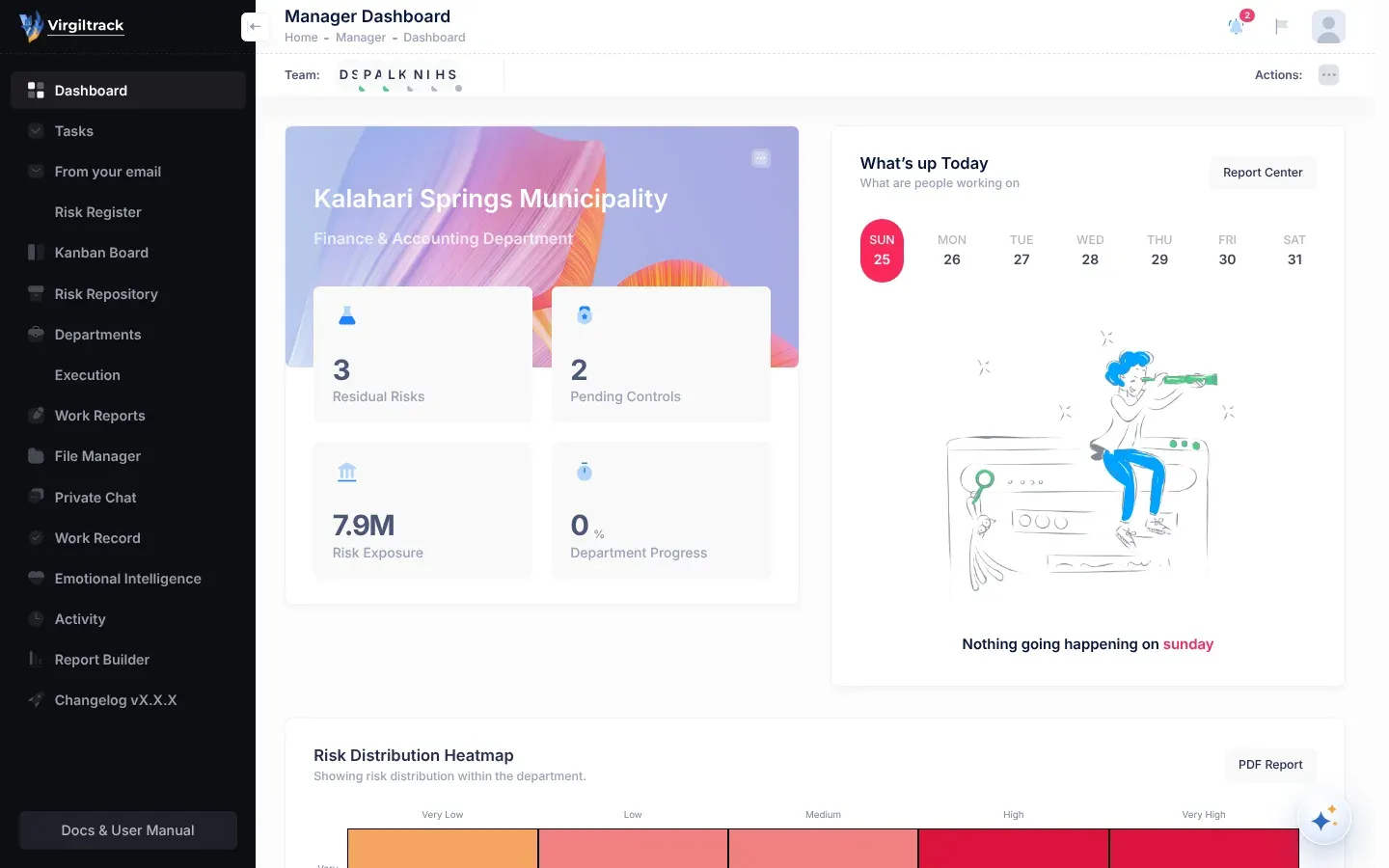
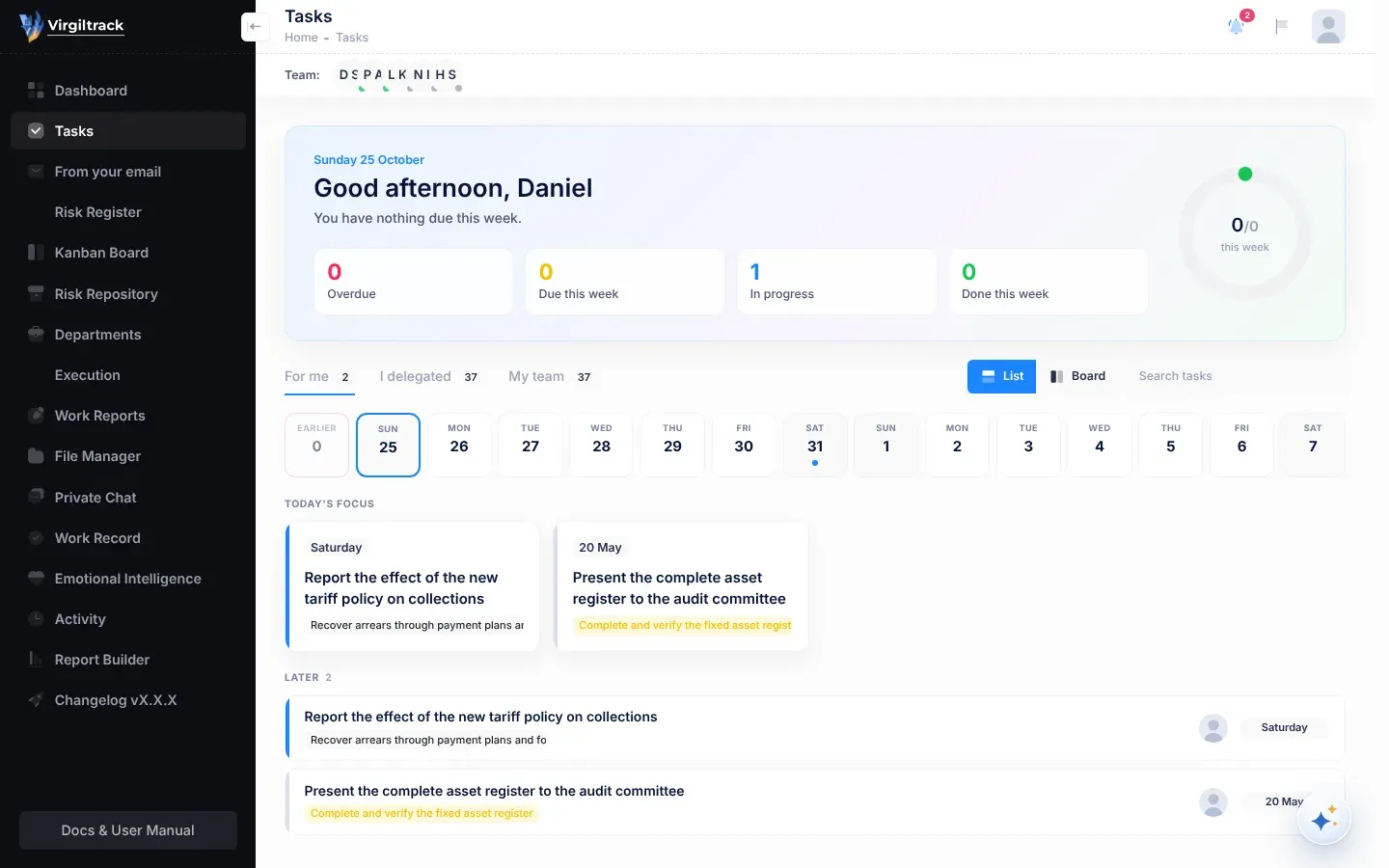
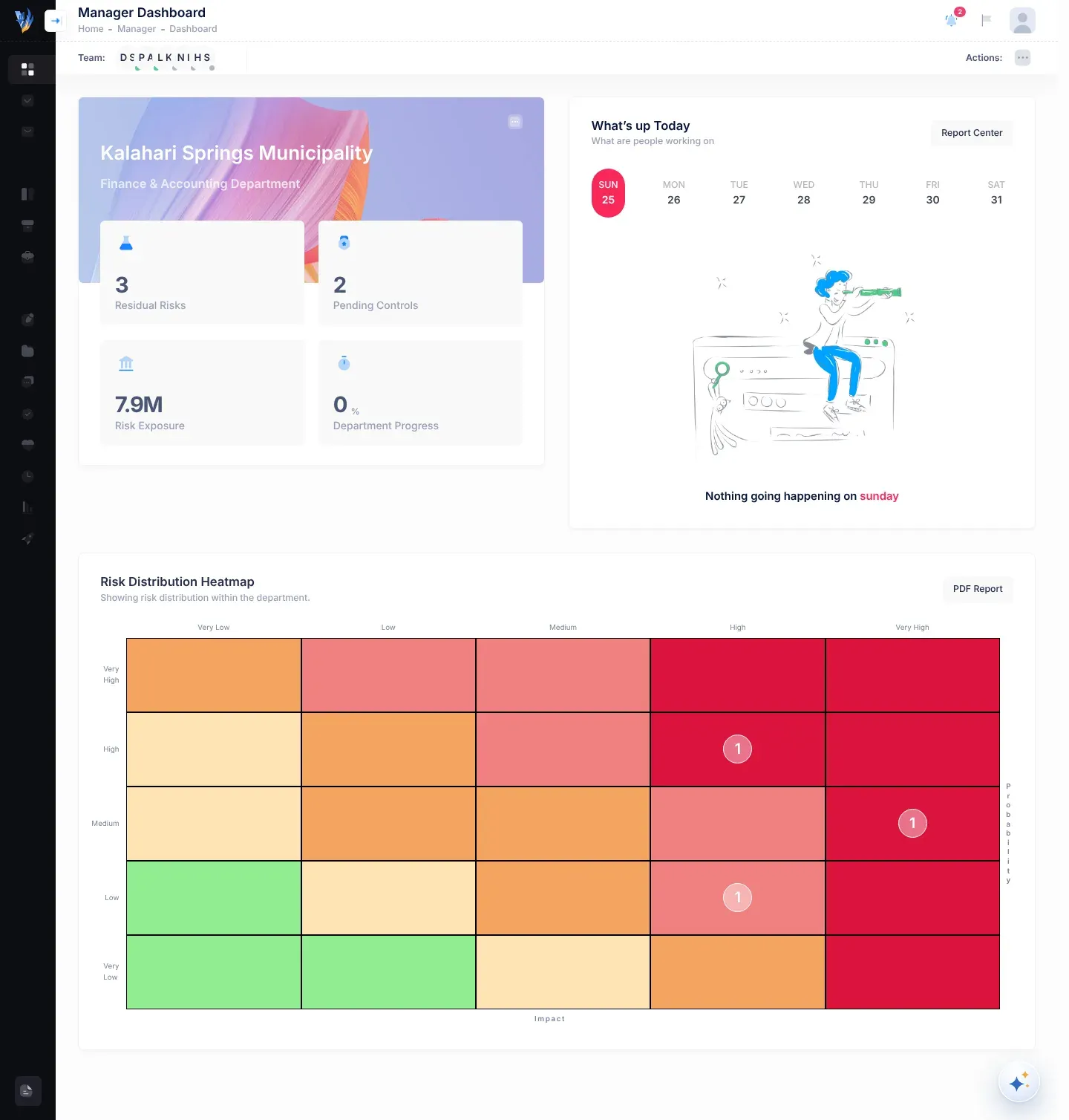
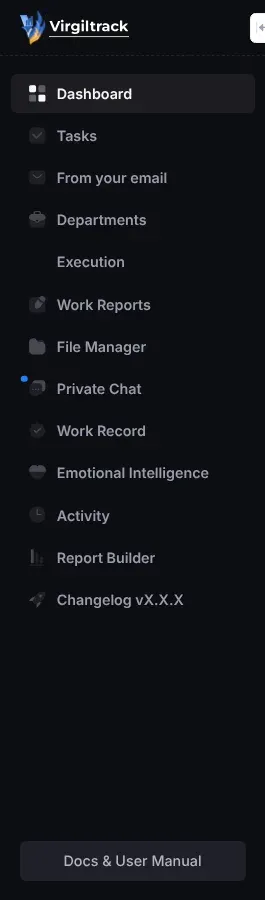
VirgilTrack oop op 'n bestuurder se kontrolebord, met die kieslys van alle areas aan die linkerkant en die kopstrook bo-aan
VirgilTrack soos 'n departementele bestuurder dit sien

VirgilTrack is gemaak vir plaaslike owerhede en ander openbare liggame. Wanneer ’n organisasie registreer, kies dit een van hierdie tipes: Village Council (dorpsraad), Town Council (stadsraad), Municipality (munisipaliteit) of Other (ander).

Elke persoon behoort aan een organisasie en gewoonlik aan een departement. Wat iemand kan doen, hang van sy of haar rol af:

  • Werknemers doen die werk en doen verslag daaroor.
  • Bestuurders bestuur ’n departement of ’n span.
  • Die HUB (hoof- uitvoerende beampte) lei die hele organisasie.
  • Administrateurs is VirgilTrack se eie personeel, wat na elke organisasie op die platform omsien.

Sien Rolle en wat elkeen kan doen.

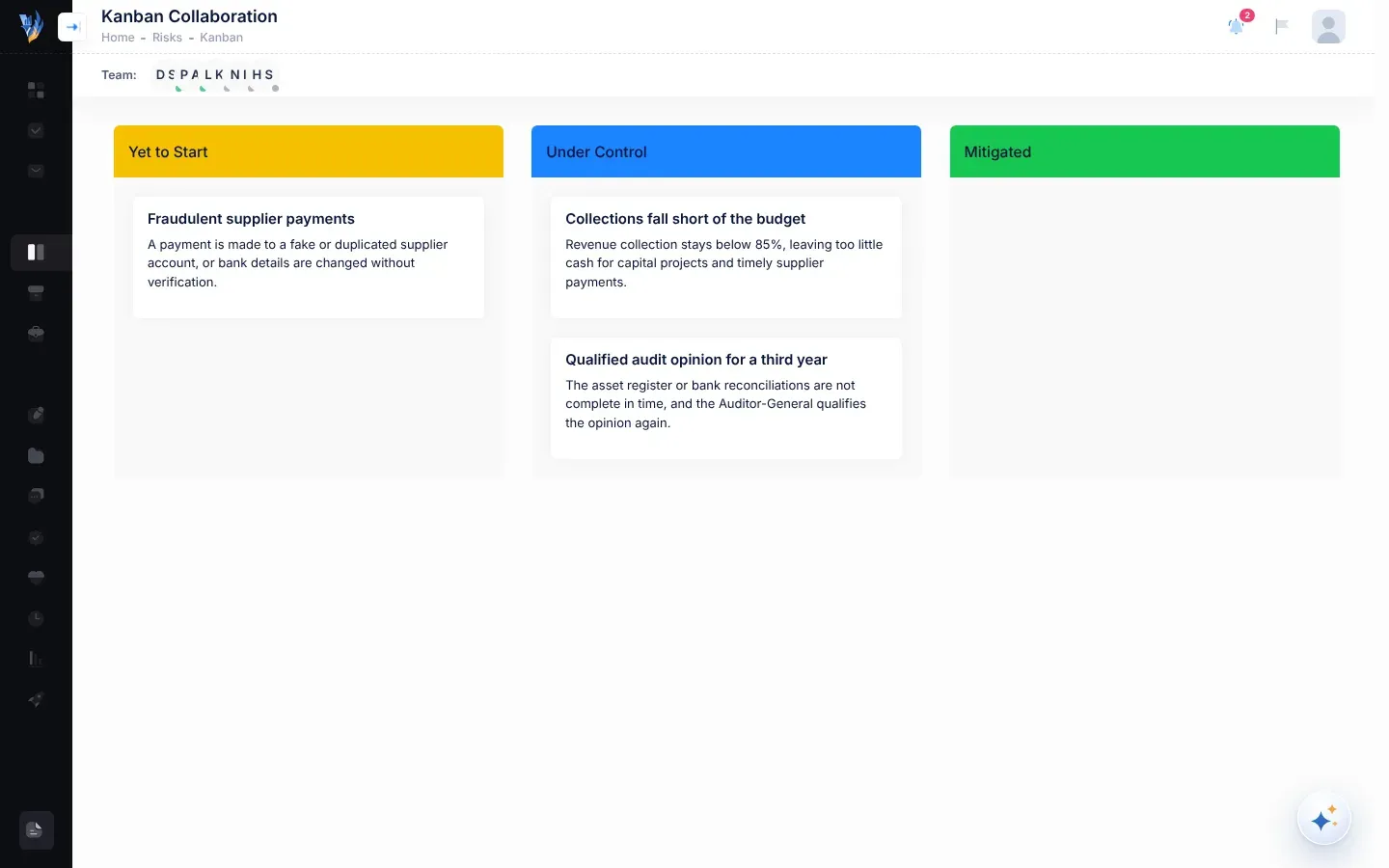
Teken die risiko’s aan waarvoor jou departement te staan kom, gee elkeen ’n risikotelling en besluit hoe om dit te beheer. Die Risk Register (risikoregister) lys jou departement se risiko’s. Die Kanban Board (Kanban-bord) wys hulle as kaarte in kolomme volgens hulle status, en jy skuif ’n kaart deur dit te sleep. Die Risk Repository (risikobewaarplek) is ’n katalogus van algemene risiko’s wat jy na jou departement kan kopieer, sodat jy nie van voor af hoef te begin nie. Sien Risikobestuur.

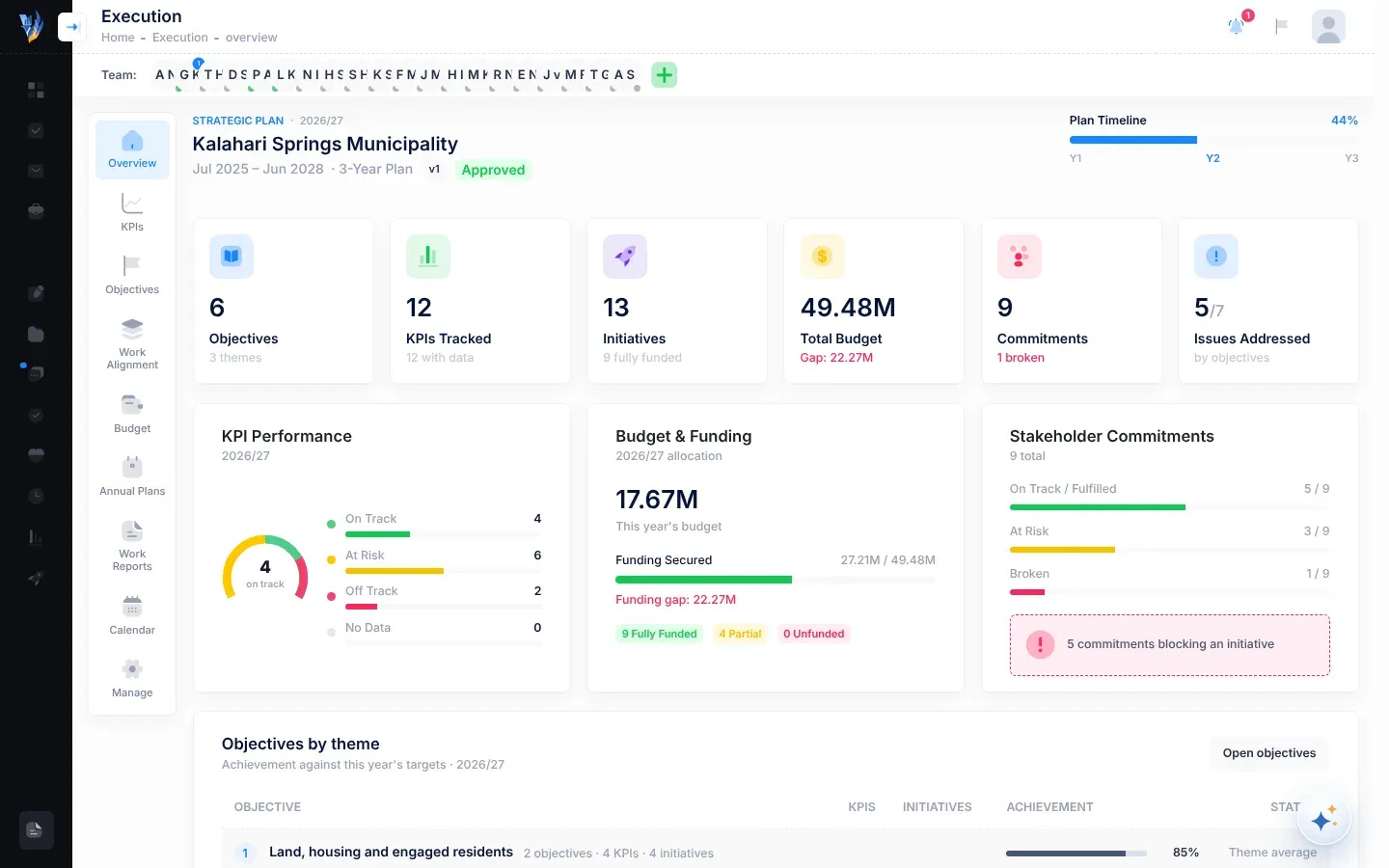
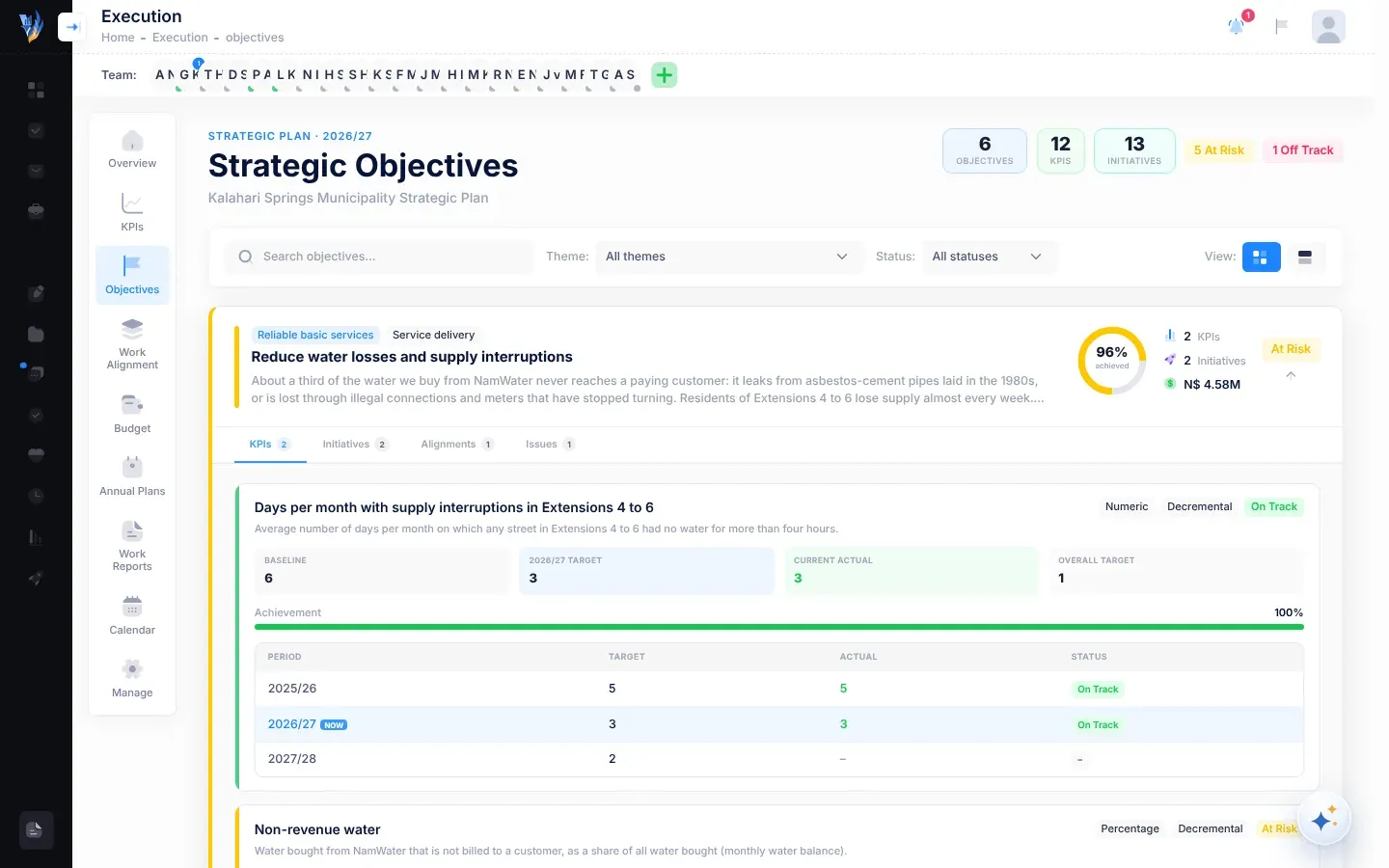
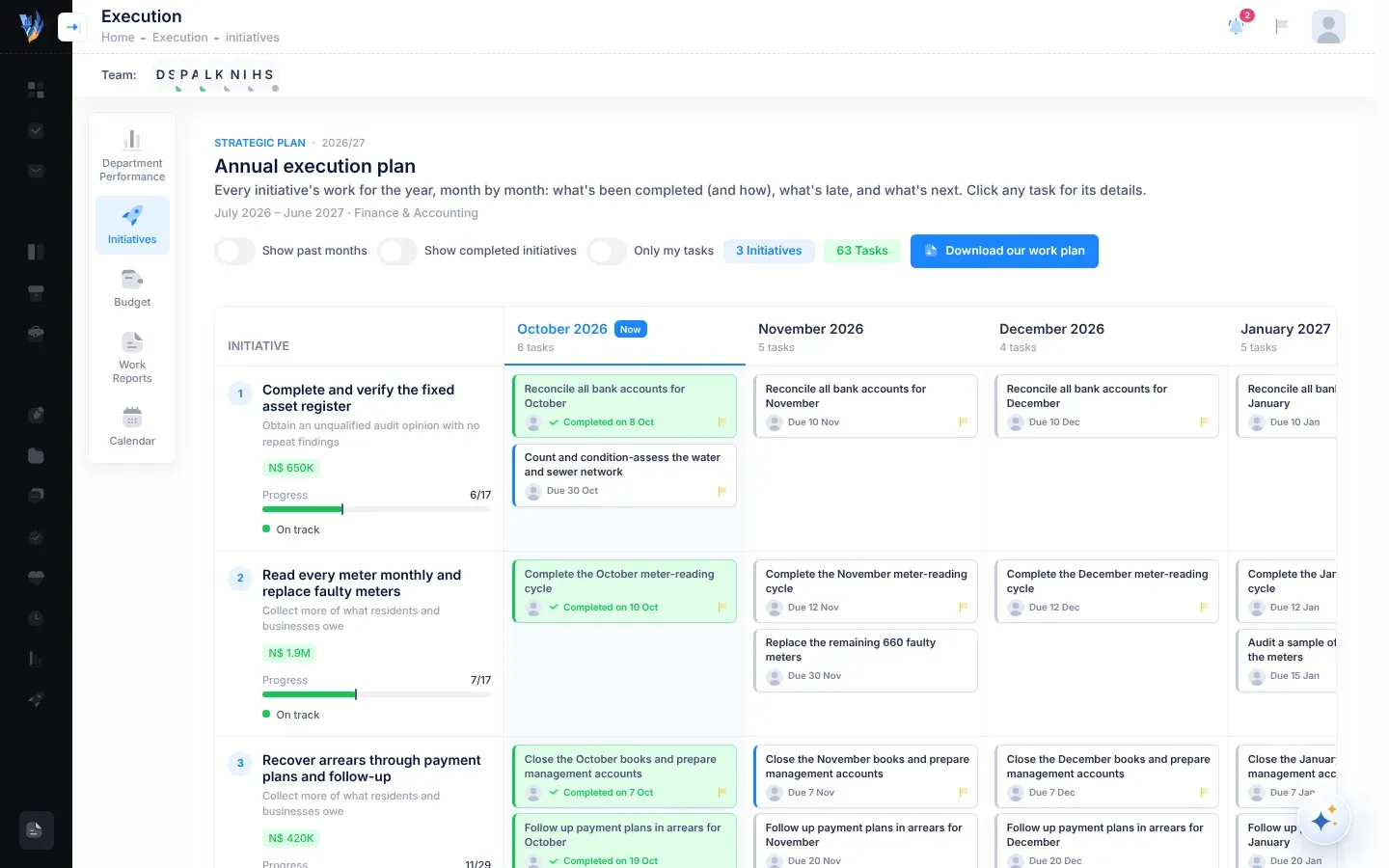
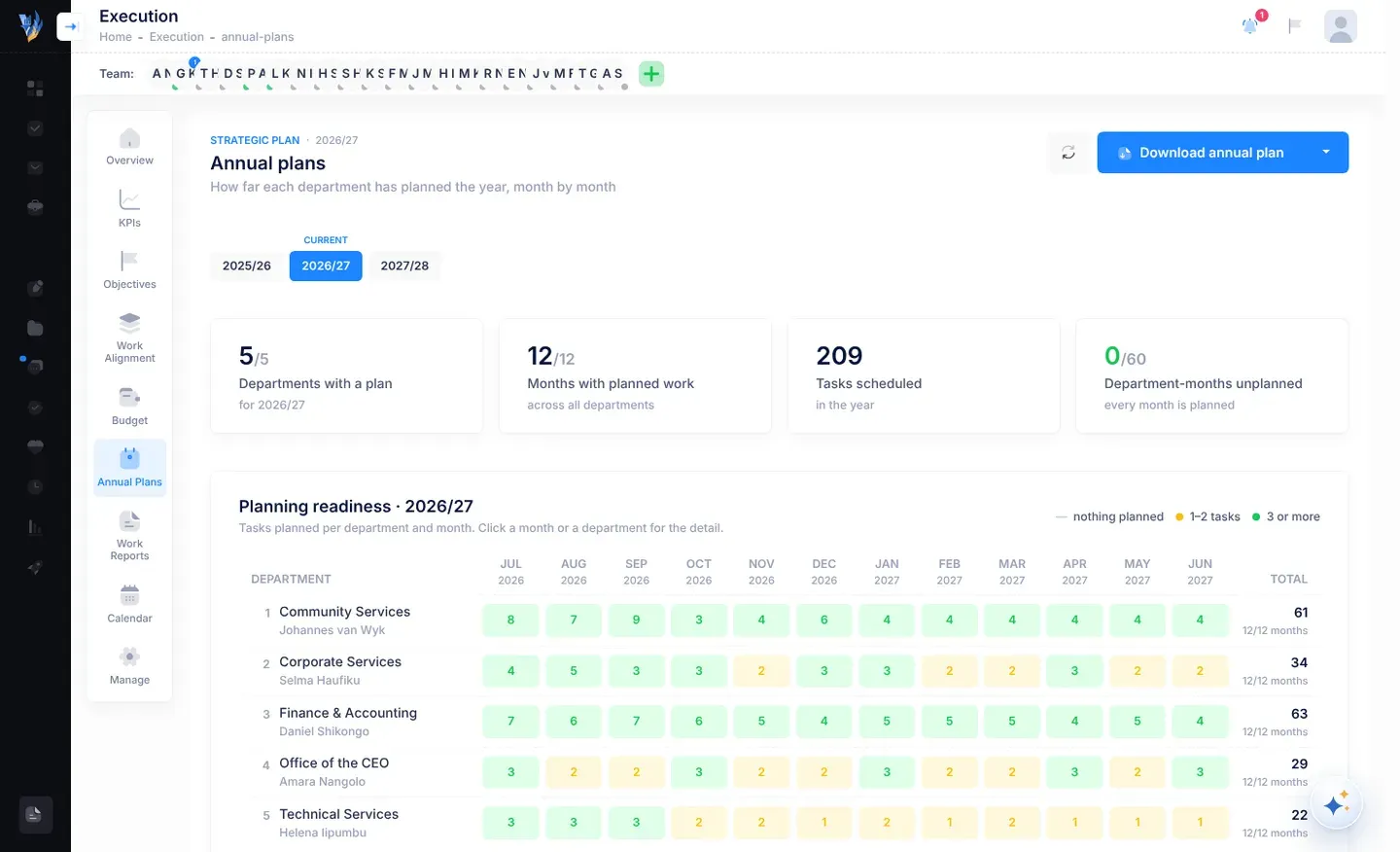
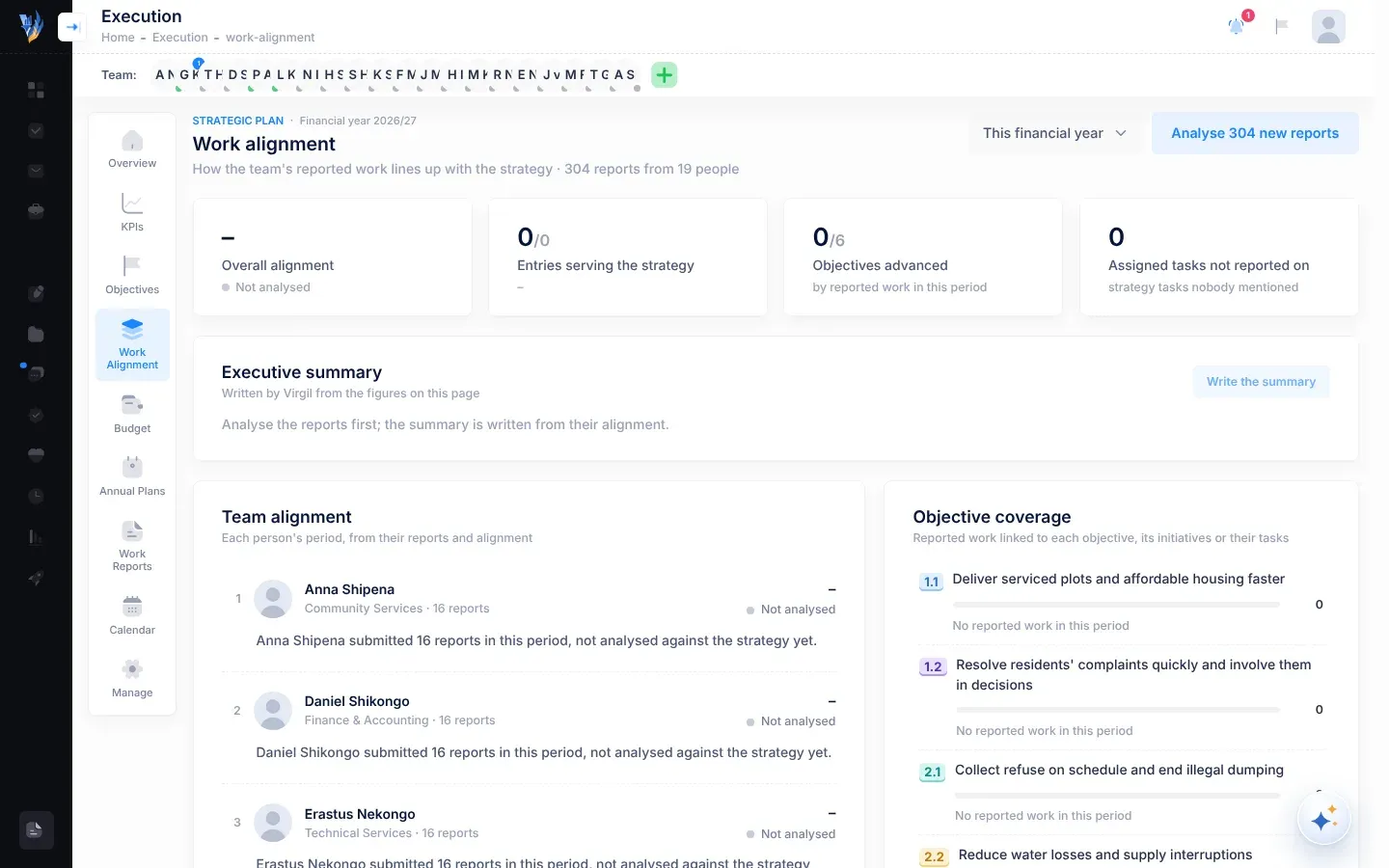
Execution (uitvoering) bevat jou organisasie se strategiese plan: sy doelwitte, sleutelprestasie-aanwysers (KPA’s), inisiatiewe, begroting en jaarplanne. Jy kan die plan as ’n PDF oplaai. VirgilTrack haal dan die doelwitte uit en wys hoe hulle met mekaar verband hou, sodat jy dit kan nagaan. Bestuurders en personeel sien daarna die bladsye wat hulle raak. Sien Strategie en uitvoering.

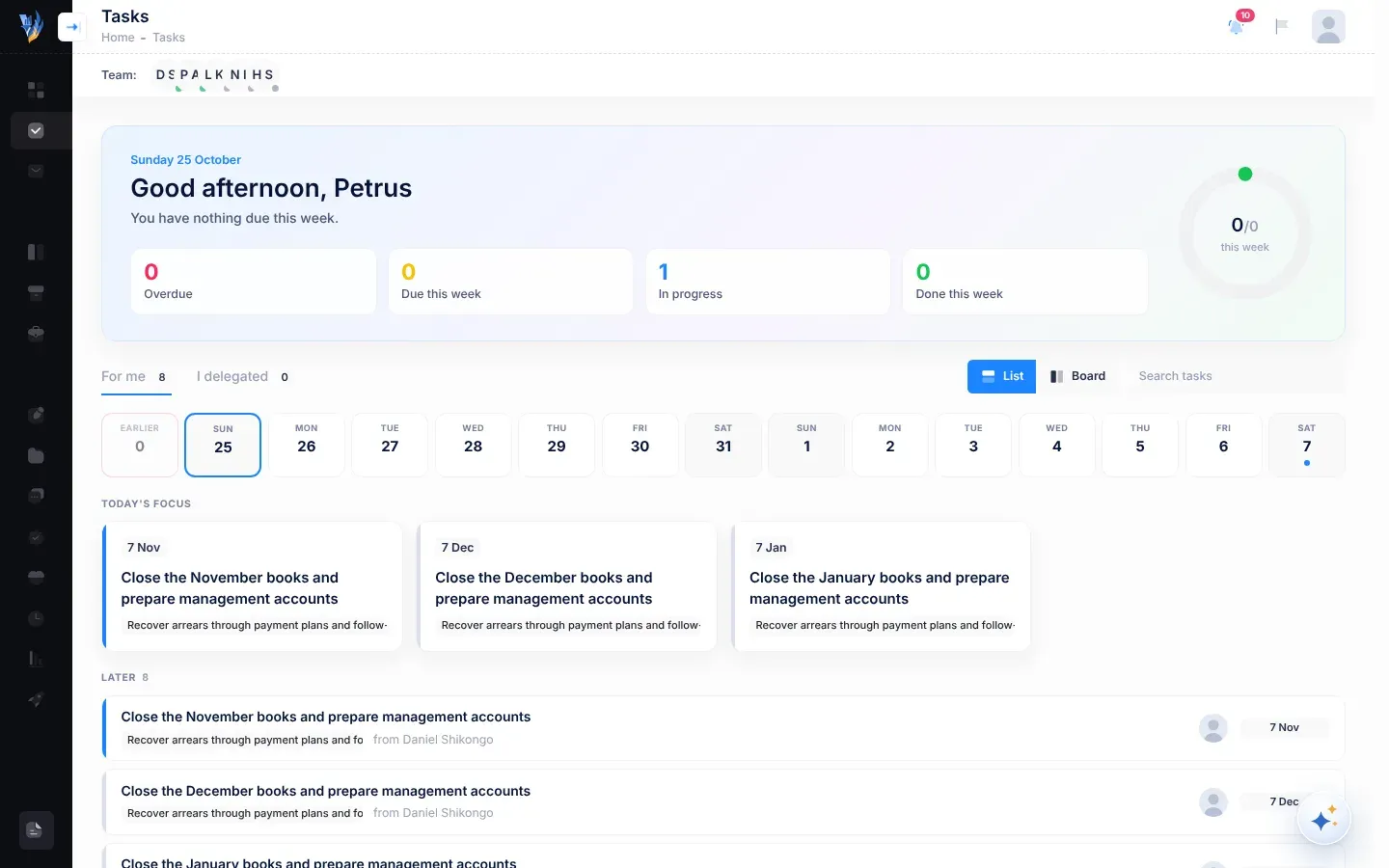
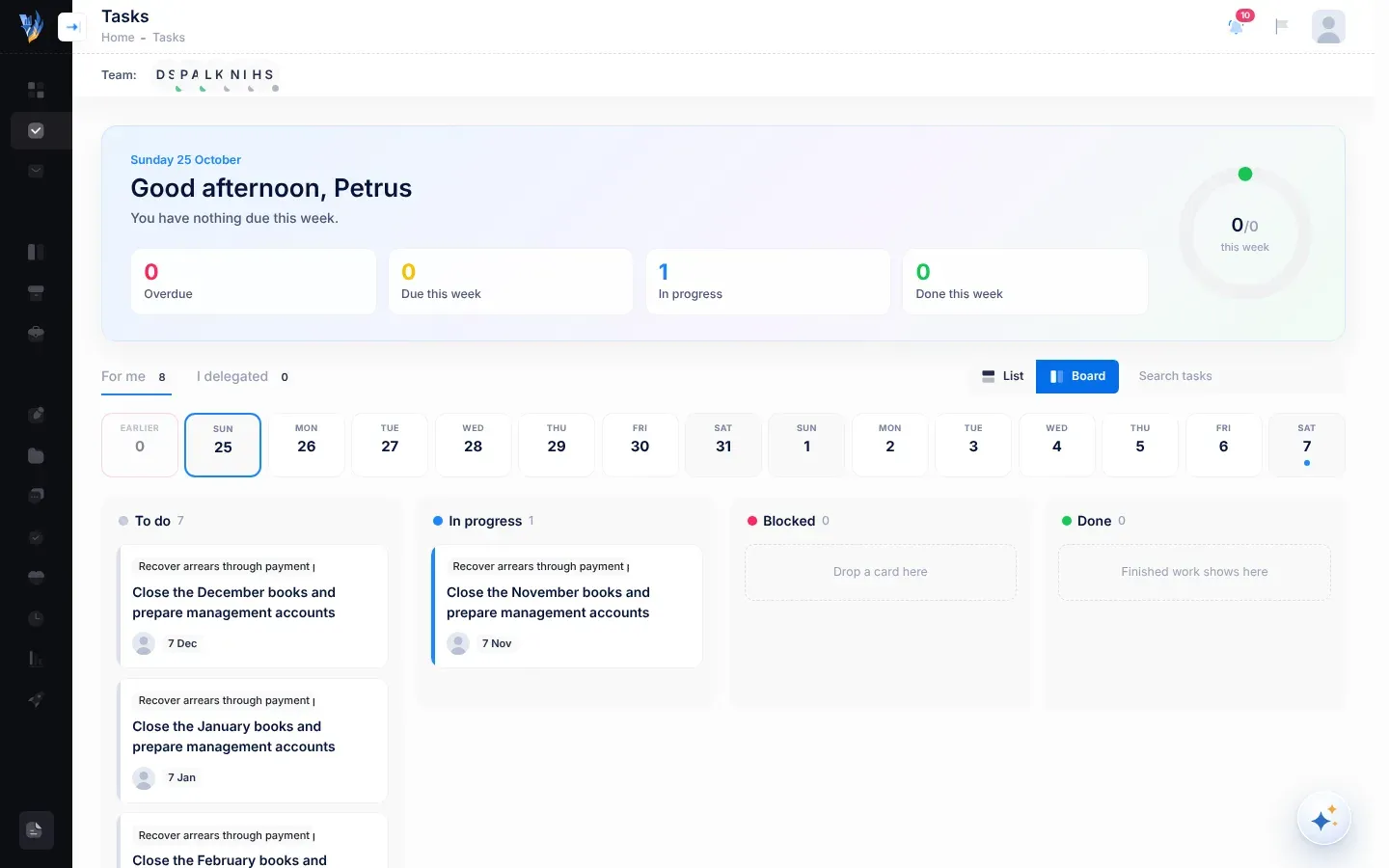
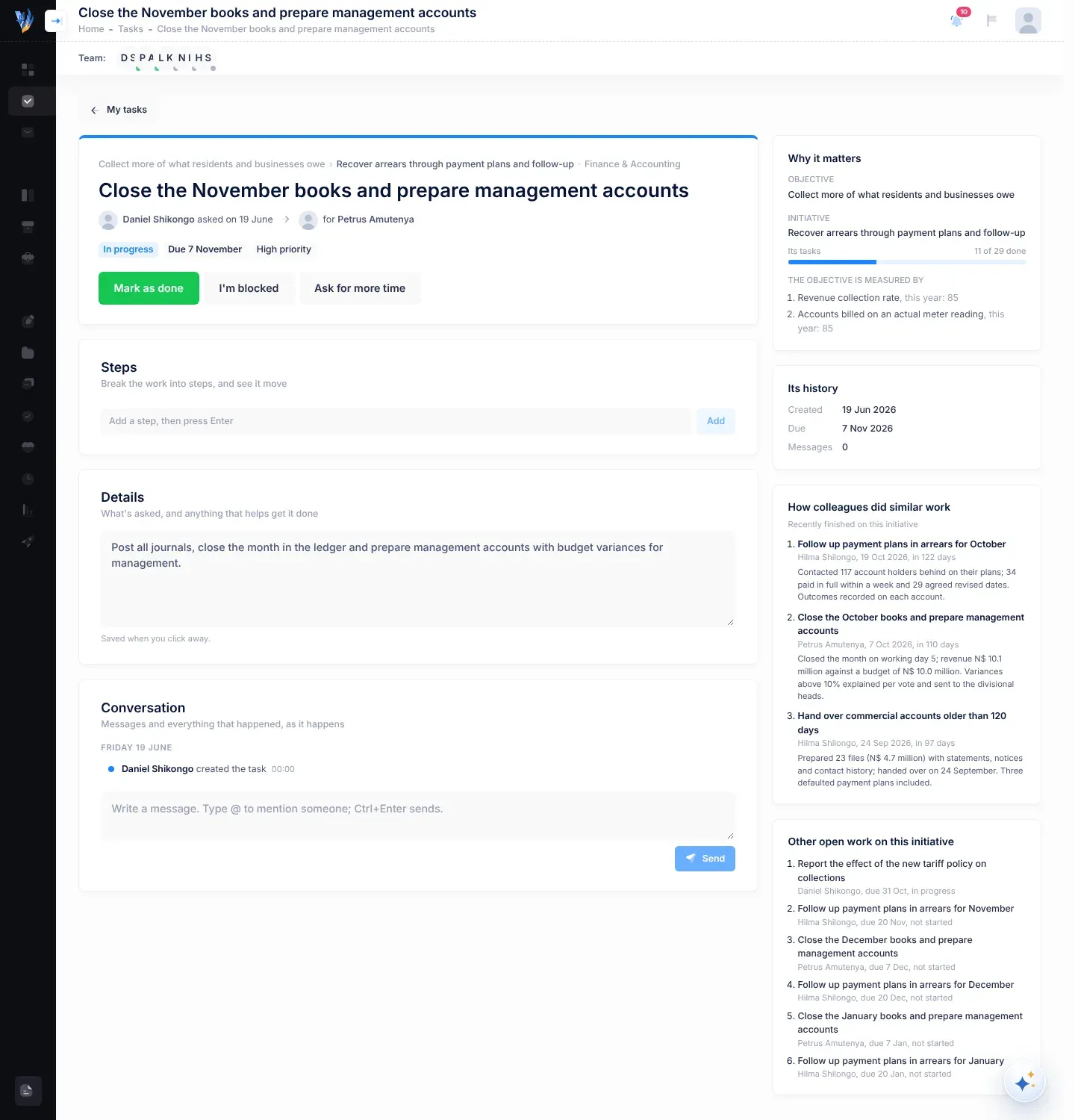
Tasks (take) wys die werk wat aan jou gegee is en die werk wat jy aan ander gegee het, as ’n lys of as ’n bord, saam met wat in die volgende twee weke moet klaar wees. As jy jou posbus koppel, stel From your email (uit jou e-pos) take en vordering voor wat dit in jou e-pos gevind het, sodat jy dit kan bevestig. ’n Kalender wys gebeurtenisse en sperdatums. Sien Take en Kalender en herinneringe.

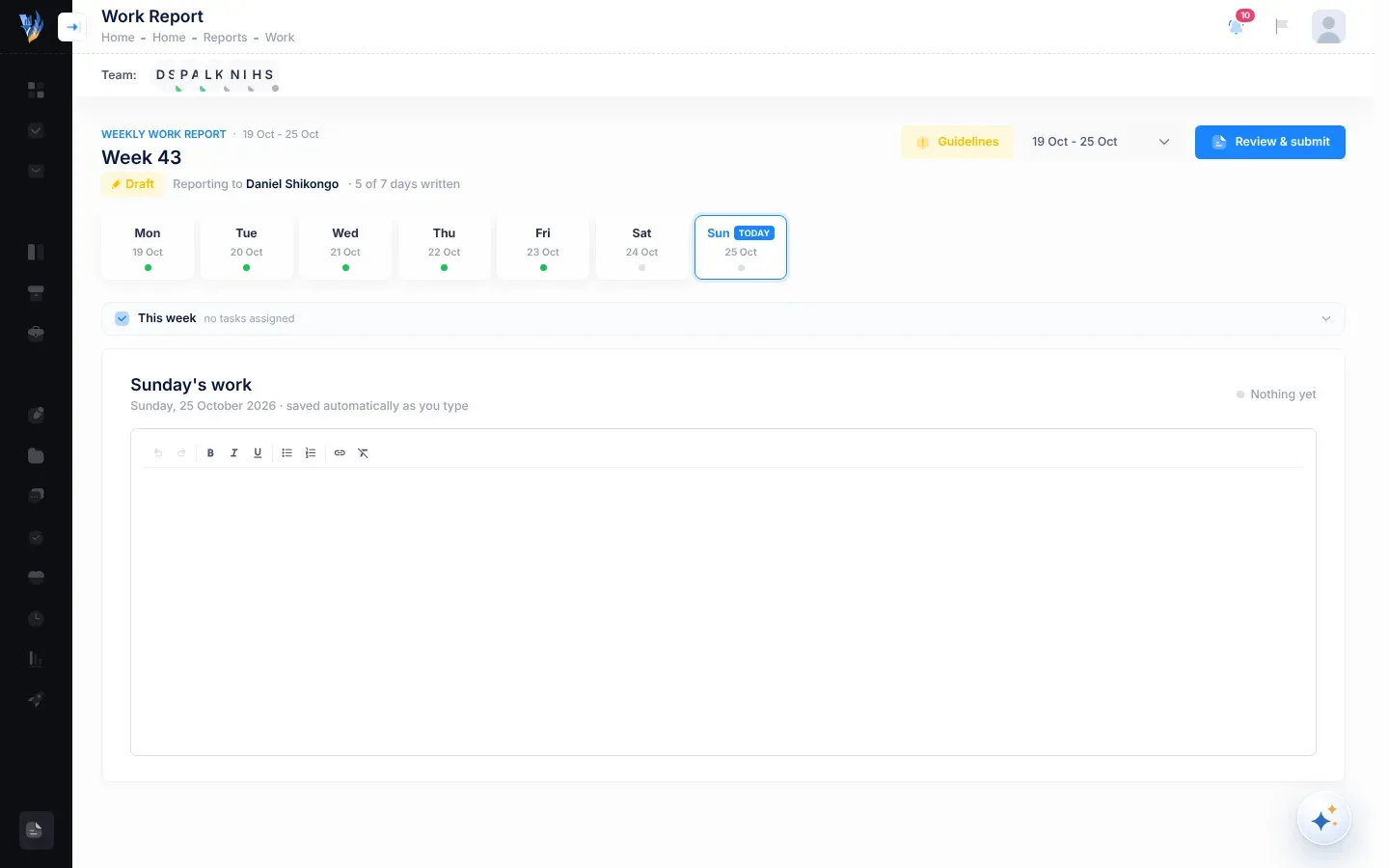
Elke week skryf werknemers en bestuurders ’n werkverslag. Die verslae gaan langs die verslagdoeningslyne op: werknemers doen verslag aan hulle bestuurder, en bestuurders doen verslag aan die HUB. Sien Werkverslae en -rekords.

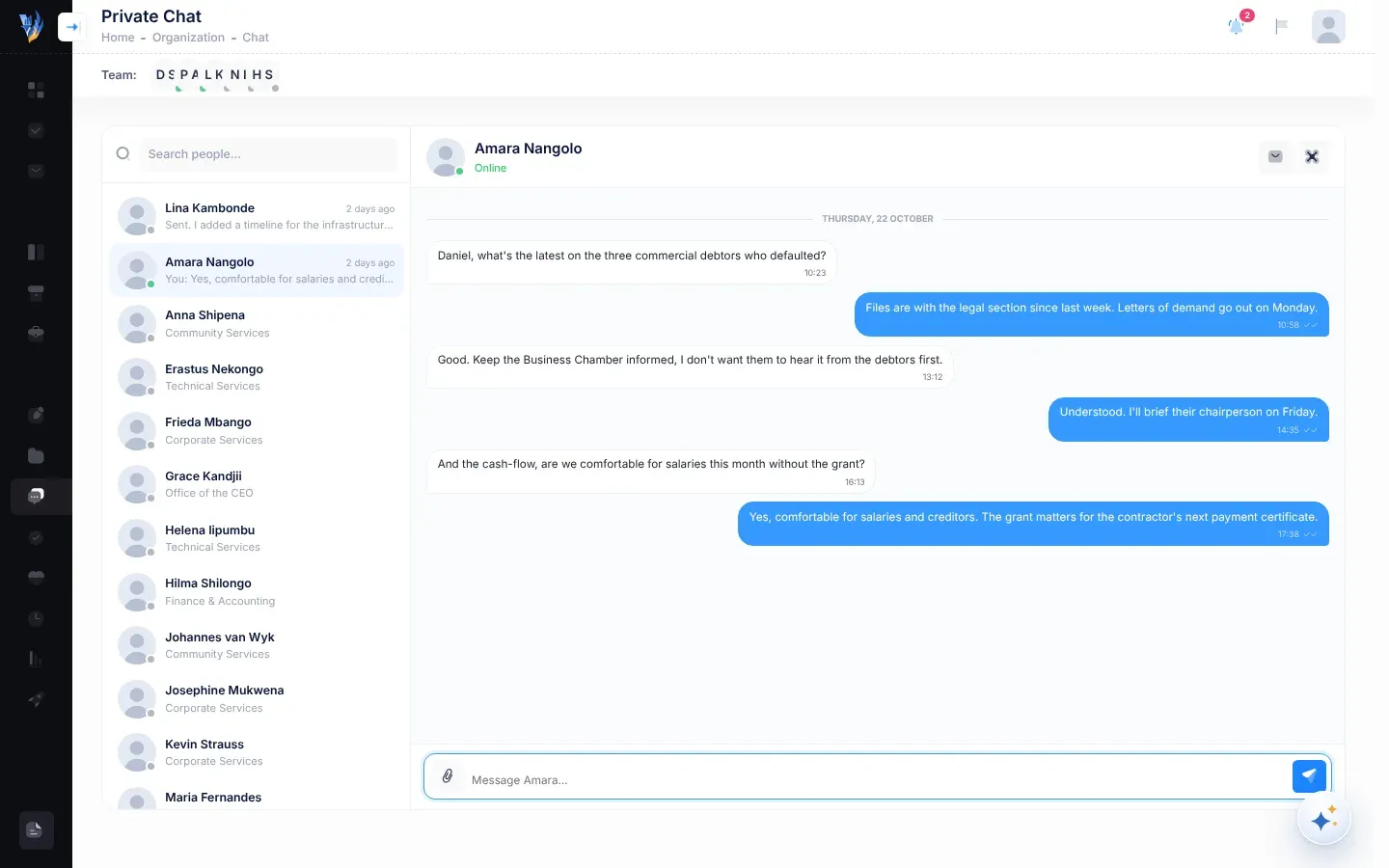
Stuur een-tot-een-boodskappe in Private Chat (privaat klets), sien in die spanbalk wie aanlyn is, en kry kennisgewings oor die dinge wat jou raak. Hou jou dokumente in die File Manager (lêerbestuurder). Sien Kommunikasie en Lêers en dokumente.

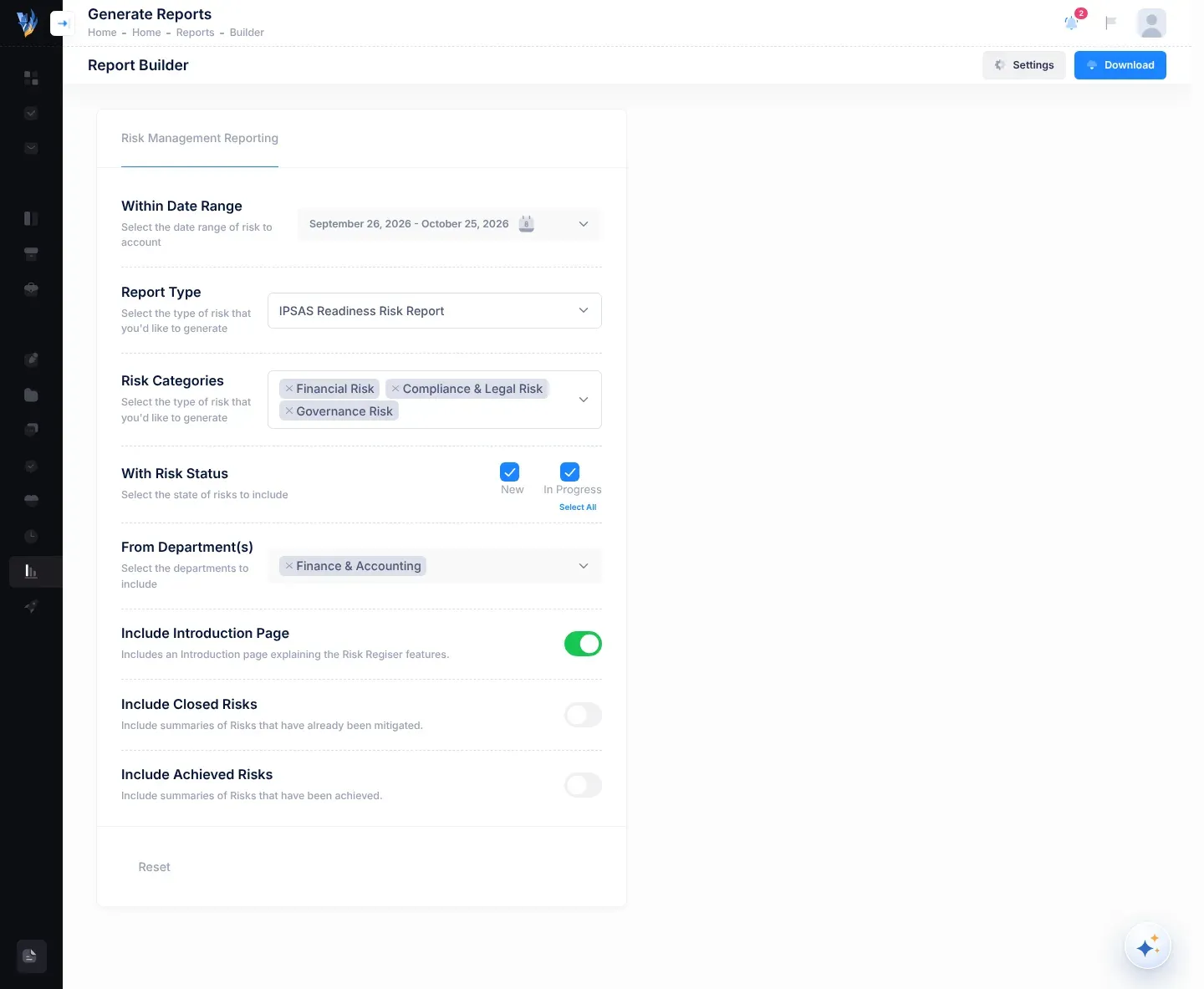
Kontroleborde gee elke rol ’n opsomming van wat vir hulle belangrik is. Activity (aktiwiteit) wys ’n tydlyn van wat vanjaar in jou organisasie gebeur het. Die Report Builder (verslagbouer) maak van jou risiko-inligting verslae wat jy kan aflaai. Sien Kontroleborde en Verslae.

Virgil Copilot is die KI-assistent wat in VirgilTrack ingebou is. Vra dit vrae, of vra dit om werk voor te berei wat jy dan self bevestig. Sien Die KI-assistent.

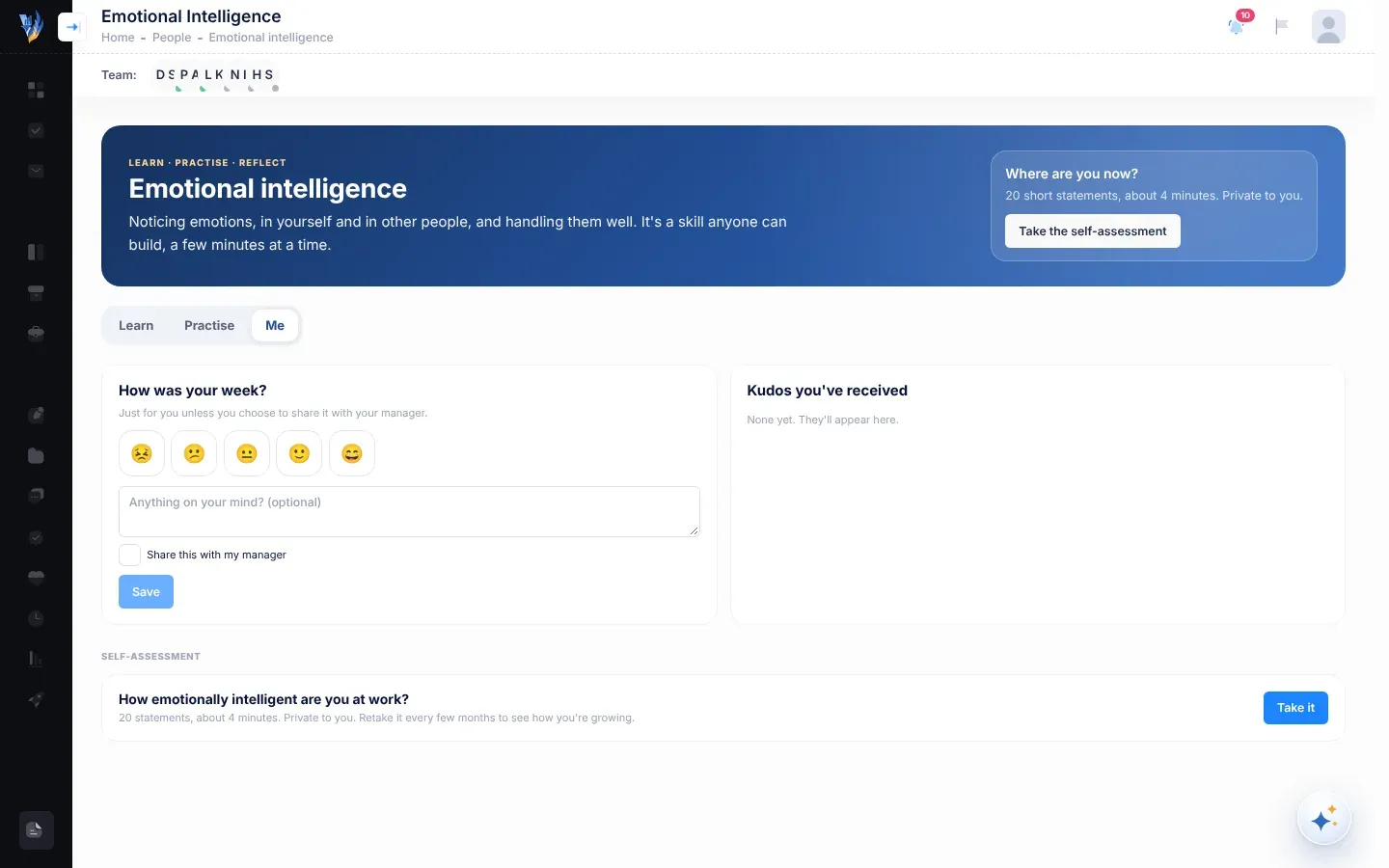
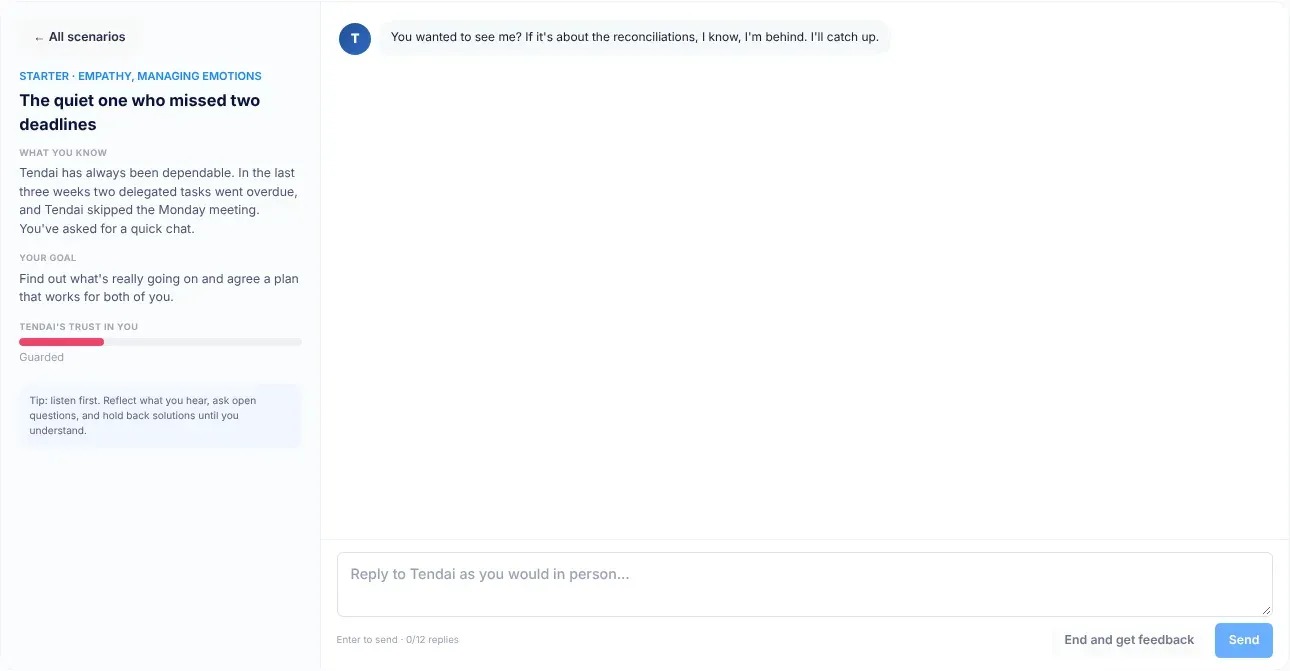
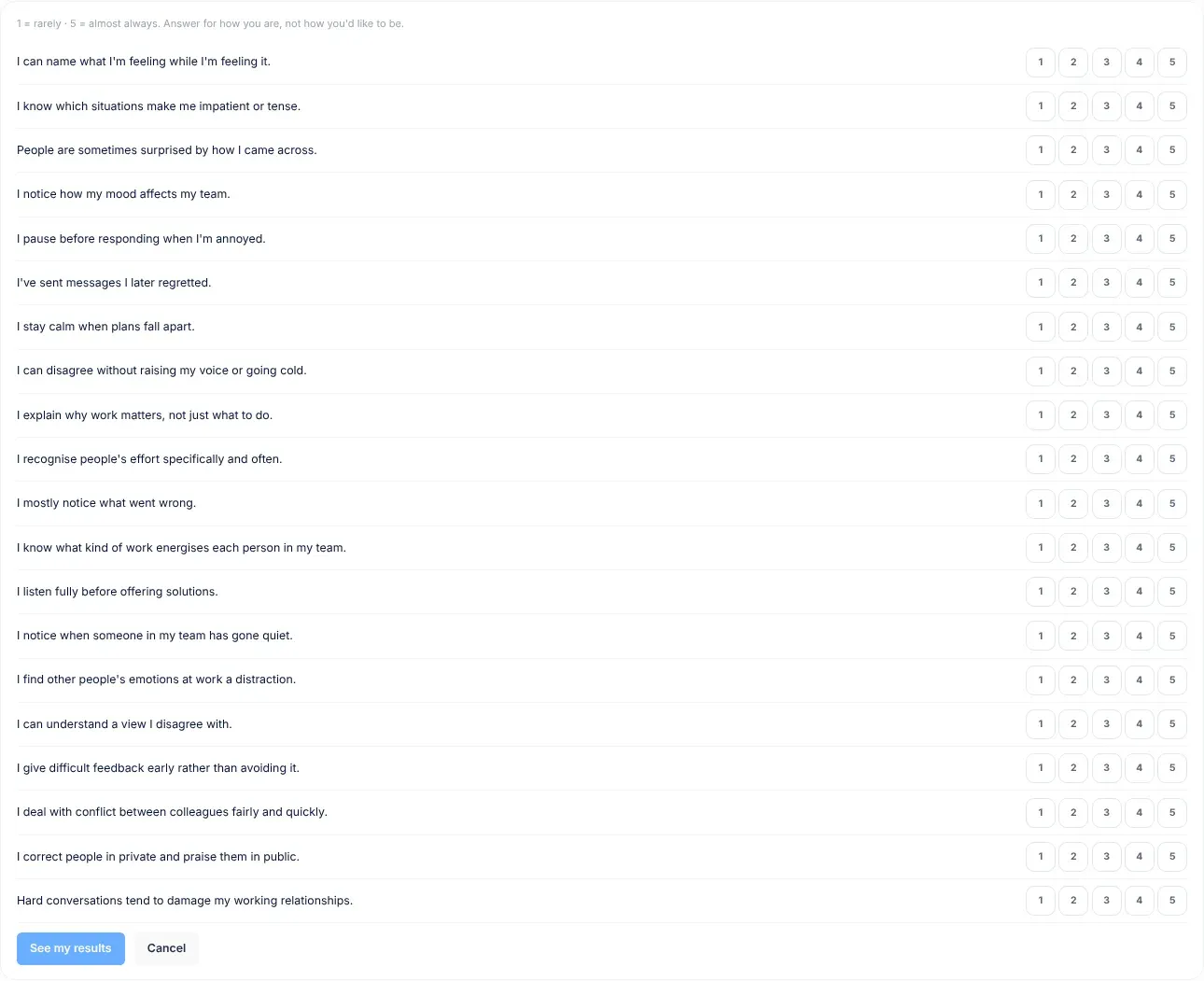
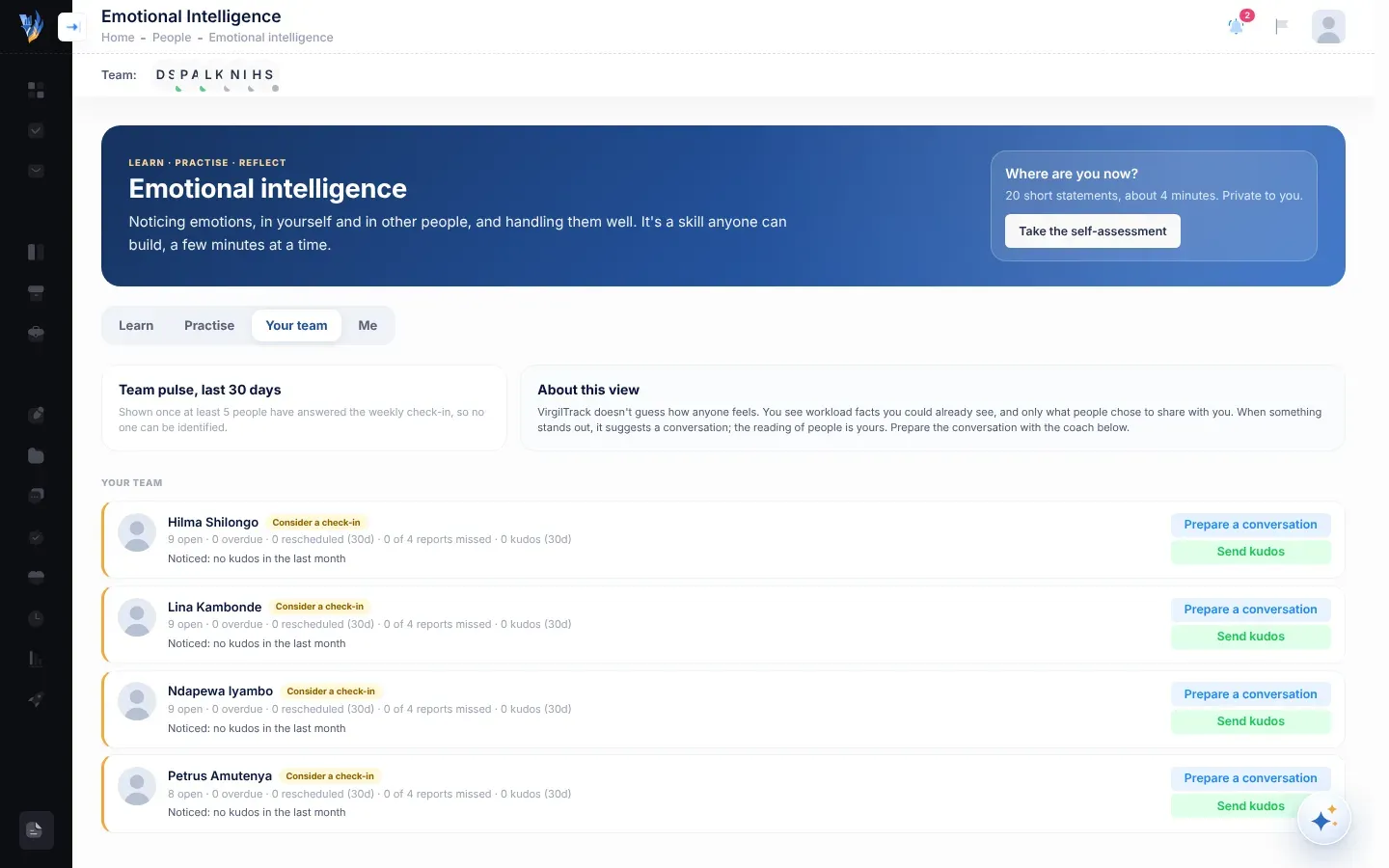
Emotional Intelligence (emosionele intelligensie) bied kort lesse, oefengesprekke en private nadenke, om mense te help om emosies by die werk te hanteer. Sien Emosionele intelligensie.

Administrateurs hersien organisasies se registrasieversoeke, sien om na organisasies en hulle mense, en skep demonstrasieskakels. Sien Platformadministrasie.

VirgilTrack verbind die organisasie se planne met sy daaglikse werk:

  1. Die strategiese plan stel doelwitte, met KPA’s om hulle te meet en inisiatiewe om hulle te bereik.
  2. Take voer die inisiatiewe uit, en die mense wat die take doen, teken hulle vordering aan.
  3. Weeklikse werkverslae stuur wat gedoen is langs die verslagdoeningslyne op, na bestuurders en die HUB.
  4. Risiko’s word deur elke departement aangeteken en kan gekoppel word aan die doelwitte wat hulle bedreig.
  5. Kontroleborde en verslae bring alles bymekaar vir die mense wat dit moet sien.
Jy is Begin met
Nuut by VirgilTrack Aan die gang
’n Werknemer Take, dan Jou weeklikse verslag
’n Bestuurder Risikobestuur, dan Hersien jou span se verslae
Die HUB Strategie en uitvoering, dan Die HUB-kontrolebord
’n Administrateur Platformadministrasie
Besig om ’n nuwe organisasie te registreer Registreer jou organisasie

Is die woorde wat in risikobestuur gebruik word, nuut vir jou? Sien die Woordelys.

Rolle en wat elkeen kan doen

Elkeen wat VirgilTrack gebruik, het een van vier rolle. Jou rol bepaal watter kieslysitems en bladsye jy sien, en wat jy kan verander. Hierdie bladsy gee die groot prentjie; vir die volledige lys, sien Wie kan wat doen.

Rol Wie het dit Wat hulle meestal doen
Employee (werknemer) Personeel en beamptes in ’n departement Werk aan hulle take, skryf ’n weeklikse werkverslag, en hou hulle departement se risiko’s op datum.
Manager (bestuurder) Departementele bestuurders en spanleiers Bestuur ’n departement of span: sy risiko’s, sy inisiatiewe en die weeklikse verslae van sy mense.
CEO (HUB) Die hoof van die organisasie Lei die strategiese plan, lees die hele organisasie se verslae, en besluit wie wat doen.
Administrator (administrateur) VirgilTrack se eie platformpersoneel Hersien registrasies, sien om na elke organisasie op die platform, en berei demonstrasies voor.

Die eerste drie rolle behoort aan mense binne een organisasie. Administrateurs werk vir die platform self, oor alle organisasies heen.

Werknemers doen die daaglikse werk. Hulle sal gewoonlik:

  • aan die take in Tasks (take) werk, en werk wat VirgilTrack in hulle e-pos gevind het, onder From your email (uit jou e-pos) bevestig;
  • hulle weeklikse werkverslag skryf, wat na hulle bestuurder gaan (sien Jou weeklikse verslag);
  • hulle departement se risiko’s in die Risk Register (risikoregister) en op die Kanban Board (Kanban-bord) aanteken en opvolg;
  • die bladsye Work Reports (werkverslae) en Calendar (kalender) in Execution (uitvoering) sien.

Nuut by VirgilTrack? Volg Jou eerste week as werknemer.

Bestuurders is verantwoordelik vir ’n departement, of vir ’n span mense wat aan hulle verslag doen. Daar is twee soorte:

  • ’n Departementele bestuurder bestuur ’n hele departement. By registrasie is dit die persoon wat as Dept. Manager (departementele bestuurder) gemerk is.
  • ’n Spanbestuurder het mense wat aan hom of haar verslag doen, sonder om ’n hele departement te bestuur.

Bestuurders sal gewoonlik:

  • hulle span se weeklikse verslae hersien en dan hulle eie verslag aan die HUB stuur (sien Hersien jou span se verslae);
  • hulle departement se risiko’s bestuur, asook die beheermaatreëls wat dit verminder;
  • die inisiatiewe in hulle deel van die strategiese plan beplan en opvolg;
  • take delegeer en hulle span se vordering dophou.

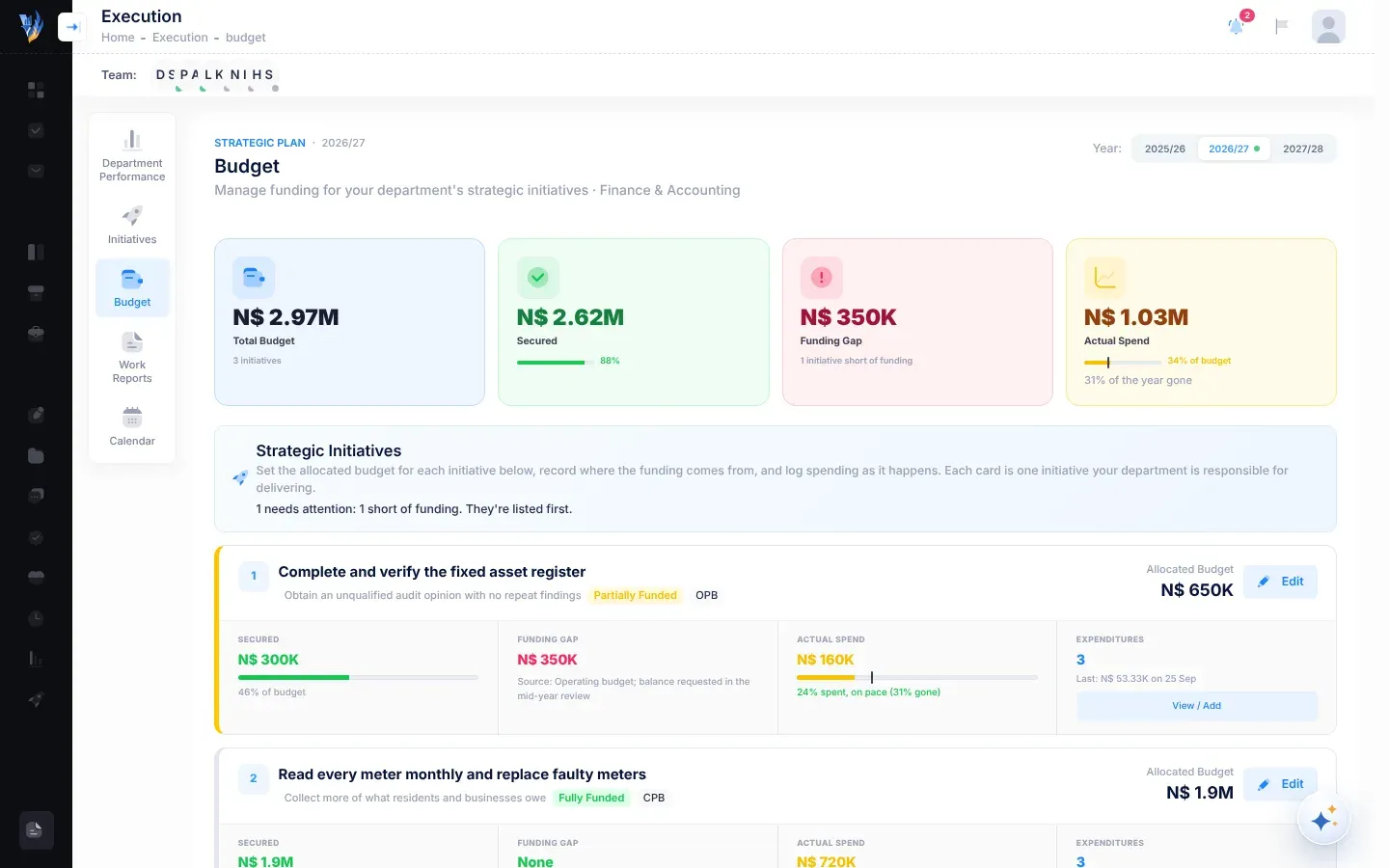
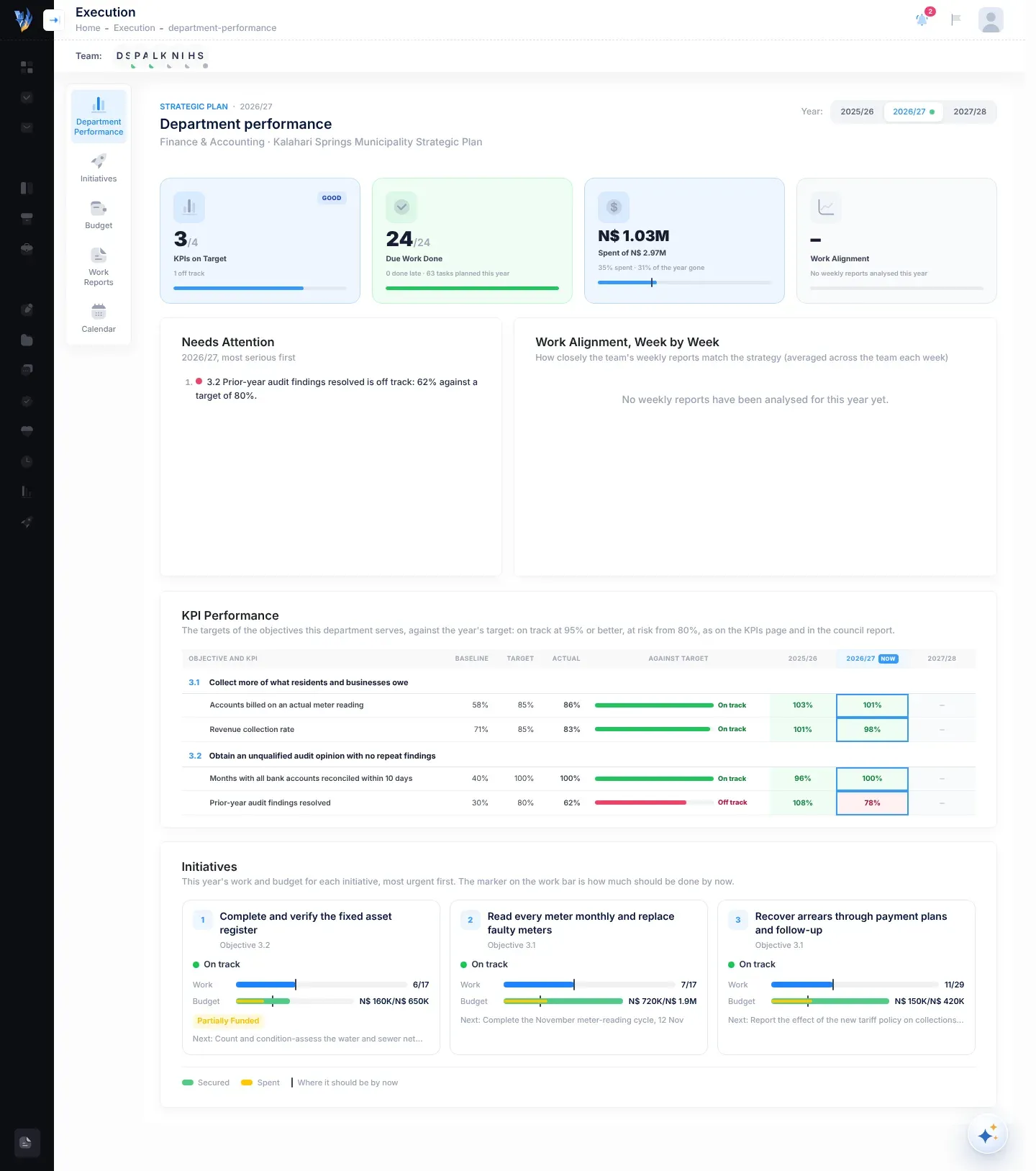
In Execution sien ’n departementele bestuurder Department Performance (departementele prestasie), Initiatives (inisiatiewe), Budget (begroting), Work Reports en Calendar. ’n Spanbestuurder sien Initiatives, Work Reports en Calendar.

Nuut in die rol? Volg Jou eerste week as bestuurder.

Die HUB lei die organisasie in VirgilTrack. Die HUB sal gewoonlik:

  • die strategiese plan in Execution lei: doelwitte, KPA’s, begroting en jaarplanne;
  • die werkverslae lees wat bestuurders opstuur;
  • die hele organisasie op die CEO Dashboard (HUB-kontrolebord) dophou;
  • mense uitnooi, en hulle rolle en verslagdoeningslyne instel onder Roles & permissions (rolle en toestemmings) en Reporting hierarchy (verslagdoeningshiërargie) (sien Instellings);
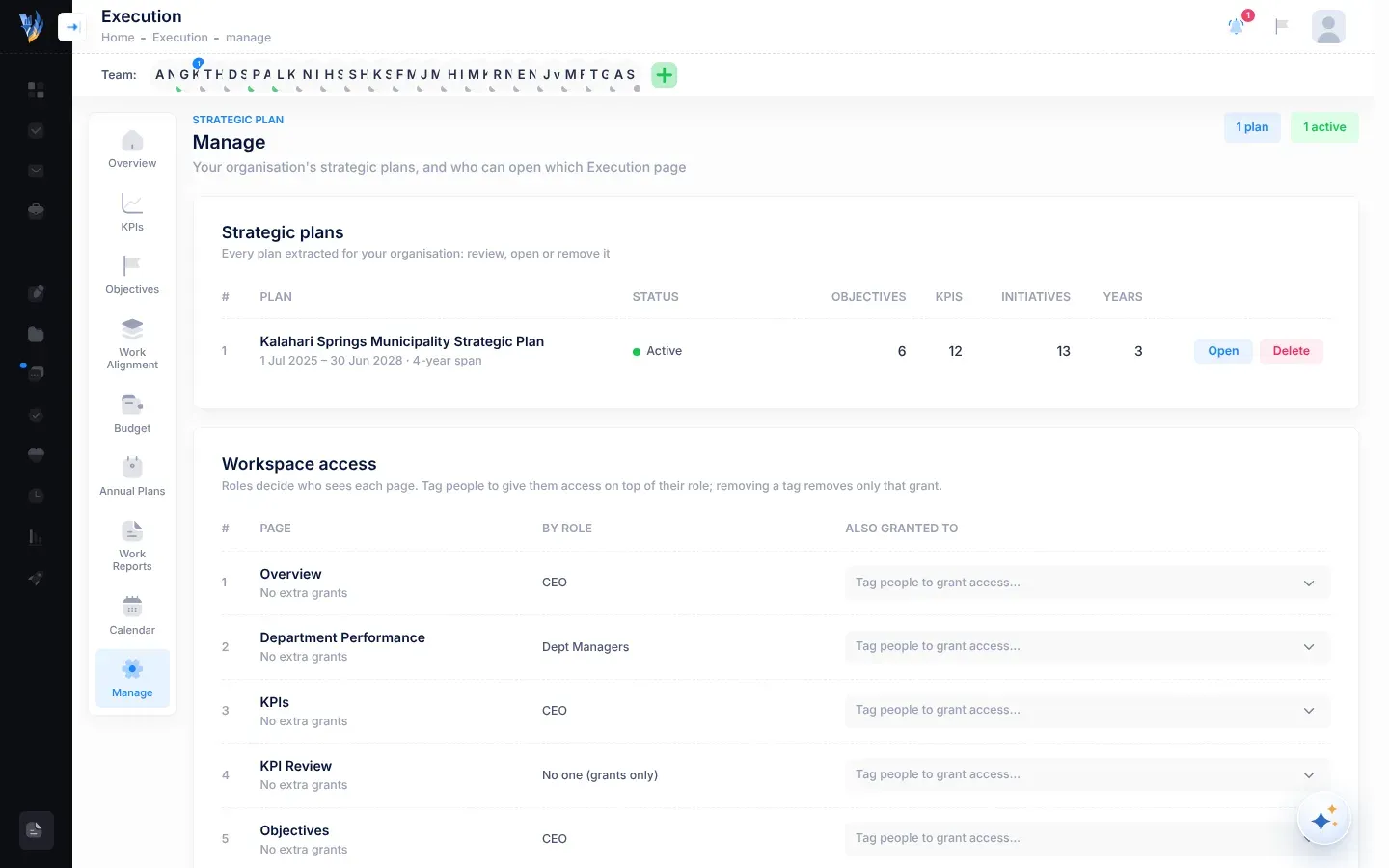
  • besluit wie ekstra Execution-bladsye kan oopmaak, onder Manage (bestuur).

Die kieslys aan die linkerkant wys nie Risk Register, Kanban Board of Risk Repository (risikobewaarplek) vir die HUB nie. In plaas daarvan wys die CEO Dashboard die risiko’s van die hele organisasie.

Rig jy ’n organisasie op wat nuut is by VirgilTrack? Volg Rig jou organisasie stap vir stap op.

Administrateurs is VirgilTrack se eie personeel, nie lede van jou organisasie nie. Hulle:

  • hersien nuwe organisasies se registrasieversoeke en keur dit goed (sien Hersien registrasies);
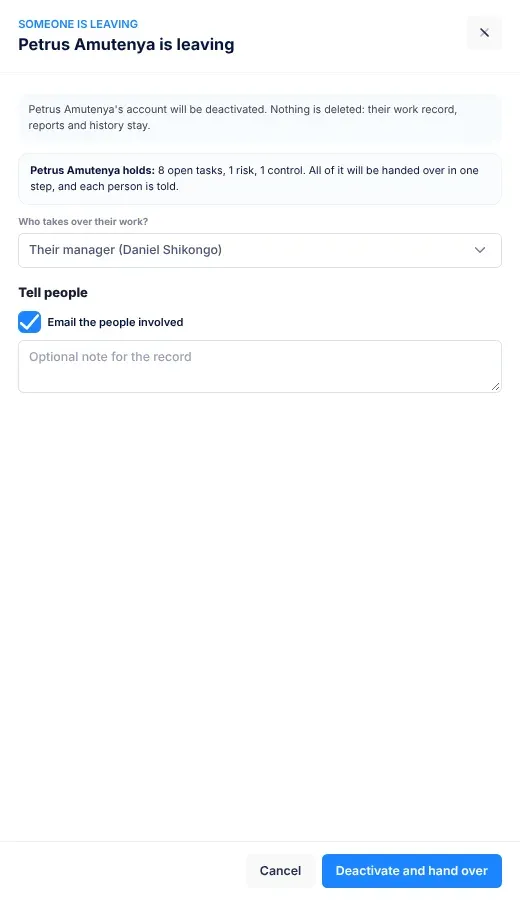
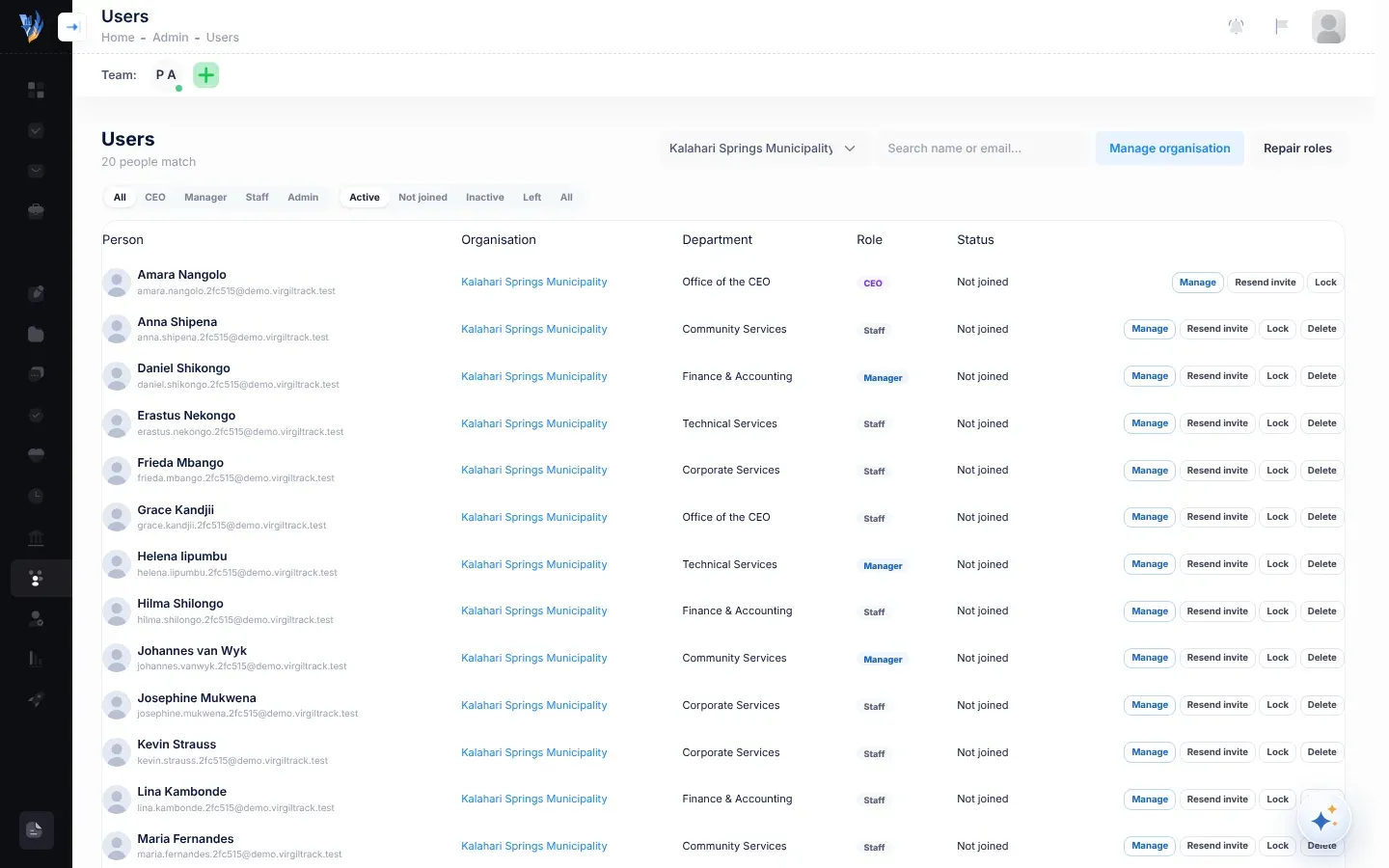
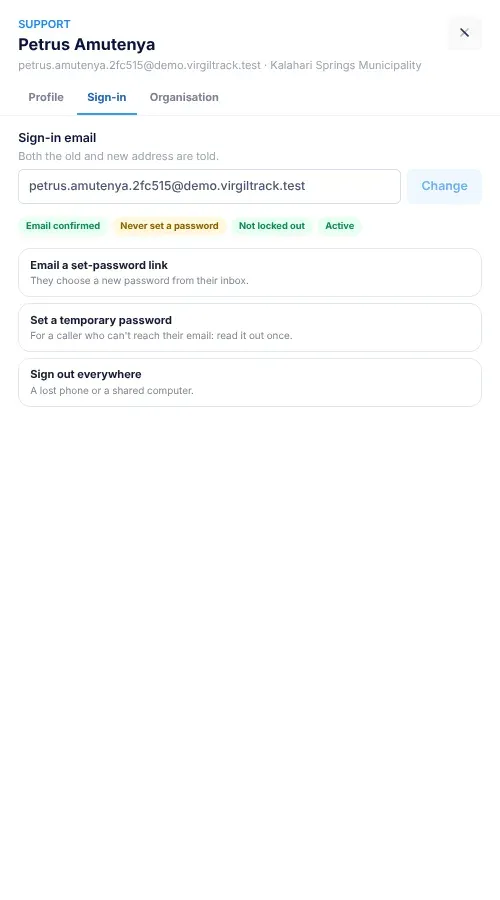
  • sien om na organisasies en hulle mense, byvoorbeeld wanneer ’n HUB of departementele bestuurder verander;
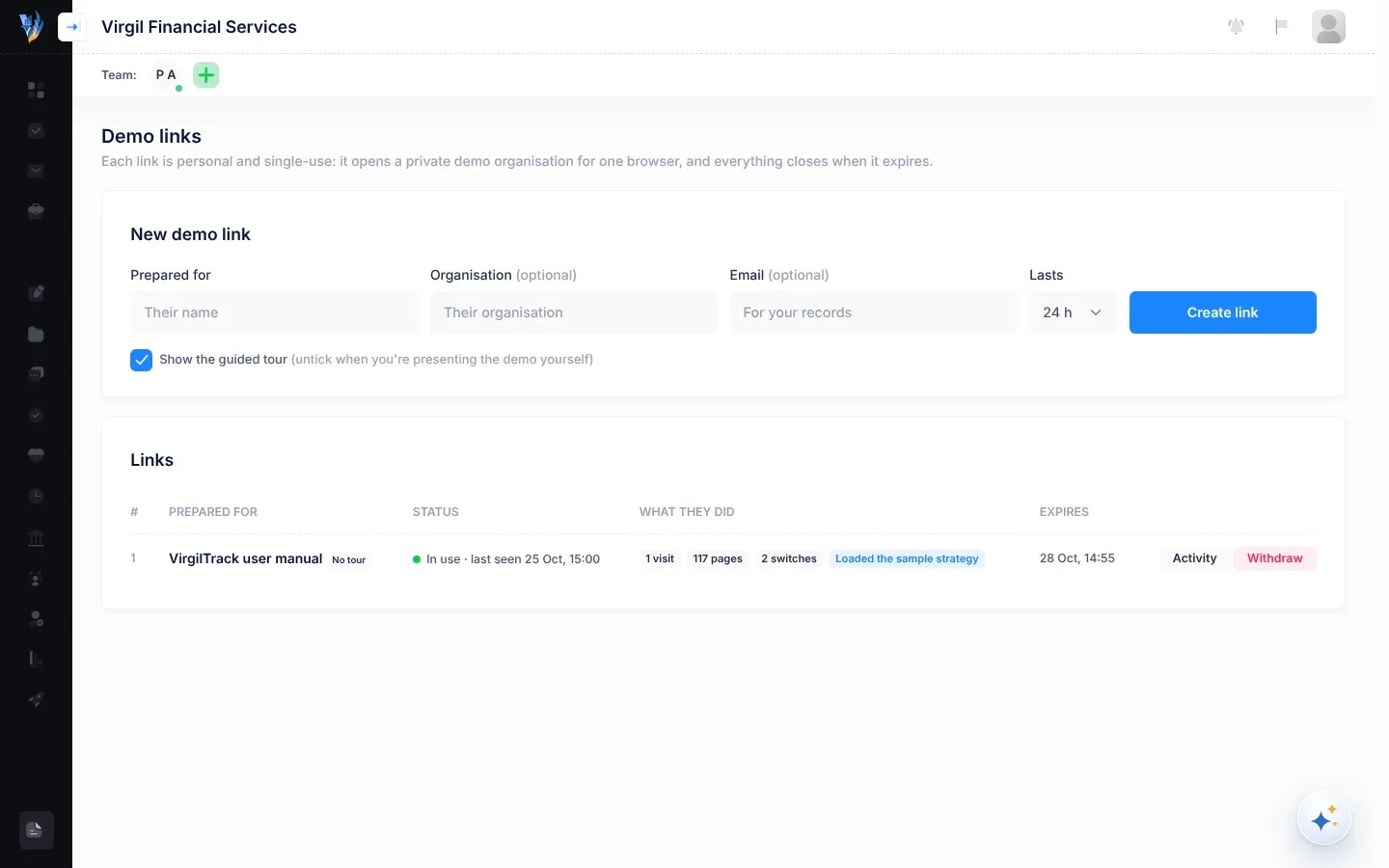
  • skep persoonlike demonstrasieskakels vir mense wat VirgilTrack wil probeer (sien Demonstrasieskakels).

Administrateurs sien drie ekstra kieslysitems: Organizations (organisasies), Users (gebruikers) en Sign Ups (registrasies). Sien Platformadministrasie. Wat ’n administrateur doen wanneer ’n nuwe organisasie opgerig word, lees jy in stap 2 van Rig jou organisasie stap vir stap op.

Execution bevat die strategiese plan. Elke rol sien ’n ander stel van sy bladsye.

Execution-bladsy Werknemer Spanbestuurder Departementele bestuurder HUB
Overview (oorsig) Ja
KPIs (KPA’s) Ja
Objectives (doelwitte) Ja
Work Alignment (werkbelyning) Ja
Department Performance Ja
Initiatives Ja Ja
Budget Ja Ja
Annual Plans (jaarplanne) Ja
Work Reports Ja Ja Ja Ja
Calendar Ja Ja Ja Ja
Manage Ja

Die HUB kan enigiemand ekstra bladsye bo en behalwe hulle rol gee, onder Execution, then Manage. As jy ’n bladsy oopmaak waartoe jy nie toegang het nie, sê VirgilTrack “You don’t have access to this page” (jy het nie toegang tot hierdie bladsy nie) en stel voor dat jy jou HUB vra.

  • Wanneer ’n organisasie registreer, word die persoon onder CEO details (HUB-besonderhede) die HUB, elke persoon wat as Dept. Manager gemerk is, word ’n bestuurder (Manager), en almal anders word ’n werknemer (Employee). Sien Registreer jou organisasie.
  • Wanneer jy later uitgenooi word, kies die persoon wat jou uitnooi of jy ’n bestuurder sal wees.
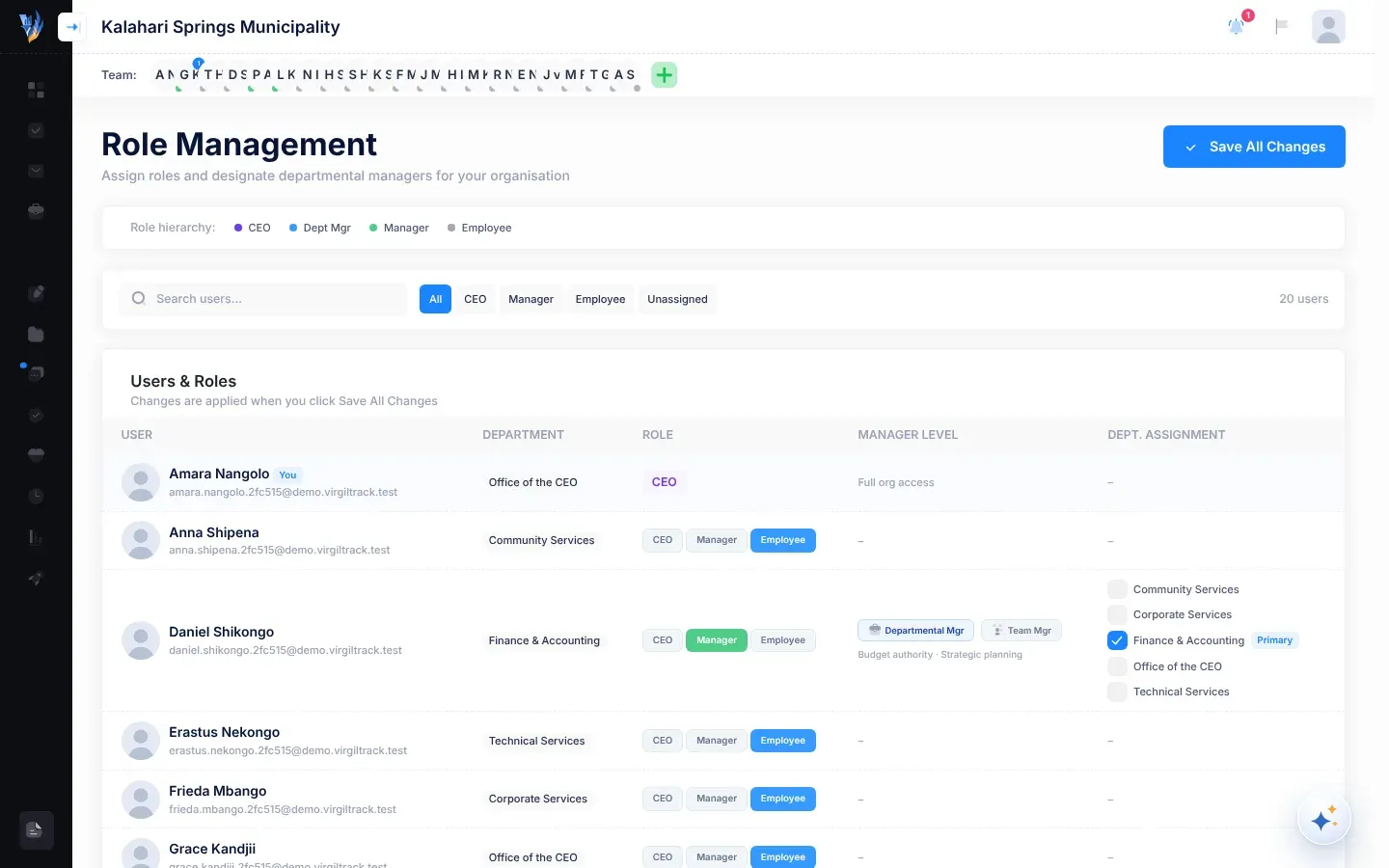
  • Daarna kan die HUB mense se rolle verander en departementele bestuurders kies op die Role Management-bladsy (rolbestuur). Maak dit oop met Your picture, then Roles & permissions.
  • VirgilTrack hou rolle in pas met die verslagdoeningslyne. Onder die HUB is enigiemand wat ’n departement bestuur of mense het wat aan hom of haar verslag doen, ’n bestuurder, en almal anders is werknemers. VirgilTrack kontroleer dit van tyd tot tyd, byvoorbeeld wanneer die HUB Roles & hierarchy (rolle en hiërargie) oopmaak of verander (Your picture, then Reporting hierarchy). ’n Rol wat op Role Management gestel is, kan dus terugverander as dit nie by die verslagdoeningslyne pas nie. Om iemand ’n bestuurder te maak, maak jy hom of haar die bestuurder van ’n departement, of plaas jy mense onder hom of haar in Roles & hierarchy.

Hoe om hierdie handleiding te gebruik

Hierdie handleiding is ’n webwerf. Jy kan dit deursoek, op enige toestel lees, druk, as ’n PDF aflaai, in ander tale lees en aan ’n KI-assistent gee. Hierdie bladsy wys jou hoe.

Kies Soek bo-aan enige bladsy, of druk / of Ctrl + K (Cmd + K op ’n Mac). Tik ’n paar woorde, soos “voeg ’n risiko by” of “wagwoord vergeet”, en kies ’n resultaat om daardie bladsy by die regte afdeling oop te maak.

Soek na die woorde wat jy op die skerm in VirgilTrack sien (hulle is in Engels), of na wat jy wil doen.

  • Die lys aan die linkerkant wys elke hoofstuk en sy bladsye, in leesvolgorde. Op ’n foon maak jy dit oop met die kieslysknoppie bo-aan.
  • Op hierdie bladsy lys die afdelings van die bladsy wat jy lees. Kies een om daarheen te spring.
  • Vorige en Volgende onderaan elke bladsy neem jou in volgorde deur die handleiding.
  • Die tuisblad stel voor waar elke rol kan begin, en lys gewilde take.

Die meeste bladsye verduidelik een taak, soos Registreer jou organisasie, of een skerm. Jy sien op elke bladsy dieselfde dinge:

  • Wie kan dit gebruik: die kentekens onder die titel wys vir watter rolle die bladsy bedoel is: Werknemer, Bestuurder, HUB of Administrateur. Bladsye sonder kentekens is vir almal.
  • Maak oop in VirgilTrack maak die skerm wat die bladsy beskryf in ’n nuwe blaaieroortjie oop. As jy nie aangemeld is nie, vra VirgilTrack jou om eers aan te meld.
  • Genommerde stappe sê vir jou wat om te doen, een handeling op ’n slag.
  • Paaie soos Your picture, then Settings beteken “kies Your picture (jou foto), en dan Settings (instellings)”.
  • Vetgedrukte woorde is presies wat jy op die skerm sien: die name van knoppies, kieslysitems en velde. Omdat VirgilTrack in Engels is, bly hierdie woorde in Engels, met VirgilTrack se eie spelling, soos “Organization”, sodat jy hulle op die skerm kan herken. Soms volg ’n Afrikaanse vertaling tussen hakies.
  • Notas, wenke en waarskuwings staan uit in gekleurde blokke, met die opskrifte Let wel, Wenk en Versigtig. Versigtig waarsku jou oor iets wat moeilik is om ongedaan te maak.
  • Prente van die skerm gebruik ’n versinde demonstrasie-organisasie. Jou skerm kan ’n bietjie anders lyk, afhangende van jou rol en jou organisasie se inligting.
Om dit te doen Doen dit
Laai die hele handleiding as ’n PDF af Kies Laai PDF af bo-aan enige bladsy. Jy kry die handleiding in die taal waarin jy lees.
Druk die hele handleiding Kies Druk bo-aan enige bladsy. Die hele handleiding maak as een lang bladsy oop, met ’n voorblad en ’n inhoudsopgawe. Kies Druk op daardie bladsy.
Druk net een bladsy Maak die bladsy oop en gebruik jou blaaier se drukopdrag, byvoorbeeld Ctrl + P.

In jou blaaier se drukvenster kan jy ook Save as PDF (stoor as PDF) kies om ’n kopie op jou rekenaar te hou.

Die handleiding is in Engels geskryf. Kies ’n ander taal met die taallys bo-aan die bladsy.

  • Afrikaans is aangeskakel. Die handleiding se kieslyste en knoppies is in Afrikaans, en bladsye verskyn in Afrikaans soos hulle vertaal word.
  • Die handleiding is gereed om in Namibië se tale vertaal te word, Oshindonga, Oshikwanyama, Khoekhoegowab, Otjiherero, Rukwangali, Silozi en Setswana, asook in Duits (Deutsch). Elke taal verskyn in die lys sodra die vertaling daarvan begin.
  • ’n Bladsy wat nog nie vertaal is nie, wys die Engelse teks, met ’n kennisgewing in jou taal wat sê dat die bladsy nog nie in jou taal beskikbaar is nie.
  • ’n Vertaling wat nog nie deur ’n moedertaalspreker nagegaan is nie, sê so bo-aan die bladsy. As iets onduidelik is, lees die Engelse bladsy.

VirgilTrack se skerms is in Engels, daarom hou vertaalde bladsye die woorde op die skerm in Engels. Soms volg ’n vertaling tussen hakies die eerste keer wat ’n woord voorkom.

Gebruik die handleiding saam met ’n KI-assistent

Afdeling getiteld “Gebruik die handleiding saam met ’n KI-assistent”

Die vinnigste hulp is binne VirgilTrack: kies die ronde Virgil Copilot-knoppie regs onder op die skerm en vra jou vraag. Sien Die KI-assistent.

Hierdie handleiding word ook in gewone teks gepubliseer, in vorms wat KI-assistente maklik lees. Kies Gebruik met KI bo-aan enige bladsy om die eerste daarvan oop te maak.

Adres Wat dit bevat Gebruik dit wanneer
/llms.txt ’n Lys van elke bladsy, met ’n opsomming van een reël en ’n skakel na ’n kopie in gewone teks Jy wil hê die assistent moet self die regte bladsye kies.
/llms-full.txt Die hele Engelse handleiding in een lêer Jy wil hê die assistent moet alles weet.
Enige bladsy se adres wat op .md eindig Daardie een bladsy as gewone teks, byvoorbeeld /getting-started/sign-in.md Jy het net een onderwerp nodig.
/manual-index.json Elke afdeling van elke bladsy, met sy rolle, skerms en soekwoorde Jy bou ’n hulpmiddel of ’n soekfunksie bo-op die handleiding.

Om ’n KI-assistent oor VirgilTrack uit te vra:

  1. Kopieer die volledige webadres van llms-full.txt (of van die bladsy wat jy nodig het, wat op .md eindig).
  2. Plak dit in ’n KI-assistent wat webbladsye kan lees. As dit nie kan nie, laai die lêer af en heg dit eerder aan.
  3. Vra jou vraag in jou eie woorde, byvoorbeeld “Hoe voeg ek volgens hierdie handleiding ’n risiko in VirgilTrack by?” of “Verduidelik die weeklikse verslag vir my in Oshiwambo”.
  • Jy kan die hele handleiding met ’n sleutelbord gebruik. Druk Tab om tussen skakels en knoppies te beweeg; die eerste druk bied Slaan oor na inhoud aan.
  • Die handleiding werk met skermlesers. Elke prent van die skerm het ’n beskrywing van wat dit wys.
  • Kies ’n ligte of donker voorkoms met die temakieslys bo-aan die bladsy: Donker, Lig of Outomaties, wat jou toestel volg.
  • Jy kan die teks groter maak met jou blaaier se zoemfunksie (Ctrl en +). Die bladsye herrangskik hulself sodat alles pas.
  • Onderaan elke bladsy staan: “Steeds vas? Vra Virgil, die assistent in VirgilTrack, of e-pos” ons ondersteuningsadres, support@virgilfinance.com.
  • Vir antwoorde op algemene vrae, sien Gereelde vrae en Probleemoplossing.
  • Het jy ’n fout in die handleiding gekry? Kies Wysig bladsy onderaan die bladsy om ’n verandering voor te stel, of stuur ’n e-pos aan ondersteuning.
  • Onderaan elke bladsy staan ook die handleiding se uitgawe en datum, sodat jy weet watter weergawe jy lees.

02Aan die gang

Aan die gang

Hierdie hoofstuk neem jou van jou eerste e-pos tot jou eerste werksweek in VirgilTrack. Lees dit een keer wanneer jy aansluit. Kom terug hierheen wanneer jy ’n wagwoord moet herstel of jou besonderhede wil verander.

Jy is Volg
Die HUB (hoof- uitvoerende beampte) van ’n organisasie wat nuut is by VirgilTrack Rig jou organisasie stap vir stap op
’n Bestuurder Jou eerste week as bestuurder
’n Werknemer Jou eerste week as werknemer
’n VirgilTrack-administrateur Platformadministrasie, en stap 2 van Rig jou organisasie stap vir stap op

Weet jy nie watter rol jy het nie? Sien Rolle en wat elkeen kan doen.

Almal in VirgilTrack behoort aan ’n organisasie, soos ’n dorpieraad, ’n dorpsraad of ’n munisipaliteit. Jy sluit op een van hierdie maniere aan.

Jou situasie Wat jy doen Lees
Jou organisasie gebruik nog nie VirgilTrack nie. Vul die registrasievorm in met jou organisasie se besonderhede, departemente en mense. ’n VirgilTrack-administrateur gaan dit na voordat enigiemand uitgenooi word. Registreer jou organisasie, en dan Rig jou organisasie stap vir stap op
Jy het ’n e-pos met die naam “Invitation to Virgiltrack” ontvang. Kies Setup Account (Rig rekening op) in die e-pos, vul jou besonderhede in en bevestig jou e-posadres. Aanvaar ’n uitnodiging
Jy het ’n e-pos met ’n Set my password-knoppie (Stel my wagwoord) ontvang. Kies ’n wagwoord en meld dan aan. Aanvaar ’n uitnodiging
Iemand het vir jou ’n persoonlike demonstrasieskakel gestuur. Maak die skakel oop om ’n voorbeeldmunisipaliteit te verken. Probeer VirgilTrack met ’n demonstrasieskakel
Jy het reeds ’n rekening. Meld aan met jou e-posadres en wagwoord. Meld aan en meld af
  • ’n Webblaaier op ’n rekenaar, tablet of foon. VirgilTrack werk in die blaaier, so daar is niks om te installeer nie.
  • Jou eie werk-e-posadres, en toegang tot die inkassie daarvan. VirgilTrack stuur vir jou skakels en kodes per e-pos terwyl jy jou rekening oprig.
  • ’n Foto van jouself, as ’n PNG- of JPG-lêer. Die opstelvorm vra daarvoor.
  • Jou selfoonnommer. Die opstelvorm vra daarvoor, en VirgilTrack kan dit gebruik om vir jou herinneringe per SMS of telefoonoproep te stuur. Jy kan die nommer dan met ’n kode bevestig, of later in Settings (Instellings).

Rig jy ’n nuwe organisasie op? Begin dan eerder met Rig jou organisasie stap vir stap op.

  1. Rig jou rekening op vanuit jou uitnodigings-e-pos, en bevestig jou e-posadres met die 6-syferkode. Sien Aanvaar ’n uitnodiging.

  2. Meld aan met jou e-posadres en die wagwoord wat jy gekies het. Sien Meld aan en meld af.

  3. Gaan jou profiel na en stel jou tydsone in Your picture, then Settings. Sien Jou profiel en aanmeldbesonderhede.

  4. Leer die dele van die skerm ken: die kieslys, die kopstrook bo-aan en die spanbalk. Sien Vind jou pad.

  5. Volg die gids vir jou rol deur die res van jou eerste week: jou take, jou risiko’s en jou weeklikse verslae.

Meld aan en meld af

Jy meld by VirgilTrack aan met die e-posadres waarheen jou organisasie jou uitnodiging gestuur het, en die wagwoord wat jy gekies het. Meld af wanneer jy klaar is, veral op ’n rekenaar wat ander mense ook gebruik.

  • Jy het ’n VirgilTrack-rekening nodig. As jy ’n uitnodigings-e-pos het maar jou rekening nog nie opgerig het nie, sien Aanvaar ’n uitnodiging.
  • Jy moet jou e-posadres bevestig het, óf met die 6-syferkode wat VirgilTrack vir jou per e-pos gestuur het, óf deur jou wagwoord te kies via ’n skakel in ’n e-pos. Totdat jy dit gedoen het, kan jy nie aanmeld nie.
  1. Maak VirgilTrack in jou webblaaier oop, of kies Maak oop in VirgilTrack bo-aan hierdie bladsy.

    As jy nie aangemeld is nie, gaan die Sign In-bladsy (Meld aan) oop.

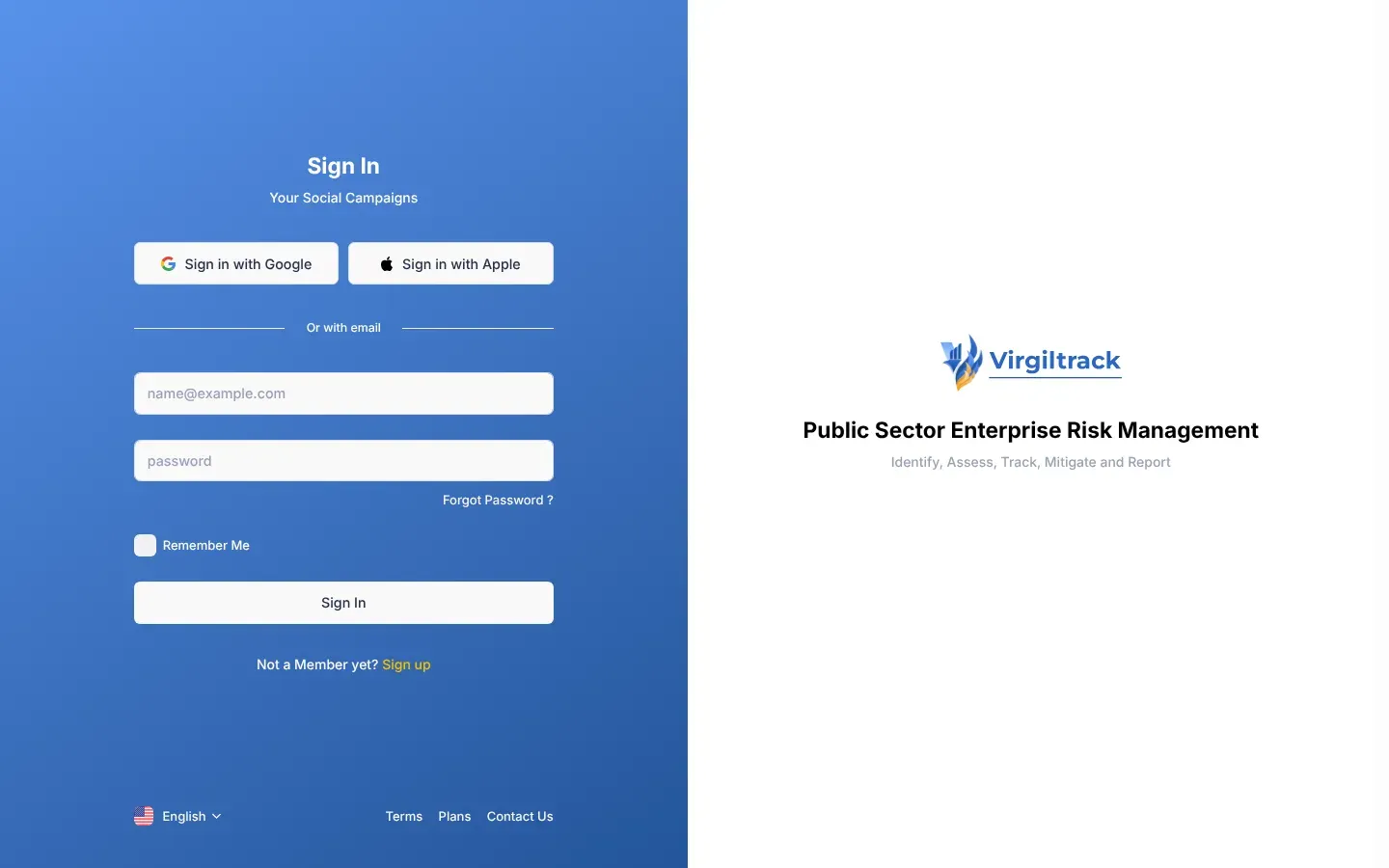
  2. Tik jou e-posadres in die eerste blokkie (dit wys “name@example.com” totdat jy begin tik).

  3. Tik jou wagwoord in die blokkie daaronder.

  4. Kies Sign In.

Die Sign In-bladsy, met die blokkies vir e-posadres en wagwoord, die Forgot Password ?-skakel en die Sign In-knoppie
Die Sign In-bladsy

Nadat jy aangemeld het, maak VirgilTrack die bladsy oop wat by jou rol pas.

Jou rol Eerste bladsy wat jy sien
Administrateur Admin Dashboard
HUB CEO Dashboard
Bestuurder Risk Register
Werknemer Risk Register

As jy ’n skakel na ’n VirgilTrack-bladsy oopgemaak het voordat jy aangemeld het, soos ’n taak in ’n e-pos, neem VirgilTrack jou dikwels eerder reguit na daardie bladsy.

Weet jy nie wat jou rol is nie? Sien Rolle en wat elkeen kan doen.

  1. Kies jou foto regs bo op die skerm.

    Jou rekeningkieslys gaan oop.

  2. Kies Sign Out (Meld af) onderaan die kieslys.

VirgilTrack meld jou af en wys weer die Sign In-bladsy.

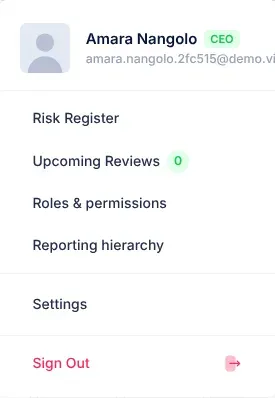
Die rekeningkieslys onder jou foto, met jou naam en e-posadres bo-aan, Settings, en Sign Out onderaan
Jou rekeningkieslys

Het jy ’n foon verloor, of op iemand anders se rekenaar aangemeld? Jy kan op al jou ander toestelle tegelyk afmeld. Sien Meld af op alle ander toestelle.

  • VirgilTrack hou rekord van elke aanmelding, en van elke poging wat misluk het weens ’n verkeerde wagwoord. Jy kan jou eie in Activity Logs (aktiwiteitslogboek) sien: kies die vlag-knoppie in die kopstrook. Sien Vind jou pad.
  • Jou aanmelding hou ’n paar uur, of jy Remember Me merk of nie. Daarna vra VirgilTrack jou om weer aan te meld.
Wat jy sien Wat dit beteken Wat om te doen
“Email or password was incorrect.” Geen rekening gebruik daardie e-posadres nie. Gaan die spelling na. Gebruik die adres waarheen jou uitnodiging gestuur is.
Die Sign In-bladsy gaan weer oop met leë blokkies en geen boodskap nie Die wagwoord was verkeerd. Maak seker dat Caps Lock af is, en probeer weer. As jy jou wagwoord vergeet het, kies Forgot Password ? en sien Herstel ’n vergete wagwoord.
“Please confirm your email first to log in. Click here to confirm” Jy het nog nie jou e-posadres bevestig nie. Kies Click here to confirm en tik die 6-syferkode uit jou e-pos in. Sien Bevestig jou e-posadres.
“Your account was locked out. Please contact the administrator.” Jou rekening is gesluit of afgeskakel, byvoorbeeld omdat jy die organisasie verlaat het. Vra jou HUB of ’n VirgilTrack-administrateur om na jou rekening te kyk.
“The Email field is required.” of “The Password field is required.” ’n Blokkie is leeg gelaat. Vul albei blokkies in.
“The Email field is not a valid e-mail address.” Die e-posadres is nie volledig nie. Tik die hele adres, byvoorbeeld “name@council.gov.na”.
“Your email was already confirmed! Please use this page to log in with your email and password.” Jy het ’n ou opstel- of bevestigingskakel oopgemaak. Niks is fout nie. Meld aan met jou e-posadres en wagwoord.
“No user ID was provided for the requested page.” of “The user with the provided Id was not found” Die bevestigingskakel wat jy oopgemaak het, is onvolledig of verouderd. Kies OK en meld aan. As VirgilTrack dan sê dat jy eers jou e-pos moet bevestig, sien Bevestig jou e-posadres.
“You are not authorized to view this page.” Jy is aangemeld, maar die bladsy is nie vir jou rol beskikbaar nie. Gebruik die kieslys aan die linkerkant om na ’n bladsy te gaan wat jy kan gebruik.
“An unhandled error has occurred.” onderaan die skerm Iets het op die bladsy verkeerd geloop. Kies Reload.

Registreer jou organisasie

As jou organisasie nog nie VirgilTrack gebruik nie, kan jy met die registrasievorm daarvoor aansoek doen. In een slag beskryf jy die organisasie, sy departemente en die mense in elke departement. Die HUB (hoof- uitvoerende beampte), of iemand wat die HUB daarvoor vra, kan die vorm invul.

Kry eers hierdie besonderhede bymekaar. Elke veld op die vorm moet ingevul word.

  • Die organisasie se logo, as ’n PNG- of JPG-prent.
  • Die organisasie se besonderhede: naam, registrasienommer, e-posadres, kontaknommer en volledige adres (land, stad, woonbuurt, straatnaam, ERF en posadres).
  • Die HUB se voornaam, van en e-posadres.
  • Elke departement se naam, en die voornaam, van en e-posadres van almal in daardie departement. Besluit wie elke departement bestuur.
  • Die maand waarin jou boekjaar begin.

Elkeen het hul eie e-posadres nodig. Dieselfde adres kan nie twee keer gebruik word nie, ook nie vir die HUB nie.

  1. Maak die VirgilTrack Sign In-bladsy (Meld aan) oop.
  2. Langs “Not a Member yet?”, kies Sign up (Registreer).

Die registrasievorm het vyf stappe, wat aan die linkerkant van die bladsy gelys word: Organization Type, Organization Info, Department Details, Team Details en Completed. Kies Continue (Gaan voort) om na die volgende stap te gaan, of Previous (Vorige) om terug te gaan.

  1. Onder Choose Organization Type, kies die soort wat pas: Village Council (dorpieraad), Town Council (dorpsraad), Municipality (munisipaliteit) of Other (ander).
  2. Kies Continue.
  1. Voeg die logo by onder Organization Logo. Kies die potlood-knoppie (Upload logo) en kies die prent.
  2. In die Crop Logo-venster, sleep die prent en zoem in totdat dit die blou raam vul. Kies dan Crop (Sny).
  3. Vul Organization Name (naam van die organisasie) en Registration Number (registrasienommer) in.
  4. Vul die organisasie se Email Address en Contact Number in.
  5. Gaan Country (land) na. Dit is op Namibië gestel; kies ’n ander land as jy moet.
  6. Vul City, Locality, Street Name, ERF en Postal Address in.
  7. Kies Continue.
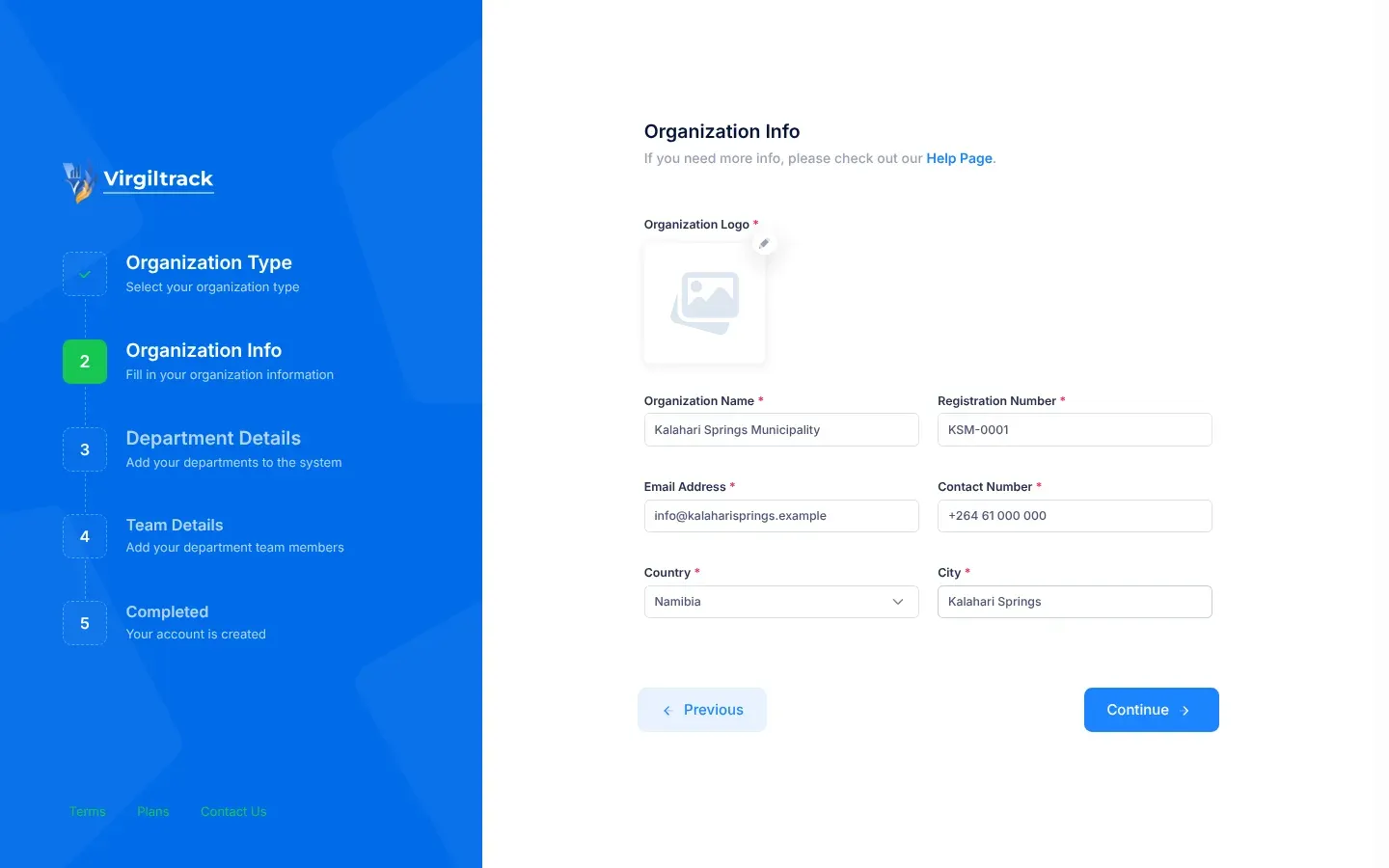
Stap 2 van die registrasievorm, Organization Info, met die logokieser en die velde vir die organisasie se naam, kontakbesonderhede en adres
Stap 2: die organisasie se besonderhede

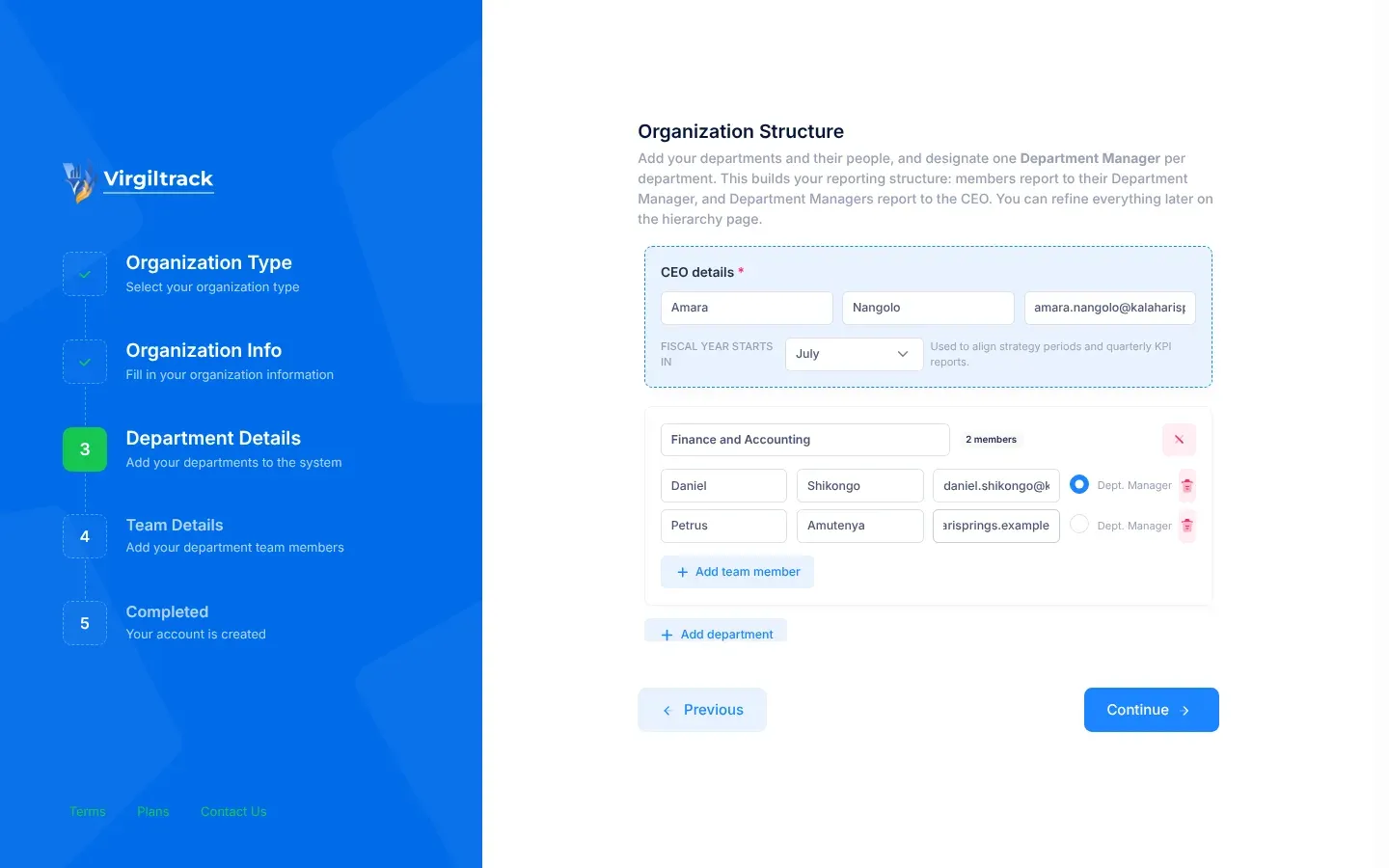
Op Organization Structure bou jy jou verslagdoeningstruktuur: spanlede rapporteer aan hul Department Manager (departementele bestuurder), en departementele bestuurders rapporteer aan die HUB. Jy kan dit later verander.

  1. Onder CEO details, tik die HUB se voornaam, van en e-posadres.
  2. Onder Fiscal year starts in, kies die maand waarin jou boekjaar begin. VirgilTrack gebruik dit om strategietydperke en die kwartaallikse verslae oor sleutelprestasie-aanwysers (KPA’s) in lyn te bring.
  3. Een departement is reeds vir jou gereed. Tik sy naam in die blokkie wat “Department name (e.g. Accounting)” sê. Name mag net letters, syfers en spasies bevat.
  4. Tik die eerste persoon se voornaam, van en e-posadres. Hierdie persoon word as Dept. Manager gemerk.
  5. Kies Add team member (Voeg spanlid by) vir elke ander persoon in die departement, en vul hul besonderhede in.
  6. Maak seker dat Dept. Manager gekies is vir die persoon wat die departement bestuur. Elke departement het presies een.
  7. Kies Add department (Voeg departement by) en herhaal stappe 3 tot 6 vir elke ander departement.
  8. Kies Continue.

Om iemand uit te haal, kies die asblik-knoppie (Remove member) aan die einde van hul ry. As jy die departement se bestuurder uithaal, word die eerste persoon wat in die departement oorbly sy Dept. Manager. Gaan dit na, en verander dit as jy moet. Om ’n hele departement uit te haal, kies die kruisie-knoppie (Remove department) in sy blok.

Moenie die HUB by ’n departement voeg nie. Die HUB het ’n eie blok bo-aan, en VirgilTrack plaas die HUB in ’n departement met die naam Executive Suite (Uitvoerende Kantoor).

Stap 3 van die registrasievorm, met die CEO details, die Fiscal year starts in-lys en ’n departement met sy lede, waarvan een as Dept. Manager gekies is
Stap 3: departemente en hul mense

Review Your Structure wys die verslagdoeningslyne wat VirgilTrack sal skep: die HUB bo-aan, elke departementele bestuurder daaronder, en hul spanlede onder hulle, gemerk Employee (werknemer). Kentekens bo-aan wys die aantal departemente, die aantal mense (die HUB ingesluit) en die maand waarin jou boekjaar begin.

  1. Gaan elke naam, e-posadres en bestuurder na.
  2. As iets verkeerd is, kies Previous en maak dit reg.
  3. Wanneer alles reg is, kies Submit (Dien in).
  4. Wanneer “Organization signed up successfully.” verskyn, kies Ok, got it!.

Die laaste stap, Your Are Done!, bedank jou en verduidelik dat VirgilTrack nou jou inligting sal hersien. Die Sign In-knoppie daar neem jou terug na die Sign In-bladsy, maar niemand kan aanmeld voordat hulle hul rekening vanuit hul uitnodigings-e-pos opgerig het nie.

  1. VirgilTrack se administrateurs word van jou versoek in kennis gestel. Dit verskyn op hul Sign Ups-bladsy, waar dit wag om hersien te word. Sien Hersien registrasies.
  2. Totdat die versoek goedgekeur is, kan niemand van jou organisasie aanmeld nie.
  3. Wanneer ’n administrateur dit goedkeur, ontvang almal wat jy gelys het ’n e-pos met die naam “Invitation to Virgiltrack” en ’n Setup Account-knoppie (Rig rekening op). Die HUB word eerste uitgenooi, dan die bestuurders, en dan almal anders.
  4. Elkeen rig hul eie rekening op. Sien Aanvaar ’n uitnodiging.

Elke persoon se rol kom van die vorm af:

Waar jy hulle gelys het Hul rol in VirgilTrack Aan wie hulle rapporteer
CEO details HUB Niemand
’n Departement, gemerk Dept. Manager Bestuurder, en bestuurder van daardie departement Die HUB
’n Departement, nie gemerk nie Werknemer Hul departementele bestuurder

Weeklikse werkverslae volg hierdie verslagdoeningslyne na bo. Die HUB kan rolle en verslagdoeningslyne later verander, onder Roles & hierarchy in Settings (Instellings). Sien Instellings.

Wat jy sien Wat om te doen
’n Rooi boodskap onder ’n veld, soos “Organization logo is required”, “Organization name is required”, “Registration number is required”, “Organization email is required”, “Contact number is required” of “City is required” Vul daardie veld in, en kies dan weer Continue.
“Invalid email format” Tik die organisasie se volledige e-posadres.
Structure incomplete, met ’n lys probleme Kies Okay, got it!. Dieselfde lys verskyn onder die departemente. Maak elke item reg, en kies dan Continue.
“CEO first and last name are required.” of “A valid CEO email is required.” Voltooi die CEO details-blok.
“Add at least one department.” Kies Add department.
“Every department needs a name.” Tik ’n naam in elke departement se blok.
“…: add at least one member.” Voeg ten minste een persoon by die departement wat genoem word, of verwyder die departement.
“…: designate a Department Manager.” Kies Dept. Manager vir een persoon in daardie departement.
“…: every member needs a first and last name.” of “…: every member needs a valid email.” Voltooi elke ry in daardie departement.
“Duplicate emails: … Each person needs a unique email.” Gee elke persoon ’n ander e-posadres. Maak seker dat die HUB nie weer in ’n departement gelys is nie.
“Duplicate department names: …” Gee elke departement ’n ander naam.
“Please read the following error message(s) carefully.” gevolg deur ’n lys soos “The OrganizationLocality field is required.” ’n Veld is leeg gelaat, soos Locality, Street Name, ERF of Postal Address. Kies Previous om terug te gaan na Organization Info en vul dit in, en kies dan weer Submit.
“Sign-up failed because of a problem on our side. Please try again, or contact support if it keeps happening.” Kies weer Submit. As dit aanhou gebeur, stuur ’n e-pos aan die ondersteuningspan.

Rig jou organisasie stap vir stap op

Wie kan dit gebruik:HUBAdministrateur

Hierdie bladsy neem ’n nuwe organisasie van die registrasievorm tot sy eerste weeklikse verslae. Doen die stappe in volgorde, want elke stap het die vorige een nodig. Elke stap sê wie dit doen en skakel na die bladsy met die besonderhede.

  • Besluit wie die registrasievorm invul. Die HUB (hoof- uitvoerende beampte) kan dit doen, of iemand wat die HUB daarvoor vra.
  • Kry die besonderhede bymekaar wat die vorm vra: die logo, die organisasie se besonderhede, die HUB se besonderhede, elke departement met die naam en e-posadres van almal daarin, wie elke departement bestuur, en die maand waarin jou boekjaar begin. Sien Registreer jou organisasie.
  • Hou jou strategiese plan as ’n PDF gereed. Jy het dit in stap 8 nodig.
Stap Wie doen dit Besonderhede
1. Registreer jou organisasie Die HUB, of iemand wat die HUB daarvoor vra Registreer jou organisasie
2. Keur die registrasie goed ’n VirgilTrack-administrateur Hersien registrasies
3. Rig jou rekening op Almal wat uitgenooi is, met die HUB eerste Aanvaar ’n uitnodiging
4. Kyk hoe jou departemente verskyn Die HUB Departemente
5. Gaan elke departement se bestuurders na Die HUB of ’n administrateur Bestuur ’n departement
6. Nooi enigiemand uit wat ontbreek Die HUB of ’n administrateur Nooi spanlede uit
7. Gaan na wie aan wie rapporteer Die HUB of ’n administrateur Verslagdoeningslyne en rolle
8. Bring jou strategiese plan in en keur dit goed Die HUB Bring jou strategiese plan in en Hersien en keur ’n ingevoerde plan goed
9. Stel begrotings vas en beplan die inisiatiewe se take Departementele bestuurders en die HUB Ken ’n inisiatief se begroting toe en Beplan ’n inisiatief se take
10. Vul die risikoregisters Bestuurders en hul personeel Die risikobewaarplek en Voeg ’n risiko by
11. Begin met weeklikse verslagdoening Almal Werkverslae en -rekords

Wie kan dit gebruik:HUB

Maak die VirgilTrack Sign In-bladsy (Meld aan) oop en kies Sign up (Registreer) langs “Not a Member yet?”. Die vorm vra eers die soort organisasie en sy besonderhede, en dan sy struktuur: die HUB, die maand waarin jou boekjaar begin, en elke departement met sy mense.

Merk in elke departement die persoon wat dit bestuur as Dept. Manager. Die vorm bepaal almal se eerste rol:

  • die persoon onder CEO details word die HUB;
  • elke Dept. Manager word ’n bestuurder (Manager), en die bestuurder van daardie departement;
  • almal anders word werknemers (Employee).

Lys nou al die departemente. VirgilTrack het geen knoppie om later ’n departement by te voeg nie.

Die vorm word nie halfpad gestoor nie, so maak dit in een sitting klaar. Sien Registreer jou organisasie.

Stap 2: Virgil Finance keur die registrasie goed

Afdeling getiteld “Stap 2: Virgil Finance keur die registrasie goed”

Wie kan dit gebruik:Administrateur

VirgilTrack se administrateurs, die personeel van Virgil Finance wat die platform bedryf, gaan elke nuwe registrasie na. Totdat een van hulle dit goedkeur, kan niemand van jou organisasie aanmeld nie.

As jy die administrateur is:

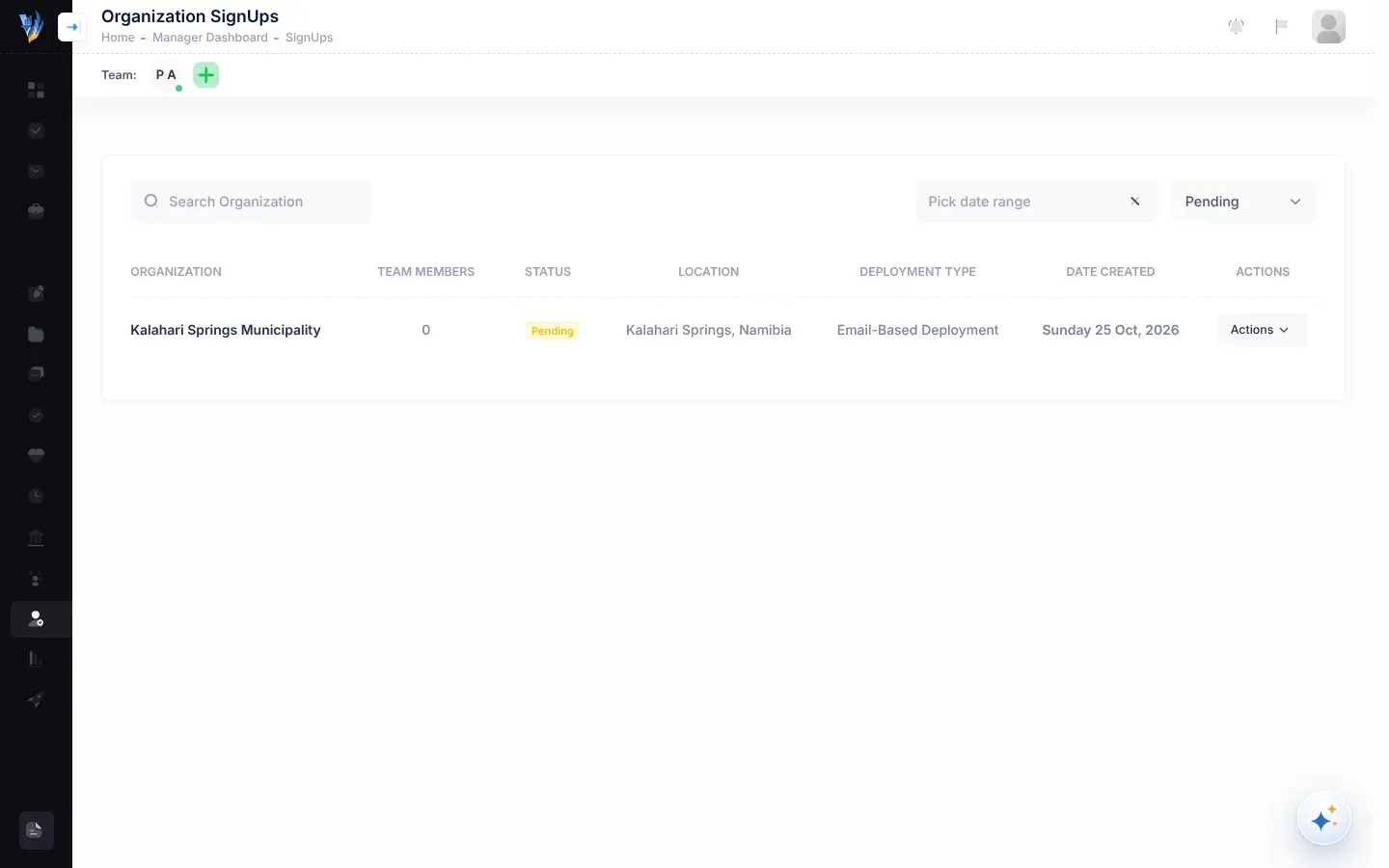
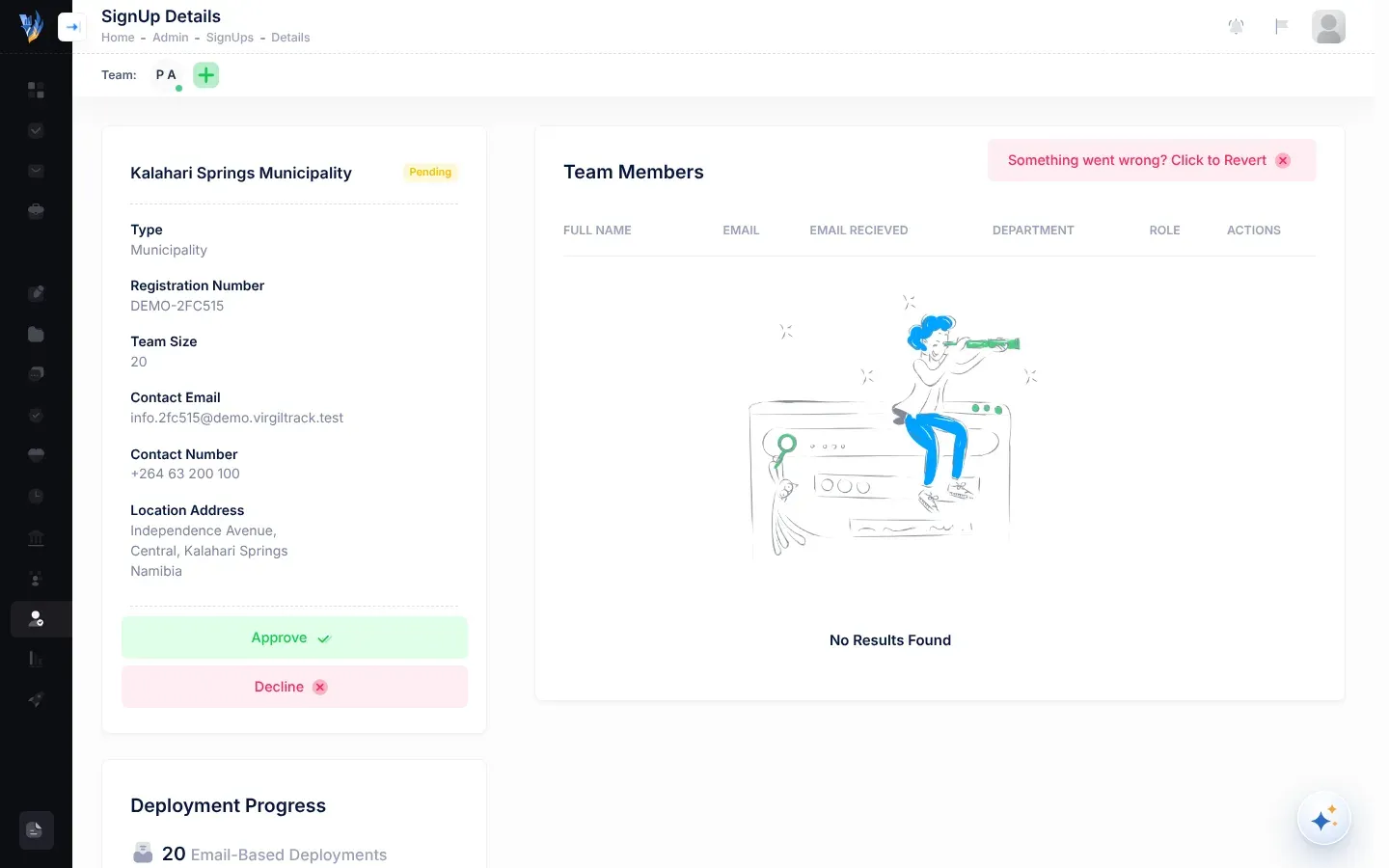
  1. Maak Sign Ups oop en kies die organisasie se naam.
  2. Gaan die besonderhede en die Team Members-tabel na. Elke departement moet iemand hê wat in die kolom Role as Manager gemerk is.
  3. Kies Approve (Keur goed), en dan Yes, I confirm!.
  4. Wag vir die venster wat sê hoe die uitnodigings verloop het. As sommige nie uitgegaan het nie, kies Retry Failed Deployments op dieselfde bladsy.

Wanneer die registrasie goedgekeur word, word almal op die vorm per e-pos uitgenooi: die HUB eerste, dan die bestuurders, en dan almal anders. Sien Hersien registrasies.

Wie kan dit gebruik:Almal

Almal op die vorm ontvang ’n e-pos met die naam “Invitation to Virgiltrack”. Elke persoon kies Setup Account (Rig rekening op), vul hul besonderhede in, kies ’n wagwoord en bevestig hul e-posadres met die 6-syferkode wat VirgilTrack vir hulle stuur. Dan kan hulle aanmeld.

As HUB word jy eerste uitgenooi. Rig jou rekening op sodra die e-pos aankom, sodat jy gereed is wanneer jou bestuurders en personeel aansluit. Wanneer jy aanmeld, maak VirgilTrack die CEO Dashboard (HUB-kontrolebord) oop.

Sê vir almal op die vorm om uit te kyk vir die e-pos, en om hul strooipos- of gemorsposvouer na te gaan as dit nie aankom nie. Sien Aanvaar ’n uitnodiging en Meld aan en meld af.

Wie kan dit gebruik:HUBAdministrateur

VirgilTrack skep elke departement wanneer die eerste persoon wat daarvoor uitgenooi is, hul rekening oprig. Tot dan is die departement nie op die Departments-bladsy nie, en niemand kan dit kies nie, byvoorbeeld wanneer hulle iemand uitnooi of ’n inisiatief aan ’n departement gee.

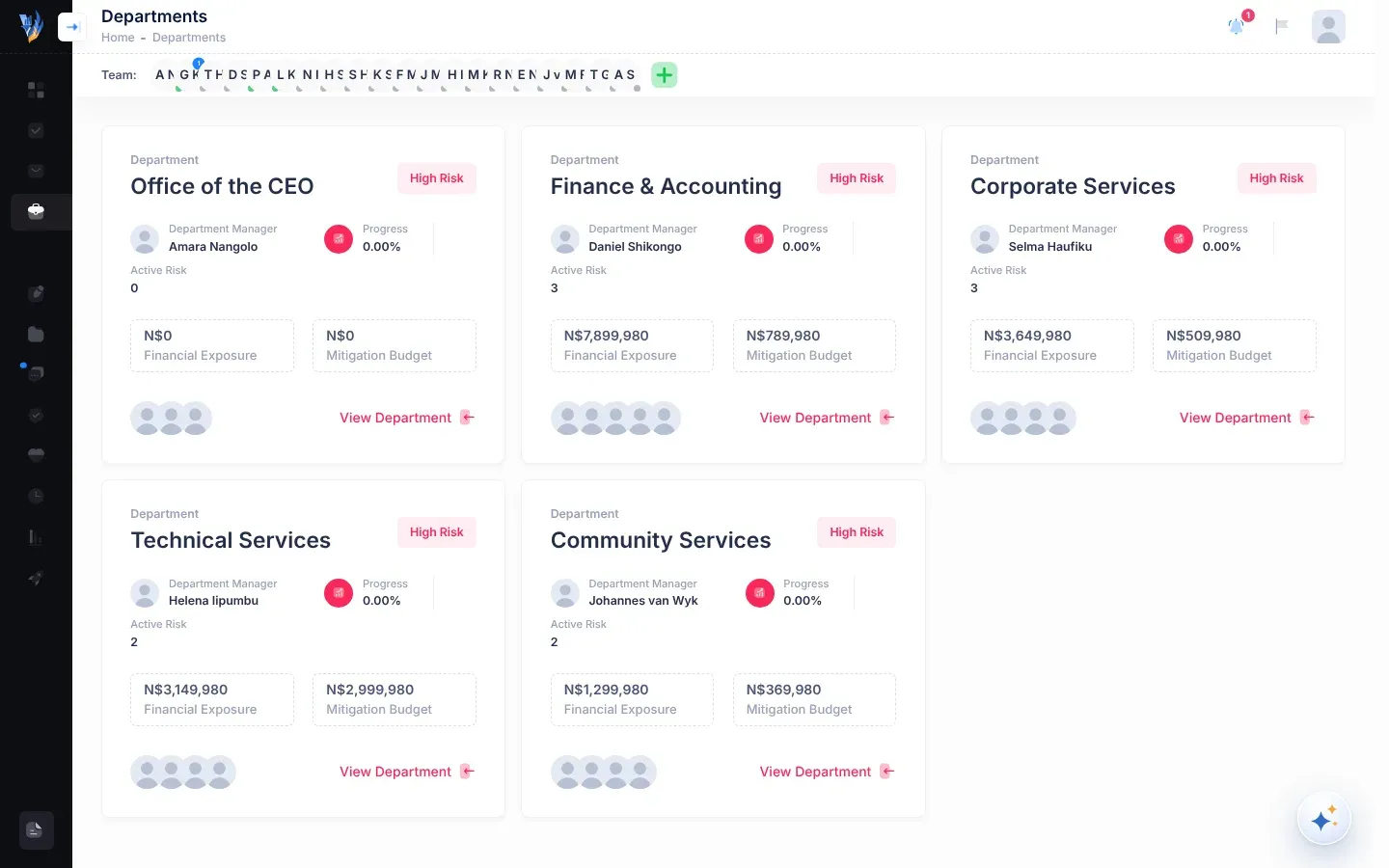
  • Maak Departments oop om te sien watter departemente daar tot dusver is. Elke kaart wys die departement se bestuurder en die foto’s van die mense wat aangesluit het.
  • Die Team:-balk (spanbalk) onder die kopstrook wys vir jou almal in die organisasie wat aangesluit het.
  • Jou eie departement, Executive Suite (Uitvoerende Kantoor), word nie op die Departments-bladsy gelys nie.
  • ’n Departement waar vanjaar nog geen risiko’s aangeteken is nie, wys 0% en High Risk. Dit beteken nie dat iets fout is nie: daar is nog niks om te meet nie.

Sien Departemente en Die Departments-bladsy.

Wie kan dit gebruik:HUBAdministrateur

Elke persoon wat op die vorm as Dept. Manager gemerk is, word hul departement se bestuurder wanneer hulle hul rekening oprig. ’n Departement sonder ’n bestuurder wys No manager: assign op sy kaart.

Om self ’n departement se bestuurders te kies:

  1. Maak Departments oop en kies View Department op die departement se kaart.
  2. Kies 2 People.
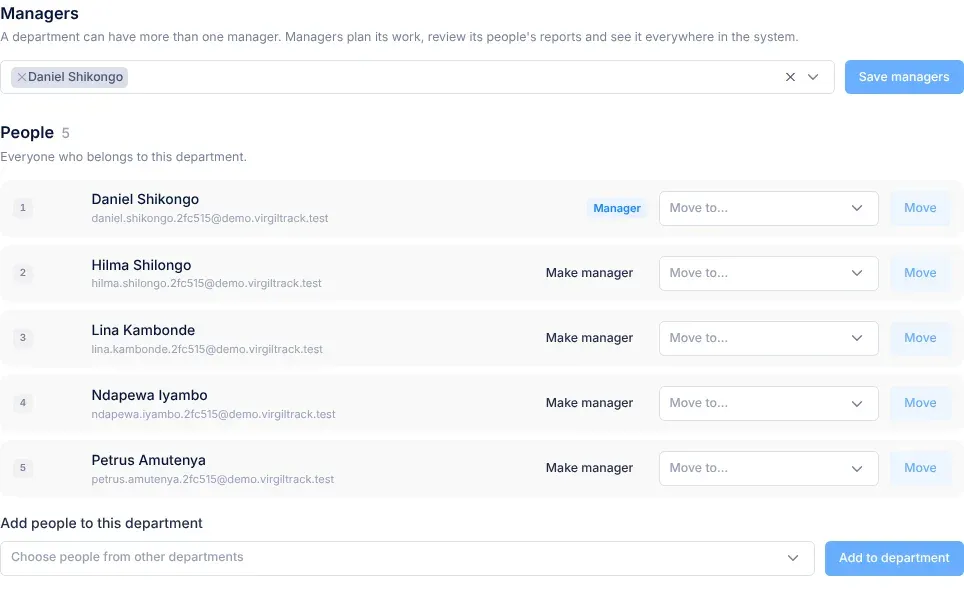
  3. Onder Managers, tik ’n deel van ’n persoon se naam en kies die persoon. ’n Departement kan meer as een bestuurder hê.
  4. Kies Save managers.

Jy kan net mense kies wat hul rekening reeds opgerig het. Sien Bestuur ’n departement.

Wie kan dit gebruik:HUBAdministrateur

As iemand nie op die registrasievorm was nie, of later by die organisasie aansluit, nooi hulle self uit.

  1. In die Team:-balk onder die kopstrook, kies die groen plus-knoppie, Invite a team member (Nooi ’n spanlid uit).
  2. Vul First name, Last name en Email Address in.
  3. In Department, kies die departement waarby die persoon sal aansluit. Net departemente wat reeds bestaan, word gelys.
  4. As die persoon daardie departement sal bestuur, merk Tick if the person will be a manager in this department?
  5. Kies Invite.

Die persoon ontvang dieselfde “Invitation to Virgiltrack”-e-pos en rig hul rekening daarmee op. Sien Nooi spanlede uit.

Wie kan dit gebruik:HUBAdministrateur

Weeklikse werkverslae beweeg met die verslagdoeningslyne op, so gaan hierdie lyne na voordat verslagdoening begin. Soos mense aansluit, plaas VirgilTrack elke werknemer onder hul departement se bestuurder, en elke bestuurder onder jou. ’n Werknemer wie se departement nog geen bestuurder in VirgilTrack het nie, word onder jou geplaas.

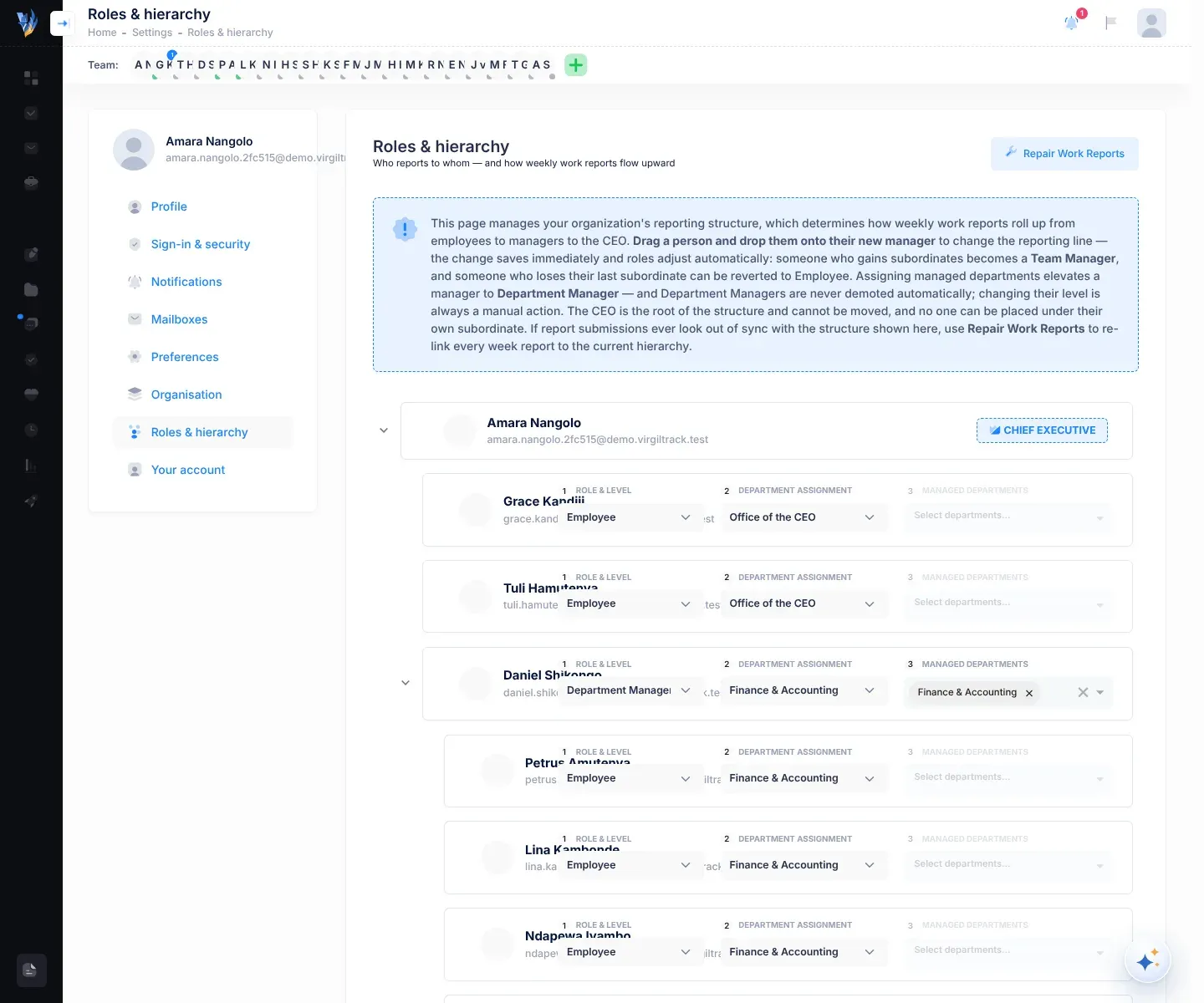
  1. Maak Your picture, then Reporting hierarchy oop.
  2. Maak seker dat almal onder die persoon staan aan wie hulle rapporteer.
  3. Om iemand se bestuurder te verander, sleep hul ry op hul nuwe bestuurder se ry. Wag vir “Hierarchy updated successfully!”.
Die afdeling Roles & hierarchy: die HUB bo-aan die boom met die Chief Executive-kenteken, elke persoon ingekeep onder die persoon aan wie hulle rapporteer, met hul blokkies Role & Level, Department Assignment en Managed Departments, en Repair Work Reports regs bo
Gaan die verslagdoeningslyne na
  • Om ’n span binne ’n departement op te stel, sleep die spanlede op die spanleier. Die spanleier word dan ’n Team Manager (spanbestuurder).
  • As jy ’n departement se bestuurders op die departement se bladsy kies, skuif dit niemand nie. Sleep die departement se mense hier op hul nuwe bestuurder.
  • Elke verandering op hierdie bladsy word dadelik gestoor.

Sien Verslagdoeningslyne en rolle.

Stap 8: Bring jou strategiese plan in en keur dit goed

Afdeling getiteld “Stap 8: Bring jou strategiese plan in en keur dit goed”

Wie kan dit gebruik:HUB

Wag totdat elke departement wat in jou plan genoem word, in VirgilTrack verskyn het. Elke inisiatief in die plan moet aan een van jou departemente gegee word voordat jy die plan kan goedkeur, en jy kan net departemente kies wat bestaan.

  1. Maak Execution (uitvoering) oop. Solank jou organisasie geen strategiese plan het nie, wys dit die oplaaibladsy.

  2. Sleep jou PDF op die blokkie wat [ Drop Strategic Plan as PDF Here ] sê, en kies dan Begin Upload.

    Dit neem ’n paar minute om die plan te lees. Jy kan intussen elders in VirgilTrack aanhou werk.

  3. Wanneer die hersiening oopgaan, gaan deur elke afdeling. Besluit oor die punte onder points need your decision, en voltooi die items to complete.

  4. Wanneer bo-aan die bladsy Ready to approve staan, kies Approve the plan. In “Approve this strategic plan?”, kies weer Approve the plan.

Enigiemand wat Execution oopmaak terwyl daar nog geen plan is nie, sien die oplaaibladsy, so besluit vooraf wie die plan inbring. Sien Bring jou strategiese plan in en Hersien en keur ’n ingevoerde plan goed.

Stap 9: Stel begrotings vas en beplan die inisiatiewe se take

Afdeling getiteld “Stap 9: Stel begrotings vas en beplan die inisiatiewe se take”

Wie kan dit gebruik:BestuurderHUB

Die plan se begrotings kom saam met die plan in. Sodra die plan goedgekeur is:

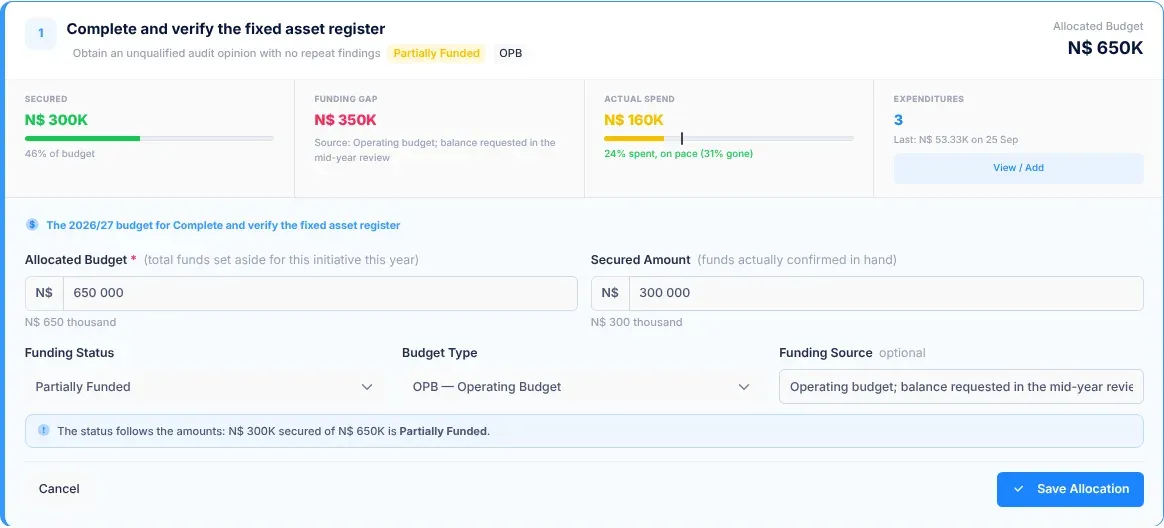
  • Begrotings. Op Execution, then Budget gaan jy en jou departementele bestuurders elke inisiatief se Allocated Budget (toegewese begroting) vir die jaar na, en teken julle sy Secured Amount (gewaarborgde bedrag), Budget Type en Funding Source aan. Sien Ken ’n inisiatief se begroting toe.
  • Take. Bestuurders verdeel hul departement se inisiatiewe in take, maand vir maand, op Execution, then Initiatives. As HUB voeg jy take by vanuit Execution, then Annual Plans. Sien Beplan ’n inisiatief se take.
  • Ekstra bladsye. Om iemand ’n Execution-bladsy te gee wat nie by hul rol ingesluit is nie, gebruik Execution, then Manage. Sien Bestuur planne en bladsytoegang.

Wie kan dit gebruik:WerknemerBestuurder

Wanneer die plan goedgekeur is, gaan die risiko’s wat dit beskryf as voorstelle na die Risk Repository (risikobewaarplek), gemerk Strategic AI Suggestion. Jy en die departementele bestuurders kry ’n kennisgewing daaroor.

Elke departement bou dan sy eie Risk Register (risikoregister) op. Bestuurders en hul personeel doen die volgende:

  1. Maak Risk Repository oop, merk die voorstelle wat op hul departement van toepassing is, en kies Copy Selected.
  2. Assesseer elke risiko wat hulle gekopieer het, sodat dit ’n telling, ’n sperdatum en hersienings kry.
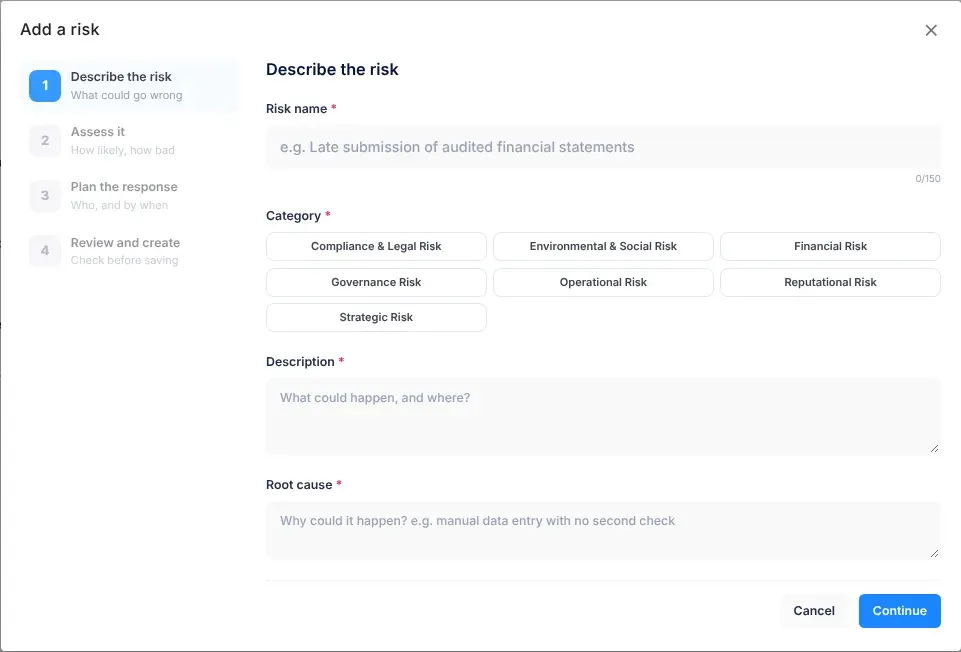
  3. Teken enige ander risiko’s aan met Add risk op die Risk Register.
  4. Voeg beheermaatreëls by, die aksies wat elke risiko verminder, elkeen met ’n verantwoordelike persoon en ’n sperdatum.

As HUB het jy nie Risk Register, Kanban Board of Risk Repository in die kieslys aan die linkerkant nie. Jy volg risiko’s oor die hele organisasie op die CEO Dashboard en op elke departement se bladsy.

Sien Die risikobewaarplek, Voeg ’n risiko by, Voeg ’n beheermaatreël by ’n risiko en Die CEO Dashboard.

Wie kan dit gebruik:WerknemerBestuurderHUB

Almal word by die weeklikse werkverslae gevoeg wanneer hulle hul rekening oprig, so verslagdoening kan in jou eerste week begin. Elke week:

  1. Personeel skryf ’n paar reëls vir elke dag, en dien hul verslag in by die persoon aan wie hulle rapporteer.
  2. Bestuurders merk die punte in hul span se verslae wat saak maak, en dien hul eie verslag in.
  3. Jy lees die verslae wat aan jou gestuur is onder Work Reports, en maak van ’n maand se verslae ’n verslag aan die Raad.

VirgilTrack herinner mense terwyl ’n verslag nog oop is: personeel op Vrydagmiddag en Maandagoggend, en bestuurders op Maandagoggend. Sien Werkverslae en -rekords en Herinneringe oor verslae.

Wat jy sien Hoekom, en wat om te doen
Niemand kan ná die registrasie aanmeld nie Die registrasie is nog nie goedgekeur nie. Wag vir VirgilTrack se administrateurs, of kontak Virgil Finance.
’n Departement ontbreek op Departments, of jy kan dit nie kies nie Niemand wat daarvoor uitgenooi is, het al hul rekening opgerig nie. Vra hulle om te soek na “Invitation to Virgiltrack”, ook in hul strooipos- of gemorsposvouer.
’n Departement se kaart wys No manager: assign Die bestuurder het nog nie hul rekening opgerig nie, of niemand is as bestuurder gekies nie. Sien stap 5.
’n Werknemer se verslagbladsy sê “Your reporting line isn’t set up yet” Niemand is gestel as die persoon aan wie hulle rapporteer nie. Plaas hulle onder hul bestuurder in Roles & hierarchy. Sien stap 7.
Jou Work Reports-bladsy sê “No one reports to you yet” Niemand in die hiërargie rapporteer aan jou nie. Gaan Roles & hierarchy na. Sien stap 7.
’n Inisiatief in die planhersiening “needs its responsible department” Die departement wat in die plan genoem word, stem nie ooreen met een van joune nie. Kies een onder Responsible department. Sien Hersien en keur ’n ingevoerde plan goed.

Aanvaar ’n uitnodiging

Wanneer jou organisasie jou by VirgilTrack voeg, kry jy ’n uitnodiging per e-pos. Jy gebruik dit een keer om jou rekening op te rig. Daarna meld jy aan met jou e-posadres en wagwoord.

E-pos Knoppie in die e-pos Wat om te doen
“Invitation to Virgiltrack” Setup Account (Rig rekening op) Vul jou besonderhede in en kies ’n wagwoord. Sien Rig jou rekening op hieronder.
“You’ve been invited to … on VirgilTrack” Set my password (Stel my wagwoord) Jou rekening bestaan reeds: jy kies net ’n wagwoord. Sien As jou e-pos ’n Set my password-knoppie het hieronder.
“Set your VirgilTrack password” Set my password Jy, of ’n VirgilTrack-administrateur, het gevra vir ’n skakel om ’n wagwoord te kies. Volg dieselfde stappe. Sien Herstel ’n vergete wagwoord.

Jy kry die eerste e-pos wanneer jou organisasie se registrasie goedgekeur word, of wanneer jou HUB of ’n administrateur jou uitnooi. Jy kry die tweede wanneer ’n VirgilTrack-administrateur jou die nuwe HUB of departementele bestuurder maak.

  • Hou jou selfoon byderhand. VirgilTrack kan ’n kode per SMS stuur om jou nommer na te gaan.
  • Hou ’n foto van jouself gereed, as ’n PNG- of JPG-lêer. Die opstelvorm vereis een.
  • Hou jou e-posinkassie oop. Aan die einde het jy ’n kode daaruit nodig.
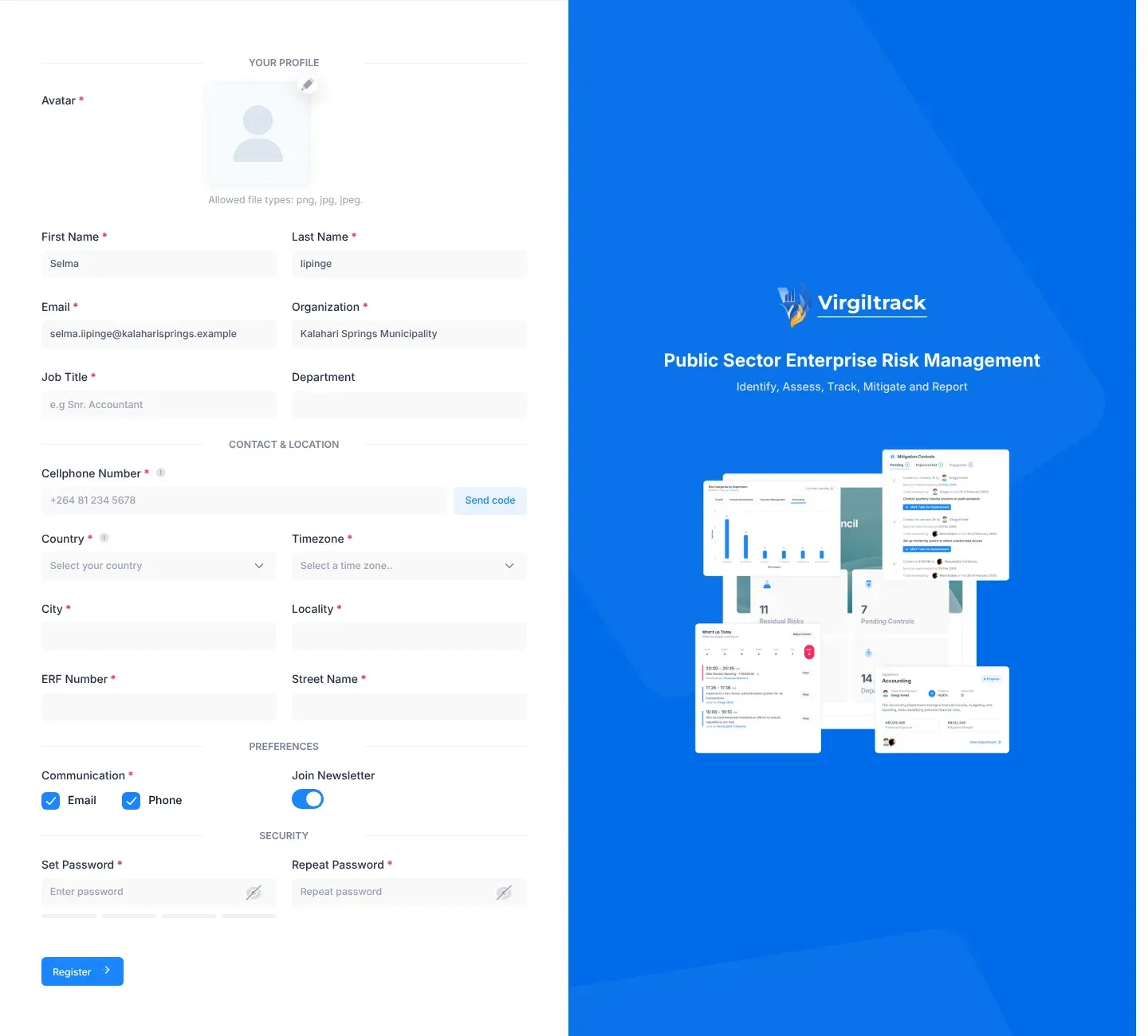
  1. Maak die e-pos “Invitation to Virgiltrack” oop en kies Setup Account.

    Die opstelbladsy gaan oop. Jou naam, Email (e-pos), Organization (organisasie) en Department (departement) is reeds ingevul. Jy kan nie die e-posadres, organisasie of departement hier verander nie.

  2. Voeg jou foto by onder Your profile (jou profiel). Kies die potloodknoppie (Upload avatar), kies jou foto, sleep dit en zoem in of uit totdat dit die blou uitsnyraam vul, en kies dan Crop (sny uit).

  3. Gaan jou First Name (voornaam) en Last Name (van) na, en tik jou Job Title (posbenaming), byvoorbeeld “Snr. Accountant”.

  4. Tik onder Contact & location (kontak en ligging) jou Cellphone Number (selfoonnommer) in internasionale formaat, byvoorbeeld “+264 81 234 5678”.

  5. Om die nommer dadelik te bevestig, kies Send code (stuur kode). Tik die kode uit die SMS in Verification code (verifikasiekode) en kies Verify (verifieer).

    ’n Boodskap onder die nommer bevestig dat dit geverifieer is. Jy kan hierdie stap oorslaan en jou nommer later in Settings (instellings) verifieer.

  6. Kies jou Country (land) en Timezone (tydsone), en vul City (stad), Locality (woonbuurt), ERF Number (erfnommer) en Street Name (straatnaam) in.

  7. Onder Preferences (voorkeure) het Communication (kommunikasie) twee merkblokkies, Email en Phone, albei gemerk. Ontmerk een as jy nie wil hê VirgilTrack moet jou op daardie manier kontak nie. Skakel Join Newsletter (teken in op die nuusbrief) af as jy nie die nuusbrief wil ontvang nie.

  8. Tik onder Security (sekuriteit) ’n wagwoord in Set Password (stel wagwoord) en tik dit weer in Repeat Password (herhaal wagwoord).

    Gebruik minstens 8 karakters, met hoofletters en kleinletters, ’n syfer en ’n simbool. Die balk onder die wagwoord vul op hoe sterker dit word.

  9. Kies Register (registreer).

    Die knoppie wys Please wait (Registering)…. Wanneer jy “Account created successfully! Please check your email to confirm your account.” sien, kies Okay, got it.

Die bladsy om jou rekening op te rig, met die afdelings Your profile, Contact & location, Preferences en Security en die Register-knoppie
Jou rekening oprig vanuit ’n uitnodiging

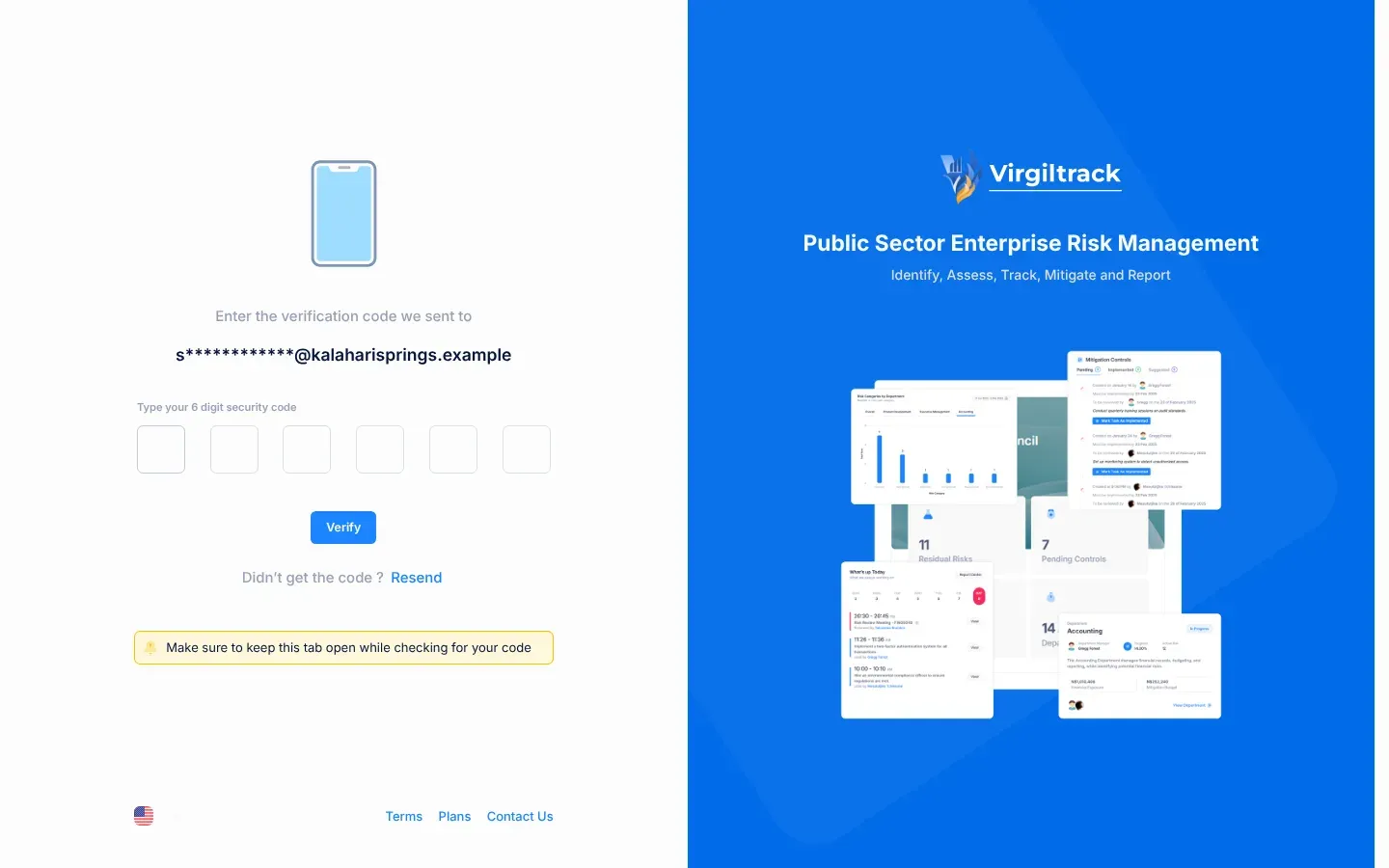
Nadat jy Register gekies het, wys VirgilTrack ’n bladsy wat sê “Enter the verification code we sent to”, met jou e-posadres gedeeltelik versteek. Hou hierdie blaaieroortjie oop.

  1. Maak die e-pos “Verify your email address on Virgiltrack” oop en soek die 6-syferkode.

  2. Tik die kode in die ses blokkies onder “Type your 6 digit security code”.

    VirgilTrack gaan die kode na sodra jy die laaste syfer tik. Jy kan ook Verify kies.

  3. Wanneer “Your email has been verified successfully! You will now be redirected to login” verskyn, kies Ok, got it!.

  4. Meld op die Sign In-bladsy (Meld aan) aan met jou e-posadres en die wagwoord wat jy gekies het.

Geen kode nie? Kyk in jou strooipos- of gemorsposvouer. Kies dan Resend (stuur weer), langs “Didn’t get the code ?”. Wanneer “A new verification code has been sent to your email.” verskyn, gebruik die nuutste kode.

Die verifikasiebladsy met ses blokkies vir die 6-syferkode, die Verify-knoppie en die Resend-skakel
Jou e-posadres bevestig
  1. Maak die e-pos oop en kies Set my password.

    ’n Bladsy gaan oop wat jou op jou naam groet: “Hi …, set your password”.

  2. Tik ’n wagwoord in New password (nuwe wagwoord) en weer in Repeat it (herhaal dit). Gebruik minstens 8 karakters, met ’n hoofletter, ’n syfer en ’n simbool.

  3. Kies Set password (stel wagwoord).

  4. Wanneer Password set (wagwoord gestel) verskyn, kies Sign in en meld aan met jou e-posadres en nuwe wagwoord.

Die skakel in die e-pos werk net een keer. As dit al gebruik is of verval het, sien jy This link has expired. Kies Send me a new link (stuur vir my ’n nuwe skakel) en volg Herstel ’n vergete wagwoord.

  • Jou rol kom uit jou uitnodiging: HUB (CEO), bestuurder (Manager) of werknemer (Employee). Sien Rolle en wat elkeen kan doen.
  • VirgilTrack plaas jou in jou organisasie se verslagdoeningslyne. Werknemers doen verslag aan hulle departement se bestuurder, en bestuurders doen verslag aan die HUB. As jy as ’n departement se bestuurder uitgenooi is, word jy daardie departement se bestuurder.
  • Jy word by jou organisasie se weeklikse werkverslae gevoeg. Sien Werkverslae en -rekords.
  • As jy jou selfoonnommer geverifieer het, kan VirgilTrack vir jou herinneringe per SMS stuur.
Wat jy sien Wat om te doen
“Please ensure that you have entered all required fields before submitting” Soek rooi boodskappe onder die velde, soos “An avatar is required”, “Job title is required”, “Cellphone number is required”, “Please select your country of residence” of “Please select your timezone”. Vul elkeen in en kies weer Register.
“Use 8 or more characters with a mix of letters, numbers & symbols.” Maak jou wagwoord sterker: gebruik hoofletters en kleinletters, ’n syfer en ’n simbool.
“The password and its confirm are not the same” Tik presies dieselfde wagwoord in Set Password en Repeat Password.
“Enter your phone number first.” Tik jou nommer voordat jy Send code kies.
“Code sent — check your phone. It expires in 10 minutes.” Dit is nie ’n fout nie. Tik die kode uit die SMS en kies Verify binne 10 minute.
“That code didn’t verify.” Gaan die kode na en probeer weer, of kies Resend code.
“Your account has already been created. Use your email and password to login.” Jou rekening bestaan reeds. Gaan na die Sign In-bladsy en meld aan.
“Invalid team member invite.” of “This invitation is not valid or has already been used.” Die uitnodiging kan nie meer gebruik word nie. Vra jou HUB of ’n administrateur om jou weer uit te nooi.
“Your account couldn’t be created because of a problem on our side. Please try again.” Kies weer Register. As dit aanhou gebeur, kontak jou administrateur.
Verification Failed: “The code provided is invalid or has already expired. Please check again or resend a new code using the Resend button below.” Die kode is verkeerd of te oud. Kies Resend en gebruik die nuwe kode.
Verification Failed: “Please enter valid verification code and try again.” Een van die ses blokkies is leeg. Tik al ses syfers.
Already Verified! Jou e-posadres is reeds bevestig. Kies Ok, got it! en meld aan.

As jy weer Setup Account kies nadat jy geregistreer het, neem VirgilTrack jou na die regte plek: na die kodebladsy as jy jou e-pos nog nie bevestig het nie, of na die Sign In-bladsy as jy dit reeds gedoen het.

Herstel ’n vergete wagwoord

As jy nie jou wagwoord kan onthou nie, kan VirgilTrack vir jou ’n skakel e-pos waarmee jy ’n nuwe wagwoord kies. Jy hoef niemand om hulp te vra nie.

As jy jou wagwoord ken en dit net wil verander, doen dit eerder in Settings (instellings). Sien Verander jou wagwoord.

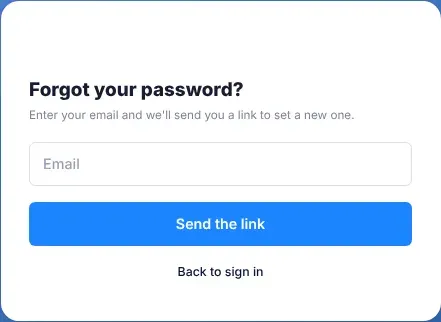
  1. Kies Forgot Password ? (wagwoord vergeet?) op die Sign In-bladsy (Meld aan).

    Die Forgot your password?-bladsy gaan oop.

  2. Tik die e-posadres waarmee jy aanmeld.

  3. Kies Send the link (stuur die skakel).

    VirgilTrack wys Check your email (kyk in jou e-pos).

Die Forgot your password?-bladsy, met een blokkie vir jou e-posadres en die Send the link-knoppie
Vra vir ’n herstelskakel

VirgilTrack gee dieselfde antwoord, of daar nou ’n rekening met daardie adres is of nie. So kan ander mense nie uitvind wie ’n rekening het nie.

  1. Maak die e-pos “Set your VirgilTrack password” oop en kies Set my password (stel my wagwoord).

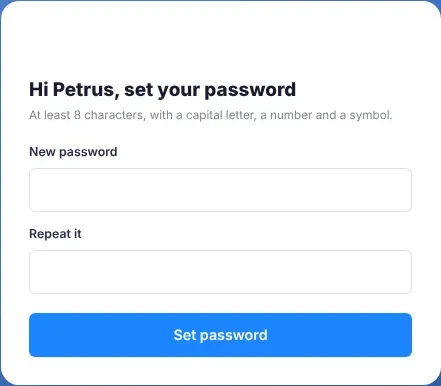
    ’n Bladsy gaan oop wat jou op jou naam groet: “Hi …, set your password”.

  2. Tik jou nuwe wagwoord in New password (nuwe wagwoord).

    Gebruik minstens 8 karakters, met ’n hoofletter, ’n syfer en ’n simbool. Dit moet ook minstens een kleinletter hê.

  3. Tik dit weer in Repeat it (herhaal dit).

  4. Kies Set password (stel wagwoord).

  5. Wanneer Password set (wagwoord gestel) verskyn, kies Sign in en meld aan met jou e-posadres en nuwe wagwoord.

Die Set your password-bladsy, met die blokkies New password en Repeat it en die Set password-knoppie
Kies ’n nuwe wagwoord
  • Jou nuwe wagwoord werk dadelik, en jou ou wagwoord werk nie meer nie.
  • As jy jou e-posadres nog nie bevestig het nie, word dit ook bevestig wanneer jy met die skakel in die e-pos ’n wagwoord stel.
  • Die skakel werk net een keer. As jy jou wagwoord weer moet verander, vra vir ’n nuwe skakel.
Wat jy sien Wat dit beteken Wat om te doen
Geen e-pos kom aan nie Die e-pos is dalk in jou strooipos, die adres het dalk geen rekening nie, of jy het minder as vyf minute gelede gevra. Kyk in jou strooipos- of gemorsposvouer. Maak seker dat jy die adres getik het waarmee jy aanmeld. VirgilTrack stuur hoogstens een skakel elke vyf minute na ’n adres, so wag vyf minute voordat jy weer vra.
This link has expired Die skakel is al gebruik, of dit is te oud. Skakels werk een keer en net vir ’n beperkte tyd. Kies Send me a new link (stuur vir my ’n nuwe skakel) en begin weer.
“Enter your email.” Die blokkie is leeg. Tik jou e-posadres.
“That isn’t a valid email.” Die adres is nie volledig nie. Tik die hele adres, byvoorbeeld “name@council.gov.na”.
“Enter a password.” New password is leeg. Tik ’n nuwe wagwoord.
“Use at least 8 characters.” Die wagwoord is te kort. Maak dit minstens 8 karakters lank.
“The passwords don’t match.” Die twee blokkies verskil. Tik presies dieselfde wagwoord in albei.
’n Boodskap wat begin met “Passwords must have at least one” Die wagwoord kort ’n sekere soort karakter. Voeg by wat die boodskap vra: ’n hoofletter, ’n kleinletter, ’n syfer of ’n simbool (soos ! of #).

Vind jou pad

Elke VirgilTrack-bladsy is op dieselfde manier opgebou. Sodra jy die dele van die skerm ken, kan jy dus oral jou pad vind. Wat jy in die kieslys sien, hang af van jou rol.

’n VirgilTrack-bladsy met die kieslys aan die linkerkant, die kopstrook met die bladsytitel en die klokkie-, vlag- en fotoknoppies, die Team-balk daaronder, en die ronde Virgil Copilot-knoppie in die regter onderste hoek
Die dele van die VirgilTrack-skerm
  1. Die kieslys aan die linkerkant neem jou na elke deel van VirgilTrack.
  2. Die kopstrook bo-aan wys die bladsytitel, en bevat jou kennisgewings en jou rekeningkieslys.
  3. Die spanbalk, net onder die kopstrook, wys die mense met wie jy werk.
  4. Die bladsy self vul die res van die skerm.
  5. Die Virgil Copilot-knoppie, die ronde knoppie in die regter onderste hoek, maak die assistent oop.

Op ’n groot skerm wys die kieslys dalk net ikone. Beweeg jou muis daaroor om die name te sien, of kies die pyltjieknoppie op die rand daarvan om dit oop te hou. Op ’n foon kies jy die Show sidebar menu-knoppie (wys die kantkieslys) links bo om dit oop te maak.

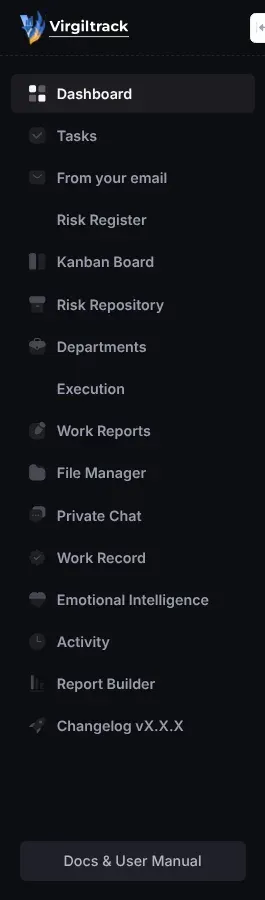
Kieslysitem Wat dit oopmaak Wie sien dit
Dashboard (kontrolebord) Jou kontrolebord: Admin Dashboard, CEO Dashboard of Manager Dashboard. Bestuurders en werknemers maak albei die Manager Dashboard oop. Sien Kontroleborde. Almal
Tasks (take) Die werk wat aan jou gegee is en die werk wat jy aan ander gegee het. ’n Rooi getal wys take wat jou aandag nodig het: jou take wat agterstallig is, en take met boodskappe wat jy nog nie gelees het nie. Beweeg jou muis oor die getal om te sien watter take dit is. Sien Take. Almal
From your email (uit jou e-pos) Werk wat VirgilTrack in jou gekoppelde posbus gevind het, en wat wag dat jy dit bevestig. Die getal wys hoeveel items wag. Sien Take uit jou e-pos. Almal
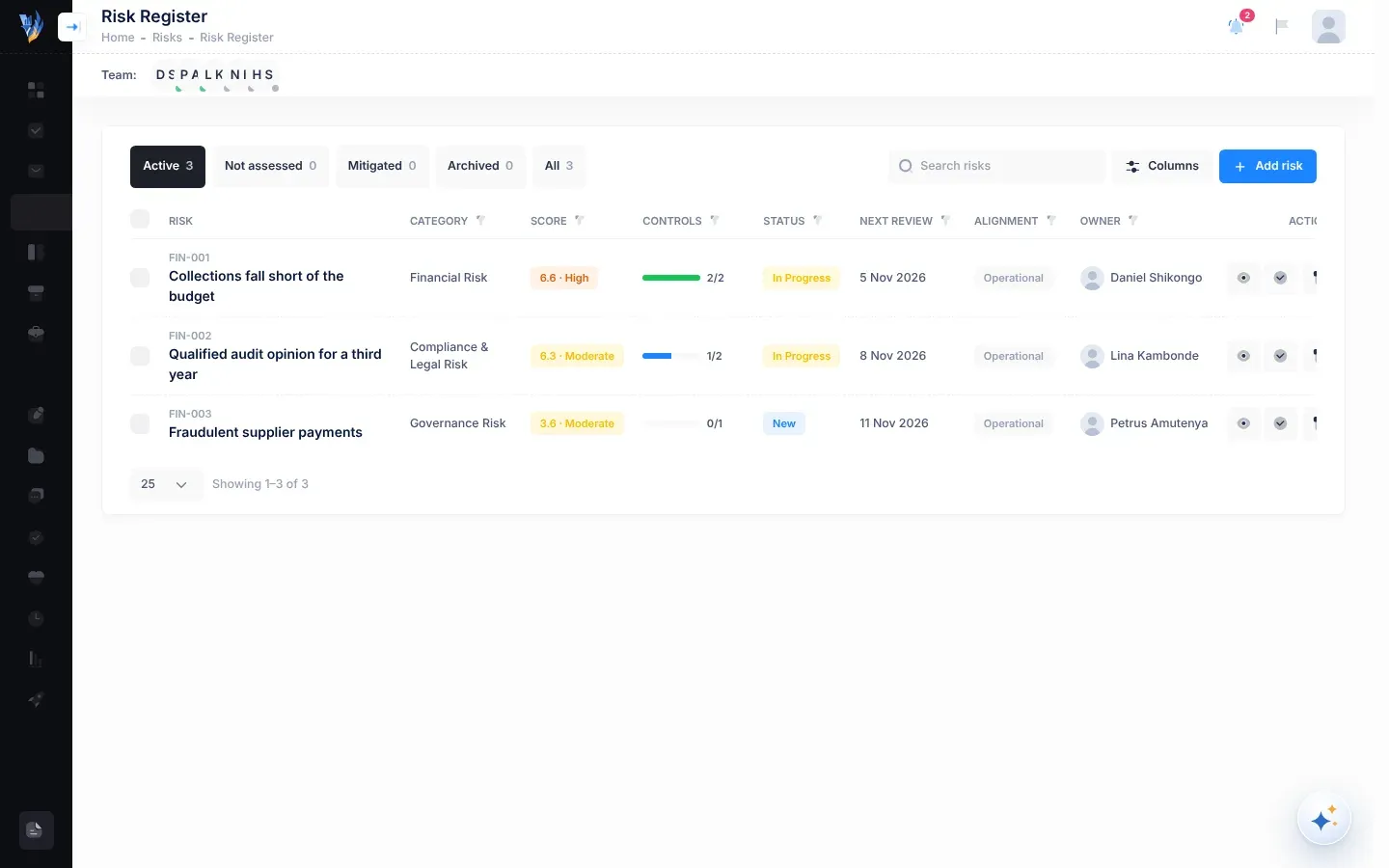
Risk Register (risikoregister) Jou departement se risiko’s. Sien Die risikoregister. Almal behalwe die HUB
Kanban Board (Kanban-bord) Jou departement se risiko’s as kaarte in kolomme, volgens status. Sien Die Kanban-bord. Almal behalwe die HUB
Risk Repository (risikobewaarplek) ’n Katalogus van algemene risiko’s wat jy na jou departement kan kopieer. Sien Die risikobewaarplek. Almal behalwe die HUB
Departments (departemente) Jou organisasie se departemente. Sien Departemente. Almal
Execution (uitvoering) Die strategiese plan en die werk wat dit verwesenlik. Watter bladsye jy daarin sien, hang af van jou rol. Sien Strategie en uitvoering. Almal
Work Reports (werkverslae) Jou weeklikse werkverslag, of jou span se verslae: die bladsy pas by jou rol. Sien Werkverslae en -rekords. Almal. Administrateurs het nie ’n werkverslag nie, so vir hulle maak dit hulle kontrolebord oop.
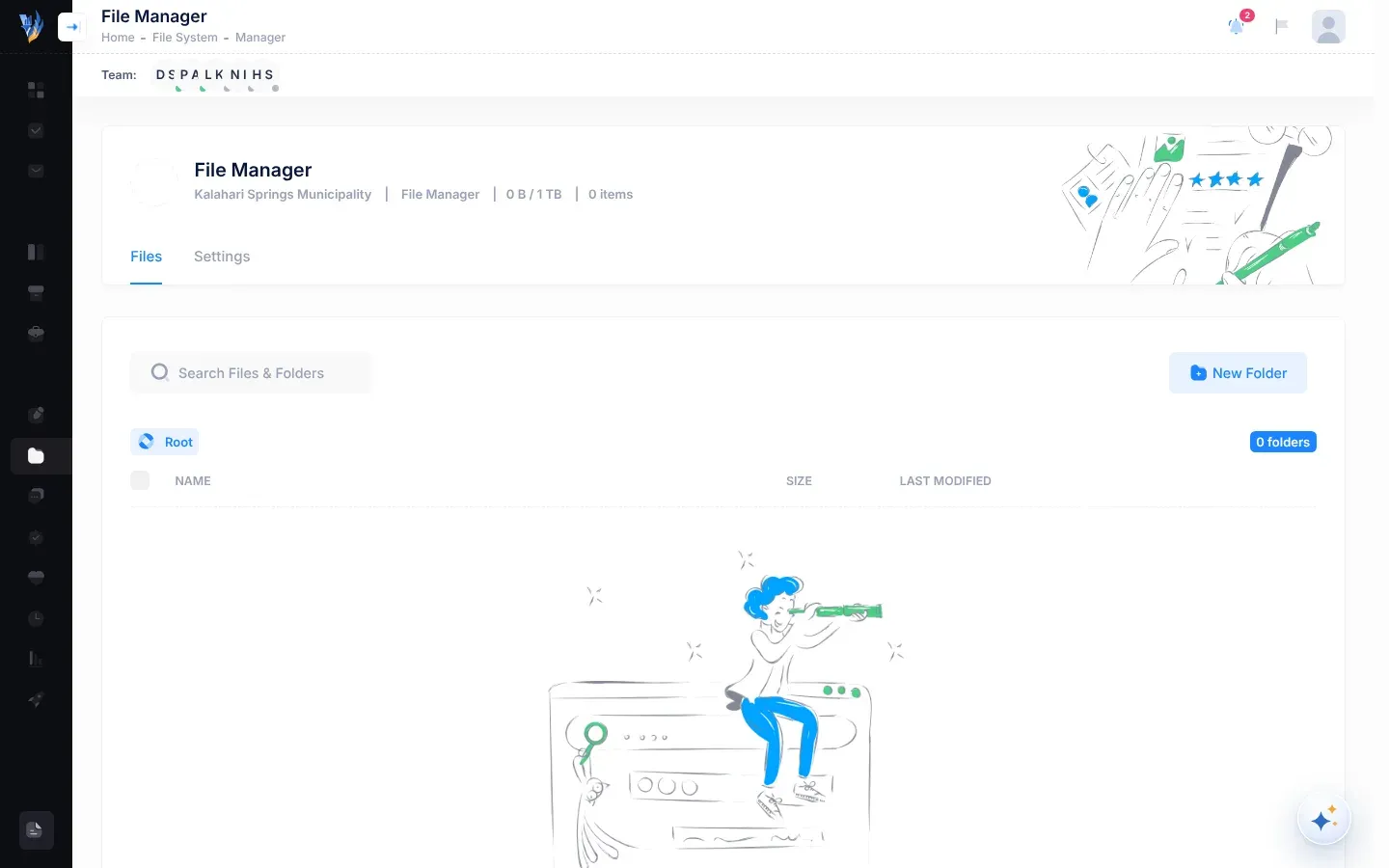
File Manager (lêerbestuurder) Jou organisasie se gedeelde vouers en lêers: maak hulle oop, laai hulle op en af, en orden hulle. Sien Lêers en dokumente. Almal
Private Chat (privaat klets) Een-tot-een-boodskappe met kollegas. ’n Kolletjie wys wanneer jy ongeleesde boodskappe het. Sien Privaat klets. Almal
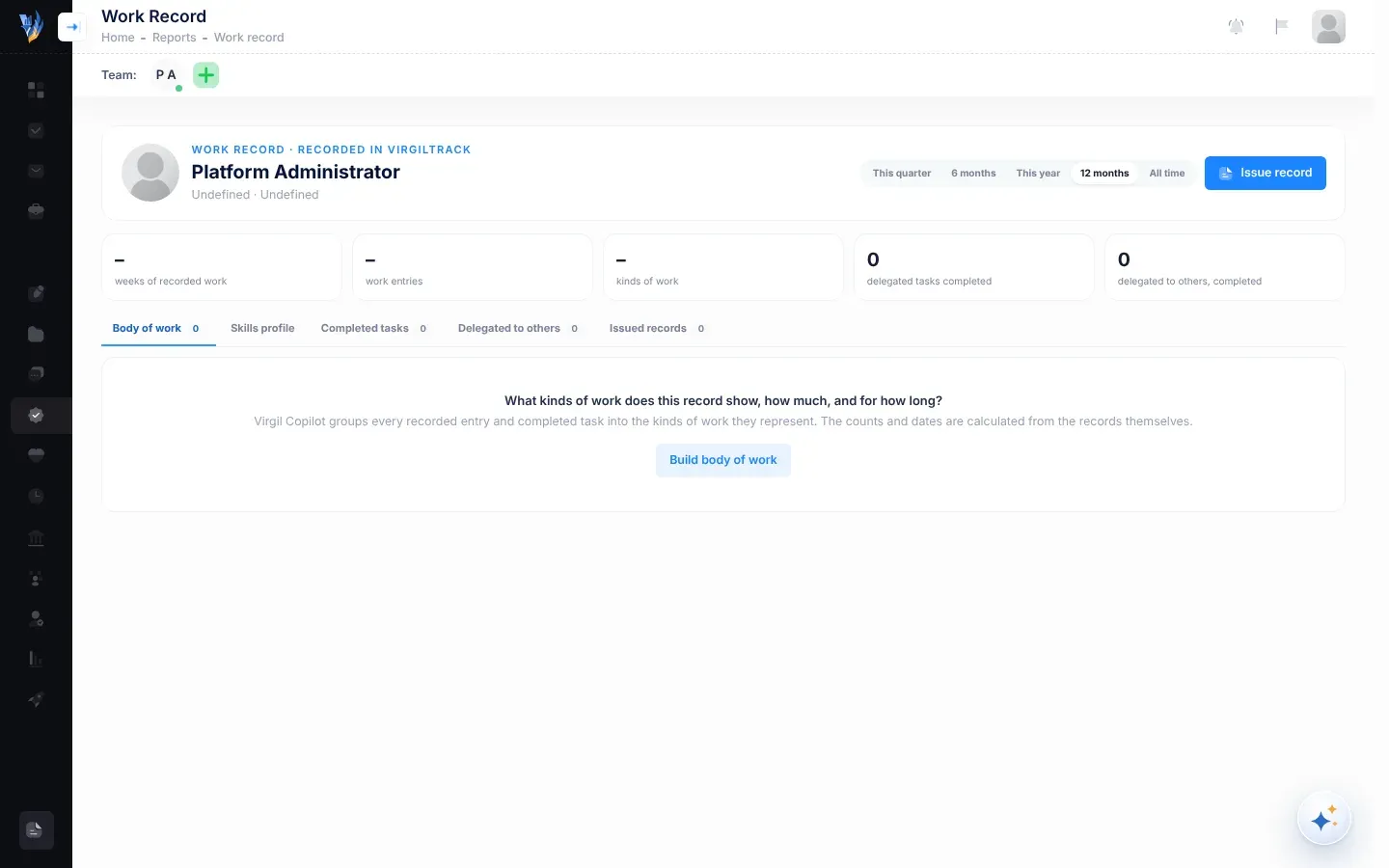
Work Record (werkrekord) Die rekord van werk wat VirgilTrack vir ’n persoon hou. Sien Jou werkrekord. Almal sien die item, maar tans kan net administrateurs die bladsy oopmaak. Ander sien “You are not authorized to view this page.”
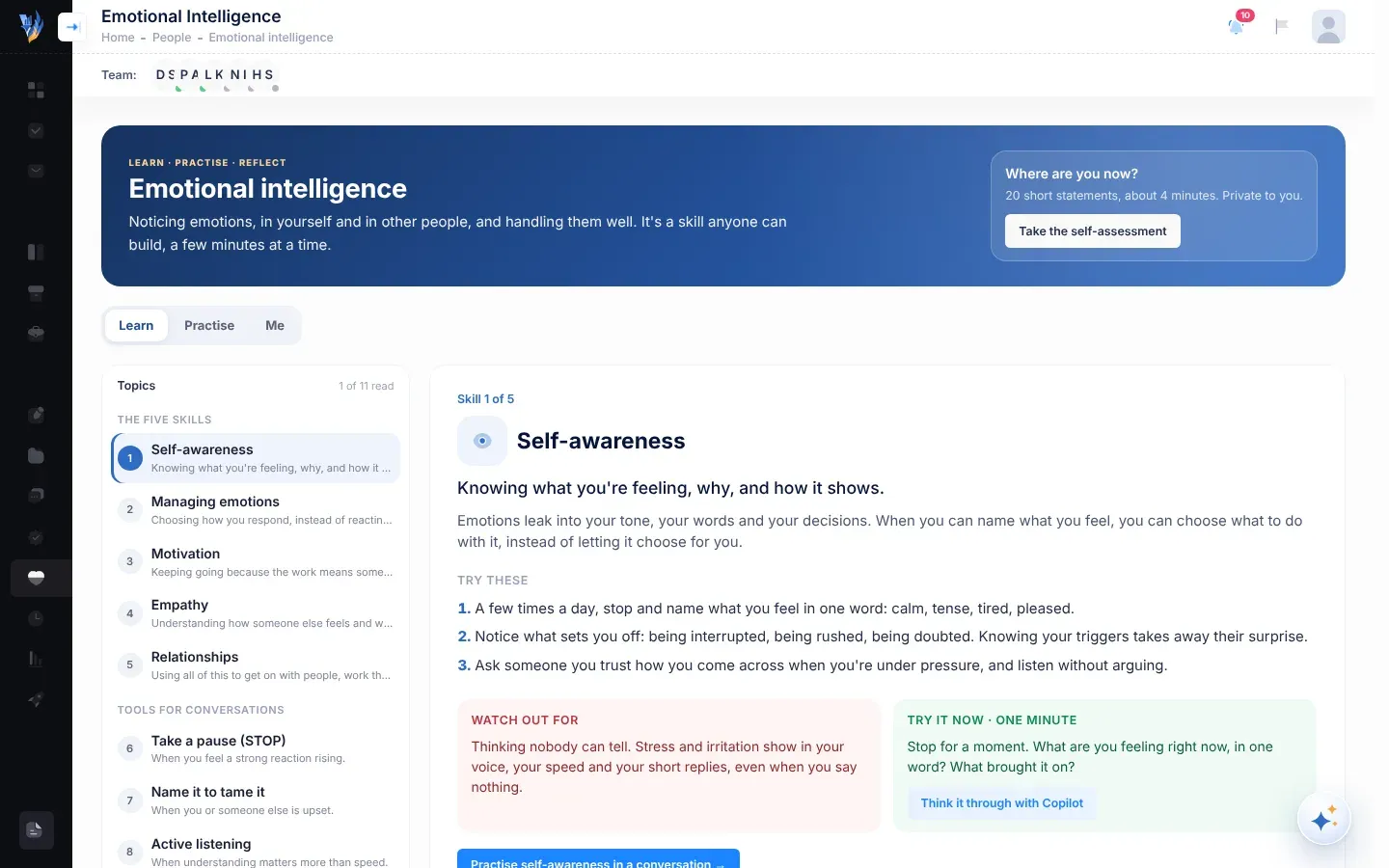
Emotional Intelligence (emosionele intelligensie) Kort lesse, oefeninge en nadenke oor hoe om emosies by die werk te hanteer. Sien Emosionele intelligensie. Almal
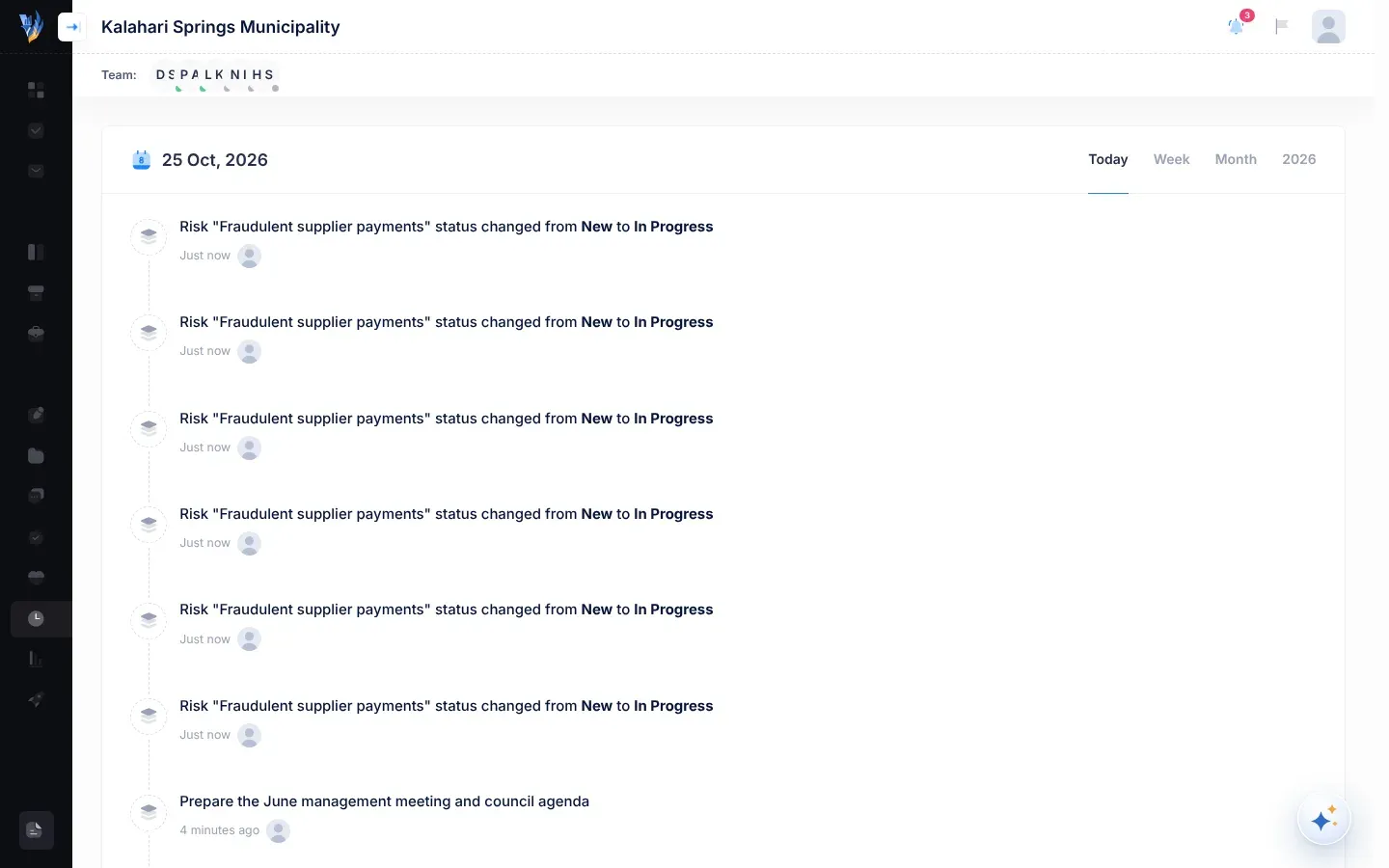
Activity (aktiwiteit) ’n Tydlyn van wat hierdie jaar in jou organisasie gebeur het, volgens Today (vandag), Week, Month (maand) en jaar. Sien Aktiwiteitstydlyn. Almal
Organizations, Users, Sign Ups Die platform se organisasies, mense en registrasieversoeke. Sien Platformadministrasie. Administrateurs
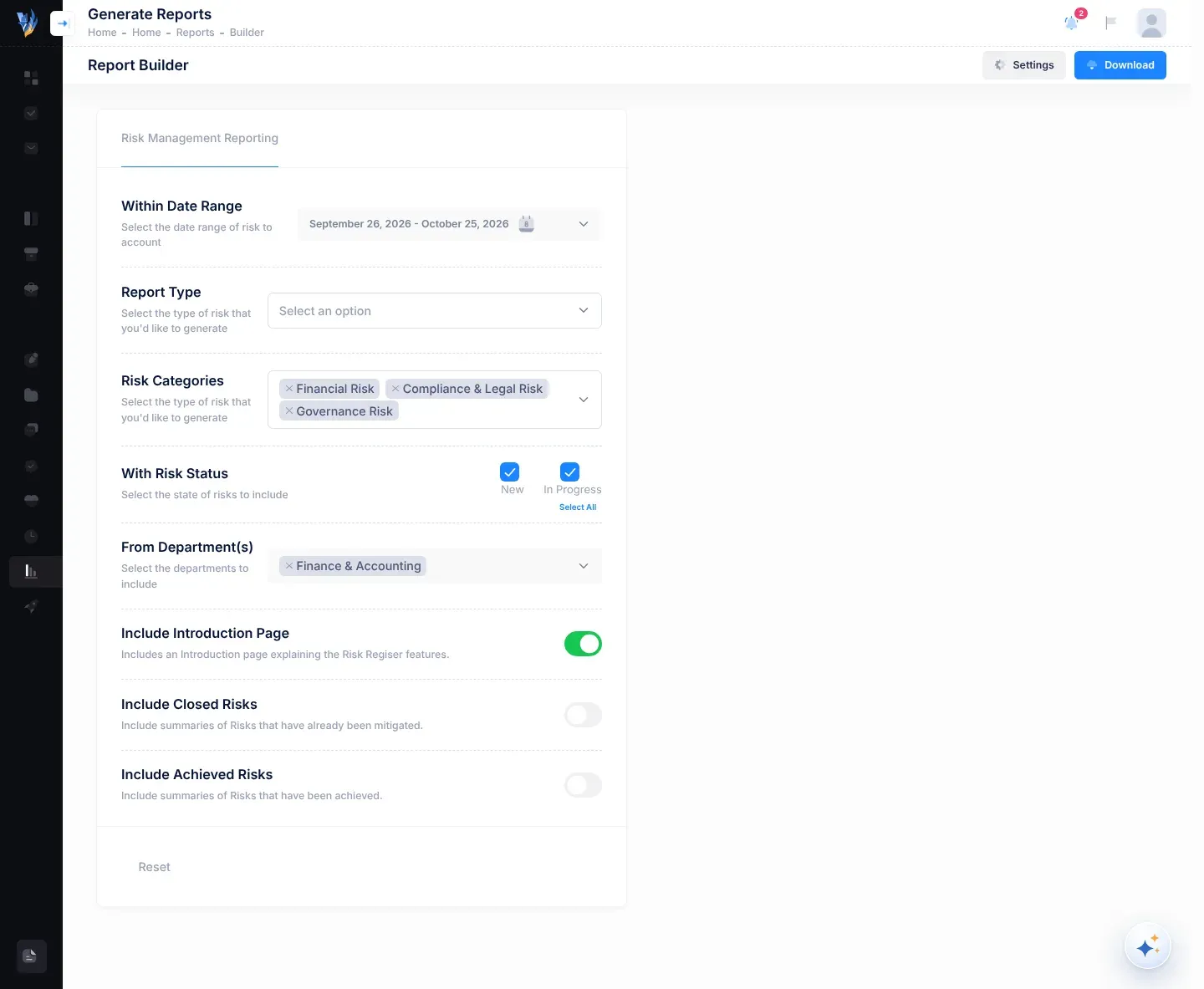
Report Builder (verslagbouer) Die Generate Reports-bladsy vir risikoverslae. Sien Maak ’n risikoverslag. Almal
Changelog vX.X.X ’n Lys van die veranderinge in elke weergawe van VirgilTrack. Almal

Onderaan die kieslys maak Docs & User Manual die Virgil Finance-webwerf oop.

Links in die kopstrook staan die bladsytitel. Op baie bladsye wys die broodkrummels daaronder die pad na die bladsy, wat by Home (tuis) begin. Kies Home om terug te gaan na jou eerste bladsy. Op bladsye sonder ’n eie titel wys die kopstrook jou organisasie se naam.

Regs in die kopstrook is drie knoppies.

Knoppie Wat dit doen
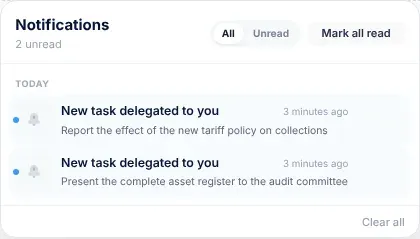
Die klokkie (Notifications) Maak jou kennisgewings oop. ’n Rooi getal wys hoeveel ongelees is. Kies All (almal) of Unread (ongelees), kies ’n kennisgewing om te gaan na waaroor dit gaan, of kies Mark all read (merk almal as gelees). Sien Kennisgewings.
Die vlag Maak Activity Logs (aktiwiteitslogboek) oop: ’n lys van jou eie aanmeldings, insluitend pogings wat misluk het weens ’n verkeerde wagwoord. Kies die kruisie om dit toe te maak.
Jou foto Maak jou rekeningkieslys oop.

Kies jou foto om dit oop te maak. Dit wys jou naam, ’n kenteken met die kort vorm van jou posbenaming, en jou e-posadres. Kies jou e-posadres om reguit na jou aanmeld- en sekuriteitsinstellings te gaan.

  • Risk Register maak jou departement se risikoregister oop.
  • Upcoming Reviews (komende hersienings) wys hoeveel risikohersienings vir jou voorlê. Dit is net ’n telling, nie ’n skakel nie.
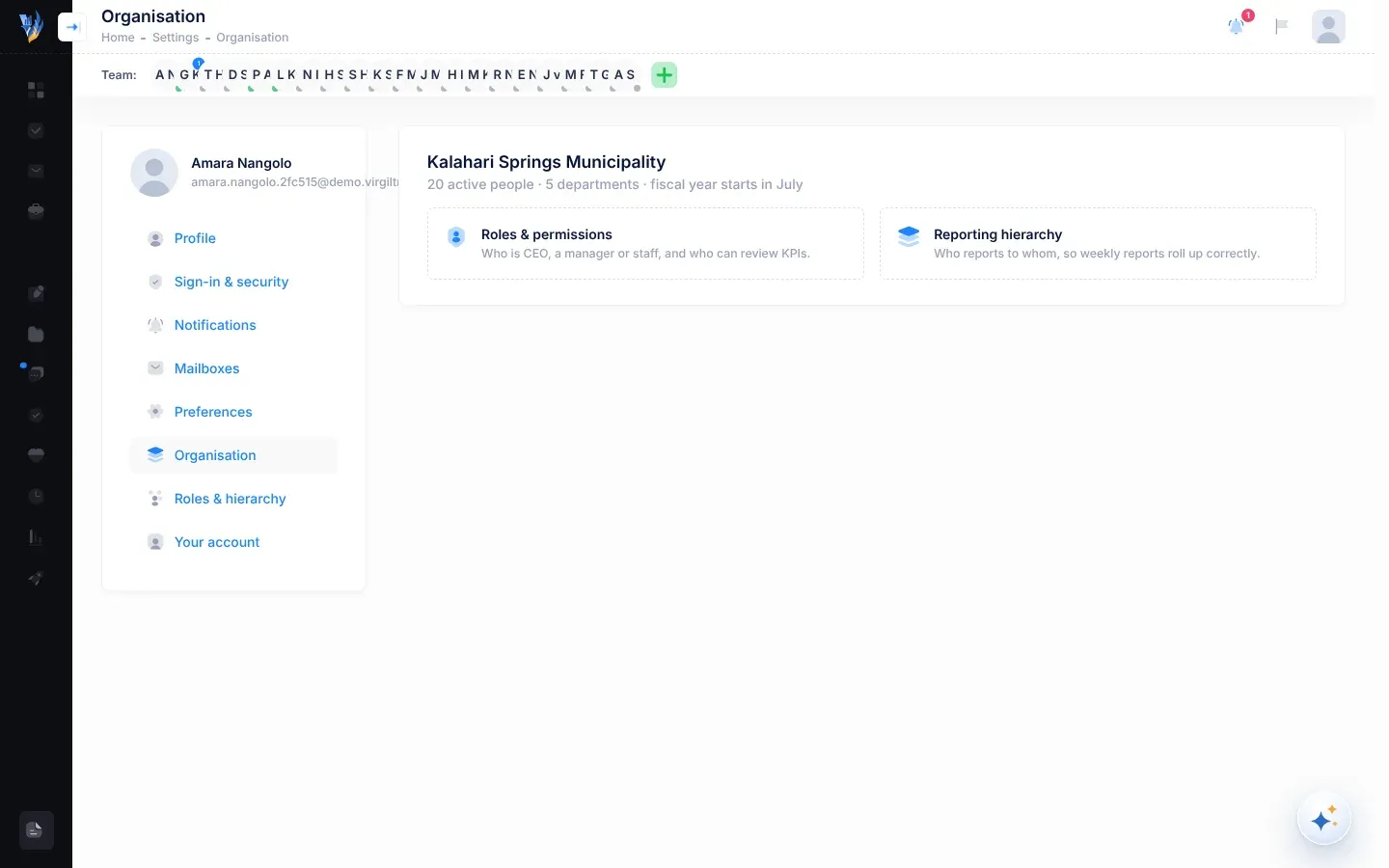
  • Roles & permissions (rolle en toestemmings) maak die Role Management-bladsy oop, en Reporting hierarchy (verslagdoeningshiërargie) maak Roles & hierarchy in Settings oop. Net die HUB en administrateurs sien hierdie twee items. Hulle gebruik dit om mense se rolle en verslagdoeningslyne te bestuur.
  • Settings (instellings) maak jou persoonlike instellings oop. Sien Jou profiel en aanmeldbesonderhede.
  • Sign Out (meld af) meld jou af. Sien Meld aan en meld af.
Die rekeningkieslys onder jou foto, met jou naam en e-posadres bo-aan, Settings, en Sign Out onderaan
Jou rekeningkieslys

Onder die kopstrook wys Team: die foto’s van die mense in jou departement. Die HUB sien almal in die organisasie.

  • ’n Kolletjie op elke foto wys of die persoon aanlyn, weg of vanlyn is. Beweeg jou muis oor ’n foto om die persoon se naam en status in woorde te sien, soos “Online”, “Away” of “Last seen …”.
  • ’n Getal op ’n foto wys hoeveel ongeleesde boodskappe daardie persoon vir jou gestuur het.
  • Kies ’n foto om ’n klets met daardie persoon aan die kant van die skerm oop te maak.

Sommige bladsye voeg hulle eie knoppies regs op hierdie balk by.

Wie kan dit gebruik:HUBAdministrateur

Die HUB sien ook ’n groen plusknoppie, Invite a team member (nooi ’n spanlid uit), aan die einde van die balk. Administrateurs wat aan ’n departement behoort, sien dit ook. Sien Nooi spanlede uit.

Die Team-balk onder die kopstrook, met kollegas se foto’s, die aanlyn-statuskolletjie op elke foto en die groen Invite a team member-knoppie aan die einde
Die spanbalk, soos die HUB dit sien

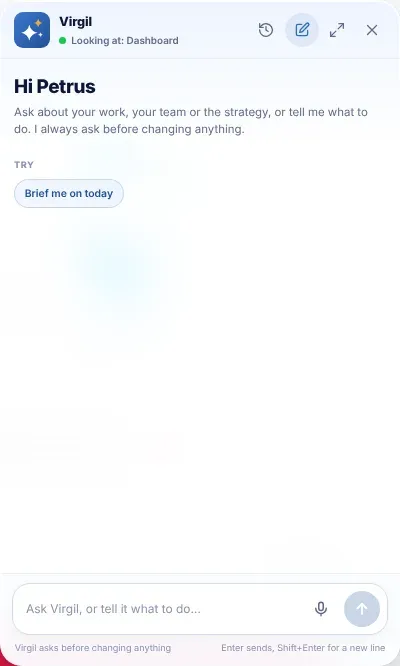
Virgil Copilot is die KI-assistent wat in VirgilTrack ingebou is. Vra dit vrae oor jou werk, of vra dit om dinge vir jou te doen.

  • Kies die ronde Virgil Copilot-knoppie in die regter onderste hoek, of druk Ctrl + K (Cmd + K op ’n Mac). Druk Esc om dit toe te maak.
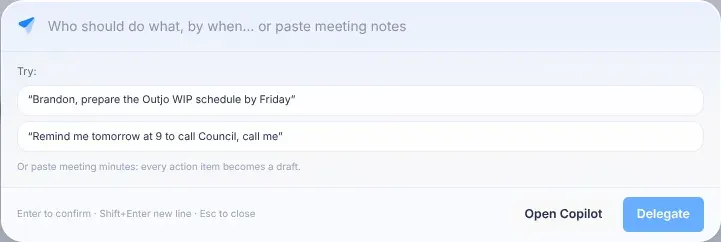
  • Druk Ctrl + J (Cmd + J op ’n Mac) om die snelbalk oop te maak. Tik een sin, soos “Brandon, prepare the Outjo WIP schedule by Friday”, gaan na wat VirgilTrack invul, en druk Enter.
  • Kies ’n stukkie teks op ’n bladsy (nie in ’n blokkie waarin jy tik nie) om drie knoppies te sien: Delegate (delegeer), Remind me (herinner my) en Ask Virgil (vra Virgil).

Sien Die KI-assistent om te leer wat Virgil kan doen.

  • Nuwe kennisgewings verskyn vir ’n oomblik in ’n hoek van die skerm, met ’n klank.
  • Wanneer ’n kollega vir jou ’n kletsboodskap stuur terwyl jy elders in VirgilTrack is, verskyn dit vir ’n paar sekondes onderaan die skerm. Tik in Reply… (antwoord) en kies Send (stuur), of kies Open (maak oop) om na die gesprek te gaan.
  • Loading… verskyn terwyl VirgilTrack ’n bladsy oopmaak.
  • As “An unhandled error has occurred.” onderaan die skerm verskyn, het iets op die bladsy verkeerd geloop. Kies Reload (herlaai).

Jou profiel en aanmeldbesonderhede

Jou profiel is hoe kollegas jou oral in VirgilTrack sien: jou foto en naam verskyn op take, verslae, klets en jou werkrekord. Hierdie bladsy wys ook hoe jy jou aanmeldbesonderhede op datum hou en jou tydsone stel.

  1. Kies jou foto regs bo op die skerm.
  2. Kies Settings (instellings).

Settings gaan oop by Profile (profiel). Die lys aan die linkerkant het hierdie afdelings:

Afdeling Wat dit bevat
Profile Jou foto, naam, kantoornommer en privaatheid, en wat jou organisasie oor jou aangeteken het.
Sign-in & security (aanmelding en sekuriteit) Jou aanmeld-e-pos, wagwoord en selfoonnommer, en waar jy aangemeld is.
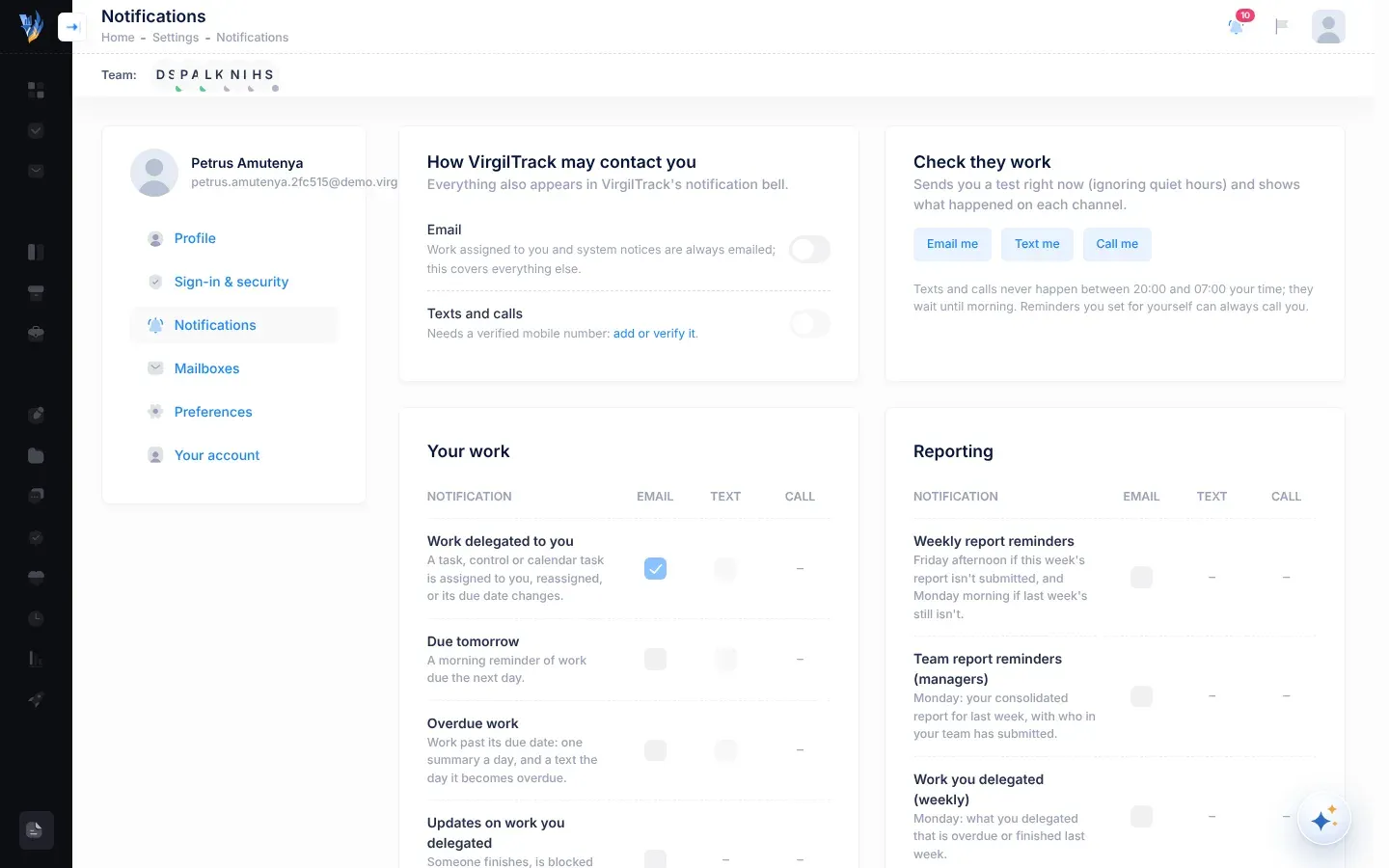
Notifications (kennisgewings) Wat jou bereik, en hoe: per e-pos, SMS of oproep.
Mailboxes (posbusse) Om jou posbus te koppel, sodat die werk in jou e-pos opgevolg kan word.
Preferences (voorkeure) Jou tydsone, vir stil ure en Virgil Copilot se horlosie.
Organisation (organisasie) Gereedskap om jou organisasie te bestuur. Net vir die HUB en administrateurs.
Roles & hierarchy (rolle en hiërargie) Wie aan wie verslag doen, en elke persoon se rol. Net vir die HUB en administrateurs.
Your account (jou rekening) Jou werkrekord, en ’n versoek om jou rekening toe te maak.

Hierdie bladsy dek Profile, Sign-in & security en Preferences. Vir die ander afdelings, sien Instellings.

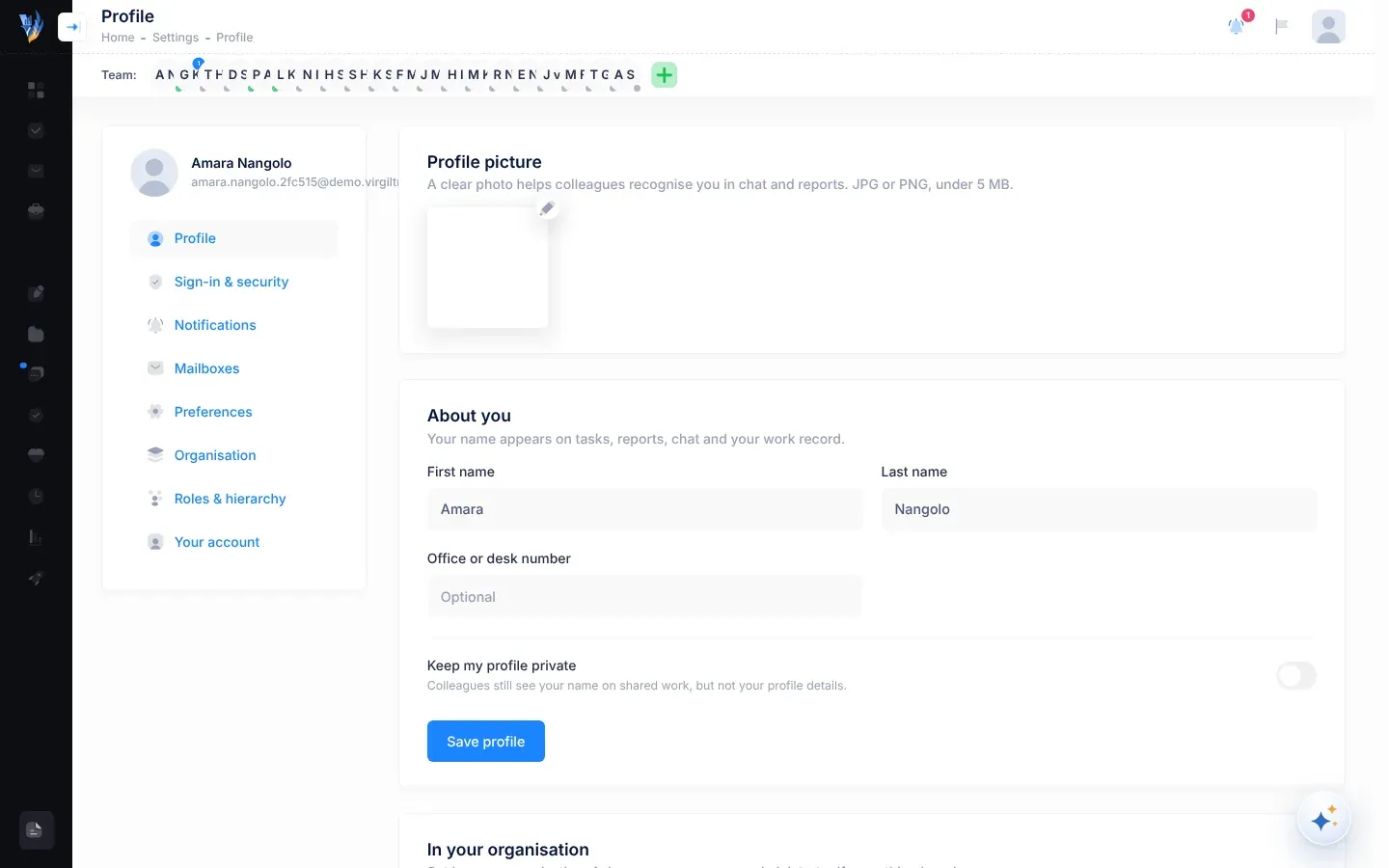
Die Profile-afdeling in Settings, met die profielfoto, die velde onder About you en die besonderhede onder In your organisation
Die Profile-afdeling in Settings
  1. Kies onder Profile picture (profielfoto) die potloodknoppie (Upload avatar).
  2. Kies ’n JPG- of PNG-foto wat kleiner as 5 MB is.
  3. Sleep die foto en zoem in of uit totdat dit die blou uitsnyraam vul, en kies dan Crop (sny uit).

VirgilTrack stoor die foto dadelik en wys “Profile picture updated.”

  1. Verander onder About you (oor jou) jou First name (voornaam), Last name (van) of Office or desk number (kantoor- of lessenaarnommer). Die kantoornommer is opsioneel.
  2. Kies Save profile (stoor profiel).

Wanneer “Profile saved.” verskyn, is jou veranderinge gestoor, en VirgilTrack gebruik van dan af jou nuwe naam.

Skakel Keep my profile private (hou my profiel privaat) aan en kies Save profile. Kollegas sien steeds jou naam op gedeelde werk, maar nie jou profielbesonderhede nie.

In your organisation (in jou organisasie) wys jou Organisation, jou Job title (posbenaming), jou Department (departement) en aan wie jy verslag doen (Reports to; “Nobody” as dit niemand is nie). Jou organisasie stel dit in, so jy kan dit nie hier verander nie. As iets verkeerd is, vra jou bestuurder of ’n administrateur.

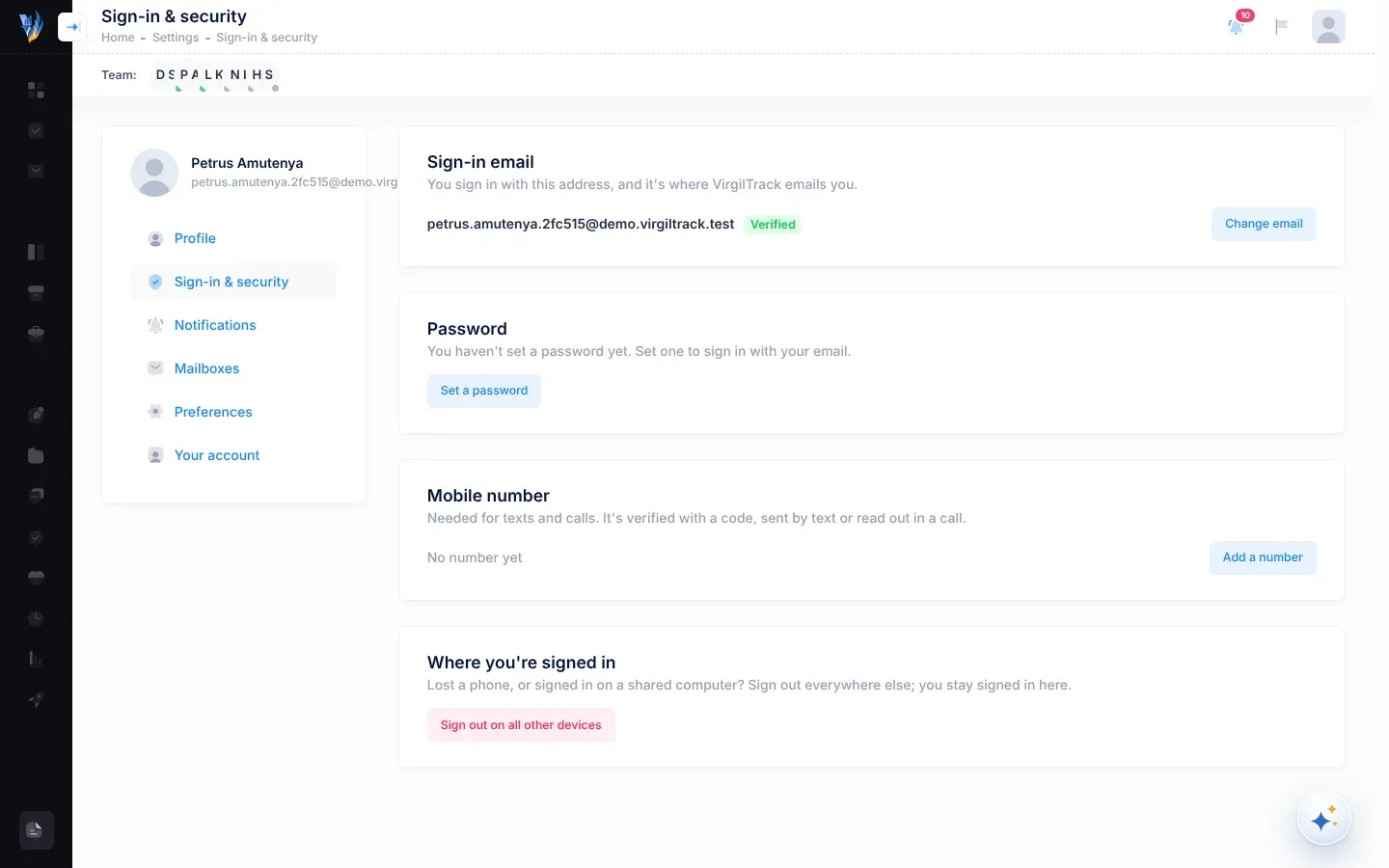
Maak Sign-in & security oop uit die lys aan die linkerkant.

Die afdeling Sign-in & security, met kaarte vir Sign-in email, Password, Mobile number en Where you're signed in
Die Sign-in & security-afdeling in Settings
  1. Kies onder Password (wagwoord) Change password (verander wagwoord).

  2. Tik jou Current password (huidige wagwoord).

  3. Tik jou nuwe wagwoord in New password (nuwe wagwoord) en weer in Repeat it (herhaal dit).

    Gebruik minstens 8 karakters, met ’n hoofletter, ’n syfer en ’n simbool. Die knoppie bly grys totdat die nuwe wagwoord lank genoeg is en albei blokkies dieselfde is.

  4. Kies Change password.

VirgilTrack verander jou wagwoord en laai die bladsy weer. Jy bly op hierdie toestel aangemeld, en jou ander toestelle word afgemeld. VirgilTrack stuur jou ook ’n sekuriteitskennisgewing per e-pos met die naam “Your VirgilTrack password was changed”.

As jy nog nooit ’n wagwoord gestel het nie, sê die knoppie eerder Set a password (stel ’n wagwoord), en jy het nie ’n huidige wagwoord nodig nie.

Het jy jou huidige wagwoord vergeet? Kies Forgot it? Email me a reset link. VirgilTrack e-pos vir jou ’n skakel en sê waarheen dit gestuur is. Sien Herstel ’n vergete wagwoord.

Die e-posadres waarmee jy aanmeld, is ook die adres waarheen VirgilTrack vir jou e-posse stuur. ’n Kenteken langsaan sê Verified (geverifieer) of Not verified (nie geverifieer nie).

  1. Kies onder Sign-in email (aanmeld-e-pos) Change email (verander e-pos).

  2. Tik jou nuwe adres in New email address (nuwe e-posadres) en kies Send code (stuur kode).

    VirgilTrack e-pos ’n 6-syferkode na die nuwe adres.

  3. Tik die kode in 6-digit code from that inbox en kies Confirm (bevestig).

VirgilTrack verander jou aanmeld-e-pos en laai die bladsy weer, met die nuwe adres onder Sign-in email. Gebruik dit van nou af om aan te meld. VirgilTrack stuur ’n sekuriteitskennisgewing na jou ou adres.

As die kode nie aankom nie, kies Send again (stuur weer). Om op te hou, kies Cancel (kanselleer).

VirgilTrack het jou selfoonnommer nodig om vir jou SMS’e en oproepe te stuur, soos herinneringe. Jy bevestig die nommer met ’n kode.

  1. Kies onder Mobile number (selfoonnommer) Add a number (voeg ’n nommer by). As jy reeds ’n nommer het, sê die knoppie Verify (verifieer) of Change (verander).
  2. Tik jou nommer in internasionale formaat, byvoorbeeld “+264 81 234 5678”.
  3. Kies Text me a code (SMS vir my ’n kode), of Call me with a code (bel my met ’n kode) as jy die kode in ’n foonoproep wil hoor.
  4. Tik die kode in The code you received (die kode wat jy ontvang het).
  5. Laat Allow VirgilTrack to text and call me (choose what under Notifications) gemerk as jy SMS’e en oproepe wil ontvang. Onder Notifications kies jy watter.
  6. Kies Verify.

Wanneer jou nommer Verified wys, is jy klaar. As ’n SMS nie aankom nie, kies Call me instead (bel my eerder). Om jou nommer te verwyder, kies Remove (verwyder): dan hou SMS’e en oproepe op.

Het jy ’n foon verloor, of op ’n gedeelde rekenaar aangemeld? Kies onder Where you’re signed in (waar jy aangemeld is) Sign out on all other devices (meld af op alle ander toestelle). Jy bly aangemeld op die toestel wat jy nou gebruik.

Jou tydsone bepaal twee dinge:

  • Stil ure. VirgilTrack stuur nie vir jou kennisgewings per SMS of oproep tussen 20:00 en 07:00 in jou tydsone nie. Sien Stil ure.
  • Virgil Copilot se horlosie. Wanneer jy Virgil, of die snelbalk, vra om jou “om 15:00” of “môre” te herinner, gebruik dit jou tydsone.

Die bladsy sê “Reminders fire, quiet hours apply and Copilot tells the time by this zone.” In hierdie weergawe volg VirgilTrack se gereelde herinneringe egter nie jou tydsone nie. E-posse soos Due tomorrow (07:30), Overdue (08:00), herinneringe oor verslae en herinneringe oor gebeurtenisse gaan uit volgens VirgilTrack se eie horlosie, ongeag jou tydsone. Sien Herinneringe.

  1. Maak Preferences (voorkeure) oop uit die lys aan die linkerkant.

  2. Tik ’n plek in die soekblokkie, byvoorbeeld “Windhoek”, of kies Use this device’s time zone (gebruik hierdie toestel se tydsone).

  3. Kies jou tydsone in die lys.

    Your time with this zone wys watter dag en tyd dit vir jou gee, sodat jy dit kan nagaan.

  4. Kies Save time zone (stoor tydsone).

    Die knoppie bly grys totdat jy ’n ander tydsone kies as die een wat gekies was toe die bladsy oopgegaan het.

Wanneer “Time zone saved. Reminders, quiet hours and Copilot now use it.” verskyn, is jy klaar. (“Reminders” beteken hier die herinneringe waarvoor jy Virgil Copilot vra.)

Jy sien dalk “Your previous time zone setting wasn’t a real time zone, so VirgilTrack was using Windhoek time. Choose yours and save.” Dit verskyn dikwels nadat jy jou rekening die eerste keer opgerig het. VirgilTrack gebruik Windhoek-tyd totdat jy ’n ander tydsone stoor, so as jy in Namibië is, hoef jy niks te verander nie. As jy elders is, kies jou tydsone en kies Save time zone.

Wat jy sien Wat om te doen
“Use a picture under 5 MB.” Kies ’n kleiner foto.
“The picture couldn’t be uploaded. Try again in a moment.” of “That file couldn’t be read.” Probeer weer, of probeer ’n ander JPG- of PNG-foto.
“Your first and last name are required.” Vul sowel First name as Last name in.
“Your current password isn’t right.” Tik weer jou huidige wagwoord, of kies Forgot it? Email me a reset link.
“That isn’t a valid email address.” Tik die hele nuwe adres.
“That’s already your email address.” Jy gebruik reeds daardie adres. Niks hoef te verander nie.
“Another account already uses that email.” Kies ’n ander adres, of vra jou administrateur.
“That code is wrong or has expired. Send a new one.” Kies Send again en gebruik die nuutste kode.
“The code couldn’t be emailed. Check the address and try again.” Kyk of daar foute in die nuwe adres is.
“That doesn’t look like a phone number. Use international format, e.g. +264 81 234 5678.” Begin met + en die landkode.
“That number is already verified on another account.” Gebruik ’n ander nommer, of vra jou administrateur.
“Your device says …, which this server doesn’t list. Pick it from the list.” of “Couldn’t read your device’s time zone. Pick it from the list.” Soek jou tydsone en kies dit in die lys.
“That didn’t work. Try again in a moment.” Wag ’n oomblik en probeer weer.
“This is a demo, so sign-in details can’t be changed here.” Jy is in ’n demonstrasie. Die aanmeldbesonderhede bly soos hulle is. Sien Probeer VirgilTrack met ’n demonstrasieskakel.

Jou eerste week as bestuurder

Wie kan dit gebruik:Bestuurder

As bestuurder pas jy jou departement se risiko’s op, deel jy werk uit en volg jy dit op, en stuur jy jou span se weeklikse verslae aan. Hierdie kontrolelys versprei jou eerste stappe oor ’n week. Elke item skakel na die bladsy met die besonderhede.

  • Jy het ’n rekening met die Manager-rol (bestuurder) nodig. Jy het dié rol as jy ’n departement bestuur of as mense aan jou rapporteer. Sien Rolle en wat elkeen kan doen.
  • Weet watter soort bestuurder jy is. ’n Departementele bestuurder is die hoof van ’n hele departement. ’n Spanbestuurder lei die mense wat aan hulle rapporteer, sonder om ’n hele departement te lei. Sommige Execution-bladsye, soos Department Performance en Budget, is nie vir spanbestuurders sigbaar nie. Sien Vind jou pad in Execution.
  1. Meld aan met jou e-posadres en wagwoord. VirgilTrack maak jou departement se Risk Register (risikoregister) oop. Sien Meld aan en meld af.

  2. Maak Your picture, then Settings oop. Gaan op Profile jou foto en naam na, verifieer jou selfoonnommer in Sign-in & security, en gaan jou tydsone na in Preferences. Sien Jou profiel en aanmeldbesonderhede.

  3. In Notifications, in dieselfde lys, kies wat jou per e-pos, SMS of oproep bereik. Team report reminders (managers) is byvoorbeeld die Maandag-e-pos oor jou spanverslag. Sien Kies jou kennisgewings.

  4. Leer die dele van die skerm ken: die kieslys aan die linkerkant, die klokkie in die kopstrook, die Team:-balk (spanbalk) en die Virgil Copilot-knoppie. Sien Vind jou pad.

  5. Kies Execution (uitvoering) in die kieslys. ’n Departementele bestuurder begin op Department Performance, en ’n spanbestuurder op Initiatives. Sien Vind jou pad in Execution.

    As jou organisasie nog nie sy strategiese plan ingebring het nie, wys Execution eerder die bladsy om die plan op te laai. Laat dit aan jou HUB (hoof- uitvoerende beampte) oor.

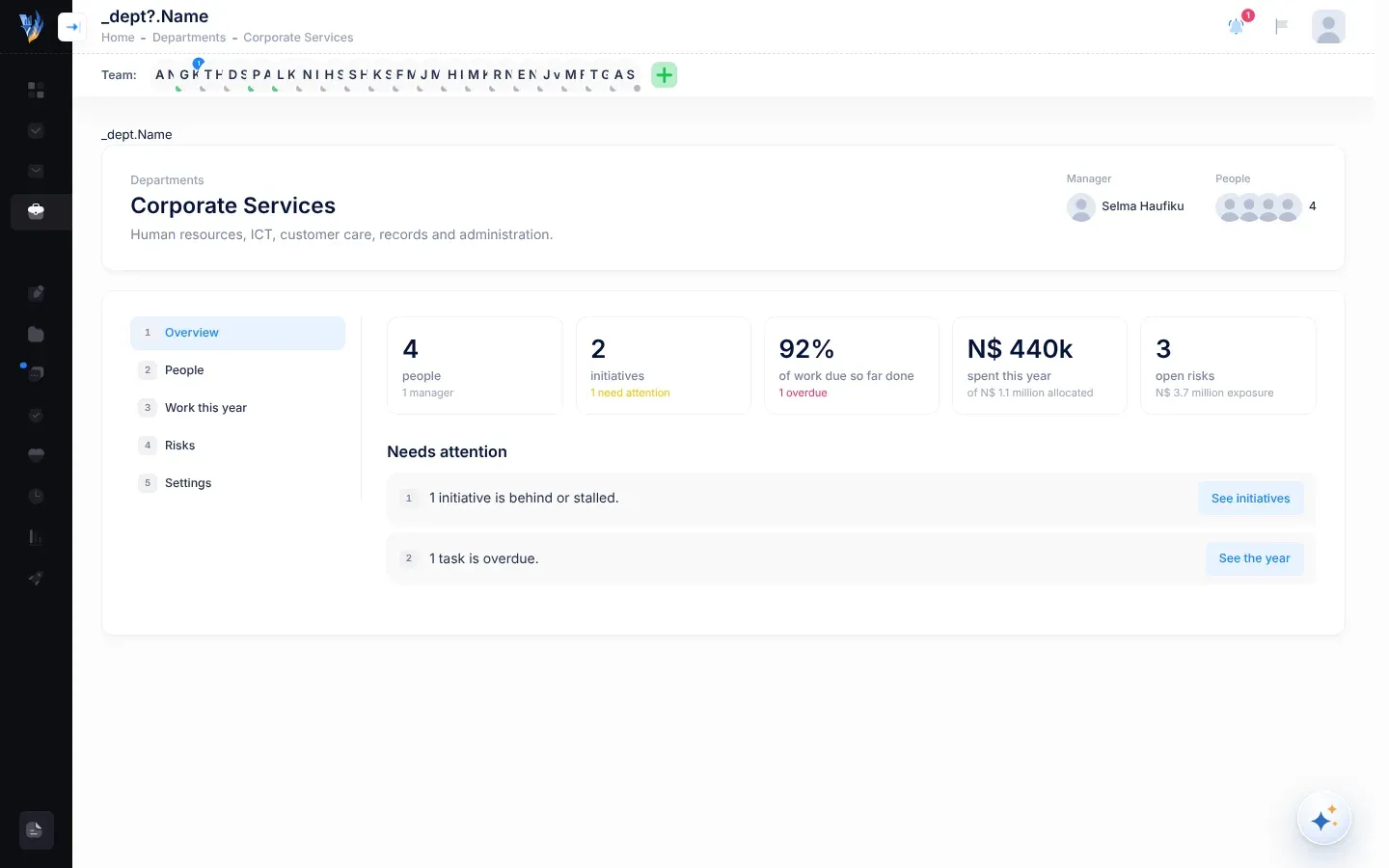
  • Jou departement se bladsy. Maak Departments oop en kies View Department op jou departement se kaart. 1 Overview lys wat aandag nodig het, en 2 People wys die departement se bestuurders en almal in die departement. Sien ’n Departement se bladsy.
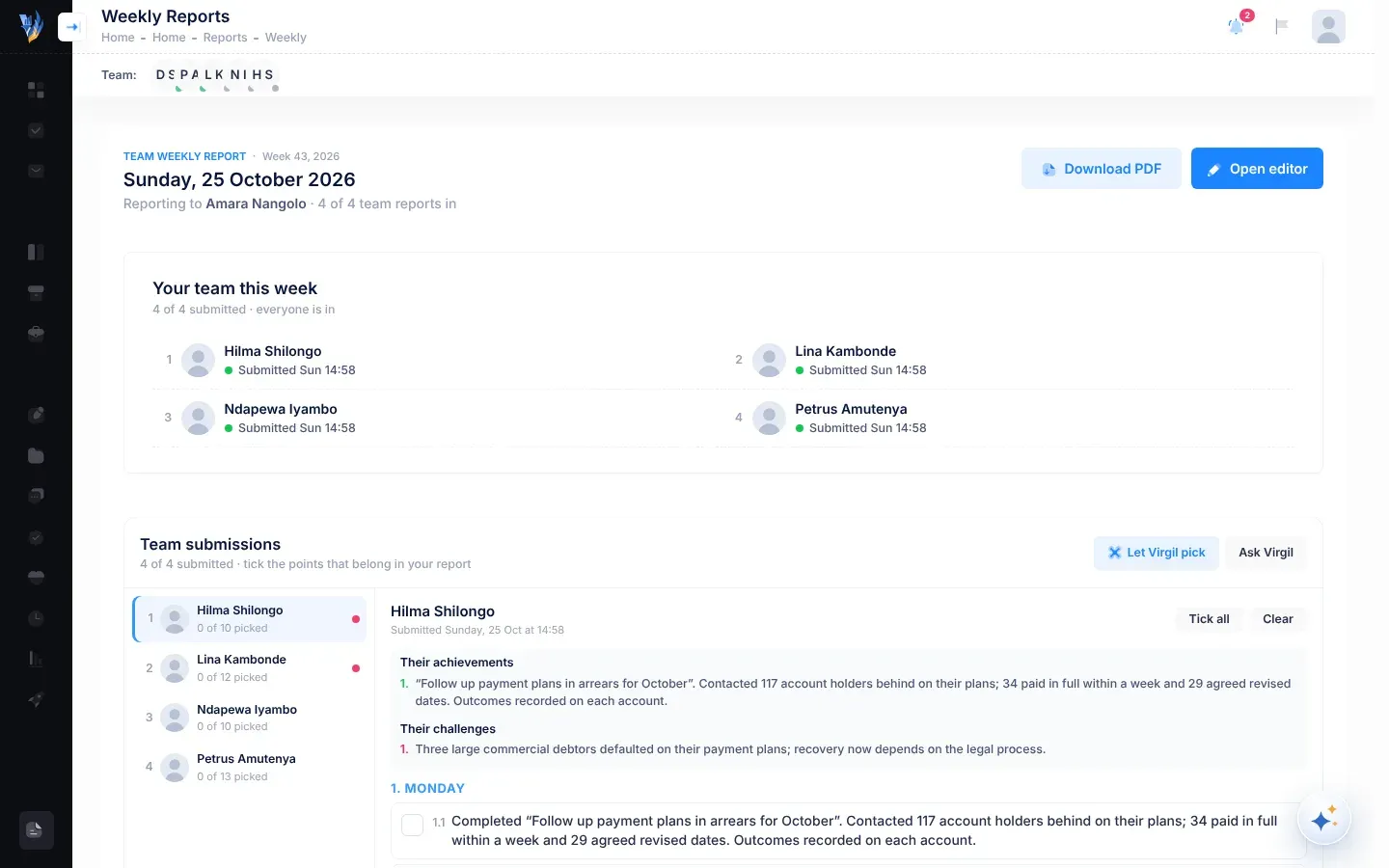
  • Die mense wat aan jou rapporteer. Maak Work Reports oop. Your team this week lys almal wat aan jou rapporteer. Sien Hersien jou span se verslae.
  • Jou span se werklading. Maak Emotional Intelligence, then Your team oop om vir elke persoon wat aan jou rapporteer hul oop en agterstallige take en gemiste weeklikse verslae te sien. Sien Jou span.
  • Is iets verkeerd? Net die HUB en administrateurs kan verander wie aan jou rapporteer, wie aan ’n departement behoort en wie dit bestuur. Net hulle kan nuwe mense uitnooi. As iemand ontbreek of op die verkeerde plek is, vra jou HUB. Sien Verslagdoeningslyne en rolle en Nooi spanlede uit.

’n Risiko is iets wat vir jou departement kan skeefloop. Elke risiko het ’n telling, mense wat daarvoor verantwoordelik is, hersieningsdatums en beheermaatreëls: die aksies wat die risiko verminder.

  1. Maak Risk Register oop. Die Active-groep wys die risiko’s waaraan nog gewerk word. ’n Next review-datum in rooi, gemerk overdue, beteken dat ’n hersieningsdatum verby is. Sien Die risikoregister.
  2. Maak Risk Repository (risikobewaarplek) oop en kopieer die voorstelle wat op jou departement van toepassing is. Risiko’s uit jou organisasie se strategiese plan kom hier aan. Sien Die risikobewaarplek.
  3. Assesseer elke risiko wat jy gekopieer het. Jy kry hulle in die Not assessed-groep van die register. Net jy kan hulle assesseer, want jy is hul eienaar. Sien Assesseer ’n risiko.
  4. Teken enige ander risiko’s aan met Add risk. Sien Voeg ’n risiko by.
  5. Maak elke risiko oop en kies Add control (Voeg beheermaatreël by) om te beplan wie wat teen wanneer sal doen. Sien Voeg ’n beheermaatreël by ’n risiko.

Van dan af:

  1. Maak Execution, then Initiatives oop om jou departement se inisiatiewe maand vir maand te sien. Sien Die Initiatives-bladsy.
  2. Om vir iemand ’n taak te gee, beweeg die wyser oor ’n maand se blokkie in ’n inisiatief se ry en kies Add task.
  3. Vul Task in, kies die persoon in Assigned to, en gaan die Due date (sperdatum) en Priority (prioriteit) na. Kies dan die knoppie met die persoon se naam daarop, byvoorbeeld Delegate to Petrus. Sien Delegeer ’n taak.
  4. Volg die werk in Tasks. I delegated lys die take wat jy uitgedeel het. Departementele bestuurders het ook My team: die take op hul departemente se inisiatiewe, persoon vir persoon. Sien Jou take.
  5. Wanneer iemand begin, vasval, meer tyd vra of klaarmaak, word jy laat weet. Antwoord hulle, verander die sperdatum of verifieer die werk vanaf die taak se bladsy. Sien Volg werk op wat jy gedelegeer het.

Elke Maandagoggend, as werk wat jy gedelegeer het agterstallig is of in die afgelope week klaargemaak is, stuur VirgilTrack vir jou ’n opsomming daarvan per e-pos.

As jy ’n departementele bestuurder is, maak ook Execution, then Budget oop om jou inisiatiewe se begrotings na te gaan, en teken besteding aan soos dit gebeur. Sien Die Budget-bladsy en Teken besteding op ’n inisiatief aan.

Die mense wat aan jou rapporteer, stuur vir jou hul weeklikse verslae. Jy kies die punte wat saak maak, en VirgilTrack bou jou eie verslag daaruit. Personeel word Vrydagmiddag herinner as hul verslag nog nie ingedien is nie.

  1. Maak Work Reports oop.

  2. Onder Your team this week, kyk wie al ingedien het. Kies Remind langs enigiemand op wie jy nog wag.

  3. Onder Team submissions, kies elke persoon en merk die punte wat in jou verslag hoort.

    Let Virgil pick merk die punte wat op jou vlak saak maak, met ’n rede vir elkeen. Lees Virgil se keuses voordat jy verder gaan.

  4. Kies Open editor. VirgilTrack skryf jou konsep uit die punte wat jy gemerk het.

  5. Gaan die konsep in die Report Editor na en verander wat nodig is, en kies dan Submit Report.

Die bestuurder se werkverslae-bladsy: Team weekly report met die weeknommer, vandag se datum en hoeveel spanverslae ingedien is, die knoppies Download PDF en Open editor, die Your team this week-kaart met elke persoon se status (en ’n Remind-knoppie langs enigiemand wat nog nie ingedien het nie), en die Team submissions-kaart daaronder
Jou span se verslae vir die week

Jou verslag gaan na die persoon aan wie jy rapporteer, gewoonlik die HUB. Die bladsy wys altyd die huidige week, Maandag tot Sondag, so dien jou verslag in voordat die week verby is. Sien Hersien jou span se verslae en Dien jou spanverslag in.

  • Jou kontrolebord. Kies Dashboard om die Manager Dashboard oop te maak: jou departement se risikosyfers, jou departement se risiko- en beheerhersienings per dag van die week in What’s up Today, en jou departement se risiko-hittekaart. Sien Die Manager Dashboard.
  • Kennisgewings. Die klokkie in die kopstrook wys wat nuut is, soos take, beheermaatreëls, risiko’s, vermeldings en herinneringe. ’n Rooi getal wys hoeveel jy nog nie gelees het nie. Sien Kennisgewings.
  • Take wat jou nodig het. ’n Rooi getal langs Tasks in die kieslys tel jou agterstallige take en die take met boodskappe wat jy nog nie gelees het nie. Sien Die getalle in die kieslys.
  • Virgil Copilot. Kies die ronde Virgil Copilot-knoppie, of druk Ctrl + K, en vra in jou eie woorde, byvoorbeeld “Wat is agterstallig?”. Wanneer jy Virgil vra om iets te verander, berei Virgil die verandering eers voor sodat jy dit kan bevestig. Sien Vra Virgil Copilot.

Jou eerste week as werknemer

Wie kan dit gebruik:Werknemer

In VirgilTrack kom werk as take na jou toe, help jy om jou departement se risiko’s onder beheer te hou, en vertel jy elke week vir jou bestuurder wat jy gedoen het. Hierdie kontrolelys versprei jou eerste stappe oor ’n week. Elke item skakel na die bladsy met die besonderhede.

Jy het ’n VirgilTrack-rekening nodig. As jy ’n uitnodigings-e-pos het maar jou rekening nog nie opgerig het nie, sien Aanvaar ’n uitnodiging.

  1. Meld aan met jou e-posadres en wagwoord. VirgilTrack maak jou departement se Risk Register (risikoregister) oop. Sien Meld aan en meld af.
  2. Maak Your picture, then Settings oop. Gaan op Profile jou foto en jou naam na. Sien Jou profiel en aanmeldbesonderhede.
  3. In Sign-in & security, voeg jou selfoonnommer by of verifieer dit, sodat VirgilTrack vir jou SMS’e kan stuur, soos herinneringe. Sien Voeg jou selfoonnommer by of verifieer dit.
  4. In Preferences, gaan jou tydsone na. VirgilTrack stuur nie snags (in jou tydsone) vir jou SMS’e of oproepe nie, en Virgil Copilot gebruik jou tydsone vir herinneringe waarvoor jy vra. Sien Stel jou tydsone.
  5. Leer die dele van die skerm ken: die kieslys aan die linkerkant, die klokkie in die kopstrook, die Team:-balk (spanbalk) met jou kollegas, en die Virgil Copilot-knoppie. Sien Vind jou pad.
  1. Maak Tasks (take) oop. Die For me-oortjie lys die werk wat aan jou gegee is, gegroepeer volgens wanneer dit klaar moet wees. Sien Jou take.
  2. Maak ’n taak oop en kies Start working on it. Die persoon wat dit vir jou gegee het, word laat weet.
  3. As jy vasgeval het, of meer tyd nodig het, sê so op die taak se bladsy. Sien Sê jy is vas en Vra vir meer tyd.
  4. Wanneer die werk klaar is, kies Mark as done. In How was it done?, skryf wat jy gelewer het en hoe, en kies dan Mark as done onder die blokkie.
Die Tasks-bladsy: ’n groet met vier syfers (Overdue, Due this week, In progress en Done this week) en ’n ring wat wys hoeveel van hierdie week se werk klaar is, dan die oortjies For me en I delegated, ’n strook met die volgende twee weke, Today's focus-kaarte en die lys take, gegroepeer volgens wanneer hulle klaar moet wees
Jou take

Hoe jy van jou werk hoor:

  • Wanneer iemand vir jou ’n taak gee, kry jy die kennisgewing New task delegated to you.
  • Op weeksdae soggens stuur VirgilTrack vir jou ’n e-pos oor werk wat die volgende dag klaar moet wees, en oor werk wat agterstallig is. Sien Herinneringe.
  • ’n Rooi getal langs Tasks in die kieslys tel jou agterstallige take en die take met boodskappe wat jy nog nie gelees het nie.

Sien Werk aan ’n taak.

Jou departement teken sy risiko’s aan in die Risk Register: dinge wat kan skeefloop, hoe ernstig hulle is, en die aksies wat hulle verminder, wat beheermaatreëls genoem word.

  • Lees jou departement se register. Maak Risk Register oop en kies ’n risiko om sy bladsy oop te maak, met sy telling, sy beheermaatreëls en sy bespreking. Sien Die risikoregister en ’n Risiko se bladsy.
  • Jou hersienings. As jy een van ’n risiko se Responsible people (verantwoordelike persone) is, herinner VirgilTrack jou 7, 3 en 1 dag voor elke hersiening, en op die dag self. By die hersiening gaan jy na of die risiko verander het en of sy beheermaatreëls werk, en jy skryf op die Discussion-oortjie wat jy gevind het. Sien Hersien ’n risiko.
  • Jou beheermaatreëls. Wanneer iemand jou verantwoordelik maak vir ’n beheermaatreël, kry jy Risk control assigned to you. Wanneer die werk klaar is, maak die beheermaatreël oop, skryf in How did you implement it? en kies Mark as implemented. Sien Merk ’n beheermaatreël as geïmplementeer.
  • Wat voorlê. Kies Dashboard. What’s up Today lys, dag vir dag van SUN tot SAT, die risikohersienings wat vir jou geskeduleer is en die beheermaatreëls waarvoor jy verantwoordelik is of wat jy geskep het. Dit is nie tot hierdie week beperk nie, so maak die risiko oop om ’n hersiening se datum na te gaan. Sien Die What’s up Today-kaart.
  • Het jy ’n nuwe risiko raakgesien? Teken dit aan met Add risk op die register. Sien Voeg ’n risiko by.
  1. Maak Work Reports oop. Vandag se kaart is reeds gekies.
  2. Skryf wat jy gedoen het in die blokkie onder die dag se naam, byvoorbeeld Tuesday’s work. Dit word gestoor terwyl jy tik.
  3. Kyk na Reporting to bo-aan die bladsy. Jou verslag gaan na daardie persoon, gewoonlik jou bestuurder.
Die bladsy vir hierdie week se weeklikse verslag: die week se nommer, die Draft-kenteken en die Reporting to-reël bo-aan, die Guidelines-knoppie, die lys weke en die Review & submit-knoppie, ’n ry dagkaarte van Maandag tot Sondag met vandag gemerk, die This week-balk met take, en die blokkie vir vandag se werk
Jou weeklikse verslag, terwyl jy dit skryf

Sê wat jy gedoen het, wat daaruit gekom het en hoekom dit saak maak. Kies Guidelines om te sien wat ’n goeie inskrywing insluit. Om Virgil ’n inskrywing oor ’n stuk werk te laat skryf, maak die This week-balk oop en kies Draft langs daardie werk. Sien Jou weeklikse verslag.

As die bladsy “Your reporting line isn’t set up yet” sê, vra jou HUB (hoof- uitvoerende beampte) om jou bestuurder in te stel. Sien Na wie jou verslag gaan.

  1. Maak Work Reports oop en kies Review & submit. VirgilTrack maak van jou inskrywings ’n kort verslag.
  2. In Edit report before submitting, lees elke afdeling en die Summary (opsomming), en verander enigiets wat nie reg is nie.
  3. Kies Submit Report. Jy sien “Report successfully submitted to your manager.”
  4. Maak Emotional Intelligence, then Me oop en beantwoord How was your week?. Jou antwoord is privaat, tensy jy Share this with my manager merk. Sien Die weeklikse inloer.

Jy kan jou verslag enige tyd indien, en VirgilTrack herinner jou solank dit nog oop is:

Wanneer Wat jy kry
Vrydag om 14:00, as hierdie week se verslag nie ingedien is nie ’n E-pos, byvoorbeeld “Your week 43 report is ready to submit”, met ’n Open my report-knoppie.
Maandag om 08:30, as verlede week se verslag steeds nie ingedien is nie ’n E-pos, byvoorbeeld “Last week’s report (week 42) is still open”, met ’n Finish and submit-knoppie, en ’n kennisgewing in VirgilTrack.

Probeer om teen Vrydagmiddag in te dien: jou bestuurder bou hul eie verslag uit die verslae wat die span ingedien het. Om ’n verslag te verander wat jy reeds gestuur het, kies Reopen and edit. Sien Dien jou weeklikse verslag in.

Op Vrydagmiddag stuur VirgilTrack ook vir jou How was your week? per e-pos as jy daardie week nog nie ingeloer het nie. Jy kan reguit vanuit die e-pos antwoord.

Kies die ronde Virgil Copilot-knoppie regs onder op die skerm, of druk Ctrl + K. Vra in jou eie woorde, byvoorbeeld:

  • “Wat is agterstallig?”
  • “Skryf vandag se inskrywing uit wat ek gedoen het”
  • “Herinner my môre om 9 om die ouditeure te bel”

Sien Vra Virgil Copilot en Wat Virgil kan doen.

Probeer VirgilTrack met ’n demonstrasieskakel

Met ’n demonstrasieskakel kan jy VirgilTrack verken voordat jou organisasie registreer. Dit maak ’n privaat kopie van VirgilTrack oop wat met ’n voorbeeldorganisasie gevul is, sodat jy alles kan probeer sonder om iemand se regte werk te raak.

  • Demonstrasieskakels is persoonlik. Virgil Finance berei elkeen vir ’n spesifieke persoon voor. As jy een wil hê, kontak Virgil Finance.
  • Elke skakel werk in net een blaaier: die eerste blaaier wat dit oopmaak. Gebruik elke keer dieselfde rekenaar en blaaier wanneer jy terugkom.
  • Moenie die skakel in ’n privaat of incognito-venster oopmaak nie, en moenie daardie blaaier se koekies uitvee solank jou demonstrasie duur nie. Anders word die blaaier nie meer herken nie, en die skakel gaan nie weer oop nie.
  • ’n Demonstrasie duur net ’n beperkte tyd. Die demonstrasiebalk wys hoeveel tyd oor is.
  1. Maak die demonstrasieskakel oop wat vir jou gestuur is.

    VirgilTrack meld jou aan as die HUB van die voorbeeldorganisasie. Jy het nie ’n wagwoord nodig nie.

  2. Kyk op die welkomsbladsy of die kenteken “Your private demo, prepared for …” jou naam wys.

  3. Kies hoe jy wil begin: Take the tour (neem die toer) of Use my own plan (gebruik my eie plan). Albei word hieronder verduidelik.

Die welkomsbladsy van die demonstrasie met twee keuses: Step inside a council that's doing it, met die Take the tour-knoppie, en Bring your own plan, met die Use my own plan-knoppie
Kies hoe jy jou demonstrasie wil begin

Jou demonstrasie is ’n aparte kopie van VirgilTrack, so niks wat jy daarin doen, raak ’n regte organisasie nie. Dit verdwyn wanneer jou skakel verval. Sodra jou demonstrasie ’n plan het, byvoorbeeld nadat jy die toer geneem het, neem die skakel jou die volgende keer reguit na VirgilTrack.

Die VirgilTrack-span wat jou skakel gestuur het, kan ’n rekord van jou besoeke aan die demonstrasie sien, soos wanneer jy dit oopgemaak het, watter bladsye jy bekyk het en hoe ver jy deur die toer gekom het.

Take the tour is die aanbevole keuse. Dit maak Kalahari Springs Municipality oop, ’n voorbeeldraad wat sy plan reeds in VirgilTrack bestuur. Sy take, weeklikse verslae, begrotings en risiko’s is reeds daar.

  1. Kies Take the tour.

    Die knoppie wys Opening the doors… terwyl VirgilTrack die voorbeeldorganisasie voorberei. Dan begin die begeleide toer, as jou demonstrasie een insluit.

  2. Lees elke borrel. Step … of … wys hoe ver jy deur die toer is.

  3. Kies Next (volgende), of die knoppie wat in die borrel gewys word, of druk Enter om voort te gaan. Wanneer ’n borrel sê Click the highlighted item, kies die item wat uitgelig is.

  4. Om enige tyd op te hou, kies Skip the tour (slaan die toer oor).

Om die toer later weer te neem, kies Tour op die demonstrasiebalk. Die toer volg die HUB: as jy deur iemand anders se oë kyk, skakel Tour jou eers terug na die HUB. Nie elke demonstrasie sluit die toer in nie; as joune dit nie doen nie, is die Tour-knoppie nie daar nie.

Met Use my own plan laai jy jou eie strategiese plan op en sien jy hoe VirgilTrack dit lees. Wees bewus daarvan dat dit regte werk is, nie net ’n vinnige kykie nie: VirgilTrack werk nie met ’n plan wat gapings het nie, en jy sal gevra word om elke gaping self in te vul.

  1. Kies Use my own plan.

    ’n Waarskuwing verskyn: Stop. This is the deep end.

  2. Kies I understand. Let me upload anyway (ek verstaan, laat my tog oplaai). As jy van plan verander, kies Take the tour instead (neem eerder die toer).

  3. Tik onder Whose plan is it? (wie se plan is dit?) jou organisasie se naam in Organisation name, byvoorbeeld “Okahandja Town Council”.

  4. Kies Continue to the upload (gaan voort na die oplaai).

    VirgilTrack maak die Execution-afdeling (uitvoering) oop, gereed vir jou om jou plan op te laai. Sien Bring jou strategiese plan in.

Om terug te gaan na die twee keuses, kies Back to the two options.

Terwyl jy in ’n demonstrasie is, sweef ’n balk onderaan elke bladsy.

Deel van die balk Wat dit doen
Demo Wys dat jy in ’n demonstrasie is, vir wie dit voorberei is, en hoeveel tyd oor is.
Quick actions (vinnige aksies) Laat dinge dadelik in die demonstrasie gebeur, soos dat almal hierdie week se werkverslae indien.
Viewing as … (kyk as …) Wys deur wie se oë jy VirgilTrack sien. Kies dit om iemand anders te word.
Tour (toer) Begin die begeleide toer weer.
Back to CEO (terug na die HUB) Skakel terug na die HUB. Dit word gewys wanneer jy deur iemand anders se oë kyk.
  1. Kies Viewing as … op die demonstrasiebalk.
  2. Tik in “Search people, roles or departments…” om iemand te vind, of blaai deur die lys.
  3. Kies die persoon.

Die bladsy laai weer, aangemeld as daardie persoon, sodat jy hulle kennisgewings, take en verslag sien. ’n CEO- of Manager-kenteken wys watter mense daardie rolle het.

Vinnige aksies werk op die Work Reports-bladsy (werkverslae) in Execution. Kies Quick actions, en dan Run (voer uit) langs die aksie wat jy wil hê. As daar geen aksies op die bladsy is waar jy nou is nie, bied die kieslys ’n Go to Work reports-knoppie aan.

Kyk as Vinnige aksies
Die HUB Everyone submits this week’s reports; Reset this week to drafts
’n Bestuurder My team submits this week’s reports; Submit my report to the CEO; Reset my team’s week
’n Beampte Fill in my week so far; Reset my report to draft

Nadat ’n aksie uitgevoer is, sê VirgilTrack vir jou wat gebeur het en laai die bladsy weer.

  • Die mense in ’n demonstrasie is versin, so hulle aanmeldbesonderhede kan nie verander word nie. In Settings (instellings) sien jy “This is a demo, so sign-in details can’t be changed here.”
  • Wanneer die demonstrasie se tyd om is, word jy afgemeld en is die demonstrasie weg.
Wat jy sien Wat om te doen
“This demo link isn’t valid.” Maak seker dat jy die hele skakel uit jou e-pos oopgemaak het.
“This demo link has expired. Ask for a new one.” of “This demo link has been withdrawn.” Kontak Virgil Finance vir ’n nuwe skakel.
“This demo link has already been opened on another device. Each link is personal; ask for your own.” Maak die skakel oop in die blaaier wat jy die eerste keer gebruik het, of vra vir jou eie skakel.
“We couldn’t prepare your demo just now. Please open the link again in a minute.” Wag ’n minuut en maak die skakel weer oop.
“This demo isn’t available any more.” Kontak Virgil Finance vir ’n nuwe skakel.
“Please enter your organisation’s name.” Tik jou organisasie se volle naam (minstens twee letters), en kies dan Continue to the upload.
“That name is too long; 120 characters at most.” Maak die naam korter.
“This week’s reports haven’t been set up yet. Open Work reports once, then try again.” of “You don’t have a report for this week yet. Open Work reports once, then try again.” Maak Work Reports in Execution oop, en voer dan die vinnige aksie weer uit.
“That didn’t work just now. Please try again in a moment.” Wag ’n oomblik, en voer dan die vinnige aksie weer uit.

03Kontroleborde

Dashboards

A dashboard is a one-page summary of what matters to you. It brings together figures and lists from other parts of VirgilTrack, such as your risks, controls, reviews and weekly reports, so you can see at a glance where things stand.

Everyone opens their dashboard with Dashboard, the first item in the menu on the left. Which dashboard opens depends on your role.

Your role Your dashboard What it covers
Employee Manager Dashboard Your department’s risks, and the reviews and controls that are yours.
Manager Manager Dashboard Your department’s risks, reviews and controls.
CEO CEO Dashboard The whole organisation: departments, people, risks, money at risk and weekly reports.
Administrator Admin Dashboard A link to the demo links page.

Employees and managers share the same screen, called Manager Dashboard. Only one card, What’s up Today, shows an employee less than a manager. See The Manager Dashboard.

  1. Select Dashboard at the top of the menu on the left.

    Your dashboard opens. Its name appears in the header at the top of the page.

  2. Wait a moment while the cards load. Grey placeholder shapes show where a card is still loading.

When you sign in, the CEO and administrators land on their dashboard. Managers and employees land on the Risk Register: select Dashboard in the menu to open the dashboard. See Sign in and sign out.

Card Manager Dashboard CEO Dashboard
Your organisation and department, with four figures Yes
Six figures for the whole organisation Yes
Weekly report submissions Yes
What’s up Today Yes Yes
Risk Distribution Heatmap Yes, for your department Yes, for the organisation
Risk Categories by Department Yes
Departments Overview Yes
  • The figures are worked out when the dashboard opens. They don’t change while you look at them. To see the latest figures, reload the page in your browser. Selecting Dashboard while the dashboard is already open doesn’t update it.
  • Your role decides the scope. The CEO sees the whole organisation. Managers and employees see their own department, and What’s up Today shows employees only their own work.
  • “Mitigated” means marked with Mark as mitigated. A risk counts as mitigated once someone selects Mark as mitigated on the risk’s page or in the risk register. A risk that is archived, or moved to Mitigated on the Kanban board, still counts in figures such as Risk Exposure. See The risk register.
  • Report buttons take you to the reports. PDF Report, Report Center, Get Report and Generate Reports all open the Generate Reports page. See Make a risk report.
  • Money is in Namibian dollars. Large amounts are shortened: “K” means thousands and “M” means millions, so 2.5M is N$ 2,500,000.

Wie kan dit gebruik:Administrateur

The Admin Dashboard is a simple page for platform staff. Its Manage Demos link opens the demo links page. Administrators do most of their work from Organizations, Users and Sign Ups in the menu. See Platform administration and Demo links.

The page’s Admin Index heading and get db path button are not for everyday use, and, in the bar under the header, the Search Risk box and the Add a team member and Enable grid view buttons don’t do anything yet. See Known limitations.

The Manager Dashboard

Wie kan dit gebruik:BestuurderWerknemer

The Manager Dashboard shows how your department is doing with its risks. Managers and employees both use it. It answers three questions: how much risk is left in your department, what reviews are coming up, and where your department’s risks sit on the heat map.

  1. Select Dashboard in the menu on the left.

    The Manager Dashboard opens.

The Manager Dashboard: the department card with its four figures at the top left, the What's up Today card with the days of the week at the top right, and the Risk Distribution Heatmap across the bottom
The Manager Dashboard

The dashboard has three cards:

  1. Your department card, at the top left, with four figures about your department’s risks.
  2. What’s up Today, at the top right, with the risk reviews and control reviews on each day of the week.
  3. Risk Distribution Heatmap, across the bottom, which places your department’s open risks on a grid.

The top of the card shows your organisation’s name and, under it, your department’s name. VirgilTrack adds the word “Department” to the name if it isn’t there already. Select the names to open your department’s Risk Register.

Under the names are four figures. They always cover your whole department, whether you are a manager or an employee.

Figure What it shows
Residual Risks How many of your department’s risks haven’t been marked as mitigated yet, whatever their status. Archived risks, and risks moved to Mitigated on the Kanban board, still count.
Pending Controls How many of your department’s controls haven’t been marked as implemented yet.
Risk Exposure The total Financial exposure of the same risks: your department’s risks that haven’t been marked as mitigated.
Department Progress Of the risks recorded in your department this calendar year, the percentage that have been marked as mitigated, as a whole number rounded down.

A residual risk is a risk that is still there: it hasn’t been dealt with yet. Here, “marked as mitigated” means someone selected Mark as mitigated on the risk’s page or in the risk register. A control is an action that reduces a risk. See Risk controls and the Glossary.

Risk Exposure is shortened for large amounts: “K” means thousands and “M” means millions. For example, 250.5K is about N$ 250,500.

The department card, showing the organisation and department names over a picture, and the Residual Risks, Pending Controls, Risk Exposure and Department Progress figures
Your department card

The small square button at the top right of the department card opens Quick Actions:

  • View opens your department’s Risk Register.
  • Get Report opens the Generate Reports page, where you can create risk reports. See Make a risk report.

What’s up Today lists risk reviews and control reviews by day of the week. Today’s day is selected when the dashboard opens; select another day to see its list.

  • Managers see the reviews and controls of their whole department.
  • Employees see the controls they are responsible for or created, and the risk reviews scheduled for them.

See The What’s up Today card for what each entry shows.

The heat map places your department’s open risks on a grid of five probability levels by five impact levels. The redder a cell, the more serious that combination is. A number in a cell shows how many risks are counted there.

Under the title it says “Showing risk distribution within the department.” PDF Report opens the Generate Reports page.

See The risk heat map to learn how to read it. At present the heat map counts risks in the wrong rows, so read What the numbers mean before you rely on it.

The bar under the header shows Team: with the people in your department, and Actions: at the other end. See The team bar.

Select the square button next to Actions: to open More Actions, then select Generate Reports to open the reports page.

Card Manager Employee
Department card and its four figures Your department Your department
What’s up Today Your department’s reviews and controls Your own controls and the reviews scheduled for you
Risk Distribution Heatmap Your department’s open risks Your department’s open risks
The Manager Dashboard as an employee sees it: the same department figures as the manager, with What's up Today listing only the employee's own controls and reviews
The Manager Dashboard, as an employee sees it

The figures follow what you do with your risks and controls elsewhere in VirgilTrack:

  • When someone marks a risk as mitigated with Mark as mitigated, on the risk’s page or in the risk register, Residual Risks and Risk Exposure go down. If the risk was recorded this year, Department Progress goes up. See A risk’s page.
  • Archiving a risk, or moving it to Mitigated on the Kanban board, doesn’t change Residual Risks, Risk Exposure or Department Progress.
  • When someone marks a control as implemented with Mark as implemented, Pending Controls goes down. See Risk controls.
  • Risk Exposure adds up the Financial exposure entered for each risk. Risks with no amount add nothing.

The dashboard works out its figures when it opens. To see changes you’ve just made, reload the page in your browser.

What you see Why What to do
Risk Exposure shows 0 No Financial exposure has been entered for your department’s open risks. Enter a Financial exposure amount when you add, assess or edit a risk. See Add a risk.
Department Progress shows 0 % No risks were recorded in your department this year, or none of this year’s risks is mitigated yet. Nothing is wrong. The figure rises as this year’s risks are mitigated.
A figure hasn’t changed after you updated a risk The dashboard worked out its figures before your change. Reload the page in your browser.
A risk you think is finished still counts in Residual Risks and Risk Exposure It was archived, or moved to Mitigated on the Kanban board, but nobody selected Mark as mitigated. Open the risk’s page and select Mark as mitigated. The button only works once all the risk’s controls are implemented. See A risk’s page.
What’s up Today is empty for every day There are no reviews or controls for you (or, for managers, your department) yet. See The What’s up Today card.

The CEO Dashboard

Wie kan dit gebruik:HUB

The CEO Dashboard shows the whole organisation on one page. Use it to see how much risk the organisation carries, which departments need attention, and whether the people who report to you have sent their weekly reports.

The CEO Dashboard opens when you sign in. To come back to it from anywhere:

  1. Select Dashboard in the menu on the left.

    The CEO Dashboard opens.

The CEO Dashboard: six figure cards across the top, the Weekly report submissions card under them, then What's up Today beside the Risk Distribution Heatmap, and Risk Categories by Department beside Departments Overview at the bottom
The CEO Dashboard

From top to bottom, the dashboard shows:

  1. Six organisation figures in a row of small cards.
  2. Weekly report submissions from the people who report to you.
  3. What’s up Today, with the organisation’s risk reviews and control reviews by day.
  4. Risk Distribution Heatmap for the whole organisation.
  5. Risk Categories by Department, a bar chart.
  6. Departments Overview, a table of your departments.

Under the header, Team: shows the pictures of everyone in your organisation whose account is active. Select a picture to chat with that person. The green plus button at the end, Invite a team member, invites someone new. See The team bar and Invite team members.

At the right of the bar, after Actions:, the Enable grid view button (its name shows when you point at it) doesn’t do anything yet. See Known limitations.

The six cards at the top add up figures for your whole organisation.

Card What it shows
Departments How many departments your organisation has in VirgilTrack. This includes a department called Executive Suite, the CEO’s own, if you have one. The cards further down leave it out.
Team Members How many people in your organisation have a VirgilTrack account, including you. Accounts that have been deactivated, for example of people who have left, still count.
Active Risks How many risks have the status New or In Progress and haven’t been marked as mitigated.
Risk Exposure The total Financial exposure of every risk that hasn’t been marked as mitigated.
Treatment Budget The total Mitigation budget of every risk that hasn’t been marked as mitigated. This is what the organisation expects to spend on dealing with its open risks.
Critical Assets Value This card doesn’t add anything up yet, so it shows 0.

Money is shortened: “K” means thousands and “M” means millions. For example, 12.4M is about N$ 12,400,000.

This card shows whether the people who report directly to you have submitted their weekly report. Only people whose Reports to is set to you are listed, and only if their account is active.

The Weekly report submissions card: the week number and dates under the title, the Previous week and Next week arrows, how many people have submitted out of the total with a green progress bar, the Submitted and Not submitted tabs with their counts, and a list of people, each with a status badge
Weekly report submissions

The line under the title names the week, for example “Week 43, 19 Oct – 25 Oct”. Weeks run from Monday to Sunday. Use the Previous week and Next week arrow buttons to move between weeks. You can’t go past the current week.

The large number shows how many people have submitted, for example “3 of 5 submitted”. The green bar under it fills up as more people submit.

Tab Who it lists
Submitted People who have sent their report for that week, earliest first.
Not submitted People whose report for that week hasn’t been sent yet, by name. The card opens on this tab.
No report People who don’t have a report for that week at all, by name. This tab only appears when someone is in this state.

The number on each tab shows how many people it lists. When a tab lists nobody, it says “No reports submitted yet this week.” (Submitted) or “Everyone has submitted.” (Not submitted).

Each row shows the person’s picture, name and department (“No department” if they have none), and a badge:

Badge What it means
A green badge with a day and time, such as “Mon 14:05” They submitted their report, at that time. If the time isn’t known, the badge just says Submitted.
Not submitted, in yellow Their report exists but they haven’t sent it yet.
No report, in red VirgilTrack hasn’t created a report for them for that week yet, so they can’t submit one. Point at the badge to read why.

To read the reports themselves, see Review your team’s reports.

On the CEO Dashboard, What’s up Today lists the risk reviews and control reviews of the whole organisation, by day of the week. Today’s day is selected when the page opens. See The What’s up Today card.

The heat map places all of the organisation’s open risks on a grid of probability by impact. Under the title it says “Showing risk distribution within the organization.” See The risk heat map. At present the heat map counts risks in the wrong rows, so read What the numbers mean before you rely on it.

This bar chart shows how many risks each department has in each risk category, such as Financial Risk or Operational Risk.

  • Overall shows all departments together. It is selected when the page opens.
  • Select a department’s name to see that department only.
  • Each bar is one risk category, with its number of risks on top. The bottom axis is labelled Risk Category and the side axis Total Risks.
  • Only categories that have at least one risk get a bar.

The chart counts every risk recorded in the department, whatever its status, including mitigated ones. The Executive Suite isn’t included.

This table lists your organisation’s departments, except the Executive Suite.

The Departments Overview table, listing each department with its manager's name, team size, active risks, progress percentage, status badge and risk exposure in Namibian dollars, and an arrow button at the end of each row
Departments Overview
Column What it shows
DEPARTMENT The department’s picture and name. Under the name is the department manager’s name, when one is set.
TEAM SIZE How many people are in the department, including deactivated accounts.
ACTIVE RISK How many of the department’s risks have the status New or In Progress and aren’t mitigated.
PROGRESS Of the risks recorded in the department this calendar year, the percentage marked as mitigated. It is rounded down to a whole number, for example “50.00 %”.
STATUS The department’s overall risk status. Departments start as New.
RISK EXPOSURE The total Financial exposure of the department’s risks that aren’t mitigated, in full, for example “N$ 1,250,000.00”.
VIEW An arrow button that opens the department’s page.

Select a department’s name, its picture or the arrow button to open that department’s page, with its people, work, risks and settings. Select Browse at the top of the card to open the Departments page. See Departments.

The cards count risks in different ways, so their numbers don’t always match.

Card Which risks it counts
Active Risks, ACTIVE RISK and the heat map Only risks with the status New or In Progress that aren’t mitigated.
Risk Exposure, Treatment Budget and RISK EXPOSURE Every risk that hasn’t been marked as mitigated, whatever its status. Archived risks, and risks moved to Mitigated on the Kanban board, still count.
Risk Categories by Department Every risk, including mitigated ones.
What you see Why What to do
“Nobody reports to you yet. Staff appear here once their “Reports to” is set to you.” No one in VirgilTrack reports directly to you. Set people’s reporting lines under Reporting hierarchy in your account menu. See Settings.
Someone has a red No report badge VirgilTrack hasn’t created their report for that week yet. Check again later. If it stays, contact your VirgilTrack administrator.
A department is missing from Departments Overview The Executive Suite is never listed. Nothing is wrong.
“No departments to display here” Your organisation has no departments besides the Executive Suite yet. Add departments. See Departments.
Critical Assets Value shows 0 This card doesn’t add up any values yet. Nothing is wrong.
A figure hasn’t changed after an update The dashboard worked out its figures when it opened. Reload the page in your browser.

The What’s up Today card

Wie kan dit gebruik:WerknemerBestuurderHUB

What’s up Today is a card on the Manager Dashboard and the CEO Dashboard. Under the line “What are people working on”, it lists the risk reviews and control reviews that fall on each day of the week, so you can see what is coming up.

  • On the Manager Dashboard, it is at the top right, beside your department card.
  • On the CEO Dashboard, it is beside the Risk Distribution Heatmap.
The What's up Today card, with the days SUN to SAT across the top and one day selected. Below them is that day's list: each entry has a coloured bar on its left, red for a risk review meeting and blue for a control review, and a View button
What’s up Today
  1. Open your dashboard with Dashboard.

    In What’s up Today, today’s day is already selected.

  2. Select another day in the row of days to see its list.

    The days run from SUN to SAT. Under each day’s name is its date in the current week.

  3. Select View next to a control review to open its risk’s page.

The card has two kinds of entry. A coloured bar on the left of each entry, and its wording, tell them apart.

Entry Bar What it shows
Risk review meeting Red “08:00 - 17:00”, the same for every meeting, then “Risk Review Meeting - “ and the risk’s code. Point at the small information icon to read the risk’s description. “Reviewed by” names the person the review is for.
Control review Blue The control’s next review time, in 12-hour form and always followed by “AM”, even for an afternoon time. Then the control’s description, and “Lead by” with the name of the person responsible for the control.

A risk review is a regular check of a risk to see whether it has changed. A control review is a check that a control, an action that reduces a risk, is still working. See Risk reviews and reminders and Risk controls.

  • Risk review meetings are added when someone changes a risk’s Next review date on Edit risk. VirgilTrack adds one for each of the risk’s Responsible people. A new risk doesn’t get one until its review date is changed.
  • Control reviews come from every control. Each control appears under the day of its next review, which is first set with First review when the control is added.

What the card lists depends on your role.

Your role Risk review meetings Control reviews
Employee Reviews scheduled for you Controls you are responsible for, or that you created
Manager Every review in your department Every control in your department
CEO Every review in the organisation Every control in the organisation

The card sorts entries by day of the week, not by date. Under MON, for example, you see every review whose date falls on a Monday, whatever the week.

If a day has nothing on it, the card says “Nothing going happening on” followed by the day’s name, for example “Nothing going happening on monday”.

Select Report Center at the top of the card to open the Generate Reports page. See Make a risk report.

What you see Why What to do
View next to a risk review meeting doesn’t open the risk This link doesn’t lead to the risk’s page. Open the risk from the Risk Register instead. The entry shows the risk’s code to help you find it. See The risk register.
An entry seems to be for a different week The card groups entries by day of the week only. Open the risk’s page to see the real date.
Every day is empty There are no review meetings or controls for you (or your department, or your organisation) yet. Controls appear as soon as they are added. Review meetings appear once someone changes a risk’s Next review date. See Where the entries come from.

The risk heat map

Wie kan dit gebruik:WerknemerBestuurderHUB

The Risk Distribution Heatmap shows how your open risks are spread by probability and impact. Probability is how likely a risk is to happen; impact is how serious it would be if it did. The heat map helps you see at a glance whether risks are bunching up in the serious, red part of the grid.

The heat map is on both dashboards:

Dashboard Which risks it counts The line under the title
Manager Dashboard, for managers and employees Your department’s risks “Showing risk distribution within the department.”
CEO Dashboard Your whole organisation’s risks “Showing risk distribution within the organization.”

Open it with Dashboard in the menu on the left.

The Risk Distribution Heatmap: a five by five grid with the impact levels Very Low to Very High across the top and the word Impact underneath, the probability levels Very High to Very Low down the left and the word Probability on the right, cells shaded from light green to deep red, and numbers in circles in some cells
The Risk Distribution Heatmap

The heat map counts only open risks: risks with the status New or In Progress that haven’t been marked as mitigated.

  • Risks that are Unassessed, Deferred, Mitigated or Archived aren’t counted.
  • A risk needs both a Likelihood and an Impact to be placed on the grid. See How risk scores work.

The grid has five columns and five rows, one for each level from Very Low to Very High.

  • The columns are impact. They run from Very Low on the left to Very High on the right. Their names are above the grid, and the word Impact is under it.
  • The rows are probability. They run from Very High at the top to Very Low at the bottom. Their names are on the left of the grid, and the word Probability runs down the right-hand side.

“Probability” on the heat map means the same as Likelihood on a risk’s form and page.

Level Probability (likelihood) means Impact means
Very Low The risk is highly unlikely to happen. No real effect on operations or objectives.
Low Unlikely, but possible. A slight disruption, with little effect on objectives.
Medium It may happen in certain conditions. A noticeable effect; it may delay operations.
High It is likely to happen. A big effect on operations; objectives are at risk.
Very High It is almost certain to happen. A critical effect, with a high chance of failure.

Each cell’s colour shows how serious that mix of probability and impact is. The colours go from light green (least serious), through pale yellow, orange and light red, to deep red (most serious).

Probability (row) and impact (column) Very Low Low Medium High Very High
Very High Orange Light red Light red Deep red Deep red
High Pale yellow Orange Light red Deep red Deep red
Medium Pale yellow Orange Orange Light red Deep red
Low Light green Pale yellow Orange Light red Deep red
Very Low Light green Light green Pale yellow Orange Deep red

The whole Very High impact column is deep red: a risk that would have a critical effect always needs attention, however unlikely it is.

A number in a circle shows how many risks are counted in that cell. A cell with no number has no risks in it. The heat map shows only counts, not the names of the risks.

You can’t select the cells. To see the risks themselves:

  • Managers and employees: open the Risk Register from the menu. It lists your department’s risks. See The risk register.
  • CEO: in Departments Overview on the CEO Dashboard, select a department to open its page and see its risks. See Departments.

Each risk’s own page has a small grid of likelihood by impact with the risk’s place marked, and a line such as “High likelihood, medium impact”. Use it to check exactly where a single risk sits. See A risk’s page.

  • When someone changes a risk’s likelihood or impact, the risk moves to another cell.
  • When a risk’s status changes to anything other than New or In Progress, such as Mitigated, Deferred or Archived, it leaves the map. So does a risk marked with Mark as mitigated.
  • The heat map is worked out when the dashboard opens. To see the latest picture, reload the page in your browser.

Select PDF Report at the top of the card to open the Generate Reports page, where you can create a risk report to share or print. See Make a risk report.

The activity timeline

The Activity page is a running list of what has happened in your organisation this year, with the newest at the top. Use it to catch up on new risks, risk status changes, new controls and other news. Everyone in the organisation can open it.

  1. Select Activity in the menu on the left.

    The page opens with today’s date at the top, for example “25 Oct, 2026”.

The Activity page, with today's date at the top left, the Today, Week, Month and year tabs at the top right, and a timeline of entries, such as a risk status change with the old and new status in bold, each with how long ago it happened
The activity timeline

Each entry on the timeline has:

  • What happened, in a sentence. Important words, such as a risk’s old and new status, are in bold.
  • How long ago it happened, such as “Just now”, “5 minutes ago”, “3 days ago” or “2 months ago”.
What happened What the entry says, for example
Someone added a risk Petrus Amutenya added a new risk: “Late payment of suppliers”.
Someone copied a risk from the Risk Repository Petrus Amutenya added new risk: “Late payment of suppliers”.
Someone moved a risk to another status on the Kanban Board Risk “Late payment of suppliers” status changed from New to In Progress
Someone added a control to a risk Daniel Shikongo created a control: “Weekly creditor review”.
Someone published a calendar event New Calendar MEETING: Quarterly risk committee (the event’s type in capitals, then its description)
VirgilTrack sent someone a notification, such as a task update or a mention The notification’s own words
Your organisation asked to join VirgilTrack Kalahari Springs Municipality has submited a request to register on the system

The names and words in these examples are made up. Your timeline shows your own organisation’s people, risks and controls.

At the top right are four tabs: Today, Week, Month and the current year, for example 2026. Each tab checks a period:

Tab The period it checks
Today Today
Week The last 7 days
Month The last 30 days
The year, such as 2026 This calendar year, from 1 January

If something happened in a tab’s period, the tab shows this year’s timeline, newest first. If nothing happened in that period, the tab shows a message instead, such as “There is currently no Activity that occurred this Week.”

Because the newest entries are at the top, the start of the list is always the most recent news. Use how long ago each entry happened to see whether it falls in the period you want.

Entries on this page don’t link anywhere. If you were notified about the same thing, select it in your notifications (the bell in the header) to go straight to it. See Notifications.

To look into a risk or control, open it from the Risk Register. See The risk register.

What you see Why What to do
“There is currently no Activity that occured Today.” Nothing has been recorded in your organisation today. Select Week, Month or the year to look further back.
The same entry appears several times The timeline lists each notification VirgilTrack sent, one per person. Nothing is wrong.
Last year’s activity is missing The timeline only covers this calendar year. On 1 January it starts again, empty. Nothing is wrong.

04Risikobestuur

Managing risks

A risk is something that could go wrong and stop your organisation from doing its work or reaching its goals. For example, “Collections fall short of the budget” or “Refuse trucks out of service”. In VirgilTrack, each department records its risks, scores how serious they are, and plans and tracks the work that reduces them.

  • Employees and managers do the day-to-day risk work. They see Risk Register, Kanban Board and Risk Repository in the menu on the left.
  • The CEO doesn’t see these three menu items. The CEO follows risks across the whole organisation on the CEO Dashboard and on each department’s page. See Dashboards and Departments. Links to a risk, such as a “New risk created” notification, open the risk’s own page.

Each department has its own register. You see the risks recorded by your department.

Menu item What it is for
Risk Register The list of your department’s risks, with their scores, controls, status and next review. Add, open, mitigate and archive risks here.
Kanban Board Your department’s New, In Progress and Mitigated risks as cards in three columns: Yet to Start, Under Control and Mitigated. Drag a card to change its status.
Risk Repository Risks that VirgilTrack suggests for your organisation. Copy the ones that apply to you into your register.

Likelihood and impact. Likelihood is how likely a risk is to happen. Impact is how bad it would be if it did. Each goes from 1 (Very Low) to 5 (Very High).

Risk score. VirgilTrack turns likelihood and impact into a score out of 10 and a level: Low, Moderate, High or Critical. See How risk scores work.

Owner and responsible people. The owner is the person who recorded the risk. Responsible people follow the risk until it is mitigated, and get its review reminders.

Controls. A control is a concrete action that reduces a risk, such as “Weekly check of supplier bank details”. Each control has someone responsible and a deadline. See Risk controls.

Reviews. Every assessed risk has a next review date. On that date, the responsible people check whether the risk has changed and whether its controls are working. See Risk reviews and reminders and Review a risk.

Strategic or operational. A risk that threatens one or more objectives in your strategic plan is Strategic. Any other risk is Operational.

  1. Recorded. Someone adds the risk with Add risk, or copies it from the Risk Repository.
  2. Assessed. Its likelihood and impact are chosen, which gives it a score. A risk you add yourself is assessed as you add it. A copied risk is Not assessed until its owner assesses it.
  3. Worked on. Controls are added and carried out. The risk is reviewed on its review dates.
  4. Closed. When every control is done, someone marks it as mitigated. A risk you no longer need to manage can be archived instead.
Status What it means How a risk gets it
Not assessed The risk has not yet been assessed for likelihood and impact. It was copied from the Risk Repository.
New The risk has been identified, but no actions have been taken yet. It was added with Add risk, or moved to Yet to Start on the board.
In Progress Actions are being taken to reduce the risk. Its owner assessed it, or it was moved to Under Control on the board.
Mitigated The risk has been dealt with and is under control. Someone marked it as mitigated, or moved it to Mitigated on the board.
Archived The risk has been put away. Nothing is deleted. Someone archived it from the register.

The risk register

Wie kan dit gebruik:WerknemerBestuurder

The Risk Register lists your department’s risks in one table. Use it to see which risks are the most serious, which reviews are due, and which risks still need work.

Select Risk Register in the menu on the left. Managers and employees also see the register first when they open VirgilTrack.

The register shows the risks recorded by your department. A risk belongs to the department of the person who recorded it. Choosing other departments under Affected departments doesn’t add the risk to their registers.

The Risk Register: group buttons Active, Not assessed, Mitigated, Archived and All above a table of risks with their score badges, control progress bars, status badges and next review dates; the Search risks box, Columns and Add risk buttons are at the top right
The risk register
  • Group buttons along the top choose which risks you see. Each shows how many risks it holds.
  • Search risks, Columns and Add risk are at the top right.
  • The table has one row per risk. Select a row to open the risk.
  • The footer shows how many risks match and lets you move between pages.
Group Which risks it shows
Active Risks still being worked on: New, In Progress and Not assessed. This is the group you see first.
Not assessed Risks copied from the Risk Repository that their owner hasn’t assessed yet.
Mitigated Risks that have been marked as mitigated.
Archived Risks that have been archived.
All Every risk in your department’s register.
Column What it shows
Risk The risk’s code (for example FIN0012C) and its name.
Category The kind of risk, such as Financial Risk or Operational Risk.
Score The risk score out of 10 and its level, for example 6.6 · High. A risk that hasn’t been assessed shows Not assessed. See How risk scores work.
Controls How many of the risk’s controls are done, as a bar and a number such as 2/3. None means it has no controls yet. Controls that VirgilTrack’s AI suggested and nobody has accepted aren’t counted.
Status New, In Progress, Not assessed, Mitigated or Archived. Point at the badge to read what the status means.
Next review The date of the risk’s next review. If the date has passed and the risk is still open, it shows in red with overdue under it. A risk that isn’t assessed shows a dash.
Alignment Strategic (2) means the risk threatens two objectives in your strategic plan. Point at it to see which. Operational means it threatens none.
Owner The person who recorded the risk.
Created The date the risk was recorded. This column is hidden at first.
Actions Buttons for the row. See Row buttons.
  1. Select Columns.

  2. Tick or untick the columns under Show columns.

    You can’t hide Risk.

  3. Select anywhere outside the list to close it.

If you hide a column, any filter or sort on it is removed too.

What you see in the Actions column depends on the risk.

Button When you see it What it does
Assess The risk is Not assessed and you are its owner. Opens the assessment panel. See Assess a risk.
Awaiting and a name The risk is Not assessed and someone else owns it. Nothing. Only the owner can assess the risk.
Open (eye) The risk has been assessed. Opens the risk’s page. See A risk’s page.
Mark as mitigated (tick) The risk is New or In Progress. Closes the risk as mitigated. If controls are still to do, pointing at it says how many.
Archive (box) The risk is New or In Progress. Moves the risk to the Archived group.

Selecting the row itself does the same as Open, or as Assess for a risk you need to assess. For marking risks as mitigated and archiving them, see Mark a risk as mitigated or archive it.

Type in Search risks. The table shows only the risks whose code, name, category, status or owner contain what you typed. The search looks only inside the group you’ve chosen.

To find risks that aren’t assessed yet, choose the Not assessed group instead. Typing “Not assessed” in the search box doesn’t find them.

Some column titles have a small funnel button next to them: Category, Score, Controls, Status, Next review, Alignment and Owner.

  1. Select the funnel next to the column title.

  2. Tick the values you want to see. The list only offers values that risks in your chosen group have, and the number next to each value shows how many risks have it.

    If the list is long, type in Find… to narrow it down.

  3. Select Done.

When a column is filtered, its funnel is highlighted and shows how many values you ticked. Filters on different columns work together: a risk must match all of them.

Some columns filter by plain-language groups instead of exact values:

Column Filter values
Score Low, Moderate, High, Critical, Not assessed
Controls No controls, In progress (some controls still to do), All done
Next review Overdue, Within 7 days, Later, Not scheduled
Alignment Strategic, Operational

To remove one column’s filter, open its funnel and select Clear. To remove every filter and the search, select Clear filters at the top.

At first, risks that aren’t assessed come first, then the rest from the highest score to the lowest.

  • Select a column title to sort by it. Select it again to reverse the order, and a third time to stop sorting by it. An arrow shows the direction.
  • Hold Shift while you select a second column title to sort by both. Small numbers show the order of the sorts.

The register shows 25 risks at a time. Below the table, Showing 1–25 of 40 tells you where you are.

  • Choose 10, 25, 50 or 100 in the rows-per-page box below the table to show more or fewer rows.
  • Use the page numbers and the previous and next arrows below the table to move between pages. They appear when there is more than one page.

Tick the box at the start of a row to select it. Tick the box in the header row to select every risk on the page.

While risks are selected, a bar above the table shows how many, with these buttons:

  • Select all and a number: shown when you’ve selected the whole page and more risks match. It selects every risk that matches your group, search and filters.
  • Mark as mitigated: close all the selected risks as mitigated.
  • Archive: archive all the selected risks.
  • Clear: unselect them all.

Changing the group unselects everything, so a bulk action never mixes groups.

Some rows have a pale yellow background. VirgilTrack highlights:

  • a risk you’ve just added, so you can spot it;
  • risks you’ve just copied from the Risk Repository. The register opens on Not assessed with those risks selected.
  • No risks recorded yet means your department has no risks. Select Add risk to record one, or Open repository to copy suggested risks. See Add a risk and The risk repository.
  • No risks match means risks exist, but none fit your group, search or filters. Try another group, or select Clear filters.

Add a risk

Wie kan dit gebruik:WerknemerBestuurder

Add a risk when you spot something that could go wrong for your department. The Add a risk window takes you through four short steps, and the risk is assessed and scored as you go.

Have these answers ready. They make the form quick to fill in.

  • What could go wrong, and why could it happen?
  • How likely is it, and how bad would it be?
  • By when should it be dealt with, and how often should it be reviewed?
  • Who should follow it until it is dealt with?

To link the risk to your strategic plan, your organisation needs an approved strategic plan. See Strategy and execution.

  1. Open Risk Register from the menu on the left.

  2. Select Add risk at the top right.

    The Add a risk window opens. Its four steps are listed on the left: Describe the risk, Assess it, Plan the response and Review and create.

  3. In Describe the risk, fill in Risk name, choose a Category, and fill in Description and Root cause. Then select Continue.

  4. In Assess it, choose a Likelihood and an Impact. Check Affected departments, and fill in the other fields if they apply. Then select Continue.

    A box below them shows the score your choices give, for example 6.6 and High risk.

  5. In Plan the response, set Mitigate by, Review every, Next review and Responsible people. Then select Continue.

  6. In Review and create, check what you entered. To change something, select Edit next to that part.

  7. Select Create risk.

The Add a risk window on its first step, Describe the risk: the four steps listed on the left, and the Risk name, Category, Description and Root cause fields on the right, with Cancel and Continue at the bottom
The Add a risk window
  • Continue checks the step you’re on before it moves on. If something is missing, a red message appears under the field.
  • Back returns to the previous step without losing what you typed.
  • You can also select a step you’ve already reached in the list on the left.
  • Cancel on the first step, the close button (×) at the top of the window, or the Esc key closes the window. Nothing is saved.
Field Required What to enter
Risk name Yes A short name for what could go wrong, up to 150 characters. A counter shows how many you’ve used. For example, “Late submission of audited financial statements”.
Category Yes The kind of risk. Select one of the category buttons; its description appears underneath.
Description Yes What could happen, and where.
Root cause Yes Why it could happen. For example, “Manual data entry with no second check”.
Category Code letters What it covers
Compliance & Legal Risk CLR Failing to comply with laws, regulations or internal policies, including compliance issues found in audits.
Environmental & Social Risk ESR Environmental factors, climate change or social unrest that affect community services or infrastructure.
Financial Risk FIN Funding, budgeting, financial management and revenue collection, including financial issues found in audits.
Governance Risk GOV Weak leadership, decision-making or oversight, or a lack of accountability.
Operational Risk OPS Daily operations, service delivery, internal processes, staff, technology and projects.
Reputational Risk REP Public trust and the image of the organisation, for example after service failures or poor engagement.
Strategic Risk STR The ability to reach long-term goals, policy objectives or strategic initiatives.

The code letters start the risk’s code. See What happens next.

Field Required What to enter
Likelihood Yes How likely the risk is to happen, from 1 Very Low to 5 Very High.
Impact Yes How bad it would be if it happened, from 1 Very Low to 5 Very High.
Affected departments Yes The departments the risk would affect. Your own department is selected at first. Select a department’s name to add it or take it away.
Threatened strategic objectives No Tick the objectives in your strategic plan that this risk puts in danger. Leave them all unticked for an operational risk.
Financial exposure No In Namibian dollars (N$): the possible loss if the risk happens. It can’t be negative.
Mitigation budget No In N$: the expected cost of reducing the risk. It can’t be negative.
Implications No What happens to the organisation if the risk happens.

When you choose a likelihood or an impact, its meaning appears underneath. For what each level means and how the score is worked out, see How risk scores work.

If you tick objectives whose initiatives have a budget, VirgilTrack shows the total, for example “Initiatives under the selected objectives are budgeted N$ 1,200,000”. Select Use as exposure to copy that amount into Financial exposure.

Field Required What to enter
Mitigate by Yes The date by which the risk should be dealt with. It can’t be in the past.
Review every Yes How often the risk should be reviewed until it is mitigated.
Next review Yes The date of the first review. It must be in the future, and on or before the Mitigate by date.
at No The time of the review. It is 10:30 unless you change it.
Responsible people Yes The people who follow this risk until it is mitigated. You are added at first.
Proposed mitigation No How you plan to reduce the risk. You add concrete controls after saving.
Existing controls No What is already in place against the risk, if anything.

The choices in Review every are Ad-Hoc, Weekly, Biweekly, Monthly, Quarterly, Annually and Semi-Annually. Ad-Hoc means the risk is reviewed case by case, as things come up, rather than on a set schedule.

  • The list only offers frequencies that fit before your Mitigate by date. Ad-Hoc is always offered. If you change Mitigate by and your choice no longer fits, it is cleared and you choose again.
  • If Next review is empty when you choose a frequency other than Ad-Hoc, VirgilTrack fills in a suggested date. It is never later than Mitigate by. You can change it.

Type part of a name or a department in the Search by name or department box under Responsible people. Select a person to add them; select them again to take them away. People you’ve added appear above the box. Select × next to a name to remove it.

The list shows six people at a time. If more match, a line such as “Showing 6 of 24. Type a name to narrow down.” tells you to type more of the name.

The last step shows everything in three boxes: The risk, Assessment and Plan. Check the name, category, score, affected departments, alignment (Operational, or Strategic with the objectives), deadline, reviews and responsible people. Select Edit on a box to go back to that step.

  • The window closes and a message says “Risk FIN0012C created.”, with your risk’s code. The new risk appears in the register under Active, highlighted so you can spot it.
  • Its status is New. You are its Owner, and it belongs to your department.
  • Its code is the category’s code letters, a number, and the first letter of the risk’s name. The code stays the same even if you change the category later.
  • The responsible people and the CEO get a “New risk created” notification in VirgilTrack. Selecting it opens the risk’s page.
  • Before each review, VirgilTrack reminds the responsible people. See Risk reviews and reminders.
  • VirgilTrack’s AI may suggest a line about the new risk for your weekly work report. See Your weekly report.

Next, open the risk and add the controls that will reduce it. See Add a control to a risk.

  • Name the risk after what could go wrong, not after its cause. Put the cause in Root cause.
  • Before you add a risk, look in the Risk Repository. The risk may already be suggested there, ready to copy. See The risk repository.
  • Choose Affected departments carefully. They describe who would feel the effect, but the risk stays in your department’s register only.
What you see Why What to do
Continue doesn’t move on, and red messages appear under fields A required field is empty or not valid. A count such as “2 fields need attention” appears at the bottom. Fix each field with a message. The messages are listed below.
The frequency you want isn’t in Review every It doesn’t fit before your Mitigate by date. Choose a later Mitigate by date, or a more frequent review.
Create risk takes you back to an earlier step Something there stopped being valid while the window was open. For example, the review time passed. Fix the field with the red message, then continue to the last step again.
“Couldn’t create the risk. Nothing was saved. Please try again.” Saving failed. Select Create risk again. If it keeps failing, try again later.
Threatened strategic objectives says “There’s no approved strategic plan yet.” Your organisation has no approved strategic plan. Leave it empty. The risk is saved as Operational.
“Nobody matches” and your search under Responsible people No one in your organisation has that name or department. Locked accounts aren’t listed. Check the spelling, or search by department.

The messages under the fields are:

Message Field
“Give the risk a short name.” Risk name
“Choose a category.” Category
“Describe the risk.” Description
“What causes it?” Root cause
“Choose how likely it is.” Likelihood
“Choose how bad it would be.” Impact
“Pick at least one department.” Affected departments
“Can’t be negative.” Financial exposure or Mitigation budget
“Set a deadline.” or “The deadline can’t be in the past.” Mitigate by
“Choose how often to review.” Review every
“Set the next review date.”, “The review must be in the future.” or “Review on or before the deadline.” Next review
“Add at least one person.” Responsible people

The risk repository

Wie kan dit gebruik:WerknemerBestuurder

The Risk Repository holds risks that VirgilTrack suggests for your organisation. Instead of typing a risk from scratch, you copy a suggestion into your department’s register and then assess it.

When your organisation’s strategic plan is brought into VirgilTrack, its AI reads the plan and picks out the risks it describes. Those risks appear here as suggestions, with the badge Strategic AI Suggestion. See Bring in your strategic plan.

When this happens, the CEO and the department managers get a notification such as “New risk identified” or “3 new risks identified”.

Suggestions belong to your organisation only. Each person’s repository leaves out the suggestions they have already copied or hidden.

VirgilTrack’s platform administrators also have a form, Add RiskRegister Risk, for adding a suggestion by hand. In this version, suggestions added that way don’t belong to any organisation, so they don’t appear in your repository. See Add suggested risks to the repository.

Select Risk Repository in the menu on the left.

At the top are the Search Risks box and the Filter button. Below them is the list of Suggested Risks.

The Export button next to Filter opens a window, Export Risk Catalog, but it doesn’t export anything yet. Its Submit and Discard buttons just take you back to your start page. See Known limitations.

Under the heading Suggested Risks, each suggestion shows:

  • a tick box, to select it;
  • its name and description;
  • badges: Strategic AI Suggestion if it came from your strategic plan, and any tags it has;
  • “Threatens 2 Strategic Objective(s)” in red, if it puts objectives in your strategic plan in danger;
  • an AI Assessment label, meant to show a suggested likelihood and impact. It may be blank: you choose the likelihood and impact yourself when you assess the copy;
  • a yellow Similar active risk found box, if VirgilTrack thinks your organisation already has this risk. See Link a suggestion to a risk you already have.

Select the arrow at the start of a suggestion to show its details:

Detail What it means
Strategic Impact Warning The objectives in your strategic plan this risk would put in danger. Next to each, Exposure is the total budget of that objective’s initiatives. Total Strategic Value at Risk adds them up.
Implications What would happen if the risk happened.
Root Cause Why it could happen.
Mitigations Suggested ways to reduce it.
Category The kind of risk, such as Financial Risk.
Review Freq A suggested review frequency, or Not Set.
Source Where in the strategic plan the risk was found.
  • Type in Search Risks to show only suggestions whose name or description contain your words.
  • Select Filter, choose a Risk Type (ALL RISKS, STRATEGY ALIGNED RISKS or IPSAS READINESS RISK), then select Apply. To see everything again, choose ALL RISKS and select Apply. The menu’s Reset button only closes the menu. For IPSAS readiness risks, see IPSAS readiness risks.
  1. Open Risk Repository.

  2. Tick the suggestions you want to copy. You can copy up to 20 at a time.

    To tick every suggestion in the list, tick the box next to Suggested Risks.

    While suggestions are ticked, Filter is replaced by the number selected and two buttons: Copy Selected and Hide Selected.

  3. Select Copy Selected.

  4. In Confirm Copy, select Yes, copy them!.

  5. When the Success! message appears, select OK.

  • The Risk Register opens on the Not assessed group, with the copied risks selected and highlighted.
  • Each copy is a new risk in your department’s register, with the status Not assessed. You are its owner and its responsible person.
  • Each copy keeps the suggestion’s name, description, root cause, implications, category, tags and threatened objectives. It doesn’t keep the suggested likelihood, impact, mitigations or review frequency: you set those when you assess it.
  • The suggestions you copied disappear from your repository. Your colleagues still see them.
  • The CEO gets a “New Risk Created” notification for each copy.

Next, assess each copied risk to give it a score, a deadline and reviews. Only you can do this, because you are its owner. See Assess a risk.

Hide a suggestion that doesn’t apply to your work, so your list stays short.

  1. Tick the suggestions you want to hide. You can hide up to 10 at a time.
  2. Select Hide Selected.
  3. In Confirm!, select Yes, hide them!.

A message says “The selected risks were hidden successfully!” and the suggestions leave your list.

Section titled “Link a suggestion to a risk you already have”

VirgilTrack compares each suggestion with the risks already recorded in your organisation, in every department. When one is very similar, a yellow box next to the suggestion’s name says Similar active risk found, followed by that risk’s code and name and how similar they are, for example (91%).

If it is the same risk, link them instead of copying a duplicate.

  1. In the yellow box, select Merge Links.
  2. In Confirm Merge, check the two names, then select Yes, Merge.

A message says “Risk successfully merged into the live register.” The suggestion disappears from your repository.

If the suggestion threatens objectives in your strategic plan, VirgilTrack also:

  • adds those objectives to the existing risk, so it shows as Strategic in the register;
  • adds the suggested mitigations to the existing risk’s Mitigation notes, starting with “[Strategy AI Suggestion]:”.
  • Agree with your colleagues who copies which suggestion. Copying hides a suggestion only for you, so two people could copy the same one.
  • Before you copy a suggestion, check whether a Similar active risk found box appears. Linking avoids having the same risk twice.
What you see Why What to do
“There is currently no Suggestions in the Repository.” Your organisation has no suggestions yet, you’ve copied or hidden them all, or none match your search or filter. Clear the search, and choose ALL RISKS under Filter. If the list is still empty, add the risk yourself. See Add a risk.
“Please select at least one risk to copy.” or “Please select at least one risk to hide.” Nothing is ticked. Tick at least one suggestion first.
“You are only limited to copying up to 20 risks at a time” You ticked more than 20 suggestions to copy. Copy them in smaller groups.
“You are only limited to hiding up to 10 risks at a time” You ticked more than 10 suggestions to hide. Hide them in smaller groups.
“The following risks could not copy successfully:” Copying failed. Check the Not assessed group in the register to see what arrived, then copy the rest again.
“Failed to merge the risk.” The link couldn’t be saved. Try Merge Links again later.

Assess a risk

Wie kan dit gebruik:WerknemerBestuurder

A risk you copy from the Risk Repository arrives in your register as Not assessed: it has no score, deadline or reviews yet. Assessing it fills these in, so the risk can be followed like any other.

A risk you add yourself with Add risk is assessed as you add it, so it never needs this step.

Only the risk’s owner can assess it: the person who copied it into the register. Everyone else sees Awaiting and the owner’s first name in the risk’s row. Point at it to read “Only … can assess this risk”.

  1. Open Risk Register and select the Not assessed group.

  2. Select Assess in the risk’s row, or select the row itself.

    A panel opens on the right, titled Assess and the risk’s code. The risk’s name and description are at the top, so you can check you have the right one.

  3. Under How serious is it?, choose a Likelihood and an Impact.

    A box below them shows the score your choices give, for example 4.0 and Moderate risk.

  4. Under What could it cost?, fill in Financial exposure and Mitigation budget if you know them.

  5. Under Who is involved?, check Affected departments and Responsible people.

  6. Under When?, set Mitigate by, choose how often to review in Review every, and set First review and its time in at.

  7. Fill in Implications if it is empty.

  8. Select Save assessment.

Field Required What to enter
Likelihood Yes How likely the risk is to happen, from 1 Very Low to 5 Very High.
Impact Yes How bad it would be if it happened, from 1 Very Low to 5 Very High.
Financial exposure No In N$: the possible loss if the risk happens. It can’t be negative.
Mitigation budget No In N$: the expected cost of reducing the risk. It can’t be negative.
Affected departments Yes The departments the risk would affect. The department whose register the risk is in is selected at first.
Responsible people Yes The people who follow the risk until it is mitigated. You are added at first.
Mitigate by Yes The date by which the risk should be dealt with. It can’t be in the past.
Review every No How often to review the risk. Until you set Mitigate by, a line under it says “Set the deadline first to see sensible options.” After that, the list only offers frequencies that fit before the deadline. Ad-Hoc is always offered. If you change Mitigate by and your choice no longer fits, it is cleared.
First review Yes The date of the first review: in the future, and on or before Mitigate by. If it is empty when you choose a Review every other than Ad-Hoc, VirgilTrack suggests a date.
at No The time of the first review. It is 10:30 unless you change it.
Implications No What happens to the organisation if the risk happens.

For what each likelihood and impact level means, see How risk scores work.

This panel can only add departments and people. To take someone off the risk later, edit the risk. See Edit a risk.

  • The panel closes and a message says “Risk assessed.”
  • The risk’s status becomes In Progress. It leaves the Not assessed group and shows its score in the Active group.
  • Before each review, VirgilTrack reminds the responsible people. See Risk reviews and reminders.
  • VirgilTrack’s AI may suggest a line about the assessment for your weekly work report.

Next, open the risk and add the controls that will reduce it. See Add a control to a risk.

What you see Why What to do
Save assessment doesn’t close the panel, and red messages appear A required field is empty or not valid. A count such as “1 field needs attention” appears at the bottom. Fix each field with a message, then select Save assessment again.
Review every has fewer choices than you expected Only frequencies that fit before Mitigate by are offered. Choose a later Mitigate by date first.
“Only the person who recorded this risk can assess it.” You aren’t the risk’s owner. Ask the owner to assess it. Their name is in the Owner column.
“This risk has already been assessed.” or “Someone already assessed this risk.” The risk was assessed while you had it open. Close the panel. The register now shows the risk with its score.
“This risk no longer exists, or you don’t have access to it.” The risk was removed, or it belongs to another organisation. Close the panel and check the register.
“This risk no longer exists.” The risk was removed while the panel was open. Close the panel and check the register.
“Couldn’t save. Nothing was changed. Please try again.” Saving failed. Select Save assessment again.

The messages under the fields are the same as when you add a risk, for example “Choose how likely it is.”, “Pick at least one department.”, “Set a deadline.” and “The review must be in the future.” Under First review, an empty date shows “Set the first review date.”

How risk scores work

Every assessed risk has a score out of 10 and a level: Low, Moderate, High or Critical. The score comes from two choices you make about the risk: its likelihood and its impact. It helps you see at a glance which risks need attention first.

Level Number What it means
Very Low 1 The risk is highly unlikely to occur.
Low 2 The risk is unlikely but possible.
Medium 3 The risk may occur under certain conditions.
High 4 The risk is likely to occur.
Very High 5 The risk is almost certain to occur.
Level Number What it means
Very Low 1 No significant impact on operations or objectives.
Low 2 Slight disruption with minimal effect on objectives.
Medium 3 Noticeable impact, may cause operational delays.
High 4 Significant impact on operations, objectives at risk.
Very High 5 Critical impact with high probability of failure.

When you choose a level on a form, its number is shown on the button and its meaning appears underneath.

  1. VirgilTrack multiplies the two numbers: likelihood × impact. The result is between 1 and 25.
  2. It spreads that result over a scale from 1 to 10, so the lowest risk (1 × 1) scores 1.0 and the highest (5 × 5) scores 10.0.

For example, a risk with High likelihood (4) and High impact (4) gives 4 × 4 = 16, which scores 6.6.

For readers who want the exact rule: score = 1 + (likelihood × impact − 1) × 9 ÷ 24, shown to one decimal place.

Level Score Badge colour
Low Below 3.5 Green
Moderate From 3.5 up to, but not including, 6.5 Yellow
High From 6.5 up to, but not including, 8.0 Orange
Critical 8.0 and above Red

The level is always written next to the colour, so you never need to rely on colour alone.

Find the row for the risk’s likelihood and the column for its impact. The cell where they meet shows the score and level.

Likelihood ↓ / Impact → Very Low (1) Low (2) Medium (3) High (4) Very High (5)
Very High (5) 2.5 Low 4.4 Moderate 6.3 Moderate 8.1 Critical 10.0 Critical
High (4) 2.1 Low 3.6 Moderate 5.1 Moderate 6.6 High 8.1 Critical
Medium (3) 1.8 Low 2.9 Low 4.0 Moderate 5.1 Moderate 6.3 Moderate
Low (2) 1.4 Low 2.1 Low 2.9 Low 3.6 Moderate 4.4 Moderate
Very Low (1) 1.0 Low 1.4 Low 1.8 Low 2.1 Low 2.5 Low
  • The risk register: the Score column, for example 6.6 · High. See The risk register.
  • Adding or assessing a risk: a box under Likelihood and Impact shows the score as soon as you’ve chosen both, for example 6.6 and High risk, with “Risk score out of 10, from likelihood × impact”.
  • A risk’s page: a large circle with the score and level, “risk score out of 10”, and a small grid that marks where the risk sits. See A risk’s page.
  • The dashboards: the heat map counts open risks by likelihood and impact. See The risk heat map.

A risk that hasn’t been assessed yet has no score. The register shows Not assessed instead. See Assess a risk.

A risk has one score. It changes only when someone changes the risk’s Likelihood or Impact, which you do by editing the risk. See Edit a risk.

Adding or finishing controls doesn’t change the score by itself. When you review a risk, ask whether its controls have made it less likely or less harmful, and edit the levels if they have.

A risk's page

Wie kan dit gebruik:WerknemerBestuurderHUB

Each risk has its own page, Risk Details. It brings together what the risk is, how serious it is, who follows it, the controls that reduce it and the team’s discussion about it.

  • From the register: in Risk Register, select the risk’s row, or the Open button (an eye) in its Actions column. See The risk register.
  • From a notification or reminder: links about a risk open its page. For example, select a “New risk created” notification under the bell, or Review the risk in a review reminder email. This is also how the CEO, who has no Risk Register in the menu, opens a risk.

In the register, selecting a risk that hasn’t been assessed opens the assessment panel instead, if you are its owner. See Assess a risk.

A risk's page: the code, category and status badges above the risk's name; Owner, Created, Next review, Mitigate by and Department under it; Controls implemented showing 1 of 2; the score circle beside the small likelihood and impact grid; the Edit risk and Add control buttons, and a greyed-out Mark as mitigated button with the line saying how many controls remain; below, the About this risk card beside the Controls and Discussion tabs
A risk's page

Badges above the name show the risk’s code, its category and its status, such as In Progress or Mitigated.

Under the name:

Item What it shows
Owner The person who recorded the risk.
Created The date it was recorded.
Next review The date of the next review, with how often it is reviewed in brackets, for example “(monthly)”. The date is red when it has passed and the risk isn’t mitigated.
Mitigate by The deadline for dealing with the risk. It is red when it has passed and the risk isn’t mitigated.
Department The department whose register the risk is in.

Controls implemented shows how many of the risk’s controls are done, for example “2 of 3”, with a bar. Controls suggested by VirgilTrack’s AI that nobody has accepted aren’t counted.

The score is in the circle on the right: the score out of 10, its level (such as High) and “risk score out of 10”. See How risk scores work.

The small grid next to it has likelihood up the side and impact along the bottom. The risk’s own square is outlined. A line under the grid says where the risk sits in words, for example “High likelihood, medium impact”.

Button What it does
Edit risk Opens the Edit Risk page, where you can change the risk’s details. See Edit a risk.
Add control Opens the Add a control window, to plan an action that reduces the risk. See Add a control to a risk.
Mark as mitigated Closes the risk as mitigated. You can only select it when every control is done. Until then, a line under the buttons says how many are left, for example “Finish the 2 remaining control(s) to mark this risk as mitigated.” See Mark a risk as mitigated or archive it.

Mark as mitigated isn’t shown once the risk is mitigated.

The About this risk card on the left shows the risk’s information. Only the parts that have been filled in appear.

Part What it shows
Description What could happen, and where.
Implications What would happen to the organisation if the risk happened.
Root cause Why it could happen.
Existing controls What was already in place against the risk when it was recorded.
Proposed mitigation How the team planned to reduce it.
Mitigation notes Notes added to the risk, such as mitigations suggested from the strategic plan.
Exposure and Mitigation budget The possible loss and the expected cost of reducing the risk, in N$.
Affected departments The departments the risk would affect.
Threatens objectives The objectives in your strategic plan that the risk puts in danger.
Tags Labels the risk brought with it from the Risk Repository.
Responsible people The people who follow the risk until it is mitigated and get its review reminders.

The Controls tab lists the actions planned to reduce the risk. The number on the tab counts them, without unaccepted AI suggestions.

  • The buttons To do, Done, AI suggested and All choose which controls you see. Each shows how many there are. The tab opens on To do, or on Done if nothing is left to do.
  • Each control shows what needs to be done, who is responsible, and either its due date or when it was done and by whom. A due date in red has passed.
  • The round icon at the start shows its state. Point at it to read Implemented, To do, Overdue or AI suggestion. A tick means implemented.
  • Select a control to open it in a panel on the right.
  • Add control at the top of the tab does the same as Add control at the top of the page.

For more about controls, see Risk controls, Add a control to a risk and Mark a control as implemented.

Use Discussion to raise concerns, share findings and attach evidence about the risk as a whole. Everyone who can open the risk can read and post. The number on the tab counts the comments.

To comment on one control’s progress instead, open the control. See Comment on a control.

  1. Select the Discussion tab.

  2. Type your comment in the box that says “Discuss this risk with the team…”.

  3. To attach files, select the paper clip (Attach files) and choose them. You can attach up to five files to a comment, each up to 20 MB.

    Files you’ve chosen appear above the box. Select the cross next to one to take it off.

  4. Select Send.

You can send a comment with text, files or both. Send stays greyed out until there is something to send.

Until someone posts, the tab says No discussion yet. Comments are listed oldest first, with the newest at the bottom. Each shows who wrote it and how long ago. Point at the time to see the exact date and time. Select an attached file to open it in a new tab.

What you see Why What to do
“Risk not found” The risk was removed, or it belongs to another organisation. Select Back to the register.
Mark as mitigated is greyed out Some controls aren’t done yet. Finish the remaining controls first. See Mark a control as implemented.
A file name followed by “is larger than 20 MB.” That file is too big. Make the file smaller, or share a link to it instead.
“You can attach up to 5 files per comment.” You chose more than five files. Send the rest in another comment.
“Couldn’t post your comment. Please try again.” Sending failed. Nothing was posted. Select Send again.

Edit a risk

Wie kan dit gebruik:WerknemerBestuurderHUB

Edit a risk when something about it changes: a review shows it has become more likely, the deadline moves, or someone else takes it over. The Edit Risk page has the same fields as the Add a risk window, all on one page.

You can edit risks that are New or In Progress.

  • A risk that is Not assessed must be assessed first. See Assess a risk.
  • Risks that are Mitigated or Archived can’t be edited.
  1. Open the risk’s page. For example, select the risk in Risk Register.

  2. Select Edit risk.

    The Edit Risk page opens, with the risk’s code at the top and three sections: The risk, Assessment and Plan and people.

  3. Change what you need.

  4. Select Save changes at the bottom.

To leave without saving, select Cancel, or the arrow at the top (Back to the risk).

The Edit Risk page: the risk's code and the heading Edit risk at the top, then The risk section with Risk name, Category, Description and Root cause, followed by the Assessment section
The Edit Risk page
Section Fields
The risk Risk name, Category, Description, Root cause
Assessment Likelihood, Impact, Affected departments, Threatened strategic objectives, Financial exposure, Mitigation budget, Implications
Plan and people Mitigate by, Review every, Next review and at, Responsible people, Proposed mitigation, Existing controls

The fields work and are checked the same way as when you add a risk. For what each one means, see Add a risk.

  • Dates that have passed. If the saved Mitigate by or Next review date is already in the past, you can still save other changes without touching it. If you change a date, the new date must follow the usual rules: no deadline in the past, and a review in the future and on or before the deadline.
  • The code stays the same. Changing the category doesn’t change the risk’s code, because people use the code to refer to the risk.
  • Moving the next review. When you change Next review, VirgilTrack schedules a review on the new date for each responsible person. See Risk reviews and reminders.
  • Taking someone off the risk. When you remove someone from Responsible people, they stop following the risk. Their past reviews stay in the risk’s history.
  • The score. If you change Likelihood or Impact, the risk’s score changes. See How risk scores work.

A message says “Changes saved.” and the risk’s page opens again, showing your changes.

What you see Why What to do
“Assess this risk from the register before editing it.” The risk is Not assessed. Assess it first. See Assess a risk.
“Mitigated and archived risks can’t be edited.” The risk is closed. Nothing to do. If the risk has come back, add it again as a new risk.
“Risk not found.” The risk was removed, or it belongs to another organisation. Select Back to the register.
Needs attention on a section, and a count such as “2 fields need attention” at the bottom A field in that section is empty or not valid. Look for the red message under the field and fix it.
“Couldn’t save. Nothing was changed. Please try again.” Saving failed. Select Save changes again.
“This risk no longer exists.” The risk was removed while you were editing it. Go back to the register.

Mark a risk as mitigated or archive it

Wie kan dit gebruik:WerknemerBestuurderHUB

When the work on a risk is done, mark it as mitigated. If you no longer need to manage a risk at all, archive it instead. Both take the risk out of the Active list.

Question Mark as mitigated Archive
Use it when Every control is in place and the risk is under control. The risk no longer applies, or was recorded by mistake.
Needs all controls done Yes No
The risk moves to The Mitigated group The Archived group
Is anything deleted? No No
  • You can mark a risk as mitigated only when all its controls are done. Controls that VirgilTrack’s AI suggested and nobody accepted don’t count. See Risk controls.
  • In the register, the buttons are shown for risks that are New or In Progress.
  1. Open the risk’s page. For example, select the risk in Risk Register.

  2. Select Mark as mitigated.

    If it is greyed out, some controls aren’t done yet. The line under the button says how many are left.

  3. In Mark as mitigated?, select Yes, it’s mitigated.

A Risk mitigated message says “Nicely done. The risk is now marked as mitigated.” Then the risk register opens.

  1. Open Risk Register.
  2. Do one of these:
    • For one risk, select the Mark as mitigated button (a tick) in its Actions column.
    • For several, tick the box at the start of each row, then select Mark as mitigated in the bar above the table.
  3. In Mark as mitigated? (or Mark 3 risks as mitigated? for several), select Yes, mitigated.

A message says “Risk marked as mitigated.” or, for several, “3 risks marked as mitigated.”

If any of the risks still have controls to do, a Not yet message names them, for example “These risks still have controls to implement: FIN0012C”. Nothing is changed, not even the risks that were ready. Unselect the risks it names, or finish their controls, and try again.

The risk register with two risks ticked: the bar above the table says 2 selected and has the Mark as mitigated, Archive and Clear buttons
Acting on several risks at once
  1. Open Risk Register.
  2. Do one of these:
    • For one risk, select the Archive button (a box) in its Actions column.
    • For several, tick the box at the start of each row, then select Archive in the bar above the table.
  3. In Archive this risk? (or Archive 3 risks?), read “Archived risks move to the Archived group. Nothing is deleted.”, then select Archive.

A message says “Risk archived.” or, for several, “3 risks archived.”

A mitigated risk:

  • has the status Mitigated and appears in the register’s Mitigated group and in the Mitigated column of the Kanban board;
  • stops getting review reminders;
  • counts as mitigated on the dashboards. See Dashboards.

VirgilTrack’s AI may also suggest a line about it for your weekly work report.

An archived risk has the status Archived and appears in the register’s Archived group. It isn’t shown on the Kanban board.

Archiving doesn’t stop review reminders. The risk’s responsible people may still be reminded of its next review.

  • On the Kanban board you can also drag a card to Mitigated, but the board doesn’t check that the controls are done. Use Mark as mitigated instead, so nothing is closed too early. See The Kanban board.
  • To find risks that may be ready to close, filter the register’s Controls column by All done. See The risk register.
What you see Why What to do
Not yet: “This risk still has controls to implement.” (on a risk’s page, with the number of controls) At least one of its controls isn’t done. Finish the controls, then try again. See Mark a control as implemented.
Mark as mitigated is greyed out on the risk’s page Some controls aren’t done. The line under the button says how many are left.
There’s no Mark as mitigated or Archive button in a row The risk is Not assessed, or already mitigated or archived. Assess the risk first if it is Not assessed. See Assess a risk.
Couldn’t save and “Something went wrong.” Saving failed. Nothing was changed. Try again.

The Kanban board

Wie kan dit gebruik:WerknemerBestuurder

The Kanban board shows your department’s risks as cards in three columns, one for each stage of the work. Drag a card to another column to change the risk’s status. It is a quick way to see, and talk through, where each risk stands.

Select Kanban Board in the menu on the left. The page is called Kanban Collaboration.

The Kanban Collaboration page with its three columns, Yet to Start, Under Control and Mitigated, where each risk is a card showing its name and description
The Kanban board
Column Status of the risks in it
Yet to Start New: the risk has been identified, but no actions have been taken yet.
Under Control In Progress: actions are being taken to reduce the risk.
Mitigated Mitigated: the risk has been dealt with.

Each card shows the risk’s name and description. The board shows only your department’s risks.

Risks that are Not assessed or Archived aren’t on the board. Assessed risks you copied from the repository appear under Under Control. To open a risk, or to work on one that isn’t on the board, use the Risk Register. See The risk register.

  1. Point at the card you want to move.
  2. Hold down the mouse button and drag the card to the new column.
  3. Let go of the mouse button.

A message says “Risk Updated Successfully!” and the risk’s new status shows everywhere in VirgilTrack.

From You can move the card to
Yet to Start Under Control
Under Control Mitigated, or back to Yet to Start
Mitigated Nowhere. A mitigated risk stays in Mitigated.

While you drag a card, the columns you can’t drop it into fade out. If you drop it there anyway, the card goes back where it was, and Invalid Drag appears with the words “You can’t dray this risk to that board.”

The order of cards inside a column isn’t saved. Moving a card up or down within Yet to Start or Under Control also shows Invalid Drag.

When you move a card, the people in your department and the CEO get a “Risk Status Changed” notification. It names the risk and its old and new status, for example New and In Progress. Selecting the notification doesn’t open the risk: find it in the Risk Register.

  • The board shows the risks as they were when you opened it. To see your colleagues’ latest changes, reload the page.
  • Moving a card from Yet to Start to Under Control is a good way to show that work on a new risk has begun.
What you see Why What to do
The card goes back, or Invalid Drag appears That move isn’t allowed, or you moved the card within its own column. Check which moves are allowed.
Error! and a message, and the card goes back The change couldn’t be saved. Reload the page and try again.
A risk you expect isn’t on the board It is Not assessed or Archived, or it belongs to another department. Find it in the Risk Register. Assess it if it is Not assessed.

Risk controls

Wie kan dit gebruik:WerknemerBestuurderHUB

A control is a concrete action that reduces a risk, such as “Phone-verify every change to supplier bank details”. Each control has one responsible person, a date by which it must be done and a review date. When all of a risk’s controls are done, the risk can be marked as mitigated.

A risk’s controls live on the risk’s own page:

  • Managers and employees: select Risk Register in the menu on the left, then select the risk.
  • The CEO has no Risk Register in the menu on the left. Select your picture, then Risk Register, and select the risk. You can also open a risk from a notification about it. See A risk’s page.

On the risk’s page you see controls in two places:

  • Controls implemented, near the top, shows how many controls are done, for example “1 of 2”, with a progress bar.
  • The Controls tab lists every control. The number on the tab counts the risk’s controls, but not AI suggestions that nobody has accepted.

You also meet controls elsewhere in VirgilTrack:

The Controls tab on a risk's page: the To do, Done, AI suggested and All buttons with their counts, the Add control button, and a list of controls each showing its description, responsible person, due or done date and control type
A risk's Controls tab

The buttons above the list choose which controls you see. Each button shows how many controls it holds.

Button What it shows
To do Controls that haven’t been implemented yet. AI suggestions aren’t included. The tab opens on this button.
Done Controls that someone has marked as implemented. If nothing is left to do but some controls are done, the tab opens here instead.
AI suggested Controls that VirgilTrack’s AI suggested and nobody has accepted yet.
All Every control on the risk.

Open controls come first, with the soonest deadline at the top. Implemented controls follow, the most recently finished first.

Add control, beside the buttons, opens the window for a new control. See Add a control to a risk.

  • A state icon. Point at it to read its status: To do, Overdue, Implemented or AI suggestion.
  • The description of the control.
  • The responsible person, with their picture.
  • The date. For an open control, “Due” and its deadline, for example “Due 12 Dec 2026”. The date is red when the deadline has passed. For an implemented control, “Done”, the date and who did it, for example “Done 3 Oct 2026 by Hilma Shilongo”.
  • The control type, such as Preventive.
  • The number of comments and files, when there are any.

Select a row to open the control’s panel.

Button What you see
To do “Nothing left to do” and “Every control for this risk has been implemented, or none have been added.”
Done “No controls implemented yet” and “Implemented controls appear here with who did them and how.”
AI suggested “No AI suggestions” and “Suggestions from the AI appear here for you to accept.”
All “No controls yet” and “Add a control to start reducing this risk.”
Status What it means
To do The control hasn’t been implemented, and its deadline hasn’t passed.
Overdue The control hasn’t been implemented, and its deadline has passed.
Implemented Someone has marked the control as implemented.
AI suggestion VirgilTrack’s AI suggested the control. It isn’t part of the risk’s plan until someone accepts it.

When you add a control, you say what kind of control it is.

Type What it is for
Preventive Aimed at preventing the occurrence of the risk.
Detective Aimed at identifying the occurrence of the risk.
Corrective Aimed at reducing the impact or correcting the risk after it has occurred.

You also say how well you expect the control to work.

Effectiveness What it means
Ineffective The control does not address the risk. Risks remain at the same level as before the control was implemented.
Minimally Effective The control provides minimal reduction in risk, partially mitigating the risk but leaving significant exposure.
Moderately Effective The control reduces risk to a moderate degree but is not comprehensive. Some gaps remain.
Effective The control significantly reduces the risk to an acceptable level and works as intended.
Highly Effective The control virtually eliminates the risk or reduces it to a negligible level. It is robust and consistently applied.
Not Evaluated The control’s effectiveness has not yet been assessed or is under review.

Selecting a control opens its panel, Control, at the side of the screen.

A control's panel: the status, type and expected effectiveness badges at the top, the control's description, the Mitigates risk box with the risk's code and name, the Responsible, Deadline, Next review and Created details, then the How did you implement it? box with the Mark as implemented button, Done before and Comments
A control's panel

From top to bottom, the panel shows:

  1. Badges for the control’s status, its type and its expected effectiveness.
  2. The description of the control, as the heading.
  3. Mitigates risk, with the code and name of the risk the control belongs to. Open risk takes you to the risk’s page. It isn’t shown when you opened the panel from the risk’s own page.
  4. Responsible, Deadline, Next review (date and time) and Created (date and who added the control). The deadline is red when it has passed. Not assigned means the control has no responsible person.
  5. The completion area, which depends on the control:
    • An open control shows How did you implement it? and Mark as implemented, if you are allowed to complete it. See Mark a control as implemented.
    • An implemented control shows “Implemented by”, the person’s name and the date, with their notes, and Reopen if you may reopen it.
    • An AI suggestion shows “The AI suggested this control. Accept it to add it to the risk’s to-do list.” and, if you are allowed to complete it, Accept as a control.
  6. Done before: “See how similar work was completed in your organisation”. Select it to see finished work like this control, with who did it, when, and how it was done. Summarise how others did it asks the AI for a short summary of that history. Check the summary against the details listed.
  7. Comments, where people post updates and attach files. See Comment on a control.
  8. Close, which closes the panel.

You can also open a control’s panel from the Open the control button in an email, from a notification, from the calendar or from the This week bar of your weekly report. In the calendar the panel is called Risk Control Details. When you open it from any of these places, notes on how you implemented the control are required. See Mark a control as implemented.

Action Who can do it
Add a control Anyone in your organisation who can open the risk’s page.
Mark a control as implemented The control’s responsible person, the person who added the control, the risk’s owner, any manager and the CEO.
Accept an AI suggestion The same people who can mark a control as implemented.
Reopen an implemented control The person who marked it as implemented, any manager and the CEO.
Comment and attach files Anyone who can open the control.
Move a control’s review date Managers and the CEO, by dragging the control to another day in the calendar’s month view. See Move an item to another day.

VirgilTrack keeps the responsible person informed without anyone having to chase them.

When Who is told What they get
A control is added The responsible person Risk control assigned to you, in VirgilTrack and by email. The email’s subject says who made them responsible, for example “Daniel Shikongo made you responsible for a risk control: …”. It shows Implement by, Mitigates and From, with Open the control and See the risk buttons. They also get a text message if they have a verified mobile number, allow texts from VirgilTrack and haven’t switched off texts for Work delegated to you.
A control is added Everyone in the department of the person who added it, the responsible person and the CEO A Control created notification, such as “Daniel Shikongo created a control: …”. Selecting it opens the risk’s page. The person who added the control also finds it in their own notifications.
On a weekday morning, when the deadline is the next day The responsible person A Due tomorrow email.
Every weekday morning after the deadline has passed The responsible person An Overdue email listing all their overdue work. When the deadline was the day before, they also get a notification in VirgilTrack and, if they allow texts, a text message. Texts are never sent between 20:00 and 07:00 in their time zone; they wait until the morning.
7, 3 and 1 days before the control’s review date, and on the day The responsible person Control review due, in VirgilTrack and by email. See Risk reviews and reminders.

If you make yourself responsible for a control, you don’t get the Risk control assigned to you message.

Deadline reminders stop once a control is implemented. To choose which messages reach you by email or text, see Notifications.

Add a control to a risk

Wie kan dit gebruik:WerknemerBestuurderHUB

Add a control when you have decided on a concrete action that will reduce a risk. You choose who will do it, by when, and when it will first be reviewed. The person you choose is told straight away.

  • Agree the work with the person who will do it. They get a message as soon as you save.
  • The person must be in your department. The list of people shows the active people in your own department. If you don’t belong to a department, it shows the people in the risk’s department.
  • Check the details before you save. A control can’t be changed or deleted after it is added.
  1. Open the risk’s page.

    Managers and employees: select Risk Register in the menu on the left, then select the risk. The CEO: select your picture, then Risk Register, and select the risk, or open the risk from a notification about it.

  2. Select Add control.

    You find it at the top of the risk’s page and on the Controls tab. The Add a control window opens. Under its title, “For” is followed by the risk’s code and name.

  3. In What needs to be done?, describe the action.

    Start with a verb and be specific, for example “Install a firewall and restrict admin access to the finance server”.

  4. Optional: select Done before to see how similar work was completed in your organisation.

    It looks for finished work like the text you typed, and shows who did it, when and how long it took. It can help you choose a realistic date and the right person.

  5. Under Responsible person, type part of a name or a department in the box that says “Search by name or department”, then select the person.

    The list shows up to six people at a time. To choose someone else after you have picked a person, select Change.

  6. Under Type of control, select Preventive, Detective or Corrective.

    The meaning of your choice appears under the buttons. See Types of control.

  7. Under Expected effectiveness, select how well you expect the control to work.

    If you can’t tell yet, choose Not Evaluated. See Expected effectiveness.

  8. In Done by, choose the date by which the control must be implemented.

    VirgilTrack fills in the risk’s Mitigate by date for you if it is today or later. The line under the dates, “The risk should be mitigated by …”, reminds you of the risk’s own deadline.

  9. In First review, choose the date of the control’s first review, and in at, the time.

    The time is 09:00 unless you change it.

  10. Select Add control.

The Add a control window: the risk's code and name at the top, the What needs to be done? box, Done before, the Responsible person search, the Preventive, Detective and Corrective buttons, the six Expected effectiveness buttons, the Done by, First review and at fields, and the Cancel and Add control buttons
The Add a control window
  • You see the message “Control added.” The control appears under To do on the risk’s Controls tab.
  • If the risk’s status was New, it changes to In Progress.
  • The responsible person gets Risk control assigned to you, in VirgilTrack and by email, and by text message if they have a verified mobile number and allow texts.
  • A short message tells you how they will be told, for example “Hilma Shilongo will get an email and a text.”, and later when the email was sent. If you chose yourself, it says “You assigned it to yourself, so no notification was sent.” See See who was told about work you assign.
  • Everyone in your department, the responsible person and the CEO get a Control created notification, such as “Daniel Shikongo created a control: …”.
  • The responsible person is reminded before the deadline and before the review date. See Reminders and notifications.
  • The control appears on the responsible person’s Work Record. If you gave it to someone else, it also appears on yours as work you delegated. See Your work record.

When something is missing, the window tells you how many fields need attention, for example “2 fields need attention”, and shows a message under each one.

What you see Why What to do
“Describe the control.” What needs to be done? is empty. Describe the action.
“Choose who will do it.” Nobody is selected under Responsible person. Select a person.
“Choose a type.” No Type of control is selected. Select Preventive, Detective or Corrective.
“Choose how effective it should be.” No Expected effectiveness is selected. Select one of the six levels.
“Set a date.” Done by or First review is empty. Choose a date.
“Can’t be in the past.” Done by is before today. Choose today or a later date.
“Must be in the future.” The First review date and time have already passed, for example today at 09:00 when it is already 10:00. Choose a later time or date.
The person you need isn’t in the list. The list only shows active people in your own department. Ask someone in that person’s department to add the control.
“Couldn’t add the control. Please try again.” Saving failed. Nothing was saved. Try again. If it keeps happening, tell your administrator.
  • One action per control. “Clear all storm-water drains before the rains” is easier to complete and check than a list of several jobs.
  • Leave time between the deadline and the first review, so the review can show whether the control is working.
  • Plan the whole risk. The risk can only be marked as mitigated when every control is done, so add every action the risk needs.

Mark a control as implemented

Wie kan dit gebruik:WerknemerBestuurderHUB

When the work on a control is done, mark it as implemented and say how you did it. VirgilTrack records who did it and when, and the risk moves one step closer to being mitigated.

You can mark a control as implemented if you are:

  • the control’s responsible person,
  • the person who added the control,
  • the risk’s owner,
  • a manager, or
  • the CEO.

Anyone else can open the control and comment on it, but doesn’t see Mark as implemented.

  1. Open the risk’s page and select the Controls tab.

    Managers and employees: Risk Register, then the risk. The CEO: select your picture, then Risk Register, and select the risk.

  2. Under To do, select the control.

    Its panel opens at the side of the screen.

  3. In How did you implement it?, write what you did.

    Say what steps you took, who you worked with and what to watch out for. On the risk’s page the notes are optional, but the next person given a control like this will see them.

  4. Select Mark as implemented.

An implemented control's panel: the green Implemented badge, and a box saying who implemented it and on what date, with their notes and the Reopen link
An implemented control
  • You see the message “Control marked as implemented.”
  • The panel shows the Implemented badge and “Implemented by” your name and today’s date, with your notes.
  • On the risk’s page, the control moves from To do to Done, and Controls implemented goes up.
  • When every control is done, the risk’s Mark as mitigated button becomes available. See Mark a risk as mitigated or archive it.
  • Deadline reminders for the control stop, and it leaves the calendar. Reminders for its review date still come, so the responsible person can check that the control is still working.
  • The control shows as done on the responsible person’s Work Record. See Your work record.
  • VirgilTrack may suggest a line about the work for your weekly report. See Suggestions and activity prompts.
  • Nobody is sent a notification. If the person who added the control is waiting for it, tell them, or add a comment on the control.

Reopen a control that was marked as implemented by mistake, or that turns out not to be finished. You can reopen a control if you marked it as implemented, or if you are a manager or the CEO.

  1. Open the control’s panel.

    On the risk’s Controls tab, implemented controls are under Done.

  2. In the box that says “Implemented by” and the person’s name, select Reopen.

The control goes back to To do, or Overdue if its deadline has passed. The record of who implemented it and when is removed. The notes stay in How did you implement it?, so you can update them when you finish the work. No message appears and nobody is notified.

A control suggested by VirgilTrack’s AI waits under AI suggested until someone accepts it. Until then it doesn’t count towards the risk’s controls, and it doesn’t stop the risk from being mitigated.

  1. On the risk’s Controls tab, select AI suggested.

  2. Select the suggestion.

    The panel says “The AI suggested this control. Accept it to add it to the risk’s to-do list.”

  3. Select Accept as a control.

The control moves to To do. If the suggestion had no responsible person, you become responsible for it. The same people who can mark a control as implemented can accept a suggestion.

You can also ask Virgil Copilot to list the controls you are responsible for, or to mark one as implemented. Copilot asks you to confirm before anything changes, and the same rules apply about who may complete a control. See Confirm what Virgil prepares and AI assistant.

What you see Why What to do
There is no Mark as implemented button. You aren’t the responsible person, the person who added the control, the risk’s owner, a manager or the CEO. Ask one of them to mark it, or add a comment saying the work is done.
Mark as implemented is greyed out. You opened the control from an email, a notification, the calendar or your weekly report, and the notes are shorter than 15 characters. Write a few sentences on how you did it, then click outside the box.
There is no Reopen link. Only the person who marked it as implemented, a manager or the CEO can reopen a control. Ask one of them.
“Couldn’t save. Please try again.” Saving failed. The control is unchanged. Try again.
“This control no longer exists, or you don’t have access to it.” The control can’t be found in your organisation. Check that you opened the right link.
Mark as mitigated is still unavailable on the risk’s page. The risk still has controls under To do. Finish them first. The risk’s page says how many are left.

Comment on a control

Wie kan dit gebruik:WerknemerBestuurderHUB

Each control has its own comments. Use them to post progress updates, ask questions and attach evidence, such as a signed report or a photo of finished work. Everyone who opens the control sees them.

  1. Open the risk’s page and select the Controls tab.

    Managers and employees: Risk Register, then the risk. The CEO: select your picture, then Risk Register, and select the risk.

  2. Select the control.

    Its panel opens at the side of the screen. You can also open a control from an email, a notification, the calendar or your weekly report: its panel has the same Comments section.

  3. Scroll down to Comments.

  4. Type your comment in the box that says “Write a comment…”.

  5. Optional: to attach files, select the paper-clip button (Attach files) and choose the files.

    You can attach up to five files to a comment, each up to 20 MB. The files you chose appear above the box with their sizes. To take a file off, select the cross beside it (Remove).

  6. Select the send button (Send).

You can post a comment with text only, with files only, or with both. The send button stays unavailable until there is something to send.

The Comments section of a control's panel: a posted comment with the author's name and picture and how long ago it was posted, and below it the Write a comment box with the paper-clip and send buttons
Comments on a control
  • Your comment appears at the bottom of the list, with your name and how long ago you posted it. Point at the time to see the full date and time.
  • Attached files appear under the comment with their names and sizes. Select a file to open it in a new tab.
  • On the risk’s Controls tab, the control’s row shows how many comments and files it has.
  • VirgilTrack may suggest a line about your update for your weekly report. See Suggestions and activity prompts.

Posting a comment doesn’t send anyone a notification. If someone needs to read it, tell them.

The panel shows the five latest comments. To see older ones, select Show … earlier comments at the top of the list. A control with no comments shows “No comments yet” and “Post progress updates, questions or files for this control.”

What you see Why What to do
“… is larger than 20 MB.” One of the files is too big. It wasn’t added. Make the file smaller, for example by saving a PDF at a lower quality, or split it.
“You can attach up to 5 files per comment.” The comment already has five files. Send it, then post the other files in another comment.
“Couldn’t post your comment. Please try again.” Sending failed. Nothing was saved. Try again. Your text and files are still in the box.
  • Attach evidence when you finish. A comment with the signed report or photo makes the control easy to check at the next review or audit.
  • Discuss the whole risk in its Discussion tab. Use a control’s comments for that control only. See A risk’s page.

Risk reviews and reminders

Wie kan dit gebruik:WerknemerBestuurderHUB

A risk review is a regular check of a risk: has its likelihood or impact changed, and are its controls working? VirgilTrack keeps each risk’s next review date, reminds the responsible people before it, and then sets the date of the following review.

To carry out a review, see Review a risk.

Each risk’s schedule is set on its form when the risk is added, assessed or edited. See Add a risk, Assess a risk and Edit a risk.

Field What it does
Mitigate by The date by which the risk should be mitigated. Reviews are never scheduled after this date.
Review every How often the risk is reviewed. See Review frequencies. You must choose one when you add or edit a risk. When you assess a copied risk, you can leave it empty.
Next review and at The date and time of the next review. When you assess a copied risk, this field is called First review. When you add or assess a risk, the time starts at 10:30.
Responsible people The people who follow the risk until it is mitigated. They get the review reminders.

When you set or change the next review, it must be in the future and on or before the Mitigate by date.

The top of a risk's page, showing the risk's owner, created date, Next review date followed by the review frequency in brackets, and the Mitigate by date
The next review on a risk's page
  • On the risk’s page, at the top: “Next review”, the date, and the frequency in brackets, for example “Next review 3 Nov 2026 (monthly)”. The date is red when it has passed and the risk isn’t mitigated.
  • In the risk register, the Next review column. A passed date is red, with overdue under it. See The risk register.

Review every offers these choices. After each review date, VirgilTrack moves the next review on by the number of days shown.

Review every What it means Next review moves on by
Ad-Hoc The risk is reviewed and resolved case by case as it arises, rather than on a set schedule. It doesn’t move. Set each review date yourself.
Weekly The risk is reviewed every week. 7 days
Biweekly The risk is reviewed every two weeks. 14 days
Monthly The risk is reviewed once a month. 30 days
Quarterly The risk is reviewed every quarter (three months). 90 days
Annually The risk is reviewed once a year. 186 days
Semi-Annually The risk is reviewed two times in a year. 365 days
  • Review every only offers frequencies that fit before the Mitigate by date. Ad-Hoc is always offered. In the Add a risk window and on Edit risk, the frequency you have already chosen stays in the list too.
  • When you assess a copied risk and change Mitigate by so that the chosen frequency no longer fits, Review every is cleared and you choose again.
  • When Next review is still empty and you choose a frequency other than Ad-Hoc, VirgilTrack suggests a date: today plus the frequency, or the Mitigate by date if that comes first.
  • When you assess a copied risk and haven’t set Mitigate by yet, you see “Set the deadline first to see sensible options.”

Each night, VirgilTrack looks for risks that aren’t mitigated and whose next review is coming up. It sends each of the risk’s responsible people a reminder:

When Reminder sent
7 days before the review At 09:00
3 days before the review At 09:00
1 day before the review At 09:00
On the day of the review One hour before the review time

Each reminder comes in two forms:

  • An email with the subject “Risk review due”, the date and the risk’s code, for example “Risk review due Tue 3 Nov: FIN-002”. It says “this risk is due for review on …. Check whether its likelihood or impact has changed and whether the controls are working.” It lists the risk, the review date and the department. Its Review the risk button opens the risk’s page.
  • A notification in VirgilTrack called Risk review due, with the risk’s code and name.

If a risk has no responsible people, VirgilTrack makes its owner responsible and sends the reminders to them.

Reminders stop once the risk is marked as mitigated.

At the start of the review day, VirgilTrack sets the next review date. It adds the risk’s frequency to the current review date, but never goes past the Mitigate by date. So on the review day itself, the risk’s page already shows the date of the following review.

For example, a Monthly risk due for review on 3 November gets a next review date of 3 December.

A review date stays in the past, and shows as overdue, when VirgilTrack can’t move it on:

  • the risk’s Review every is Ad-Hoc,
  • the next review has reached the Mitigate by date, or
  • the risk has no Review every.

VirgilTrack doesn’t send reminders once a review date has passed. To book the next review, edit the risk and set a new Next review date. See Review a risk.

When someone changes a risk’s Next review date on Edit risk and saves, VirgilTrack also adds a scheduled review for each of the risk’s responsible people. It isn’t added again for someone who already has an open review on that date.

Scheduled reviews:

  • appear in the calendar as Risk Review: followed by the risk’s code, for example “Risk Review: FIN-002”, at the review time. Open Execution, then Calendar.
  • appear in What’s up Today on your dashboard. See The Manager Dashboard.
  • are counted in Upcoming Reviews in the menu under your picture, which shows how many scheduled reviews for you fall today or later.

They aren’t added when a risk is first added or assessed, or when VirgilTrack moves the date on by itself. To record one, see Record a scheduled review in the calendar.

In the calendar, employees see the scheduled reviews for them and for risks they are responsible for. Managers also see their department’s, and the CEO sees the whole organisation’s.

Each control has its own review date: the First review you set when you add the control. VirgilTrack reminds the control’s responsible person 7, 3 and 1 days before it, at 09:00, and on the day, one hour before the review time. They get it even if the control is already implemented, so they can check it is still working.

  • The email has the subject “Control review due”, the date and the control, and says “this control is due for review on …. Check that it’s still in place and working.” Its Open the control button opens the control’s panel. When you close the panel, VirgilTrack takes you to your home page.
  • The notification in VirgilTrack is called Control review due.

A control’s review date doesn’t move on after the review. Managers and the CEO can give a control a new review date by dragging it to another day in the calendar’s month view. See Move an item to another day. Controls that aren’t implemented yet appear in the calendar on their review date. See Risk controls.

Review reminders for risks and controls belong to the Due tomorrow notifications, in the Your work group of Settings, then Notifications.

  • Untick Email for Due tomorrow to stop the emails. You still see the reminders in VirgilTrack.
  • If Email is switched off under How VirgilTrack may contact you, VirgilTrack doesn’t send you review reminders at all, not even in VirgilTrack.

See Notifications.

What you see Why What to do
The next review date is in the past and shows as overdue. The risk is Ad-Hoc, has reached its Mitigate by date, or has no Review every. Edit the risk and set a new Next review date.
You got no reminder for a risk review. You aren’t one of the risk’s responsible people, or Email is switched off under How VirgilTrack may contact you. Check Responsible people on the risk’s page, and your notification settings.
The Review every list doesn’t offer the frequency you want. It doesn’t fit before the Mitigate by date. Choose a shorter frequency, or move Mitigate by later.
“The review must be in the future.” The review date and time you chose have already passed. Choose a later date or time.
“Review on or before the deadline.” The review date is after Mitigate by. Choose an earlier review date, or move Mitigate by later.
There are no reviews in the calendar. Scheduled reviews are only added when someone changes a risk’s Next review date on Edit risk. Review the risk from its page. See Review a risk.

Review a risk

Wie kan dit gebruik:WerknemerBestuurderHUB

When a risk is due for review, check whether it has changed and whether its controls are working. Then record what you found and make sure the next review is booked. VirgilTrack reminds the risk’s responsible people before each review. See Risk reviews and reminders.

  • Be one of the risk’s responsible people, or agree with them that you will do the review. They are listed under Responsible people on the risk’s page.
  • The risk must be open and assessed. A risk that is mitigated or archived, or hasn’t been assessed yet, can’t be edited, so you can’t change its scores or dates.
  1. Open the risk’s page.

    Select Review the risk in the reminder email, or the Risk review due notification. Or select Risk Register in the menu on the left and select the risk. The CEO, who has no Risk Register in that menu, can select their picture, then Risk Register.

  2. Check the risk’s likelihood and impact.

    At the top of the page, the score and the line under the small grid, such as “High likelihood, medium impact”, show the current assessment. Ask whether either has changed since the last review. See How risk scores work.

  3. Check the controls on the Controls tab.

    Look under To do for controls that are late; their status is Overdue and their date is red. Ask the responsible people about them, or add a control if the risk needs another action. See Add a control to a risk.

  4. Write down what you found on the Discussion tab.

    For example: “Collection rate up to 83%. Three large debtors still in arrears; follow-up control added.” See A risk’s page.

  5. Check the Next review date at the top of the page.

    VirgilTrack normally moves it on by itself on the review day. You need to change it if it is in the past, or if you want the next review on another date.

  6. If the likelihood or impact has changed, or the next review needs a new date, select Edit risk.

    If nothing needs to change, you have finished.

  7. If the likelihood or impact has changed, choose the new Likelihood or Impact under Assessment.

  8. If the next review needs a new date, change Next review and at under Plan and people.

  9. Select Save changes.

    See Edit a risk for the other fields on this page.

  • After you save on Edit risk, you see “Changes saved.” and return to the risk’s page.
  • A new likelihood or impact changes the risk’s score and moves it to another cell of the heat map. See The risk heat map.
  • If you changed the Next review date, VirgilTrack adds a scheduled review for each responsible person. It appears in their calendar and on their dashboard. The reminders count down to the new date.

If your review appears in the calendar, record its outcome there as well. A scheduled review is called Risk Review: followed by the risk’s code.

  1. Open Execution, then Calendar.

    Managers and the CEO: make sure Risk Activities is ticked under Calendars. The calendar opens on the current week. See Calendar and reminders to move between weeks and months.

  2. Select the review, for example “Risk Review: FIN-002”.

    The Risk Review Details panel opens. It shows Pending Review and, if the date has passed, Overdue. Under Target Risk: you see the risk’s code and name. View Full Risk Profile opens the risk’s page.

  3. In Review Comments, write your findings.

    The box may already say “Scheduled review”. Replace it with what you found.

  4. Switch on Mitigation Effective? if the risk’s controls are working.

  5. Switch on Mark Review as Completed.

  6. Select Save Review.

The Risk Review Details panel: the Pending Review badge, the Scheduled Risk Review heading with its date and time, the Target Risk box with the risk's code and name and View Full Risk Profile, the Review Comments box, the Mitigation Effective? and Mark Review as Completed switches, and the Cancel and Save Review buttons
Recording a scheduled review

You see “Risk review updated successfully!”. The review stays in the calendar, even though the switch says “This will close the calendar event.” When you open it again, it shows Review Completed.

Recording the review here doesn’t change the risk itself. To change its scores or its next review date, use Edit risk as described in Review the risk.

What you see Why What to do
“Mitigated and archived risks can’t be edited.” The risk has been marked as mitigated or archived, so its scores and dates can’t be changed. If the risk has come back, record it again as a new risk. See Add a risk.
“Assess this risk from the register before editing it.” The risk was copied from the Risk Repository and hasn’t been assessed yet. Assess it from the register first. See Assess a risk.
“The review must be in the future.” The new Next review date and time have already passed. Choose a later date or time.
“Review on or before the deadline.” The new Next review date is after Mitigate by. Choose an earlier date, or move Mitigate by later.
“Choose how often to review.” Review every is empty, for example because the risk was assessed without one. Choose a frequency under Plan and people.
“Couldn’t save. Nothing was changed. Please try again.” Saving the changes failed. Try again.
There are no reviews in your calendar. Scheduled reviews are only added when someone changes a risk’s Next review date on Edit risk. Review the risk from its page, as in Review the risk.
“Risk Review not found.” The scheduled review no longer exists. Review the risk from its page.

IPSAS readiness risks

Wie kan dit gebruik:WerknemerBestuurderHUB

IPSAS are the International Public Sector Accounting Standards. An organisation moving to accrual-basis IPSAS needs to know what could hold the move back, such as missing asset registers or too few trained staff. If your organisation’s Risk Repository has IPSAS readiness suggestions, you can copy them into your risk register, manage them like any other risk, and download them as an IPSAS Readiness Risk Report.

A risk counts as an IPSAS readiness risk when it has the tag IpsasReadiness. You see a risk’s tags on its page, under Tags in About this risk.

A risk gets this tag in one way: when someone copies an IPSAS readiness suggestion from the Risk Repository into the register. You can’t add or remove tags on a risk yourself.

Add IPSAS readiness risks to your register

Section titled “Add IPSAS readiness risks to your register”
  1. Select Risk Repository in the menu.

  2. Select Filter. Under Risk Type:, choose IPSAS READINESS RISK, then select Apply.

    The list shows the suggestions tagged IpsasReadiness.

  3. Tick the suggestions that apply to your organisation and select Copy Selected. Then select Yes, copy them!.

    See The risk repository for the full steps and limits.

  4. Open Risk Register and assess each copied risk.

    Copied risks start as Not assessed. Give each one its likelihood, impact, deadline, review frequency and responsible people. See Assess a risk.

The copied risks belong to your department, with you as their owner. They keep the IpsasReadiness tag.

The report lists your IPSAS readiness risks as a register, ready to print or share with council, the audit committee or auditors.

  • Assess the risks and give each one a review frequency. The report only includes risks that have a Review every frequency. Risks that are still Not assessed, or were assessed without one, are left out.
  • Know when the risks were added. The report includes risks by the date they were recorded in VirgilTrack.
  • Deferred risks are always left out. The report has no setting to include risks with the status Deferred.
  1. Select Report Builder in the menu.

  2. Under Within Date Range, choose dates that include the day the risks were added.

  3. Under Report Type, choose IPSAS Readiness Risk Report.

  4. Check Risk Categories, With Risk Status and From Department(s).

    Everything is selected at first; narrow the choices if you want only some risks. Managers and employees can report on their own department. The CEO can choose any department.

  5. To include archived risks, switch on Include Achieved Risks.

    Include Closed Risks adds mitigated risks only if Mitigated is ticked under With Risk Status. That status is only listed when it is in use, so mitigated risks are usually left out.

  6. Select Download.

    You see “Compiling report, please wait…”, then the report downloads as a PDF and you see “File Downloaded Successfully!”.

The Report Builder with IPSAS Readiness Risk Report chosen under Report Type, and the Within Date Range, Risk Categories, With Risk Status and From Department(s) settings below it
Choosing the IPSAS Readiness Risk Report

For the other Report Builder settings, see Make a risk report.

The report is titled “Accrual basis IPSAS readiness risk register”. For managers and employees, the title is followed by the department’s name in brackets. Risks are grouped under their category, for example “Category: Governance Risk”.

Column What it shows
Risk Code The risk’s code.
Risk Description The risk’s description.
Risk Status For example New or In Progress.
Impact (1-5) The impact score and its name, for example “5 (Very High)”.
Likelihood (1-5) The likelihood score and its name.
Risk Score (1-10) The risk score. See How risk scores work.
Significance A word for how serious the score is (see below).
Financial Exposure The risk’s estimated financial exposure in N$.
Affected Departments Empty at present. To see a risk’s affected departments, open the risk’s page.
Implications What happens to the organisation if the risk materialises.
Controls The descriptions of the risk’s controls.
Mitigation Deadline The risk’s Mitigate by date.
Oversight Responsibility The risk’s owner in bold, then its responsible people.

The Significance column uses its own five words, shaded from green to red:

Risk score Significance
Up to 2 NEGLIGIBLE
Over 2, up to 4 MINOR
Over 4, up to 6 MODERATE
Over 6, up to 8 SIGNIFICANT
Over 8, up to 10 SEVERE

These words are not the same as the levels you see on screen (Low, Moderate, High and Critical). The score is the same.

What you see Why What to do
The report has no risks. None of the risks matching your choices has the IpsasReadiness tag, they have no Review every, or they were added outside the date range. Copy IPSAS readiness suggestions from the Risk Repository, assess them, and widen Within Date Range.
“There is currently no Suggestions in the Repository.” after you choose IPSAS READINESS RISK. Your organisation’s repository has no IPSAS readiness suggestions, or you have already copied or hidden them. Check the register for risks with the IpsasReadiness tag.
“The selected … department(s) have risks but not in the selected date range.” None of the department’s risks were added within Within Date Range. Widen the date range.
An IPSAS risk you recorded yourself isn’t in the report. Risks added with Add risk don’t get the IpsasReadiness tag. Use a copied IPSAS readiness risk where one fits.
“Please select the Type of Report you want to generate.” No Report Type is chosen. Choose IPSAS Readiness Risk Report.
“You cannot currently Generate Reports as you don’t have sufficient Risks Recorded”, with no settings and no Download button. Your department (for the CEO, the organisation) has no risks that aren’t mitigated. Nothing to report yet. Add or copy risks first.

05Strategie en uitvoering

Strategy and execution

Your strategic plan says what your organisation wants to achieve over the next few years. Execution is where that plan lives in VirgilTrack. It turns the plan into targets you can measure, money you can track and tasks people can do, so everyone can see how far the organisation has come.

Open it with Execution in the menu on the left.

  • The CEO leads the plan. The CEO sees the whole plan: its overview, objectives, KPIs, budget, annual plans and how people’s work lines up with it. The CEO also decides who else may open these pages.
  • Department managers run their department’s part of the plan. They plan their initiatives’ work month by month, manage their budgets and follow their department’s performance.
  • Team managers plan and follow the initiatives of their department.
  • Employees do the tasks that carry the plan forward. In Execution they see their Work Reports and the Calendar.

For the full list of pages each role sees, see Find your way around Execution.

VirgilTrack reads your plan as a set of building blocks, each inside the one before it.

Building block What it is Example
Strategic plan The whole plan, with its title and its start and end dates. “Strategic Plan 2025–2030”
Years The plan is split into years, usually your financial years. Targets and budgets are set per year. 2026/27
Theme A broad area of focus that groups objectives. Some plans call these pillars. “Financial sustainability”
Objective Something the organisation wants to achieve under a theme. “Improve revenue collection”
KPI A key performance indicator: a measure that shows whether an objective is being achieved. Each KPI has a starting point (the baseline), a target for each year, and the actual result. “Collection rate: from 62% to 80%”
Initiative A piece of work, such as a project or programme, that helps reach an objective. Each initiative belongs to one department. “Install prepaid water meters”
Budget The money allocated to an initiative for a year, how much of it is secured, and what has been spent. “N$ 1.2M allocated, N$ 800K secured”
Task One job under an initiative, given to one person with a due date. “Issue the tender for 500 meters”

So a task moves an initiative forward, an initiative helps an objective, and the objective’s KPIs show whether it worked.

A plan can also hold strategic issues (problems the plan sets out to solve), stakeholders and their commitments, and links to national or global frameworks, such as the Sustainable Development Goals. When VirgilTrack reads your plan, it picks these up too.

  1. Brought in. Someone uploads the plan as a PDF. VirgilTrack’s AI reads it and checks its reading against the document. See Bring in your strategic plan.
  2. Reviewed and approved. A person checks what was read, fills in anything missing, and approves it. It becomes the organisation’s active plan. See Review and approve an imported plan.
  3. Funded. Department managers and the CEO set each initiative’s budget for the year. See Allocate an initiative’s budget.
  4. Planned. Managers break each initiative into tasks, month by month. See Plan an initiative’s tasks.
  5. Done. People carry out their tasks and report on them in their weekly reports. See Tasks and Work reports and records.
  6. Measured. The KPIs’ actual results are recorded, and VirgilTrack shows what is on track and what isn’t. See Record KPI results.

Throughout Execution, a KPI is compared with its target for the current year. If it has reached its target, it is On track. If it is close, it is At risk. If it is well below, it is Off track. If no result has been recorded yet, it shows No data.

Initiatives have their own statuses, worked out from their tasks: On track, Behind, Missed work, Stalled, No work planned and Done.

For exactly how each status and percentage is worked out, see How progress and status are worked out.

Find your way around Execution

Execution holds your organisation’s strategic plan and the work that carries it out. It has its own menu, and each role sees a different set of pages in it.

Select Execution in the menu on the left. VirgilTrack opens the first Execution page your role has:

Your role Execution opens on
CEO Overview
Department manager Department Performance
Team manager Initiatives
Employee Work Reports

If your organisation has no strategic plan in VirgilTrack yet, Execution shows the page for uploading one instead. See Bring in your strategic plan.

Inside Execution, a column of buttons runs down the left of the page, each with an icon and a name. Select a button to open that page. The menu stays in place while you scroll. On a narrow screen, such as a phone, it becomes a row across the top that you can scroll sideways.

The Execution menu as the CEO sees it: a column of buttons named Overview, KPIs, Objectives, Work Alignment, Budget, Annual Plans, Work Reports, Calendar and Manage, with Overview highlighted
The Execution menu for the CEO
Page What it is for Employee Team manager Department manager CEO
Overview The whole plan on one page. See The plan overview. Yes
KPIs Every KPI’s target, result and status. See The KPIs page. Yes
Objectives Each objective and everything linked to it. See Objectives. Yes
Work Alignment How reported work lines up with the strategy. See Work alignment. Yes
Department Performance One department’s KPIs, work, budget and alignment. See Department performance. Yes
Initiatives Each initiative’s tasks, month by month. See The Initiatives page. Yes Yes
Budget Each initiative’s budget, funding and spending. See The Budget page. Yes Yes
Annual Plans How far each department has planned its year. See Annual plans. Yes
Work Reports Your weekly work reports. See Work reports and records. Yes Yes Yes Yes
Calendar Deadlines, reviews and events. See Calendar and reminders. Yes Yes Yes Yes
Manage The organisation’s plans, and who can open which page. See Manage plans and page access. Yes

A department manager heads a whole department. A team manager is any other manager. See Roles and what each can do.

The Work Reports page in Execution is the same as Work Reports in the main menu. It shows the report page for your role.

The CEO can give other people extra Execution pages on top of their role, for example KPIs for a strategy officer. Extra pages only add to what your role already has; they never take a page away. See Manage plans and page access.

If you open the address of a page you don’t have, VirgilTrack shows “You don’t have access to this page” and “Your role doesn’t include it. Ask your CEO to grant it under Execution → Manage.”

Most Execution pages start the same way:

  • a small line in capitals, STRATEGIC PLAN, followed by the plan year the page is showing, for example 2026/27;
  • the page’s title, such as KPI performance or Budget;
  • a line under the title with the plan or department it is about;
  • on the right, the page’s buttons, such as Download report, and its counts.

A plan year is one of the years your plan is split into. Pages show the current year: the year that today falls in. If today isn’t in any of the plan’s years, most pages show the plan’s first year. The plan overview shows its last year instead, and Annual Plans shows the next year to come (or the last year, once the plan has ended). Budget, Department Performance and Annual Plans let you choose another year.

Bring in your strategic plan

You don’t type your strategic plan into VirgilTrack. You upload the plan document, and VirgilTrack’s AI reads it for you: its years, themes, objectives, KPIs, initiatives and budgets. A person then checks the result and approves it.

  • Have the plan as a PDF. VirgilTrack asks for a PDF, and a PDF works best.
  • Set up your departments first. Every initiative must belong to one of your organisation’s departments before the plan can be approved. See Departments.
  • Agree who will bring the plan in. VirgilTrack shows the upload page to anyone who opens Execution while your organisation has no strategic plan. Approving the plan makes it the organisation’s active plan, so the CEO, or someone the CEO trusts with it, should do this.
  • Set aside some time. Reading a plan takes a few minutes. Reviewing it afterwards takes longer, because you check every objective.
  1. Open Execution from the menu on the left.

    The page Strategy Execution & Management opens, with a large upload box under Get started in minutes.

  2. Drag your PDF onto the box that says [ Drop Strategic Plan as PDF Here ], or select the box and choose the file.

  3. Select Begin Upload. The button becomes available once you have chosen a file.

A message, “Reading your strategic plan”, tells you that this takes a few minutes and that you can keep working.

While VirgilTrack reads your plan, the page shows its progress: a bar with the percentage done, the time it has taken, and what it is doing now. It works through five steps, ticking each one off as it finishes:

  1. Open the document
  2. List every objective, KPI and initiative
  3. Read each objective in detail
  4. Check the reading against the document until nothing changes
  5. Prepare it for your review

During the reading and checking steps, a small tile appears for each objective, labelled with the plan’s own objective code where it has one. Point at a tile to see where that objective is, for example “being read”, “matches the document” or “has points left for you to decide”.

You don’t have to stay on the page. You can leave it, or work elsewhere in VirgilTrack. When you come back to Execution, you see the reading’s progress again.

  • When the reading is done, the page says “Your strategic plan is ready for your review”, and the review opens. If you are elsewhere in VirgilTrack, a message, “Your strategic plan is ready for review”, offers Review it now or Later.
  • Nothing is saved as a plan yet. What was read waits as a draft until someone reviews and approves it. See Review and approve an imported plan.
  • Anyone who opens Execution before the plan is approved sees the draft’s review, ready to carry on where it was left.

When the plan is approved, VirgilTrack saves:

  • the plan’s title, start and end dates, and its years;
  • its themes, and the objectives under each theme;
  • each objective’s KPIs, with their baselines, a target for each year, and any actual results you entered in the review;
  • each objective’s initiatives, with their responsible department and their budget for each year;
  • the strategic issues each objective addresses, and the national or global framework goals the plan links it to, such as the Sustainable Development Goals, when VirgilTrack knows that framework;
  • its stakeholders and their commitments, and its critical success factors;
  • the risks the plan describes. These go to the Risk Repository as suggestions, marked Strategic AI Suggestion, so your departments can copy them into their registers. See The risk repository.
What you see Why What to do
“The plan couldn’t be imported”, with Upload again The plan couldn’t be read. The message under the title says why, for example “The strategic plan couldn’t be read. Please try again; if it keeps failing, contact your administrator.” Select Upload again and try once more. If it keeps failing, check that the file is the plan itself as a PDF, then contact your VirgilTrack administrator.
Begin Upload stays grey No file has been chosen yet. Drag the PDF onto the box, or select the box and choose the file.
You see an earlier plan’s review instead of the upload box A plan that was read earlier is still waiting for review. Review and approve it, or select Discard to throw it away and upload again. See Review and approve an imported plan.

Review and approve an imported plan

After VirgilTrack reads your strategic plan, a person checks the result before it is used. The review screen shows what was read, objective by objective. It marks every correction the checking made, every point it couldn’t settle, and every gap. When nothing is left to settle or fill in, you approve the plan.

  • The plan has been read. See Bring in your strategic plan.
  • Keep the plan document open beside VirgilTrack, so you can check what was read against it.
  • Your departments exist in VirgilTrack, with the names you want to use. Each initiative needs one.

Open Execution in the menu on the left. While a read plan is waiting, Execution opens the review: Review your strategic plan.

The review keeps everything you enter as you go: within a second as you type, and straight away when you leave a field. You can close the page and come back later. The review reopens on the section you were last in. The first time, it opens on the first section that still needs work.

  • At the top: the plan’s title and the file it was read from, how many rounds of checking it took and how many corrections they made. On the right, a bar shows how many sections are complete, for example 3 of 12 sections complete, and what is left, for example 2 decisions to make and 5 items to complete. Under the buttons Discard and Approve the plan, a line says whether your changes are saved, for example “All changes saved at 14:32:05.”
  • On the left: the plan’s sections. Plan overview comes first, numbered 0, then one section for each objective. Each section shows small counts for what it still has: corrections, decisions and items to fill in. A section that is done turns green and shows a double tick.
  • On the right: the section you selected.

The key under the list of sections explains the counts:

Count Meaning
corrected Changes the checking made, so you can confirm them.
to decide Points the checking couldn’t settle. You must choose.
to fill in Things that are missing or don’t fit. You must complete them.
complete Nothing is left in this section.
  1. Select Plan overview on the left and check the plan’s Title, its Years and its Themes.

    • To rename a theme, change its name in the box. Objectives under it follow the new name.
    • To add a theme, select Add a theme.
    • A theme with no objectives can be removed with Remove.
  2. Select the first objective on the left.

  3. Settle each point under points need your decision. Compare the proposal with the document, then select Use the proposal or Keep as is.

  4. Read the corrections under corrections by the checking. Each one gives the page and the document’s words. If a correction is wrong, select Undo.

  5. Complete everything listed under items to complete. Fields that need attention have a red border.

  6. Check the objective’s Theme, Perspective and Description, then its KPIs and initiatives. See the tables below.

  7. Repeat for each objective.

  8. When the top of the page says Ready to approve, select Approve the plan.

  9. In the message “Approve this strategic plan?”, select Approve the plan. To go back, select Not yet.

Each KPI is a card under KPIs. Select Add a KPI to add one, or Remove on a card to remove it. A KPI the checking changed shows Corrected.

Field What to enter
The first box on the card The KPI’s name: what is measured, for example “Collection rate”.
Unit Percentage, Currency, Number, Yes/No or Text.
Direction Increase when higher is better, Decrease when lower is better, Maintain when the value should stay at the target.
Baseline Where the KPI started, for example “45%”. Type “New” if it has no baseline yet.
Target The target for each year of the plan, one box per year. At least one year needs a target.
Actual What was actually achieved. You must fill this in for every year that has started and has a target. Years that haven’t started show Not started.

Values must fit the KPI’s unit:

  • Percentage, Currency and Number: a number, which may have a symbol or a short unit, for example “45%”, “N$ 1,500” or “3 km”. A percentage box shows % after it, and an amount box shows N$ before it.
  • Yes/No: select Yes or No. For the baseline, you can also select New.
  • Text: anything.

If you change a KPI’s unit, values that no longer fit turn red straight away.

Each initiative is a card under Initiatives. Select Add an initiative to add one, or Remove on a card to remove it.

Field What to enter
The first box on the card The initiative’s name, for example “Install prepaid water meters”.
Responsible department Choose one of your departments. If the plan names a unit, VirgilTrack shows it, for example: The plan names “Technical”.
Funding, in the plan’s words Shown when the plan says how the initiative is funded. You can’t change it here.
Budget The amount for each year of the plan, in Namibian dollars.

Under the initiatives, a line adds up the objective’s budget for each year.

Budget figures are read as the plan prints them. If the plan’s tables are in thousands, VirgilTrack multiplies them. Plan overview says which: for example “Budget figures were read as full amounts.”

When you select Remove, VirgilTrack asks “Remove it from the plan?”. Select Remove to remove it, or Keep it to keep it.

  • VirgilTrack saves the plan and approves it. A message says “Your strategic plan is approved” and “It’s now the organisation’s active plan. Opening its overview.” The plan overview opens. See The plan overview.
  • The plan’s risks go to the Risk Repository as suggestions. The CEO and the department managers get a notification, for example “VirgilTrack identified 4 new risks”, asking them to review the risks. See The risk repository and Notifications.
  • Department managers can now set budgets and plan their initiatives’ tasks. See Allocate an initiative’s budget and Plan an initiative’s tasks.

If the plan was read badly, or you uploaded the wrong file, you can throw the draft away and start again.

  1. Select Discard at the top of the review.
  2. In the message “Discard this plan?”, select Discard it. To carry on reviewing, select Keep reviewing.

What was read, checked and edited is thrown away. The upload page opens, so you can upload the document again.

If a plan was saved but not approved, the Overview page shows it under Strategic plan waiting for approval, with its dates and how many objectives, KPIs and initiatives it has.

  • If it went through the review, a note says when it was reviewed. Select Approve the plan.
  • If it was brought in before every plan went through the review, a note says “This plan was imported before every plan went through the review.” It hasn’t been checked against its document. You can select Approve it as it is, or ask the CEO to delete it and upload the document again, so it can be reviewed first.

Either way, VirgilTrack asks you to confirm. After approval, it becomes the organisation’s active strategic plan.

What you see Why What to do
Approve the plan can’t be selected There are still decisions to make or items to complete. The top of the page says how many. Look for sections with counts on the left, and settle each one.
An initiative says it “needs its responsible department” The department named in the plan doesn’t match any of your departments. Choose a department under Responsible department. If it doesn’t exist yet, create it first. See Departments.
A KPI says it “needs the actual for” a year That year has started, and the KPI has a target for it. Enter what was achieved in Actual for that year.
A KPI says it “needs a baseline” The baseline is empty. Enter the baseline, or “New” if there is none yet.
“Couldn’t save your last changes”, followed by “Trying again…” The connection dropped or saving failed. Wait. VirgilTrack tries again a few seconds later. Don’t close the page until it says your changes are saved.
“The plan couldn’t be saved” with “Nothing was saved.” Saving the plan failed. Select Approve the plan again. If it keeps failing, contact your VirgilTrack administrator with the message shown.
“Saved, but not approved” The plan was saved, but approving it failed. VirgilTrack may still go on to say the plan is approved, but it isn’t. When the Overview opens, it shows the plan under Strategic plan waiting for approval. Approve it there. See A plan waiting for approval.
“This plan is no longer waiting for review.” Someone else approved or discarded the draft. Open Execution again.

The plan overview

Wie kan dit gebruik:HUB

The Overview page shows the whole approved strategic plan on one page: how far through it you are, how its KPIs are doing, where the money stands and how each objective is progressing. Start here when you want the big picture.

Open Execution, then Overview. The CEO sees it first when opening Execution. Other people can open it if the CEO has given them access. See Manage plans and page access.

If the plan hasn’t been approved yet, this page shows the plan waiting for approval instead. See Review and approve an imported plan.

The plan overview: the organisation's name with the plan's dates, version and Approved badge, the Plan Timeline bar on the right, a row of figure tiles for objectives, KPIs, initiatives, budget, commitments and issues, then the KPI Performance, Budget & Funding and Stakeholder Commitments cards
The plan overview
  • The title is your organisation’s name. Above it is the current plan year, for example 2026/27.
  • Under the title: the plan’s start and end months, how many years it has (for example 5-Year Plan), its version (for example v1) and its approval status, Approved.
  • Plan Timeline, on the right: how much of the plan’s time has passed, as a bar and a percentage. Under the bar, Y1, Y2 and so on stand for the plan’s years. The current year is highlighted.

A row of tiles gives the headline figures. Some tiles only appear when the plan has that kind of information.

Tile What it shows
Objectives How many objectives the plan has, and under how many themes.
KPIs Tracked How many KPIs the plan has, and how many have a result for this year (with data).
Initiatives How many initiatives the plan has, and how many are fully funded this year. Funding pending means no budgets have been entered yet.
Total Budget The budget of all initiatives over all the plan’s years. Under it, Gap shows how much of it isn’t secured yet, or Fully secured if all of it is. Shown when budgets have been entered.
Commitments How many commitments stakeholders made in the plan. Under it, how many are broken, or All on track. Shown when the plan has commitments.
Issues Addressed How many of the plan’s strategic issues are addressed by at least one objective, out of all of them. Shown when the plan has strategic issues.

Amounts are shortened: K for thousands, M for millions and B for billions.

This card shows how this year’s KPIs are doing. A ring shows how many are on track, and a list counts each status:

Status Meaning
On Track The KPI’s result has reached this year’s target.
At Risk The result is at least three-quarters of the way to the target, but not there yet.
Off Track The result is less than three-quarters of the way to the target.
No Data No result has been recorded for this year, or the KPI has no target for this year.

For KPIs where lower is better, the comparison is turned around. See How progress and status are worked out.

Shown when budgets have been entered.

  • This year’s budget: the total allocated to initiatives for the current year.
  • Funding Secured: how much is secured, out of the budget for all years, as a bar. If part of it isn’t secured, Funding gap shows how much.
  • Three counts of this year’s initiatives: Fully Funded, Partial and Unfunded. Unfunded includes initiatives whose missing money is still being sought, from a grant or from the Ministry.

Shown when the plan lists commitments that stakeholders made to your organisation. Bars count the commitments that are On Track / Fulfilled, At Risk and Broken. If the plan says an initiative depends on some of these commitments, a note says how many, for example “2 commitments blocking an initiative”.

This table shows each objective’s achievement against this year’s targets, grouped by theme.

  • A theme’s row (with a grey background) shows the theme’s number and name, how many objectives, KPIs and initiatives it has, and its Theme average: the average achievement of its KPIs that have a result.
  • An objective’s row shows its number (for example 2.1), its title, its number of KPIs and Initiatives, its Achievement as a bar and a percentage, and its Status: On track, At risk, Off track or No data yet. An objective with no results yet says “No results recorded yet”.

Select an objective’s title, or Open objectives, to go to the Objectives page. See Objectives.

  • National Alignment lists the development frameworks your objectives are linked to, for example SDGs. Shown when objectives have such links.
  • Strategic Issues shows how many of the plan’s strategic issues are addressed by objectives. If some are not linked to any objective yet, it says how many, for example “2 issues not yet linked to any objective”. Otherwise it says “All issues are addressed”.

Objectives

Wie kan dit gebruik:HUB

An objective is something your organisation wants to achieve under one of the plan’s themes, such as “Improve revenue collection”. The Objectives page lists every objective in the approved plan, shows how far each one has got this year, and lets you open it to see everything linked to it.

Open Execution, then Objectives. The CEO has this page. Other people can open it if the CEO has given them access. See Manage plans and page access.

The Strategic Objectives page: counts of objectives, KPIs and initiatives with status badges at the top, the search box and Theme and Status filters, and the first objective's card opened on its KPIs tab, showing each KPI's baseline, this year's target, current actual and overall target
The Objectives page, with the first objective opened
  • At the top: the current plan year, the title Strategic Objectives and your plan’s name. On the right are the number of Objectives, KPIs and Initiatives, and badges counting the objectives that are On Track, At Risk and Off Track. A badge only appears when its count is more than 0.
  • The filter bar: Search objectives…, the Theme and Status lists, and the View buttons.
  • The objectives: one card per objective. The first one is open when the page loads.
  • Search objectives…: type part of an objective’s title or description.
  • Theme: show the objectives of one theme, or All themes.
  • Status: show only objectives that are On Track, At Risk, Off Track or No Data, or All statuses.
  • View: Card view (the first button) shows a card per objective; List view (the second) shows a table.

If nothing matches, the page says “No objectives match your filters”. Clear the search or change the filters.

Each card shows:

  • the objective’s theme, and its perspective if the plan gives one;
  • its title and description;
  • a ring with its achievement this year, for example 82% achieved;
  • how many KPIs and Initiatives it has, and this year’s budget for its initiatives, if any;
  • its status badge: On Track, At Risk, Off Track or No Data. The coloured edge of the card matches it.

Select the card to open it, and select it again to close it.

An objective’s achievement is the average of its KPIs’ achievement this year. Only KPIs with both a target and a result for this year count. An objective with no such KPIs, or whose average comes to 0%, shows No Data. See How progress and status are worked out.

An open card has tabs. KPIs and Initiatives are always there. Alignments, Risks and Issues appear only when the objective has some. Each tab shows how many items it holds.

For each KPI:

  • its name and definition;
  • badges for its unit and direction (see the table below) and its status this year;
  • four figures: Baseline, this year’s target (for example 2026/27 Target), Current Actual and Overall Target (the target for the whole plan);
  • an Achievement bar, once there is a result;
  • a table of every year with its Period, Target, Actual and Status. The current year is marked NOW.

The unit and direction badges use these words:

Badge Meaning
Percentage, Currency, Numeric, Boolean, Text The KPI’s unit: a percentage, an amount in N$, a number, yes or no, or words.
Incremental Higher is better.
Decremental Lower is better.
Absolute The value should stay at the target.

For each initiative: its name, description and responsible unit, its funding status this year (for example Fully Funded or Unfunded), and its department. If it has a budget this year, you also see its Budget, Secured amount, Gap, funding Source, and a Funding secured bar. If it has tasks, Tasks completed shows how many are done, for example 3 / 8.

The funding status is one of Fully Funded, Partially Funded, Unfunded, Seeking Grant, Awaiting Ministry or Unspecified. An initiative is an unfunded mandate when part of this year’s budget isn’t secured and its status is Unfunded, Seeking Grant or Awaiting Ministry. Its card has a red border.

The goals of national or global frameworks that the objective contributes to, for example SDGs, with each goal’s code and title, the reason given in the plan, and its contribution as a percentage when the plan gives one.

Risks linked to the objective, each shown as Risk ID: followed by a long reference code. Select View in Register to open the risk register.

The strategic issues the objective sets out to address, with their description and, under Consequences:, what happens if they aren’t addressed.

Select List view to see the objectives as a table with the columns Objective, Theme, KPIs, Initiatives, Achievement and Status. Select the arrow in the Detail column to go back to the cards with that objective’s card open.

Every Monday morning, VirgilTrack checks each objective of the approved plan. If any objective has a KPI whose latest review is Off Track, or has at least 3 overdue tasks making up at least 30% of its open tasks, the CEO gets a “Strategic objectives at risk” notification listing them. See Notifications.

The KPIs page

Wie kan dit gebruik:HUB

A KPI (key performance indicator) is a measure that shows whether an objective is being achieved, such as “Collection rate” or “Kilometres of road resealed”. The KPIs page lists every KPI in the approved plan, compares each one’s result with this year’s target, and shows which need attention.

Open Execution, then KPIs. The CEO has this page. Other people can open it if the CEO has given them access. See Manage plans and page access.

The KPI performance page: the Manage KPIs and Download report buttons at the top right, four count badges for on track, at risk, off track and no data yet, the search and filter bar, and a list of KPIs, each with its objective, baseline, actual and target, an achievement bar and a status badge
The KPIs page
  • At the top: the current plan year and the title KPI performance. Under the title, your plan’s name and how many indicators it has across how many objectives. A Last reviewed badge shows the date of the most recent KPI review. It turns red when the last review was more than three months ago.
  • Buttons: Review KPIs (for people who record KPI results), Manage KPIs (for the CEO) and Download report.
  • Counts: how many KPIs are on track, at risk, off track and have no data yet.
  • The filter bar and the list of KPIs.
Filter What it does
Search KPIs… Shows KPIs whose name, or whose objective’s title, contains what you type.
Status All, On Track, At Risk, Off Track or No Data.
Type The KPI’s unit: All types, Percentage, Currency, Numeric, Boolean or Text.
Group Flat list shows one list. By objective groups the KPIs under their objectives, each with its number of KPIs.

The number of results is shown on the right of the bar. If nothing matches, the page says “No KPIs match your filters”.

Part What it shows
Number and name The KPI’s place in the list and its name.
Badges Its objective (shortened if long), its unit, and ↓ Lower is better when a lower value is the aim.
Year chips When the plan has more than one year: the actual result for each year. The current year’s chip is outlined.
Baseline → Actual → Target Where the KPI started, its result this year, and this year’s target.
Achievement How close the result is to the target, as a percentage and a bar from 0% to 100%. A KPI with no result says No data.
Status On track, At risk, Off track or No data yet.

Select a row to open the KPI’s details.

Status Meaning
On track The result has reached this year’s target: 100% or more.
At risk The result is between 75% and 100% of the target.
Off track The result is below 75% of the target.
No data yet No result has been recorded for this year.

A KPI that has a result but no target for this year shows Off track, so check its targets with Add, change or delete KPIs.

For a KPI where lower is better, the comparison is turned around: beating the target means coming in under it. See How progress and status are worked out.

Selecting a row opens a panel on the right.

A KPI's details panel: its status badge, objective and name at the top, a ring with the percentage achieved, the baseline, current actual, period target and overall target, the indicator definition, and the period breakdown table with the current year marked NOW
A KPI's details
  • At the top: the KPI’s status, its Strategic Objective and its name, under Key Performance Indicator.
  • A ring with the percentage achieved this year.
  • Baseline, Current Actual, Period Target (this year’s target) and Overall Target (the target for the whole plan), with badges for the unit and direction.
  • Latest Review: the result most recently recorded for this year, if any. It shows the review’s status, the Committed actual, the Previous value, the reviewer’s comment, who reviewed it and when. revised 2× means it has been reviewed twice this year. See Record KPI results.
  • Indicator Definition: what exactly is measured.
  • Period Breakdown — target vs actual: each year’s Target, Actual and Achievement. The current year is marked NOW.

To close the panel, select the close button (×) at the top or anywhere outside the panel.

People who record KPI results see a banner, “A KPI review is due”, when no review has been recorded yet, or the last one was more than three months ago. While a review is due, the review opens by itself when you open the page. See Record KPI results.

Record KPI results

A KPI’s actual value is what was really achieved, for example “71%” against a target of “80%”. You record the actual values in a KPI review: VirgilTrack takes you through every KPI in the plan, one at a time, for the current plan year. These results become your organisation’s official performance figures.

  • You need permission to record KPI results in the KPI Review window. No role has it, not even the CEO, and there is no screen in VirgilTrack where your organisation can give it. Only Virgil Finance can switch it on for a person: email support@virgilfinance.com with the person’s name and organisation. If you don’t see Review KPIs on the KPIs page, you don’t have it yet.
  • The CEO can record results through Virgil Copilot instead, without this permission. See Record a result with Virgil Copilot.
  • You need the KPIs page in Execution. See Find your way around Execution.
  • Have your figures ready. The review shows the work done under each KPI’s objective as a guide, but the number you enter is yours.
  1. Open Execution, then KPIs.

  2. Select Review KPIs at the top right, or Start review in the banner “A KPI review is due”.

    The KPI Review window opens on the first KPI that hasn’t been reviewed yet this year. A bar across the top has one segment per KPI, and a count such as 3 / 12 shows where you are.

  3. Read the KPI’s name, its objective and its definition at the top.

  4. Check the line of figures: Baseline, Prev. (the result of the most recent earlier year), Target (this year’s) and Overall (the target for the whole plan).

  5. Look at Heads-up on the left for evidence. See The Heads-up panel.

  6. Enter the result in Actual value.

    • For a number, a percentage or an amount, type the number. Under the box, VirgilTrack reminds you of this year’s target.
    • For a yes-or-no KPI, choose Yes — achieved or No — not achieved.
    • For a text KPI, describe the current state.
  7. Write a comment in Narrative: why the value is what it is, and what happens next.

    It is required for the KPI’s first review of the year, and whenever the value has changed since its last review. The label then says “— required, the value changed”. Otherwise it is optional.

  8. Select Save & Next. On the last KPI, the button says Save & Finish.

    To leave a KPI for later, select Skip. To go back one KPI, select the back arrow. To jump to any KPI, select its segment in the bar at the top.

  9. When every KPI has been reviewed, the window says Review complete. Select Done.

Heads-up gathers what VirgilTrack knows about the work behind the KPI. It looks at the KPI’s objective and that objective’s initiatives.

Part What it shows
Tasks How many tasks under the objective’s initiatives were completed this year.
Mentions How many points in people’s weekly reports were linked to those initiatives.
Spend How much has been spent on those initiatives this year.
Across periods — target vs actual Each year’s target and result. The current year is marked NOW.
A short summary VirgilTrack’s AI summary of the work done.
AI read A tentative reading of the evidence by VirgilTrack’s AI. It never decides the value for you.
Progress notes The progress notes written on the initiatives, with any progress estimate.

If nothing has been recorded, it says “No work, reports, or notes recorded for this period. Enter the value from your own knowledge.”

The CEO, and anyone allowed to record KPI results, can also ask Virgil Copilot to record a result, for example “Record 78% for the billing accuracy KPI this period”. Virgil records only a value you give it, with your reason and a status. It shows you the change first and saves nothing until you confirm it. See AI assistant.

  • Each saved result becomes the KPI’s actual value for the current year. The KPIs page, the plan overview and the other Execution pages show it straight away.
  • In the KPI Review window, every review is kept. A later review adds a new entry; it never changes an earlier one. The KPI’s details show the latest one. See The KPIs page.
  • VirgilTrack gives each result a status: On Track, At Risk or Off Track for numbers, Achieved or Off Track for yes-or-no KPIs, and On Track for text KPIs. A number KPI with no target this year is Not Assessed. See How progress and status are worked out.
  • If a result is At Risk or Off Track, VirgilTrack notifies the CEO and the managers of the departments with initiatives under that objective, with a “KPI at risk” or “KPI off track” notification. See Notifications.
  • The review summary at the end lists each KPI you saved, with its value and status.
  • The KPI progress report uses these results and your comments. See Download KPI and annual plan reports.
  • You can close the window part-way. The KPIs you saved are kept. Next time, the review starts on the first KPI not yet reviewed this year.
  • If every KPI has already been reviewed this year, the review starts at the first KPI again, so you can update them.
  • Write the narrative for the people who will read the report: what moved the value, and what you are doing about it.
  • A KPI review is due every three months. A week before each quarter of your financial year ends, and three days after, the CEO and department managers get a reminder to review KPIs and update the initiatives’ progress notes.
What you see Why What to do
“Value needed” and “Enter the actual value before continuing.” Actual value is empty. Enter the value, or select Skip to come back to this KPI later.
“Comment required” The value changed since the last review, or this is the KPI’s first review of the year. Write a short comment in Narrative explaining why, then save again.
“You don’t have permission to record KPI results. Ask your CEO for KPI Review access.” You don’t have permission to record results. In this version your CEO can’t give it, even though the message says so. Email Virgil Finance at support@virgilfinance.com. If you are the CEO, record results through Virgil Copilot instead.
Review KPIs isn’t on the KPIs page You don’t have permission to record results. Email Virgil Finance at support@virgilfinance.com. If you are the CEO, record results through Virgil Copilot instead.

Add, change or delete KPIs

Wie kan dit gebruik:HUB

Plans change, and a plan read from a document isn’t always perfect. On the KPIs page, the CEO can add a KPI to any objective, change a KPI, or delete KPIs that don’t belong, for example a KPI that measures a single initiative rather than an objective.

  • You need to be the CEO. Manage KPIs is the CEO’s button.
  • The plan must be approved.
  1. Open Execution, then KPIs.
  2. Select Manage KPIs at the top right.

The list changes to Managing KPIs. It shows every objective in the plan, each with its KPIs, including objectives that have none yet (“No KPIs yet.”). Each KPI row shows its unit, its direction, its baseline and this year’s target. If results have been recorded for it, a badge says how many, for example 3 results recorded.

The search and filters still work. While you filter, only objectives with matching KPIs are shown.

When you have finished, select Done managing.

The KPIs page in Managing KPIs mode: a bar with the number selected and the Delete selected button, then each objective with a tick box, its number of KPIs and an Add a KPI button, and its KPI rows with tick boxes, edit and delete buttons
Managing KPIs
  1. Under the objective the KPI measures, select Add a KPI.

    The Add a KPI panel opens on the right.

  2. Check Objective it measures. It is filled in with the objective you chose.

  3. Fill in Name, and describe in What it measures exactly what is counted.

  4. Choose a Unit and a Direction. See the table below.

  5. Fill in Baseline: where the KPI starts. Type “New” if it has no baseline yet.

  6. Under Targets, enter a target for each year of the plan. Leave a year empty if it has none.

  7. If you like, fill in Target for the whole plan. If you leave it empty, the last year’s target is used.

  8. Select Add the KPI.

The Add a KPI panel: the Objective it measures, Name and What it measures fields, Unit and Direction lists side by side, Baseline, one target box per plan year, the optional target for the whole plan, and the Cancel and Add the KPI buttons
The Add a KPI panel
Field Choices
Unit Percentage, Currency, Number, Yes/No or Text.
Direction Increase (higher is better), Decrease (lower is better) or Maintain (hit the target).
  1. In the KPI’s row, select the pencil button (Edit this KPI).

    The Edit KPI panel opens with the KPI’s details.

  2. Change what you need. To move the KPI to another objective, choose it in Objective it measures.

  3. Select Save changes.

Changing a target doesn’t change results already recorded.

  1. Tick the KPIs you want to delete. To tick all the KPIs of one objective, tick the box next to the objective’s title.

    The bar at the top shows how many are selected. Select Clear to untick them all.

  2. Select Delete selected.

    To delete a single KPI, you can also select the bin button in its row (Delete this KPI).

  3. Read the message. It says how many KPIs will be removed with their targets, and how many have recorded results.

  4. Select Delete to delete them, or Keep it (or Keep them) to stop.

  • A message confirms the change: “KPI added.”, “KPI saved.” or, for example, “2 KPIs deleted.”
  • The KPI’s targets and status update on every Execution page.
  • VirgilTrack keeps a record of every addition, change and deletion in the plan’s audit trail, with who made it and when.

The panel lists what must be fixed under “Before it can be saved:”.

Message What to do
“Choose the objective it measures.” Choose an objective in Objective it measures.
“Give the KPI a name.” Fill in Name.
“Give it a baseline (type “New” if it doesn’t have one yet).” Fill in Baseline.
“Give it a target for at least one year.” Enter at least one target under Targets.
“This objective already has a KPI with that name.” Give the KPI a different name, or change the existing KPI instead.
“This KPI no longer exists. Close this panel and refresh the page.” Someone else deleted it. Close the panel and refresh the page.
“Nothing was saved. The system said: …” or “Nothing was deleted. The system said: …” Saving failed. Try again. If it keeps failing, contact your VirgilTrack administrator with the message.

The Initiatives page

Wie kan dit gebruik:Bestuurder

An initiative is a piece of work, such as a project or programme, that helps reach one of the plan’s objectives. Each initiative belongs to one department. The Initiatives page, titled Annual execution plan, shows each initiative’s tasks for the year, month by month: what has been done, what is late and what comes next.

Open Execution, then Initiatives. Department managers and team managers have this page. Others can open it if the CEO has given them access. See Manage plans and page access.

You see:

  • if you are a manager: the initiatives of the departments you head, and of your own department;
  • if you lead initiatives: those initiatives.

The line under the title says which: the names of your departments, or Initiatives you lead.

The Annual execution plan: the switches Show past months, Show completed initiatives and Only my tasks with counts of initiatives and tasks at the top (and of overdue tasks, and a Needs your attention list, when something is slipping); and a grid with one row per initiative, showing its budget, progress bar and status, and one column per month with the tasks due in it as small cards
The Initiatives page
  • The title Annual execution plan, with the plan year and its months, and the departments shown.
  • Show past months: also show the months of this year that have already passed. At first, the grid starts at the current month.
  • Show completed initiatives: also show initiatives whose tasks are all done. The label says how many there are.
  • Only my tasks: show only the tasks given to you.
  • Counts of Initiatives, Tasks and, if any, Overdue tasks.
  • Download annual plan, Download our work plan or Download a work plan, depending on your role. See Download KPI and annual plan reports.

When some initiatives are slipping, a list called Needs your attention appears above the grid. It lists each initiative that has Missed work, is Behind or is Stalled, most urgent first, with the reasons. For example: “Prepaid meters · Behind: 2 tasks overdue; 20% done, against 45% due by now”.

Each row is an initiative. Each column is a month of the plan year. The current month is marked Now, and each month’s heading says how many tasks are due in it.

On the left of each row:

  • the initiative’s number and name, and the objective it serves;
  • its budget for this year, or Unfunded if it has no budget this year;
  • its department, when you see more than one department;
  • Progress: how many of this year’s tasks are done, for example 3/8, as a bar. A mark on the bar shows where it should be by now;
  • its status, with the main reason. See Initiative statuses.

Each task is a small card in the month it is due. The card shows:

  • the task’s title;
  • the picture or initial of the person it is assigned to;
  • Completed on and the date, Due and the date, or, if it is late, for example “Due 12 Mar · 5 days late”;
  • a flag for High or Critical priority, how many times the task has been rescheduled, and how many messages it has, with a dot for unread ones.

Select a task’s title to see its details beside the card: its status, priority, description, who it is assigned to, its due date, how often it was rescheduled and why, and, for a completed task, How it was done. Select Edit task to open the task’s own page. See Tasks.

If you can plan an initiative’s work, each month in its row has an Add task button. It appears when you point at the month’s box, or move to it with the Tab key. You can add tasks to the initiatives of the departments you head, of your own department if you are a manager, and to initiatives you lead. See Plan an initiative’s tasks.

VirgilTrack works out each initiative’s status from its tasks due this year.

Status Meaning
On track The work is keeping up with the year.
Behind Some tasks are overdue, or the share of tasks done is more than 10 points below the share that should be done by now.
Missed work At least one task is more than 7 days past its due date and not done.
Stalled No task has been completed for more than 45 days, while work is still left.
No work planned The initiative has no tasks due this year.
Done Every task due this year is done.

A task is “due by now” if its due date has passed. Archived tasks aren’t counted. For the detail, see How progress and status are worked out.

What you see Why What to do
“No Active Period Found” There is no approved plan, or the plan has no years. See Bring in your strategic plan.
“No initiatives for you in this period.” None of the plan’s initiatives belong to your departments, and you don’t lead any. Check that your department is set correctly. Ask your CEO if initiatives should be assigned to it.
“Every initiative is complete. Switch on “Show completed initiatives” to see them.” All your initiatives’ tasks are done. Switch on Show completed initiatives.
A task you expect isn’t in the grid It may be due in a past month, or it isn’t yours while Only my tasks is on. Switch on Show past months, or switch off Only my tasks.

Plan an initiative's tasks

Wie kan dit gebruik:BestuurderHUB

An initiative moves forward through tasks: concrete jobs, each given to one person and due in a given month. Planning an initiative’s year means adding its tasks month by month. Each task then appears in the assignee’s tasks, and on the Initiatives and Annual Plans pages.

  • Who can add tasks:
    • on the Initiatives page: department managers, for the departments they head; any manager, for their own department; and the people who lead the initiative;
    • on the Annual Plans page: the CEO, and people the CEO has given the Annual Plans page.
  • The initiative must belong to a department. You can give the task to someone in that department or one of its managers.
  • A task can only be due in the current month or a later one. Months that have passed can’t take new tasks.
  1. Open Execution, then Initiatives.

  2. Find the initiative’s row and the month the task is due in. Point at that month’s box, then select Add task.

    The window Delegate a task opens, with the month in its title, for example “Delegate a task · March 2027”.

  3. Fill in Task: what needs to be done to move the initiative forward.

    VirgilTrack may suggest a task under Virgil suggests. Select Use this to copy it into the form, or Dismiss to hide it.

  4. If you like, fill in Details: instructions, what done looks like, what to hand in.

  5. Choose the person in Assigned to. Next to each name, a badge shows how busy they are that month, for example “Free in March” or “3 tasks in March”.

  6. Check the Due date. It is set to the month’s last working day, or to today if that day has passed. You can choose any day of that month that hasn’t passed.

  7. Choose a Priority.

  8. Select the button at the bottom right. It names the person, for example Delegate to Petrus.

The Delegate a task window: the initiative's name, the Task and Details boxes, the closed Done before panel, and the Assigned to, Due date and Priority fields above the Cancel and Delegate task buttons
The Delegate a task window
Priority When to use it
Low When there’s time.
Medium Part of the plan. This is chosen at first.
High A key deliverable: marked as one in the annual plan.
Critical Must not slip: a key deliverable in the annual plan.

High and Critical tasks show a flag on the Initiatives page, and are counted as high priority on the Annual Plans page.

In the Delegate a task window, open Done before to see how similar work was completed in your organisation: who did it, how long it took, and how it was done. Select Summarise how others did it for a short AI summary. Use it to choose a realistic due date and the right person.

  • A message confirms it, for example “Task delegated to Petrus Amutenya, due 31 March.” or “Assigned “Issue the tender” to Petrus Amutenya, due 31 Mar.”
  • The task appears in its month on the Initiatives page and the Annual Plans page, and in the assignee’s tasks. It shows as Pending on the Initiatives page, and as Not started on the person’s Tasks page.
  • The person you chose gets a “New task delegated to you” notification and an email, and a text if their settings allow it. See Delegate a task.
  • From now on, the task counts towards the initiative’s progress and status. See The Initiatives page.

To change the task later, or to discuss it, open it from its card and select Edit task. See Tasks.

What you see Why What to do
The Delegate button can’t be selected Something is missing. A hint on the left says what: “Describe the task.”, “Choose a due date.” or “Choose who will do it.” Fill in what the hint asks for.
“March 2027 has passed: a task can’t be due in it any more.” The month is over. Close the window and select Add task in a current or later month.
No Add task buttons The button only shows when you point at a month’s box. If it still doesn’t appear, you can’t plan this initiative’s work. Point at the month’s box. Otherwise, ask the department’s manager, or your CEO.
“Give the task a title.”, “Choose who it’s for.” or “The due date must be between …” A field on the Annual Plans form is missing or out of range. Fill it in. The due date must be in the chosen month, and not in the past.
“No months left to plan in this year” Every month of this plan year has passed. Choose a later year at the top of the Annual Plans page.
The department “has no initiatives in this plan yet” No initiative in the plan belongs to this department. Initiatives are given to departments in the strategic plan. Ask your CEO.
“The task couldn’t be saved just now.” Saving failed. Try again in a moment.

Annual plans

Wie kan dit gebruik:HUB

Before a plan year starts, every department should have planned its work for each month. The Annual plans page shows how far each department has got: a grid of departments and months, with the number of tasks planned in each. It makes empty months easy to spot and to chase.

Open Execution, then Annual Plans. This page is for the CEO, and for people the CEO has given it. See Manage plans and page access.

The Annual plans page: the plan's year buttons with Current above this year, four tiles for departments with a plan, months with planned work, tasks scheduled and department-months unplanned, then the Planning readiness grid with one row per department, its managers, a count of tasks in each month and a total
Annual plans
  • The title Annual plans, with the plan year shown.
  • If your organisation has more than one plan, a list to choose the plan.
  • Refresh (the circular-arrows button), and Download annual plan. See Download KPI and annual plan reports.
  • The plan’s years, as buttons. Current is shown above this year. Select a year to see its planning.
Tile What it shows
Departments with a plan How many departments have at least one task this year, out of all departments.
Months with planned work How many months of the year have at least one task in any department.
Tasks scheduled How many tasks are due in the year.
Department-months unplanned How many department-and-month boxes in the grid are still empty, out of all of them. “every month is planned” when there are none.

The grid Planning readiness has one row per department and one column per month of the year.

  • Department: the department’s name, with its managers under it. If it has no manager, it says No manager assigned: assign one. Select that to open the department’s people.
  • Each month: how many tasks the department has due that month. A dash (—) means nothing is planned. The key above the grid explains the colours: 1–2 tasks and 3 or more.
  • Total: the department’s tasks for the year, and how many months have work, for example 9/12 months.

A task counts for the department of its initiative. If the initiative has no department, it counts for the department of the person doing it. Tasks that fit neither go in a last row, Unallocated, marked Tasks without a department.

Select a department’s name, or one of its month boxes. A panel opens on the right.

  • For a month: how many tasks and how many are high priority, the department’s manager, and each task with its initiative and objective, who does it, its due date, its priority and its status. If nothing is planned, it says so.
  • For the whole year: the department’s Tasks, Months planned and Initiatives, its managers, the months Still unplanned, and each month’s tasks.

From the panel, you can add a task. See Plan an initiative’s tasks. The grid updates when you add one.

A department's year in the side panel: the Add a task button, tiles for tasks, months planned and initiatives, the department's managers (and a Still unplanned list of month badges when months have no work), and the tasks listed month by month with their priority and status badges
A department's year

The Budget page

Wie kan dit gebruik:BestuurderHUB

The Budget page shows the money behind each strategic initiative for a plan year: what it is allocated, how much of that is actually secured, what is still missing, and what has been spent. Initiatives with a problem are listed first.

Open Execution, then Budget. Department managers and the CEO have this page.

  • The CEO sees every department’s initiatives.
  • A department manager sees the initiatives of the departments they head, and of their own department.
  • Anyone else the CEO has given this page sees the initiatives of their own department.

The line under the title says which, for example All departments or the names of your departments.

The Budget page: the Year buttons at the top right, four summary tiles for total budget, secured, funding gap and actual spend, then the Strategic Initiatives list with one card per initiative showing its objective, funding badge, allocated budget, secured amount, funding gap, actual spend and expenditures
The Budget page

The Year buttons at the top right list the plan’s years. A dot marks the current year, which is selected when the page opens. Select another year to see its budgets.

Tile What it shows
Total Budget The total allocated to the initiatives you see this year, and how many initiatives there are.
Secured How much of it is confirmed in hand, as a bar and a percentage.
Funding Gap How much is still missing, added up initiative by initiative, or Nil. Under it: how many unfunded mandates there are, how many initiatives are short of funding, “Every allocation fully funded” or “No allocations yet”.
Actual Spend How much has been spent this year, as a bar against the budget. A mark on the bar shows how much of the year has gone. Under it: the share of the budget spent, or how much it is over budget, and, for example, “45% of the year gone”.

Under Strategic Initiatives, each initiative has a card. When you see more than one department, cards are grouped under each department’s name, with its number of initiatives and its total allocation. Initiatives without a department are grouped under Not yet assigned to a department. Initiatives of the Executive Suite, the CEO’s own office, are grouped under Office of the CEO.

A line under the heading says what needs attention, for example “3 need attention: 1 over budget, 2 without an allocation. They’re listed first.” When nothing does, it says “Every initiative is allocated, funded and within its budget.” Within each department, cards are in this order:

  1. over budget;
  2. unfunded;
  3. without an allocation;
  4. short of funding, or spending more than is secured;
  5. spending well ahead of, or well behind, the year;
  6. everything else.

Cards with a problem have a coloured edge. Red is for over budget or unfunded. Amber is for no allocation, or short of funding.

  • The initiative’s name and objective.
  • Badges: No allocation yet, or its funding status; its budget type (OPB, CPB or Mixed) if set; and Over budget if spending is more than the allocation.
  • The last change to its budget: what changed, who changed it, when, and why.
  • Allocated Budget, on the right, with Edit, or Allocate budget if there is no allocation yet. See Allocate an initiative’s budget.
  • Secured: the amount, a bar, and its share of the budget.
  • Funding Gap: what is still missing, or None, and the funding Source if given.
  • Actual Spend: what has been spent, with a bar and a mark for how much of the year has gone. A note says whether spending is on pace, for example “40% spent, on pace (45% gone)”, ahead of the year or behind it. If spending is more than the secured amount, it says how much more.
  • Expenditures: how many have been logged, the last one, and View / Add. See Record spending on an initiative.

The funding status follows the amounts, so it never contradicts them.

Status When it applies
Fully Funded The secured amount covers the whole allocation.
Partially Funded Part of the money is secured, and the rest isn’t being sought yet.
Unfunded No money is secured yet, and none is being sought.
Seeking External Grant Money is still missing, and it is being sought from a grant or donor.
Awaiting Ministry Approval Money is still missing, and it depends on the Ministry’s approval.

An initiative is an unfunded mandate when money is still missing and its status is Unfunded, Seeking External Grant or Awaiting Ministry Approval.

VirgilTrack compares the share of the budget spent with the share of the year that has gone:

  • ahead of the year: more than 15 points ahead, for example 65% spent when 45% of the year has gone;
  • behind the year: more than 25 points behind, for example 15% spent when 45% of the year has gone;
  • on pace: anything in between.
Type Meaning
OPB Operating Budget: running costs, such as salaries, maintenance and services.
CPB Capital Budget: assets and infrastructure, such as works, equipment and land.
Mixed Both operating and capital spending.
Unspecified Not yet classified.
What you see Why What to do
“No Initiatives Assigned” and “No strategic initiatives are assigned to your department.” None of the plan’s initiatives belong to your departments. Ask your CEO whether initiatives should be assigned to your department.
“No Initiatives Yet” and “The strategic plan has no initiatives yet.” (the CEO) The approved plan has no initiatives. Check the plan on the Objectives page.
“No Active Strategic Plan” The plan isn’t approved yet. See Review and approve an imported plan.

Allocate an initiative's budget

Wie kan dit gebruik:BestuurderHUB

Each initiative needs a budget for each year of the plan: the money set aside for it, and how much of that is actually secured. You set and change budgets on the Budget page. VirgilTrack keeps a history of every change, with who made it and why.

  • You need the Budget page: the CEO and department managers have it. See The Budget page.
  • Know the amount set aside for the initiative this year, and how much of it is confirmed.
  • If you are changing an existing allocation, have the reason ready, for example a council resolution number.
  1. Open Execution, then Budget.

  2. Under Year, select the plan year.

  3. Find the initiative’s card and select Allocate budget, or Edit if it already has an allocation.

    The card opens a form: “The 2026/27 budget for” and the initiative’s name.

  4. Fill in Allocated Budget: the total set aside for the initiative this year.

  5. Fill in Secured Amount: the money actually confirmed in hand. It can’t be more than the allocated budget.

  6. Check Funding Status. See How the funding status is set.

  7. Choose a Budget Type: OPB — Operating Budget, CPB — Capital Budget, Mixed (OPB + CPB) or Unspecified.

  8. If you like, fill in Funding Source, for example “Internal”, “MURD” or “World Bank”.

  9. If you changed an existing allocation, fill in Why is the allocation changing?. The reason is kept with the change.

  10. Select Save Allocation.

An initiative's budget form open on its card: the Allocated Budget and Secured Amount boxes, the Funding Status, Budget Type and Funding Source fields, a note saying the status follows the amounts, and the Cancel and Save Allocation buttons
Changing an initiative's budget

To close the form without saving, select Cancel.

The funding status follows the amounts, so it can never contradict them. A note under the form says which status your amounts give, for example “The status follows the amounts: N$ 400K secured of N$ 1.2M is Partially Funded.”

  • With no allocation, the field says “Set an allocation first”.
  • When the secured amount covers the allocation, the status is Fully Funded.
  • When money is still missing, you choose how the rest is being found:
    • Partially Funded (some money is secured) or Unfunded (none is), if the rest isn’t being sought yet;
    • Seeking External Grant, if it is being sought from a grant or donor;
    • Awaiting Ministry Approval, if it depends on the Ministry.
  • A message says “Budget saved.”, and the card shows the new figures.
  • The change is added to the budget’s history, with who made it, when, what changed and why. The last change shows on the card, and the whole list shows under Changes to this budget when you open the form again.
  • The new budget is used everywhere: the plan overview, the Objectives page, Department Performance and the annual plan.
  • Keep Secured Amount up to date as money comes in. The funding gap and the status follow it.
  • Record spending as it happens, so the spending pace stays meaningful. See Record spending on an initiative.
What you see Why What to do
Save Allocation can’t be selected The secured amount is more than the allocation, the allocation is zero for a new budget, or a changed allocation has no reason. Fix the amounts, or fill in Why is the allocation changing?.
“Secured cannot exceed the allocated budget of …” The secured amount is more than the allocation. Lower Secured Amount, or raise Allocated Budget.
“Nothing changed.” You saved without changing anything. No action needed.
“Unsaved Changes” when you select another year A budget form is still open. Select Stay to keep editing, or Discard & Switch to close the form without saving.
“The budget couldn’t be saved just now. Please try again.” Saving failed. Try again in a moment.

Record spending on an initiative

Wie kan dit gebruik:BestuurderHUB

An expenditure is money spent on an initiative, such as a contractor payment or an equipment purchase. Logging each one keeps the initiative’s Actual Spend true, so you can see whether it is within its budget and on pace for the year.

  • You need the Budget page. See The Budget page.
  • The initiative must have a budget for the year. The View / Add button only appears once it has one. See Allocate an initiative’s budget.
  • Have the amount, the date and, if you have one, the invoice or receipt number from your accounting system.
  1. Open Execution, then Budget, and select the plan year under Year.

  2. On the initiative’s card, under Expenditures, select View / Add.

    The Expenditures window opens, with the initiative’s name in its title.

  3. Under Log New Expenditure, fill in Amount in N$, Date and Description, for example “Phase 1 contractor payment”.

  4. If you have one, fill in ERP / Invoice Reference: the invoice or receipt number.

  5. Select Log Expenditure.

The Expenditures window: a bar of total spend against the allocated budget, the list of logged expenditures with their dates, references and amounts, the Spotted in Work Reports section, and the Log New Expenditure form with Amount, Date, Description and ERP / Invoice Reference
The Expenditures window
  • At the top: the total spent against the allocated budget, as a bar. Under it, the share of the budget used and what remains, for example “62% of allocated budget utilised · N$ 450K remaining”. If spending is more than the budget, it says “Spend exceeds budget by” and the amount.
  • Logged Expenditures: each expenditure, newest first, with its description, date, reference, who logged it and its amount.
  • Spotted in Work Reports: spending figures from staff’s submitted work reports that are waiting for review, if there are any. See Spending mentioned in work reports.
  • Log New Expenditure: the form for a new one.
  • To correct one, select its pencil button, change Amount, Date, ERP / Invoice Ref or Description, and select Save.
  • To delete one, select its bin button. In the message “Delete Expenditure?”, select Delete.

Spotted in Work Reports is for amounts of money that staff in the initiative’s department mentioned in their submitted work reports, for example “purchased a course for N$ 750”. Each one shows the amount, who wrote it, the date and the sentence it came from. A badge says how many there are to review. When there are none, the section says “Nothing to review right now.”

For each one listed, decide whether it belongs to this initiative:

  • Record here copies the amount, the sentence and the date into Log New Expenditure. Check them, change anything that’s wrong, then select Log Expenditure.
  • Dismiss removes it from the list without recording anything.
  • A message confirms it: “Expenditure logged.”, “Expenditure updated.” or “Expenditure deleted.”
  • The initiative’s Actual Spend, its spending pace and its number of expenditures update on the Budget page.
  • Spending also shows on Department Performance and in the evidence for KPI reviews. See Department performance and Record KPI results.
What you see Why What to do
Log Expenditure or Save can’t be selected Amount is zero or empty, or Description is empty. Fill in a positive amount and a description.
There is no View / Add button The initiative has no budget for this year. Allocate its budget first. See Allocate an initiative’s budget.

Department performance

Wie kan dit gebruik:Bestuurder

The Department performance page shows how one department is doing this year against the strategic plan: its KPIs, its work, its budget and how its weekly reports line up with the strategy. It also lists what needs attention, most serious first.

Open Execution, then Department Performance. Department managers see it first when they open Execution. Others can open it if the CEO has given them access. See Manage plans and page access.

You see the departments you head, and your own department. If you see more than one department, a strip of tiles at the top lets you choose one. Each tile shows the department’s KPIs on track, its share of due work done and its spending, with a dot for its worst signal.

The Department performance page for one department: the Year buttons, four tiles for KPIs on target, due work done, spending and work alignment, the Needs Attention list beside the Work Alignment, Week by Week chart, and the KPI Performance table below
Department performance

The Year buttons at the top right list the plan’s years. A dot marks the current year, which is selected when the page opens.

Tile What it shows
KPIs on Target How many of the KPIs this department works towards are on track, out of those with a result this year. A badge rates it: Excellent (90% or more), Good (70% or more), Moderate (40% or more) or Low. Under it, how many are at risk, off track or without data.
Due Work Done How many tasks due so far this year are done, out of all those due. Under it, how many were done late and how many are planned for the year. A badge shows how many are overdue.
Spent of How much has been spent, out of the year’s allocated budget, with a mark for how much of the year has gone. A badge says Over budget, or how many initiatives are unfunded.
Work Alignment How closely the team’s weekly reports matched the strategy, over the last 8 weeks that have analysed reports. A badge shows the change against the 8 weeks before them, for example ▲ 6 pts.

The KPIs counted are those of the objectives the department’s initiatives serve.

A numbered list of this year’s problems, most serious first:

  1. KPIs off track, and initiatives over budget;
  2. initiatives with missed work;
  3. initiatives with part of their budget not yet funded;
  4. initiatives that are behind or stalled, and a drop of 10 points or more in work alignment;
  5. KPIs at risk;
  6. initiatives with no work planned this year.

When nothing needs attention, it says “Nothing needs attention this year: KPIs, work and budget are all on course.”

A chart with one point per week: how closely the team’s weekly reports matched the strategy, averaged across the team. It shows up to the last 16 weeks of the year. A dashed line marks 75%. Point at a week to see its score and how many reports it is based on.

For how alignment is measured, see Work alignment.

A table of the KPIs this department works towards, grouped under their objectives, with each objective’s number. For each KPI:

  • Baseline, Target for the year and Actual;
  • Against target: a bar and the status On track, At risk, Off track or No data;
  • a column for every plan year, with the result as a percentage of that year’s target. The current year is marked NOW.

One card per initiative of the department, most urgent first. Each card shows:

  • the initiative’s number, name and objective number;
  • its status, with the main reason, for example Behind. See Initiative statuses;
  • Work: tasks done out of this year’s tasks, with a mark for where it should be by now;
  • Budget: what is secured and what is spent, against the allocation, or “No budget this year”;
  • a badge for Over budget or a funding status that isn’t Fully Funded, and the next task due.
What you see Why What to do
“No Department to Show” You don’t belong to a department, and you don’t head one. Ask your CEO or your VirgilTrack administrator to put you in your department.
A department’s page is almost empty None of the plan’s initiatives belong to that department yet. Ask your CEO whether initiatives should be assigned to it.
“No weekly reports have been analysed for this year yet.” The team’s reports haven’t been compared with the strategy yet. See Work alignment.

Work alignment

Wie kan dit gebruik:HUB

Strategy only happens if people’s daily work serves it. The Work alignment page compares the work people describe in their submitted weekly reports with your strategic plan. It shows how much of the reported work serves the plan, who is working on what, and which objectives get attention.

Open Execution, then Work Alignment. The CEO has this page. Others can open it if the CEO has given them access. See Manage plans and page access.

The Work alignment page: the period list at the top right, four tiles for overall alignment, entries serving the strategy, objectives advanced and assigned tasks not reported on, the Executive summary card with its Write the summary button, and the Team alignment and Objective coverage lists side by side
Work alignment

Each point in a submitted weekly report can be linked to the strategy: to an objective, to one of its initiatives, or to one of their tasks. VirgilTrack’s AI reads each report, makes these links, counts the points that serve the strategy, and gives the report an alignment score from 0% to 100%: how closely its work serves the plan.

A report is only counted once it has been analysed. If some reports in the period haven’t been analysed yet, select Analyse at the top, for example Analyse 4 new reports. A bar shows the progress: “Analysing reports against the strategy…”.

At the top right, choose This week, Last week, This month, Last month or This financial year. The page opens on Last week, because this week’s reports are usually still being written. The title line says how many reports from how many people are included.

Tile What it shows
Overall alignment The average alignment of the analysed reports, with its level.
Entries serving the strategy How many report entries serve the strategy, out of all entries, and their share of reported work.
Objectives advanced How many of the plan’s objectives had reported work linked to them in this period, out of all objectives.
Assigned tasks not reported on Strategy tasks given to people that nobody mentioned in their reports.
Level Alignment
Excellent 85% or more
High 60% or more
Moderate 35% or more
Low Above 0%
Not analysed The reports haven’t been analysed yet, or their score is 0%.

Select Write the summary, and VirgilTrack’s AI assistant, Virgil, writes a short briefing from the figures on the page, in three parts:

  1. What’s moving: what is working.
  2. What’s dragging: where focus is being lost.
  3. What to do next: one specific action for the CEO.

Select Write it again for a new version. The summary can only be written once some reports have been analysed.

Each person who submitted reports in the period has a short paragraph: how many reports they submitted, how much of their work served the strategy, which objectives it advanced, highlights, and where it drifted. People are listed from the most aligned down. Each shows their alignment and level.

At first, the paragraph is written from the figures. Shortly after, Virgil replaces it with a fuller account written from their reports. The card’s subtitle says which you are reading.

Each objective, with its number, title, how many report entries were linked to it, its initiatives or their tasks, and who wrote them. An objective with none says “No reported work in this period”.

When an objective’s number, such as 2.1, appears in the summary or in a person’s paragraph, it is shown as a coloured chip. Point at it to see the objective’s title, or select it to bring that objective into view in Objective coverage.

What you see Why What to do
“No submitted reports in this period” Nobody submitted a report in the chosen period. Choose a longer period, or check back once reports are in.
“No approved strategic plan yet” The organisation’s plan isn’t approved yet. See Review and approve an imported plan.
“The summary couldn’t be written just now. Try again in a moment.” The AI couldn’t write the summary. Try again in a moment.
A person’s score shows – and Not analysed Their reports haven’t been analysed. Select Analyse at the top.

Manage plans and page access

Wie kan dit gebruik:HUB

The Manage page is the CEO’s control room for Execution. It lists the organisation’s strategic plans, lets you delete one, and lets you give people extra Execution pages, for example the KPIs page for a strategy officer.

Open Execution, then Manage. Only the CEO has this page.

The Manage page: the Strategic plans table with the plan's status, counts of objectives, KPIs, initiatives and years and its Open and Delete buttons, and the Workspace access table listing each page, who has it by role, and a box to tag more people
The Manage page

The first table lists every strategic plan brought in for your organisation. Badges at the top count the plans and how many are active.

Column What it shows
Plan The plan’s title, its start and end dates, and how many years it spans.
Status Active (approved), Awaiting approval, Rejected or Draft.
Objectives, KPIs, Initiatives, Years How many of each the plan has.

Select Open (or Review, for a plan that isn’t approved) to go to the Overview page.

Delete a plan when it was brought in by mistake, or before you bring in a new plan in its place.

  1. In the plan’s row, select Delete.
  2. Read the message Delete Strategic Plan?. It lists how many objectives, KPIs, initiatives, work items and plan periods will be deleted.
  3. Select Continue.
  4. In Final Confirmation, type DELETE in capital letters.
  5. Select Delete Permanently.

A message says “Strategic plan deleted successfully.” If the organisation now has no plan, Execution shows the upload page again. See Bring in your strategic plan.

If what you typed doesn’t match, nothing is deleted, and a message says “The confirmation text did not match. Nothing was deleted.”

Every role sees certain Execution pages. Under Workspace access, you can give any person extra pages on top of their role. Removing a person takes away only that extra page; it never removes a page their role already gives them.

The table lists the pages you can grant:

Page By role What it gives
Overview CEO The plan overview
Department Performance Dept Managers Department performance
KPIs CEO The KPIs page
KPI Review No one (grants only) Nothing in this version. See the note below.
Objectives CEO Objectives
Work Alignment CEO Work alignment
Initiatives Dept Managers · Team Managers The Initiatives page
Budget CEO · Dept Managers The Budget page
Annual Plans CEO Annual plans
  1. Find the page’s row.
  2. In Also granted to, select the box that says Tag people to grant access….
  3. Type part of the person’s name, and select them. You can add several people.
  4. To take a page away, remove the person’s name from the box.

Each change is saved at once. A message confirms it, for example “KPIs access updated — 2 people granted”. Under each page’s name, the table says how many people have been granted it, or “No extra grants”.

The list of people includes everyone in your organisation except the CEO and locked accounts.

What you see Why What to do
“Not allowed” and “Only the CEO can delete the organisation’s strategic plans.” You aren’t the CEO. Ask the CEO.
“Delete Failed” The plan couldn’t be deleted. Nothing was changed. Try again. If it keeps failing, contact your VirgilTrack administrator with the message shown.
“Could not update workspace access. Please try again.” Saving the change failed. Try again.

How progress and status are worked out

Execution turns the plan’s figures into percentages and statuses. This page explains exactly how, so you can trust what you see and explain it to others.

A KPI’s achievement compares its actual result with its target for the same plan year.

  • Higher is better (direction Increase, shown as Incremental): achievement = actual ÷ target × 100. For example, 72% collected against a target of 80% is 90% achieved.
  • Lower is better (direction Decrease, shown as Decremental): achievement = target ÷ actual × 100. For example, 12 days against a target of 10 days is 83% achieved. On the plan overview and the KPIs page, a result of 0 counts as 100%.

Achievement is kept between 0% and 100%. Beating the target counts as 100%.

On the plan overview, the KPIs page and the Objectives page, a KPI whose direction is Maintain (shown as Absolute) is worked out as if higher is better.

On the plan overview, the KPIs page and the Objectives page:

Status Achievement this year
On track 100% or more
At risk 75% or more, but under 100%
Off track Under 75%
No data No result has been recorded for this year. The overview and the Objectives page also show No data when the KPI has no target for this year. On the KPIs page, a KPI with a result but no target this year shows Off track.

The KPI progress report uses the same limits. See Download KPI and annual plan reports.

When you record a result in a KPI review, it gets a status with the same limits: On Track, At Risk or Off Track. In addition:

  • a yes-or-no KPI is Achieved when the answer is yes, and Off Track when it is no;
  • a text KPI is On Track;
  • a number KPI with no target this year is Not Assessed.

See Record KPI results.

The Department Performance page uses its own limits:

Status Result against this year’s target
On track 95% or more
At risk 80% or more, but under 95%
Off track Under 80%
No data No result or no target, or a text KPI

On this page:

  • for a KPI that should stay at its target (Maintain), the score drops the further the result is from the target, above or below. For example, 110 against a target of 100 scores 90%;
  • a yes-or-no KPI scores 100% when the result matches the target, and 50% when it doesn’t;
  • the percentage isn’t capped at 100%.

An objective’s achievement is the average achievement of its KPIs for the current year. Only KPIs with both a result and a target for this year are counted. Its status follows the same limits as a KPI’s: On track at 100%, At risk from 75%, Off track below that, and No data when none of its KPIs has a result. On the Objectives page, an objective whose average comes to 0% also shows No Data.

On the plan overview, each theme’s Theme average is the average achievement of all the KPIs under the theme’s objectives that have a result and a target for this year.

Plan Timeline on the plan overview is the share of the plan’s days that have passed, from its start date to its end date.

An initiative’s status comes from its tasks that are due in the current plan year. Archived tasks aren’t counted.

  • Done so far: the share of the year’s tasks that are completed.
  • Due by now: the share of the year’s tasks whose due date has passed. This is the mark on the progress bars.

VirgilTrack then checks, in this order:

Status When
No work planned The initiative has no tasks due this year.
Done Every task due this year is completed.
Missed work At least one task is more than 7 days past its due date and not completed.
Behind At least one task is overdue, or done so far is more than 10 points below due by now.
Stalled Work is still left, and nothing has been completed for more than 45 days. Early in the year, more than 45 days since the year started with nothing completed.
On track None of the above.

The reasons shown with a status come from the same checks, for example “2 tasks more than 7 days late” or “nothing completed since 14 Feb”.

For each initiative and plan year:

  • Funding gap = allocated budget − secured amount.
  • The funding status follows the amounts:
    • Fully Funded when the secured amount covers the allocation;
    • otherwise Seeking External Grant or Awaiting Ministry Approval if the person who set the budget chose one;
    • otherwise Partially Funded if some money is secured, or Unfunded if none is.
  • An unfunded mandate is an initiative with a funding gap whose status is Unfunded, Seeking External Grant or Awaiting Ministry Approval.

See Allocate an initiative’s budget.

Spending is compared with how much of the plan year has gone, by days:

Pace When
ahead of the year The share of the budget spent is more than 15 points above the share of the year gone.
behind the year It is more than 25 points below.
on pace Anything in between.
Over budget More has been spent than was allocated.

When VirgilTrack’s AI analyses a weekly report, it links the report’s points to the plan’s objectives, initiatives and tasks, and gives the report an overall alignment score from 0% to 100%. The Entries serving the strategy tile counts the linked points.

  • On the Work Alignment page, the overall figure is the average of the analysed reports in the period. Levels: Excellent from 85%, High from 60%, Moderate from 35%, Low above 0%. A score of 0% shows as Not analysed.
  • On Department Performance, each week’s point is the average of the team’s reports that week. The tile shows the average of the last 8 analysed weeks, and the change against the 8 weeks before.

The KPIs on Target tile rates the share of KPIs on track: Excellent from 90%, Good from 70%, Moderate from 40%, otherwise Low.

Download KPI and annual plan reports

Wie kan dit gebruik:HUBBestuurder

VirgilTrack writes two kinds of strategy report for you, ready to print or send: the KPI progress report, for performance reviews, and the annual plan, for the council or the department’s team. Both download as PDF files.

The KPI progress report shows how the plan’s KPIs are doing, with the comments recorded in KPI reviews. Anyone who can open the KPIs page can download it.

  1. Open Execution, then KPIs.

  2. Select Download report at the top right.

  3. Choose what the report covers:

    • All periods (to date): every year of the plan so far;
    • a year’s label, for example 2026/27: that whole year;
    • Q1, Q2, Q3 or Q4 next to a year: one quarter of that year.

    Only years that have started are listed. A quarter is a three-month slice of the plan year, counted from the year’s start.

The button says “Preparing…” while VirgilTrack builds the report. The PDF then downloads. Its name starts with “KPI Progress Report”, followed by what it covers and today’s date.

  1. Introduction: what the report covers and how KPIs are classed: On Track at 100% of the target or more, At Risk from 75%, Off Track below 75%, and No Data when no value has been reviewed. A KPI not reviewed in the period shows its last known value, marked with an asterisk (*).
  2. Executive Summary: a short summary of the results, written by VirgilTrack’s AI from the figures, and Key observations when there are some.
  3. Performance Summary: for each objective, how many KPIs are on track, at risk, off track and without data.
  4. KPI Performance by Strategic Objective: each objective’s KPIs with their baseline, target and result, and the reviewers’ Commentary on movements.
  5. Risk Exposure: risks that threaten the plan’s objectives, with their mitigation.

The annual plan sets out the year’s work: the targets, each department’s initiatives and what they will deliver each quarter, the budget, the risks, and a month-by-month schedule of tasks. It is built from what is in VirgilTrack for that plan year.

  • The organisation’s annual plan is for the council. It includes an Approval page for the council’s resolution, followed by the month-by-month schedule of tasks when tasks have been planned.
  • A department’s work plan is for the department’s own team. It includes the team, the department’s initiatives quarter by quarter, a Sign-off page for the head of the department and the CEO, and a schedule with a box to tick when each task is done.

VirgilTrack’s AI writes a short foreword and a line of focus for each department or initiative, from the plan’s own figures. Everything else comes straight from the plan.

Person What they can download
The CEO The organisation’s annual plan, and any department’s work plan.
People the CEO has given Annual Plans The same, from the Annual Plans page.
A department manager or team manager The work plan of their own department, or of each department they head.
  1. Open Execution, then Annual Plans and choose the year, or open Execution, then Initiatives for the current year.

  2. Select the download button:

    • Download annual plan for the organisation’s plan. To get a department’s work plan instead, select the small arrow beside it, then the department. Each department shows how many initiatives it has;
    • Download our work plan for your department’s work plan;
    • Download a work plan, then the department, if you head several departments.

While VirgilTrack builds the plan, the button shows what it is doing, for example “Writing the foreword…” or “Laying out the PDF…”. The PDF then downloads, named for example “Annual_Plan_2026-27.pdf” or “Annual_Work_Plan_2026-27_Finance_and_Accounting.pdf”.

What you see Why What to do
“Download failed” and “We couldn’t generate the report. Please try again.” The KPI report couldn’t be built. Try again in a moment.
“No plan” and “There’s no approved strategic plan to report on.” There is no approved plan. See Review and approve an imported plan.
“… has no initiatives in … yet, so there is no work plan to print.” No initiatives in the plan belong to that department. Initiatives are given to departments in the strategic plan. Ask your CEO.
“The plan has no initiatives for … yet, so there is no annual plan to print.” The plan has no initiatives for that year. Check the plan on the Objectives page.
“The plan couldn’t be prepared just now. Please try again.” Building the PDF failed. Try again in a moment.
There is no download button You can’t download either plan. Ask your CEO.

06Take

Tasks

A task is a piece of work that someone asks a colleague to do, by a due date. Most tasks in VirgilTrack belong to an initiative in your organisation’s strategic plan, so everyone can see how their work moves the plan forward.

Open Tasks in the menu on the left to see the work given to you, and the work you’ve given others.

Everyone in an organisation uses Tasks:

  • Employees see the work they’ve been given, start it, break it into steps, and mark it as done.
  • Managers also delegate work to their team and follow it up. Department managers see their department’s work on the My team tab.
  • The CEO sees the work of the whole organisation on My team.

VirgilTrack keeps track of three kinds of work. They all appear in your reminders, but they open in different places.

Kind What it is Where you work on it
Strategy task Work towards an initiative in the strategic plan, such as “Prepare the water balance report for October”. Its own page. Strategy tasks are the ones listed on the Tasks page. See A task’s page.
Calendar task An event in the calendar that you or your department are assigned to, such as a meeting or a deadline. A panel that opens beside the calendar. See Events and calendar tasks.
Risk control An action that reduces a risk, that you are responsible for. A panel that opens from the risk or the calendar. See Risk controls.

The rest of this chapter is about strategy tasks. In this chapter, “task” means a strategy task.

Emails, texts and notifications about your work have a link or a button such as Open the task. A link to a strategy task opens the task’s page. A link to a calendar task or a risk control opens its panel; when you close the panel, VirgilTrack takes you to your home page.

If a strategy task or calendar task has been removed, the link shows “That task no longer exists.”

  • Delegated from an initiative. A manager, the CEO or an initiative’s lead adds a task to a month of an initiative and gives it to someone. See Delegate a task.
  • Found in your email. If you connect your mailbox, VirgilTrack finds work that was handed out by email and asks you to confirm it. See Tasks from your email.
  • Through Virgil Copilot. You can ask the AI assistant to delegate a task for you. See AI assistant.

Each task has two sides: the person it is for (the assignee) and the people who lead it.

The leads of a task are:

  • the person who delegated it,
  • the managers of the department that the task’s initiative belongs to,
  • the CEO.
You are You can
The assignee Start the task, add and tick steps, edit its details, say you’re blocked, ask for more time, mark it as done, and reopen it.
A lead Change the title, priority and due date, reassign it, answer a request for more time, add and tick steps, edit its details, mark it as done, verify finished work, and reopen it.
Anyone else in your organisation Open the task, read it, and write in its conversation.
Status What it means
Not started The task has been delegated, but work hasn’t started.
In progress The assignee is working on it.
Blocked The assignee can’t move forward, and has said why.
Rescheduled The due date has been moved, for example with Change due date on the task’s page, or by agreeing to a request for more time.
Overdue Someone chose this status by hand, for example in the calendar’s task panel. VirgilTrack doesn’t set it by itself.
Done The work is finished, with a note on how it was done.

A task that isn’t done is overdue as soon as its due date has passed, whatever its status. The Tasks page shows it in the Overdue group, and it counts in the red number beside Tasks in the menu.

The calendar’s task panel uses slightly different names: Pending for Not started, and In Progress for In progress. See Update a strategy task from the calendar.

Two items in the menu on the left show a number when something needs you:

  • Tasks shows a red number: your tasks that are overdue, and tasks with messages you haven’t read yet. Point at the number to see how many of each, for example “2 overdue, 1 with new messages”.
  • From your email shows how many tasks found in your email are waiting for you to confirm.

The numbers update by themselves while you work.

Your tasks

The Tasks page is your way into your work. It shows what needs you now, what is due over the next two weeks, and every open task, as a list or as a board.

Open it with Tasks in the menu on the left.

The Tasks page: a greeting with four figures (Overdue, Due this week, In progress and Done this week) and a ring showing how much of this week's work is done, then the For me and I delegated tabs, a strip of the next two weeks, Today's focus cards and the list of tasks grouped by when they are due
The Tasks page in the list view

The Tasks page lists strategy tasks: work on the initiatives of your organisation’s strategic plan. It shows every open task, and tasks finished in the last two weeks.

Calendar tasks and risk controls are not on this page. You find them in the calendar and on the risk’s page. See Tasks.

The top of the page greets you and sums up your week, for example “You have 2 overdue tasks and 3 due this week. 1 done so far this week.” A week runs from Monday to Sunday.

Four figures follow. Each one is also a filter: select it to show only those tasks, and select it again to show everything.

Figure Counts
Overdue Tasks that aren’t done and whose due date has passed.
Due this week Tasks that aren’t done and are due between today and Sunday.
In progress Tasks with the status In progress. Blocked tasks aren’t counted here.
Done this week Tasks finished since Monday.

The ring beside them shows how much of this week’s work is done, for example 2/5 this week.

If tasks found in your email are waiting for you, a banner says so, for example “2 tasks from your email are waiting for you to confirm”. Select Review to check them. See Tasks from your email.

Tab Shows Who sees it
For me Tasks given to you, including ones you gave yourself. Everyone
I delegated Tasks you gave to someone else. Everyone
My team For a manager: tasks on the initiatives of the departments you manage. For the CEO: everyone’s tasks in the organisation. Your own tasks aren’t included. Department managers and the CEO

The number beside each tab is how many of its tasks are still open. The figures in Your week follow the tab you are on. Changing tab clears any filter, but keeps what you typed in Search tasks.

Under the tabs, a strip shows the next two weeks, starting today. Each day shows its date and a dot for each task due that day. After four dots, a number shows how many more, for example +3. Today has a stronger border, and weekends are shaded.

  • Select a day to show only the tasks due that day. Select it again to show everything.
  • Earlier, at the start of the strip, shows how many tasks are overdue. Select it to show only those.

When a filter is on, its name appears above the list, for example “Due Thursday 29 October”. Select Show everything to clear it.

Type in Search tasks to find tasks by their title, their initiative, or the name of the person they are for. The list narrows as you type.

Select List to see your tasks as a list. This is how the page opens.

On the For me tab, Today’s focus picks up to three tasks to do first: overdue ones first, then the ones due soonest, then the most important. It doesn’t show while a filter or a search is on.

The list is grouped by when tasks are due. Empty groups don’t show.

Group Tasks in it
Overdue Not done, and the due date has passed.
This week Due between today and Sunday.
Later Due after this week.
No due date Tasks without a due date.
Done in the last two weeks Finished tasks, the most recent first. Their titles are crossed out.
  • The title. Select the task to open its page. See A task’s page.
  • The initiative it belongs to, in a coloured label. Tasks on the same initiative always have the same colour.
  • Who. On For me, “from” and the name of the person who delegated it. On the other tabs, “for” and the name of the person doing it.
  • Steps, if the task has any, for example “2/5 steps”, with a small bar.
  • A green, pulsing dot when a colleague has the task open right now. Point at it to see who, for example “Maria Haufiku is on it now”.
  • A blue number when there are messages you haven’t read. Point at it to see, for example, “2 unread messages”.
  • When it’s due, at the end of the row: for example 3 days late (in red), Today, Tomorrow, a weekday such as Friday, a date such as 12 Nov, No date, or Done 20 Oct.

A coloured edge on the left of each task also shows how urgent it is: red when it is overdue or blocked, amber when it is due today or tomorrow, blue when it is in progress, and green when it is done.

On the I delegated tab, each open task has a Nudge button. It opens the task with a message already typed in the message box: the person’s name after an @, then “How is this going?”. Change it if you like, and send it. See Follow up work you delegated.

Select Board to see your tasks as cards in four columns. Each column shows how many cards it has.

The Tasks page in the board view: four columns named To do, In progress, Blocked and Done, where each task card shows the initiative, the title, an avatar and when the task is due
The board view
Column Tasks in it
To do Tasks that are Not started, Rescheduled or Overdue.
In progress Started.
Blocked The person doing it is blocked.
Done Finished in the last two weeks.

Drag a card to another column to move the task along. You can move a card if the task is for you or you delegated it. The CEO can move any card. Other cards stay where they are.

You drag a card to What happens
In progress The task starts straight away, or carries on if it was blocked. The person who delegated it gets a notification.
To do, from In progress The task goes back to Not started.
Blocked The task opens with the What’s in the way? box ready to fill in. Only the person doing the task can do this.
Done The task opens with the How was it done? box ready to fill in.
To do or In progress, from Done The task opens with the Why reopen it? box ready to fill in.

Moving to Blocked, Done or back out of Done always needs a few words, so it happens on the task’s page. See Work on a task.

Wie kan dit gebruik:BestuurderHUB

On the My team tab, a row of cards appears under the tabs, before the two-week strip: one card for each person who has work on the tab, up to 24 people. The people with the most overdue work come first. Tasks that aren’t given to anyone yet share a card named Unassigned.

Each card shows the person’s name, how many of their tasks are open and how many are overdue, for example “4 open, 1 overdue”. A bar shows the same: open work, with the overdue part in red. Under it, you see how many they finished this week.

Select a person’s card to show only their work, for example “Johannes Iipinge’s work”. Select it again to show everyone.

The My team tab: a row of cards, one per team member, each with their name, how many tasks are open (and how many are overdue, if any), a bar, and how many they finished this week
Your team's pulse on the My team tab
  • “Nothing on your plate” on For me, “You haven’t delegated anything open” on I delegated, and “Nothing open in your team” on My team mean there are no open tasks on that tab.
  • “Nothing matches” means a filter or your search hides every task. Try another day, filter or search, or select Show everything.

A task's page

Each task has its own page. It shows why the task exists, who asked whom, the next step for you, its steps and details, and one conversation with everything that has happened.

To open a task, select it on the Tasks page, or use the link in an email or notification about it. To go back, select My tasks at the top of the page.

A task's page: on the left, the brief with the objective and initiative, the title, who asked whom, the status, due and priority badges and the action buttons, then the Steps, Details and Conversation cards; on the right, the Why it matters, Its history, How colleagues did similar work and Other open work on this initiative cards
A task's page

The first card at the top of the page is the brief.

  • Where it fits. The objective and the initiative the task serves, and the department, for example “Reduce water losses › Meter replacement programme · Technical Services”.
  • The title. Leads can change it with the pencil button, Edit the title.
  • Who asked whom. For example “Daniel Shikongo asked on 3 October” → “for Petrus Amutenya”. “for nobody yet” means it hasn’t been given to anyone.
  • Where it came from, if it didn’t come from a person directly: From the email “…” of 12 Oct for a task found in an email, or Suggested by VirgilTrack for one that VirgilTrack’s AI wrote.
Badge What it tells you
Status Not started, In progress, Blocked, Rescheduled, Overdue or Done. See Task statuses.
When it’s due For example Due Friday, in 3 days, Due today, Due tomorrow, Overdue by 2 days (in red), No due date, or Done 20 Oct.
Priority Low priority, Medium priority, High priority or Critical priority. Leads see a list here, so they can change it.
Steps How many steps are done, for example 2 of 5 steps.
Verified by … A lead has checked the finished work.

A coloured banner under the badges shows anything that is waiting:

  • “… asked for more time: until …”, with the reason. Leads answer it with Agree or Keep the date. Everyone else sees Waiting for an answer.
  • “Blocked since …”, with what is in the way.
  • “Done on …, in 6 days”, with how it was done, and the verification note if a lead verified it.

Which buttons you see depends on who you are to the task and what state it is in. See Who can do what with a task.

Button Who sees it When
Start working on it The assignee The task hasn’t been started.
I’m unblocked The assignee The task is blocked.
Mark as done The assignee and leads The task isn’t done or blocked.
I’m blocked The assignee The task isn’t done or blocked.
Ask for more time The assignee The task isn’t done, and there’s no request waiting already.
Change due date Leads The task isn’t done.
Reassign Leads The task isn’t done.
Verify the work Leads, except the assignee The task is done and hasn’t been verified.
Reopen The assignee and leads The task is done.

Most buttons open a small form under them, where you add a few words before you confirm. Cancel closes the form without changing anything. For each one, see Work on a task and Follow up work you delegated.

Steps breaks the work into smaller pieces, so you and the person who asked can see it move. Each step has a number and a tick box, and a bar shows how many are done.

The assignee and the leads can add steps and tick them. A ticked step shows who ticked it and when. Leads, and the person who added a step, can remove it with × (Remove this step).

See Break a task into steps.

Details holds what is asked, and anything that helps to get it done: context, links, who to talk to, what good looks like.

The assignee and the leads can edit it. What you type is saved when you click away from the box, and VirgilTrack then shows “Saved” and the time. Everyone else sees the text only, or “No details yet.”

If VirgilTrack’s AI suggested the task, Why VirgilTrack suggested it explains why.

Conversation is one timeline of the messages about the task and of everything that happened to it, grouped by day: Today, Yesterday, then dates.

  • Messages show who wrote them and when. Your own messages have a coloured background. Under your latest message, “Seen” and a time show when the other person read it.
  • Activity lines record what happened, with a coloured dot. For example “started working on it”, “is blocked”, “moved the due date from 31 Oct 2026 to 7 Nov 2026”, “reassigned it from … to …”, “finished a step: …”, “asked for more time, until …”, “verified the work”. Notes, such as why someone is blocked, show under the line.

At the bottom you write your own messages. See Messages and mentions.

The cards beside the main part of the page (below it on a narrow screen) give background:

Card What it shows
Why it matters The Objective and Initiative the task serves, how many of the initiative’s tasks are done (Its tasks), and the KPIs that measure the objective, with this year’s target.
Its history Created, Started, First due (if the date was moved), Due, Moved (how many times), Done, Took (how many days) and Messages.
How colleagues did similar work Up to three finished tasks like this one, with who did them, when, how long they took and how they were done. Select one to open it.
Other open work on this initiative Up to six other open tasks on the same initiative, with who has them, when they are due and their status.

You don’t need to reload a task’s page:

  • Changes made anywhere, on this page, on the Tasks page, in the calendar or from an email, appear straight away.
  • Here now at the top of the page shows the pictures of colleagues who have the task open at the same moment.
  • While someone is writing a message, you see, for example, “Maria Haufiku is typing…”.

What you are typing yourself is kept while the page updates.

What you see Why What to do
“This task isn’t available” and “It may have been removed, or it belongs to another organisation.” The task was removed, or the link is to another organisation’s task. Go back to My tasks. Ask the person who sent you the link.
A button you expected isn’t there. Buttons depend on your part in the task and its state. For example, only the assignee can start a task. Check the buttons table.
“That didn’t save”, with a reason. The change couldn’t be saved. Try again. If it keeps happening, reload the page.

Work on a task

When someone gives you a task, you move it along on its page: start it, work through it, and mark it as done with a few words on how you did it. Each step tells the person who asked, so they don’t need to chase you.

Open the task: select it in Tasks, on the For me tab, or use Open the task in the email that told you about it. See A task’s page.

  1. Open the task.
  2. Select Start working on it.

The task becomes In progress, and “started working on it” is added to the conversation. The person who delegated it gets a notification, for example “Petrus Amutenya started a task”.

You can also start a task from the email that tells you about it: select Start working on it in the email, then Yes, I’m on it on the page that opens. VirgilTrack shows “You’re on it”, with an Open the task button. The button in the email works for 14 days. Started this way, a task that was Not started becomes In progress, but no line is added to the conversation and the person who delegated it isn’t sent a notification.

On the Tasks page board, you can also drag the task’s card to In progress.

Steps help you plan the work, and show everyone how far you have got.

  1. Open the task.
  2. Under Steps, type a step in the box, Add a step, then press Enter. A step can be up to 300 characters.
  3. Press Enter, or select Add.
  4. Repeat for each step.
  5. Tick a step’s box when it’s done.

Each step you add or finish appears in the conversation, for example “finished a step: Collect meter readings from Zone 3”. To remove a step you added, select × beside it.

Write anything that helps under Details: context, links, people to talk to, or what a good result looks like. It can be up to 4,000 characters.

Your text is saved when you click away from the box. “Saved” and the time appear under it.

If something stops you from moving forward, say so. The person who asked can then help.

  1. Open the task.
  2. Select I’m blocked.
  3. In What’s in the way?, explain what is stopping you.
  4. Select I’m blocked under the box.

The task becomes Blocked, and the page shows “Blocked since” and the date, with your reason. The person who delegated it gets an email and a notification, “… is blocked on: …”, with a Help unblock it button.

When you can carry on, open the task and select I’m unblocked. The task goes back to In progress, and the person who delegated it gets a notification, “… is unblocked”.

If you can’t finish by the due date, ask the person who delegated the task for a new date.

  1. Open the task.
  2. Select Ask for more time.
  3. In Until when?, choose the date you need. Or select +1 day, +1 week, +2 weeks or +1 month to add that much to the current due date (or to today, if the due date has passed).
  4. In Why?, explain why you need more time.
  5. Select Ask for more time under the box.

The page shows “… asked for more time: until …” and Waiting for an answer. The person who delegated the task gets an email and a notification, “… asks for more time on: …”, and answers on the task.

  • If they select Agree, the due date moves to the date you asked for, and the task’s status becomes Rescheduled. You get an email and a notification, Due date changed.
  • If they select Keep the date, you get a notification, “… kept the due date”.

You can’t ask again while a request is waiting for an answer.

  1. Open the task.
  2. Select Mark as done.
  3. In How was it done?, write what was delivered or achieved, and how. This is the record of your work.
  4. Check Done on. It is today unless you change it. You can choose an earlier date if you finished before today, but not a later one.
  5. Select Mark as done under the box.
The brief of a task with the Mark as done form open: the How was it done? box, the Done on date, and the Cancel and Mark as done buttons
Marking a task as done

The page shows “Done on” and the date, with how many days the task took and your note. The person who delegated it gets an email and a notification, “… finished: …”, with a See and verify it button.

Your note is kept with the task. Colleagues given similar work later see it under How colleagues did similar work, and it counts in your work record. See Your work record.

If a finished task needs more work, open it, select Reopen, write what still needs doing in Why reopen it?, and select Reopen under the box. The task goes back to In progress. If someone verified it, the verification is removed.

  • Everything you do is added to the task’s conversation, so the history is always complete.
  • The person who delegated the task hears about the moments that matter: you start, you’re blocked or unblocked, you ask for more time, and you finish.
  • How they hear depends on their notification settings. See Notifications.
What you see Why What to do
The I’m blocked, Mark as done or Ask for more time button under the box stays grey. The box above it is empty. Write a few words in the box.
There’s no Ask for more time button. A request is already waiting for an answer, or the task is done. Wait for the answer, or write to the person in the conversation.
There’s no Start working on it button. The task isn’t yours, or it has already been started. Check who the task is for, at the top of its page.
There’s no Mark as done or I’m blocked button. The task is blocked. Select I’m unblocked first.
“This item no longer exists or isn’t yours.” or “This task no longer exists or isn’t assigned to you.” after selecting the email’s button The task was removed or given to someone else. Open VirgilTrack and check your Tasks page.
“This button has expired. Open VirgilTrack to continue.” after selecting the email’s button The email is more than 14 days old. Open the task in VirgilTrack and select Start working on it there.

Messages and mentions

Every task has a conversation. Use it to ask a question, share an update, or bring a colleague in, so everything about the work stays in one place.

Anyone in your organisation can read a task’s conversation and write in it.

  1. Open the task. See A task’s page.
  2. Go to Conversation, at the bottom of the page.
  3. Type your message in the box, Write a message. Type @ to mention someone; Ctrl+Enter sends. A message can be up to 2,000 characters.
  4. Select Send, or press Ctrl + Enter.

Your message appears straight away, for you and for anyone else who has the task open.

Mention someone to make sure they see your message, even if the task isn’t theirs.

  1. In the message box, type @ and the first letters of the person’s name.
  2. Select the person in the list that appears. Their full name is added after the @.
  3. Finish your message and select Send.

Under the box, “Will notify” and the names show who will be told. Typing @ and someone’s full name works too.

The people you mention get a notification and an email straight away, “… mentioned you on: …”, with a Reply on the task button. Their names stand out in the message.

Person What they get
People you mention An email and a notification. Whether the email comes depends on their notification settings.
The person the task is for, and the person who delegated it A notification, “New message from …”, unless you mentioned them (then they get the mention instead).
You Nothing: you’re never told about your own messages.

See Notifications.

When the person the task is for, or the person who delegated it, opens the task, the messages from others are marked as read. Under your latest message, “Seen” and a time show when that happened.

Unread messages show as a blue number beside the task on the Tasks page, and count towards the red number beside Tasks in the menu.

  • Here now, at the top of the page, shows colleagues who have the task open at the same moment.
  • When someone is writing, you see, for example, “Johannes Iipinge is typing…”.

When you open a strategy task from the calendar, its Discussion shows the same messages as the task’s page. A message posted there appears on the task’s page too.

From the calendar, only the people you mention are told, with a notification, “… mentioned you”. The person the task is for and the person who delegated it don’t get the “New message from …” notification. See Update a strategy task from the calendar.

Delegate a task

Wie kan dit gebruik:BestuurderHUB

To give someone work on the strategic plan, you add a task to an initiative, in the month it should be done. VirgilTrack tells the person straight away, and the task appears on their Tasks page.

This page explains who can delegate a task and what happens afterwards. The steps, and every field in the window, are in Plan an initiative’s tasks.

  • Who can delegate a task under an initiative:
    • on the Initiatives page: department managers, for the departments they head; any manager, for their own department; and the people who lead the initiative;
    • on the Annual Plans page: the CEO, and people the CEO has given the Annual Plans page.
  • Initiatives is in the Execution menu of department managers and team managers. The CEO doesn’t have it, and uses Annual Plans instead. If you lead an initiative but don’t see Initiatives, ask your CEO for access. See Manage plans and page access.
  • A task can only be due in the current month or a later one.

You delegate a task by adding it to an initiative, in the month it is due.

  • On the Initiatives page: open Execution, then Initiatives, point at the initiative’s box for that month and select Add task. Fill in the Delegate a task window, then select the button that names the person, for example Delegate to Petrus.
  • On the Annual Plans page: open Execution, then Annual Plans, select the department or one of its months, then select Add a task. Fill in the form and select Assign the task.

For each step and field, see Add a task.

The Delegate a task window: the initiative's name, the Task and Details boxes, the closed Done before panel, and the Assigned to, Due date and Priority fields above the Cancel and Delegate task buttons
The Delegate a task window
  • You see it was saved. A short message confirms it, for example “Task delegated to Petrus Amutenya, due 30 November”.
  • The person is told. They get an email, “… delegated a task to you: …”, with the due date, priority, initiative and objective, and two buttons: Start working on it and Open the task. They also get a notification, New task delegated to you, and a text message if their settings allow it.
  • You see how they were told. VirgilTrack tells you, for example, “Petrus Amutenya will get an email and a text.”, and later “The email to Petrus Amutenya was sent.” If they won’t get a text, it says why, for example “no text (no confirmed phone number)”. See See who was told about work you assign.
  • The task appears on the person’s Tasks page under For me, and on yours under I delegated. It shows as Not started there (and Pending on the Initiatives page) until they start it.

To follow the task up, see Follow up work you delegated.

  • By email. If you connect your mailbox, VirgilTrack finds tasks you handed out by email, and creates them when you confirm them. See Tasks from your email.
  • Through Virgil Copilot. Ask the AI assistant to delegate a task for you. See AI assistant.
  • In the calendar. Assign people to an event, such as a deadline. It becomes a calendar task for them. See Add an event.

Whichever way the work reaches them, the person is told by email and in VirgilTrack.

What you see Why What to do
“You assigned it to yourself, so no notification was sent.” You chose yourself. Nothing: the task is on your own For me tab.
“… will only see it in VirgilTrack: no email (no address on file).” VirgilTrack has no email address for the person. Tell them yourself, and ask them or your CEO to add their email address.
No Add task in the initiative’s months You can’t plan this initiative’s work. Ask a manager of its department, or your CEO.

For problems inside the Delegate a task window, see Plan an initiative’s tasks.

Follow up work you delegated

Once you have given someone a task, VirgilTrack keeps you informed. You can also step in at any time: ask how it is going, move the date, give the task to someone else, or check the finished work.

You can do the things on this page if you are a lead of the task: the person who delegated it, a manager of the department its initiative belongs to, or the CEO. See Who can do what with a task.

  • Open Tasks and select I delegated. It lists the open tasks you gave to others, and those finished in the last two weeks. See Your tasks.
  • Department managers and the CEO can also select My team to see everyone’s work, person by person.
  • Every Monday at 08:15, if any work you delegated is overdue or was finished in the past week, you get an email, “Work you delegated: 2 finished last week, 1 overdue”, listing each task. See Reminders.

You are also told when someone starts your task, is blocked, asks for more time or finishes it. See What happens next.

  1. Open Tasks, then I delegated.

  2. Select Nudge beside the task.

    The task opens. The message box already holds the person’s name after an @, then “How is this going?”.

  3. Change the message if you like, and select Send.

The person is mentioned, so they get a notification, and an email unless they have switched off emails for Mentions. See Messages and mentions.

When the person asks for more time, you get an email and a notification, “… asks for more time on: …”. The task’s page shows the date they asked for and why.

  • Select Agree to move the due date to the date they asked for. The task becomes Rescheduled, and the person is told about the new date.
  • Select Keep the date to keep the due date. The person gets a notification, “… kept the due date”.
  1. Open the task.
  2. Select Change due date.
  3. In New due date, choose the date. It starts one week after the current due date (or after today, if the due date has passed). Or select +1 day, +1 week, +2 weeks or +1 month to add that much to the current due date (or to today).
  4. In Reason (optional), say why, if you like. The person sees it.
  5. Select Change the due date.

The task becomes Rescheduled. The conversation shows “moved the due date from … to …”, and Its history keeps the first due date and counts how many times the date has moved.

The person gets an email and a notification, Due date changed, with the new date and your reason.

  1. Open the task.
  2. Select Reassign.
  3. In Give it to, choose a colleague. Everyone in your organisation is listed, except the person who has the task now.
  4. In A note for them (optional), add anything they need to know.
  5. Select Reassign under the box.
  • The new person gets an email, “… reassigned a task to you: …”, a notification, A task was reassigned to you, and a text if their settings allow it. If you wrote a note, it is posted in the conversation as a message that mentions them.
  • The person who had it before gets an email and a notification saying it is now with someone else: “It’s no longer on your list.”
  • The conversation shows “reassigned it from … to …”.
  • Priority: in the badges at the top of the task, choose Low priority, Medium priority, High priority or Critical priority. The change is saved at once, and the conversation shows “changed the priority from … to …”.
  • Title: select the pencil button beside the title (Edit the title), change it, and select Save. Select Cancel to keep the old title.

You can’t change the priority once the task is done.

When the person finishes, you get an email and a notification, “… finished: …”, with what they wrote about how it was done. Check the work, then confirm it.

  1. Open the task. Read the Done on … banner: it shows how the work was done.
  2. Select Verify the work.
  3. In Verification note (optional), say what you checked.
  4. Select Verify the work under the box.

The task shows Verified by and your name. Your note appears in the Done on … banner as “Verification: …”. The person gets a notification, “… verified your work”.

You can’t verify a task that is your own.

If finished work isn’t complete, reopen it.

  1. Open the task.
  2. Select Reopen.
  3. In Why reopen it?, write what still needs doing.
  4. Select Reopen under the box.

The task goes back to In progress, and any verification is removed. The person gets an email and a notification, “Reopened: …”, with your reason.

When you change the due date, reassign or reopen a task, VirgilTrack tells you how the person was told, for example “Petrus Amutenya will get an email and a text.” If someone won’t get a text, it says why, for example “no text (no confirmed phone number)”. When the email or text has gone, you see, for example, “The email to Petrus Amutenya was sent.” See See who was told about work you assign.

What you see Why What to do
There are no Change due date or Reassign buttons. You aren’t a lead of the task, or the task is done. Ask the person who delegated it, or reopen the task first.
Change the due date stays grey. No date is chosen. Choose a New due date.
Reassign stays grey. Nobody is chosen in Give it to. Choose a colleague.
There’s no Verify the work button. The task isn’t done, it has already been verified, or it is your own task. Nothing to do.
“… will only see it in VirgilTrack: no email (no address on file).” VirgilTrack has no email address for the person. Tell them in person, and ask them or your CEO to add their email address.

Tasks from your email

A lot of work is handed out by email. When you connect your mailbox, VirgilTrack reads your work email and finds the tasks in it. Nothing becomes a task until you check it and confirm it on From your email.

Connect your mailbox first. See Connect your mailbox.

Until you do, From your email shows “Connect your mailbox first”. Select Connect a mailbox to go to the settings.

VirgilTrack reads the email you send and receive, from the start of your organisation’s financial year and then as new mail arrives. It looks for:

  • Tasks: work you asked a colleague to do, or work someone asked you to do. Only colleagues who use VirgilTrack can be given tasks. Requests between other people are left out.
  • Tasks that look finished: a later email in the same conversation shows that a task was done, for example “Done, report attached”.
  • Work you did, such as “Sent the October report to the CEO”. This is suggested on your work report page, in the week it happened (for the CEO, in that month’s report). Employees see it in a From your email card on their weekly report; managers and the CEO get it as activity prompts. See Suggestions and activity prompts.
  • Progress notes: progress, decisions, risks, issues and achievements.

New findings usually appear within a few minutes of the email arriving.

Select From your email in the menu on the left. The number beside it shows how many tasks are waiting for you.

The page has up to three numbered parts, in this order: Tasks to confirm, Looks finished (only when there is something in it) and Progress notes. When there is nothing that looks finished, Progress notes is number 2. Email settings, at the top, takes you to your mailbox settings.

Each task found in an email has its own card:

  • At the top: “Asked of you on …” or “You asked … on …”, the email’s subject and who it went to.
  • A badge saying how sure VirgilTrack is that this is a real task: Clear, Likely or Unsure. If the conversation shows it was already done, the badge says The email shows it was done.
  • The email’s text, so you can check. If it’s long, select Show the whole email.
  • Why it looks like a task, under the fields.
  1. Check the fields VirgilTrack filled in, and correct them if needed:

    Field What it is
    Task A short instruction. Required.
    Details What exactly is asked.
    For Who will do it. Required. You are marked “(you)”.
    Due When it’s due. If you leave it empty, the task is due at the end of this month.
    Priority High, Medium or Low.
    Initiative Which initiative in your strategic plan the work is for. Required. “(suggested from the email)” means VirgilTrack chose it; check it.
  2. Select Create task.

VirgilTrack confirms it, for example “Created “Send the meter report” for Petrus Amutenya.” The task is created just as if you had delegated it, with “From the email …” added to its details, and you as the person who delegated it. If it’s for someone else, they are told straight away. See What happens next.

If the email doesn’t hand out real work, select Not a task. The card goes away.

Create task stays grey until Task, For and Initiative are filled in. Point at it to see “Fill in what’s marked first”.

Tasks that were due before this month (or sent before it, if they have no due date) are listed under “Earlier this year: say what happened to each, so the record is complete.” For each one, say what happened under What happened?. Until you choose, the button at the bottom of the card stays grey.

  • It was done: fill in How it was done and check Done on, then select Record as done. The task is saved as finished, as a record. Nobody is notified.
  • Still to do: choose a New due date, today or later, then select Reschedule. The task is created as Rescheduled, and the person it is for is told.

If the email showed the task was done, It was done is already chosen, and How it was done is filled in from the email.

This part appears when a task already created from your email has since been finished, according to a later email. Each card shows the task, who has it, its due date and “Done on” with the date.

  • Check How it was done, then select Mark as done to mark the task as done. Nobody is notified, and nothing is added to the task’s conversation.
  • Select Not yet if the work isn’t really finished. The card goes away and the task stays as it is.

Progress notes are facts about your organisation’s work found in your email. Each note shows its kind, Progress, Decision, Risk, Issue or Achievement, its date, and the initiative or KPI it is about, if any.

  • Correct the wording if needed, then select Keep. Kept notes are used in council reports and strategy insights.
  • Select Dismiss if the note is wrong or not useful.

The page shows 50 notes at a time. Select Show more to see the next ones.

If VirgilTrack finds more while you are on the page, a banner appears, for example “New from your email: 2 tasks and 1 progress note”. Select Show them to add them. What you are typing on a card isn’t lost.

If work you did was found, a note tells you how many pieces of work are waiting on your weekly work report page.

You get a notification in VirgilTrack:

  • Your email has been read, when VirgilTrack has caught up with your email since the start of the financial year, with how much it found.
  • Work found in your email or New from your email, when new email brings more, for example “From your email: 1 task to confirm and 2 progress notes.”
  • Reconnect your mailbox, when VirgilTrack can no longer read your mailbox. See Connect your mailbox.
What you see Why What to do
“Connect your mailbox first” You haven’t connected a mailbox. Select Connect a mailbox.
“Nothing waiting. New work in your email appears here within a few minutes.” There are no tasks waiting, or VirgilTrack is still reading your email. Check the reading progress in Settings, then Mailboxes. See Follow the reading.
Initiative has no choices. Your organisation has no approved strategic plan with initiatives. Ask your CEO. See Strategy and execution.
The person you want isn’t in For. Only people in your organisation who use VirgilTrack can be chosen. Invite them first. See Invite team members.
“The task couldn’t be saved”, with a reason Something went wrong while saving. Try again.

Connect your mailbox

When you connect your mailbox, VirgilTrack finds the work in your email: tasks you handed out or were given, work you did, and progress on your organisation’s plans. You then confirm what it found on From your email. See Tasks from your email.

  • It reads the email you receive and send, from the start of your organisation’s financial year (shown on the page), and then new email as it arrives.
  • It skips emails marked Private or Confidential, newsletters, automated mail, and anyone you exclude. Personal email is set aside.
  • It keeps only what it finds (tasks, work done and progress), never your emails.
  • Nothing is used until you confirm it.

To read it on the page, select the information button at the top of Connect a mailbox (How it works).

  1. Open Settings, then Mailboxes.

  2. Read what VirgilTrack will read, in the grey box under Connect a mailbox.

  3. Tick I agree to my mailbox being read this way.

    The connect buttons only work once you have ticked it.

  4. Choose your kind of mailbox, and follow the steps for it below.

The Mailboxes settings: the Connect a mailbox card with the explanation of what is read, the I agree to my mailbox being read this way tick box and the buttons for connecting a mailbox, with the Your mailboxes card below
The Mailboxes section of Settings
  1. Select Outlook or Microsoft 365, or Gmail or Google Workspace.

  2. Sign in to your mailbox on the page that opens, and allow VirgilTrack to read it.

    You come back to Mailboxes, with a message such as “petrus@example.com is connected.”

These two buttons only appear when VirgilTrack has been set up to connect to Microsoft or Google mailboxes. If you don’t see them, use Another mailbox (IMAP).

Under Your mailboxes, each mailbox shows its kind (Microsoft, Google or IMAP) and its address.

  • While VirgilTrack catches up on the year, you see “Reading your email: now at …”, how many emails it has read so far, and a progress bar. This can take a while.
  • When it has caught up, you see, for example, “Up to date: 2,340 emails read since 1 July 2026. Checked 2 min ago.” From then on, new email is read every few minutes.
  • “Found so far:” says how many tasks, pieces of work and progress notes are waiting. Select Check them to go to From your email.

You can leave the page: the reading carries on, and you get a notification when it has caught up.

Choose what VirgilTrack does with clear tasks

Section titled “Choose what VirgilTrack does with clear tasks”

Create clear new tasks automatically is off at first, so VirgilTrack asks you about every task it finds.

Switch it on to let VirgilTrack create the tasks it finds from then on straight away, when all of these are true:

  • you asked a colleague to do it,
  • VirgilTrack is sure it’s a real task (it would show as Clear),
  • it knows who the task is for and which initiative it belongs to,
  • it isn’t due before this month, and the email doesn’t show it was already done.

Everything else still waits for you on From your email. The colleague is told about a task created this way, just as if you had delegated it.

In Never read emails from, type the people or domains to skip, separated by commas, for example “family@example.com, mybank.com”. Click away from the box to save it. VirgilTrack confirms: “Saved: emails from those senders are never read for …”.

If your password changed or access was removed, the mailbox shows the problem in red and a Reconnect button. You also get a notification, Reconnect your mailbox.

  • For a Microsoft or Google mailbox, select Reconnect and sign in again.
  • For an IMAP mailbox, select Reconnect. The form opens with your details filled in. Enter your app password again, and select Test and connect.

VirgilTrack carries on from where it stopped, so email that arrived in between is still read.

  1. Open Settings, then Mailboxes.
  2. Select Disconnect beside the mailbox.
  3. Select Disconnect to confirm, or Keep it to change your mind.

VirgilTrack stops reading the mailbox. Tasks already created and notes you kept stay. Everything still waiting for your check is removed.

What you see Why What to do
The connect buttons are grey. You haven’t ticked I agree to my mailbox being read this way. Tick it.
“Fill in the email address, the mail server and the app password.” Something is missing in the IMAP form. Fill in all three.
“Couldn’t connect:” and a reason, after Test and connect VirgilTrack couldn’t sign in to the mailbox, often because of a wrong or normal (not app) password. Make an app password in your email account and try again.
“Couldn’t connect the mailbox:” and a reason, after signing in to Microsoft or Google The sign-in worked, but VirgilTrack couldn’t finish connecting. Select the button for your mailbox again, and sign in again.
“Connecting was cancelled.” You stopped the sign-in at Microsoft or Google. Start again and allow access.
“The sign-in took too long. Please try again.” More than 15 minutes passed during the sign-in. Start again.
“The sign-in didn’t match your account. Please try again.” You started the sign-in while signed in to VirgilTrack as someone else. Sign in to VirgilTrack as yourself and try again.
“Connecting this kind of mailbox isn’t set up yet.” VirgilTrack isn’t set up for that provider. Use Another mailbox (IMAP).
“The AI service isn’t answering; reading continues shortly.” VirgilTrack’s AI is busy or unavailable. Nothing: reading carries on by itself.

07Werkverslae en -rekords

Work reports and records

Every week, each person in your organisation writes down what they did. VirgilTrack turns those notes into a short report for the person they report to. Managers pass the most important points on to the CEO, and the CEO turns a month of reports into a report to Council.

  1. Staff write their week. Each day, you write what you worked on. At the end of the week, VirgilTrack turns your notes into a tidy report. You check it and submit it to your manager. See Your weekly report.
  2. Managers build a team report. A manager reads the reports of the people who report to them and ticks the points that matter. VirgilTrack combines the ticked points into the manager’s own report, which the manager checks and submits. See Review your team’s reports.
  3. The CEO writes the monthly report. The CEO sees every weekly report sent to them in a month, picks what goes in, and Virgil writes a draft report to Council. The CEO edits it and downloads it as a PDF. See The CEO’s monthly view.

Who sends their report to whom is set in your organisation’s reporting hierarchy. See Who your report goes to.

Select Work Reports in the menu on the left. VirgilTrack opens the page that matches your role:

You are The page that opens What it says at the top
Employee Your own weekly report. Weekly work report and the week, for example Week 43.
Manager Your team’s weekly reports, and your own report. Team weekly report and today’s date.
CEO The weekly reports sent to you this month. Executive briefing and the month, for example October in review.

If your organisation has a strategic plan, you can also open the same page inside Execution, from Execution, then Work Reports. See Find your way around Execution.

Platform administrators don’t write work reports, so Work Reports doesn’t open a report page for them.

Word What it means
Entry What you write for one day of your week.
Point One short statement in a finished report, such as “Completed the October debtors age analysis”. VirgilTrack writes the points from your entries, and you can change them.
Section A group of points. In a weekly report, each day with work has its own section.
Summary The Key Achievements and Challenges or Issues of the week, written from the whole report.
Draft A report you are still working on. It hasn’t been sent on yet.
Submitted A report you have sent on. The person you report to can now read it.
Suggestions and Activity prompts Sentences VirgilTrack writes from things you did in VirgilTrack (and, for managers and the CEO, from work found in your email), ready to add to your report. See Suggestions and activity prompts.
Virgil VirgilTrack’s AI assistant, also called Virgil Copilot.

A week runs from Monday to Sunday. Weeks are numbered through the year, and week 1 is the week that contains 4 January. For example, Week 43 of 2026 runs from 19 to 25 October.

The CEO’s page works by calendar month, and shows the weeks of the month you choose.

VirgilTrack reminds people when a report is still open. The times below follow VirgilTrack’s own clock, not the time zone in your settings.

When Who What they get
Fridays at 14:00 Staff whose report for this week isn’t submitted. An email, “Your week 43 report is ready to submit”, with an Open my report button.
Mondays at 08:30 Staff whose report for last week still isn’t submitted. An email, “Last week’s report (week 42) is still open”, with a Finish and submit button, and a notification in VirgilTrack.
Mondays at 09:00 Managers whose report for last week isn’t submitted. An email, for example “Week 42: 3 of 4 team reports are in, yours is next”, that also names who is still missing, and a notification in VirgilTrack.
Any time People a manager or the CEO reminds by hand. A notification in VirgilTrack. A reminder from the CEO also comes by email, unless the person has switched those emails off.

To stop these emails, open Settings, then Notifications and untick Email for Weekly report reminders or Team report reminders (managers). A reminder from the CEO counts as one of your Reminders. The notifications in VirgilTrack still come. See Choose how reminders reach you.

VirgilTrack also keeps a record of the work you finished: tasks you were given and how you did them, work you delegated, and what you wrote in your weekly reports. You can issue it as a PDF that a future employer can check online. In this version of VirgilTrack, only platform administrators can open the Work Record screen. See Your work record.

Your weekly report

Wie kan dit gebruik:Werknemer

Your weekly report tells the person you report to, usually your manager, what you did this week. You write a few lines for each day as you go. At the end of the week, VirgilTrack turns your notes into a tidy report that you check and submit.

Your report goes to the person you report to. If nobody has been set as your manager yet, the page says “Your reporting line isn’t set up yet” and you can’t write a report. See Who your report goes to.

Open Work Reports in the menu on the left.

The weekly report page for this week: the week's number, the Draft badge and Reporting to line at the top, the Guidelines button, the week list and the Review & submit button, a row of day cards from Monday to Sunday with today marked, the This week bar of tasks, and the box for today's work
Your weekly report, while you are writing it
Part What it shows
Weekly work report and the dates The week you are looking at, for example “19 Oct - 25 Oct”, with its number below, for example Week 43.
Draft or Submitted Whether you have sent this report yet.
Reporting to The person who receives your report.
… of 7 days written How many days of the week have an entry so far. Shown while the report is a draft.
Guidelines What a good entry includes. See What to write.
The week list Shows the dates of the week you are on, for example “19 Oct - 25 Oct”. Choose another week of this year to open it. See Write for an earlier week.
Review & submit Prepares your report so you can check it and send it. See Submit your weekly report.
The day cards One card for each day, Mon to Sun, with its date. Today’s card says Today. The dot on a card turns from grey to green once that day has an entry.
This week Your tasks for the week. See Your tasks this week.
…’s work The box where you write the selected day’s entry, for example Monday’s work.

You may also see From other departments above the This week bar, and Suggested by your manager and From your email below the day’s box. They only appear when they have something to show.

  1. Open Work Reports. Today’s card is selected.

  2. To write for another day, select that day’s card.

  3. Type what you did in the box under the day’s name, for example Tuesday’s work.

    Use the buttons above the box for bold, italic, underline, bulleted and numbered lists, and links. There are also buttons to undo, redo and clear formatting.

  4. Carry on with your day. There’s nothing to save.

Your entry is saved as you type: the line under the day’s name says “saved automatically as you type”. The day’s status changes from Nothing yet to Written, and its card gets a green dot.

You can come back and change any day’s entry until you submit the report.

Select Guidelines to see the Reporting Guidelines. Each piece of work you report should say:

  1. the name of the task;
  2. the action: what was done;
  3. the outcome: what was achieved;
  4. the context: why it is important;
  5. the time: when the task was completed;
  6. the challenges you faced, and how you resolved them.

You don’t have to number them, as long as each one is there. For example: “Drafted the supporting documents policy with input from the finance team, and presented it to management on 14 October. It was adopted on 16 October, so staff now have one standard for supporting documents.”

The This week bar sums up the work given to you this week: how much is open, overdue and done, for example 3 open, 1 overdue and 2 done. If you finished something that your entries don’t mention yet, it also says how many, for example 1 not in report. If nothing is given to you, it says no tasks assigned.

Select the bar to see the list. Select it again, or anywhere outside the list, to close it.

Group What’s in it
Open Work that isn’t finished and is due by the end of this week, including anything overdue. An overdue date is shown in red.
Done this week Work you finished this week, with the day you finished it.

Each line has a letter for the kind of work:

Letter Kind of work
S A strategy task given to you.
C A calendar task given to you or to your department.
R A risk control you are responsible for.
  • Select a title to open the work in a panel on the right.
  • In report means you finished that work and your entries already mention it.
  • Draft asks Virgil to write an entry about that work for the selected day. See the next section.
  1. Select the day you want to write for.

  2. Open the This week bar.

  3. Select Draft beside the work.

    Virgil Copilot opens and drafts an entry from what VirgilTrack recorded about that work and the messages on it. If there isn’t enough to go on, Virgil asks you what you did.

  4. Read Virgil’s text. It is shown on a card headed with the day, for example “Add to Tuesday”.

  5. If it is right, select Confirm. If not, select Not now, or tell Virgil what to change.

Virgil only adds text to your report after you select Confirm. While your weekly report page is open on that week, you see the text straight away in the day’s box. You can change it like anything else you wrote.

You can also ask Virgil Copilot yourself, for example “draft today’s entry from what I did”. Virgil can add to this week’s or last week’s report, as long as it isn’t submitted.

  • Suggested by your manager lists sentences about things you did in VirgilTrack this month, such as implementing a risk control. Despite its name, VirgilTrack writes these from your own actions. Select Add to and the selected day, for example Add to Friday, then Yes, I confirm, to add one to that day. Select Dismiss, then Yes, forget, to hide it for good. See Suggestions and activity prompts.
  • From your email lists work VirgilTrack found in your email during the week you are looking at, if you have connected your mailbox. Each line shows the day it happened. Select Add to and that day, for example Add to Wednesday. VirgilTrack opens that day, adds the line and says, for example, “Added to Wednesday.” Select Dismiss to hide it. See Tasks from your email.

From other departments shows things colleagues in other departments wrote in their reports that affect your department, such as a system outage or a new deadline. You can message the author straight from the card. See News from other departments.

  1. Open the week list at the top of the page, beside Guidelines. It shows the dates of the week you are on.

    It lists the weeks of this year that have a report, newest first, by their dates, for example “12 Oct - 18 Oct”.

  2. Choose the week.

The page shows that week’s entries, tasks and email work. If the week isn’t submitted yet, you can write in it and submit it as usual. If it is submitted, you see Report submitted, and you can reopen it with Reopen and edit.

What you see Why What to do
“Your reporting line isn’t set up yet” Nobody has been set as the person you report to. Ask your CEO or an administrator to set your manager. See Who your report goes to.
“You are not authorized to view this page.” You opened a link to the staff report page, but you are a manager or the CEO. Links in news from other departments go to the staff page. Select Work Reports in the menu instead: it opens the page for your role.
A day’s dot stays grey. The entry has no words in it yet, for example only an empty list. Write at least a few words for the day.
There’s no Draft button beside some work. You finished that work and your entries already mention it: it shows In report. Nothing to do.
The day boxes are hidden and the page says Report submitted. This week’s report has been sent. To change it, select Reopen and edit.

Submit your weekly report

Wie kan dit gebruik:Werknemer

When your week is written, VirgilTrack turns your daily entries into a short report: a few points for each day, and a summary of your achievements and challenges. You check it, change anything that isn’t right, and send it to the person you report to.

Write an entry for each day you worked. See Your weekly report.

You can submit at any time. If this week’s report is still open at 14:00 on Friday, VirgilTrack sends you a reminder. See Reminders about reports.

  1. Open Work Reports.

  2. Select Review & submit.

    If you changed your entries since VirgilTrack last prepared your report, it reads them and writes the report again. The button shows Preparing… while it works, which can take a little while. If nothing has changed, the window opens straight away.

  3. In the Edit report before submitting window, read each section.

  4. Change anything that isn’t right. See Change the report before you submit.

  5. Check the Summary at the bottom.

  6. Select Submit Report.

The Edit report before submitting window: a section for each day with its points, the add and delete buttons beside each day's name, the Summary with Key Achievements (and Challenges or Issues, when the week had any), and the Submit Report button
Check your report before you submit it
Part What it is
A section for each day The points VirgilTrack took from that day’s entry. Days without points aren’t shown.
Summary Key Achievements and Challenges or Issues, written from the whole week.

You can’t change the summary in this window. It is written from your entries: to change it, change your entries, then select Review & submit again.

  • Change a point: select its text and type. Your change is saved as you type.
  • Add a point to a section: select the plus button beside the section’s name (Add report point), then type in the new, empty point.
  • Remove a section: select the bin button beside its name (Delete Section), then Yes, delete.

You can’t remove a single point. Change its words, or delete the whole section.

To add a section of your own:

  1. Select Add Section.
  2. Type the section’s name in Enter Section Name.
  3. Select Create Section. You see “Section added successfully!”.
  4. Close the Add New Section window.
  5. Type in the new section’s empty point.
  • You see “Report successfully submitted to your manager.”
  • The page now says Report submitted, with who it went to and when, for example “Sent to Daniel Shikongo on Friday, 23 October at 2:15 PM”.
  • The person you report to can now read your report and pick your points for their own report. If you report to a manager, see Review your team’s reports. If you report to the CEO, see The CEO’s monthly view.
  • VirgilTrack checks your points for anything other departments need to know, such as a system outage or a land transfer. See News from other departments.
  • Your points become part of your work record. See Your work record.
  1. Open Work Reports. If the report is for an earlier week, choose that week in the week list beside Guidelines.

  2. Select Reopen and edit.

    The report goes back to Draft, and you can change your entries again.

  3. When you are ready, submit it again: select Review & submit, check the report, then select Submit Report.

While your report is reopened, the person you report to sees it as not submitted and can’t read your points. They come back when you submit it again.

If you change your entries after reopening, VirgilTrack prepares the report again, so any of your points your manager had already ticked are no longer ticked.

What you see Why What to do
“Request Failed” and “Unable to combine report due to service issues. Try to refresh your browser and try again.” VirgilTrack couldn’t prepare the report just then. Your entries are safe. Refresh the page in your browser and select Review & submit again.
“Section name is required” You selected Create Section without a name. Type a name, then select Create Section.
“A section with the same name already exists” The report already has a section with that name, for example Monday. A day’s section is hidden while it has no points, but it is still there. Choose another name, or add your point to that day’s entry instead.
“An error occurred while submitting the report: …” The report couldn’t be sent. Try Submit Report again. If it keeps happening, tell your administrator what the message says.

Review your team's reports

Wie kan dit gebruik:Bestuurder

Each week, the people who report to you send you their weekly reports. On your Work Reports page you see who has submitted, remind anyone you are still waiting for, read each report, and tick the points that belong in your own report.

  • You see the reports of the people who report to you in your organisation’s reporting hierarchy. See Who your report goes to.
  • The page always shows the current week, from Monday to Sunday.

Open Work Reports in the menu on the left.

The manager's work reports page: Team weekly report with the week number, today's date and how many team reports are in, the Download PDF and Open editor buttons, the Your team this week card with each person's status (and a Remind button beside anyone who hasn't submitted), and the Team submissions card below
Your team's reports for the week
Part What it shows
Team weekly report and the week The week you are reporting on, for example “Week 43, 2026”, with today’s date below.
Reporting to The person who receives your own report.
… of … team reports in How many of your team have submitted, for example “3 of 4 team reports in”.
Download PDF Your own report, or your team’s reports together, as a PDF. See Submit your team report.
Open editor Builds your own report from the points you ticked. See Submit your team report.
Activity prompts Sentences about things you did this month, to tick into your report. See Activity prompts.
Your team this week Each person and how far they are. See the next section.
From other departments Things other departments wrote that affect yours. See News from other departments.
Team submissions Each submitted report, to read and pick from. See Pick your team’s points.
Strategy Alignment How well your own report lines up with the strategic plan. See Strategy alignment.

Once you have submitted your own report, the page shows Report submitted instead, with the day and time you sent it.

Your team this week lists everyone who reports to you, with a status:

Status What it means
Submitted and a day and time, for example “Submitted Fri 14:20” Their report is in. You can read it under Team submissions.
Writing: and a count, for example “Writing: 3 of 5 days so far” They have written entries for some of this week’s working days, Monday to Friday up to today. Their report isn’t in yet.
Nothing written yet They haven’t written anything this week.

You see how many days someone has written, but not what they wrote: a report only appears under Team submissions once it is submitted.

  1. Find the person under Your team this week.
  2. Select Remind beside their name.

You see “Reminder sent to Petrus.”, and the button changes to Reminded. The person gets a notification in VirgilTrack: “Daniel Shikongo is waiting for your weekly report.” Selecting it opens their work reports.

Activity prompts are sentences VirgilTrack wrote from things you did in VirgilTrack this month, such as adding a risk or implementing a control. If you have connected your mailbox, work VirgilTrack found in your email this week is added here when you open the page, and while it is open.

Tick any prompt you want in your report. VirgilTrack uses the ticked prompts when it builds your report, together with the points you ticked from your team. See Suggestions and activity prompts.

The Team submissions card has your team on the left and one person’s report on the right.

The Team submissions card: the team list on the left showing how many points have been picked from each person, one person's report on the right with their achievements and challenges and their points grouped by day with tick boxes, and the bar at the bottom counting the points selected with the Open editor button
Tick the points that belong in your report
  1. Select a person on the left.

    People who haven’t submitted are greyed out and say Not submitted yet. You can’t open their report.

  2. Read Their achievements and Their challenges at the top.

  3. Read their points, which are grouped by day and numbered, for example 1.1, 1.2.

  4. Tick each point that belongs in your report. To tick or clear all of one person’s points, select Tick all or Clear.

    Your ticks are saved as you go. The bar at the bottom counts them, for example “6 points from 3 people selected”.

  5. Repeat for each person.

  6. When you have ticked everything you need, select Open editor.

On the left, each person shows how many of their points you picked, for example “2 of 9 picked”. A red dot beside a name means they reported challenges this week: point at it to see how many. Days on which someone wrote nothing are listed at the end, for example “No entries on Sat, Sun.”

Select Let Virgil pick to have Virgil read all your team’s submitted reports and tick the points that matter at your level. While it works, the button says Reading the reports….

  • Each point Virgil ticked shows a short reason beside it.
  • Problems that affect more than one person, or that need you to act, are listed under Shared blockers this week, with who raised them.
  • Virgil only adds ticks. Anything you ticked yourself stays ticked.
  • A message says how many points Virgil picked, for example “Virgil picked 6 point(s). Review and adjust.” If Virgil agrees with what you already ticked, it says “Virgil agrees with your current picks.”
  • To take Virgil’s ticks off again, select Undo Virgil’s picks.

Always read Virgil’s picks before you build your report. You know your team’s work best.

Select Ask Virgil to open Virgil Copilot with a question about your team’s week: the main results, who is blocked and by what, and anything you should act on.

Select a point, or anywhere in the team list, first. Then use these keys:

Key What it does
J Move to the next point.
K Move to the previous point.
X Tick or clear the point you are on.
A Tick all of this person’s points, or clear them if they are all ticked.
] Go to the next person who has submitted.
[ Go to the previous person who has submitted.

The Strategy Alignment card, below Team submissions, shows how well the points in your own report line up with your organisation’s strategic plan. It appears once someone in your team has submitted. It reads your own report, so build your report first. See Submit your team report.

Select Run Analysis (or Analyse Now). The button shows Analysing… while it works. When it is done, you see “Analysis Complete” and the score, and the card says when it last ran. To run it again after changing your report, select Re-Analyse.

Part What it shows
The score, for example 82% ALIGNED The share of your report’s points that serve the strategic plan.
The level Excellent (90% or more), High (75% or more), Moderate (40% or more) or Low.
Weighted The same idea, but a point that matches an assigned task counts more than one that only matches an objective.
Aligned and Unaligned How many points match something in the plan, and how many don’t.
Direct Tasks Points that match a task assigned to you.
Tasks Unreported Tasks assigned to you and due this week that your report doesn’t mention. Shown only when there are some.
Alignment Summary, Strategic Gaps and Recommendations What the analysis found, in a few sentences.
Point-by-Point Breakdown Select it to open the list. Each point shows what it matched: an Objective, a KPI, an Initiative or a WorkItem (an assigned task), and how sure the match is, as a percentage. A point with no match says “No strategic match”.

For the whole organisation’s alignment, the CEO uses the Work Alignment page in Execution. See Find your way around Execution.

Sometimes a card appears in the bottom right-hand corner of the screen: “VirgilCopilot noticed something in your team’s work”, or, for example, “VirgilCopilot noticed 3 things in your team’s work”. It lists up to two of them, for example a task that may be struggling, a task with no activity for a while, reports that say little, or a gap in skills.

  • Select Show me to open Virgil Copilot with the evidence and what it recommends.
  • Select Later to hide the card until tomorrow.
What you see Why What to do
“Reporting hierarchy incomplete” Your organisation’s reporting hierarchy isn’t set up for work reports. Ask your CEO or an administrator to check the hierarchy. See Who your report goes to.
“No team reports submitted yet” Nobody in your team has submitted this week. Wait, or remind them under Your team this week.
Someone you expected isn’t in your team. They don’t report to you in the reporting hierarchy, or their account is locked. Ask your CEO or an administrator to check who they report to.
Open editor at the bottom of Team submissions is grey. You haven’t ticked any of your team’s points. Ticked Activity prompts don’t count here. Tick at least one point, or use Open editor at the top of the page.
“Virgil couldn’t read the reports just now. Your picks are unchanged; try again in a moment.” Virgil wasn’t available. Wait a moment and select Let Virgil pick again, or tick the points yourself.
The team cards have gone, and the page says Report submitted. You have submitted your own report. To change it, select Reopen and edit.
A message that no active strategic plan was found. Strategy Alignment needs an approved strategic plan. Ask your CEO about the plan. See Strategy and execution.
A message that the week report has no sections. You haven’t built your own report yet. Select Open editor to build it, then run the analysis.
“Analysis Failed” and “Strategy alignment could not be completed. Check that an approved strategic plan exists.” The analysis couldn’t finish, or your report has no points. Check that your own report has points and that your organisation’s strategic plan is approved, then try again.

Submit your team report

Wie kan dit gebruik:Bestuurder

Your own weekly report tells the person you report to what your team achieved. VirgilTrack builds it from the points you ticked in your team’s reports. You edit it in the Report Editor and submit it.

Tick the points you want from your team’s reports, and any Activity prompts. See Review your team’s reports.

You can also open the editor with nothing ticked and write your report yourself.

  1. Open Work Reports.

  2. Select Open editor, at the top of the page or at the bottom of Team submissions.

    If you ticked points from your team and have no draft yet, VirgilTrack writes one from them. A please wait… message shows while it works.

  3. The Report Editor opens, headed Compose your weekly report. Read each section.

    A draft that VirgilTrack wrote has a section for each day of the week. A day with no points says “No activities reported.”

  4. Change anything that isn’t right. See Change the draft.

  5. Check the Summary at the bottom: Key Achievements and Challenges or Issues.

  6. Select Submit Report.

The top of the Report Editor window headed Compose your weekly report: the Add Section and Guidelines buttons, and a section for each day with its points and the add and delete buttons beside each day's name. The Summary and the Submit Report button follow further down
Your report in the Report Editor

Select Guidelines in the editor to see what a good report entry includes. See What to write.

  • Change a point: select its text and type. Your change is saved as you type.
  • Add a point to a section: select the plus button beside the section’s name (Add report point), then type in the new, empty point. You see “New report point was added”.
  • Remove a section: select the bin button beside its name (Delete section), then Yes, delete.

You can’t remove a single point. Change its words, or delete the whole section. You can’t change the summary in the editor.

To add a section of your own:

  1. Select Add Section.

  2. Type the section’s name in Enter Section Name.

  3. Select Create Section.

    The window closes, and the new section appears with one empty point. Type in it.

VirgilTrack writes your draft the first time you open the editor with points from your team ticked. It sorts the ticked points and any ticked activity prompts into the days of the week, and writes the summary from them. Once the draft is written, your ticks are cleared.

Ticked activity prompts on their own don’t start a draft. Tick at least one point from your team’s reports.

If you tick or clear points after your draft is written and then open the editor, VirgilTrack asks “Your picks changed”:

  • Rebuild draft throws away the draft and writes a new one from your current ticks. If nothing is ticked, the editor opens empty.
  • Keep my draft opens the draft you have.

When the editor opens on a draft while points are ticked, it says how many, for example “4 report points are selected”. Select Re-generate report to write the draft again from them. Or close the message (✕) to keep your draft as it is.

  • You see “Report successfully submitted to your manager.”
  • The page says Report submitted, with when you sent it, for example “Sent Friday, 23 October • 2:15 PM”.
  • If you report to the CEO, your report appears on the CEO’s monthly view. If you report to another manager, it appears under their Team submissions. See Who your report goes to.
  • VirgilTrack checks your points for anything other departments need to know. See News from other departments.
  1. Open Work Reports.

  2. Select Reopen and edit.

    You see “Your report is open for editing again.” The team cards and Open editor come back.

  3. Make your changes in the editor, then select Submit Report again.

The page shows the current week only, so you can reopen this week’s report, but not an earlier week’s.

  1. Select Download PDF at the top of the page.

  2. Choose what to download:

    • My report: your own report, with its sections, its summary and any news from other departments.
    • Consolidated team report: the reports of everyone in your team who has submitted, one after another, with any news from other departments. It only appears once someone has submitted.

The button says Preparing… while the PDF is made. The PDF carries your organisation’s name and logo. It is named, for example, “Weekly Report - Daniel Shikongo - Week 43, 2026.pdf” or “Team Report - Daniel Shikongo - Week 43, 2026.pdf”.

You can download My report before you submit. It then says “Draft — not yet submitted”.

What you see Why What to do
“Request Failed” and “Unable to combine report due to service issues. Try refreshing your browser and try again.” VirgilTrack couldn’t write the draft just then. Your ticks are kept. Refresh the page in your browser and select Open editor again.
The editor opens empty. No points from your team were ticked when you opened it, and you had no draft. Close the editor, tick points, and open it again. Or add sections and write the report yourself.
“Section name is required” You selected Create Section without a name. Type a name, then select Create Section.
“A section with the same name already exists” The report already has a section with that name. Add your points to that section, or choose another name.
“An unexpected error occured. Please refresh your browser and try again” A point or section couldn’t be added or removed. Refresh the page, open the editor and try again.
“Download failed” and “We couldn’t generate the PDF. Please try again.” The PDF couldn’t be made. Try again in a moment.

The CEO's monthly view

Wie kan dit gebruik:HUB

As CEO, your Work Reports page brings together a month of weekly reports from the people who report to you, usually your managers. It shows who has reported, what needs your attention, and every point they reported, so you can choose what goes into your monthly report to Council.

The people who report to you are set in your organisation’s reporting hierarchy. Until someone reports to you, the page says “No one reports to you yet”. See Who your report goes to.

Open Work Reports in the menu on the left.

The CEO's work reports page for the month: Executive briefing and the month's name followed by in review at the top, with the month buttons and the button for that month's report, six figures for the month, the Your managers this month list with a badge for each week, and the Needs your attention list
The CEO's monthly view

The top of the page names the month, for example October in review, and says how many weekly reports are in, for example “5 of 8 weekly reports in · 3 outstanding”.

The report button is named after the month, for example October’s report. It opens the report window, and shows how many points you have picked. See Write the monthly report.

  • Select the arrow buttons (Previous month and Next month) to move to the nearest month that has reports.
  • Or select the month button, for example October 2026, to see the months of the financial year, for example “Financial year 2026/27”, and choose one. Use the arrows beside the year to change year.

The current month is outlined. Months still to come, and months without reports, can’t be opened.

Figure What it counts
Reports in Weekly reports submitted out of those expected this month, for example 5/8, and from how many of the people who report to you, for example “from 4 managers”.
Activity points The points in the month’s submitted reports, and the change since last month, for example “▲ 12% vs last month”.
Managers reporting How many people have a report this month, over how many weeks.
Most active The person with the most points this month, and how many.
Still pending Reports not yet submitted for the latest week of the month.
Blockers raised Challenges people raised in their weekly summaries this month.

This list shows each person who reports to you, with one badge for each week of the month.

Badge What it means
A week with a tick, for example W42 ✓ Submitted.
A week with a cross, for example W41 ✕ Missed: the week is over and the report wasn’t submitted.
A week with dots, for example W43 … This week, not in yet.
A week with a dash, for example W40 – No report expected.

Point at a badge to see more, for example “Week 42: submitted Fri 23 Oct”. Under each name, a line sums up the person: Up to date, This week not in yet, or the weeks they missed, for example Missed week 41.

Select Remind beside the person. It appears when this week’s report isn’t in yet, or a week was missed.

You see “Reminder sent to 1 manager.”, and the button changes to Reminded. The person gets a notification, “Week 43 report requested”. If their settings allow it, they also get an email headed “Your week 43 report is due”, with an Open my report button. Both open the manager’s Work Reports page.

This list picks out what you can act on today, from the month’s reports.

What you may see What it means
For example “2 reports still outstanding for week 43” Who hasn’t submitted for the latest week. Select Remind them to remind them all at once.
For example “1 manager hasn’t reported at all this month” Nothing has come from them this month, so their teams’ work is missing from your picture.
For example “Activity dropped sharply for 1 manager” Someone’s points this month are well below last month’s. It names them, with the numbers.
For example “3 blockers raised in reports” Challenges raised in the month’s reports, with who raised them.

When there’s nothing to act on, the list says “Nothing needs you right now: reports are in, activity is steady and nobody raised a blocker.”

To read what people reported, and choose what goes into your monthly report:

  1. In Read and pick points, switch on Show points.

    The Your managers’ reports card opens, for example Your managers’ reports · October 2026.

  2. Select a person on the left. Each person shows how many weeks are in and how many points you picked, for example “2 of 3 weeks in · 4 picked”.

  3. Read their weeks on the right. Each week shows when it was submitted, or Not submitted yet, with its Achievements, Challenges and points.

  4. Tick the points you want in your report. To tick or clear a whole day, select Tick all or Clear beside it. To do the same for all of a person’s points, use the buttons beside their name.

  5. Tick any Activity prompts you want in, below the reports. See Suggestions and activity prompts.

  6. Select Open the report editor.

The bar at the bottom counts your picks, for example “6 points from 2 people picked”. With nothing picked, it says “Nothing picked: the report will include everything”. Select Clear to take all your ticks off.

Ticks on Activity prompts aren’t saved: if you reload the page, tick them again. You can also tick prompts in the report window.

The Your managers' reports card: the list of people on the left with weeks in and points picked, one person's weeks on the right with achievements, challenges and points with tick boxes, and the bar at the bottom with Open the report editor
Pick the points for your monthly report

Across departments, at the end of the page, lists everything written in work reports this past month that affects other departments, with which department it came from and which it affects. See News from other departments.

A card may appear in the bottom right-hand corner of the screen: “VirgilCopilot noticed something in your team’s work”. Select Show me to open Virgil Copilot with the evidence and what it recommends, or Later to hide it until tomorrow. See When Virgil Copilot notices something.

What you see Why What to do
“No one reports to you yet” Nobody reports to you in the reporting hierarchy. Set up the hierarchy. See Who your report goes to.
“The reminder couldn’t be sent just now.” Something went wrong sending it. Try Remind again in a moment.

Write the monthly report

Wie kan dit gebruik:HUB

Each month, you report to Council on the organisation’s operations and its progress on the strategic plan. VirgilTrack writes the first draft for you, from the month’s weekly reports and the plan’s own figures. You decide what goes in, edit the draft with Virgil’s help, and download it as a PDF.

  1. Open Work Reports.

  2. Select the month’s report button, for example October’s report. Or, under Read and pick points, select Open the report editor.

    The report window opens, for example October 2026 report. If you already have a draft for the month, it opens in the editor instead: see Edit the draft, or Start again.

  3. Under What goes into the report?, choose one:

    • Everything: all the month’s points, with every achievement and challenge. Virgil decides what to emphasise.
    • Your picks: only the points you ticked on the page. You can choose it once you have ticked some, and it is chosen for you if you have.
    • Let Virgil choose: Virgil reads everything and keeps what matters to the plan and to Council: results, decisions and risks. You can choose it once some weekly reports are in.
  4. If Activity prompts are listed, tick any you want in the report.

  5. Under Anything Virgil should know?, you can say who the report is for, what to lead with, how long it should be, or the tone. This is optional.

    Select a suggestion such as + Keep it to two pages to add it to your instructions.

  6. Check the list under Virgil will, then select Write the draft.

The report window before the draft is written: What goes into the report? with the Everything, Your picks and Let Virgil choose cards, the Anything Virgil should know? box with suggestion buttons, and the Virgil will list with the Write the draft button
Choose what goes in, then let Virgil write

While Virgil works, the window shows Virgil is writing your report and each step as it is done, for example “Reading 12 weekly reports”, “Writing the draft” and “Laying it out”. It usually takes under a minute.

If no weekly reports are in yet, Virgil can still write the report from the plan’s own figures: KPIs, initiatives, budget and risks.

Virgil follows your instructions, and is told to use only the month’s reports and VirgilTrack’s own figures, never to invent facts. Always read the draft before you share it.

The draft reads like a report from a Chief Executive Officer to Council. It attributes work to departments, not to individual staff. A quiet month gives a short report.

Part What it holds
The cover Your organisation’s name and logo, “Report of the Chief Executive Officer to Council”, the month, who it is submitted by, the period under review, the strategic plan and a reference.
Contents The report’s headings. It updates itself when you change the headings.
The month at a glance The month’s key figures, such as KPIs on target and risks rated high, and Matters for Council’s attention.
The body Purpose, Executive summary, sections named after the month’s work, Way forward and Recommendations. Progress on the Strategic Plan, Budget performance and Risks and challenges appear when VirgilTrack has those figures. Recommendations always starts with Council taking note of the report.
Annex: Sources The departmental reports the report’s statements rest on. Small numbers in the text point to them.

Tables and charts, such as the KPI scorecard, the budget table and the risk heat map, are drawn by VirgilTrack from its own figures.

The draft opens in an editor, with Virgil alongside on the right. Your changes are saved as you go: the top of the window shows the number of words and when it was last saved, for example “860 words · saved 14:05”.

The report editor: the formatting toolbar above the report, the report itself on the left, and the Virgil panel on the right with ready-made requests and a box to ask Virgil
Edit your report with Virgil alongside
  • Type straight into the body of the report, as in a word processor.
  • The toolbar has Undo, Redo, Text, Heading, Subheading, bold, italic, underline, highlight, Link, bulleted and numbered lists, quote, Table, Divider and Clear (clear formatting).
  • Keyboard shortcuts: Ctrl + Z to undo, Ctrl + Y to redo, Ctrl + B for bold, Ctrl + I for italic and Ctrl + U for underline.

The cover, Contents, The month at a glance and Annex: Sources are set apart from the body. You edit the body.

Virgil only uses the month’s reports. You can ask it to change the whole report, or just some text you select.

To Do this
Change the whole report Select a request such as Tighten the whole report, Add an executive summary at the top, Make it more formal for council, What’s missing from the reports? or Write a closing paragraph. Or type your own request in the box and press Enter.
Change some text Select the text in the report. It appears under Your selection. Choose Rewrite more clearly, Shorten, Expand with detail from the reports, Make more formal or Turn into a bulleted list, or type what to do.
Ask a question Type it in the box, for example “Which departments reported delays?”. Virgil answers without changing the report.
Undo Virgil’s last change Select Undo this change under Virgil’s reply.

Press Shift + Enter for a new line in the box. On a narrow screen, the Virgil panel is hidden.

Select Refresh figures to redraw the cover, The month at a glance, the tables and the charts from VirgilTrack’s latest figures. Your words stay as they are. Virgil confirms “The figures, tables and charts are up to date with VirgilTrack. Your wording is unchanged.”

Select Download PDF. The button says Preparing… while VirgilTrack makes the PDF, which is named after the month, for example “October 2026 report.pdf”.

To close the window, select the close button (✕) at the top right. Your draft is kept. Next time you open the month’s report, the draft opens straight away in the editor.

Select New draft at the top of the window. You go back to What goes into the report?, with a warning: “You have a draft already. Writing a new one replaces it, including your edits.” Select Back to my draft if you change your mind.

  • Your draft is saved with the month. When you open the month’s report again, the draft opens in the editor.
  • Once Virgil has written a draft, the points and activity prompts you ticked for it are cleared.
  • Share the PDF with Council in the usual way. VirgilTrack doesn’t send it for you.
What you see Why What to do
“There is nothing to report on for this month yet: no weekly reports have been submitted, and there is no approved strategic plan to report against.” Virgil has nothing to write from. Wait for weekly reports to come in, or approve your strategic plan. See Strategy and execution.
“Virgil couldn’t write the draft just now. Your choices are kept; please try again in a moment.” Virgil wasn’t available. Wait a moment, then select Write the draft again.
Your picks can’t be chosen. You haven’t ticked any points on the page. Close the window, tick points under Read and pick points, then open it again.
“The editor couldn’t load. It needs an internet connection the first time, for its components. Check the connection and reopen the report.” The editor’s parts couldn’t be downloaded. Check your internet connection, close the window and open the report again.
“Your latest change couldn’t be saved. Keep this window open and try again.” A change wasn’t saved. Keep the window open and make the change again.
“I couldn’t do that just now. Please try again in a moment.” Virgil couldn’t finish your request. Try again, or make the change yourself.
“The PDF couldn’t be made just now. Please try again.” The PDF couldn’t be made. Try Download PDF again in a moment.
“The figures couldn’t be refreshed just now. Please try again.” Refresh figures couldn’t finish. Your report is unchanged. Try Refresh figures again in a moment.
“I couldn’t keep every table and chart in place with that change, so I left the report as it was. Try asking about one section.” Virgil’s change would have moved or lost a table or chart. Ask about one section at a time, or select the text you want changed.

Suggestions and activity prompts

Wie kan dit gebruik:WerknemerBestuurderHUB

Much of your work already happens in VirgilTrack: you add risks, implement controls, plan events. VirgilTrack turns these actions into ready-made sentences for your work report, so you don’t have to remember and retype them.

VirgilTrack writes a sentence when you:

  • add a new risk, including one added from the risk repository;
  • assess a risk;
  • mark a risk as mitigated;
  • mark a risk control as implemented;
  • comment on a risk control;
  • add an event or task to the calendar.

Each sentence is written in your voice, as you would put it in a formal report. It can take a little while to appear after you act. For managers and the CEO, work VirgilTrack found in your email also becomes a prompt when you open your Work Reports page, if you have connected your mailbox.

Only you. A sentence is only offered to the person who did the work. Nobody else sees it unless you put it in your report.

Sentences are offered in the month they were written. At the start of a new month, the list starts again.

On your weekly report, the sentences appear in the Suggested by your manager card, below the day’s box. Despite its name, the card holds the sentences VirgilTrack wrote about your own work this month.

  1. Open Work Reports.
  2. Select the day the work belongs to.
  3. In Suggested by your manager, find the sentence and select Add to and the day, for example Add to Thursday.
  4. Select Yes, I confirm.

The sentence is added to the end of that day’s entry, and leaves the list. You can change its words like anything else you wrote.

To hide a sentence you don’t want, select Dismiss, then Yes, forget. It doesn’t come back.

The card only shows while your report is a draft.

On a manager’s or the CEO’s work reports page, the sentences appear as Activity prompts, with a tick box each.

  • Managers tick prompts on their page. When VirgilTrack builds your draft, it uses the ticked prompts together with the points you ticked from your team. See Submit your team report.
  • The CEO ticks prompts under Read and pick points, or in the report window before writing the draft. See Write the monthly report.

Work found in your email shows the day it happened at the start, for example “Wed 21 Oct: Sent the revised tariff schedule to the Ministry”. A manager is offered the email work of the current week. The CEO is offered the current month’s.

Prompts can’t be dismissed. Leave the ones you don’t want unticked.

Ticks on prompts aren’t saved: if you leave or reload the page, tick them again. Once VirgilTrack has written a draft from them, the ticks are cleared, but the prompts stay in the list for the rest of the month.

News from other departments

Wie kan dit gebruik:WerknemerBestuurderHUB

Departments don’t work alone. When Lands allocates a plot, Valuations has to record it. When IT takes a system down, everyone who uses it needs to know. VirgilTrack reads what people write in their work reports, and tells the departments that are affected.

  1. You write and submit your weekly report as usual.
  2. VirgilTrack reads the points in your report (the ones it prepares from your entries) about ten minutes after they are written or changed, and again when you submit.
  3. If a point describes something other departments need to know, VirgilTrack shares it with them. Ordinary progress on your own work isn’t shared.
  4. Everyone in each affected department gets a notification in VirgilTrack, for example “From Lands: Systems down Thursday 14:00–16:00”, and the item appears on their work reports page.

VirgilTrack decides which departments are affected from their names, the initiatives they run and the work their people do. If you later change the point so that it no longer affects anyone, VirgilTrack withdraws it.

On your work reports page, the From other departments card lists what other departments wrote in the past three weeks that affects your department. If you manage other departments, it includes theirs too. It only appears when there is something to show, and while your own report for the week is a draft.

Each item shows:

Part What it is
The kind Outage, Delay, Deadline, Policy change, Dependency, Shortage or Heads-up.
When When it happens, if the report said so, for example “Thu 23 Oct, 14:00–16:00”.
The headline A short notice, for example “Systems down Thursday 14:00–16:00”.
Why it matters to your department One sentence on how it affects you.
The entry Who wrote it, their department, and what they wrote.

The coloured edge of each item shows how urgent it is: red means act now, yellow means plan for it, and blue is for information.

Each item also says how long ago it was shared. The card shows four items at first. Select Show all and the number, for example Show all 7, to see the rest, and Show fewer to go back.

Under Your entries that reached other departments, you see what VirgilTrack shared from your own reports, and with which departments, for example “shared with Valuations, Town Planning”.

  1. Select Message and the author’s first name, for example Message Petrus.
  2. Type your message, then select Send or press Enter.

The message goes to the author in Private Chat, starting with the headline, so they know what you mean. You see “Sent.” and a link, Open the conversation.

To understand what an item means for your work, select Ask Virgil. Virgil Copilot opens, with the author’s entry, and suggests what to do. It can also help you draft a message to the author.

On weekdays at 16:30, VirgilTrack sends one email with what reached your department in the past 24 hours, rather than an email for each item. Its button, Read them in VirgilTrack, opens the list on the staff weekly report page. An item that needs you to act now is marked Act now.

If you are a manager or the CEO, the email’s links and the notifications open the staff page, which says “You are not authorized to view this page.” Open Work Reports from the menu instead.

To stop these emails, open Settings, then Notifications and untick Email for Events from other departments. The notification in VirgilTrack still comes. See Choose how reminders reach you.

On the CEO’s page, the card is called Across departments and lists every item in the organisation from the past month, with which department it came from and which it affects, for example “Lands → Valuations”.

When there are any, a manager’s PDF reports include Events across departments: what reached their department in the past week, and what they reported that affected others. See Submit your team report.

Who your report goes to

Every weekly report goes to one person: the person its author reports to. Who reports to whom is your organisation’s reporting hierarchy. It works like an organisation chart, with the CEO at the top.

If you report to Your weekly report goes to
A manager That manager’s Work Reports page, under Team submissions.
The CEO The CEO’s Work Reports page, in the month’s view.

A manager’s own report goes up the same way: to the manager above them, or to the CEO. Your weekly report page shows who receives yours, beside Reporting to.

Your place in the hierarchy also decides your role. Someone who has people reporting to them becomes a Manager, and sees their team’s reports. See Roles and what each can do.

Message Where What it means
“Your reporting line isn’t set up yet” A staff member’s weekly report page. Nobody has been set as the person you report to, so your report has nowhere to go.
“Reporting hierarchy incomplete” A manager’s work reports page. The hierarchy isn’t set up for work reports yet, so VirgilTrack can’t find your report for this week.
“No one reports to you yet” The CEO’s work reports page. Nobody in the hierarchy reports to the CEO.

In each case, ask your CEO or an administrator to check the hierarchy. If you are the CEO, check it yourself: see Reporting lines and roles. The messages on screen mention account settings: the hierarchy is in Settings, under Roles & hierarchy. See Settings.

Wie kan dit gebruik:HUBAdministrateur

The CEO and administrators manage the hierarchy, in Your picture, then Reporting hierarchy (also Settings, then Roles & hierarchy). There you drag a person onto their new manager. The change saves straight away, and this week’s reports follow the new line at once, including reports already submitted this week.

Moving people can change their roles: someone who gains a person reporting to them becomes a manager, and someone left with nobody reporting to them becomes an employee, unless they manage a department. For the steps, and for exactly how roles change, see Reporting lines and roles.

If submitted reports don’t seem to follow the hierarchy you see, the CEO or an administrator can select Repair Work Reports at the top of Roles & hierarchy. See Repair Work Reports.

Your work record

Your work record shows what you actually did, as VirgilTrack recorded it while the work happened: the work you were given and how you carried it out, the work you handed to others, and what you wrote in your weekly reports. None of it is written specially for the record: the counts and dates come from what VirgilTrack recorded. You can issue it as a PDF, with a code that a future employer can check online.

Select Work Record in the menu on the left. You can also open it from Settings, then Your account, with Open my work record.

The Work Record screen: the person's name and job title at the top with the period buttons and Issue record, five figures for the period, and the Body of work, Skills profile, Completed tasks, Delegated to others and Issued records tabs
A work record

Select a period at the top: This quarter, 6 months, This year, 12 months or All time. The record shows the last 12 months unless you change it.

Figure What it counts
weeks of recorded work Weeks in which you recorded work.
work entries Your weekly report points and finished tasks that the body of work is built from.
kinds of work How many kinds of work the body of work found.
delegated tasks completed Work given to you that you finished in the period.
on time The share of that work you finished by its due date. Shown once you have finished at least three pieces of work; until then, this figure shows how much work you delegated that others finished.

The first three figures show a dash (–) until the body of work has been built.

Tab What it shows
Body of work The kinds of work you do, how much, and for how long. See Body of work.
Skills profile What you know, and where your recorded experience is limited. See Skills profile.
Completed tasks Each piece of work given to you that you finished: strategy tasks, risk controls and calendar tasks given to you by name.
Delegated to others Work you handed to someone else that they finished.
Issued records The records issued so far, with their codes. See Issue your record.

Each line shows the work’s name, a letter for its kind, and Done or Late. Underneath, you see who delegated it (or, on Delegated to others, who did it), when it was due and completed, how many days it took, how often it was rescheduled, and how many comments it has. If someone wrote how the work was done, that note is shown too.

Select the work’s name to open it.

A work record only lists finished work. If some of your work is still open, a line under the list says how many pieces aren’t shown.

The first time, select Build body of work. Virgil Copilot reads your weekly report points and finished tasks, and groups them into the kinds of work they represent.

Each kind of work shows:

  • how it runs: Ongoing (in at least half the weeks over a long period), Recurring (repeatedly) or Focused period;
  • how many weeks and entries it covers, how many tasks were completed, and the months it spans;
  • a short summary, with the specific things it includes;
  • one of your entries, word for word, with its date.

The counts and dates come from the records themselves. Only the grouping and the summaries are written by Virgil.

Select Build skills profile. Built from your body of work, it shows:

  • What they know: areas of skill, each rated Extensive, Solid or Some, with the work that shows it;
  • Limited recorded exposure: areas where your recorded work is thin.

Building either one builds both. It can take a moment.

Issuing freezes the record as it is now, gives it a code, and downloads the PDF.

  1. Choose the period you want the record to cover.

  2. Select Issue record.

    If the body of work and skills profile haven’t been built yet, VirgilTrack builds them first. The button says Preparing… while it works.

  3. Save the PDF that downloads, for example “Work record - Petrus Amutenya - VT-7KQ3-M9XD-2HPA.pdf”.

You see “Issued VT-7KQ3-M9XD-2HPA. Share the PDF or the link: an employer can check it online.” The record appears on the Issued records tab.

The PDF has your name and job title, the code, the period and the issue date, then your skills profile, your body of work, the work you completed and the work you delegated. Its footer has the link to check it online.

On Issued records, each record shows its code, the period it covers, and when and by whom it was issued. A withdrawn record is marked Withdrawn. Each record has:

  • Copy link: copies the link to its check page, so you can paste it into an email or application. You see “Check link copied.”
  • PDF: downloads the PDF again, exactly as it was issued.
  • Withdraw: cancels the record. VirgilTrack asks “Why are you withdrawing this record?”; the reason is shown to anyone who opens its link. If you leave the reason empty, the record isn’t withdrawn. Only the person who issued it, or the CEO, can withdraw it.

Anyone with the link can check the record online, without signing in. The link is printed at the foot of every page of the PDF. The check page shows the record as it was issued, with one of these messages:

Message What it means
“✓ Genuine. This record was issued by VirgilTrack from the activity it recorded, and it hasn’t been changed since.” The record can be trusted.
“This record was withdrawn on …” The record was withdrawn, with the reason.
“Warning: this record has been altered since it was issued. Do not rely on it.” The stored record no longer matches what was issued.
“Record not found” and “No work record exists with this code. Check the code on the document.” No record has that code.
  • You.
  • The person you report to.
  • Managers of your department.
  • Your organisation’s CEO.

If you can see other people’s records, choose the person from the list at the top. You appear first, marked “(you)”. Opening a record you aren’t allowed to see shows “You can’t view this person’s record.”

What you see Why What to do
“You are not authorized to view this page.” The Work Record screen currently only opens for platform administrators. Ask your administrator.
“The AI isn’t configured on this server.” Virgil isn’t available in your organisation’s VirgilTrack, so the body of work and skills profile can’t be built. Ask your administrator.
“The analysis couldn’t finish just now. Try again in a moment.” Virgil couldn’t finish reading the record. Try again in a moment.
“Nothing here for this period.” No finished work in the period you chose. Choose a longer period, such as All time.

08Departemente

Departments

A department is one part of your organisation, such as Finance & Accounting or Technical Services. In VirgilTrack, people, risks and strategic initiatives belong to departments, so a department’s page shows how that part of the organisation is doing.

  • A person can belong to only one department. Your department decides, for example, which colleagues you see in the Team: bar under the header. (The CEO sees everyone there.)
  • A department can have more than one manager. A manager can also manage departments other than the one they belong to.
  • Belonging to a department is not the same as reporting to someone. Who reviews your weekly work report depends on your reporting line, which is set separately. See Reporting lines and roles.
  • Risks and initiatives belong to departments. Risks are recorded for a department, and initiatives in the strategic plan are given to the department that carries them out. A department’s page brings them together.
  • The CEO’s own department isn’t listed. At sign-up, the CEO is placed in a department called Executive Suite. It doesn’t appear on the Departments page.
What you want to do Employee Manager CEO Administrator
See the list of departments Yes Yes Yes Yes
Open a department’s page Your own department Your own department, and any you manage Any department Any department in their organisation
Choose a department’s managers, add or move people, rename it No No Yes Yes

If you try to open a department that isn’t yours, VirgilTrack says “Only the CEO, administrators, and this department’s own people can open it.”

Your organisation’s departments are named when it signs up to VirgilTrack, on the Department Details step of the sign-up form. Each department appears in VirgilTrack when the first person invited to it sets up their account. See Sign up your organisation.

VirgilTrack has no button for adding a new department later. The CEO and administrators can rename a department and change its description. See Manage a department.

Select Departments in the menu on the left. Everyone sees this menu item.

  • The Departments page: every department on one card, with its manager, progress, risks and money at risk.
  • A department’s page: one department in detail: what needs attention, its people, its work this year and its open risks.
  • Manage a department: for the CEO and administrators: choose managers, add and move people, and rename a department.

The Departments page

The Departments page shows every department in your organisation as a card. Use it to see at a glance which departments are on top of their risks, and to open a department’s own page.

Open it with Departments in the menu on the left.

The Departments page: one card per department. Each card shows a status badge such as High Risk or On Track, its Department Manager, Progress, Active Risk, Financial Exposure and Mitigation Budget, so you can compare departments at a glance
The Departments page
Part of the card What it means
Department and the name The department’s name.
Status badge How far the department is with this year’s risks. See The status badge below.
Department Manager The department’s manager. If it has several, the label is Department Managers and the card shows one name “and … more”.
No manager: assign Shown in red instead of a name when the department has no manager. It opens the department’s People section.
Progress The share of the risks recorded for the department this calendar year that are now mitigated.
Active Risk The number of risks recorded for the department. It counts all of them, including mitigated risks.
Financial Exposure The total possible loss, in Namibian dollars (N$), from the department’s risks that are not yet mitigated.
Mitigation Budget The total expected cost, in N$, of reducing the department’s risks that are not yet mitigated.
Pictures The people who belong to the department. Point at a picture to see the person’s name.
View Department Opens the department’s page. You can also select anywhere on the card.

A risk is mitigated when the work to reduce it is done and someone has marked it as mitigated. See Managing risks.

The badge in the top corner of each card comes from the department’s Progress figure.

Progress Badge
Under 44% High Risk
44% to under 69% Requires Attention
69% to under 80% In Progress
80% to under 100% On Track
100% Healthy

Progress only looks at risks recorded this calendar year. A department with no risks recorded yet this year shows 0% and High Risk. That doesn’t mean something is wrong: it means there is nothing to measure yet.

  • You see every department’s card, but you can only open your own department and the departments you manage. The CEO and administrators can open them all. See Departments.
  • Active Risk counts mitigated risks too. For the number of risks still open, open the department and look at open risks.
  • The CEO’s own department, Executive Suite, has no card. If your organisation has no other departments yet, the page says “No departments to display”.

A department's page

A department’s page brings together everything about one department: who leads it and who is in it, how its planned work and budget are going this year, and its open risks. Start here when you want to know how a department is doing.

You can open your own department and any department you manage. The CEO and administrators can open every department. See Who can do what.

  1. Select Departments in the menu on the left.
  2. On the department’s card, select View Department.

The page opens at Overview.

A department's page at Overview: the header with the department's name, managers and people, the numbered sections on the left, five figure tiles, and the Needs attention list with a button beside each item
A department's page, at Overview

At the top of the page you see:

  • Departments: a link back to the list of departments.
  • The department’s name and description. “No description yet.” means nobody has written one.
  • Manager or Managers: pictures and names of the department’s managers. If it has none, a red button says No manager: none assigned (or No manager: assign one for the CEO and administrators). It opens the People section.
  • People: pictures of the department’s people and how many there are.

The numbered list on the left switches between the sections of the page.

Section What it shows
1 Overview Key figures and a list of what needs attention.
2 People The department’s managers and everyone who belongs to it.
3 Work this year Tasks month by month, initiatives, budget and work alignment.
4 Risks The department’s open risks, with the largest financial exposure first.
5 Settings The department’s name and description. Only the CEO and administrators see this section.

A number next to a section’s name counts the serious problems waiting in it, such as a missing manager or initiatives with missed work.

Five tiles give the key figures:

Tile What it counts
people Everyone in the department. Underneath: how many managers it has, or no manager.
initiatives The department’s initiatives in your organisation’s most recent approved strategic plan. Underneath: how many need attention (behind, missed work or stalled), or none behind.
of work due so far done Of this plan year’s initiative tasks that were due before today, the percentage that are completed. A dash means nothing is due yet. Underneath: how many are overdue, none overdue or nothing due yet.
spent this year Money spent on the department’s initiatives in this plan year, and how much was allocated (“of … allocated”).
open risks Risks not yet mitigated, and their total financial exposure.

Under Needs attention, VirgilTrack lists what to look at. Serious items come first, in red. Each item has a button that opens the right section.

What you may see Button
“No manager is assigned, so nobody plans this department’s work or reviews its reports.” Assign a manager (CEO and administrators) or See people
“Nobody belongs to this department yet.” Add people (CEO and administrators) or See people
“… initiatives have missed work.” See initiatives
“… initiatives are behind or stalled.” See initiatives
“… tasks are overdue.” See the year
“… months ahead have nothing planned.” See the year
“Spending is … over this year’s allocation.” See the budget
“… open risks have no proposed mitigation.” See risks

When nothing needs attention, you see “Nothing needs attention right now.”

Managers lists the department’s managers. A department can have more than one. People lists everyone who belongs to the department, numbered, with a Manager badge next to its managers.

If the department has no manager, other people see “No manager is assigned. Ask the CEO or an administrator to assign one.”

The CEO and administrators can change the managers and people here. See Manage a department.

This section uses your organisation’s most recent approved strategic plan, and the plan year you are in now. (If today falls outside the plan’s years, it shows the plan’s last year.)

  • The year, month by month shows how many of the department’s initiative tasks are due in each month of the plan year. A dash means nothing is due that month. Point at a month to see, for example, “March 2026: 4 tasks”. Open annual plans opens the Annual plans page, which compares every department’s plan for the year, if you have access to it. See Find your way around Execution.
  • Initiatives lists the department’s initiatives, most urgent first. Each shows its objective, its status (On track, Behind, Missed work, Stalled, No work planned or Done), how many of its tasks are done, and what was spent against what was allocated.
  • Budget this year shows the total spent against the total allocated, with a bar.
  • Work alignment, last eight weeks shows, as a percentage, the average alignment score of the weekly work reports written by the department’s people in the last eight weeks. It says “no weekly reports analysed yet” until there are some.

If your organisation has no approved strategic plan yet, you see “There’s no approved strategic plan yet, so this department has no work planned against one.” See Strategy and execution.

The Work this year section of a department's page: a row of months with the number of tasks due in each, so empty months stand out, then the initiatives with their status, and the Budget this year and Work alignment tiles
Work this year

Four tiles count the department’s open risks, its mitigated risks, and the financial exposure and mitigation budget of the open risks.

Open risks, largest exposure first lists each open risk by its summary and code, with its financial exposure in Namibian dollars (N$). To work on a risk, select Open the risk register. See The risk register.

If there are none, you see “This department has no open risks.”

Only the CEO and administrators see this section. It holds the department’s Name and Description. See Rename a department.

What you see Why, and what to do
“Only the CEO, administrators, and this department’s own people can open it.” You don’t belong to this department or manage it. Ask its manager or the CEO for the information you need.
“This department doesn’t exist, or isn’t one you can open.” The link you followed is wrong, or points to a department outside your organisation. Select Back to departments and open the department from its card.
“No initiatives in … belong to this department.” None of the initiatives in the approved strategic plan is given to this department, so Work this year has nothing to show. See The Initiatives page.

Manage a department

Wie kan dit gebruik:HUBAdministrateur

As CEO or administrator, you keep each department’s leadership and membership up to date from the department’s own page. Do this when someone becomes a manager, joins a department or moves to another one.

  • You need to be the CEO or an administrator. Other people see the People section but can’t change it.
  • The people must already have VirgilTrack accounts. To add someone new, invite them first. See Invite team members.
  • Open the department: Departments, then View Department.

A department can have one manager or several.

  1. On the department’s page, select 2 People.

  2. Under Managers, select the box of managers. When the department has none, it says “Choose this department’s managers”.

  3. Type part of a person’s name and select them. Repeat for each manager.

    You can choose anyone in your organisation except the CEO, including people from other departments.

    To remove a manager, remove their name from the box.

  4. Select Save managers.

    The button only works when you have changed something.

The People section of a department's page as the CEO sees it: the Managers box with Save managers, and the list of people, each with Make manager, a Move to… list and a Move button, and Add people to this department underneath
The People section, as the CEO sees it

To make someone who is already in the department a manager, you can also select Make manager next to their name in the People list. It saves straight away.

  • VirgilTrack shows “Managers saved: …”, or “This department now has no manager.” if you removed everyone.
  • Each new manager gets the Manager role, if they didn’t have it already.
  • A new manager who didn’t belong to any department now belongs to this one. Managers who belong to another department stay there: they manage this department from their own.
  • In Settings, then Roles & hierarchy, each manager now shows as a Department Manager, with this department under Managed Departments.
  • Removing someone as a manager doesn’t change their role straight away. If nobody reports to them and they manage no other department, VirgilTrack makes them an Employee the next time Roles & hierarchy is opened. See Reporting lines and roles.
  1. On the department’s page, select 2 People.
  2. Under Add people to this department, select the box that says “Choose people from other departments”.
  3. Type part of a person’s name and select them. You can choose several people.
  4. Select Add to department.

VirgilTrack shows, for example, “2 people added to Technical Services.” The people now belong to this department and leave their old one. The CEO isn’t in the list and can’t be added to a department here.

  1. On the department’s page, select 2 People.

  2. In the People list, find the person. In the Move to… list next to their name, choose the department they are moving to.

  3. Select Move.

  4. In Move …?, read the message, for example “… will belong to Technical Services from now on.”, and select Move. To stop, select Cancel.

    If the person is one of this department’s managers, the message adds: “They stay a manager of this department until you change its managers.”

VirgilTrack shows “… now belongs to …”. To stop a moved manager managing this department, remove them under Managers and select Save managers.

Rename a department or change its description

Section titled “Rename a department or change its description”
  1. On the department’s page, select 5 Settings.
  2. Change Name, Description or both.
  3. Select Save details.

VirgilTrack shows “Details saved.” The new name appears everywhere the department is shown.

  • Moving or adding people changes the department they belong to, not who they report to. Check their reporting line in Settings, then Roles & hierarchy.
  • The description appears under the department’s name at the top of its page. Use it to say what the department does, in a sentence or two.
  • You can also change a person’s department, role and managed departments in one place, in Settings, then Roles & hierarchy.
What you see Why, and what to do
“A department needs a name.” Name is empty. Type a name and select Save details again.
“That name is reserved.” “Executive Suite” is the name of the CEO’s own department. Choose another name.
“Another department already has that name.” Two departments can’t share a name. Choose a different one.
“Nothing was changed. The system said: …” The change couldn’t be saved, and nothing was half-saved. Try again. If it keeps happening, note the message and contact your administrator.
You can’t find a person in the boxes They may not have accepted their invitation yet, so they have no account. See Invite team members.
There is no Settings section, and no Save managers, Make manager or Move buttons Only the CEO and administrators can manage departments.

09Kalender en herinneringe

Calendar and reminders

Wie kan dit gebruik:WerknemerBestuurderHUB

The calendar brings your dates together in one place: meetings and other events, the due dates of strategy tasks, risk control reviews and scheduled risk reviews. Before each date, VirgilTrack reminds the people involved.

Select Execution, then Calendar. Everyone in an organisation has Calendar in their Execution menu. See Find your way around Execution.

The calendar opens on a list of this week.

The calendar in the month view: the Calendars card on the left with the General Meetings, Strategy Tasks and Risk Activities tick boxes and the Create Event button, and the month on the right, with coloured items on their days
The calendar in the month view, as a manager sees it

Each kind of item has its own colour and a small icon before its title.

Item Looks like Shown Who sees it
Events and calendar tasks: meetings, deadlines, trainings and other events Blue, with a calendar icon From their start time to their end time Employees: the ones they created, or that are assigned to them or their department. Managers: also every event created in their department. The CEO: every event in the organisation.
Strategy tasks that aren’t done Purple, with a rocket icon All day, on their due date Employees: their own tasks. Managers and the CEO: every open strategy task in the organisation.
Risk controls that aren’t implemented Dark red, with a shield icon On the control’s next review date, from 08:00 to 17:00 Employees: controls they created or are responsible for. Managers: also the controls of their department’s risks. The CEO: every control in the organisation.
Scheduled risk reviews, including ones already done Dark red, with a magnifying glass icon, named Risk Review: and the risk’s code At the review time, for 30 minutes Employees: reviews for them, and for risks they are responsible for. Managers: also their department’s. The CEO: the whole organisation’s.

Calendar tasks are events that someone must do something about, such as a deadline. VirgilTrack treats every event assigned to a person as a calendar task, until someone marks it as done. See Events and calendar tasks.

The buttons above the calendar change what you see:

Button What it does
The arrow buttons Go to the previous or next week (in the list) or month (in the month view).
today Go back to the current week or month.
list Show the week as a list, day by day, with each item’s time. This is how the calendar opens.
month Show the whole month as a grid.

The title above the calendar shows which week or month you are looking at. The month view also shows week numbers.

Select a date’s number, or a week number, to see just that day or that week. Select list or month to go back.

In the month view, a day shows up to four items. If there are more, select +2 more (or however many there are) to see them all. In the list, “No events to display” means there is nothing for you that week.

Wie kan dit gebruik:BestuurderHUB

Managers and the CEO have a Calendars card beside the calendar. Untick a box to hide those items, and tick it to show them again:

  • General Meetings: events and calendar tasks.
  • Strategy Tasks: strategy tasks.
  • Risk Activities: risk controls and scheduled risk reviews.

All three are ticked when you open the calendar.

Select an item to open its panel on the right of the screen. Select Close, Cancel or outside the panel to close it. If you saved a change, the calendar updates when the panel closes.

You select The panel See
An event or calendar task Event / Task Events and calendar tasks
A strategy task Strategy Task Update a strategy task from the calendar
A risk control Risk Control Details Mark a control as implemented
A scheduled risk review Risk Review Details Record a scheduled review in the calendar

VirgilTrack reminds people before their dates: 7, 3 and 1 days before an event, a risk review or a control review, and again on the day. It also sends a morning email about work due the next day, and one about overdue work. See Reminders.

Add an event

Wie kan dit gebruik:WerknemerBestuurderHUB

Add an event to put a meeting, deadline, training or other date in the calendar. The people and departments you assign are told straight away, and reminded before it starts.

  • Decide the day. An event starts and ends on the same day, and it can’t be in the past.
  • Decide who should take part: one or more people, one or more departments, or both. You must assign at least one.
  1. Open Execution, then Calendar.

  2. Open the window for the day of the event:

    • For an event today, select Create Event in the Calendars card.
    • For another day, select month, then select an empty part of the day’s box. Selecting the date’s number opens that day on its own instead.

    You can select today or a later day. The window opens with the date as its title.

  3. Choose an Event Type, and fill in Event Name.

  4. Set the Start Time and End Time.

  5. Choose people in Assign People, departments in Assign Department(s), or both.

  6. Add files in Attach Files, if you have any.

  7. Write the Event Description: what the event is, and what people should prepare or do.

  8. Select Submit.

VirgilTrack shows “The Event was Successfully Recorded.” Select OK. The calendar reloads with your event on it.

The window for adding an event: the Event Type and Event Name fields, Start Time and End Time, both empty with a message under each saying it is required, Assign People and Assign Department(s), the Attach Files box for dropping or browsing for files, and the Event Description editor
Adding an event
Field Required What to enter
Event Type Yes The kind of event. See Event types.
Event Name Yes A short name, for example “Budget committee meeting”.
Start Time Yes When it starts. The box starts empty, with a message saying it is required: select it and choose a time.
End Time Yes When it ends, after the start time. Like Start Time, it starts empty: choose a time.
Assign People One of the two The people who should take part. Type part of a name to find someone.
Assign Department(s) One of the two Departments whose members should all take part. Start typing, then choose the department from the suggestions.
Attach Files No Up to 20 files, such as an agenda or a report, each up to 2 MB. Drop them on the box, or select it to choose them.
Event Description Yes What it is about, what to prepare, and what should come out of it. You can use headings, lists and bold text.

Attach Files is marked as required, but you can add an event without a file.

Each type comes with a short description in the list:

Event type Description
Task “Work-related task”
Meeting “Scheduled meeting”
Deadline “Project deadline”
Holiday “Public or company holiday”
Training “Training session or workshop”
Reminder “A reminder for an event”
Announcement “Company-wide announcement”
Other “Miscellaneous event”
  • Everyone assigned is told. Each person you assigned, each member of the departments you assigned, and the CEO get a notification in VirgilTrack, New Calendar Event. You don’t get this notification yourself.
  • People you assigned by name also get an email, for example “Meeting for you: Budget committee meeting (Tue 3 Nov)”, with an Open in VirgilTrack button. They get a text message too if their settings allow it.
  • Members of assigned departments get an email saying it has been assigned to their department. VirgilTrack never texts a whole department.
  • You see how people were told, for example “Maria Haufiku will get an email and a text.” See See who was told about work you assign.
  • You get an email too, New Calendar Event, with a link to the calendar.
  • Reminders follow. Everyone assigned is reminded 7, 3 and 1 days before, at 09:00, and an hour before it starts. VirgilTrack plans these reminders each night at midnight, so an event you add for later today gets no reminder, and one you add for tomorrow gets only the reminder an hour before. See Reminders.
  • Your weekly report. VirgilTrack may suggest a line about the event for your work report. See Suggestions and activity prompts.

People assigned by name see the event as a calendar task: until someone marks it as done, it counts as their open work. See Events and calendar tasks.

Message Why What to do
“There are required fields you did not provide. Please check and try again!” A required field is empty. A red message under it says which, for example “Event Name is required”. Fill in the field and select Submit again.
“An Event must either have atleast 1 person and/or 1 department subscribed to it. You did not subscribe any!” Nobody is assigned. Choose at least one person or department.
“Events cannot be scheduled in the past. Please select a start date and time that is in the future.” The start time has already passed today. Choose a later Start Time.
“The End date/time must be after Start date/time.” End Time is the same as or earlier than Start Time. Choose a later End Time.
“Events cannot be scheduled more than 2 years in advance.” You chose a day more than two years ahead. Choose an earlier day.
“The following file(s) are over the maximum size of 2mb:” and the file names A file is bigger than 2 MB. Nothing was saved. Remove the file, or make it smaller, and submit again.
An Error! message when you submit, after typing a department’s name yourself The name doesn’t exactly match a department in VirgilTrack. Nothing was saved. Remove it from Assign Department(s), and choose the department from the suggestions.
You can’t select a day in the calendar. The day is in the past, or the calendar is showing the week list. Select month, then a day from today onwards.

Events and calendar tasks

Wie kan dit gebruik:WerknemerBestuurderHUB

Every event in the calendar, such as a meeting or a deadline, has a panel with its details, the people involved and a discussion. When the work is done, one person marks it as done for everyone, with a few words on how.

VirgilTrack calls an event that people are assigned to a calendar task. Until it is marked as done, it counts as open work for each person assigned to it by name: it appears in their Due tomorrow and Overdue work emails. See Reminders.

  • In the calendar, select the event. See Calendar and reminders.
  • Or select Open in VirgilTrack in an email about it, or select a reminder or a mention about it in your notifications. When you close the panel, VirgilTrack takes you to your home page.

The Event / Task panel opens on the right.

  • Badges: the event type, such as Meeting or Deadline, then Done once it has been marked as done, or Overdue once its end time has passed without that. All day marks an all-day event.
  • The name, then Starts and Ends with the date and time, and the place, if there is one.
  • Details: the event’s description, as plain text.
  • Assigned to: the people and departments it is for, with “(department)” after a department’s name. did it beside a person means they marked it as done. “Nobody specifically” means nobody is assigned. Under them, Created by and the name of the person who added it.
  • Files: the names of the files attached to it.
  • Discussion, Done before and, at the bottom, Archive task… and Close.

You can mark an event as done if you created it, it is assigned to you, or it is assigned to your department.

  1. Open the event.

  2. In How did you get it done?, write a few sentences: the steps you took, who you worked with, and anything to watch out for.

    You need at least 15 characters. The next person given work like this sees your note.

  3. Select Mark as done.

VirgilTrack shows “Marked as done.” and the panel closes. When you open the event again, it shows “Done by” with your name and the date, and your note.

The first person to mark it as done marks it for everyone. If you were assigned by name, did it appears beside your name.

If it was marked as done by mistake, open it and select Reopen under the note. Only the person who marked it as done and the person who created it can reopen it.

Use Discussion to ask a question or share an update with everyone involved.

  1. Open the event.
  2. Under Discussion, type in the box, Write a comment… use @ to bring someone in.
  3. To bring a colleague in, type @ and the first letters of their name, then select them in the list.
  4. Select Post, or press Ctrl + Enter.

People you mention get a notification, “… mentioned you”, that opens the event. If they haven’t seen it after 10 minutes and aren’t using VirgilTrack at that moment, they also get an email, unless they have switched off emails for Mentions.

The panel shows the latest four comments. Select Show … earlier to see older ones.

Select Done before to see finished work in your organisation that is like this event, with who did it and how. Select Summarise how others did it for a short summary.

Archive an event or calendar task that is no longer needed, for example one created by mistake, without marking it as done. You can archive it if you created it, or if you are a manager or the CEO.

  1. Open the event.
  2. Select Archive task… at the bottom of the panel.
  3. In Archive this task?, say why, for example “Created by mistake”.
  4. Select Archive.

You must give a reason: without one, nothing is archived. An event that is done can’t be archived.

Once archived, the event no longer counts as open work, so it leaves the Due tomorrow and Overdue emails. It disappears from the CEO’s calendar, but employees and managers still see it on theirs, and its event reminders are still sent. See Reminders.

What you see Why What to do
There’s no How did you get it done? box. The event isn’t assigned to you or your department, and you didn’t create it. Or it’s already done. Ask one of the people it is assigned to.
Mark as done stays grey. Your note is shorter than 15 characters. Point at the button to see “Describe how it was done first”. Write a little more.
There’s no Reopen. Only the person who marked it as done and its creator can reopen it. Ask one of them.
“This event no longer exists, or you don’t have access to it.” The event was removed, or belongs to another organisation. Close the panel.
“That task no longer exists.” after selecting a link The event was removed. Nothing to do.

Update a strategy task from the calendar

Wie kan dit gebruik:WerknemerBestuurderHUB

Strategy tasks appear in the calendar in purple, on their due date. Select one to update it without leaving the calendar.

Employees see their own open strategy tasks. Managers and the CEO see every open strategy task in the organisation.

Select a strategy task in the calendar. The Strategy Task panel opens on the right, with:

  • Badges: the task’s status, Overdue if it isn’t done and its due date has come, and Rescheduled with the number of times its date has moved, for example Rescheduled 2×.
  • The title, the Parent initiative and What’s needed (the task’s details).
  • Due: the due date, and “Originally” with the first due date if it has moved.
  • Status, Discussion and Done before.
The Strategy Task panel on the right of the calendar: the status badge, the task's title, Parent initiative, What's needed, Due, the Status list, the Need more time? button and Discussion
A strategy task opened from the calendar
  1. Open Execution, then Calendar and select the strategy task.
  2. In Status, choose Pending, In Progress, Done, Blocked, Overdue or Rescheduled. Pending is what the task’s own page calls Not started.
  3. If you chose Done, write in How did you get it done?: the steps you took, who you worked with, and anything to watch out for. Write at least a few sentences (15 characters or more).
  4. Select Save & Close.

The panel closes and the calendar updates. A task marked Done leaves the calendar.

  1. Open the strategy task in the calendar.
  2. Select Need more time?.
  3. Choose a New due date, today or later.
  4. In Reason, say why you need more time.
  5. Select Save & Close.

The task moves to its new date in the calendar. Its first due date is kept, the move is counted, and your reason is recorded. The status stays as it was: it doesn’t change to Rescheduled. If the task is for someone else, they get an email and a notification, Due date changed, with your reason.

To keep the current date after all, select Keep the current date before you save.

Discussion shows the same messages as the task’s own page.

  1. Under Discussion, type in the box, Write a comment… use @ to bring someone in.
  2. To bring a colleague in, type @ and the first letters of their name, then select them.
  3. Select Post, or press Ctrl + Enter.

Your comment is saved straight away, even if you then select Cancel. People you mention get a notification, “… mentioned you”, that opens the task. If they haven’t seen it after 10 minutes and aren’t using VirgilTrack at that moment, they also get an email, unless they have switched off emails for Mentions. Nobody else is told about your comment.

Message Why What to do
“Pick a new due date and give a reason, or choose “Keep the current date”.” You opened Need more time? but the date or the reason is missing. Fill in both, or select Keep the current date.
“Describe how it was done (a few sentences) before marking it done.” You chose Done with no note, or a very short one. Write how it was done.

Select Cancel to close the panel without saving a change to the status or date.

Move an item to another day

Wie kan dit gebruik:BestuurderHUB

Managers and the CEO can move items in the calendar by dragging them to another day. It’s the quickest way to reschedule.

  1. Open Execution, then Calendar.
  2. Select month.
  3. Drag the item to its new day, and let go.

VirgilTrack shows “Schedule updated!”. If the move couldn’t be saved, it shows “Failed to reschedule event.” and the item goes back to where it was.

You move What changes Who is told
An event or calendar task Its date. Its start and end times stay the same. Nobody. Tell the people involved, for example in the event’s Discussion.
A strategy task Its due date. The task’s first due date is kept, the move is counted, and the reason is recorded as “Moved on the calendar”. Its status stays the same. The person the task is for gets an email and a notification, Due date changed, unless that’s you.
A risk control Its next review date. Nobody. The control’s review reminders follow the new date.

Dragging a scheduled risk review doesn’t change it, even though you see “Schedule updated!”: it is back on its own date the next time the calendar loads. To change a risk’s next review, edit the risk. See Edit a risk.

Reminders

VirgilTrack reminds you before your dates and when work slips, so nothing is forgotten. Most reminders come by email and as a notification in VirgilTrack; some can also come as a text message.

Reminder Who gets it When
Event coming up Everyone an event is assigned to, by name or through their department. 7, 3 and 1 days before the event, at 09:00, and on the day, one hour before it starts.
Risk review due The risk’s responsible people, or the person who recorded the risk if nobody is responsible. 7, 3 and 1 days before the review, at 09:00, and on the day, one hour before the review time. See Risk reviews and reminders.
Control review due The control’s responsible person. The same: 7, 3 and 1 days before, and one hour before. See Risk reviews and reminders.
Due tomorrow Anyone with work due the next day. Monday to Friday, at 07:30.
Overdue Anyone with work past its due date. Monday to Friday, at 08:00.
Work you delegated Anyone who delegated tasks that are overdue, or were finished in the past week. Mondays, at 08:15.
Weekly report Staff who haven’t submitted their weekly report. Fridays at 14:00, and Mondays at 08:30 if last week’s report is still open. See Your weekly report.
Team report Managers whose report for last week isn’t submitted. Mondays, at 09:00. See Review your team’s reports.
Quarterly review The CEO and department managers. 7 days before each quarter of the financial year ends, and 3 days after. See Strategy and execution.
Reminder Whoever you, or a colleague, asked Virgil Copilot to remind. When you asked. See AI assistant.

The Due tomorrow and Overdue emails list all your work together, rather than sending one email for each piece of work.

The times in this table follow VirgilTrack’s own clock, not the time zone in your settings. Only reminders you ask Virgil Copilot for follow your time zone, and so do quiet hours for texts and calls. See Set your time zone.

When an event is coming up, VirgilTrack reminds everyone assigned to it: each person assigned by name, and every member of each department assigned to it. The person who added the event isn’t reminded, unless they are assigned to it themselves.

When Email subject Notification
7, 3 and 1 days before, at 09:00 “Coming up” with the day and the event’s name, for example “Coming up Tuesday 3 Nov: Budget committee meeting” Coming up
On the day, one hour before it starts “Today at” with the time and the event’s name, for example “Today at 10:00: Budget committee meeting” Today

The email gives the day and time, and the type of event. Its Open in VirgilTrack button opens the event’s panel. When you close it, VirgilTrack takes you to your home page. See Events and calendar tasks.

On the day, you can also get a text message, for example “Today 10:00: “Budget committee meeting”“. Texts are off at first: switch them on for Due tomorrow in your notification settings. See Choose how reminders reach you.

Reminders are sent for every event on those days, even one that has been marked as done or archived.

VirgilTrack plans each day’s reminders at midnight. An event added later that day misses that day’s reminders: one added for later today gets no reminder, and one added for tomorrow gets only the reminder an hour before.

Risk review and control review reminders follow the same pattern as event reminders. Risk review reminders stop once the risk is marked as mitigated. Control review reminders come even when the control is already implemented, so you can check it still works.

For what each email says, and how review dates move on, see Risk reviews and reminders.

Each weekday morning, at 07:30, VirgilTrack emails you about your work due the next day:

  • strategy tasks given to you,
  • risk controls you are responsible for, on their implementation deadline,
  • calendar tasks assigned to you by name, on their end date.

Work that is already done, implemented or archived isn’t included.

The subject is “Due tomorrow:” and the work’s name, or, for example, “3 things are due tomorrow”. The email lists each piece of work with what kind it is. Its button is Open it for one item, or See your work for several.

This reminder comes by email only.

Each weekday morning, at 08:00, while you have work past its due date, VirgilTrack sends you one email that lists all of it: strategy tasks, risk controls and calendar tasks assigned to you by name.

  • The subject is “Overdue:” and the work’s name, or, for example, “4 items are overdue”.
  • Each piece of work shows when it was due and how many days late it is, for example 6d late.
  • The button is Open it for one item, or Open the first one for several.

On a day when something became overdue the day before, you also get a notification in VirgilTrack, and a text message such as “Overdue since yesterday: “Submit the procurement plan”“, if your settings allow texts.

The email suggests what to do: “If the date no longer makes sense, reschedule it with a reason on the task: the person who delegated it is told.” See Ask for more time.

Every Monday at 08:15, if you delegated tasks that are now overdue, or that were finished in the past week, you get one email: “Work you delegated: 2 finished last week, 1 overdue”. It lists each task, with who has it and whether it is Overdue or Done. Its button, See work records, opens the work record. See Your work record.

Open Settings, then Notifications. Each reminder belongs to a notification, listed with tick boxes for Email, Text and Call. See Choose your notifications.

Reminder Notification in your settings Group
Event coming up, risk review due, control review due, due tomorrow Due tomorrow Your work
Overdue Overdue work Your work
Work you delegated Work you delegated (weekly) Reporting
Weekly report Weekly report reminders Reporting
Team report Team report reminders (managers) Reporting
Quarterly review Quarterly reviews (CEO and heads) Strategy and risk
Reminders from Virgil Copilot Reminders Your work

Some things to know:

  • The tick boxes only change emails, texts and calls. Where a reminder also comes as a notification in VirgilTrack, that notification can’t be switched off.
  • Emails for these reminders are on at first. Untick Email to stop them.
  • Texts need the Text box ticked for that notification, a verified mobile number, and Texts and calls switched on under How VirgilTrack may contact you. See Add or verify your mobile number.
  • No texts at night. Texts and calls never happen between 20:00 and 07:00 your time; they wait until the morning.
  • Event, risk review and control review reminders are only sent while Email is switched on under How VirgilTrack may contact you. If you switch it off, you don’t get these reminders at all, not even in VirgilTrack.
What you see Why What to do
You got no reminder for an event. You aren’t assigned to it, by name or through your department. Or Email is switched off under How VirgilTrack may contact you. Or the event was added on the day it happens. Open the event and check Assigned to. Check your notification settings.
You keep getting an Overdue email about a meeting that’s over. The meeting is a calendar task that hasn’t been marked as done. Open it in the calendar and mark it as done. See Events and calendar tasks.
You got a reminder for an event that was archived. Reminders are sent for every event on the calendar, whatever its state. Ignore it.
You don’t get texts. Texts are off for that notification, Texts and calls is off, or your mobile number isn’t verified. Check Settings, then Notifications.
A text came in the morning, not when it was sent. Texts wait until 07:00 your time. Nothing to do.
No reminder came on a Monday for work due that day. Due tomorrow isn’t sent on Sundays. Check the Tasks page and the calendar on Monday mornings.

10Kommunikasie

Communication

VirgilTrack has its own ways to talk to your colleagues, and to tell you when something needs you. This chapter explains each of them, and how to choose which messages reach you outside VirgilTrack.

Everyone in an organisation uses it, whatever their role:

  • Everyone can send private messages to anyone in their own organisation, and gets notifications about the work that concerns them.
  • People who hand out work, such as managers and the CEO, also see who was told about the work they assigned, and how.
  • Private chat. One-to-one messages with a colleague, with files and pictures if you need them. Open Private Chat in the menu on the left, or select a colleague’s picture in the Team: bar under the header.
  • Who’s online. A small dot on each colleague’s picture shows whether they are online, away or offline, so you know whether to expect a quick reply.
  • Notifications. The bell in the header collects notices about things that concern you: work delegated to you, risks and controls, events, mentions, reminders and more.
  • Pop-ups. While VirgilTrack is open, a new notification or chat message pops up on screen with a sound. You can answer a chat message straight from its pop-up. When you hand out work, a pop-up also tells you who will be told about it, and how.
  • Emails, texts and calls. For the things that matter, VirgilTrack also emails you. Some messages can come as a text message, and reminders can phone you. You choose which in your notification settings.
Way What comes this way Can you switch it off?
Notification under the bell Notices about work that concerns you. No. You can remove a notification once you’ve read it.
Pop-up on screen New notifications, new chat messages, and news about who was told about work you assigned, while you have VirgilTrack open. No.
Email The notifications you’ve ticked. Work delegated to you and system notices always come by email. Yes, for most kinds, in Settings, then Notifications.
Text message Some urgent kinds, such as work delegated to you or overdue work. Only to a verified mobile number. Yes, in Settings, then Notifications.
Phone call Reminders, and messages that a colleague asks Virgil Copilot to read to you by phone. Yes, in Settings, then Notifications.

See Choose your notifications to set this up.

If a colleague sends you a private message and you haven’t read it 10 minutes later, VirgilTrack emails you about it, unless your status is Online at that moment. So you don’t miss a message just because you were away from your desk.

Private chat

Private Chat is for one-to-one messages with a colleague in your organisation. Use it for a quick question, to share a file, or to follow something up, and see straight away when your message has been read.

Only you and the colleague you are talking to can see your conversation.

You can open a conversation in three ways:

  • From the menu. Select Private Chat in the menu on the left. A small dot on its icon means you have unread messages. Point at the dot to see how many, for example “3 unread”.
  • From the team bar. Under the header, beside Team:, select a colleague’s picture. A chat panel opens at the side of the screen, so you don’t lose your place. See Chat from the team bar.
  • From a pop-up or an email. Select Open on a message pop-up, or Reply in an email about an unread message. The conversation with that person opens.
The Private Chat page: on the left, the Search people box and the list of colleagues, each with a status dot and, for those you have talked to, the time of the last message (and an unread count when there are new messages); on the right, a conversation with message bubbles, the day separators, the read ticks and the message box at the bottom
Private Chat with a conversation open

The page has two parts: your colleagues on the left, and the conversation you’ve chosen on the right.

The list shows everyone in your organisation, with the people you talked to most recently at the top. People whose accounts are deactivated are not listed.

Each row shows:

  • the person’s picture, with a dot that shows whether they are online (see See who’s online),
  • their name, and how long ago the last message was sent, for example “2 hours ago”,
  • the last message. “You: “ in front of it means you sent it. A paper clip and a file name, or “📎 3 attachments”, means the last message was files. “Message deleted” means the last message was deleted. If you’ve never written to each other, you see their department, or “Start a conversation”.
  • a blue number: how many messages from them you haven’t read yet.

To find someone, type part of their name in Search people… at the top of the list.

Until you choose someone, the right side says “Pick someone to start chatting.” Select a person in the list to open your conversation with them.

At the top you see the person’s name and their status, such as Online or Last seen 5 minutes ago. The buttons beside them are described further down this page.

  1. Select the person in the list. Use Search people… if the list is long.

  2. Type your message in the box at the bottom. It says Message and the person’s first name, for example “Message Petrus…”.

    A message can be up to 4,000 characters. To start a new line, press Shift + Enter.

  3. Press Enter, or select the Send (Enter) button beside the box.

  • Your message appears straight away, for you and for your colleague, in every VirgilTrack window you both have open.
  • If your colleague is working elsewhere in VirgilTrack, a pop-up shows them your message, with a sound. They can reply from the pop-up.
  • If they haven’t read it after 10 minutes, and their status isn’t Online at that moment, they get an email, “New message from …”. See Emails about unread messages.
  1. Open the conversation.

  2. Select the paper clip button beside the message box, Attach files (up to 10, 25 MB each).

  3. Choose one or more files on your computer or phone. Choose no more than 10 at a time.

    Each file appears above the message box with its name and size. To take one off, select Remove (×) beside it.

  4. Type a message if you want to say something about the files. You can also send files on their own.

  5. Press Enter or select Send (Enter).

You can send up to 10 files in one message, and each file can be up to 25 MB. Any kind of file can be sent.

  • Pictures appear in the message itself. Select a picture to open it full size in a new browser tab.
  • Other files appear as a link with the file’s name and size. Select the link to open or download the file.

Files you send in chat stay in the conversation. They are not added to the File Manager. To keep a document where your whole organisation can find it, upload it to the File Manager. See Files and documents.

The team bar under the header, marked Team:, shows the people in your department; the CEO sees everyone in the organisation. Select a colleague’s picture to chat without leaving the page you’re on.

  1. In the team bar, select the colleague’s picture. A panel opens at the side of the screen with your messages with that person.
  2. Type in Type a message.
  3. Select Send.
  4. To close the panel, select the cross at its top.

The panel is a simpler view of the same conversation. It shows no files, ticks or message buttons, and messages appear only when you open it: new replies don’t arrive while it’s open. Under your colleague’s name it always says Active, whether or not they are online; look at the dot on their picture in the team bar instead.

Opening the panel marks your colleague’s messages to you as read. Your colleague doesn’t get a pop-up or an email about a message sent from the panel; they see it when they next open Private Chat. When you need a quick answer, or want to send a file, use Private Chat in the menu instead.

If you select Send with an empty box, you see “Invalid Input” and “Please submit a valid message”.

  • Days. Messages are grouped by day, under Today, Yesterday or the date, such as “Monday, 20 October”.
  • Who wrote what. Your messages are on the right, in blue. Your colleague’s messages are on the left, in white.
  • Time and changes. Each message shows the time it was sent. “edited” in front of the time means the sender changed it.
  • Typing. Three moving dots below the last message mean your colleague is typing.
  • Older messages. In a long conversation, select Show earlier messages at the top to see more.

Your own messages show ticks after the time:

You see It means
✓ (one tick) Your message was sent. Point at the tick to see “Sent”.
✓✓ (two ticks) Your colleague has read it. Point at the ticks to see when, for example “Read 14:32”.

A message only counts as read when the person has the conversation open, in the VirgilTrack window they are using at that moment. A conversation left open in a window in the background doesn’t mark messages as read until they come back to it.

A dot on each person’s picture, in the list, in the conversation and in the team bar, shows their status. The status is also written under their name at the top of the conversation, and appears when you point at their picture in the team bar.

Status Dot It means
Online Green They have VirgilTrack open and are using it.
Away Yellow VirgilTrack is open, but they haven’t used it for 3 minutes, or it’s in a tab they aren’t looking at.
Last seen … Grey They’ve closed VirgilTrack. The time says when they were last there, for example “Last seen 2 hours ago”.
Offline Grey They aren’t in VirgilTrack, and it doesn’t know when they were last there.

Statuses change by themselves, without reloading the page.

Point at a message to see its buttons, beside the bubble.

Button What it does Which messages
Edit (pencil) Change the text. Your own
Pin / Unpin (pin) Mark a message as important, or take the mark away. Anyone’s
Delete (bin) Remove the message for both of you. Your own
  1. Point at your message and select Edit.
  2. Change the text in the box that opens.
  3. Select Save. To leave it as it was, select Cancel.

The message now shows “edited” before its time, for both of you. If you clear all the text and select Save, the message stays as it was.

Select Pin to mark a message you’ll want to find again, such as an agreed date. A pinned message has a pin beside its time and a coloured outline. You and your colleague both see it. Select Unpin to take the pin away.

Select Delete on one of your own messages. It is replaced by “Message deleted”, for you and for your colleague, together with any files it had.

If you’ve opened a message but want to come back to it later, mark it as unread.

  1. Open the conversation.
  2. Select Mark as unread (the envelope button) at the top of the conversation.

The newest message from your colleague counts as unread again, and its number comes back in the list, the team bar and the menu. The conversation closes, so that the message isn’t read again straight away.

You only see Mark as unread when the person has sent you at least one message.

In a long conversation, let the assistant pick out what matters.

  1. Open the conversation.
  2. Select Summarise this conversation with Virgil at the top of the conversation.

Virgil Copilot opens and asks for a summary of your recent chat with that person: what was agreed, what’s still open, and anything you need to do. See Ask Virgil Copilot.

When a colleague writes to you while you are working elsewhere in VirgilTrack, a pop-up appears in the bottom-left corner of the screen, with a sound. It shows who wrote and the start of the message.

  • To answer, type in Reply… and press Enter, or select Send. The pop-up closes once your reply has gone.
  • To see the whole conversation, select Open.
  • To close the pop-up, select Dismiss (×).

A pop-up disappears by itself after about 12 seconds. You see at most three at a time. You get no pop-up for the conversation you already have open.

The dot on Private Chat in the menu, the numbers on your colleagues’ pictures in the team bar, and the numbers in the list update by themselves as messages arrive and as you read them on the Private Chat page.

If a message is still unread 10 minutes after it was sent, and your status isn’t Online at that moment, VirgilTrack emails you: “New message from …”, or “… unread messages from …” if there are several. The email has the label PRIVATE MESSAGE and shows the message. Select Reply in the email to open the conversation.

You get at most one such email an hour for each colleague who writes to you. To stop these emails, untick Email for Private messages in Settings, then Notifications, or select Stop these emails at the bottom of one. See Choose your notifications.

  • Talk about a task on the task itself. A task’s conversation keeps everything about the work together, for everyone involved. See Messages and mentions.
  • Reply to another department’s report. When a colleague’s work report mentions something that affects you, you can message them from the report. The message arrives in Private Chat. See News from other departments.
What you see Why, and what to do
A colleague isn’t in the list. The list only shows people in your organisation whose accounts are active. Check the spelling in Search people…. If they should be there, ask your CEO or administrator.
“… is over 25 MB.” Each file can be up to 25 MB. Make the file smaller, or send it in parts.
“Up to 10 files per message.” You can attach 10 files to one message. Send the others in another message.
“… couldn’t be uploaded.”, or another error, when you send a message with files. A file couldn’t be uploaded, so the message wasn’t sent. Your files stay above the box, but your text is cleared. Type it again and send.
Your message still shows one tick. Your colleague hasn’t read it yet. They may be away, or have the conversation open in a window they aren’t looking at.
You didn’t get a pop-up for a new message. You had that conversation open, or VirgilTrack wasn’t open, or your colleague wrote from the chat panel in the team bar. Check the numbers in Private Chat.
You keep getting emails about messages you’ve seen. The email comes when a message is still unread after 10 minutes. A message only counts as read once you’ve had the conversation open in front of you. Open the conversation in Private Chat, or switch the emails off for Private messages.

Notifications

The bell in the header collects notices about things that concern you: work delegated to you, risks and controls, events, mentions, reminders and more. Select a notification to go straight to what it is about.

Your notification settings decide which notices also reach you by email or text. Switching an email off doesn’t remove the notice from the bell. A few reminders, such as the morning “Due tomorrow” email, come only by email. See Choose your notifications.

  1. In the header, select the bell, Notifications.

    A red number on the bell shows how many notifications you haven’t read. Above 99, it shows “99+”.

  2. Read the list that opens.

  3. Select a notification to open what it is about.

To close the list without opening anything, select the bell again, or select anywhere outside the list.

The Notifications list under the bell: how many are unread at the top, the All and Unread tabs and Mark all read, then notifications grouped by day, each with an icon, a title, how long ago it arrived and a short message, and Clear all at the bottom
Your notifications
Part What it shows
Notifications heading Under it, how many you haven’t read, such as “3 unread”, or “You’re all caught up”.
All and Unread Show every notification, or only the ones you haven’t read.
Mark all read Marks every notification as read. It only appears when you have unread ones.
Groups Notifications are grouped by when they arrived: Today, Yesterday, This week and Earlier. The newest are at the top.
A notification An icon for its kind, a title, how long ago it arrived (for example “5 minutes ago”) and a short message. Unread ones have a blue dot and a shaded background.
Clear all Removes every notification in the list. If you had more than 50, older ones take their place when you next load a page.

The icon tells you the kind of notification at a glance: a calendar for new events, a shield for risks and for controls, a speech bubble for mentions, and a bell for most other notifications.

The list holds your 50 most recent notifications.

If you have none, the list says “No notifications yet”, or “Nothing unread” on the Unread tab, and “Mentions, tasks, risks and messages will show up here.”

To Do this
Open what a notification is about Select it. It is marked as read, the list closes and VirgilTrack opens the page it’s about.
Mark one notification as read Point at it and select Mark as read (the tick).
Mark all of them as read Select Mark all read at the top.
Remove one notification Point at it and select Remove (the cross).
Remove all of them Select Clear all at the bottom.
See only what you haven’t read Select Unread. Select All to see everything again.

Removing a notification only removes it from your own list. It doesn’t change the task, risk or event it was about, and other people keep their own notifications.

You don’t need to reload the page. A new notification:

  • appears at the top of the list straight away,
  • adds one to the red number on the bell,
  • plays a short sound, and
  • pops up on screen for a moment, with its title and message.

Private chat messages have their own pop-ups, with a box to reply. See Message pop-ups.

Here are some of the notifications you may see, and what they mean.

Notification What it means
“New task delegated to you” Someone gave you a task. See Delegate a task.
“A task was reassigned to you” A task that was someone else’s is now yours.
“A task was reassigned” A task that was yours is now with someone else.
“Due date changed” Someone moved the due date of your task.
“New message from …” Someone wrote in the conversation of a task you work on or delegated. See Messages and mentions.
“… mentioned you”, “… mentioned you on: …” Someone mentioned you with @ in a conversation, such as a task’s messages.
“… started a task”, “… is blocked on: …”, “… is unblocked”, “… finished: …”, “… asks for more time on: …” News about a task you delegated. See Follow up work you delegated.
“Reopened: …”, “… verified your work”, “… kept the due date” News about a task delegated to you: it was reopened, your finished work was checked and verified, or your request for more time was turned down. See Work on a task.
“Risk control assigned to you” You are now responsible for putting a risk control in place. See Risk controls.
“New risk created” A risk was added and assigned to you. The CEO gets it too.
“Control created” A colleague in your department added a control to a risk, or made you responsible for one. The CEO gets it too.
“Risk Status Changed” A colleague in your department moved a risk to another status on the Kanban board. The CEO gets it too. See The Kanban board.
“New risk identified”, “… new risks identified” VirgilTrack’s AI found possible risks while reading your strategy. The CEO and the department managers are told.
“Control suggested by VirgilTrack” VirgilTrack’s AI suggests a control for a risk you created.
“New Calendar Event” An event was put in the calendar for you or your department. The CEO gets it too. See Events and calendar tasks.
“Today”, “Coming up” A reminder about something in your calendar. See Reminders.
“Risk review due”, “Control review due” A review you are responsible for is due. See Reminders.
“Overdue”, “… items overdue” Some of your work became overdue yesterday. The message lists what is overdue. See Reminders.
“Last week’s report is still open” You haven’t submitted last week’s report yet. Sent on Monday mornings. See Your weekly report.
“Complete your team report”, “Week … report requested” For managers: your report for last week isn’t submitted yet, or the CEO has asked for it. See Submit your team report.
“KPI off track”, “KPI at risk”, “KPI stalled” A KPI was reviewed with that result. The CEO and the managers of the departments working on its objective are told.
“Q1 review” (or Q2, Q3, Q4), “Strategic objectives at risk” For the CEO and managers: a quarter ends in a week, or its reviews are still outstanding. “Strategic objectives at risk” goes to the CEO on Mondays.
“Reminder”, “Reminder from …” A reminder you, or a colleague, set with Virgil Copilot.
“Kudos from …” A colleague recognised your work. See Kudos.
“Couldn’t email …”, “Couldn’t text …” VirgilTrack couldn’t deliver a message about work you assigned. See See who was told about work you assign.

Who is told about what is explained on each feature’s own page.

When the VirgilTrack team plans maintenance or downtime, everyone in the organisations concerned gets a service notice. It comes:

  • under the bell, with the notice’s title and a message that starts with when it happens,
  • by email, with the label SERVICE NOTICE, a When line and what you should know, and
  • as a text message too, when the VirgilTrack team sends it that way for urgent or unplanned downtime. You get the text only if you have a verified mobile number and allow texts. A text sent at night waits until 07:00.

You can’t switch service notices off.

What you see Why, and what to do
A notification you expected isn’t there. Check the All tab: on Unread you only see what you haven’t read. You may have removed it, or it may be older than your 50 most recent notifications.
Selecting a notification doesn’t open anything. Some notifications have no page to open. Selecting one still marks it as read.
You got a notification about something you did yourself. Sometimes, for example when you add a risk or a control, or move a risk on the Kanban board, VirgilTrack also keeps a copy of the notification in your own list. Remove it if you don’t need it.
A “Risk Status Changed” message shows <b> and </b> around the status names. These are formatting codes that show as plain text in the list. The status names between them are the old and the new status.
You don’t hear a sound. Check your device’s volume. Some browsers only play sounds after you’ve selected something on the page.
You get a notification but no email about it. Emails depend on your notification settings. See Choose your notifications.

Emails, texts and calls

Outside VirgilTrack, you hear from it by email, and sometimes by text message or phone call. This page shows what those messages look like, what their buttons and links do, and what to do when a link no longer works.

To choose what you get, see Choose your notifications.

  • Notifications about your work, such as a task delegated to you, overdue work or a review that is due. You choose which come by email or text.
  • Reminders that you or a colleague set with Virgil Copilot. These can come by email, text or phone call. See Reminders.
  • Messages from colleagues that they asked Virgil Copilot to send you straight away. See Messages a colleague sends through Copilot.
  • Tests that you ask for, to check that email, texts and calls reach you. See Check that they work.

Every email from VirgilTrack is laid out the same way, so you can see quickly what it is about and what to do.

Part What it shows
Top The VirgilTrack logo, and your organisation’s name and logo.
Label A small label in capitals that says what kind of message it is, such as DELEGATED TO YOU, DUE TOMORROW or OVERDUE. Its colour matches how urgent it is, for example red for overdue work.
Heading What the message is about, often the title of the task, risk or event.
Greeting “Hi” and your first name, then one line that explains why you are getting it.
Details A box of facts, such as Due, Priority, Initiative and From, and sometimes the description or comment in full.
List In a summary email, one line for each item, with a link. A badge after an item shows its state, for example “3d late”, Overdue or Done.
Main button What to do next, such as Start working on it, Open the task, Review the risk or Reply.
Footer Why you got it, for example “You’re receiving this because of your “Overdue work” notifications in VirgilTrack.“, then Notification settings and, for most kinds, Stop these emails. Last come the contact details of Virgil Financial Services.

Some email buttons do something in VirgilTrack for you, without opening the app first. For your safety, nothing happens just by opening the link: a page asks you to confirm, and acts only when you select its button. This is because some email security systems open every link in an email automatically.

When someone delegates a task to you, the email has a Start working on it button.

  1. In the email, select Start working on it.

    A page opens, “Start this task?”, that explains: “Mark “…” as in progress, so the person who delegated it can see you’ve started.”

  2. Select Yes, I’m on it.

You see “You’re on it” and “… is now in progress.” Select Open the task to go to the task in VirgilTrack. The person who delegated it can now see that you’ve started. This only changes a task that hadn’t been started yet: if it was already in progress, blocked or finished, it stays as it is, even though the page says it’s in progress.

The Start working on it button works for 14 days after the email was sent. To start the task after that, open it in VirgilTrack. See Work on a task.

On Friday afternoons, if you haven’t checked in that week, the “How was your week?” email lists five answers, from “A great week” to “A hard week”.

  1. In the email, select the answer that fits.

    A page opens, “How was your week?”, that asks you to confirm the answer for this week.

  2. Select Save.

You see “Thanks for checking in” and the answer you chose. Only you can see it, unless you choose to share it. Select Add a note or share it to go further in VirgilTrack. See The weekly check-in.

The answers in the email work for 4 days.

A text from VirgilTrack starts with “VirgilTrack:” and ends with a short link. For example:

VirgilTrack: Daniel Shikongo delegated a task to you: “Prepare the debtors age analysis”, due Fri 17 Oct. https://…/l/Ab3xK9q

  • Select the link to open what the text is about in VirgilTrack.
  • A short link works for 60 days.
  • Not every kind of notification can come by text. Your notification settings show which can.
  • Texts are never sent between 20:00 and 07:00 in your time zone. A text due at night waits until 07:00. See Quiet hours.

VirgilTrack phones you only for reminders, for a message a colleague asks Virgil Copilot to read to you, or when you ask for a test call. Other notifications never call. See Messages a colleague sends through Copilot.

When a reminder calls, a voice says “This is VirgilTrack with a reminder.” and reads the reminder. It then reads the whole message a second time, starting with “Again:”, and says “Goodbye.”

Reminder calls follow the same quiet hours as texts: a call due at night waits until 07:00. A colleague’s reminder can only phone you if you’ve allowed it. See Calls from reminders.

Messages a colleague sends through Copilot

Section titled “Messages a colleague sends through Copilot”

A colleague can ask Virgil Copilot to send you a message straight away, by email, text or phone call. See Ask Virgil Copilot. These messages say who they are from:

Way What you get
Email The subject starts with “Message from” and the colleague’s name. The heading says “… sent you a message”, with the message underneath and an Open VirgilTrack button.
Text “VirgilTrack, from …:” and the message.
Call A voice says “This is VirgilTrack with a message from …” and reads the message.

Your colleague can’t text or call you this way between 20:00 and 07:00 in your time zone; Copilot tells them it’s night for you, and the text or call isn’t sent. They can only text or phone you if you have a verified mobile number and allow texts and calls. To let them phone you, tick Call on Reminders in Settings, then Notifications.

VirgilTrack sends each notice once. For example, if a task is saved again without being given to someone new, no second email goes out.

If an email or text can’t be delivered at first, VirgilTrack tries again by itself, waiting a little longer each time. It makes up to six tries in all, over about eight and a half hours.

  • To stop one kind of email, select Stop these emails at the bottom of the email, then Stop these emails on the page that opens. This also stops texts of that kind. See Stop an email from the email itself.
  • To change anything else, select Notification settings at the bottom of any email, or open Settings, then Notifications.

Emails about work delegated to you, and system notices, can’t be switched off.

The page says Why What to do
Link expired: “This button has expired. Open VirgilTrack to continue.” The button is older than it is allowed to be: 14 days for Start working on it, 4 days for the weekly check-in. Open VirgilTrack and do it there.
Link expired: “This link has expired. Open VirgilTrack to find what it pointed to.” The short link in a text is more than 60 days old. Open VirgilTrack and find the item there.
Link expired: “This link has expired. You can change notifications in VirgilTrack under Settings.” The Stop these emails link is more than a year old. Change the setting in Settings, then Notifications.
Not available: “This item no longer exists or isn’t yours.” or “This task no longer exists or isn’t assigned to you.” The task was removed, or given to someone else. Check your work on Tasks.
What you see Why, and what to do
You don’t get emails from VirgilTrack. Look in your spam or junk folder. Check that Email is switched on in Settings, then Notifications, then select Email me there to send a test.
You don’t get texts. Your mobile number must be verified, Texts and calls switched on, and Text ticked for that kind of notification. See Add or verify your mobile number.
A text arrived hours after something happened. It was due at night, so it waited until 07:00 your time. Check your time zone. See Set your time zone.
A button in an email opens a page but nothing changes. Select the button on that page, such as Yes, I’m on it. Opening the link on its own never changes anything.

See who was told about work you assign

When you give someone work, you want to know that they’ve heard about it. VirgilTrack tells you, in a short message on your screen, who will get an email or a text, who won’t and why, and then when each email or text has actually gone out.

You see them after you:

It doesn’t matter where you do it: on a task, in the planning screens, in the calendar or through Virgil Copilot.

The message appears in the top-right corner of the screen.

  • Its title is Notification, with a tick, when everything is going as expected.
  • Its title is About the notification, with a warning sign, when something needs your attention: a colleague will only see the work inside VirgilTrack, or an email or text didn’t go through.

A message closes by itself after a few seconds; one that needs your attention stays for about 15 seconds. Select the cross to close it sooner. If you assign several things at once, the news comes together in one message, one line per person.

Straight after you save, you see one line for each person, for example:

Line What it means
“Lina Kambonde will get an email and a text.” Both are on their way.
“Lina Kambonde will get an email; no text (no confirmed phone number).” The email is on its way. A text can’t be sent, for the reason in brackets.
“Lina Kambonde will get an email and a text at 07:00 their time (no texts at night).” It’s night where they are, so the text waits until the morning.
“Lina Kambonde will only see it in VirgilTrack: …” No email or text can be sent, for the reasons given. They will see the work in VirgilTrack, and a notification under the bell.
“Lina Kambonde was already notified about this earlier, so nothing new was sent.” They were told about this exact change before.
“You assigned it to yourself, so no notification was sent.” Nobody needs to be told.
“The notification couldn’t be sent: …” Something went wrong before any email or text could be prepared. Your change is saved. Tell the person another way if it’s urgent.

A few moments later, another message tells you what happened to each email and text:

Line What it means
“The email to Lina Kambonde was sent.” It has left VirgilTrack. The same goes for “The text to …”.
“The email to Lina Kambonde didn’t go through (…). Trying again in 5 minutes.” That try failed, for the reason in brackets. VirgilTrack tries again by itself, waiting longer each time: up to six tries in all, over about eight and a half hours.
“The text to Lina Kambonde couldn’t be sent: …” Every try failed.

When an email or text fails for good, you also get a notification under the bell, “Couldn’t email …” or “Couldn’t text …”, saying “VirgilTrack tried several times but the … couldn’t be sent”. So you find out even if you’ve moved on to something else. Selecting it opens your notification settings. See Notifications.

Reason in the message What it means What can be done
“no email (no address on file)” The person has no email address in VirgilTrack. Ask your administrator to check the person’s account.
“no text (no confirmed phone number)” The person hasn’t added or verified a mobile number. Ask them to verify their number. See Add or verify your mobile number.
“no text (doesn’t accept texts)” The person has switched off Texts and calls. Tell them another way if it’s urgent.
“no text (turned off for “Work delegated to you”)” The person doesn’t want texts about this kind of work. Tell them another way if it’s urgent.

Emails about work delegated to someone can’t be switched off, so as long as they have an email address, they get one.

  • When someone will only see it in VirgilTrack, and the work is urgent, tell them in person, by phone or in Private chat.
  • Check your own settings in Settings, then Notifications to see what your colleagues can choose. See Choose your notifications.

11Lêers en dokumente

Files and documents

The File Manager is your organisation’s shared place for documents, such as policies, reports, photos and evidence. You keep them in folders, so that everyone in your organisation can find and open them.

Open it with File Manager in the menu on the left.

Everyone in your organisation sees the same File Manager, whatever their role: the same folders and the same files.

Everyone can also change it. Anyone in your organisation can create, rename, move and delete folders, and upload, rename, move and delete files, including ones a colleague added.

  • Root and folders. The File Manager starts at Root. Root holds folders only. Files always go inside a folder.
  • Folders inside folders. A folder can hold files and other folders, so you can build a structure such as “Finance > Audit 2025 > Evidence”.
  • The folder path. Above the list, the path shows where you are, starting with Root. Select any part of it to go back up.
  • Opening a file. Select a file’s name to open it in a new browser tab.
What Limit
Kinds of file Pictures, videos, PDF documents and plain text (.txt) files.
Size of each file Up to 10 MB.
Files at a time Up to 5 in one upload, together up to 50 MB.

Other kinds of file, such as Word documents and spreadsheets, can’t be uploaded. Save them as PDF first. See Upload files.

Some files belong to something else in VirgilTrack, and stay there. They are not in the File Manager:

The File Manager at a glance

The File Manager shows your organisation’s folders and files as a list. This page explains each part of the screen, and how to move from folder to folder.

Open it with File Manager in the menu on the left.

The File Manager: the header with the organisation's name, the space used out of 1 TB and the number of items; the New Folder button; the folder path starting at Root with the number of folders beside it; and the list with Name, Size and Last Modified columns
The File Manager at Root

At the top, under File Manager, a line shows:

  • your organisation’s name,
  • how much space your organisation’s files use, shown against 1 TB, for example “24.5 MB / 1 TB”,
  • how many items there are in all, folders and files together, for example “36 items”.
Button What it does Where you see it
New Folder Adds a folder to the folder you are in. See Create and organise folders. Everywhere
Upload Files Adds files to the folder you are in. See Upload files. Inside a folder only. Root can’t hold files.

Above the list, the folder path shows where you are, starting with Root, for example Root > Finance > Audit 2025.

  • Select Root to go back to the top.
  • Select a folder’s name in the path to go back to that folder.

Beside the path, a count shows what is in the folder you are in: at Root, the number of folders, such as “4 folders”; inside a folder, for example “2 folders, 7 files”, or “0 files” when it’s empty.

Folders come first, then files. The newest are at the top.

Column What it shows
Name The folder or file name, with an icon for its kind. Long names are shortened. Select a folder’s name to open it. Select a file’s name to open the file in a new browser tab.
Size A file’s size, such as “1.2 MB”. Folders show “-”.
Last Modified For a file, the date it was uploaded. For a folder, the date and time it was created.

At the end of each row, the button with three dots opens the actions for that folder or file:

For a folder For a file
View, Rename, Move to folder, Delete Download File, Rename, Move to folder, Delete

See Create and organise folders and Open, download and manage files.

  • At Root with no folders yet, you see “Root folder is empty.” and “Start creating new folders or uploading a new file!”
  • In an empty folder, you see “This folder is empty.” and “Create new folders or upload some files!”
  1. Select a folder’s name in the list, or select View in its actions.
  2. Keep selecting folders to go deeper.
  3. To go back, select Root or a folder’s name in the folder path.

Each folder has its own web address. To send a colleague straight to a folder, open it, copy the address from your browser’s address bar and send it to them. They must be in your organisation and signed in to VirgilTrack.

What you see Why, and what to do
There is no Upload Files button. You are at Root, which holds folders only. Open a folder, or create one first.
Typing in Search Files & Folders doesn’t change the list. Search doesn’t work in the File Manager at the moment. Open the folders to find the file.
The button beside the three dots only shows “Generating Share Link…”. The File Manager can’t create share links. Everyone in your organisation can already open the file in the File Manager. Send a colleague the folder’s address, or attach the file in Private chat.
Ticking the boxes beside the names doesn’t let you do anything with them. You can’t act on several items at once. Use the button with three dots on each row instead.
Selecting Files or Settings under the header takes you away from the File Manager. These tabs don’t work at the moment. Open File Manager from the menu on the left again.

Create and organise folders

Folders keep your organisation’s documents in order. Create a folder for each area of work, then folders inside it as you need them, for example “Finance > Audit 2025 > Evidence”.

Everyone in your organisation sees the same folders, and anyone can change them. Agree with your colleagues how you organise them.

  1. Open File Manager from the menu on the left.

  2. Go to where the new folder belongs: stay at Root for a top-level folder, or open the folder it should go in.

  3. Select New Folder.

    A new row appears at the top of the list.

  4. Type the name in Enter the folder name.

  5. Select the tick button beside the box. To stop without creating the folder, select the cross button.

A new row at the top of the File Manager list with the Enter the folder name box, a tick button to create the folder and a cross button to cancel
Naming a new folder

You see “… was created”, and the folder appears in the list. Everyone in your organisation can now see it, and add files to it.

  1. Find the folder in the list.
  2. Select the button with three dots at the end of its row, then Rename.
  3. Change the name in the box.
  4. Select the tick button to save, or the cross button to keep the old name.

You see “Folder successfully renamed”.

You can only rename one item at a time. If you start renaming another folder or file before saving or cancelling the first, you see “Unsaved input detected. Please save or cancel the current item”.

Move a folder to put it inside another folder, or back at Root. Everything inside it moves with it.

  1. Select the button with three dots at the end of the folder’s row, then Move to folder.

    A window opens, “Choose location to move the folder: “…”“. It lists Root and every folder in your organisation, with its path, for example Root\Finance\Audit 2025.

  2. To find a folder quickly, type part of its name in Search folder.

  3. Select Move here beside the place you want.

  4. Check the folder and the destination in the window that asks you to confirm, then select Yes, I confirm.

You see “Success” and a message that the folder “was successfully moved to the following folder path”. The window closes.

  1. Select the button with three dots at the end of the folder’s row, then Delete.

    You see “Confirm!” and “You are about to delete the folder …”.

  2. Select Continue to delete it, or Cancel to keep it.

You see “Success!” and “The folder … and its subcontents were successfully deleted”. The folder is gone for everyone in your organisation.

What you see Why, and what to do
“Folder name cannot be empty” You selected the tick button before typing a name, so the new row closed. Select New Folder again, type the name, then select the tick button.
“Failed to create folder … on the file server”, or another error when you create a folder VirgilTrack couldn’t store the folder. Try again later. If it keeps happening, tell your administrator.
“Unsaved input detected. Please save or cancel the current item” You are already renaming something. Select the tick or the cross on that row first.
“An error occured: …” or “An unexpected error occured. Refresh the browser or try again later.” when you delete a folder The folder couldn’t be deleted. Reload the page and try again.

Upload files

Upload a document to a folder in the File Manager so that everyone in your organisation can find and open it. You can upload files from your computer or phone, or take a picture or record a video straight away.

  • Have a folder ready. Files always go inside a folder: Root holds folders only. If the right folder doesn’t exist, create it first. See Create and organise folders.
  • Check the file. You can upload pictures, videos, PDF documents and plain text (.txt) files, each up to 10 MB. See What you can upload.
  1. Open File Manager from the menu on the left.

  2. Open the folder the files belong in.

  3. Select Upload Files.

    A window opens, for example “Upload Files to “Audit 2025” Folder”.

  4. Add the files, in one of these ways:

    • Drag them from your computer into the window.
    • Select browse files, or My Device, and choose them.
    • Select Camera to take a picture or record a video with your device’s camera.
    • Select Screencast to record your screen.

    The files you add are listed in the window. To add others, select Add more. To take one off the list, select the cross on it.

  5. Select Upload 1 file, or Upload 3 files if you added three, for example.

  6. Wait until the bar at the bottom of the window says Complete.

  7. To upload more files to the same folder, select Done to clear the list, then add the next files. Otherwise, close the window.

Each file appears in the folder’s list as soon as it has uploaded, with its size and the date. Everyone in your organisation can now open it. See Open, download and manage files.

What Limit
Kinds of file Pictures, videos, PDF documents and plain text (.txt) files.
Size of each file Up to 10 MB.
Files at a time Up to 5 in one upload.
All the files together Up to 50 MB in one upload.

Word documents, spreadsheets, presentations and sound recordings can’t be uploaded. Save documents as PDF first: most programs have Save as PDF or Export to PDF. The window also shows an Audio button, but sound recordings are refused.

To upload more than five files, upload them in several rounds. Between rounds, select Done to clear the list.

What you see Why, and what to do
There is no Upload Files button. You are at Root. Open a folder, or create one, first.
“You can only upload: image/, video/, application/pdf, text/plain” That kind of file isn’t allowed. Save it as PDF, then upload the PDF.
“… exceeds maximum allowed size of 10 MB” The file is too big. Make it smaller, for example by saving it again as a smaller PDF, or split it into parts.
“You can only upload 5 files” Remove some files, upload these five, then upload the rest.
“You selected … of files, but maximum allowed size is 50 MB” The files together are too big. Upload them in smaller groups.
“Cannot add the duplicate file ‘…’, it already exists” You’ve already added that file to this upload.
“Upload failed” A file couldn’t be stored. Select Retry, or try again later. If it keeps happening, tell your administrator.

Open, download and manage files

Once a file is in the File Manager, anyone in your organisation can open it, download a copy, rename it, move it to another folder or delete it.

Each file’s actions are behind the button with three dots at the end of its row: Download File, Rename, Move to folder and Delete.

Select the file’s name in the list. It opens in a new browser tab.

Pictures, videos, PDF documents and text files usually open in the tab itself. Close the tab to come back to the File Manager.

  1. Open the folder that holds the file.
  2. Select the button with three dots at the end of the file’s row, then Download File.

Your browser saves a copy of the file, usually in your Downloads folder. The copy may have a different name from the one shown in the File Manager, for example if the file was renamed there. Rename the copy on your computer if you need to.

  1. Select the button with three dots at the end of the file’s row, then Rename.
  2. Change the name in the box.
  3. Select the tick button to save, or the cross button to keep the old name.

You see “File successfully renamed”. The new name is what everyone in your organisation sees.

You can only rename one item at a time. If you start renaming another file or folder first, you see “Unsaved input detected. Please save or cancel the current item”.

  1. Select the button with three dots at the end of the file’s row, then Move to folder.

    A window opens, “Choose location to move the file: “…”“. It lists every folder in your organisation, with its path, for example Root\Finance\Audit 2025.

  2. To find a folder quickly, type part of its name in Search folder.

  3. Select Move here beside the folder you want.

  4. Check the file and the destination folder in the window that asks you to confirm, then select Yes, I confirm.

You see “Success” and a message that the file “was successfully moved to the following folder path”. The window closes, and the file is now in the folder you chose.

A file must always be in a folder, so Root isn’t offered as a destination.

  1. Select the button with three dots at the end of the file’s row, then Delete.

    You see “Confirm!” and “You are about to delete the file …”.

  2. Select Continue to delete it, or Cancel to keep it.

You see “Success!” and “The file … was successfully deleted”. The file is gone for everyone in your organisation.

What you see Why, and what to do
“An Error Occurred” when you move a file The file couldn’t be moved, for the reason shown. Reload the page and try again.
“An error occured: …” or “An unexpected error occured. Refresh the browser or try again later.” when you delete a file The file couldn’t be deleted. It may vanish from the list, but it comes back when you reload the page. Reload the page and try again.
“The specified file could not be found” The file may already have been moved or deleted by a colleague. Reload the page to see the folder as it is now.
“Unsaved input detected. Please save or cancel the current item” You are already renaming something. Select the tick or the cross on that row first.
“Failed to download file. Please try again.” when you select Download File The copy couldn’t be fetched. Select the file’s name to open it in a new tab instead, then save it from there with your browser’s download or save button.

12Verslae

Reports

Wie kan dit gebruik:WerknemerBestuurderHUB

A report turns what is recorded in VirgilTrack into a document you can print, email or take to a meeting. Use the Report Builder to make a PDF of your risks, for example for council, the audit committee or your auditors.

  • Employees and managers make reports about the risks in their own department.
  • The CEO can make reports about any department, or several departments together.

Everyone who signs in to an organisation has Report Builder in the menu on the left.

Open Report Builder from the menu on the left. The top bar calls the page Generate Reports. A few dashboard buttons open the same page: PDF Report on the Risk Distribution Heatmap card, Report Center on the What’s up Today card, and Generate Reports in the More Actions menu at the top of the manager dashboard.

You choose what goes into the report, then select Download. VirgilTrack makes the report and your browser saves it as a PDF file.

Report type What it contains Can you choose it?
Risk Register Report Your risk register, grouped by department and then by risk category, with an optional introduction page. Yes
IPSAS Readiness Risk Report Only the risks that could hold back a move to accrual-basis IPSAS accounting, grouped by risk category. Yes
Risk Ownership Report Described as “Lists only the risks assigned to you”. Not available yet. No, it is greyed out in the list
Heatmap Report Described as a heatmap of a department’s risks by likelihood and impact. Not available yet. No, it is greyed out in the list

A report is a snapshot. It shows your risks as they are when you select Download. If a risk changes later, make the report again.

Only assessed risks are included. A risk appears in a report only once it has a review frequency (Review every). Risks copied from the Risk Repository that are still Not assessed are left out. See The risk register.

The date range is about when risks were recorded. Within Date Range picks risks by the day they were added to VirgilTrack, not by their review or deadline dates.

Closed risks are left out unless you ask for them. Mitigated and archived risks are only included when you switch them on with Include Closed Risks and Include Achieved Risks.

Some other screens have their own download button, which makes a PDF.

Report Where to find it More information
A manager’s own weekly report, or the consolidated report of their team Download PDF on the team weekly report page, then My report or Consolidated team report Review your team’s reports
The CEO’s monthly report Download PDF in the month’s report window Work reports and records
KPI progress report Download report on the KPIs page, for all periods, one year or one quarter The KPIs page
Annual plan or a department’s work plan Download annual plan, Download our work plan or Download a work plan in the strategy pages Strategy and execution
A work record PDF next to an issued work record Your work record

For the IPSAS Readiness Risk Report and how risks become IPSAS readiness risks, see IPSAS readiness risks.

Make a risk report

Wie kan dit gebruik:WerknemerBestuurderHUB

The Report Builder makes a PDF report of your risks. Choose the type of report and which risks to include, then download it. It takes a few seconds.

  • There must be risks to report on: in your department, or for the CEO, anywhere in the organisation. If there is nothing to report, the page shows “You cannot currently Generate Reports as you don’t have sufficient Risks Recorded” instead of the settings. Add or copy risks first. See Managing risks.
  • Assess your risks. Only risks with a review frequency (Review every) go into a report. See The risk register.
  • Know roughly when the risks were added. The report picks risks by the date they were recorded in VirgilTrack.
  1. Open Report Builder from the menu on the left.

    The page is headed Report Builder. Its settings are under the Risk Management Reporting tab.

  2. Under Within Date Range, select the date box and choose when the risks were recorded.

    The last 30 days are selected at first. Pick a quick range, such as This Month or Last Month. Or choose a start date and an end date in the calendars, then select Apply. To report on older risks, widen the range: risks recorded before the start date are left out.

  3. Under Report Type, choose Risk Register Report or IPSAS Readiness Risk Report.

    Point to the information icon next to a report type to read what it contains.

  4. Check Risk Categories. Every category that has risks is selected at first. To leave a category out, select × on it.

  5. Check With Risk Status. Untick any status you don’t want in the report.

  6. Check From Department(s).

    Employees and managers see only their own department. The CEO can choose any of the organisation’s departments. The Executive Suite isn’t listed.

  7. Switch on or off Include Introduction Page, Include Closed Risks and Include Achieved Risks. See The settings below.

  8. Select Download at the top right.

    You see “Compiling report, please wait…”. When the report is ready, your browser saves the PDF and you see “File Downloaded Successfully!”.

The Report Builder page: the Risk Management Reporting tab with the Within Date Range, Report Type, Risk Categories, With Risk Status and From Department(s) settings, three switches below them, and the Download button at the top right
The Report Builder
Setting What it does
Within Date Range Includes only risks recorded between these two dates. The quick ranges are Today, Yesterday, Last 7 Days, Last 30 Days, This Month and Last Month. Custom Range lets you pick both dates in the calendars.
Report Type The kind of report. Risk Register Report and IPSAS Readiness Risk Report can be chosen. Risk Ownership Report and Heatmap Report are greyed out: they are not available yet.
Risk Categories The risk categories to include, such as Financial Risk or Governance Risk. Only categories that your risks use are listed.
With Risk Status The risk statuses to include, such as New or In Progress. Only statuses that your risks have are listed; risks already marked as mitigated don’t count. All are ticked at first.
From Department(s) The departments whose risks are included. Employees and managers have their own department only. The CEO can choose any department.
Include Introduction Page Adds a first page that explains the register and the scoring scale. It is on at first. It applies to the Risk Register Report only.
Include Closed Risks Includes risks that have been mitigated. It is off at first.
Include Achieved Risks Includes risks that have been archived. It is off at first.

The Settings button at the top right opens Filter Options, with a Save My Current Settings: switch and Reset and Apply buttons. In this version they have no effect, and your choices aren’t saved for next time. The Reset button at the bottom of the page doesn’t do anything either. See Known limitations.

Choosing several categories or departments

Section titled “Choosing several categories or departments”

Risk Categories and From Department(s) can hold several choices. Each choice shows as a small label in the box.

  • To remove a choice, select × on its label.
  • To add one back, select the box and choose it from the list.

Under the status boxes, Select All ticks them all and Deselect All unticks them all. At first every status is ticked but the link reads Select All: to untick them all, select Select All, then Deselect All.

  • The PDF is saved by your browser, usually in your Downloads folder. Its name starts with the report type, for example RiskRegisterReport- or IPSASReadinessRiskReport-.
  • Every page has your organisation’s logo and name and the report type at the top, and your organisation’s name, the date and the page number (“Page 2 of 5”) at the bottom.
  • Nothing in VirgilTrack changes. You can make the same report again at any time.

To find out what each page and column of the report shows, see What’s in a risk report.

  • Report on the whole register. Choose a start date before your first risk was recorded, and keep every category, status and department selected. To include closed risks too, switch on Include Closed Risks and Include Achieved Risks.
  • Prepare for an audit or a council meeting. Use Risk Register Report with Include Introduction Page switched on, so readers understand the scores.
  • For IPSAS readiness. Use IPSAS Readiness Risk Report. Only risks copied from the IPSAS readiness suggestions in the Risk Repository are included. See IPSAS readiness risks.
  • Print it wide. The report pages are wide, landscape pages. Choose landscape and “fit to page” when you print.
What you see Why What to do
“You cannot currently Generate Reports as you don’t have sufficient Risks Recorded” There are no risks that aren’t mitigated in your department (for the CEO, in the organisation). Add or copy risks, then come back.
Select “Report Type”: “Please select the Type of Report you want to generate.” No report type is chosen. Choose a Report Type.
Select “Risk Categories”: “Please select at least 1 Risk Category” Every category was removed. Choose at least one category.
Select “With Risk Status”: “Please select at least 1 Risk Status” Every status is unticked. Tick at least one status.
Select “From Departments”: “Please select at least 1 Department” Every department was removed. Choose at least one department.
Filtered 0 Risks: “The selected 1 department(s) do not have risks in question” (the number is how many departments you chose) The departments you chose have no risks at all. Choose other departments.
Filtered 0 Risks: “The selected 1 department(s) have risks but not in the selected date range.” No risk in those departments was recorded between the dates you chose. Widen Within Date Range.
An Error message that starts “An error occurred while generating the report.” VirgilTrack couldn’t make the PDF. Try again. If it keeps happening, tell your administrator.
The report downloads but a risk is missing, or the table is empty. The risk has no review frequency, was recorded outside the date range, or its category, status or department wasn’t selected. Mitigated and archived risks also need their switch on. Check the risk’s details and your choices, then make the report again.

What's in a risk report

Wie kan dit gebruik:WerknemerBestuurderHUB

Both risk reports from the Report Builder are wide PDF pages with a table of risks. This page explains what each part shows, so you can read a report or explain it to others.

  • At the top: your organisation’s logo and a title made of your organisation’s name and the report type, for example “Kalahari Springs Municipality: Risk Register Report”.
  • At the bottom: your organisation’s name, the date, and the page number, for example “Page 2 of 5”.

When Include Introduction Page is switched on, the report starts with a page headed Introduction. It says how many risks the report contains and how many key risk areas (risk categories) they fall under, for example “The 12 identified risks are grouped under the following 4 key risk areas.” Then it:

  • lists the Key Risk Areas, each with its description;
  • explains that each risk has a description, an impact, a risk owner with oversight responsibility, and a monitoring frequency;
  • explains likelihood and impact, each on a Scale of 1 to 5;
  • shows a table of the scale, from 5 = Very High down to 1 = Very Low, with the risk score range and the significance that goes with each row.

The register itself is headed Risk Register. It starts on a new page. Risks are grouped first by department, under a row such as DEPARTMENT: FINANCE, and then by category, under a row such as Category: Financial Risk.

This report has no introduction page, even if Include Introduction Page is switched on. Its table is headed “Accrual basis IPSAS readiness risk register”. Unless you are the CEO, your department’s name follows in brackets. Risks are grouped by category only.

It includes only risks tagged as IPSAS readiness risks. See IPSAS readiness risks.

Both reports use the same columns.

Column What it shows
Risk Code The risk’s code, as shown in the risk register.
Risk Description The risk’s description.
Risk Status The risk’s status, such as New or In Progress.
Impact (1-5) The impact score and its name, for example “4 (High)”.
Likelihood (1-5) The likelihood score and its name.
Risk Score (1-10) The risk’s score, shaded by its significance. It can have decimals. See How risk scores work.
Significance A word for how serious the score is, in capitals and shaded (see below).
Financial Exposure The possible loss if the risk happens, in N$.
Affected Departments The departments the risk would affect.
Implications What happens to the organisation if the risk happens.
Controls The description of each of the risk’s controls.
Mitigation Deadline The risk’s Mitigate by date.
Oversight Responsibility The risk’s owner (the person who recorded it) in bold, then its responsible people.

The Significance column turns the risk score into one of five words. The score cell and the significance cell are shaded with the same colour, from green for the least serious to deep red for the most serious.

Risk score Significance Shading
Up to 2 NEGLIGIBLE Light green
Over 2, up to 4 MINOR Pale yellow
Over 4, up to 6 MODERATE Orange
Over 6, up to 8 SIGNIFICANT Light red
Over 8, up to 10 SEVERE Deep red

13KI-assistent

AI assistant

Virgil Copilot is the assistant built into VirgilTrack. Ask it about your work, your team or the strategy in your own words, or tell it what to do. It looks things up for you, prepares changes, and makes them only when you confirm.

Everyone. Once you have signed in, Virgil Copilot is on every page, for employees, managers, the CEO and administrators. It works as you: it can only see and change what your own role lets you see and change.

Some things are only for some roles. For example, only managers and the CEO can ask about their team’s reports, and only the CEO can have Virgil compile the monthly report. See What Virgil can do.

How What happens
Select the round Virgil Copilot button in the bottom-right corner. The Copilot panel opens over the page.
Press Ctrl + K (Cmd + K on a Mac). The panel opens, or closes if it is open.
Press Ctrl + J (Cmd + J on a Mac). The quick bar opens, to delegate work or set a reminder in one sentence. See Delegate or remind in one sentence.
Select some text on a page with the mouse, then Ask Virgil in the small bar that appears. The panel opens and Virgil explains the text and what to do with it.
Select a button that mentions Virgil or Copilot on a page, such as Think it through with Copilot on the Emotional Intelligence page. The panel opens with a question about that page already asked.

It asks before it changes anything. Virgil shows every change as a card marked Needs your OK. Nothing happens until you select Confirm. The one exception is a mobile number: when you give Virgil the code VirgilTrack sent you, it verifies the number straight away. See Confirm what Virgil prepares.

It knows where you are. The top of the panel says which page you are on, for example “Looking at: Tasks”. Its suggestions change with the page, and “this task” or “here” means the one on your screen.

It shows its work. While Virgil works, the panel lists each step, such as “Checking your tasks…”. Afterwards a line above the answer says what it looked at, for example “Worked for 4.2 s: checked your tasks (6 tasks)”.

It answers from VirgilTrack. Virgil looks up your tasks, reports, risks and strategy rather than guessing. If it finds nothing, it says so.

It keeps your conversations. You can come back to an earlier conversation, search it, pin it or delete it. Your conversations are yours alone. See Your saved conversations.

It writes plain English for Namibia. Virgil is asked to use short sentences, British spelling, N$ for money and the 24-hour clock. It tries to understand words people mix in from Oshiwambo, Afrikaans, Otjiherero, Nama/Damara, Silozi or German. If you write a whole message in another language, it answers in that language.

Virgil is given these rules every time you ask something. Like any AI, it can still get things wrong, so check what matters.

  • It makes changes only through a card you confirm (apart from verifying your mobile number with the code you were sent).
  • It never asks for your password, and tells you not to type one in the chat. Passwords are changed in Settings. See Your profile and sign-in details.
  • It doesn’t submit your weekly report, delete anything, change someone else’s report, or change people’s accounts, roles and permissions.
  • It doesn’t promise anything for your organisation, such as approvals, money or exceptions, and it doesn’t state your organisation’s policies unless VirgilTrack has them.
  • It doesn’t guess how people feel, and it never describes a colleague’s mood from their reports or messages.
  • When you ask for something VirgilTrack can’t do yet, it says so and passes your request on to the VirgilTrack team.

Virgil also helps in the Emotional Intelligence area. See Emotional intelligence.

Ask Virgil Copilot

Ask Virgil Copilot anything about your work in your own words, such as “What’s overdue?” or “Remind me tomorrow at 9 to call the auditors”. Virgil answers in the panel, and prepares any change for you to confirm.

  1. Select the round Virgil Copilot button in the bottom-right corner, or press Ctrl + K (Cmd + K on a Mac).

    The panel opens over the page. When you start fresh, it greets you by name. If you used Virgil in the last two hours, your last conversation opens instead.

  2. Type your question in the box at the bottom, where it says “Ask Virgil, or tell it what to do…”.

    Or select one of the cards or suggestions in the panel. Most of them ask a question for you. A suggestion with an arrow, such as Change my password, opens that page instead.

  3. Press Enter, or select the send button (the arrow).

    To start a new line instead, press Shift + Enter.

  4. Watch Virgil work. Each step it takes appears in a list, with a timer.

  5. Read the answer. If Virgil prepared a change, check the card and select Confirm or Not now. See Confirm what Virgil prepares.

The Virgil Copilot panel: Hi and the person's first name at the top, a suggestion to select under Try, and the message box at the bottom with the reminder Virgil asks before changing anything under it
Virgil Copilot when you open it

The name Virgil is shown with a line underneath that says what Virgil is doing:

The line says It means
“Ready when you are” or “Looking at: …” Virgil is waiting. “Looking at” names the page you are on, for example “Looking at: Weekly report, Monday”.
“Thinking…”, “Writing the answer…”, “Retrying…” or a step such as “Checking your tasks…” Virgil is working on your question.
“Listening” Virgil is taking dictation.
“That didn’t work” The last answer ended with a problem.

The buttons at the top right are:

  • Conversations (a clock): your saved conversations. See Your saved conversations.
  • New conversation (a pencil): start again with an empty panel. You can’t use it while Virgil is working.
  • Widen or Narrow: make the panel bigger or smaller. Not shown on small screens.
  • Close: close the panel. Esc does the same.

A fresh panel says “Hi” and your first name. If nothing needs your attention, it says “Ask about your work, your team or the strategy, or tell me what to do. I always ask before changing anything.” Otherwise it says “Here’s what I noticed on your work today.” and shows up to three cards about the strategy tasks assigned to you:

Card What it tells you Selecting it asks
… overdue How many of your tasks are past their due date, and the oldest one. “What’s overdue, and what should I do first?”
… behind pace Tasks with steps where the share of steps done is well behind the share of time used up, for example “40% done, 70% of its time gone”. “Which of my tasks are behind pace, and how do I catch up?”
… due in the next 7 days How many tasks are due this week, and the next one. “What’s on my plate this week? Help me plan it.”

Below the cards, under Try or Or ask, are suggestions for the page you are on. See Suggestions on each page.

  • A message can be up to 4,000 characters.
  • If you close the panel while you are typing, your words are still there when you open it again.
  • While Virgil works, you can type your next message. It waits, shown as “Queued: … goes when I’m done”, and is sent when Virgil finishes. Select Remove to cancel it.
  • Under the box, a reminder says “Virgil asks before changing anything”.

Virgil shows a box headed Thinking or Working on it, with a timer and each step it takes. A step such as “Checking your tasks…” becomes “Checked your tasks”, with what it found underneath, such as “6 tasks”. A tick shows a step that worked. A cross and “didn’t work” show one that didn’t.

To stop Virgil, press Esc or select the stop button (the square). Anything it had already written stays, marked “(stopped)”.

You can close the panel while Virgil works. A small dot appears on the Virgil Copilot button when a reply is waiting.

Under each answer are small buttons:

  • Copy: copies the answer, so you can paste it into an email or a document.
  • Helpful and Not helpful: record whether the answer helped you. Select the same button again to take it back.
  • Regenerate: asks the same question again for a new answer. Only on the latest answer.

Virgil may also add:

  • Follow-up suggestions: up to three buttons with what you might want next. Select one to ask it.
  • Choices: when Virgil needs you to pick, such as a person or a date, it shows the options as buttons. Select one, or type something else.
  • Place buttons: a button with the name of a place in VirgilTrack and an arrow opens it. On a small screen, the panel closes as the place opens. Show me where, beside it, points the way on your screen. See Ask Virgil where something is.

If your browser supports it, a microphone button appears in the message box.

  1. Select Dictate (the microphone).

    The line at the top of the panel says “Listening”.

  2. Speak. Your words appear in the box as you talk. You can correct them as you go.

  3. Select Stop dictation, then send the message as usual. Sending the message also stops dictation.

Your browser may ask for permission to use the microphone the first time.

The suggestions change with the page you are on. You see at most four. Some only appear when there is something behind them: “What’s overdue · 3” and “Behind pace · 2” show how many of your tasks they are about, and “Plan my week” appears when you have tasks due in the next 7 days.

Page Suggestions
Dashboard “Brief me on today”, “What’s overdue”, “Behind pace”, “Plan my week”
Tasks and From your email “What’s overdue”, “Behind pace”, “Plan my week”, and for managers and the CEO, “Help me delegate a task”
A task’s own page “Summarise this task for me”, “How did others handle work like this?”, “Draft an update on this task”
Your weekly report “Draft today’s entry from what I did”, “What did I forget to report this week?”, “Plan my week”, “How did others handle my open tasks?”
Team weekly reports (managers) “What needs my attention in my team’s work?”, “Who hasn’t submitted their report yet?”, “Summarise my team’s week”, “What is blocking my team?”
Work reports (the CEO) “Compile this month’s report from everything”, “Who hasn’t reported this week?”, “Summarise this month’s reports”, “What needs my attention this month?”
Execution and the strategy pages “How is our strategy doing this period?”, “Which KPIs are off track?”, “Which initiatives have overdue tasks?”, and for everyone except the CEO, “How does my work connect to the strategy?”
Calendar “Plan my week” (or “What’s on my plate this week?”), “Remind me about something later”
Settings “Use this device’s time zone” (only when it differs from the one you saved, or you haven’t saved one), “Change my password” (opens Sign-in & security), “Test my notifications”
Private Chat “Summarise my recent chats”
Work Record “What does my work record show this month?”
Emotional Intelligence For managers and the CEO, “Help me prepare a difficult conversation”
The risk pages No suggestions. You can still ask your own questions.
Any other page “What’s overdue”, “Behind pace” and “Plan my week”, when they apply

If you move to another page during a conversation, a strip headed “Now on …” offers the suggestions for that page. Select × on the strip to hide it.

  • Ask the way you would ask a colleague. “Who hasn’t sent their report?” works as well as a long, careful question.
  • Say “this” on a page. On a task’s page, “summarise this” means that task.
  • Give names and dates when you know them. “Remind Thandi on Friday at 10” saves Virgil asking.
  • Check what matters. Virgil is an AI and can make mistakes. Check names, dates and numbers before you rely on them, and read every card before you confirm it.
  • On a phone, the panel fills the screen. Close it to see the page again.
What you see Why What to do
“That’s a lot of questions in an hour. Please wait a little before asking more.” You can send up to 60 messages an hour. Wait a while, then ask again.
“Something went wrong on my side. Please try again.” Virgil couldn’t finish its answer. Select Try again.
“The assistant isn’t set up on this server yet (missing AI key).” The AI isn’t switched on for your VirgilTrack. Tell your administrator.
“Stopped.” You stopped Virgil before it wrote anything. Ask again.
An answer ends with “(stopped)” You stopped Virgil, or it ran for three minutes, the longest one answer can take. Ask a shorter or simpler question.
Virgil says it can’t look something up at the moment. Its connection to your data is briefly unavailable. Try again shortly.
Virgil says it can’t do something, and has passed it on to the VirgilTrack team. VirgilTrack doesn’t support that yet. Do it on the page in VirgilTrack, if there is one.
There is no microphone button. Your browser doesn’t support dictation. Type instead, or use another browser.

What Virgil can do

Virgil Copilot can look up most of your work in VirgilTrack and prepare changes for you. This page lists what you can ask, with examples. Type them as they are, or in your own words.

Anything marked prepares a change appears as a card. Nothing happens until you select Confirm. See Confirm what Virgil prepares.

Virgil sees the work assigned to you: your strategy tasks, calendar tasks for you or your department, and the risk controls you are responsible for.

You can ask Example
What you have to do: open, overdue, due this week, or done recently. “What’s overdue, and what should I do first?”
The details of a task, with its latest messages. “Summarise this task for me” (on a task’s page)
To start, finish or block a task. Prepares a change. “Mark the debtors reconciliation as done. I matched all the January receipts.”
To give a strategy task a new due date, with a reason. Prepares a change. “Move the asset register task to next Friday, the valuer is late.”
To post a message on a task, and bring someone in with @ and their name. Prepares a change. “Post on the audit pack task: draft is ready, @Inna Taapopi please review.”
How similar work was done before, by whom and how long it took. “How did we prepare the WIP schedule last time?”

Who may change a task:

  • A strategy task can be changed or rescheduled by the person it’s assigned to, the person who created it, or a manager.
  • A calendar task can only be marked done, by the people or department it’s assigned to, or its creator.
  • A risk control can only be marked implemented, by the person responsible, its creator, the risk’s owner or a manager. A control that VirgilTrack’s AI suggested must first be accepted on the risk’s page.
You can ask Example
What your report for this week or an earlier week says. “What have I written in this week’s report?”
A draft entry for a day, written from what VirgilTrack recorded you doing and in your usual style. Prepares a change. “Draft today’s entry from what I did”
What you did but forgot to report this week. “What did I forget to report this week?”
To add text to a day of this week’s or last week’s report. Prepares a change. “Add to Tuesday: met the auditors about the asset register.”

Virgil only adds to a report that isn’t submitted yet. It doesn’t submit your report: you do that on the report page. See Your weekly report.

You can ask Example
How the approved strategic plan is doing: objectives, KPIs against targets, and task progress. “How is our strategy doing this period?”
About one KPI: what it measures, its targets and actual values, and its latest review. “Tell me about the revenue collection KPI.”
About initiatives: find them, see their tasks, budget, spending and latest progress. “Which initiatives have overdue tasks?”
How your own work this week links to the strategy. “How does my work connect to the strategy?”
To update an initiative’s progress note (what has happened and what’s next), with an estimate of progress if you like. For initiative leads, managers and the CEO. Prepares a change. “Write a progress note for the water meter initiative: about 60% done.”
To record a KPI’s actual value for the current period. Only for the CEO and people allowed to review KPIs. Prepares a change. “Record 78% for the billing accuracy KPI this period.”
You can ask Example
A reminder at a set time, for you or a colleague, by email, text or a phone call that reads it out. It always appears in VirgilTrack too. Prepares a change. “Remind me tomorrow at 9 to call Council about the invoices, call me.”
To send a message to you or a colleague now, by email, text or a phone call. Prepares a change. “Email Inna now that the board pack is ready.”
To test that your emails, texts and calls reach you. Prepares a change. “Test my notifications”
  • Reminders can be set up to six months ahead.
  • Every reminder appears in VirgilTrack. It is also emailed, unless the person has switched off email for Reminders in their notification settings. If you don’t say how, email is what Virgil chooses.
  • A reminder by text only arrives if the person has texts switched on for Reminders in their notification settings, a verified mobile number, and texts and calls allowed.
  • A reminder by phone call needs a verified mobile number, with texts and calls allowed. A colleague is called only if they have switched on calls for Reminders. Your own reminders can always call you.
  • A reminder’s text or call never comes between 20:00 and 07:00 in the person’s time zone. It waits until 07:00.
  • A text or call you send a colleague now isn’t sent between 20:00 and 07:00 their time. The card tells you, so you can email them instead.

See Reminders.

You can ask Example
Who you have been chatting with, and unread messages. “Summarise my recent chats”
What was said in a chat with one person. “What did Brandon and I agree about the audit file?”
To send a chat message in your words. Prepares a change. “Reply to Brandon: thanks, I’ll send it by noon.”

See Private chat.

You can ask Example
What your settings are: profile, phone, time zone and notifications. “Show me my notification settings”
To change your name, office number or profile privacy. Prepares a change. “Change my office number to 061 123 4567.”
To set your time zone from a city or country. Prepares a change. “Set my time zone to Windhoek.”
To switch email, text or calls on or off for a kind of notification. Some can’t be switched off, such as work assigned to you. Prepares a change. “Stop emailing me about kudos.”
To switch email contact, or texts and calls, on or off altogether. Prepares a change. “Don’t send me texts or calls.”
To add or change your mobile number. VirgilTrack sends you a code, and you give Virgil the code. Prepares a change. When you give the code, Virgil verifies the number straight away, without a second card. This also allows texts and calls, unless you say you don’t want them. “Add my number +264 81 234 5678.”
To ask for your account to be closed. Your CEO and administrators are told. Accounts are never deleted directly. Prepares a change. “I’m leaving at the end of the month. Please close my account.”

Virgil can’t change your password or sign-in email. It tells you where to change them. See Your profile and sign-in details.

You can ask Example
What VirgilTrack recorded about your work over a period, up to three years: work delegated to you and how you did it, and work you delegated. Managers can also ask about someone who reports to them or works in a department they manage. The CEO can ask about anyone in the organisation. “What have I done this year?”
What other departments wrote in their work reports that affects your department. “What’s happening elsewhere that affects us?”
When something was done, or who worked on it, from weekly report entries. Virgil looks back 12 weeks unless you ask for longer, up to a year. “When did we last update the debtors list?”

Weekly report searches cover your own reports. Managers also search their team’s reports, and the CEO searches everyone’s. See Your work record.

Ask where anything is, such as “Where do I change my password?”. Virgil gives directions in the words on your screen and a button that opens the place. See Ask Virgil where something is.

You can ask Example
Help to prepare a real, difficult conversation. Virgil works only from what you describe. For your own direct reports, it also uses workload facts. “Help me prepare a check-in with Tendai. She’s been quiet and two tasks slipped.”
To send kudos to a colleague. Prepares a change. “Send Naledi kudos for finishing the Gobabis WIP early.”
A practice scenario that fits what you’re facing. “I need to give hard feedback. What can I practise?”

See Emotional intelligence.

Wie kan dit gebruik:BestuurderHUB

You can ask Example
Who in your organisation fits a name, department or job title. “Who is in the Technical Services department?”
Which of your direct reports have submitted this week’s or last week’s report. “Who hasn’t submitted their report yet?”
What each direct report submitted for a week. “Summarise my team’s week”
Open strategy tasks that you delegated or that sit with your direct reports, overdue first. “What is my team behind on?”
To delegate a new strategy task under an initiative. You can edit the person, initiative, title, date and priority on the card. Prepares a change. “Ask Brandon to prepare the Outjo WIP schedule by Friday.”
Which direct reports might welcome a check-in, from workload facts and check-ins they chose to share. “Who in my team could use a check-in?”

See Tasks and Review your team’s reports.

VirgilTrack looks for execution insights in tasks and work reports: tasks that are struggling or have gone quiet, weak reporting, and skills the team may be missing. Each insight has evidence and a recommended action.

On the team weekly report pages, a card may appear: “VirgilCopilot noticed something in your team’s work”. Select Show me to ask Virgil about it, or Later to hide the card until tomorrow.

You can ask Example
What is stuck and what Virgil recommends. “What needs my attention in my team’s work?”
To give the task behind an insight to someone else. Prepares a change. “Reassign it to the person you suggested.”
To ask the person on a quiet or struggling task for an update. Prepares a change. “Ask her for an update on it.”
To put a recommended workshop in the calendar, with its attendees and facilitators. Virgil asks you for the date and time. Prepares a change. “Plan that reporting workshop for next Thursday at 10.”
To dismiss an insight that isn’t relevant, or snooze it for a week. Prepares a change. “That one isn’t relevant: she’s on leave.”

Wie kan dit gebruik:HUB

Virgil can compile the CEO’s monthly report from everything in the managers’ submitted weekly reports. Prepares a change.

  • Ask “Compile this month’s report from everything”, or name another month.
  • If the month’s report is already compiled, Virgil tells you. It replaces your draft only if you ask it to compile the report again.
  • You then review and submit the report yourself, from the month’s report on the work reports page.

See Write the monthly report.

  • Submit your weekly report.
  • Delete anything.
  • Change someone else’s report.
  • Create, close or change people’s accounts, or change roles and permissions. (It can pass on your own request to close your account.)
  • Change your password or sign-in email.
  • Look up or change the risks in your risk register. It only works with risk controls: the ones you are responsible for, which it can mark as implemented, and finished controls when you ask how similar work was done.

When you ask for something VirgilTrack doesn’t support yet, Virgil says so and passes your request on to the VirgilTrack team.

Confirm what Virgil prepares

Virgil Copilot doesn’t change things on its own. When you ask it to do something, such as set a reminder or mark a task done, it shows a card with exactly what it will do. The change happens only when you select Confirm.

  1. Read the card. It is labelled Needs your OK.

    The card has a title, such as “Reminder for you, Fri 31 Oct 09:00” or “Complete: Debtors reconciliation”, and a box showing the details, such as the message text or the change of status.

  2. Choose what to do:

    • Confirm makes the change.
    • Edit lets you change a task before it is delegated. It only appears on cards for delegating a task.
    • Not now declines it. Nothing changes.
  3. Read the result on the card.

    While VirgilTrack saves, the card shows “Saving…”. When it is done, the card says what happened, for example “Reminder set for you on Friday 31 October at 09:00.”

If Virgil prepares two or more changes at once, a bar above the message box says how many are “waiting for your OK”. Select Confirm all to confirm them all, or Not now to decline them all.

Label What it means
Needs your OK Waiting for you. Nothing has changed yet.
Saving You confirmed it, and VirgilTrack is making the change.
Done The change was made. The card says what happened.
Didn’t work The change couldn’t be made, and nothing was changed. The card says why.
Cancelled You selected Not now. The card says “Not done”. Nothing was changed.
Expired The card is too old to confirm. Nothing was changed.

A card you changed with Edit also has a small edited tag.

When Virgil prepares a task for someone, you can change it before you confirm.

  1. Select Edit on the card.

    A window opens, headed Edit the task.

  2. Change what you need:

    • What needs doing: the task’s title, and its details and expected result underneath.
    • Who: the person. Each name shows their department and how many open tasks they have.
    • Due: the due date. It can’t be in the past.
    • Priority: Low, Medium, High or Critical.
    • Initiative: the initiative the task belongs to. Type in “Search initiatives or objectives…” to narrow the list.
  3. Select Save changes.

    Save changes only works when the task has a title, a person, an initiative and a due date from today on. Cancel closes the window without changing the card.

  4. Check the card again, then select Confirm.

When you confirm, VirgilTrack checks everything again: that the initiative is still there, that the person can still be given work, and that the due date isn’t in the past.

When you add or change your mobile number with Virgil, you confirm a card first, and VirgilTrack sends you a verification code by text (or reads it out in a phone call). When you then tell Virgil the code, it checks it straight away, with no second card. If the code is right, your number is verified and VirgilTrack is allowed to text and call you. To keep texts and calls off, say so when you give the code. See What Virgil can do: your settings.

  • After 30 minutes. A card left unconfirmed for 30 minutes can’t be confirmed any more. If you select Confirm, it says “This proposal is too old. Ask again so it’s based on current data.”
  • When you leave the conversation. If you open an earlier conversation later, any card you hadn’t confirmed shows Expired and “Not confirmed before the conversation was closed.”
  • When you ask again. If you select Regenerate on an answer, that answer and its cards are taken away and Virgil answers again. Cards you hadn’t confirmed are cancelled. Changes you had already confirmed stay made.

To go ahead, ask Virgil again. It prepares a new card from the latest information.

The card shows Didn’t work and the reason, for example:

Reason on the card What to do
“That initiative isn’t available any more.” Ask Virgil again, and choose another initiative.
“The due date is in the past.” Ask again with a later date, or select Edit on a new card.
“That person can’t be assigned.” The person’s account may be locked. Choose someone else.
“The task no longer exists.” Someone removed the task. Check your task list.
“It couldn’t be saved. Nothing was changed.” Try again. If it keeps happening, tell your administrator.

Ask Virgil where something is

Not sure where something is in VirgilTrack? Ask Virgil Copilot. It tells you the way in the words on your screen, gives you a button that opens the place, and can point to each step on your own screen.

  1. Open Virgil Copilot with the round button in the bottom-right corner, or Ctrl + K.

  2. Ask where it is, for example “Where do I change my password?” or “How do I get to the KPIs?”.

    Virgil answers with directions, such as “Click your photo in the top-right corner, then Settings”. It finishes with a button that has the place’s name and an arrow.

  3. Choose how to get there:

    • Select the button with the place’s name to open the place straight away.
    • Select Show me where, beside it, to be shown the way on your screen.

Virgil works out the way from the menus on your own screen, so it only points you to places you can open. If it can’t find a match, it says so and suggests the closest thing.

When you select Show me where:

  1. The Copilot panel slides out of the way. On a phone, it closes.
  2. The screen dims around the first thing to select, such as your photo in the top-right corner. A bubble headed “Showing you where” says what to do, for example “Click your photo in the top-right corner.” When there are several steps, it counts them: “1 of 3”.
  3. Do what the bubble says. The guide moves on by itself when the next thing appears, such as a menu opening or a new page loading. If a menu closes again, it steps back.
  4. When you arrive, the bubble says “You’re there:” and the place’s name. It closes by itself after a few seconds.

To end the guide early, select Stop in the bubble or press Esc. When you arrive, Done closes it. The Copilot panel comes back. On a phone, it stays closed.

The bubble says Why What to do
“I can’t point to that from this screen. The Take me there button opens it directly.” The place can’t be reached from the page you are on. Select the button with the place’s name in Virgil’s answer.
“I lost track of it on this screen. The Take me there button opens it directly.” The next step didn’t appear for a few seconds, for example because a menu closed. Select the button with the place’s name in Virgil’s answer, or ask again.

“The Take me there button” is the button with the place’s name in Virgil’s answer.

Delegate or remind in one sentence

The quick bar is the fastest way to give someone work or set a reminder. Type one sentence, such as “Brandon, prepare the Outjo WIP schedule by Friday”. VirgilTrack fills in who, what and when for you to check, and you press Enter.

Do one of these:

  • Press Ctrl + J (Cmd + J on a Mac) on any page.
  • Select some text on a page with the mouse, such as a line in a task or a report. A small dark bar appears under it. Select Delegate to make it a task, or Remind me to make it a reminder.

The selected text must be between 3 and 800 characters long. The small bar doesn’t appear for text you select inside a box you are typing in, or inside the Copilot panel.

The quick bar open in the middle of the screen, with the box 'Who should do what, by when… or paste meeting notes', two example sentences under Try:, and the Open Copilot and Delegate buttons at the bottom
The quick bar
  1. Open the quick bar.

  2. Type who should do what, and by when. For example: “Brandon, prepare the Outjo WIP schedule by Friday”.

    Or select one of the examples under Try:. After a short pause, a card shows what VirgilTrack understood.

  3. Check the card:

    • Who?: the person. Each name shows their department and how many open tasks they have.
    • The date: the due date.
    • The priority: Low, Medium, High or Critical. Medium unless your sentence says otherwise.
    • What needs doing?: the task’s title. A line of detail may appear under it.
    • The initiative: the strategic initiative the work belongs to, or No initiative (calendar task).

    Change anything that isn’t right.

  4. Press Enter, or select Delegate.

    A green box lists what was done, for example “✓ Delegated “Prepare the Outjo WIP schedule” to Brandon, due Fri 31 Oct.” The quick bar closes after a few seconds.

If the card has VirgilTrack creates Who can do it
An initiative A strategy task under that initiative, assigned to the person. Managers, the CEO and the initiative’s leads
No initiative (calendar task) An all-day task in the calendar, on the due date, assigned to the person. With no date, it goes three days from today. Anyone, for any colleague

A strategy task made without a date has no due date.

The initiatives you can choose are those in your organisation’s approved strategic plan. VirgilTrack picks one if your sentence names it or the work clearly fits it. Otherwise, check the list yourself.

  • “Which one?”: more than one person matches the name you typed. Select the right person.
  • “⏱ Similar tasks took about 6 days: Monday 3 Nov is more realistic.” or “⏱ No date given. Similar tasks took about 6 days.”: VirgilTrack found similar finished work and how long it took. It suggests a date when yours looks too soon, or when you gave none. Select Use and the date, such as Use Mon 3 Nov, to take it.
  • “↔ … has 12 open tasks; … has done similar work and has 3.”: the person already has a lot of work, and someone else has done similar work and has room. Select Give to and their name to switch.

Delegate several things from meeting notes

Section titled “Delegate several things from meeting notes”
  1. Open the quick bar.

  2. Paste your meeting notes or minutes into the box.

    VirgilTrack reads them and makes a card for every action it finds, up to 25. It leaves out discussion that isn’t an action. A line says how many it found: “4 actions found · untick any you don’t want”.

  3. Check each card, and untick any you don’t want to send.

  4. Select Delegate 4 (the number is how many are ticked), or press Enter.

Each card is handled separately. If one can’t be delegated, the result says so and why, and the others still go ahead.

  1. Open the quick bar.

  2. Type who to remind, when and about what. For example: “Remind me tomorrow at 9 to call Council about the invoices, call me”.

    The card changes to a reminder.

  3. Check the card:

    • Remind: the person. Me is you.
    • The date and time. If you gave a day but no time, it is 09:00.
    • About what?: the reminder text.
    • How to send it: Email, Text and Phone call. Email is ticked unless you asked for something else.
  4. Press Enter, or select Set reminder.

    You see, for example, “Reminder set for you on Friday 31 October at 09:00, with a phone call.”

If you selected text and chose Remind me, the quick bar starts the sentence for you as “Remind me tomorrow at 9:” followed by your text. Change the time if you need to.

  • Open Copilot closes the quick bar and sends what you typed to Virgil Copilot, so you can talk it through.
  • Ask Virgil, in the small bar over selected text, asks Virgil Copilot what the text is and what you should do with it.
  • Enter confirms, Shift + Enter starts a new line, and Esc closes the quick bar. Selecting outside the quick bar also closes it.
What you see Why What to do
“I couldn’t find an action in that. Try “Brandon, Outjo WIP schedule, Friday”.” VirgilTrack couldn’t tell who should do what. Name the person and the task, for example “Brandon, Outjo WIP schedule, Friday”.
“Couldn’t read that just now. Try again in a moment.” VirgilTrack couldn’t read your sentence at that moment. Wait a moment and type again, or fill in the card yourself.
Delegate or Set reminder can’t be selected. Something the card needs is missing: a person and a title for a task, or a person, a time and the text for a reminder. Fill in the missing part.
“Pick who and a time in the future.” The reminder has no person, or its time has passed. Choose a person and a later time.
“Skipped “…”: only managers or the initiative’s leads can delegate strategy tasks.” You chose an initiative, but you aren’t a manager or one of its leads. Choose No initiative (calendar task), or ask a manager.
“Skipped “…”: that person isn’t in your organisation.” The person can’t be found in your organisation, or their account is locked. Choose someone else.
“Skipped “…”: no calendar task type is set up.” Your organisation’s calendar isn’t set up for tasks. Tell your administrator.

Your saved conversations

VirgilTrack saves your conversations with Virgil Copilot, so you can pick one up again later. Only you can see your conversations.

  • A conversation is saved from your first message. At first its title is the start of that message. Soon after, Virgil gives it a short title of a few words.
  • Each answer and card is saved when Virgil finishes answering. When you confirm or decline a card, its result is saved too.
  • If you reload the page, or come back later, and your latest conversation was active in the last two hours, Virgil opens it again when you open the panel, so you can carry on.
  • Cards you hadn’t confirmed can’t be confirmed later. They show Expired. See Confirm what Virgil prepares.
  1. Open Virgil Copilot.

  2. Select Conversations (the clock) at the top of the panel.

    The top of the panel now says Conversations. Your conversations are listed under Pinned, Today, Yesterday, Previous 7 days, Previous 30 days and Older.

  3. To find one, type in Search conversations…. VirgilTrack looks in the titles and in what was said.

  4. Select the conversation to open it.

The Virgil Copilot panel in its Conversations view: the heading Conversations at the top, the Search conversations box, and a saved conversation listed under Today
Your saved conversations

The list shows your 100 most recent conversations, with pinned ones first. To go back without opening one, select Conversations again.

Point to a conversation in the list to see its buttons.

Button What it does
Pin Keeps the conversation at the top, under Pinned. Select Unpin to put it back.
Rename Lets you type a new title. Press Enter to save it, or Esc to keep the old one.
Delete Deletes the conversation after you confirm “Delete “…”? This can’t be undone.”

Select New conversation (the pencil) at the top of the panel. The panel empties and greets you again. Your previous conversation stays in Conversations.

You can’t start a new conversation while Virgil is working. Wait for it to finish, or stop it with Esc.

What you see Why What to do
“No saved conversations yet.” You haven’t asked Virgil anything yet. Ask a question. It is saved straight away.
“Nothing matches.” No conversation has those words in its title or messages. Try fewer or different words.

14Emosionele intelligensie

Emotional intelligence

Emotional intelligence is noticing emotions, in yourself and in other people, and handling them well. In VirgilTrack’s Emotional Intelligence area you can learn these skills a few minutes at a time, practise hard conversations safely, check in on your week, and recognise colleagues’ work.

  • Everyone can learn, practise, take the self-assessment, check in on their week and see the kudos they have received.
  • Managers and the CEO also have a Your team tab. It helps them notice when someone in their team might welcome a conversation, prepare that conversation, and send kudos.

Open Emotional Intelligence from the menu on the left. The top bar shows Emotional Intelligence, under People.

The Emotional Intelligence page: a blue banner headed Emotional intelligence with Learn · Practise · Reflect above it, the Take the self-assessment box on the right, the Learn, Practise and Me tabs, and the list of topics beside the first skill, Self-awareness
The Emotional Intelligence page
Tab What it is for Who sees it
Learn Short lessons: the five skills, tools for conversations, and words for feelings. Everyone
Practise Quick drills to recognise emotions, and practice conversations where Virgil plays a colleague. Everyone
Your team Workload facts for each person who reports to you, the check-ins they chose to share, and help to prepare a conversation or send kudos. Managers and the CEO
Me Your weekly check-in, the kudos you’ve received, your self-assessment and your practice history. Everyone

At the top of the page, the banner shows your latest self-assessment scores. If you haven’t taken it yet, it offers Take the self-assessment.

VirgilTrack never tries to read anyone’s feelings. The page says it plainly: “VirgilTrack doesn’t guess how anyone feels.”

What Who can see it
Your weekly check-in Only you, unless you tick Share this with my manager. Then the person you report to sees it.
Your team’s check-ins, together Your manager sees the team’s average over the last 30 days, without names, and only once at least 5 people have answered. Every answer counts towards it, shared or not.
Your self-assessment Only you.
Your practice conversations and scores Only you.
Kudos you receive You. Your manager sees how many you received in the last 30 days.
Workload facts in Your team The manager of each person: open, overdue and rescheduled tasks, missed weekly reports and kudos received. These are facts managers can already see elsewhere.

See The weekly check-in for exactly how check-ins are shared.

Email When Who gets it
How was your week? Friday afternoon, if you haven’t checked in that week Everyone
5-minute practice: … Wednesday morning, with a practice conversation you haven’t done yet. Once you’ve done them all, it is headed Five minutes to sharpen how you read people and suggests the drills. Managers and the CEO
… sent you kudos When someone sends you kudos The person who receives them

You can switch off each of these emails in the Notifications section of Settings: Weekly check-in, Emotional intelligence practice (managers) and Kudos. See Settings.

The weekly check-in

Once a week, VirgilTrack asks “How was your week?”. You answer with one of five faces, from a hard week to a great week. Your answer is private to you unless you choose to share it with your manager.

Face Answer
😄 A great week
🙂 A good week
😐 An OK week
😕 A tough week
😣 A hard week

You can give one answer for each week. If you answer again in the same week, your new answer replaces the old one.

  1. Open Emotional Intelligence, then Me.

    The first card is headed How was your week?.

  2. Select the face that fits your week. Point to a face to see its answer, such as “A good week”.

  3. If you like, write a note in Anything on your mind? (optional). It can be up to 500 characters.

  4. To let your manager see your answer and note, tick Share this with my manager. Leave it unticked to keep it to yourself.

  5. Select Save.

    You see “Saved. Only you can see it.” or, if you shared it, “Saved and shared with your manager.”.

The Me tab of the Emotional Intelligence page: the How was your week? card with five faces, the optional note box, the Share this with my manager tick box and the Save button, beside the Kudos you've received card
Your weekly check-in

To change your answer later in the week, open the Me tab again. Your answer is already filled in, and the button says Update.

On Friday afternoon, VirgilTrack emails everyone who hasn’t checked in that week. The email is headed How was your week? and lists the five answers.

  1. In the email, select the answer that fits your week.

    A VirgilTrack page opens and asks you to record it, for example: Record “A good week” 🙂 for this week? Only you can see it unless you share it.

  2. Select Save.

    You see Thanks for checking in, with your answer and “Only you can see it.”.

  3. To add a note or share your answer, select Add a note or share it. This opens the Me tab in VirgilTrack.

You don’t need to sign in to answer from the email. The buttons in the email work for four days. Your answer counts for the week in which you select it, so a button you use on Monday records an answer for the new week.

If you Who sees it
Don’t tick Share this with my manager Only you.
Tick Share this with my manager You, and the person you report to. In their Your team tab, they see your answer next to your name, with your note, for this week and last week.

Your manager also sees a Team pulse, last 30 days figure: the average answer of everyone who reports to them, from 1 (a hard week) to 5 (a great week), and how many answers of each kind there were. It never shows names. Every answer counts towards it, shared or not. It only appears once at least 5 people have answered, “so no one can be identified”.

  • Be honest. The check-in is for you. A run of tough weeks is worth noticing, and worth talking about with someone you trust.
  • Share when it helps. If your week was hard because of work, sharing it gives your manager a reason to check in.
  • A shared hard week is noticed. If you share A tough week or A hard week, your manager’s Your team tab suggests a check-in with you.

The Friday email is the Weekly check-in notification. You can switch it off in the Notifications section of Settings. You can still check in from the Me tab. See Settings.

What you see Why What to do
Save can’t be selected. No face is chosen. Select a face first.
“This button has expired. Open VirgilTrack to continue.” The email is more than four days old. Check in from the Me tab instead.
No email on Friday. You already checked in that week, or you switched the email off. Nothing to do. You can check in from the Me tab any time.

Learn the skills

The Learn tab teaches emotional intelligence in short topics you can read in a few minutes. Each topic gives you something practical to try today.

  1. Open Emotional Intelligence, then Learn. Learn is the tab that opens first.

  2. Select a topic in the Topics list.

    The topic opens beside the list. On a small screen, the topics run across the top instead.

  3. To move on, select Next: and the next topic’s name, at the bottom of the topic. To go back, select the button with ← and the previous topic’s name.

The list counts the topics you’ve opened, for example “3 of 11 read”, and ticks each one. The count starts again each time you open the page.

Under The five skills, each topic is one skill.

Skill In one line
Self-awareness Knowing what you’re feeling, why, and how it shows.
Managing emotions Choosing how you respond, instead of reacting on the spot.
Motivation Keeping going because the work means something to you.
Empathy Understanding how someone else feels and what they need, even when you don’t agree.
Relationships Using all of this to get on with people, work through disagreements and build trust.

Each skill’s page has:

  • A short paragraph, under the skill’s name, on why it matters.
  • Try these: three practical things to do.
  • Watch out for: a common mistake.
  • Try it now · one minute: a short exercise. Select Think it through with Copilot to do it with Virgil, who asks you one short question at a time.
  • Practise … in a conversation →: opens the Practise tab with only the practice conversations for that skill. See Practise with drills and conversations.

Under Tools for conversations, each topic is a simple method, with How (the steps) and What it sounds like (an example).

Tool When to use it
Take a pause (STOP) When you feel a strong reaction rising.
Name it to tame it When you or someone else is upset.
Active listening When understanding matters more than speed.
Feedback that helps (SBI) When giving praise or raising a problem.
Coaching questions (GROW) When helping someone solve their own problem.

The last topic, Words for feelings, groups precise words under seven broad feelings: Anger, Fear, Sadness, Shame, Joy, Calm and Surprise. “Frustrated” and “undervalued” are both a kind of anger, but they need different conversations. The more exactly you can name a feeling, the better you can respond to it.

Practise with drills and conversations

The Practise tab lets you try out emotional intelligence where mistakes don’t matter. Drills train you to recognise emotions. Practice conversations let you rehearse a hard conversation with a made-up colleague, played by Virgil, before you have a real one.

All the people and situations are made up. Your practice is private to you.

Each set of drills has up to five short workplace situations, written fresh for you each time. For each one, you name what the person is feeling and choose the best thing to say. A set takes about 4 minutes.

  1. Open Emotional Intelligence, then Practise.

  2. In the Recognise the emotion box, select Start drills.

    VirgilTrack writes five new situations. You see “Writing five new situations…” for a moment.

  3. Read the situation. Under What are they most likely feeling?, select one of the four feelings.

    The right answer is marked, with a sentence on why.

  4. Under What’s the best thing to say?, select one of the three replies.

    Again, the best reply is marked, with why.

  5. Select Next situation. After the fifth, select See my score.

You get one point for each right feeling and one for each best reply, so a set of five scores up to 10. Select Five more for a new set, or Done to go back. Drill scores are not saved.

In a practice conversation, you play the manager. Virgil plays a colleague who has feelings you can’t see. How much they trust you, and how much they tell you, depends on how you respond. When you finish, you get a debrief that quotes your own words.

  1. Open Emotional Intelligence, then Practise.

  2. Under Practice conversations, select a scenario.

    Each card shows its level (Starter, Intermediate or Advanced), the situation, the person’s name and the skills it trains. A Best label shows your best score if you’ve done it before.

  3. Read What you know and Your goal, beside the conversation.

  4. Read what the person says to open the conversation, then type your reply in the box, as you would say it in person.

  5. Press Enter or select Send. Their answer appears as they “speak”. Words in italics describe their tone or body language, such as looks away.

  6. Keep going. When you’re ready, select End and get feedback.

A practice conversation: on the left, the scenario title with What you know, Your goal and a trust bar labelled Guarded; on the right, the colleague's opening line and the reply box with End and get feedback and Send buttons
A practice conversation with Tendai

You can send up to 12 replies. The counter under the box shows how many you’ve used, for example “3/12 replies”.

A bar headed with the person’s name, such as Tendai’s trust in you, shows how much they trust you, out of 100. It starts at 30.

Trust Label How the person behaves
Below 40 Guarded Deflects and gives short answers.
40 to 69 Cautious Shares part of the story.
70 and above Opening up Tells you what’s really going on.

Trust rises when you listen, reflect what they feel, ask open questions and avoid blame. It falls when you lecture, dismiss their feelings, rush to solutions or talk about yourself. The tip under the bar puts it simply: “listen first”.

When you select End and get feedback, Virgil writes your debrief. It shows:

  • Your score, out of 100, and how much trust you ended with.
  • What … was really going through: what the person felt and needed, which you couldn’t see during the conversation.
  • By area: a score out of 5 for each of the five skills, with evidence from what you said.
  • What went well: up to three things you did well.
  • Try this instead: up to three things you said, each with a better way to say it.
  • Practise this week, with your real team: one small thing to try for real.

Select Try again to repeat the same conversation, or Another scenario to choose another. Each finished conversation is saved. Your latest eight are listed under Your practice on the Me tab, with their date, score and final trust.

To leave without a debrief, select ← All scenarios. Nothing is saved.

Scenario Level Person Skills
The quiet one who missed two deadlines Starter Tendai Empathy, Managing emotions
Upset after a public critique Starter Caroline Empathy, Managing emotions
“Is this system watching us?” Starter Mr Haingura Empathy, Motivation
Passed over for the lead role Intermediate Brandon Empathy, Relationships
The high performer running on empty Intermediate Naledi Empathy, Motivation
“She takes credit for my work” Intermediate Simon Relationships, Managing emotions
Feedback they won’t want to hear Advanced Lovemore Relationships, Self-awareness
Back after a loss Advanced Martha Empathy, Managing emotions

If you came from a skill on the Learn tab, only the scenarios for that skill are shown, under For and the skill’s name. Select Show all to see every scenario.

What you see What to do
“Couldn’t load drills just now. Try again” Select Try again.
“The practice partner didn’t respond. Try sending again.” Your reply is back in the box. Send it again.
“The coach couldn’t write the debrief just now. Try again.” Select End and get feedback again.
End and get feedback can’t be selected. Send at least one reply first.
Send can’t be selected. Type a reply first. After 12 replies, select End and get feedback.

Take the self-assessment

The self-assessment shows where you are on each of the five emotional intelligence skills. It has 20 short statements and takes about 4 minutes. Your answers and scores are private to you.

  1. Open Emotional Intelligence from the menu on the left.

  2. In the banner at the top, select Take the self-assessment. The banner shows this button until you’ve taken it once.

    Or open the Me tab and, under Self-assessment, select Take it (or Take it again if you’ve done it before).

  3. For each statement, select a number from 1 to 5: 1 means rarely and 5 means almost always.

    Answer for how you are, not how you’d like to be.

  4. When you’ve answered all 20, select See my results.

    To stop without saving, select Cancel.

The self-assessment on the Me tab: statements such as I can name what I'm feeling while I'm feeling it, each with buttons 1 to 5, and the See my results button below
The self-assessment

Your scores appear in the banner at the top of the page, under Your last self-assessment. Each skill has a score from 1.0 to 5.0 and a bar:

  • Self-awareness
  • Managing emotions
  • Motivation
  • Empathy
  • Relationships

Each score is the average of the four statements about that skill. Some statements describe something to avoid, such as “I’ve sent messages I later regretted”. For those, a low answer counts as a high score.

To work on a skill, open it on the Learn tab. See Learn the skills.

Take the self-assessment again every few months. Once you’ve taken it more than once, the Me tab shows Your progress: each skill’s scores in order, for example “3.2 → 3.6 → 4.1”. The banner always shows your latest scores.

What you see Why What to do
See my results can’t be selected. A statement has no answer yet. Answer every statement.

Kudos

Kudos are a short, specific thank-you for someone’s work. The person is told straight away, and sees the kudos on their Me tab.

Say what the person did and the difference it made. “Thank you for finishing the debtors reconciliation two days early. It let us send the audit pack on time.” means more than “Well done”.

  1. Open Emotional Intelligence, then Your team.

  2. Find the person, and select Send kudos next to their name.

  3. Type your message in the box. It suggests: “Be specific: what did they do, and what difference did it make?”

  4. Select Send kudos.

    You see “Kudos sent.”.

Your team lists only the people who report to you directly.

  • A notification in VirgilTrack: “Kudos from” and your name, with your message.
  • An email, “… sent you kudos”, headed with your name and “recognised your work”, with your message and a See your kudos button. It isn’t sent if they’ve switched off Kudos emails.
  • The kudos on their Me tab, under Kudos you’ve received.

Their manager sees, in the Your team tab, how many kudos each person received in the last 30 days. If someone with open tasks has had no kudos in a month, the Your team tab notes it.

Open Emotional Intelligence, then Me. Kudos you’ve received shows your 20 most recent kudos, each with the message, who sent it and how long ago. If you have none yet, it says “None yet. They’ll appear here.”

Your team

Wie kan dit gebruik:BestuurderHUB

The Your team tab helps you notice when someone who reports to you might welcome a conversation, and prepare it well. It shows facts about their work and only what they chose to share with you. As the page says: “VirgilTrack doesn’t guess how anyone feels.”

You need people who report to you directly. If nobody does yet, the tab says “Nobody reports to you directly yet.” Who reports to whom is set by the CEO or an administrator, in the Roles & hierarchy section of Settings. See Settings.

Open Emotional Intelligence, then Your team.

The Your team tab: the Team pulse, last 30 days card and the About this view note at the top, then a card for each direct report with their workload facts and the Prepare a conversation and Send kudos buttons
The Your team tab

This card shows how your direct reports answered the weekly check-in over the last 30 days:

  • the average, out of 5, where 1 is “A hard week” and 5 is “A great week”;
  • small bars for how many answers of each kind there were (point to a bar to see its answer and count);
  • how many answers there were.

It never shows names, and every answer counts, whether or not the person shared it with you. Until at least 5 people have answered, the card says it will be “Shown once at least 5 people have answered the weekly check-in, so no one can be identified.”

Each direct report has a card with their name and a line of facts:

Fact What it counts
open Their strategy tasks that aren’t completed.
overdue Open strategy tasks past their due date.
rescheduled (30d) Their strategy tasks that have been rescheduled and changed in the last 30 days.
of 4 reports missed How many of the last four weeks’ weekly reports they haven’t submitted.
kudos (30d) Kudos they’ve received in the last 30 days.

If they shared their weekly check-in with you this week or last week, their answer appears next to their name, for example “🙂 A good week”, and any note they wrote appears below.

When something stands out, the card shows Consider a check-in and a line starting “Noticed:” with the reasons. People with the most reasons are listed first.

Reason shown When it appears
“… tasks overdue” 3 or more strategy tasks are overdue.
“… tasks rescheduled this month” 3 or more strategy tasks were rescheduled in the last 30 days.
“… of the last 4 weekly reports not submitted” 2 or more of the last four weekly reports weren’t submitted.
“… open tasks” 12 or more strategy tasks are open.
“shared that this week was hard” They shared A tough week or A hard week with you.
“no kudos in the last month” They have open tasks but no kudos in the last 30 days.

These are prompts to talk, not judgements. The reading of people is yours.

  1. Select Prepare a conversation next to the person.

  2. In What have you noticed, in your own words?, describe what you’ve seen. For example: “Quieter than usual in meetings, and two tasks slipped this month.”

  3. Select Prepare the conversation.

    After a moment (“Thinking…”), a plan appears.

Part of the plan What it gives you
Open with A first sentence or two to start the conversation.
Ask Three or four open questions.
Listen for What to listen for, and how to respond.
Avoid What not to say or do, and why.
Close with How to end with a clear, supportive next step.

The plan is written from what you typed and the person’s workload facts. It never tells you what the person feels: it helps you find out by asking.

Select Prepare a conversation again to close the plan.

Select Send kudos next to the person, write what they did and the difference it made, and select Send kudos. See Kudos.

You can also ask Virgil Copilot:

  • “Who in my team could use a check-in?” Virgil lists who might welcome a check-in and why, from the same facts.
  • “Help me prepare a check-in with Tendai.” Virgil prepares the same kind of plan. Anyone can ask for this, but workload facts are only used for your own direct reports.

See What Virgil can do.

What you see Why What to do
There is no Your team tab. It is only for managers and the CEO. Ask your administrator if your role should be Manager.
“Nobody reports to you directly yet.” No one has you as the person they report to. Ask your CEO or an administrator to set who reports to you in Roles & hierarchy.
The team pulse isn’t shown. Fewer than 5 of your direct reports answered in the last 30 days. Nothing to fix. It appears when enough people answer.
“The coach couldn’t help just now. Try again.” The plan couldn’t be written at that moment. Select Prepare the conversation again.
Prepare the conversation can’t be selected. The box is empty. Describe what you’ve noticed.

15Instellings

Settings

Settings is where you look after your own account: your profile, how VirgilTrack contacts you, your mailbox and your time zone. The CEO and administrators also use it to run the organisation: its people’s roles and who reports to whom.

  1. Select your picture in the top-right corner of the screen.
  2. Select Settings.

Settings opens at Profile. The list on the left, under your name and email address, shows the sections. Select one to open it.

Settings has eight sections. Everyone has six of them; the CEO and administrators also have Organisation and Roles & hierarchy. Four sections are explained in this chapter. Profile, Sign-in & security and Preferences are explained in Getting started, and Mailboxes in Tasks.

The Settings page as the CEO sees it, with the list of sections on the left: Profile, Sign-in & security, Notifications, Mailboxes, Preferences, Organisation, Roles & hierarchy and Your account
Settings, as the CEO sees it
Section What you do there Who sees it See
Profile Change your photo, name and office number, and keep your profile private if you want to. Everyone Your profile, in Getting started
Sign-in & security Change your sign-in email, password and mobile number, and sign out on other devices. Everyone Sign-in and security, in Getting started
Notifications Choose which messages reach you by email, text or phone call, and test them. Everyone Choose your notifications
Mailboxes Connect your work mailbox so the work in your email becomes trackable. Everyone Connect your mailbox, in Tasks
Preferences Set your time zone, used for quiet hours for texts and calls, and for Virgil Copilot’s clock. Everyone Set your time zone, in Getting started
Organisation See your organisation at a glance and open the tools for running it. CEO and administrators Your organisation’s settings
Roles & hierarchy Set who reports to whom, and each person’s role and department. CEO and administrators Reporting lines and roles
Your account Open your work record, or ask to close your account. Everyone Your work record and leaving

If you open the address of a section you can’t use, Settings opens Profile instead.

Wie kan dit gebruik:HUBAdministrateur

Besides the Organisation and Roles & hierarchy sections, you have:

  • Roles & permissions and Reporting hierarchy in the menu under your picture. They open the Role Management page and the Roles & hierarchy section.
  • A green plus button, Invite a team member, in the Team: bar under the header.

In other chapters:

Choose your notifications

VirgilTrack tells you about work that needs you: tasks given to you, overdue work, reminders, reports to write and more. On Notifications you choose which of these also reach you by email, text message or phone call.

Switching an email or text off doesn’t stop the notice appearing under the bell in VirgilTrack. See Notifications.

  1. Select your picture in the top-right corner of the screen, then select Settings.
  2. In the list on the left, select Notifications.

You can also select Notification settings at the bottom of a notification email from VirgilTrack.

The Notifications section of Settings: the Email and Texts and calls switches, the Check they work buttons, and the notification groups, where each notification has Email, Text and Call tick boxes or a dash where that channel isn't used
The Notifications section of Settings

The two switches at the top decide whether VirgilTrack may use each channel at all.

Switch What it does
Email Allows emails about everything you tick below. When it is off, you still get emails about work given to you, and system notices: “Work assigned to you and system notices are always emailed; this covers everything else.”
Texts and calls Allows text messages and phone calls to your mobile number. It only works once your number is verified. Until then it says “Needs a verified mobile number: add or verify it.” Select add or verify it to do that. See Your profile and sign-in details.

When your number is verified, the switch shows the number VirgilTrack will use.

Below the switches, the notifications are grouped into Your work, Reporting, Strategy and risk, People and System. Each row has up to three tick boxes:

  • Email: send this to your email address.
  • Text: send a short text message. A dash means this kind of message is never sent by text.
  • Call: phone you. Only Reminders can call you.
  1. Find the notification in its group. The line under its name says when it is sent.

  2. Tick or untick Email, Text or Call.

    VirgilTrack saves straight away and shows “Saved.”

Some boxes can’t be changed:

  • The Email box for Work delegated to you and System notices is always ticked and greyed out. Point at it to see “Always sent: it’s part of your work”.
  • The Text and Call boxes are greyed out until your number is verified and Texts and calls is on.

All emails start switched on. Texts start switched on only for Work delegated to you and Overdue work. Calls start switched off.

Notification When it is sent Text?
Work delegated to you A task, control or calendar task is assigned to you, reassigned, or its due date changes. The email can’t be switched off. Yes
Due tomorrow A morning reminder of work due the next day. Yes
Overdue work Work past its due date: one summary a day, and a text the day it becomes overdue. Yes
Updates on work you delegated Someone finishes, is blocked on, or asks for more time on a task you delegated. No
Mentions Someone mentions you in a comment. You get the email only if you haven’t seen it in VirgilTrack within 10 minutes. No
Private messages A message you haven’t read within 10 minutes. No
Reminders Reminders you or a colleague set with Virgil Copilot. These can also phone you. Yes
Notification When it is sent Text?
Weekly report reminders Friday afternoon if this week’s report isn’t submitted, and Monday morning if last week’s still isn’t. No
Team report reminders (managers) Monday: your consolidated report for last week, with who in your team has submitted. No
Work you delegated (weekly) Monday: what you delegated that is overdue or finished last week. No
Events from other departments One email a day when something written in another department’s report affects yours. You also see them in VirgilTrack as they happen. No
Notification When it is sent Text?
Quarterly reviews (CEO and heads) A week before each fiscal quarter ends, and when reviews are still outstanding after it. No
KPIs off track A KPI review is recorded as off track, at risk or stalled. Yes
Strategic objectives at risk (CEO) Monday: objectives whose KPIs are off track or whose initiatives are slipping. Yes
Risks identified by VirgilTrack VirgilTrack’s AI identifies a new risk, or suggests a control for one of your risks. No
Notification When it is sent Text?
Kudos A colleague recognises your work. No
Weekly check-in Friday: how was your week? One tap in the email. Only you see it unless you share it. No
Emotional intelligence practice (managers) Wednesday: a five-minute practice conversation or drill. No
Notification When it is sent Text?
System notices Planned maintenance and downtime. Can’t be switched off. Urgent notices may also come by text. Yes

VirgilTrack doesn’t send notification texts or calls between 20:00 and 07:00 in your time zone. A text or call due in that time waits until 07:00. Emails are sent at any time. The tests under Check they work ignore quiet hours.

Quiet hours follow the time zone in Settings, then Preferences. Make sure it is right. See Your profile and sign-in details.

Only reminders can phone you. Your own reminders can always call you, as long as your number is verified and Texts and calls is on. Tick Call on the Reminders row to let colleagues’ reminders phone you as well. See Reminders.

Under Check they work, send yourself a test straight away. Tests ignore quiet hours.

  1. Select Email me, Text me or Call me.

    “Sending…” appears while VirgilTrack tries.

  2. Read the result. A line with ✓ means it worked, for example “Email: ✓ sent to …”. A line with ✗ says why it didn’t, for example “Text: ✗ you have no phone number on your profile.”

  3. Check your inbox or phone.

You can test with your own number before it is verified. If a line with ✗ says “Email isn’t configured on the server” or “Calls aren’t configured on the server”, tell your administrator: VirgilTrack can’t send that kind of message yet.

Notification emails from VirgilTrack end with Notification settings and, for messages you can switch off, Stop these emails.

  1. In the email, select Stop these emails.

  2. On the page that opens, select Stop these emails.

    You see “Done” and “You won’t get … emails any more.”

This also stops texts for that kind of message. You still see the notices in VirgilTrack. To turn them back on, tick them again on Notifications.

If the page says “Link expired”, change the setting in Settings, then Notifications instead.

What you see Why, and what to do
The Text and Call boxes are greyed out Your number isn’t verified, or Texts and calls is off. Verify your number in Settings, then Sign-in & security, then switch Texts and calls on.
“…your profile doesn’t allow texts and calls (cellphone communication is off).” Texts and calls is off. Switch it on, then test again.
You switched the Email switch off but still get emails about work delegated to you Those emails, and system notices, can’t be switched off: they tell you about work that is now yours.
Texts arrive in the morning, not when things happen That’s quiet hours. Texts wait until 07:00 in your time zone. Check your time zone in Settings, then Preferences.
You don’t get emails you ticked Check that the Email switch at the top is on, and look in your spam or junk folder. Then use Email me to test.

Invite team members

Wie kan dit gebruik:HUBAdministrateur

When someone new joins your organisation, invite them to VirgilTrack. They get an email with a link to set up their own account, and they join the department you choose.

  • You need to be the CEO or an administrator.
  • The person’s department must already exist. See Departments.
  • Have the person’s first name, last name and work email address ready.
  1. In the Team: bar under the header, select the green plus button, Invite a team member.

    The Invite a Member window opens.

  2. Fill in First name and Last name.

  3. Fill in Email Address. Check it carefully: the invitation goes to this address.

  4. In Department, choose the department the person will join.

  5. If the person will manage that department, tick Tick if the person will be a manager in this department?

  6. Select Invite.

    When “Invite Successful” and “We have sent an email to … with further instructions” appear, close the message. The window closes too.

The Invite a Member window: First name, Last name, Email Address and Department, all required, the tick box for someone who will manage the department, and the Invite button
Inviting a team member

Below Invite, Pending Invitations lists invitations sent from VirgilTrack that haven’t been accepted yet, with the date each email was sent.

Each pending invitation also has a list that shows Manager, with Regular and CEO as the other choices. It doesn’t change anything yet: the person joins as you invited them. See Known limitations.

  • The person receives an email called “Invitation to Virgiltrack”, with a Setup Account button. They follow Accept an invitation to set up their account.
  • When they have set up their account, they join the department you chose, with the Employee role. If you ticked the manager box, they get the Manager role instead and become a manager of that department.
  • VirgilTrack sets their reporting line. An employee reports to a manager of their department, or to the CEO if the department has no manager yet. A manager reports to the CEO.
  • They are added to your organisation’s weekly work reports.

To change their role or reporting line later, see Reporting lines and roles.

What you see Why, and what to do
Invalid Parameters: “The FirstName supplied was invalid” First name is empty. Fill it in and select Invite again.
Invalid Parameters: “The LastName supplied was invalid” Last name is empty.
Invalid Parameters: “The Email supplied was invalid” Email Address is empty.
Invalid Parameters: “The Department supplied was invalid” No department is chosen. Choose one in Department.
Error: “The Department selected was not found in the database” The department no longer exists. Close the window, open it again and choose another department.
Invite Failed: “Sending email failed for the following recipients: …” VirgilTrack couldn’t send the email, so the invitation wasn’t saved, and the window closes. Open it again with the plus button, check the address and try again. If it keeps failing, contact your administrator.
You don’t see the green plus button Only the CEO and administrators see it, and only when they belong to a department themselves. Administrators can also invite people from the organisation’s page. See Organisations.
The person can’t find the email Ask them to look in their spam or junk folder for “Invitation to Virgiltrack”. If it isn’t there, invite them again.

Your organisation's settings

Wie kan dit gebruik:HUBAdministrateur

The Organisation section of Settings is the starting point for running your organisation in VirgilTrack. It shows your organisation at a glance and opens the tools for people’s roles and reporting lines.

  1. Select your picture in the top-right corner of the screen, then select Settings.
  2. In the list on the left, select Organisation.

Only the CEO and administrators see this section.

The Organisation section of Settings: the organisation's name with its number of active people, number of departments and the month its fiscal year starts, and the Roles & permissions and Reporting hierarchy cards
The Organisation section of Settings

The heading is your organisation’s name. Under it, one line shows:

  • active people: everyone in the organisation who hasn’t left;
  • departments: how many departments the organisation has. This can include the CEO’s own department, Executive Suite, which the Departments page doesn’t list;
  • fiscal year starts in: the month your financial year begins. It is set when your organisation signs up. VirgilTrack uses July if no month was set.

To change your organisation’s name, contact details or fiscal year, ask a VirgilTrack administrator. They change them on your organisation’s page.

Your organisation’s financial year is the 12 months it plans and accounts for, starting in the month shown as fiscal year starts in. VirgilTrack’s screens use both words for the same thing: Fiscal year starts in when your organisation signs up, and Financial year, for example “Financial year 2026/27”, on the CEO’s Work Reports page. This manual says “financial year”.

VirgilTrack uses it, for example, for This financial year on the Work Alignment page and for the quarters of the quarterly review reminders.

Card What it opens Use it to
Roles & permissions The Role Management page Change several people’s roles and choose department managers, then save them all at once. See Role Management.
Reporting hierarchy Settings, then Roles & hierarchy Set who reports to whom, “so weekly reports roll up correctly”, by dragging people onto their manager. Each change saves straight away. See Reporting lines and roles.
Leadership and people Your organisation’s page in Platform administration Change the CEO or managers, handle people leaving, and manage invitations. Only administrators see this card. See Organisations.
You want to Use
Change who someone reports to Settings, then Roles & hierarchy: drag them onto their new manager.
Make someone a team’s manager Settings, then Roles & hierarchy: drag each team member onto them. They become a Team Manager.
Move someone to another department Settings, then Roles & hierarchy (Department Assignment), or the department’s page. See Manage a department.
Choose a department’s managers The department’s page, Settings, then Roles & hierarchy (Managed Departments), or Role Management.
Change many people’s roles in one go, and check every department has a manager Role Management. Its Department Coverage card shows departments with no departmental manager. Roles there still follow the reporting lines: see Role Management.
Invite someone new The green plus button in the Team: bar. See Invite team members.
Change who is CEO Ask a VirgilTrack administrator.

People can’t delete their own accounts, because their work belongs to the organisation. Instead:

  1. The person asks to close their account in Settings, then Your account. See Your work record and leaving.
  2. You, as CEO, and VirgilTrack’s administrators get the request by email and under the bell, with any note the person added.
  3. A VirgilTrack administrator uses Leaving… on your organisation’s page to hand the person’s work over and close the account. Their work record stays theirs. See Organisations.

Reporting lines and roles

Wie kan dit gebruik:HUBAdministrateur

Roles & hierarchy shows who reports to whom in your organisation, as a tree with the CEO at the top. It decides how weekly work reports flow upwards, from employees to managers to the CEO. Here you can also change each person’s role, department and the departments they manage.

Every change on this page saves straight away.

Use either of these:

  • Your picture, then Reporting hierarchy
  • Your picture, then Settings, then Roles & hierarchy

Only the CEO and administrators can open it.

The Roles & hierarchy section: the CEO at the top of the tree with the Chief Executive badge, each person indented under the person they report to, with their Role & Level, Department Assignment and Managed Departments boxes, and Repair Work Reports at the top right
The Roles & hierarchy section of Settings
  • The CEO is at the top, with a Chief Executive badge. Everyone else sits under the person they report to.
  • Each row shows the person’s picture, name and email address.
  • Next to each person (except the CEO) are three boxes:
Box What it sets
1 Role & Level Employee, Team Manager or Department Manager.
2 Department Assignment The department the person belongs to, or – No Department –.
3 Managed Departments The departments a Department Manager manages. It is faded and can’t be used for other levels.

Anyone who reports to nobody is placed under the CEO when the page opens.

Level What it means
Employee Has no one reporting to them.
Team Manager Has the Manager role and leads the people who report to them, without managing a whole department.
Department Manager Has the Manager role and also manages one or more whole departments, chosen in Managed Departments.

Team Managers and Department Managers have the same Manager role. The difference is that a Department Manager oversees whole departments. See Roles and what each can do.

  1. Point at the person’s row. A grip symbol appears at its start.

  2. Drag the row and drop it onto the row of their new manager.

    The row you are over is highlighted. While VirgilTrack saves, the person’s picture turns into a spinner.

  3. Wait for “Hierarchy updated successfully!”.

VirgilTrack adjusts roles for you:

  • If the new manager wasn’t a manager yet, they become one (Team Manager). This doesn’t apply when you drop someone onto the CEO.
  • If the person you moved is a Team Manager with no one reporting to them, and you drop them onto someone other than the CEO, VirgilTrack asks, in Notice!: “… is a Manager without any subordinates. Do you wish to remove their managerial role?” Select Yes, remove or Cancel. Cancel doesn’t keep their Manager role: either way, once the move is saved they become an Employee, because nobody reports to them. The same happens, without the question, when you drop them onto the CEO. See How VirgilTrack keeps roles in step.
  • If their previous manager now has no one reporting to them, the previous manager becomes an Employee.
  • Department Managers are never changed automatically. Only you change their level.

You can’t move the CEO, and you can’t drop someone onto a person who reports to them. That shows Invalid Move: “You cannot assign a manager to report to one of their own subordinates. This creates an infinite loop.”

  1. Find the person in the tree.

  2. In Role & Level, choose Employee, Team Manager or Department Manager.

    VirgilTrack saves straight away and says, for example, “Lina Kambonde is now a Manager”.

  3. If you chose Department Manager, choose at least one department in Managed Departments.

    For someone who was already a Team Manager, nothing is saved until you choose a department.

  • Choosing Employee removes the Manager role and clears their managed departments.
  • Choosing Team Manager for a Department Manager clears their managed departments.
  • A Department Manager with no managed departments counts as a Team Manager.

Changing a level doesn’t move anyone in the tree. People who report to the person keep reporting to them. So if you make someone an Employee while people still report to them, they become a manager again the next time this page opens. Drag the people who report to them onto someone else first.

In Department Assignment, choose the person’s new department, or – No Department –. VirgilTrack says “… moved to …” or “… removed from department”.

This changes the department the person belongs to, not who they report to. If they now report to someone else, drag them onto their new manager too.

  1. Make sure the person’s Role & Level is Department Manager.

  2. In Managed Departments, choose each department they manage. Remove a department by removing it from the box.

    VirgilTrack saves after each change and says “…’s managed departments updated”.

A department can have several managers. You can also choose a department’s managers on its own page. See Manage a department.

Each time Roles & hierarchy opens, and after every move, VirgilTrack checks everyone’s role against the tree:

  • The organisation’s CEO keeps the CEO role.
  • Anyone who has people reporting to them, or who manages a department, gets the Manager role.
  • Everyone else gets the Employee role.

This also happens at other times, for example when a new person finishes setting up their account. So a role that doesn’t match the reporting lines, such as one set on Role Management, may change back. To change someone’s role for good, change their reporting lines or managed departments here.

If report submissions ever look out of step with the tree, select Repair Work Reports at the top. In Confirm (“Repair work reports for the whole organization? …”), select OK.

The button says Repairing… while VirgilTrack re-links every week report in the organisation to the current reporting lines. Then it says “Work reports repaired successfully!”.

What you see Why, and what to do
Invalid Move You tried to put someone under a person who reports to them. Move the other person first, or choose a different manager.
Error: “Failed to update hierarchy: …” The move couldn’t be saved. Refresh the page and try again.
Error: “Could not change …’s role. Please try again.” The level wasn’t saved. Try again. The same applies to “Could not change …’s department. Please try again.” and “Could not update …’s managed departments. Please try again.”
Error: “An error occurred: …” after Repair Work Reports The repair didn’t finish. Try again later. If it keeps happening, note the message and contact your administrator.
Someone you made an Employee is a manager again People still report to them. Drag those people onto their new manager, then choose Employee again.
A person you made a Department Manager shows as Team Manager later No department was chosen in Managed Departments. Choose Department Manager again and pick their departments.
You can’t drag the CEO The CEO is always at the top of the tree. To change who is CEO, ask a VirgilTrack administrator. See Organisations.

Role Management

Wie kan dit gebruik:HUBAdministrateur

The Role Management page lists everyone in your organisation in one table, with their role. Use it to change several people’s roles in one go, choose departmental managers, and check that every department has one.

Unlike Roles & hierarchy, nothing here is saved until you select Save All Changes.

Use either of these:

  • Your picture, then Roles & permissions
  • Settings, then Organisation, then Roles & permissions
The Role Management page: Save All Changes at the top right, the role legend, the search box and filter buttons, and the Users & Roles table where each person's current role button is highlighted, with their Manager Level and Dept. Assignment
Role Management
  • Role hierarchy: a legend of the roles: CEO, Dept Mgr, Manager and Employee. Point at one to see a short description.
  • Search users…: type part of a name or email address to narrow the table.
  • All, CEO, Manager, Employee, Unassigned: show only people with that role. Unassigned shows the same people as Employee, because everyone without another role counts as an employee. The number of people shown is on the right.
  • Users & Roles: the table of people. See The table.
  • Department Coverage: one card per department. See Department Coverage.
Column What it shows
User The person’s picture, name and email address. Your own row has a You badge.
Department The department the person belongs to, or a dash.
Role Buttons for CEO, Manager and Employee, with the person’s role highlighted. Your own role and administrators’ roles are shown as a badge and can’t be changed here.
Manager Level For managers: Departmental Mgr or Team Mgr. Under it, “Budget authority · Strategic planning” or “Task delegation · Team monitoring” reminds you what each level does. For the CEO: “Full org access”.
Dept. Assignment For departmental managers: a tick box for each department. Tick the departments they manage. A Primary badge appears next to each department you tick.
  1. Find the person. Use Search users… or the filter buttons if the list is long.

  2. In Role, select CEO, Manager or Employee.

  3. If you chose Manager, choose the Manager Level:

    • Departmental Mgr for someone who manages whole departments. Then tick their departments under Dept. Assignment.
    • Team Mgr for someone who leads a team without managing a whole department.
  4. Repeat for anyone else.

  5. Select Save All Changes at the top of the page.

    VirgilTrack shows Saved, with the number of role changes and department assignments it applied.

If you choose Employee or CEO for someone who was a departmental manager, VirgilTrack clears their managed departments when you save. Choosing Team Mgr does the same.

The CEO button doesn’t make someone the organisation’s CEO, at the top of the reporting hierarchy, and the CEO role it gives is taken away again when roles are next set from the reporting lines. To hand the CEO’s job to someone else, ask a VirgilTrack administrator. See Organisations.

The Department Coverage card shows “Which departments have a designated departmental manager”.

  • A department with a departmental manager says Managed and lists them.
  • A department without one says No departmental manager and “Assign a departmental manager above to cover this department.”

The cards follow your choices in the table straight away, so you can check coverage before you save.

  • A person’s role decides what they can see and do in VirgilTrack. See Roles and what each can do.
  • Changing roles here doesn’t change who reports to whom. Weekly work reports follow the reporting lines in Settings, then Roles & hierarchy. See Reporting lines and roles.
  • Ticking departments for a Departmental Mgr makes them a manager of those departments, as on each department’s own page. It doesn’t change the department they belong to.
What you see Why, and what to do
“No users match your search” Nobody matches your search and filter. Clear Search users… and select All.
Error: “Failed to save changes: …” Nothing was saved. Try again. If it keeps happening, note the message and contact your administrator.
You can’t change your own role Nobody can change their own role here. Ask a VirgilTrack administrator.
A role you saved has changed back Roles follow the reporting lines. Set the person’s reporting lines or managed departments in Settings, then Roles & hierarchy. See How VirgilTrack keeps roles in step.
A department still shows No departmental manager after you saved The manager needs Departmental Mgr as their level, with the department ticked under Dept. Assignment.

Your work record and leaving

Your account is the last section of Settings. From here you open your work record, and you ask for your account to be closed when you leave your organisation.

Open it with Your picture, then Settings, then Your account.

Your work record is “Everything you did in VirgilTrack, as a record you can issue to a future employer and they can check online.”

The Open my work record button opens the Work Record screen. In this version, that screen only opens for platform administrators. Everyone else sees “You are not authorized to view this page.” See Your work record.

You can’t delete your own account, because your work belongs to your organisation. Instead, you ask. Your CEO or an administrator then hands your work over to someone else and closes the account. Your work record stays yours to issue.

  1. Under Leaving, or closing your account, select Ask to close my account.

  2. In Anything they should know (optional), add a note if you want to. For example, your last day and who should take over your work.

  3. Select Send the request.

    To stop without sending, select Cancel.

The Your account section: the Your work record card with Open my work record, and the Leaving, or closing your account card with the optional note box and the Send the request and Cancel buttons
Asking to close your account
  • You see “Your request was sent. You’ll hear back from your organisation.”
  • Your CEO and VirgilTrack’s administrators get an email, “… asked to close their VirgilTrack account”, with your note. They also see an Account closure request under the bell.
  • They hand your work over to someone else and close your account. Until then, you can keep using VirgilTrack as normal.
What you see Why, and what to do
“There’s nobody to send the request to. Contact info@virgilfinance.com.” Your organisation has no CEO or administrator who can receive the request. Email the address shown.
“This is a demo, so sign-in details can’t be changed here.” You are using a demo organisation, where accounts can’t be closed.

16Platformadministrasie

Platform administration

Wie kan dit gebruik:Administrateur

This chapter is for VirgilTrack’s platform administrators: the Virgil Finance staff who look after every organisation that uses VirgilTrack. If you work inside one organisation, as a CEO, manager or employee, you don’t need this chapter.

  • Approve new organisations. When a council signs up, you review the request and approve it, which invites everyone it listed.
  • Look after each organisation. You change its CEO or department managers, invite people, record people leaving, and mark its access as suspended if needed.
  • Support people. When someone calls for help, you can send them a password link, set a temporary password, change their sign-in email, clear a lockout or move them to another organisation.
  • Run demos. You create personal demo links for people who want to try VirgilTrack.
  • Tell people about downtime. You send maintenance notices to one organisation or to everyone.

Administrators see three extra items in the menu on the left.

Menu item What it opens
Organizations Every organisation on VirgilTrack, as cards. Select one to manage it. See Organisations.
Users Everyone on VirgilTrack, across all organisations. See Users.
Sign Ups Organisations’ sign-up requests, waiting for review. See Review sign-ups.

Dashboard, at the top of the menu, opens the Admin Dashboard. It is a simple page; its Manage Demos link opens the Demo links page. After you sign in, VirgilTrack usually opens this page first.

The Admin Dashboard also shows a heading, Admin Index, and a get db path button that only shows technical file locations: you can ignore both. In the bar under the header, the Search Risk box and the Add a team member and Enable grid view buttons (their names show when you point at them) don’t do anything yet. See Known limitations.

Your work happens mostly in Organizations. An organisation’s own page has everything for its leadership and people in one place.

The menu items above appear for accounts with the Administrator role. Two tools also need a system administrator account: Demo links and the maintenance notice page. If your account isn’t one, those pages say “Only system administrators can …”. Ask a system administrator to do it for you.

Every organisation has a status. It shows where the organisation stands with VirgilTrack.

Status What it means
Pending The organisation has signed up and is waiting for you to review it.
Approved You approved the sign-up. Everyone it listed was invited, and its people can sign in.
Denied You turned the sign-up down. Nobody is invited.
Suspended You marked the organisation’s access as paused, for example because a subscription is unpaid. Nothing is deleted, and you can restore access at any time. In this version, its people can still sign in. See Suspend or restore an organisation’s access.

You approve or deny a sign-up on the Sign Ups pages. You suspend or restore access on the organisation’s own page.

There are three ways to stop someone using VirgilTrack. Choose the right one.

Question Leaving… (deactivate) Lock Delete
Use it when Someone leaves the organisation. You have a security concern and need to stop someone signing in now. An account was created by mistake and has never been used.
Where The organisation’s People tab Users Users
Their work Handed over to a colleague you choose, in one step. Stays with them. Only allowed if there is no work history.
Their record Kept: work record, reports and history stay. Kept. They stay a member. Gone for good.
Undo Rejoin Unlock Can’t be undone.

When a CEO or manager changes, or someone leaves, VirgilTrack moves everything the outgoing person holds to someone else in one step. That includes their open tasks, the initiatives they lead, open risks assigned to them, controls not yet in place, upcoming calendar tasks, the people who report to them and the departments they manage. Before you confirm, the panel shows exactly what will move.

Leadership changes, invitations, people leaving or rejoining, changes of access, moves between organisations and most support actions are recorded on the organisation’s History tab, with the date, time and the administrator who did it.

Some things aren’t recorded there: locking, unlocking and deleting accounts on the Users page, emailing password links, saving the organisation’s details, and approving or denying a sign-up.

Review sign-ups

Wie kan dit gebruik:Administrateur

When an organisation signs up for VirgilTrack, its request waits for you on the Sign Ups page. Approving it invites everyone the organisation listed, starting with the CEO.

When an organisation submits the sign-up form, VirgilTrack emails a fixed list of Virgil Finance staff: “New Sign Up on Virgiltrack”, with the organisation’s name. Other administrators don’t get this email, so check the Sign Ups page regularly. The request appears there with the status Pending.

To see what the organisation filled in, see Sign up your organisation.

Open Sign Ups from the menu on the left. At first, the list shows only Pending sign-ups. To see others, choose All, Approved or Denied in the status list above the table.

The Sign Ups list showing pending organisations, with the Organization, Team Members, Status, Location, Deployment Type, Date Created and Actions columns
Sign-up requests waiting for review
Column What it shows
Organization The organisation’s name. Select it to open its sign-up details.
Team Members How many people the organisation listed, including the CEO. Shown when you look at Pending sign-ups.
Deployments Shown instead of Team Members for other statuses. For example, “12 / 14” means 12 of the 14 invitations have been emailed.
Status Pending, Approved, Denied or Suspended.
Location The organisation’s city and country.
Deployment Type How the organisation’s people are invited. New sign-ups use Email-Based Deployment: everyone gets an email invitation.
Date Created When the organisation signed up.
Actions View opens the sign-up details. Approve (not shown for approved organisations) and Deny (not shown for approved or denied ones) are explained below.

Suspended organisations appear under All. Restore a suspended organisation’s access from its own page, not with Approve here. See Organisations.

Select an organisation’s name, or Actions, then View, to open its details.

  • On the left, under the organisation’s name and status, are its Type, Registration Number, Team Size, Contact Email, Contact Number and Location Address. The buttons for approving and denying are below them.
  • Deployment Progress shows the team size and the deployment type.
  • Team Members lists everyone the organisation will invite: Full Name, Email, Email Recieved, Department and Role. The CEO comes first, then managers, then everyone else. Role is CEO, Manager or NONE (an ordinary member of staff). Email Recieved is True once that person’s invitation has been emailed.
A pending sign-up's details page: the organisation's type, registration number, contact details and address above the Approve and Decline buttons, and the Team Members table, with columns for each person's name, email, department and role (empty here)
Checking a sign-up before you approve it

Check that:

  • the organisation is real and its contact details make sense;
  • the CEO’s name and email address are right;
  • every department has a manager, marked Manager in Role;
  • the email addresses look correct. Invitations go to these addresses.
  1. Open Sign Ups and select the organisation’s name.

  2. Check the details and the Team Members table.

  3. Select Approve.

    A window asks you to confirm: “All team members will receive emails with instructions on how to access the software.”

  4. Select Yes, I confirm!.

    A message, Deployment In Progress, appears. Then the invitations go out one after another, which can take a little while.

  5. Wait for the result window, then close it.

You can also approve straight from the list, with Actions, then Approve. The details page is safer: you see who will be invited first, and it refuses to approve an organisation with nobody to invite.

  • The organisation’s status becomes Approved.
  • Everyone in Team Members who hasn’t had an invitation yet receives an email called “Invitation to Virgiltrack”, with a Setup Account button. The CEO is invited first, then the managers, then everyone else. See Accept an invitation.
  • A window tells you how it went. “All … invitations went out.” means everyone was emailed. If some failed, it says how many went out and lists who wasn’t emailed.
  • The page refreshes, and Email Recieved shows True for each person emailed.
  • Each person joins their department, with their role, when they set up their account. Departments appear on the organisation’s page as people join. See Organisations.

Once an organisation is approved, the details page also shows Manage organisation, which opens its page.

If some invitations failed, the details page of an approved organisation shows Retry Failed Deployments. It stays there while anyone in Team Members still shows False in Email Recieved.

  1. Open the organisation’s sign-up details.
  2. Select Retry Failed Deployments.
  3. Select Yes, Retry!.

VirgilTrack emails only the people who haven’t received an invitation yet, and shows the result window again.

You can’t correct an email address in the Team Members table. If an address is wrong, invite the person again with the right address from the organisation’s People tab. See When people join or leave.

  1. Open the organisation’s sign-up details.
  2. Select Decline.
  3. Read the warning: “When you Deny their registration, they wont receive the software…”
  4. Select Yes, Send Denial Email, or Cancel if you change your mind.

The status becomes Denied, and nobody is invited.

A denied organisation keeps its Approve button. If you change your mind, you can approve it straight away. To put it back to Pending without inviting anyone, use Something went wrong? Click to Revert (see below).

Something went wrong? Click to Revert, beside the Team Members heading, puts the sign-up back to Pending and marks every invitation as not sent. Use it to send every invitation again, or to undo a denial.

  1. Select Something went wrong? Click to Revert.

  2. Read “When you revert, you will be able to resend sign up emails.” and select Yes, I confirm!.

    The status goes back to Pending, and Email Recieved goes back to False for everyone.

  3. When you’re ready, select Approve again. Everyone in Team Members is invited again, including people who were invited before.

Reverting doesn’t remove accounts that people have already set up.

What you see Why, and what to do
Error: “An organization must have at least one member to send invite(s)” The sign-up lists nobody to invite. Contact the organisation; it may need to sign up again.
“… is approved” and “Everyone has already been invited.” Every invitation had already been emailed, or the sign-up lists nobody to invite. Nothing more was sent. Check the Team Members table.
A warning that only some invitations went out, ending “Use ‘Retry failed’ to try again.” Some emails failed. Use Retry Failed Deployments. If the same people fail again, check their addresses with the organisation.
Internal Error: “Sending Email Failed: …” One invitation couldn’t be sent. The others carry on. Retry when the email problem is fixed.
Invitations weren’t sent The invitations couldn’t be sent, and the reason is shown. Check Email Recieved to see who was emailed, then use Retry Failed Deployments. If it keeps happening, report it to the VirgilTrack developers.
A Kalahari Springs Municipality sign-up you don’t recognise It is a demo organisation made by a demo link. Its Registration Number starts with “DEMO-”. Leave it alone. Nobody can use it once its link expires. See Demo links.
Someone says they never got their invitation Check Email Recieved. If it is True, ask them to look in spam or junk for “Invitation to Virgiltrack”. If it is False, use Retry Failed Deployments.

Organisations

Wie kan dit gebruik:Administrateur

Organizations shows every organisation on VirgilTrack at a glance: who leads it, how many people are active and where it needs attention. Select one to manage it.

Open Organizations from the menu on the left. The top of the page says how many organisations there are, and how many active people they have between them.

The Organisations page: a card for each organisation with its status badge, its CEO, and its counts of active people, departments, departments with no manager and people who have not joined
Every organisation at a glance
  • Type in Search organisations… to find an organisation by its name or its CEO’s name.
  • Select a status to show only those organisations: All, Approved, Pending, Suspended or Denied. Each shows how many organisations have it.

If nothing matches, you see “No organisations match.”

Part of the card What it tells you
Logo and name The organisation, with its type and the month it joined (“since …”).
Status badge Approved, Pending, Suspended or Denied. See Platform administration.
CEO Its CEO’s name. “No CEO” means nobody leads it at the moment.
active People with an open account, including those who haven’t joined yet.
departments How many departments it has.
no manager Departments without a manager. Highlighted when it is more than 0.
not joined People with an account who haven’t set a password yet.

Select a card to open the organisation’s page.

The top of the page shows the organisation’s name, status, type, contact email and number, and the date it joined VirgilTrack. Beside them are four counts: active, not joined, former (people who have left) and departments. To go back, select ← All organisations.

The page has four tabs: Leadership, People, History and Settings.

Leadership opens first. It shows who leads the organisation.

  • Chief executive shows the CEO, their email and how many people report directly to them. If there is none, it says “No CEO. Reports can’t be consolidated until one is appointed.” Select Change the CEO (or Appoint a CEO) to change it.
  • Departments and their managers lists each department, how many people it has, and its managers. A department without one shows “No manager”, and a badge at the top counts them. Select Change manager (or Appoint manager) beside a department.

See Change the CEO or a department manager.

An organisation's page on the Leadership tab: the Chief executive card with the Change the CEO button, and the list of departments with each one's managers and its Change manager button
The Leadership tab

New organisations may show “No departments yet.” A department appears when the first person in it sets up their account.

People lists the organisation’s people. At first it shows Active people; choose Not joined, Managers, Left or All to see others. Type in Search people… to find someone by name or email.

Column What it shows
Person Their picture, name and email.
Department Their department.
Role CEO, Manager or Staff.
Reports to Their manager. “Nobody” means they have no manager set; the CEO shows “–”.
Status Active, Invited, not joined (they have an account but haven’t set a password) or Left.

People who were invited by email but haven’t set up their account yet aren’t listed here. You’ll find them in the Team Members table on the organisation’s sign-up page. See Review sign-ups.

Each row has buttons for that person:

Button What it does More
Manage Opens the support panel: profile, sign-in help and moving them to another organisation. Help someone with their account
Password link or Resend invite Both email them “Set your VirgilTrack password”, with a link to set a password. Resend invite is shown for people who haven’t set a password yet. Help someone with their account
Make CEO Starts a CEO change with this person already chosen. Change the CEO or a department manager
Leaving… Records that they’re leaving: their account is deactivated and their work handed over. When people join or leave
Rejoin Shown for people who have left. Lets them sign in again. When people join or leave

Invite someone, above the table, invites a new person. See When people join or leave.

The People tab: the Active, Not joined, Managers, Left and All filters, the Invite someone button, and each person's row with their role, manager, status and the Manage, Resend invite or Password link, Make CEO and Leaving… buttons
The People tab

History lists the organisation’s last 100 recorded changes, newest first. Each entry has a label, a summary, the date and time, and who made the change (“by system” if VirgilTrack did it).

Label What happened Example
CEO The CEO changed. “Helena Iipumbu became CEO, replacing Amara Nangolo (left).”
Manager A department manager was appointed or replaced. “Lina Kambonde now manages Finance & Accounting, replacing Daniel Shikongo.”
Left Someone left, and their work was handed over. “Petrus Amutenya left; work handed to Daniel Shikongo.”
Reactivated Someone who had left rejoined. “Petrus Amutenya was reactivated.”
Invited An administrator invited someone. “Maria Nangula (maria@example.com) was invited to Finance & Accounting.”
Access Access was suspended or restored. “Access suspended.”
support An administrator helped someone with their account. “Cleared Lina Kambonde’s sign-in lockout.”
move Someone moved to or from another organisation. “Kevin Strauss moved from Kalahari Springs Municipality to Oshana Plains Town Council.”

If nothing has happened yet, you see “No changes recorded yet.”

Settings has two cards: Details and Access.

Details holds the organisation’s Name, Contact email, Contact number, the month its financial year starts (Fiscal year starts) and its Team size. Change what you need and select Save details. “Saved.” confirms it. The name can’t be empty: if it is, you see “The organisation needs a name.”

Access shows the organisation’s status and lets you pause it. See the next section.

Suspend or restore an organisation’s access

Section titled “Suspend or restore an organisation’s access”

Suspending marks an organisation’s access as paused, for example when a subscription is unpaid. Nothing is deleted.

  1. Open Organizations and select the organisation.

  2. Select the Settings tab.

  3. Under Access, select Suspend access.

  4. Your browser asks “Suspend access for everyone in this organisation?” Select OK.

    “Access suspended.” confirms it. The status becomes Suspended.

To give access back, open the same card and select Restore access. Confirm “Restore access for this organisation?”. The status goes back to Approved.

Both changes are recorded on the History tab, labelled Access. The organisation’s card on the Organizations page shows its status, and the Suspended filter lists it.

  • On the Users page, select an organisation’s name in the Organisation column, or choose the organisation and select Manage organisation. See Users.
  • On an approved organisation’s sign-up details page, select Manage organisation. See Review sign-ups.
  • If your own account belongs to an organisation, Settings, then Organisation has a Leadership and people card. It opens that organisation’s page. See Settings.

Change the CEO or a department manager

Wie kan dit gebruik:Administrateur

When an organisation gets a new CEO or a new department manager, make the change from the organisation’s page. VirgilTrack moves the outgoing person’s work to the right people in one step, updates roles and reporting lines, and tells everyone involved.

  • Find out who the new leader is, and whether they already have a VirgilTrack account in this organisation.
  • Decide what happens to the person they replace: do they leave, or stay in another role?
  • Decide who should take over the outgoing person’s work. If you don’t choose, VirgilTrack gives it to the new leader.
  1. Open Organizations and select the organisation.

  2. On the Leadership tab, select Change the CEO (or Appoint a CEO if there is none).

    The Change the CEO panel opens. You can also select Make CEO beside someone on the People tab; they are then already chosen.

  3. Under 1. Who is the new CEO?, choose one:

    • Someone already in the organisation: type in Search people… and select the person. People who have left are marked “inactive (will be reactivated)”.
    • Someone new: type their first name, last name and email. A phone number is optional.
  4. Under 2. What happens to …?, choose what happens to the current CEO:

    • Leaves the organisation: their account is deactivated; their record is kept.
    • Stays as a department manager: choose the department in In which department?. You must choose one.
    • Stays as staff: you can choose a department in In which department?.
  5. Read what the current CEO holds, for example “2 open tasks, 1 initiative, 6 direct reports”. All of it is handed over in one step.

  6. In Who takes over their work?, keep The new CEO or choose someone else.

  7. If the new CEO managed departments, step 3 asks who manages them now. For each department, choose a person or Leave vacant for now.

  8. Under Tell people, choose who is told. See Who is told below.

  9. Select Make the change.

The Change the CEO panel: the choice between someone already in the organisation and someone new, what happens to the current CEO, who takes over their work, and the Tell people options above the Make the change button
Changing an organisation's CEO

If the organisation has no CEO, step 2 is replaced by “The CEO role is vacant: the new CEO simply takes it, and people without a manager will report to them.”

  • The new CEO gets the CEO role, at the top of the organisation, reporting to nobody. If they had left, they’re reactivated.
  • If the new CEO managed departments, each one gets the manager you chose, or has no manager. The new CEO’s team in that department now reports to the replacement.
  • Everything the outgoing CEO held goes to the person you chose in Who takes over their work?. The people who reported to them now report to the new CEO.
  • The outgoing CEO leaves (their account is deactivated), or moves into the role you chose, reporting to the new CEO.
  • Anyone in the organisation left without a manager now reports to the new CEO.
  • The change is recorded on the History tab, for example “Helena Iipumbu became CEO, replacing Amara Nangolo (left).”
  • A message confirms it, for example “Helena Iipumbu is now CEO; handed over 2 open tasks, 6 direct reports.”
  1. Open Organizations and select the organisation.

  2. On the Leadership tab, find the department and select Change manager (or Appoint manager if it has none).

    A panel called Manager of … opens.

  3. Under 1. Who is the new manager?, choose Someone already in the organisation and select the person, or choose Someone new and type their first name, last name and email.

  4. If the department already has a manager, step 2 asks “Replace a current manager, or add another?”. Choose Replace … (the current manager) or Add as an additional manager.

    If the department has exactly one manager, Replace … is already chosen.

  5. If you’re replacing someone, choose what happens to them:

    • They stay as staff.
    • They move to manage another department.
    • They leave the organisation: their account is deactivated.

    For the first two, a list below starts at Same department. Choose another department if they’re moving.

  6. Read what the outgoing manager holds. All of it will go to the new manager in one step.

  7. Under Tell people, choose who is told.

  8. Select Confirm manager.

The Manager of … panel for one department: who the new manager is, the choice to replace the current manager or add another, and what happens to the manager being replaced
Changing a department's manager
  • The new manager gets the Manager role, joins the department and reports to the CEO. If they had left, they’re reactivated.
  • If you replaced someone, their open work, the people who reported to them and any other departments they managed go to the new manager.
  • If you added another manager, the department now has more than one. They’re all listed on the Leadership tab.
  • A replaced manager who stays in the department now reports to the new manager. One who moves to another department reports to the CEO.
  • The change is recorded on the History tab, for example “Lina Kambonde now manages Finance & Accounting, replacing Daniel Shikongo.” or “… (additional manager).”

The Tell people section has these choices. Both boxes are ticked to start with.

Choice Who is told, and how
Email the people involved The new CEO gets “You are now the CEO of … in VirgilTrack”, with Open the CEO dashboard. A new manager gets “You now manage …”, with Open your dashboard. An outgoing CEO who stays in the organisation gets “… is taking over as CEO”. These come by email and in VirgilTrack. A manager you replace gets no message of their own. An outgoing CEO who leaves isn’t told, because their account is closed first.
Announce it to the whole organisation (CEO change) Everyone else in the organisation gets “… is the new CEO of …”, by email and in VirgilTrack.
Announce it to the department (manager change) Everyone else in the department gets “… now manages …”, by email and in VirgilTrack.
Optional message for the announcement Your words are added to the end of the announcement.

People who take over tasks are also told about each task they receive.

If you chose Someone new, VirgilTrack creates their account and emails them, whatever you tick: “You’ve been invited to … on VirgilTrack”, with a Set my password button. They choose a password from that email. See Accept an invitation.

People whose role changed see it the next time they sign in. VirgilTrack ends their current sign-ins so that they do, though this can take a little while.

The panel shows problems in red, above the Cancel button.

What you see Why, and what to do
Make the change or Confirm manager stays greyed out Something is missing. Choose a person, or fill in first name, last name and an email address. For a CEO who stays as a department manager, choose In which department?.
“That person is already the CEO.” You chose the current CEO. Choose someone else.
“That person already manages this department.” Choose Replace … instead of Add as an additional manager, or choose someone else.
“… belongs to another organisation. Move them from the Users page if they’re changing organisation.” The email belongs to someone in another organisation. Move them first. See Help someone with their account.
“Enter the person’s first name, last name and email.” Fill in all three for Someone new.
“The change couldn’t be completed, and nothing was changed. …” Something stopped the change. Read the reason, then try again.

If the email you typed for Someone new already belongs to someone in this organisation, VirgilTrack uses that person, and reactivates them if they had left. If it belongs to someone who has left another organisation, VirgilTrack brings that person into this one.

When people join or leave

Wie kan dit gebruik:Administrateur

People join and leave organisations all the time. From the organisation’s People tab you can invite someone new, record that someone is leaving, and let a former member come back. Their work and history are never lost.

To change who is CEO or a department manager, see Change the CEO or a department manager instead.

  1. Open Organizations and select the organisation.

  2. Select the People tab, then Invite someone.

    The Invite someone panel opens.

  3. Under Who are you inviting?, type their first name, last name and email.

  4. In Department, choose the department they’ll join.

  5. Select Send invitation.

Send invitation stays greyed out until you’ve typed a first name, a last name and an email address.

  • They receive the usual invitation email, “Invitation to Virgiltrack”, with a Setup Account button. They choose a password and a photo, and confirm their email. See Accept an invitation.
  • They join as staff (the Employee role). To make them a manager later, see Change the CEO or a department manager.
  • A message confirms it: “Invitation sent to [their email]. They’ll set up their account from the email.” The History tab records it, labelled Invited.
  • The invitation is added to the Team Members table on the organisation’s sign-up page, where you can see whether it was emailed.
  • They appear on the People tab once they’ve set up their account.

The CEO can also invite people from inside the organisation. See Invite team members.

When someone leaves the organisation, don’t delete their account. Use Leaving…: it closes their account, keeps their record and hands their open work to a colleague.

  1. Open Organizations and select the organisation.

  2. Select the People tab and find the person.

  3. Select Leaving… on their row.

    The panel … is leaving opens. It says their account will be deactivated, and that “Nothing is deleted: their work record, reports and history stay.”

  4. Read what they hold, for example “3 open tasks, 1 risk, 2 controls”. All of it is handed over in one step.

  5. In Who takes over their work?, keep Their manager or choose someone else.

  6. Under Tell people, leave Email the people involved ticked to tell the person taking over. Add a note for the record if you like.

  7. Select Deactivate and hand over.

The … is leaving panel: the notice that nothing is deleted, what the person holds, the Who takes over their work? list, and the Deactivate and hand over button
Handing over the work of someone who is leaving
  • Their account is deactivated. If they try to sign in, they see “Your account was locked out. Please contact the administrator.” They no longer appear in the organisation’s own lists of people, such as people pickers and dashboards.
  • Their role becomes staff, and they’re no longer a department manager.
  • Their open tasks, the initiatives they lead, their open risks, controls not yet in place and upcoming calendar tasks go to the person you chose. So do any departments they managed.
  • The people who reported to them now report to the leaver’s manager. If the leaver had no manager, they report to the person taking over.
  • The person taking over gets an email and a notification: “You’ve taken over …’s work”, with See your work. This only happens if there was work to hand over.
  • “… has been deactivated; handed over …” confirms it. The History tab records it, labelled Left.
  • On the People tab, they move to Left, with a Rejoin button.

People can’t delete their own accounts. Instead, they select Ask to close my account in Settings, then Your account. See Settings.

Their CEO and every system administrator then receive an email, “… asked to close their VirgilTrack account”, with the reason they gave. They also get an Account closure request notification in VirgilTrack. The email’s Open their organisation button takes you to the organisation’s page. Use Leaving… as described above.

  1. Open the organisation’s People tab.
  2. Select Left to see people who have left.
  3. Select Rejoin on the person’s row.

“… can sign in again.” confirms it. They’re back in the organisation as staff, reporting to the CEO, and the History tab records it, labelled Reactivated.

They come back without a department. Select Manage on their row and set their Department and Reports to on the Profile tab. See Help someone with their account.

Work that was handed over when they left stays with the person who took it over.

What you see Why, and what to do
“That person is already a member.” They’re already in this organisation. Find them on the People tab. If they can’t sign in, see Help someone with their account.
“… belongs to another organisation. Use Move on the Users page.” They work for another organisation in VirgilTrack. Move them instead. See Move someone to another organisation.
“… had left before; their account is active again.” You invited someone who had left this organisation. VirgilTrack reactivated their old account instead of inviting them again.
“Person not found.” when you invite someone The email belongs to someone who left a different organisation. Move them into this one from their Manage panel instead. See Move someone to another organisation.
“The invitation was saved but the email didn’t go out. Try again from the sign-up page.” The email failed. Open the organisation’s sign-up page and use Retry Failed Deployments. See Review sign-ups.
“Choose who takes over their work.” The person has no manager and the organisation has no CEO. Choose someone in Who takes over their work?.
“The change couldn’t be completed, and nothing was changed. …” Something stopped the change. Read the reason, then try again.

Users

Wie kan dit gebruik:Administrateur

Users lists everyone on VirgilTrack, in every organisation. Use it to find someone quickly, to lock an account when there’s a security concern, and to tidy up accounts made by mistake.

Leadership changes and people leaving are handled on the organisation’s page instead, so that work is handed over properly. See Organisations.

Open Users from the menu on the left. The page shows how many people match your filters (“… people match”), 25 at a time. Use Previous and Next at the bottom to move between pages.

The Users page with one organisation chosen: the organisation list, the search box, the Manage organisation and Repair roles buttons, the role and status filters, and each person's organisation, department, role, status and action buttons
Finding people across VirgilTrack
  • Choose an organisation in the list that starts with All organisations.
  • Type in Search name or email…. The list updates as you type.
  • Choose a role: All, CEO, Manager, Staff or Admin (platform administrators).
  • Choose a status: Active (chosen to start with), Not joined, Inactive, Left or All.
Status filter Who it shows
Active Everyone whose account is open, including people who haven’t joined yet.
Not joined People with an account who haven’t set a password yet.
Inactive Accounts that were closed but still belong to an organisation, such as the people in a demo that has ended.
Left People who have left their organisation.
All Everyone.
Column What it shows
Person Their picture, name and email.
Organisation Their organisation. Select it to open the organisation’s page. “Left …” means they left that organisation.
Department Their department.
Role Admin, CEO, Manager or Staff.
Status Active, Not joined or Inactive (the account is closed, including people who have left). “· locked out” is added when the account is locked: by you, or because the person left their organisation.
Button What it does
Manage Opens the support panel for that person. See Help someone with their account.
Password link or Resend invite Both email them “Set your VirgilTrack password”, with a link to set a password. Resend invite is shown for people who haven’t set a password yet.
Lock Stops them signing in straight away. See below. Not shown for system administrators or closed accounts.
Unlock Shown instead of Lock when the account is locked out. Removes the lock.
Delete Deletes an account that has never been used. See below. Not shown for CEOs or system administrators.

Lock an account when you need to stop someone signing in at once, for example if their password may be known to someone else. They stay a member of their organisation and keep all their work.

  1. Open Users and find the person.
  2. Select Lock.
  3. Your browser asks “Lock …’s account? They’ll be signed out and can’t sign in until unlocked.” Select OK.

“… is locked.” confirms it, and their status shows “· locked out”. VirgilTrack also ends their current sign-ins, though this can take a little while on a device they’re using. If they try to sign in, they see “Your account was locked out. Please contact the administrator.”; the lock stays until you remove it.

To remove the lock, select Unlock. “… can sign in again.” confirms it. Clear the lockout, in the person’s Manage panel, removes your lock too.

Only delete an account that was made by mistake and never used. VirgilTrack refuses to delete an account with any work history: a submitted weekly report, a task given to them or created by them, or someone reporting to them.

  1. Open Users and find the person.
  2. Select Delete.
  3. Your browser asks “Delete …’s account permanently? This can’t be undone.” Select OK.

“… was deleted.” confirms it.

If the account has work history, you see “… has work history, so the account can’t be deleted. Use ‘Leaving…’ on their organisation’s page: it deactivates them and hands over their work.” See When people join or leave.

If people’s roles or weekly reports look wrong in an organisation, for example someone who manages a department doesn’t have the Manager role, VirgilTrack can work them out again.

  1. Open Users.

  2. Choose the organisation in the organisation list.

    Manage organisation and Repair roles appear.

  3. Select Repair roles.

“Roles and the report chain were repaired for this organisation.” confirms it. VirgilTrack makes sure the organisation has exactly one CEO. Anyone else who manages a department, or has people reporting to them, gets the Manager role; the rest get the Employee role. It then rebuilds the chain that this week’s work reports follow up to the CEO.

Roles are only worked out again for approved organisations.

What you see Why, and what to do
“The account is still referenced elsewhere, so it wasn’t deleted. Lock it instead.” VirgilTrack found other records linked to the account. Lock it instead, or use Leaving… if the person has left.
“Repair failed: …” Something stopped the repair. Read the reason and try again. If it keeps happening, report it to the VirgilTrack developers.
Someone you’re looking for isn’t listed Check the status filter: it starts on Active. Choose All. With an organisation chosen, people who have left it only show under Left. People who were invited but haven’t set up their account yet aren’t users yet. Look on their organisation’s sign-up page. See Review sign-ups.
A locked person still can’t sign in after you select Unlock Check their other details in Manage, on the Sign-in tab: their email may not be confirmed, or they may have left their organisation. See Help someone with their account.

Help someone with their account

Wie kan dit gebruik:Administrateur

When someone calls for help with their account, open their Manage panel. From there you can sort out most sign-in problems, correct their profile and move them to another organisation. Most of your changes are recorded on their organisation’s History tab, labelled support or move.

  1. Open Users from the menu on the left.
  2. Type their name or email in Search name or email…. If they have left their organisation, choose All or Left in the status filters.
  3. Select Manage on their row.

The Support panel opens with their name, email and organisation at the top, and three tabs: Profile, Sign-in and Organisation. It opens on Profile. To close it, select the close button (✕) at the top.

Select the Sign-in tab. Four badges show the state of their account at a glance.

Badge What it tells you
Email confirmed or Email not confirmed Whether they’ve confirmed their email address. They can’t sign in until they have.
Has a password or Never set a password Whether they’ve chosen a password yet.
Not locked out or Locked out (failed sign-ins) Whether their account is locked. An account you locked on the Users page shows as Locked out (failed sign-ins) too.
Active or Deactivated Whether their account is open. Deactivated means they have left their organisation.
The Support panel on the Sign-in tab: the sign-in email with its Change button, the four status badges, and the buttons for a set-password link, a temporary password and signing out everywhere
Helping someone sign in

Then choose the action that fits.

The caller says Select What happens
“I forgot my password.” Email a set-password link They get an email, “Set your VirgilTrack password”, with a Set my password button. The link works once. You see “A set-password link was emailed to …”.
“I can’t get into my email, and I need to sign in now.” Set a temporary password VirgilTrack makes a password and shows it to you once. See Give a temporary password.
“The verification code never arrives.” Confirm their email Their email counts as confirmed, and they can sign in. You see “Email confirmed: they can sign in now.” Only shown while their email isn’t confirmed.
“It says my account was locked out.” Clear the lockout They can try again straight away. You see “Lockout cleared: they can try again now.” Only shown while they’re locked out, and not for someone who has left. It also removes a lock you set on the Users page.
“I lost my phone” or “I signed in on a shared computer.” Sign out everywhere Every device signed in as them is signed out. You see “They’ll be signed out everywhere within a few minutes.”

Use this for a caller who can’t receive email.

  1. On the Sign-in tab, select Set a temporary password.

    The panel shows “Temporary password: shown once, read it out now”, and the password.

  2. Read the password out to the caller, character by character. It is two groups of five letters and numbers joined by a dash, then # and two digits. It never uses characters that are easy to confuse, such as O and 0, or l and 1.

  3. Ask them to sign in with it, then change it straight away in their settings. See Change your password.

  4. Select Done, hide it.

You can’t see the password again once it’s hidden. If they lose it, set a new one.

Setting a temporary password also clears any lockout. VirgilTrack emails them “Your VirgilTrack password was reset”, so they know it happened. It isn’t available for a deactivated account: reactivate them first.

  1. On the Sign-in tab, under Sign-in email, type the new address.
  2. Select Change.

“Sign-in email changed to …; both addresses were told.” confirms it.

  • The old address gets an email, “Your VirgilTrack sign-in email was changed”. It asks them to get in touch straight away if they didn’t ask for this.
  • The new address gets an email saying to sign in with it from now on. Their password doesn’t change.
  • The new address counts as confirmed.
  • VirgilTrack ends their current sign-ins (this can take a little while), and they sign in again with the new address.

Select the Profile tab.

  1. Change what you need: First name, Last name, Phone (tick Verified if the number has been checked), Job title, Department or Reports to.

    Job title lists the job titles set up for their organisation. Reports to can’t be changed for the CEO.

  2. Select Save profile.

“Saved: …” lists what changed, for example “Saved: department, manager.” If you changed their department or manager, VirgilTrack also rebuilds the organisation’s weekly report chain.

The Profile tab doesn’t change roles. “To make them CEO or a manager, use the organisation’s Leadership tab, so their work is handed over properly.” See Change the CEO or a department manager.

If they have left their organisation, the tab says “They’ve left their organisation. Reactivate or move them to edit their profile.”

When someone changes employer, for example from one council to another, move them. Their open work stays with their old organisation, handed to a colleague, and their history stays there too. They join the new organisation as staff.

  1. Open their Manage panel and select the Organisation tab.
  2. In Move to, choose the organisation they’re joining.
  3. Choose their Department there.
  4. In Reports to there, keep Department manager, else CEO, or choose their new manager.
  5. In Who takes over their open work here?, keep Their manager or choose a colleague in the old organisation. This isn’t shown for someone who has already left.
  6. Select Move them.

“… now belongs to …” confirms it.

  • Their open work in the old organisation goes to the colleague you chose, and the people who reported to them report to their old manager.
  • They join the new organisation with the Employee role, in the department you chose, reporting to the person you chose. If you didn’t choose, they report to the department’s manager, or the CEO.
  • They’re given one of the new organisation’s job titles. Check it on the Profile tab and change it if needed.
  • They get an email, “You’ve moved to … in VirgilTrack”. Their new manager is told “… has joined your team”. The colleague taking over their work is told “You’ve taken over …’s work”, if there was work to hand over.
  • Both organisations’ History tabs record the move.

You can also move someone who has left an organisation. They join the new one the same way.

Messages appear at the bottom of the panel: green when it worked, red when it didn’t.

What you see Why, and what to do
“That isn’t a valid email address.” Check the new sign-in email for typing mistakes.
“Another account already uses that email.” Someone else signs in with that address. Find them on the Users page.
Set a temporary password is greyed out Their account is deactivated: they have left their organisation. Use Rejoin on its People tab first, or move them. See When people join or leave.
“First and last name are required.” Fill in both names on the Profile tab.
“Someone can’t report to themselves.” Choose someone else in Reports to.
“Their manager must be in the same organisation.” Choose a manager from their own organisation.
“Nothing changed.” You selected Save profile without changing anything. You also see this if you only ticked or unticked Verified; that change is still saved.
“That department isn’t in the new organisation.” or “Their new manager must be in the new organisation.” Choose the organisation again, then its department and manager.
“That didn’t work: …” Something stopped the change. Read the reason, then try again.
They still can’t sign in, and every badge looks fine Ask exactly what they see, and look it up in Sign in and sign out. If the Sign In page just opens again with empty boxes, their password is wrong: see Sort out a sign-in problem. An organisation’s Suspended status doesn’t stop anyone signing in.

Send a maintenance notice

Wie kan dit gebruik:Administrateur

Before planned maintenance, or when urgent work means VirgilTrack will be unavailable, warn people with a service notice. It reaches everyone in the organisations you choose, and nobody can switch it off.

  • Only system administrators can send notices. Anyone else sees “Only system administrators can send announcements.”
  • The page isn’t in the menu. Open it by adding /admin/announcements to VirgilTrack’s address, for example https://virgiltrack.virgilfinance.com/admin/announcements.
  • Know the start and end time of the downtime, and what people should do before it starts.
  1. Open /admin/announcements.

    The page is headed Maintenance and downtime notice.

  2. Type a short Title, for example “Planned maintenance on Saturday 25 October”.

  3. In Audience, keep All organisations, or choose one organisation.

  4. Set From and Until: the date and time the downtime starts and ends.

    They start as tomorrow, 18:00 to 20:00. Check both before you send.

  5. In What people should know, say what will happen and what people should do, for example “VirgilTrack will be unavailable while we upgrade the servers. Save your work before 18:00; reports in progress are kept.”

  6. Tick Also send a text (urgent or unplanned downtime only: texts cost money) only if the notice is urgent.

  7. Select Send notice.

Send notice stays greyed out until you’ve filled in Title and What people should know. While it sends, it shows Sending…. Then “Notice queued for … people.” tells you how many people it is going to.

The Maintenance and downtime notice page with the Title, Audience, From, Until and What people should know fields, the tick box for also sending a text, and the Send notice button
Warning people about downtime

Everyone whose account is open in the chosen organisation gets the notice; with All organisations, that is everyone on VirgilTrack. Deactivated accounts don’t.

Where What it shows
Email A “Service notice” with your title as its subject and heading, the time (“When”), and your message. It ends with “We’ll keep the interruption as short as possible. Questions: +264 81 783 0750 or info@virgilfinance.com.”
In VirgilTrack A notification with your title, and the time followed by your message.
Text message (if you ticked it) Your title and the time, with a link.

The time appears as one line. For downtime within one day it looks like “Saturday 25 October, 18:00–20:00”. Across two days, it shows both dates.

Emails are sent even to people who have switched other emails off, because system notices can’t be switched off. See Notifications.

A text only goes to people who allow texts in their settings and have a verified mobile number. VirgilTrack doesn’t send texts between 20:00 and 07:00 in the person’s time zone; a text sent at night waits until 07:00.

Add suggested risks to the repository

Wie kan dit gebruik:Administrateur

The risk repository holds risks that VirgilTrack suggests to an organisation, so its people can copy them into their registers. Most suggestions come from the organisation’s strategic plan. Platform administrators also have a form for adding a suggestion by hand. This page explains the form, and what happens when you submit it.

  • You need the Administrator role. Only administrators see the button that opens the form.
  • Virgil, VirgilTrack’s AI, writes the suggestion’s name from your description. If Virgil isn’t available, the suggestion can’t be saved.
  1. Select Risk Repository in the menu on the left.

    The menu leaves out Risk Repository for accounts that also have the CEO role. If yours does, type VirgilTrack’s address followed by /risk-repository in your browser’s address bar instead.

  2. In the bar under the header, after Actions:, select the plus button, Add RiskRegister Risk.

    The form opens. Its heading says Profile Details, even though it is the form for a new suggestion.

The form for adding a suggested risk: the Risk Category, Risk Likelihood, Risk Impact Level and Review Frequency lists in a row, the Risk Description, Risk Cause, Risk Implications and Proposed Mitigation boxes below, and the Submit button
Adding a suggested risk by hand

Every field is required.

Field What to enter
Risk Category The kind of risk, such as Financial Risk or Operational Risk.
Risk Likelihood How likely the risk is to happen, from Very Low to Very High. See How risk scores work.
Risk Impact Level How bad it would be, from Very Low to Very High.
Review Frequency How often the risk should be reviewed, such as Monthly or Quarterly.
Risk Description What could go wrong. Write at least 50 characters, and no more than 5,000.
Risk Cause Why it could happen.
Risk Implications What would happen if it did.
Proposed Mitigation Ways to reduce the risk.

Point at the information icon next to a list’s name for a hint, for example “What Is the Likelihood of the Risk occurring?”.

  1. Fill in every field.

  2. Select Submit.

    The button shows “Please wait…” while Virgil writes the suggestion’s name.

  3. When Success and “New Risk Added to Risk Repository” appear, select OK.

  • VirgilTrack saves the suggestion with your answers. Virgil gives it a short name, of no more than six words, written from your Risk Description.
  • The Risk Repository opens again.
  • The new suggestion isn’t in the list, and nobody else sees it either, because it doesn’t belong to an organisation. See the caution at the top of this page.
  • Nobody is notified.

To give an organisation a risk it should consider, ask its people to add it to their register with Add risk instead. See Add a risk.

What you see Why What to do
“Sorry, looks like there are some errors detected, please try again.” A field is empty, or the description is too short. The field shows a message such as “Risk Category is required”. Select Ok, got it!, then fill in the fields marked in red.
“The Description must be more than 100 and less than 5000 characters long” The description is shorter than 50 characters. Despite the message, 50 characters are enough. Write a longer description.
Invalid Input or Error!, with a message The suggestion couldn’t be saved, for example because Virgil couldn’t write its name. Try again later.

Check scheduled emails and reminders

Wie kan dit gebruik:Administrateur

Many of VirgilTrack’s emails go out on a schedule: Due tomorrow every weekday morning, report reminders on Fridays and Mondays, event and review reminders, and more. Each of these is a job that VirgilTrack runs by itself. The scheduled jobs screen lists these jobs, shows when each runs next and which ones failed, and lets you run one again.

  • You need a system administrator account. The screen doesn’t open for anyone else, including other administrators.
  • Nothing in VirgilTrack’s menu links to the screen. You open it by its address.
  1. Sign in to VirgilTrack with your system administrator account.

  2. In your browser’s address bar, type VirgilTrack’s address followed by /hangfire, for example https://virgiltrack.virgilfinance.com/hangfire, and press Enter. You can also select Open in VirgilTrack on this page.

    The screen is headed Hangfire Dashboard. It looks different from the rest of VirgilTrack. It opens on graphs of the jobs that succeeded and failed recently.

  3. When you have finished, select Back to site to return to VirgilTrack.

The menu at the top has four parts.

Part What it shows
Jobs Each time a job runs, grouped by state: Enqueued (about to run), Scheduled (waiting for a set time), Processing, Succeeded, Failed, Deleted and Awaiting.
Retries Runs that failed and that VirgilTrack will try again by itself.
Recurring Jobs The jobs that run on a schedule, with when each runs next (Next execution) and when it last ran (Last execution).
Servers Technical details. You don’t need them.

Single reminders also wait here. For example, each event reminder waits under Jobs as Scheduled until its time.

The Recurring Jobs list of the scheduled jobs screen: each job's name, its schedule and time zone, and when it runs next and last ran, with the Trigger now button above the list
The scheduled jobs

The Recurring Jobs list names each job as in the first column below. The times follow VirgilTrack’s own clock, shown in the Time zone column, not anyone’s personal time zone. The Cron column gives the same schedule as a short code.

Job What it does When it runs
RiskReviewReminderService Prepares the Risk review due reminders for reviews due today, tomorrow, and in 3 and 7 days, for risks that aren’t mitigated. On the day of a review, it also moves the risk’s next review on by its review frequency. Every day at 00:00
RiskControlReviewReminderService Prepares the Control review due reminders for controls whose next review is today, tomorrow, or in 3 or 7 days. Every day at 00:00
CalendarEventReminderService Prepares the reminders for events today, tomorrow, and in 3 and 7 days. Every day at 00:00
engage-due-tomorrow The Due tomorrow emails. Monday to Friday at 07:30
engage-overdue The Overdue emails, and a text for work that became overdue the day before. Monday to Friday at 08:00
engage-staff-report-friday Reminds staff whose report for this week isn’t submitted. Fridays at 14:00
engage-staff-report-monday Reminds staff whose report for last week is still open. Mondays at 08:30
engage-manager-report Reminds managers to submit their team report for last week. Mondays at 09:00
engage-delegated-digest The weekly Work you delegated email. Mondays at 08:15
engage-quarterly-review The quarterly review reminders to the CEO and department managers. It runs every day, but only sends 7 days before a quarter of the financial year ends, and 3 days after. Every day at 07:00
engage-objectives-at-risk Tells the CEO about strategic objectives at risk. Mondays at 07:45
engage-pulse-friday The How was your week? check-in email, to people who haven’t checked in that week. Fridays at 15:00
engage-ei-practice The emotional intelligence practice email for managers and the CEO. Wednesdays at 10:00
cross-department-digest The daily email of news from other departments. Monday to Friday at 16:30
insights-tasks, insights-reporting, insights-skill-gaps Prepare the insights that Virgil Copilot offers on the work report pages, about tasks, reporting and skill gaps. They send no email. Tasks every day at 01:30, reporting on Mondays at 05:30, skill gaps on the 1st of each month at 05:00
demo-close-finished Closes demos whose link has expired or been withdrawn. See Demo links. Every 15 minutes

The first three jobs only prepare reminders. Each reminder then waits under Jobs as Scheduled until 09:00, or until one hour before an event or review that is due that day. For who gets each reminder, see Reminders.

Do this when a job failed. If VirgilTrack was down when a job was due, you don’t need to: VirgilTrack runs the missed job by itself when it starts again.

  1. Select Recurring Jobs.
  2. Tick the job.
  3. Select Trigger now.

The job runs straight away, and its Last execution changes.

To run a failed run again:

  1. Select Jobs, then Failed.
  2. Select a job’s name to see what went wrong.
  3. Tick the jobs you want to run again, and select Requeue jobs.
  • Each email and text goes out only once. For example, a person gets one Due tomorrow email a day, however often the job runs. If the job had already sent its emails, running it again sends no new ones.
  • The reminder jobs skip reminders they have already prepared that day.
  • Some jobs also add a notification under the bell in VirgilTrack, such as the Monday team report reminder. Running one of these again can give people that notification twice.
What you see Why What to do
The screen doesn’t open. You aren’t signed in, or your account isn’t a system administrator. Sign in to VirgilTrack first, in the same browser. If it still doesn’t open, ask a system administrator.
Someone says a reminder email didn’t arrive, but the job Succeeded. A job prepares the emails; VirgilTrack sends them afterwards. People also don’t get emails they have switched off. Ask the person to check their notification settings, and to test them with Email me. See Choose your notifications.
Many runs are under Failed or Retries. Something stops the jobs from finishing. Select a failed job to read its error, and send it to the VirgilTrack team.

17Naslaan

Reference

This chapter is for looking things up. You don’t need to read it from start to finish. Come here when a word or a status on screen is new to you, when a button or menu item is missing, or when something doesn’t work as you expect.

Everyone: employees, managers, CEOs and platform administrators. Each page covers the whole of VirgilTrack, and links to the chapter that explains a screen in full.

  • Glossary: the words VirgilTrack uses, such as likelihood, control, KPI, initiative and weekly check-in, each explained in a sentence or two.
  • Statuses and labels: what each status, badge and group means, for risks, controls, tasks, KPIs, plans, budgets, reports and calendar tasks.
  • Who can do what: who can see and do what, role by role, from the menu to the buttons on each screen.
  • Frequently asked questions: short answers to the questions new users ask most.
  • Troubleshooting: what to do when you can’t sign in, a page is missing, a message appears or an email doesn’t arrive.
  • Keyboard shortcuts: keys that open Virgil Copilot and the quick bar, send messages and move faster through VirgilTrack and this manual.
  • Your data and privacy: who can see your check-ins, reports, mailbox findings, Copilot conversations, chats, sign-ins and work record, and what leaves VirgilTrack.
  • Known limitations: buttons and settings that don’t work yet in this version, and what to do instead.
  • What’s new: what this edition of the manual covers, and what changes from one edition to the next.
  • Search this manual. Press / or Ctrl + K on any page of this manual and type what you see on screen. See How to use this manual.
  • Ask Virgil. Inside VirgilTrack, press Ctrl + K (Cmd + K on a Mac) to open Virgil Copilot and ask in your own words. See AI assistant.
  • Check your role. Many “missing” buttons are about your role. See Roles and what each can do.

Glossary

This glossary explains the words you meet in VirgilTrack, in alphabetical order. Words in bold are written exactly as they appear on screen. Each entry links to the page that explains it in full. For every status and badge side by side, see Statuses and labels.

Can’t find a word? Search this manual with /, or ask Virgil Copilot inside VirgilTrack with Ctrl + K.

Something that went well. In a work report’s summary, Key Achievements lists the main things done that week. A progress note found in your email can also be an Achievement. See Submit your weekly report.

Activity in the menu on the left opens a timeline of what happened in your organisation this calendar year, such as risks added and statuses changed. Everyone in the organisation sees the same timeline. See The activity timeline.

The list of your own sign-ins, which opens from the flag button in the header. It includes attempts that failed because of a wrong password. Only you see it. See Your data and privacy.

Ready-made sentences for your work report, which VirgilTrack writes from things you did in VirgilTrack, such as assessing a risk or implementing a control. For managers and the CEO, work found in their email also becomes a prompt. Only you see your own. They are also called suggestions. See Suggestions and activity prompts.

The result a KPI really reached in a plan year, compared with its target. See The KPIs page.

A review frequency. The risk is reviewed case by case as things arise, rather than on a set schedule. See Risk reviews and reminders.

A role for VirgilTrack’s own platform staff, not for people inside your organisation. Administrators approve sign-ups, look after organisations and their people, and prepare demos. See Platform administration.

The departments a risk would affect. You choose at least one when you add a risk. See Add a risk.

The Alignment column of the risk register. A risk is Strategic when it threatens one or more objectives in your strategic plan, and Operational when it doesn’t. See The risk register.

The money set aside for an initiative in one plan year, entered as Allocated Budget on the Budget page. See The Budget page.

How far each department has planned its year: the tasks under its initiatives, month by month. The Annual Plans page in Execution is for the CEO, or for people the CEO gives access to. See Strategy and execution.

A risk status. The risk has been put away and is no longer worked on. An archived risk moves to the Archived group of the risk register. Nothing is deleted, but it can’t be edited any more. See Managing risks.

To assess a risk is to choose its likelihood and impact, which gives it a score. A risk copied from the risk repository is Not assessed until the person who copied it assesses it. Once assessed, its status becomes In Progress. See Managing risks.

The person a task is for. The assignee starts the task, works on it and marks it as done. Compare lead. See Tasks.

A KPI or objective status. The result is at least 75% of the way to this year’s target, but hasn’t reached it. Some screens write it At Risk. Compare On track and Off track. See The KPIs page.

Where a KPI started before the plan began, such as “62%”. If a KPI has no starting point yet, its baseline can be “New”. See The KPIs page.

A task status. The assignee can’t move forward with the task, and has said why. See Tasks.

The money for an initiative in one plan year: how much is allocated, how much of it is secured, and what has been spent. See The Budget page.

An event in the calendar, such as a meeting or a deadline, that you or your department are assigned to. Calendar tasks open in a panel beside the calendar. See Calendar and reminders.

The kind of risk. VirgilTrack’s categories are Financial Risk, Operational Risk, Compliance & Legal Risk, Reputational Risk, Environmental & Social Risk, Governance Risk and Strategic Risk. See Add a risk.

The role of the head of the organisation. The CEO leads the strategic plan, reads the reports that managers send up, and decides people’s roles and reporting lines. See Roles and what each can do.

A concrete action that reduces a risk, such as “Phone-verify every change to supplier bank details”. Each control has a Responsible person, a Done by date and a First review date. See Risk controls.

How well a control should reduce its risk, chosen as Expected effectiveness when you add the control: Ineffective, Minimally Effective, Moderately Effective, Effective, Highly Effective or Not Evaluated. See Risk controls.

What a control is for, chosen as Type of control. Preventive controls aim to stop the risk happening. Detective controls aim to notice when it happens. Corrective controls aim to reduce the harm or put things right afterwards. See Risk controls.

The highest risk level: a score of 8.0 or more out of 10. See How risk scores work. Critical is also the highest task priority.

The one-page summary that opens with Dashboard, the first item in the menu on the left. Which one you see depends on your role: the CEO Dashboard for the CEO, the Manager Dashboard for managers and employees, and the Admin Dashboard for platform administrators. See Dashboards.

To give a task to someone else. Managers, the CEO and an initiative’s leads can delegate tasks under an initiative. Without an initiative, anyone can give a colleague a calendar task. See Tasks.

A personal link that lets someone try VirgilTrack with a made-up organisation’s data. Platform administrators create demo links. See Demo links.

A part of your organisation, such as Finance or Technical Services. Most people belong to one department, and each department has its own risk register. See Departments.

A manager who runs a whole department. In the reporting hierarchy, giving a manager departments to manage makes them a Department Manager. Compare team manager. See Roles and what each can do.

Whether a KPI should go up or down: Increase (higher is better), Decrease (lower is better) or Maintain (hit the target). See The KPIs page.

A task status. The work is finished, and the person who finished it has said how it was done. See Tasks.

A work report you are still working on. It hasn’t been sent on yet. Compare submitted. See Work reports and records.

Emotional Intelligence in the menu on the left opens the area for working well with people, with the tabs Learn, Practise and Me. Managers and the CEO also have a Your team tab. It holds the self-assessment, practice conversations, the weekly check-in and kudos. VirgilTrack doesn’t guess how anyone feels: it only uses what people choose to answer or share. See Emotional intelligence.

The role of staff and officers in a department. Employees work on their tasks, write a weekly report and keep their department’s risks up to date. See Roles and what each can do.

What you write for one day of your week in your weekly report. VirgilTrack writes the report’s points from your entries. See Your weekly report.

Something with a date and time in the calendar, such as a meeting, a deadline or a training. Each event is assigned to people, departments or both, and they are reminded before it starts. An event assigned to a person is also a calendar task until someone marks it as done. See Add an event.

The part of VirgilTrack where your strategic plan lives: its objectives, KPIs, initiatives, budget and annual plans. Open it with Execution in the menu on the left. See Find your way around Execution.

The CEO’s own department. It isn’t listed on the Departments page, and some screens call it “Office of the CEO”. See Departments.

Money spent on an initiative, recorded against its budget with Log Expenditure. See The Budget page.

The possible loss, in N$, if a risk happens. You enter it when you add or edit a risk. The Risk Exposure figure on the Manager Dashboard adds up the financial exposure of your department’s risks that aren’t mitigated yet. See The Manager Dashboard.

The 12 months your organisation plans and accounts for. Some screens call it the fiscal year: Fiscal year starts in is chosen when your organisation signs up. The quarters of the quarterly review reminders follow it. See Your organisation’s settings.

The menu item that lists work VirgilTrack found in your connected mailbox, waiting for you to confirm it as tasks. The number beside it counts the items waiting. See Tasks from your email.

The part of an initiative’s allocated budget that isn’t secured yet. It is never less than zero. See The Budget page.

Where an initiative’s money stands: Fully Funded, Partially Funded, Unfunded, Seeking External Grant or Awaiting Ministry Approval. VirgilTrack works most of it out from the amounts: an initiative whose secured amount covers its allocated budget is always Fully Funded. See Statuses and labels and The Budget page.

A grid that counts open risks by likelihood and impact, titled Risk Distribution Heatmap. The CEO’s heat map covers the whole organisation; everyone else’s covers their department. See The risk heat map.

How bad it would be if a risk happened, from Very Low (1) to Very High (5). Together with likelihood, it gives the risk score. See How risk scores work.

A risk status. Actions are being taken to reduce the risk. A risk gets this status when it is assessed. On the Kanban board, these risks are in the Under Control column. See The Kanban board.

A task can also be In progress: the person it is for has started it. See Tasks.

A piece of work, such as a project or programme, that helps reach an objective in your strategic plan. Each initiative can be given to one department, which plans and carries out its work. See The Initiatives page.

A person named to lead an initiative. Leads can plan the initiative’s work and delegate tasks under it, as the department’s managers and the CEO can. See The Initiatives page.

An email that lets someone set up their VirgilTrack account. The CEO or an administrator invites people with Invite a team member, and approving an organisation’s sign-up invites everyone it listed. See Accept an invitation and Invite team members.

The International Public Sector Accounting Standards. An IPSAS readiness risk is a risk that could hold back your organisation’s move to IPSAS. These risks carry the tag IpsasReadiness and have their own report. See IPSAS readiness risks.

Kanban Board in the menu opens Kanban Collaboration, which shows your department’s risks as cards in three columns: Yet to Start (status New), Under Control (status In Progress) and Mitigated. You drag a card to change its status. See The Kanban board.

A key performance indicator: a measure that shows whether an objective is being achieved. Each KPI has a baseline, a target for each plan year and the actual result. See The KPIs page.

The window where you record each KPI’s actual result for the current year. It opens with Review KPIs on the KPIs page, which only people allowed to record KPI results see. No role has this permission, not even the CEO, and no screen in VirgilTrack gives it: only Virgil Finance can switch it on. Tagging someone in the KPI Review row of Workspace access doesn’t give it either. The CEO can record results through Virgil Copilot instead. See Record KPI results and Known limitations.

A short note that recognises a colleague’s work. Managers and the CEO send kudos from the Your team tab of Emotional Intelligence, with Send kudos. Everyone sees the kudos they receive under Kudos you’ve received, on the Me tab. See Kudos.

Someone who leads a task rather than doing it: the person who delegated it, a manager of the department that the task’s initiative belongs to, the CEO, or an administrator. Leads can change the due date, reassign the task and verify finished work. See Tasks.

The band a risk’s score falls into: Low (below 3.5), Moderate (3.5 to under 6.5), High (6.5 to under 8.0) or Critical (8.0 and above). A risk without a score shows Not assessed. See How risk scores work.

How likely a risk is to happen, from Very Low (1) to Very High (5). Together with impact, it gives the risk score. See How risk scores work.

The section of Settings where you connect your work email, so VirgilTrack can find work handed out by email. See Connect your mailbox.

The role of department managers and team leaders. Managers run their department’s or team’s risks, initiatives and weekly reports. See Roles and what each can do.

Bringing a colleague into a message by typing @ and choosing their name, for example in a task’s conversation. They get a notification, and an email if they haven’t seen it in VirgilTrack within 10 minutes, unless they have switched those emails off. See Messages and mentions.

The date by which a risk should be dealt with. A risk’s next review must be on or before this date. See Risk reviews and reminders.

A risk status. The risk has been dealt with and is under control. In the risk register and on the risk’s page, you can mark a risk as mitigated only once all its controls are implemented. A mitigated risk can’t be edited. See Managing risks.

The expected cost, in N$, of reducing a risk. You can enter it when you add, assess or edit a risk. The Treatment Budget on the CEO Dashboard adds up the mitigation budgets of the risks that aren’t mitigated yet. See Add a risk.

The CEO’s report to Council for one month, sometimes called the monthly executive report. Virgil writes a first draft from the month’s weekly reports and the strategic plan’s figures. The CEO chooses what goes in, edits the draft and downloads it as a PDF. See Write the monthly report, and The CEO’s monthly view for following the month’s reports.

A risk status. The risk has been identified, but no actions have been taken yet. A risk you add with Add risk starts as New. On the Kanban board, these risks are in the Yet to Start column. See Managing risks.

Something written in another department’s work report that affects your department, such as a system outage or a deadline. Everyone in the affected departments gets a notification, sees it in the From other departments card on their work reports page, and gets one email a day on weekdays. In your notification settings it is called Events from other departments. See News from other departments.

The date of a risk’s next review. In the risk register, a date that has passed shows in red with overdue. See Risk reviews and reminders.

A KPI or objective status. No result has been recorded for the current plan year yet. Some screens show No data. See The KPIs page.

A task status. The task hasn’t been started yet. On the board view of the Tasks page, these tasks are in the To do lane. See Tasks.

Messages from VirgilTrack about mentions, tasks, risks and messages. Select the bell at the top of the screen to see them, on the All and Unread tabs. The bell keeps your 50 most recent notifications. See Notifications.

Something your organisation wants to achieve, set out in the strategic plan, such as “Improve revenue collection”. Objectives are grouped under themes, and each is measured by its KPIs. See Objectives.

A KPI or objective status. The result is less than 75% of the way to this year’s target. Some screens write it Off Track. See The KPIs page.

A KPI or objective status. The result has reached this year’s target. Some screens write it On Track. An objective’s status comes from the average of its KPIs that have a result. See The KPIs page.

A risk that doesn’t threaten any objective in your strategic plan. Compare strategic risk. See The risk register.

The council, municipality or other body that uses VirgilTrack, with its departments and people. An organisation signs up, and a platform administrator approves it. Some screens write it Organization. See Sign up your organisation.

A task whose due date has passed while it isn’t done. The Tasks page groups these tasks under Overdue, and the red number beside Tasks in the menu counts the overdue tasks given to you. A risk’s next review or a control can also show overdue once its date has passed. See Tasks.

The person who recorded the risk, or who copied it from the risk repository, shown in the Owner column of the risk register. Only the owner can assess a risk that is Not assessed. See The risk register.

One short statement in a finished work report, such as “Completed the October debtors age analysis”. VirgilTrack writes the points from your entries, and you can change them. Managers tick the points from their team’s reports that matter most. See Work reports and records.

A short role-play on the Practise tab of Emotional Intelligence. Virgil plays a colleague, you respond, and afterwards you get feedback on how it went. Only you see your practice conversations and scores. See Practise with drills and conversations.

How urgent a task is: Low, Medium, High or Critical. See Tasks.

One-to-one messages with a colleague in your organisation. Open it with Private Chat in the menu. A dot on its icon means you have unread messages. See Private chat.

A fact about your organisation’s work that VirgilTrack found in your email: Progress, Decision, Risk, Issue or Achievement. You select Keep for the ones that are right, or Dismiss. See Tasks from your email.

Team pulse, last 30 days on the Your team tab of Emotional Intelligence: the average of the team’s weekly check-in answers, out of 5. It is shown only once at least 5 people have answered, so no one can be identified. See The weekly check-in.

The review at the end of each quarter of your financial year: recording KPI results, updating initiatives’ progress notes and making sure reports are submitted. VirgilTrack reminds the CEO and department managers 7 days before a quarter ends, and again 3 days after. See Reminders.

A box that opens in the middle of the screen when you press Ctrl + J. Type one sentence, such as “Brandon, prepare the Outjo WIP schedule by Friday”, and VirgilTrack fills in a task or a reminder for you to confirm. See AI assistant.

Between 20:00 and 07:00 in the person’s time zone, VirgilTrack doesn’t send texts or make phone calls: they wait until 07:00. Emails are sent at any time. See Choose your notifications.

A message that something is coming up or overdue: an event, a risk or control review, work due tomorrow, overdue work, or a report still to submit. Most come by email and as a notification in VirgilTrack. You can also ask Virgil Copilot, or the quick bar, to remind you or a colleague at a set time. See Reminders.

Report Builder in the menu makes a PDF report of risks, such as a Risk Register Report or an IPSAS Readiness Risk Report. See Make a risk report.

Who reports to whom in your organisation. It decides whose weekly reports reach each manager, and whose reach the CEO. The CEO or an administrator sets it under Reporting hierarchy in the account menu, which opens Roles & hierarchy in Settings. See Work reports and records.

A task status. The task’s due date has been moved. See Tasks.

A figure on the Manager Dashboard: how many of your department’s risks aren’t mitigated yet. See The Manager Dashboard.

The people who follow a risk until it is mitigated. They get its review reminders. See Add a risk.

The field where you choose how often a risk is reviewed: Ad-Hoc, Weekly, Biweekly, Monthly, Quarterly, Semi-Annually or Annually. See Risk reviews and reminders.

Something that could go wrong and stop your organisation doing its work or reaching its goals, such as “Collections fall short of the budget”. See Managing risks.

A department’s list of its risks, with their scores, controls, status and next review. Open it with Risk Register in the menu. See The risk register.

Risks that VirgilTrack suggests for your organisation, for example risks its AI found in your strategic plan (badge Strategic AI Suggestion). You copy the ones that apply into your register. Open it with Risk Repository in the menu. See The risk repository.

A regular check of a risk: has its likelihood or impact changed, and are its controls working? See Risk reviews and reminders.

A number from 1.0 to 10.0 that shows how serious a risk is. VirgilTrack multiplies the risk’s likelihood by its impact, which gives a number from 1 to 25, and spreads that over the scale from 1.0 to 10.0. See How risk scores work.

What you are in VirgilTrack: Employee, Manager, CEO or Administrator. Your role decides your menu, your dashboard and what you can change. See Roles and what each can do and Who can do what.

Why a risk could happen. You describe it when you add a risk. See Add a risk.

A group of points in a work report. In a weekly report, each day with work has its own section. See Your weekly report.

The part of an initiative’s allocated budget that is confirmed, entered as Secured Amount. See The Budget page.

Twenty statements on the Emotional Intelligence page that show where you are on each of its five skills. Only you see your answers and scores. See Take the self-assessment.

Where you look after your own account: your profile, sign-in details, time zone, notifications and mailbox. The CEO and administrators also manage roles and reporting lines here. Open it by selecting your picture in the top-right corner, then Settings. See Settings.

To sign in is to open VirgilTrack with your email address and password, on the Sign In page. To sign out, select Sign Out in the account menu. See Sign in and sign out.

An organisation’s request to start using VirgilTrack, sent with the sign-up form. It waits with the status Pending until a platform administrator approves or denies it. Approving it invites everyone the organisation listed. See Sign up your organisation and Review sign-ups.

A checklist that breaks a task into smaller pieces. The person the task is for and its leads type a step in “Add a step, then press Enter” and press Enter to add it. See Tasks.

Your organisation’s plan for the next few years: its themes, objectives, KPIs and initiatives. VirgilTrack reads it from a PDF, and it becomes the active plan once approved. See Bring in your strategic plan.

A risk that threatens one or more objectives in your strategic plan. Compare operational risk. See The risk register.

A task under an initiative of your strategic plan. These are the tasks on the Tasks page, and each has its own page. See Tasks.

A work report you have sent on. The person you report to can now read it. Until then, it is a draft. See Work reports and records.

Another name for activity prompts. On an employee’s weekly report they appear in the Suggested by your manager card, even though VirgilTrack writes them from your own work. See Suggestions and activity prompts.

The Key Achievements and Challenges or Issues of a work report, written from the whole report. See Submit your weekly report.

An organisation status. A platform administrator suspends an organisation to pause its access, for example when a subscription is unpaid. Nothing is deleted. In this version, it doesn’t stop the organisation’s people signing in. See Known limitations.

A platform administrator whose account can also manage demo links, send maintenance notices and see VirgilTrack’s scheduled jobs. Other administrators see “Only system administrators can …”. See Platform administration.

A label on a risk, such as IpsasReadiness, shown on the risk’s page. A risk copied from the risk repository keeps the suggestion’s tags. See IPSAS readiness risks.

The result a KPI should reach in a plan year. A KPI can have a different target for each year of the plan. See The KPIs page.

A piece of work that someone asks a colleague to do, by a due date. VirgilTrack keeps track of three kinds: strategy tasks, calendar tasks and risk controls. On the Tasks page, “task” means a strategy task. See Tasks.

The Team: bar just under the header, with the pictures of the people you work with. A dot on each picture shows whether the person is online, away or offline. Select a picture to chat. The CEO, and administrators who belong to a department, also see Invite a team member there. See Find your way around.

A manager who has people reporting to them, without managing a whole department. In the reporting hierarchy, someone who gains people reporting to them becomes a Team Manager. Compare department manager.

A manager’s own weekly report, built from the points they tick in their team’s reports. The manager edits it in the Report Editor and submits it to the person they report to. See Submit your team report.

A broad area of focus in your strategic plan that groups objectives. See Strategy and execution.

Your time zone, set under Preferences in Settings. VirgilTrack uses it for quiet hours, for Virgil Copilot’s clock, and for reminders you ask Virgil Copilot or the quick bar for. Its regular emails and reminders, such as Due tomorrow, Overdue, report reminders and event reminders, go out at fixed times by VirgilTrack’s own clock instead. See Your profile and sign-in details.

An item in your account menu (select your picture at the top right). Its number counts your risk reviews from today onwards. You can’t select it; it is there to remind you. See Risk reviews and reminders.

A finished task that a lead has checked with Verify the work. The task then shows Verified by and the lead’s name. See Tasks.

VirgilTrack’s AI assistant. Open it with the round Virgil Copilot button in the bottom-right corner, or with Ctrl + K. Ask it questions, or ask it to prepare work for you to confirm. See AI assistant.

The question “How was your week?” on the Me tab of Emotional Intelligence. Your answer is private unless you tick Share this with my manager. Either way, it counts towards your manager’s team pulse. See The weekly check-in.

What you did in a week, which VirgilTrack turns into a short report for the person you report to. Open it with Work Reports in the menu. See Your weekly report.

How people’s reported work lines up with the strategic plan. The Work Alignment page in Execution is for the CEO, or for people the CEO gives access to. See Strategy and execution.

A record of the work you finished in VirgilTrack, which can be issued as a PDF with a code that an employer can check online. You, the person you report to, your department’s managers and the CEO can see it. In this version, the Work Record screen only opens for platform administrators. See Your work record.

A report of work done: a weekly report from staff, a team report from a manager, or the CEO’s monthly report to Council. See Work reports and records.

The part of Execution, then Manage where the CEO gives people extra Execution pages on top of their role, such as Budget or KPIs. See Find your way around Execution.

A strategic plan is split into years. Targets and budgets are set for each year, and most Execution pages show the current one. See Strategy and execution.

The names of the first two columns on the Kanban board. Yet to Start holds risks with the status New; Under Control holds risks that are In Progress. See The Kanban board.


Statuses and labels

This page explains the statuses and labels you see on VirgilTrack’s screens, in one place. Labels are written exactly as they appear on screen, so some are capitalised differently from one screen to the next.

For the meaning of other words, see the Glossary.

Status What it means How a risk gets it
Not assessed The risk has no likelihood and impact yet, so it has no score. You copy it from the Risk Repository with Copy Selected. Only its owner can assess it.
New The risk has been identified, but no actions have been taken yet. You add it with Add risk, or move its card back to Yet to Start on the Kanban board.
In Progress Actions are being taken to reduce the risk. Its owner assesses it, or someone moves its card to Under Control on the Kanban board.
Mitigated The risk has been dealt with and is under control. Someone selects Mark as mitigated once all its controls are implemented, or moves its card to Mitigated on the Kanban board.
Archived The risk has been put away and is no longer worked on. Nothing is deleted. Someone selects Archive in the risk register.

Risks that are Not assessed, Mitigated or Archived can’t be edited. Moving a card to Mitigated on the Kanban board only changes the status; see The Kanban board.

The buttons at the top of the risk register show one group of risks at a time, each with a count.

Group What it shows
Active Risks that are New, In Progress or Not assessed. The register opens on this group.
Not assessed Risks still waiting for their owner to assess them.
Mitigated Risks marked as mitigated.
Archived Risks that have been archived.
All Every risk in the register.

Each assessed risk has a score out of 10, and the score gives its level. See How risk scores work.

Level Score
Low Below 3.5
Moderate 3.5 to below 6.5
High 6.5 to below 8.0
Critical 8.0 and above
Not assessed No score yet
Column Label What it means
Controls None The risk has no controls yet.
Controls A bar and a count such as 2/3 Two of its three controls are implemented. Controls the AI suggested and nobody accepted aren’t counted.
Next review A date in red with overdue The review date of a New or In Progress risk has passed.
Next review – The risk is Not assessed, so no review is planned.
Alignment Strategic and a number, such as Strategic (2) The risk threatens that many objectives in your strategic plan. Point at the badge to see which.
Alignment Operational The risk doesn’t threaten any objective.

The filters on these columns use the words No controls, All done and In progress (controls), and Not scheduled, Overdue, Within 7 days and Later (next review). See The risk register.

On a risk’s Controls tab, each control shows one of these labels:

Label What it means
To do The control isn’t implemented yet, and its Done by date hasn’t passed.
Overdue The control isn’t implemented yet, and its Done by date has passed.
AI suggestion The AI suggested this control. It isn’t on the risk’s to-do list until someone selects Accept as a control.
Implemented Someone marked it as implemented. Its window says “Implemented by” and their name.

The filters above the list are To do, Done, AI suggested and All. See Risk controls.

These are the statuses on a task’s own page:

Status What it means
Not started Nobody has started the task yet.
In progress The person it is for has started it.
Blocked The person it is for can’t move forward, and has said why.
Done The work is finished, and whoever finished it has said how.
Overdue The task is marked as late.
Rescheduled The task’s due date has been moved.

Some other screens, such as the calendar’s task panel, write In Progress. A finished task can also show Verified by and the name of the lead who checked it.

Beside the status, a second badge shows the due date. It turns red once the date has passed, even when the status hasn’t changed:

Due badge What it means
Overdue by and a number of days, such as Overdue by 3 days The due date has passed.
Due today, Due tomorrow The task is due very soon.
Due and a day, such as Due Friday, in 4 days The task is due within a week.
No due date The task has no due date.
Done and a date The day the task was finished.

On the Tasks page, the board view groups tasks into four lanes:

Lane Tasks in it
To do Tasks that are Not started, Overdue or Rescheduled
In progress Tasks that are In progress
Blocked Tasks that are Blocked
Done Tasks that are Done

Dragging a card to Done opens the task’s page, so you can say how it was done. See Tasks.

Label What it means
Low priority, Medium priority, High priority, Critical priority How urgent the task is.
Suggested by VirgilTrack VirgilTrack suggested the task.
From the email and the email’s subject The task came from work found in your connected mailbox. See Tasks from your email.

On the KPIs page, each KPI has a status for the current plan year. It compares the KPI’s actual result with this year’s target.

Status What it means
On track The result has reached this year’s target.
At risk The result is at least 75% of the way to the target, but hasn’t reached it.
Off track The result is less than 75% of the way to the target.
No data yet No result has been recorded for this year.

An objective’s status works the same way, from the average of its KPIs that have a result. Some screens write these statuses with capitals, such as On Track, or show No data. See The KPIs page.

Execution, then Manage lists your organisation’s strategic plans, each with one of these statuses:

Status What it means
Active The plan has been approved. It is the plan the Execution pages use.
Awaiting approval The plan has been sent for approval and is waiting for an answer.
Draft The plan hasn’t been sent for approval yet, or it was rejected and sent back for changes.

See Bring in your strategic plan.

On the Budget page, each initiative with an allocated budget for the year shows a funding status. VirgilTrack works it out like this:

Funding status When it shows
Fully Funded The secured amount covers the whole allocated budget.
Seeking External Grant or Awaiting Ministry Approval Part of the money isn’t secured yet, and this status was chosen for the initiative.
Partially Funded Some of the money is secured, but not all.
Unfunded None of the money is secured.

An initiative with no allocated budget for the year shows No allocation yet instead. The Funding Gap is the part of the allocated budget that isn’t secured; it is never less than zero. See The Budget page.

Label Where What it means
Draft Your weekly report You haven’t submitted the report yet. The person you report to can’t read it.
Submitted Your weekly report You have sent the report.
Not submitted yet Your team’s reports (managers) This person hasn’t submitted their report. You can’t pick their points yet.
No points Your team’s reports (managers) This person submitted a report with no points.
A count such as 2 of 5 picked Your team’s reports (managers) You have ticked two of this person’s five points.

See Work reports and records.

Label What it means
Done by and a name Someone marked the calendar task as done. The first person to do it marks it done for everyone involved.
did it Beside a person’s name: this person is the one who marked it as done.

Archive task… retires a calendar task without marking it done. You give a reason, which is kept with the task. See Calendar and reminders.

Who can do what

This page lists what each role can see and do in VirgilTrack. Use it when a menu item or button you expected isn’t there, or when you need to decide who should do a piece of work.

For a gentler introduction to the four roles, see Roles and what each can do.

Two things decide what you can do.

  1. Your role. Everyone has one role: Employee, Manager, CEO or Administrator. Your role decides your menu, your dashboard, your work report page and your pages in Execution.
  2. Your part in the work. Some actions belong to the people involved, whatever their role. For example, only a risk’s owner can assess it, and only the person a task is for can start it.

Managers come in two kinds, and some screens treat them differently:

  • A department manager manages a whole department.
  • A team manager has people reporting to them, without managing a whole department.

On top of their role, people can get extra Execution pages from the CEO. See Extra Execution pages.

Menu item Employee Manager CEO Administrator
Dashboard Opens the Manager Dashboard Opens the Manager Dashboard Opens the CEO Dashboard Opens the Admin Dashboard
Tasks Yes Yes Yes Yes
From your email Yes Yes Yes Yes
Risk Register Yes Yes No Yes
Kanban Board Yes Yes No Yes
Risk Repository Yes Yes No Yes
Departments Yes Yes Yes Yes
Execution Yes Yes Yes Yes
Work Reports Opens your weekly report Opens your team’s weekly reports Opens the reports sent to you this month No work report page
File Manager Yes Yes Yes Yes
Private Chat Yes Yes Yes Yes
Work Record Listed, but doesn’t open Listed, but doesn’t open Listed, but doesn’t open Yes
Emotional Intelligence Yes Yes Yes Yes
Activity Yes Yes Yes Yes
Organizations, Users, Sign Ups No No No Yes
Report Builder Yes Yes Yes Yes
Changelog vX.X.X Yes Yes Yes Yes
The menu on the left as an employee sees it, with Risk Register, Kanban Board and Risk Repository listed between From your email and Departments
An employee's menu
The menu on the left as the CEO sees it: Departments follows From your email directly, because the CEO's menu has no Risk Register, Kanban Board or Risk Repository
The CEO's menu

Select your picture in the top-right corner to open your account menu.

Item Employee Manager CEO Administrator
Risk Register (a shortcut in the account menu) Yes Yes Yes Yes
Upcoming Reviews (a count of your risk reviews from today on; it can’t be selected) Yes Yes Yes Yes
Roles & permissions No No Yes Yes
Reporting hierarchy (opens Roles & hierarchy in Settings) No No Yes Yes
Settings Yes Yes Yes Yes
Sign Out Yes Yes Yes Yes

In Settings, everyone has Profile, Sign-in & security, Notifications, Mailboxes, Preferences and Your account. The CEO and administrators also have Organisation and Roles & hierarchy. If you open a section you don’t have, VirgilTrack shows Profile instead. See Settings.

Roles are changed under Roles & permissions, or in Roles & hierarchy in Settings, where the CEO and administrators also set who reports to whom.

The green plus button in the Team: bar under the header, “Invite a team member”, is for the CEO and administrators. They see it only when their own account belongs to a department. See Invite team members.

The Team: bar itself shows the CEO everyone in the organisation, and shows everyone else the people in their own department. Locked accounts aren’t shown. If your own account has no department, the bar shows “None”.

Dashboard Who it is for What it covers
Manager Dashboard Employees and managers Your department.
CEO Dashboard The CEO. Administrators can open it too. The whole organisation.
Admin Dashboard Administrators only A Manage Demos link to the Demo links page.

Some cards show different things by role:

  • Risk Distribution Heatmap: the CEO sees the whole organisation’s open risks; everyone else sees their department’s. See The risk heat map.
  • What’s up Today: the CEO sees risk reviews and controls across the organisation, a manager sees their department’s, and an employee sees their own: the controls they are responsible for or added, and their own reviews.

See Dashboards.

Risk work depends on your part in each risk more than on your role. The CEO’s menu on the left has no risk screens, but the CEO can still open the risk register from the account menu, and a risk’s page from a link, for example in a notification.

What Who can do it
See the risk register Anyone. It lists the risks of your own department. If your account has no department, it lists the whole organisation’s risks.
See the Kanban board Anyone with Kanban Board in their menu. It shows your own department’s risks.
Add risk Anyone who can open the risk register.
Copy Selected suggestions from the Risk Repository Anyone who can open the risk repository. You become the owner and a responsible person of each risk you copy.
Assess a risk that is Not assessed Only the risk’s owner, the person who recorded or copied it. Others see “Awaiting” and the owner’s first name.
Open a risk’s page Anyone in your organisation.
Edit risk and Add control Anyone who can open the risk. A risk that is Not assessed, Mitigated or Archived can’t be edited.
Mark as mitigated Anyone who can open the risk, once all its controls are implemented.
Archive Anyone who can see the risk in the risk register.
Move a card on the Kanban board Anyone who can see the board. Some moves aren’t allowed, such as New straight to Mitigated. See The Kanban board.
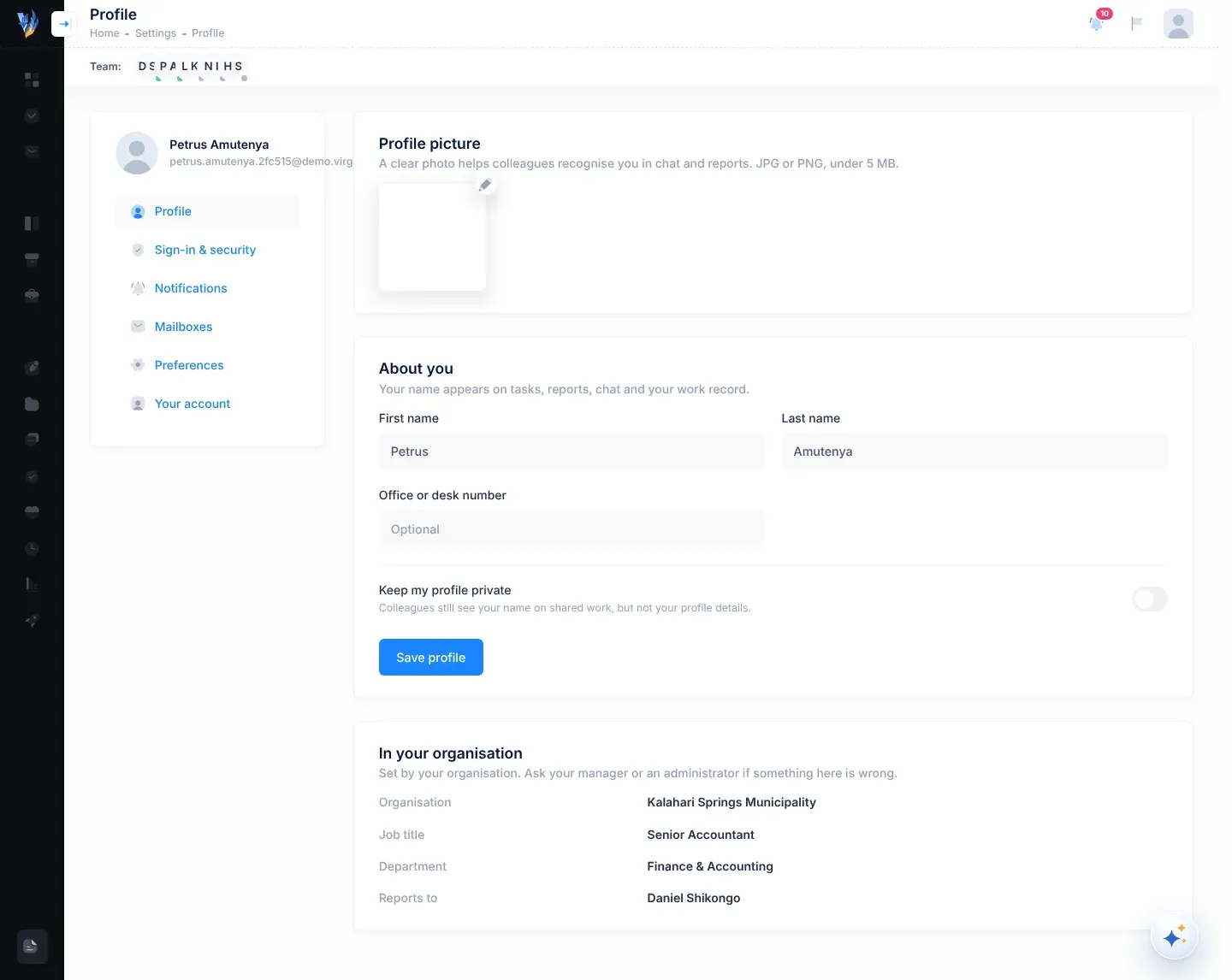
Mark as implemented on a control, or Accept as a control for a control the AI suggested The control’s responsible person, the person who added it, the risk’s owner, managers and the CEO.
Reopen an implemented control The person who marked it as implemented, managers and the CEO.

See Managing risks and Risk controls.

Each role sees a different set of pages in the Execution menu.

Execution page Employee Team manager Department manager CEO
Overview No No No Yes
KPIs No No No Yes
Objectives No No No Yes
Work Alignment No No No Yes
Department Performance No No Yes No
Initiatives No Yes Yes No
Budget No No Yes Yes
Annual Plans No No No Yes
Work Reports Yes Yes Yes Yes
Calendar Yes Yes Yes Yes
Manage No No No Yes

If you open an Execution page you don’t have, VirgilTrack says “You don’t have access to this page” and “Your role doesn’t include it. Ask your CEO to grant it under Execution → Manage.”

The CEO can give anyone else in the organisation extra pages, under Execution, then Manage, in Workspace access. These pages can be given: Overview, Department Performance, KPIs, Objectives, Work Alignment, Initiatives, Budget and Annual Plans.

Extra pages only add to what a role already has; they never take anything away. Manage can’t be given to anyone else. See Find your way around Execution.

Workspace access also has a KPI Review row. In this version, tagging someone there has no effect: it doesn’t let them record KPI results. See the table below and Known limitations.

What Who can do it
Bring in a strategic plan Anyone who opens Execution while the organisation has no strategic plan sees the upload page. Agree beforehand who will do it. See Bring in your strategic plan.
Manage KPIs (add, change or delete KPIs) The CEO.
Review KPIs (record KPI results) Only people whose account has the permission to record KPI results. No role has it, not even the CEO, and nobody in your organisation can give it: only Virgil Finance can switch it on, at support@virgilfinance.com. The CEO can record a result through Virgil Copilot instead. See Record KPI results.
Plan an initiative’s tasks (Add task) On the Initiatives page: the managers of the initiative’s department (any manager, for their own department) and the initiative’s leads. On the Annual Plans page: the CEO, and people the CEO has given Annual Plans. See Plan an initiative’s tasks.
Update an initiative’s progress note The CEO, the head of the initiative’s department, and the initiative’s lead. Everyone else sees “Only the CEO, the department’s head or the initiative’s lead can update this”.
The Budget page The CEO sees and changes every department’s initiatives. Anyone else with the page sees and changes the initiatives of their own department and of the departments they manage.
Department Performance The CEO sees every department with initiatives. Anyone else with the page sees their own department and the departments they manage.
Annual Plans, and adding tasks to a department’s month there The CEO, and people the CEO has given Annual Plans.
Delete a strategic plan, and give people extra pages The CEO only.

See Strategy and execution.

What Who can do it
The For me and I delegated tabs Everyone.
The My team tab The CEO (everyone else’s tasks in the organisation) and department managers (their departments’ tasks).
Open a task and write in its conversation Anyone in your organisation.
Start working on it, I’m blocked, I’m unblocked and Ask for more time The person the task is for.
Mark as done and Reopen The person the task is for, and the task’s leads.
Add steps to the task’s checklist, and tick them off The person the task is for, and the task’s leads.
Edit the title, change the priority, Change due date, Reassign, and answer a request for more time with Agree or Keep the date The task’s leads.
Verify the work The task’s leads, but not on a task that was given to them.
Drag a task to another lane on the board view of the Tasks page The person it is for, the person who delegated it, the CEO and administrators.

A task’s leads are the person who delegated it, the managers of the department its initiative belongs to, the CEO and administrators. See Tasks.

Page Who can open it
Your weekly report (Weekly work report) Employees.
Your team’s weekly reports (Team weekly report) Managers.
The month’s reports (Executive briefing) The CEO.

Your report goes to the person you report to in the reporting hierarchy. Only the CEO and administrators can change the hierarchy. See Work reports and records.

What Who can do it
See the Departments page Everyone. It lists every department except the Executive Suite.
Open a department’s page The CEO, administrators, and the department’s own managers and members. Anyone else sees “Only the CEO, administrators, and this department’s own people can open it.”
Manage a department: its Settings, its managers and its people The CEO and administrators.

See Departments.

What Who can do it
Add an event by selecting today or a later day Everyone.
The Calendars filters and the Create Event button Managers and the CEO.
Drag an item to another day Managers and the CEO.
Mark as done on a calendar task Its creator, the people assigned to it, and members of a department assigned to it.
Reopen a calendar task that is done The person who marked it as done, and its creator.
Archive task… Its creator, managers and the CEO.

What appears on your calendar also depends on your role:

Item Employee Manager CEO
Events Events you created, or that you or your department are assigned to The same, plus your department’s events The same, plus all your organisation’s events
Strategy tasks not yet done The ones given to you All of your organisation’s All of your organisation’s
Risk controls not yet implemented The ones you added or are responsible for The same, plus your department’s The same, plus all your organisation’s
Risk reviews Your own reviews, and reviews of risks you are responsible for The same, plus your department’s The same, plus all your organisation’s

See Calendar and reminders.

Area Who Notes
Emotional Intelligence Everyone The Your team tab is only for managers and the CEO. Others see “The team view is for managers.” See Emotional intelligence.
Report Builder Everyone The CEO reports on every department except the Executive Suite. Everyone else reports on their own department. See Make a risk report.
File Manager Everyone Everyone in your organisation uses the same files and folders. See Files and documents.
Private Chat Everyone You can message people in your organisation whose accounts are active. See Private chat.
Activity Everyone Everyone in your organisation sees the same timeline. See The activity timeline.
Virgil Copilot and the quick bar Everyone With the quick bar, anyone can set reminders and create calendar tasks. Only managers, the CEO and an initiative’s leads can delegate tasks under an initiative. See AI assistant.

These tools are for administrators only.

Tool Where
Organizations The menu on the left. Each organisation’s own page, with its leadership and people. See Organisations.
Users The menu on the left. Everyone on VirgilTrack, across all organisations. See Users.
Sign Ups The menu on the left. New organisations’ sign-up requests. See Review sign-ups.
Demo links Manage Demos on the Admin Dashboard. Only system administrators can manage demo links. Others see “Only system administrators can manage demo links.” See Demo links.
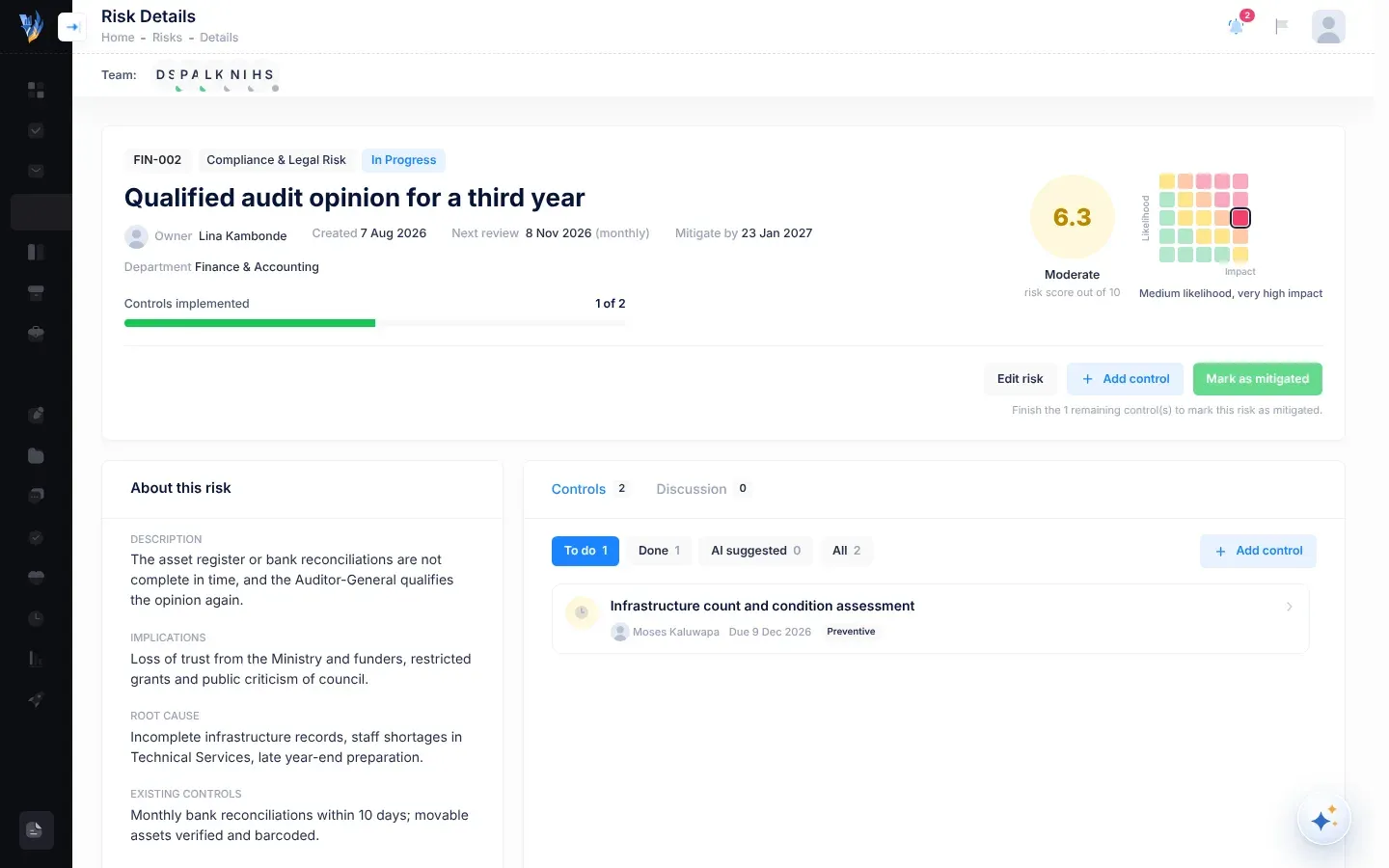
See Platform administration.

  • A missing Execution page: ask your CEO to give it to you under Execution, then Manage.
  • A different role: ask your CEO. The CEO changes roles under Roles & permissions in the account menu, or in Settings, then Roles & hierarchy.
  • A department you can’t open: ask the department’s manager or the CEO.
  • A message such as “You are not authorized to view this page.”: see Troubleshooting.

Frequently asked questions

Short answers to common questions. Each answer links to the page with the full details. If your question isn’t here, search this manual or see Troubleshooting.

VirgilTrack helps your organisation manage its risks, carry out its strategic plan, follow up tasks and report on work, all in one place. See What is VirgilTrack?.

Why does my invitation email say “Virgilrisk”?

Section titled “Why does my invitation email say “Virgilrisk”?”

Virgilrisk is VirgilTrack’s old name. The invitation, “Invitation to Virgiltrack”, still says “Welcome to Virgilrisk!” inside, and the Changelog vX.X.X page in the menu still describes the first version under the old name. It is the same product. To accept the invitation, select Setup Account in the email.

Select Work Reports in the menu. The page that opens tells you:

You see Your role
Weekly work report, or “Your reporting line isn’t set up yet” Employee
Team weekly report, or “Reporting hierarchy incomplete” Manager
Executive briefing CEO

Administrators see Organizations, Users and Sign Ups in their menu. See Roles and what each can do.

You can’t change your own role. Your CEO or an administrator sets people’s roles under Roles & permissions in the account menu, or in Settings, then Roles & hierarchy, where they also set who reports to whom. See Settings.

Yes, in your phone’s web browser. On a small screen, the menu on the left is hidden: select the “Show sidebar menu” button at the top left to show it.

VirgilTrack’s screens are in English. This manual can be read in more languages as translations are added. See How to use this manual.

Select your picture, then Settings, then Sign-in & security. Under Password, select Change password. Type your Current password, then the new one in New password and Repeat it, and select Change password again. Changing it signs you out on your other devices; you stay signed in on the one you are using. See Your profile and sign-in details.

I’ve forgotten my password. What do I do?

Section titled “I’ve forgotten my password. What do I do?”

Select Forgot Password ? on the Sign In page, type your email address and select Send the link. Then follow the link in the email. See Reset a forgotten password.

Your sign-in lasts some hours, whether or not you tick Remember Me. After that, VirgilTrack asks you to sign in again. On a shared computer, select Sign Out in the account menu when you finish. See Sign in and sign out.

I signed in on someone else’s computer. How do I sign out there?

Section titled “I signed in on someone else’s computer. How do I sign out there?”

Open Settings, then Sign-in & security and select Sign out on all other devices. You stay signed in on the device you are using. See Your profile and sign-in details.

Why do my reminders come at the wrong time?

Section titled “Why do my reminders come at the wrong time?”

VirgilTrack’s regular reminders, such as Due tomorrow, Overdue and event reminders, go out at fixed times by VirgilTrack’s own clock, not by your time zone. Reminders you ask Virgil Copilot for, and quiet hours for texts and calls, follow the time zone under Settings, then Preferences. Check that it is right, and select Save time zone if you change it. See Reminders.

The CEO’s menu on the left has no Risk Register, Kanban Board or Risk Repository. The CEO follows risks across the organisation on the CEO Dashboard, and can still open the risk register from the account menu: select your picture, then Risk Register. Employees and managers have all three in the menu. See Who can do what.

Your own department’s. Each department has its own register. If your account has no department, the register lists the whole organisation’s risks. See The risk register.

VirgilTrack multiplies the risk’s likelihood by its impact, each from 1 to 5, and turns the result into a score from 1.0 to 10.0. The score gives a level: Low, Moderate, High or Critical. See How risk scores work.

Only the risk’s owner, the person who recorded or copied it, can assess it. Instead of Assess, you see “Awaiting” and the owner’s first name. See The risk register.

The risk still has controls to do. On the risk’s page, a line under the buttons says how many are left: “Finish the … remaining control(s) to mark this risk as mitigated.” In the risk register, VirgilTrack says “Not yet” and “This risk still has controls to implement.” Controls the AI suggested and nobody accepted don’t count. See Risk controls.

What’s the difference between Mitigated and Archived?

Section titled “What’s the difference between Mitigated and Archived?”

Mitigated means the risk has been dealt with and is under control. Archived means you’ve put the risk away without that, for example because it no longer applies. Archived risks move to the Archived group of the risk register; nothing is deleted. Neither a mitigated nor an archived risk can be edited. See Managing risks.

Why does Execution say “No Active Strategic Plan”?

Section titled “Why does Execution say “No Active Strategic Plan”?”

Your organisation’s strategic plan hasn’t been approved yet. Pages such as KPIs, Objectives and Budget need an approved plan. If your organisation has no strategic plan at all, Execution opens on Strategy Execution & Management instead, where the plan’s PDF is uploaded. See Bring in your strategic plan.

How do I get an Execution page I don’t have?

Section titled “How do I get an Execution page I don’t have?”

Ask your CEO. The CEO can give anyone else extra pages, such as Budget or KPIs, under Execution, then Manage. See Find your way around Execution.

What do the numbers next to Tasks and From your email mean?

Section titled “What do the numbers next to Tasks and From your email mean?”
  • The red number next to Tasks counts your tasks that need you: tasks given to you that are overdue, and tasks given to you or delegated by you that have messages you haven’t read. Point at the number to see how many of each.
  • The number next to From your email counts work found in your email that is waiting for you to confirm.

See Tasks and Tasks from your email.

Anyone in your organisation can open a task and write in its conversation. Only the person it is for and its leads can change it. See Who can do what.

The person you report to in your organisation’s reporting hierarchy, usually your manager. The top of your report says who: “Reporting to” and their name. Managers pick the most important points from their team’s reports for their own report. See Work reports and records.

Will VirgilTrack remind me about my weekly report?

Section titled “Will VirgilTrack remind me about my weekly report?”

Yes. If you’re an employee and your report for the week is still a draft, VirgilTrack reminds you on Friday afternoon, and again on Monday morning if last week’s report is still open. A manager whose report for last week is still a draft gets a reminder on Monday morning, which also says how many of their team have submitted. You can switch these emails off in Settings, then Notifications, under Weekly report reminders and Team report reminders (managers). See Work reports and records.

Only you, unless you tick Share this with my manager. Your manager sees the team’s average, Team pulse, last 30 days, only once at least 5 people have answered. Your answer counts in that average whether or not you share it. See Emotional intelligence.

The CEO and administrators invite people with the green plus button, “Invite a team member”, in the Team: bar under the header. If you aren’t the CEO, ask your CEO. See Invite team members.

Open Settings, then Your account, select Ask to close my account, add anything they should know under “Anything they should know (optional)”, and select Send the request. Your CEO or an administrator hands your work over and closes the account. Accounts aren’t deleted from Settings, because your work belongs to your organisation. See Settings.

Virgil Copilot is VirgilTrack’s AI assistant. Open it with the round Virgil Copilot button in the bottom-right corner, or press Ctrl + K (Cmd + K on a Mac). Ask it about your tasks, reports, risks and strategy, or where to find something. See AI assistant.

Does Virgil change things without asking me?

Section titled “Does Virgil change things without asking me?”

No. When Virgil prepares a change, such as a new task, it shows it to you as a card first. Nothing changes until you select Confirm. Select Not now to leave it. See AI assistant.

A box for delegating work or setting a reminder in one sentence. Press Ctrl + J, type something like “Brandon, prepare the Outjo WIP schedule by Friday”, check the card and press Enter. See AI assistant and Keyboard shortcuts.

Troubleshooting

Find what you see on screen in the tables below, then follow the fix. Messages are quoted exactly as VirgilTrack shows them, so you can also search this manual for the words in a message.

Each chapter also has its own “If something goes wrong” section with the messages of its screens. This page collects the problems people meet most, across the whole of VirgilTrack.

What you see Why What to do
“The Email field is required.” or “The Password field is required.” One of the two boxes is empty. Type both your email address and your password.
“Email or password was incorrect.” No account uses that email address. Check the spelling. Use the address your invitation was sent to.
The Sign In page opens again with empty boxes and no message The password was wrong. Check that Caps Lock is off and try again. If you’ve forgotten your password, select Forgot Password ?. See Reset a forgotten password.
“Please confirm your email first to log in. Click here to confirm” You haven’t confirmed your email address with the 6-digit code yet. Select Click here to confirm and type the code from your email. See Accept an invitation.
“Your account was locked out. Please contact the administrator.” Your account has been locked, or switched off because you left the organisation. Ask your CEO or a VirgilTrack administrator to check your account.
Sign in with Google or Sign in with Apple does nothing These buttons don’t sign you in. Sign in with your email address and password.
VirgilTrack asks you to sign in again Your sign-in has ended. It lasts some hours, whether or not you tick Remember Me. Sign in again. On a shared computer, select Sign Out when you finish. See Known limitations.

See Sign in and sign out.

What you see Why What to do
“This invitation is not valid or has already been used.” or “Invalid team member invite.” The invitation can’t be used any more. Ask your CEO or an administrator to invite you again.
“Your account has already been created. Use your email and password to login.” You set up your account earlier. Go to the Sign In page and sign in.
“The code provided is invalid or has already expired. Please check again or resend a new code using the Resend button below.” The code is wrong or too old. Select Resend and type the new code.
“Your email was already confirmed! Please use this page to log in with your email and password.” You opened an old set-up or confirmation link. Nothing is wrong. Sign in with your email address and password.
This link has expired A password link works once, and for a limited time. Select Send me a new link and start again.
No password email arrives It may be in spam or junk. VirgilTrack sends at most one link to an address every five minutes, and doesn’t send one to a locked account. Check spam or junk. Wait five minutes before you ask again. If your account is locked, ask your CEO or an administrator.
“This button has expired. Open VirgilTrack to continue.” You selected a button in an old email. Open VirgilTrack and do the same thing there.
You can’t find your invitation email It may be in spam or junk. Look for “Invitation to Virgiltrack”. Inside, it says “Welcome to Virgilrisk!”, the product’s old name.

See Accept an invitation and Reset a forgotten password.

Most missing items are about your role, or about your part in a piece of work. Who can do what lists who can see and do what.

What you see Why What to do
“You are not authorized to view this page.” You’re signed in, but the page isn’t for your role. For example, the Work Record page (also opened by Open my work record in Settings, then Your account) currently opens only for administrators, and each role has its own work report page. Use the menu on the left. Work Reports always opens the page for your role.
“You don’t have access to this page” in Execution Your role doesn’t include this Execution page. Ask your CEO to give it to you under Execution, then Manage.
Risk Register, Kanban Board and Risk Repository aren’t in your menu You are the CEO. The CEO follows risks on the CEO Dashboard instead. To open the risk register anyway, select your picture, then Risk Register. See The CEO Dashboard.
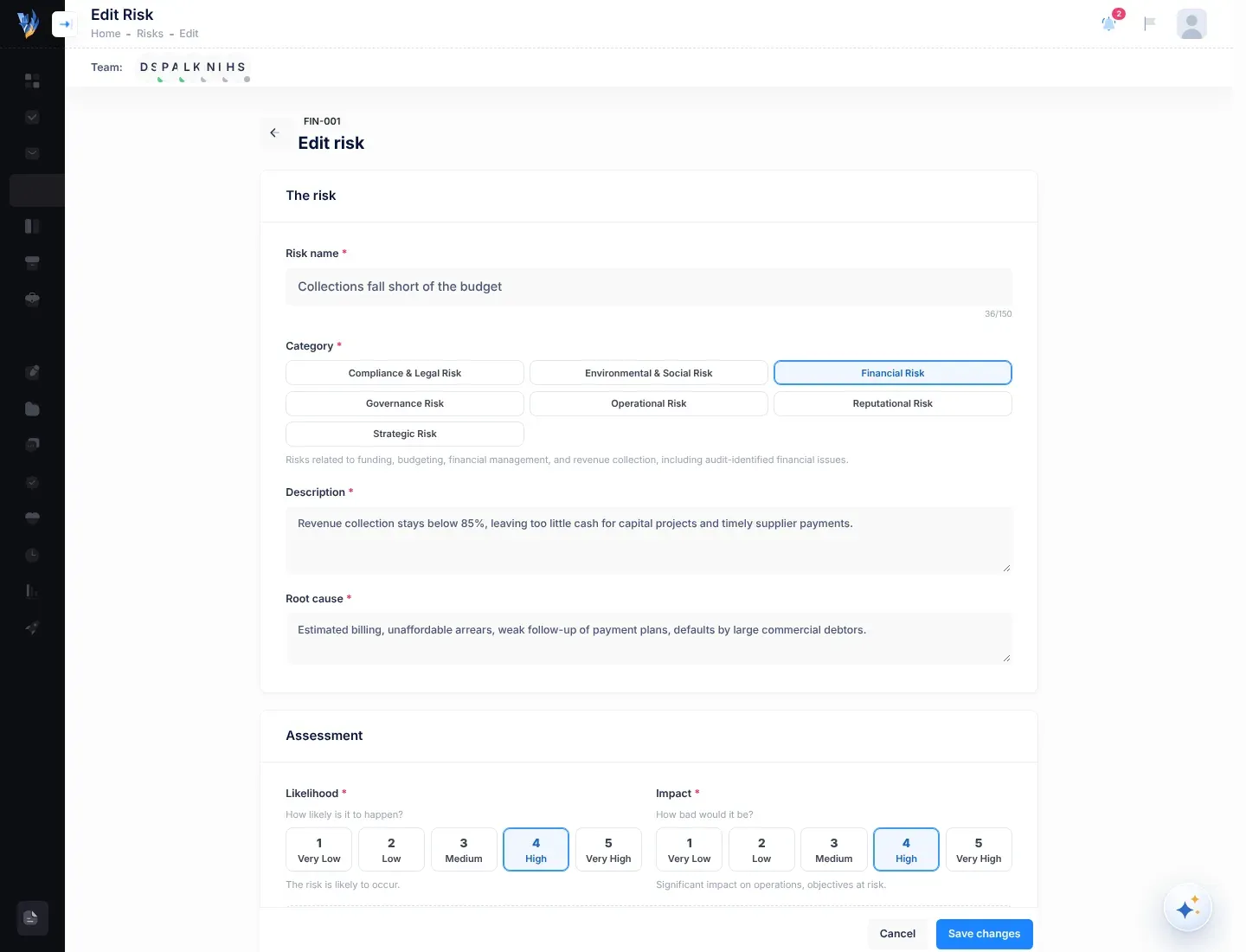
Organisation and Roles & hierarchy aren’t in Settings, or Roles & permissions isn’t in your account menu These are for the CEO and administrators. Ask your CEO.
No green plus button to invite people Only the CEO and administrators can invite, and only when their own account belongs to a department. See Invite team members.
“Only the CEO, administrators, and this department’s own people can open it.” You aren’t a member or manager of that department. Ask the department’s manager or the CEO for what you need.
“No Active Strategic Plan” in Execution Your organisation has no approved strategic plan yet. See Bring in your strategic plan.
“Awaiting” and a name instead of Assess, or “Only the person who recorded this risk can assess it.” Only a risk’s owner can assess it. Ask the person named.
“Assess this risk from the register before editing it.” The risk is Not assessed. Ask the risk’s owner to assess it first.
“Mitigated and archived risks can’t be edited.” The risk is Mitigated or Archived, so it is closed. Nothing is wrong. You can still read the risk and its discussion.
Review KPIs isn’t on the KPIs page You don’t have permission to record KPI results. No role has it, and a KPI Review grant in Workspace access doesn’t give it. Nobody in your organisation can switch it on. Email Virgil Finance at support@virgilfinance.com. If you are the CEO, you can record a result through Virgil Copilot. See Record KPI results.
No Mark as implemented on a control Only the control’s responsible person, the person who added it, the risk’s owner, managers and the CEO can mark it. Ask one of them, or comment on the control to say the work is done. See Risk controls.
A button you expected on a task isn’t there Task buttons depend on your part in the task. For example, only the person a task is for can start it. See Who can do what.
“Sorry, there’s nothing at this address.” The link is wrong or out of date. Use the menu on the left to find the page.
An Execution page showing the message You don't have access to this page, with the line Your role doesn't include it. Ask your CEO to grant it under Execution → Manage.
When an Execution page isn't part of your role
What you see Why What to do
“Your reporting line isn’t set up yet” Nobody has been set as the person you report to. Ask your CEO or an administrator to set your manager.
“Reporting hierarchy incomplete” Your organisation’s reporting hierarchy isn’t set up for your team’s reports. Ask your CEO or an administrator to check the hierarchy.
“No one reports to you yet” Nobody reports to you in the reporting hierarchy. Set up the hierarchy under Reporting hierarchy in your account menu.

See Work reports and records.

What you see Why What to do
Emails from VirgilTrack don’t arrive They may be in spam or junk, or Email may be switched off in your notification settings. Work assigned to you and system notices are always emailed. Check spam or junk. Open Settings, then Notifications, check that Email is on, and that Email is ticked beside that kind of notification. Then select Email me to send a test.
Texts don’t arrive Your mobile number must be verified, and texts allowed. Verify your number in Settings, then Sign-in & security. Then, in Settings, then Notifications, switch on Texts and calls and tick Text beside the notifications you want by text. Select Text me to send a test.
A text or call came in the morning, not when something happened Texts and calls never happen between 20:00 and 07:00 your time; they wait until morning. Nothing is wrong. Check that your time zone is right.
Reminders arrive at the wrong time Regular reminders, such as Due tomorrow and Overdue, follow VirgilTrack’s own clock, not your time zone. Reminders you asked Virgil Copilot for follow your time zone. For Copilot reminders and quiet hours, set your time zone in Settings, then Preferences and select Save time zone. See Reminders.
A notification you expected isn’t in the bell You may be on the Unread tab, or you removed it. The bell keeps only your 50 most recent notifications. Select All.

See Notifications and Reminders.

What you see Why What to do
A message such as “Couldn’t save. Nothing was changed. Please try again.” Saving failed, and nothing was half-saved. Try again. If it keeps happening, note the message and tell your administrator.
A message that a file is too big, such as “… is over 25 MB.” or “Use a picture under 5 MB.” Each place has its own limit. Make the file smaller, for example by saving a PDF at a lower quality, or split it. See the limits below.
“The following file(s) are over the maximum size of 2mb: …” when you create a calendar event A file you attached is bigger than 2 MB. The event isn’t created. Remove or shrink the file, then save the event again.
Where Biggest file Most files at once
Private Chat 25 MB each 10 per message
Comments on a risk or a control 20 MB each 5 per comment
File Manager 10 MB each, 50 MB together 5 per upload
Calendar event attachments 2 MB each 20
Your profile picture 5 MB 1

The File Manager accepts pictures, videos, PDFs and plain text files. See Files and documents.

What you see Why What to do
“The assistant isn’t set up on this server yet (missing AI key).” or “The AI isn’t configured on this server.” The AI isn’t switched on for your VirgilTrack. Tell your administrator.
“That’s a lot of questions in an hour. Please wait a little before asking more.” You can send Virgil up to 60 messages an hour. Wait a while, then ask again.
“Something went wrong on my side. Please try again.” Virgil couldn’t finish its answer. Try again.
“I couldn’t find an action in that. Try “Brandon, Outjo WIP schedule, Friday”.” The quick bar couldn’t tell who should do what. Name the person and the task, and when it is due.
“Couldn’t read that just now. Try again in a moment.” The quick bar couldn’t read your sentence this time. Wait a moment and try again.
“Skipped “…”: only managers or the initiative’s leads can delegate strategy tasks.” You chose an initiative, but you aren’t a manager or one of its leads. Choose No initiative (calendar task), or ask a manager.
“Pick who and a time in the future.” A reminder has no person, or its time has passed. Choose a person and a later time.

See AI assistant.

Sometimes VirgilTrack shows a whole page about a problem instead of the page you wanted.

What you see Why What to do
“Error.” and “An error occurred while processing your request.”, with a Request ID: below VirgilTrack couldn’t finish what you asked. The rest of the page, under Development Mode, is for technical staff. Go back and try again. If it happens again, copy the Request ID and send it to support with what you did (see below).
A page that says only “Internal server error” Something went wrong before the page could load. Reload the page. If it keeps happening, tell support.
A blank page, or your browser’s own message that the page can’t be found, after you typed or pasted an address The address doesn’t lead to a VirgilTrack page, or the page isn’t open to your role. Check the address. Or open VirgilTrack’s home page and use the menu.
“Oops!” and “We can’t find that page.”, with a Return Home button VirgilTrack’s page for an address it can’t find. You only see it if a link or bookmark leads there. Select Return Home, then use the menu on the left to find the page.
“System Error” and “Something went wrong! Please try again later.”, with a Return Home button VirgilTrack’s page for a problem on its side. You only see it if a link or bookmark leads there. Select Return Home and try again later.
What you see Why What to do
“An unhandled error has occurred.” at the bottom of the screen Something went wrong on the page. Select Reload. If it happens again on the same page, note what you did and tell your administrator.
A figure hasn’t changed after you updated something Some cards work out their figures when the page opens. Select the page in the menu again, or reload the page.

Keyboard shortcuts

These keys help you work faster in VirgilTrack. On a Mac, press Cmd wherever this page says Ctrl.

Keys What they do
Ctrl + K Opens Virgil Copilot, the AI assistant. Press again to close it.
Ctrl + J Opens the quick bar, to delegate work or set a reminder in one sentence.
Esc While Virgil Copilot is working on an answer, stops it. Otherwise, closes the Copilot panel.

Point at the round Virgil Copilot button in the bottom-right corner to see “Virgil Copilot (Ctrl+K)”.

Keys What they do
Enter Sends your message.
Shift + Enter Starts a new line in your message.
Esc Stops Virgil while it works, or closes the panel.
Enter or Esc while renaming a conversation Enter saves the new name. Esc keeps the old one.
Esc while Virgil shows you where something is Stops the guide.

See AI assistant.

Keys What they do
Ctrl + J Opens the quick bar.
Enter Confirms: Delegate for a task (Delegate 3 when there are three), or Set reminder for a reminder.
Shift + Enter Starts a new line, for example when you paste meeting notes.
Esc Closes the quick bar.

The bottom of the quick bar reminds you: “Enter to confirm · Shift+Enter new line · Esc to close”.

The quick bar open in the middle of the screen. Its bottom line reads Enter to confirm · Shift+Enter new line · Esc to close, beside the Open Copilot and Delegate buttons
The quick bar, with its keys along the bottom

You can also start from text on any page: select at least three characters of text (not inside a box you type in), and a small bar appears with Delegate, Remind me and Ask Virgil.

Different message boxes send in different ways, so you don’t send a long message by accident.

Where Send New line
Private Chat Enter Shift + Enter
A reply in a chat pop-up (“Reply…”) Enter
A task’s conversation, on the task’s page Ctrl + Enter Enter
The Discussion of an event or strategy task opened from the calendar (“Write a comment… use @ to bring someone in”) Ctrl + Enter Enter
A message about news from another department (“Message … about this…”) Enter
A practice conversation in Emotional Intelligence Enter Shift + Enter
Asking Virgil to change the CEO’s monthly report Enter Shift + Enter

In the Discussion of an event or strategy task opened from the calendar, type @ and the start of a name. A list of people appears. (On a task’s own page, typing @ also shows a list of people: select a name in it. The keys below don’t work there.)

Keys What they do
↓ and ↑ Move through the list.
Enter or Tab Picks the highlighted person.
Esc Closes the list.
Keys What they do
Enter in “Add a step, then press Enter” Adds the step to the task’s checklist.
Ctrl + Enter in the message box Sends your message.

See Tasks.

The CEO writes the monthly report in an editor, with a toolbar above the report. Point at a toolbar button to see its keys, for example “Bold (Ctrl+B)”.

Keys What they do
Ctrl + B Bold.
Ctrl + I Italic.
Ctrl + U Underline.
Ctrl + Z Undoes your last change.
Ctrl + Y Redoes it.

See Write the monthly report.

Managers can pick points from their team’s weekly reports with single keys. First select the list of points, or move to it with Tab. Then:

Key What it does
J Moves to the next point.
K Moves to the previous point.
X Ticks or unticks the point.
A Ticks all of this person’s points, or unticks them if they are all ticked.
] Moves to the next person who submitted. After the last one, it goes back to the first.
[ Moves to the previous person who submitted.

See Review your team’s reports.

Action What it does
Shift + click a column heading in the risk register Adds a second sort, after the first. A number on each heading shows the sort order.

See The risk register.

Keys What they do
/ or Ctrl + K Opens search.
Esc Closes search.
Tab Moves between links and buttons. The first press offers Skip to content.
Ctrl + P Prints the page you are reading.
Ctrl and + Makes the text bigger. Ctrl and - makes it smaller.

See How to use this manual.

Your data and privacy

This page brings together, in one place, who can see what you put into VirgilTrack, and what is sent outside it. It describes what VirgilTrack shows on its screens. Your organisation’s own rules about information also apply.

What Who can see it in VirgilTrack
Your weekly check-in Only you, unless you tick Share this with my manager.
Your team’s check-ins, together The manager they report to: an average without names, and only once at least 5 people have answered.
Your self-assessment and practice conversations Only you.
Your submitted weekly report The person you report to. Points from it can travel further up, and some are shared with other departments.
What VirgilTrack finds in your connected mailbox Only you, until you confirm it.
Your conversations with Virgil Copilot Only you.
Your Private Chat messages You and the colleague you write to.
A task’s conversation Anyone in your organisation.
Your sign-in history Only you.
Your work record You, the person you report to, your department’s managers and the CEO. An issued record can be checked by anyone with its link.

The sections below explain each one.

Your weekly check-in and emotional intelligence

Section titled “Your weekly check-in and emotional intelligence”

VirgilTrack never tries to read anyone’s feelings. A manager’s Your team tab on the Emotional Intelligence page says it plainly: “VirgilTrack doesn’t guess how anyone feels.” Everything about how you feel comes from what you choose to answer.

  • Your weekly check-in is private unless you tick Share this with my manager. If you share it, the person you report to sees your answer and your note in their Your team tab, for this week and last week. An answer you give with one tap in Friday’s email is always private.
  • The team pulse is the only thing your manager sees from unshared answers. Team pulse, last 30 days is the average answer of everyone who reports to them, with how many answers of each kind there were, and never any names. Every answer counts towards it, shared or not. It only appears once at least 5 different people have answered, so no one can be identified.
  • Your self-assessment, your practice conversations and your scores are only for you. VirgilTrack saves each practice conversation and Virgil’s feedback on it, so you can see your practice history.
  • Kudos you receive are yours to see. Your manager sees how many you received in the last 30 days.
  • Workload facts in a manager’s Your team tab are things a manager can already see elsewhere: open, overdue and rescheduled tasks, missed weekly reports and kudos received.

See The weekly check-in and Emotional intelligence.

  • When you submit your weekly report, the person you report to can read it. Managers tick the points that matter for their own report, which goes on to the person they report to. The CEO turns a month of reports into a report to Council. See Work reports and records.
  • If a point in your report describes something other departments need to know, such as a system outage, VirgilTrack shares it with everyone in the affected departments. They see your name, your department and what you wrote. This can happen before you submit: VirgilTrack reads your report’s points about ten minutes after they are written or changed. See News from other departments.
  • The ready-made sentences VirgilTrack offers you, its suggestions and activity prompts, are only offered to you. Nobody else sees them unless you put them in your report. See Suggestions and activity prompts.

VirgilTrack only reads your email if you connect your mailbox yourself, in Settings, then Mailboxes, and tick I agree to my mailbox being read this way. The page explains what happens: “Emails marked Private or Confidential, newsletters, automated mail and anyone you exclude are skipped, and personal email is set aside. Only what it finds is kept (tasks, work done, progress), never your emails, and nothing is used until you confirm it.”

  • It reads the email you receive and send, from the start of your organisation’s financial year, and then new email as it arrives.
  • What it finds waits for you on From your email. Only you see it there.
  • For each task it finds, VirgilTrack keeps the email’s subject and who it went to. While the task waits for you, it also keeps the new part of the email, so you can check it. Once you decide, that part of the email is removed.
  • For other finds, such as progress notes, it keeps the email’s subject and a short description of what it found.
  • To stop the reading, select Disconnect. VirgilTrack asks “Disconnect this mailbox?” and explains: “Tasks already created and findings you kept stay; everything still waiting for your check is removed.”

See Connect your mailbox and Tasks from your email.

VirgilTrack saves your conversations with Virgil Copilot, so you can pick one up again later. In VirgilTrack, only you can see them. You can delete a conversation in Conversations; a deleted conversation can’t be brought back. See Your saved conversations.

Virgil, and VirgilTrack’s other AI features, use Google’s Gemini AI service. To do each job, VirgilTrack sends the service what that job needs. For example:

  • what you ask Virgil Copilot, and the VirgilTrack information Virgil looks up to answer you;
  • the emails it reads from a mailbox you connected;
  • what you write in a practice conversation;
  • the points in your work reports, with your name and department, to find news for other departments;
  • a strategic plan your organisation brings into VirgilTrack.

When you ask Virgil Copilot for something VirgilTrack can’t do yet, VirgilTrack emails the request to the VirgilTrack team, so they can consider building it. The email contains:

  • what you asked, and Virgil’s answer or its view of what would be needed;
  • your name, your role and your email address;
  • your organisation;
  • the page you were on, and the time.

Sometimes Virgil tells you it has passed your request on. At other times, when Virgil’s answer says it can’t do something, the email is sent without Virgil saying so. Answers about what your role allows, or about a search that found nothing, aren’t sent. The same request from the same person is sent at most once a day.

  • Only you and the colleague you are writing to can read your Private Chat conversation. If you ask Virgil Copilot to summarise your chats, it reads your own conversations, for you.
  • If a message to you is still unread after 10 minutes, and you aren’t online, VirgilTrack emails you, and the email shows the message. To stop these emails, untick Email for Private messages in Settings, then Notifications.
  • Your colleagues can see when you have read their messages, in Private Chat and in a task’s conversation.
  • A task’s conversation isn’t private: anyone in your organisation can read it and write in it. See Messages and mentions.

See Private chat.

VirgilTrack records sign-ins to your account on the Sign In page, and attempts that fail because of a wrong password. Each record has the time, the internet address you signed in from (the IP address) and details of your browser. To see your own, select the flag in the header: Activity Logs opens, with entries such as “Successfully logged in on Web with IP=…”. In VirgilTrack, only you see this list. See Find your way around.

Your work record is built from what VirgilTrack recorded while you worked: the work you were given and how you did it, the work you delegated, and your weekly reports. You, the person you report to, managers of your department and your organisation’s CEO can see it. In this version, the Work Record screen only opens for platform administrators, but the people above can ask Virgil Copilot about the record. See Known limitations.

When a record is issued as a PDF, anyone with its link or code can check it online without signing in. The check page shows the record as it was issued: your name, job title, department and organisation, the period, who issued it and when, and its figures. It can also show the skills profile, the kinds of work you did with a short example from your reports or tasks for each, and the work given to you that you completed, with how you did it. A record can be withdrawn; the check page then says so, with the reason. See Your work record.

  • Colleagues see your name and photo across VirgilTrack, for example on tasks, reports and chat.
  • VirgilTrack’s platform administrators, the Virgil Finance staff who support organisations, see your name, email address, organisation, department and role in their Users list, so they can help with your account.
  • The team bar under the header shows whether you are online, away or offline, or when you were last seen. See Find your way around.
  • Keep my profile private, under Profile in Settings, says “Colleagues still see your name on shared work, but not your profile details.” In this version, VirgilTrack saves your choice, but no screen uses it yet. See Known limitations.

A demo link opens a private demo organisation with made-up data. The platform administrators who manage demo links can see what was done in it: how often the demo was opened, which pages were viewed, which demo people were switched to, how far the guided tour got, which quick actions were run, the name typed for the organisation, and whether a strategic plan was uploaded, with the file’s name. See Try VirgilTrack with a demo link.

  • In Settings, then Notifications, choose which notifications also reach you by email, text or phone call. Emails about Work delegated to you and System notices can’t be switched off.
  • Every notification email ends with Notification settings and, for messages you can switch off, Stop these emails. Stop these emails works without signing in.
  • Texts and calls only reach you once your mobile number is verified and Texts and calls is on. Only reminders can phone you, and colleagues’ reminders only if you tick Call for Reminders.
  • VirgilTrack doesn’t send texts or make calls between 20:00 and 07:00 in your time zone.

See Choose your notifications.

You can’t delete your own account, because your work belongs to your organisation. You ask for it to be closed: your CEO or an administrator hands your work over and closes the account. Your work record is kept. See Your work record and leaving.

Known limitations

A few things on VirgilTrack’s screens don’t work yet in this version. They are listed here so you don’t lose time on them. None of them deletes or changes your work. For each one, you’ll find what you see, what happens, and what to do instead.

What you see What happens What to do instead
Sign in with Google and Sign in with Apple on the Sign In page Nothing. Sign in with your email address and password. See Sign in and sign out.
Remember Me on the Sign In page Ticking it doesn’t keep you signed in for longer. Your sign-in lasts some hours either way. Sign in again when VirgilTrack asks. On a shared computer, select Sign Out when you finish.
Terms and Plans at the bottom of the Sign In page Nothing. For questions about VirgilTrack, use Contact Us beside them.
What you see What happens What to do instead
Docs & User Manual at the bottom of the menu It opens the Virgil Finance website, not this manual. Keep this manual’s address as a bookmark in your browser. Inside VirgilTrack, you can also ask Virgil Copilot. See How to use this manual.
Changelog vX.X.X in the menu It opens a page about the first version of the product only. See What’s new.
Work Record in the menu, and Open my work record in Settings, then Your account Unless you are a platform administrator, you see “You are not authorized to view this page.” Ask Virgil Copilot, for example “What have I done this year?”. See What Virgil can do and Your work record.
What you see What happens What to do instead
Enable grid view, after Actions: in the bar under the header of the CEO Dashboard Nothing. Nothing: the dashboard has only one layout. See The CEO Dashboard.
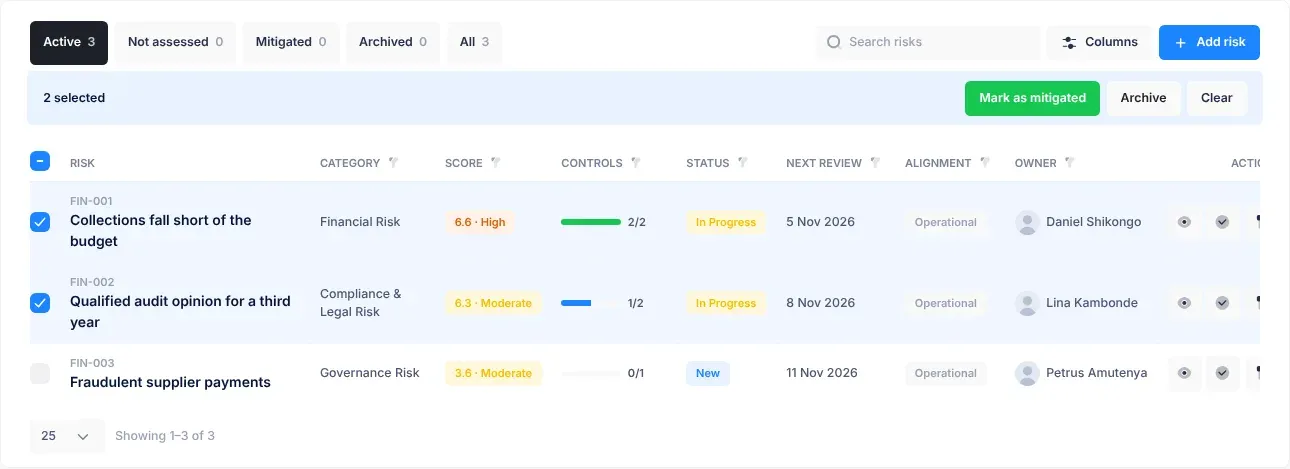
The Critical Assets Value card on the CEO Dashboard It always shows 0, because it doesn’t add anything up yet. Ignore it.
What you see What happens What to do instead
Export on the Risk Repository page It opens Export Risk Catalog, with Select Export Format: and Risk Category:, but nothing is exported. Submit and Discard take you back to your start page. To get a list of your department’s risks, make a risk report. See Make a risk report.
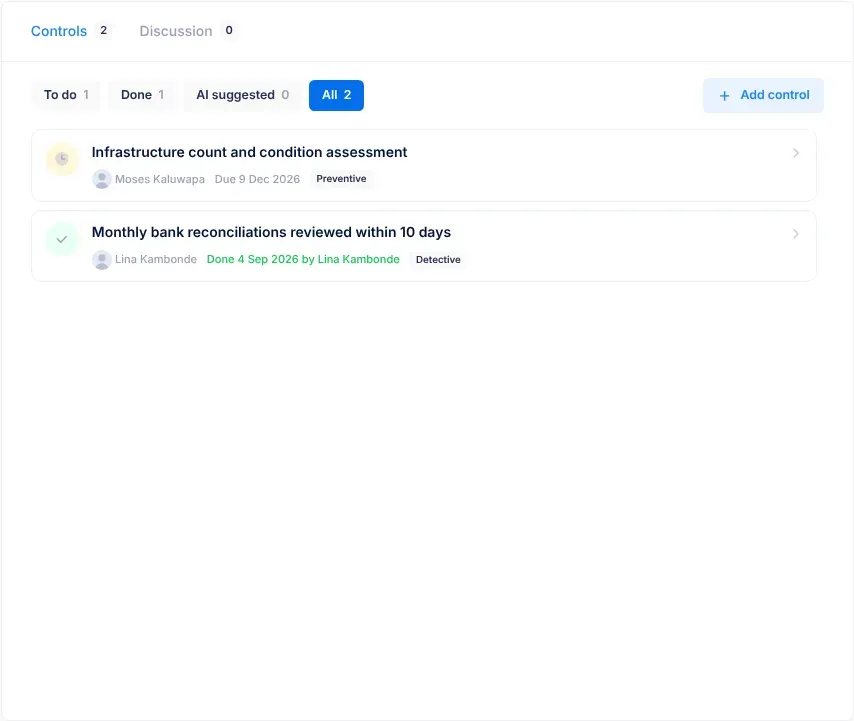
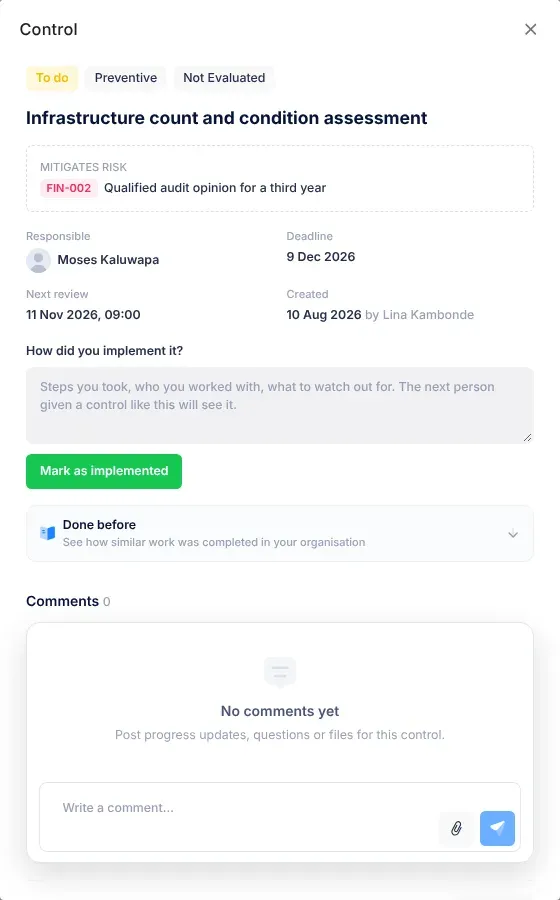
Reset in the Filter menu of the Risk Repository It only closes the menu. Choose ALL RISKS and select Apply. See The risk repository.
What you see What happens What to do instead
Keep on a progress note in From your email, where the page says kept notes are used in council reports and strategy insights VirgilTrack saves your choice, but no report or insight uses kept notes yet. If the note matters for your work, add it to your weekly report yourself. See Tasks from your email.
What you see What happens What to do instead
The KPI Review row under Workspace access on the Manage page Tagging someone there doesn’t let them record KPI results. No screen in VirgilTrack gives that permission. Email support@virgilfinance.com with the person’s name and organisation: only Virgil Finance can switch it on. As CEO, you can record results through Virgil Copilot. See Record KPI results.
What you see What happens What to do instead
Settings on the Report Builder page, which opens Filter Options with a Save My Current Settings: switch and Reset and Apply buttons Nothing changes, and your choices aren’t saved for next time. Choose your settings each time you make a report. See Make a risk report.
Reset at the bottom of the Report Builder page Nothing. Change the settings back yourself.
What you see What happens What to do instead
The share link button, beside the button with three dots on each row of the File Manager It only shows “Generating Share Link…”. No link is made. Everyone in your organisation can already open the file in the File Manager. Send a colleague the folder’s address, or attach the file in Private chat.
Search Files & Folders in the File Manager Typing doesn’t change the list. Open the folders to find the file.
The Files and Settings tabs under the File Manager’s header They take you away from the File Manager. Open File Manager from the menu on the left again. See The File Manager at a glance.
What you see What happens What to do instead
The list beside each pending invitation in the Invite a Member window, showing Manager, with Regular and CEO Choosing another role doesn’t change the invitation. At most, a small message with the role’s name appears. The person joins as you invited them. After they join, change their role. See Role Management and Invite team members.
Keep my profile private under Profile in Settings VirgilTrack saves your choice, but no screen uses it yet. Colleagues see the same about you as before. Nothing for now. See Your data and privacy.

These only concern VirgilTrack’s platform administrators.

What you see What happens What to do instead
On the Admin Dashboard, the Search Risk box and the Add a team member and Enable grid view buttons in the bar under the header Nothing. To invite someone, use the organisation’s own page. See When people join or leave.
On the Admin Dashboard, the Admin Index heading and the get db path button The button only shows technical file locations. Ignore both.
Suspend access on an organisation’s page The organisation’s status becomes Suspended, but its people can still sign in on the Sign In page and use VirgilTrack as normal. To stop one person signing in now, lock their account. See Users and Organisations.
Add RiskRegister Risk on the Risk Repository page The suggestion is saved, but it doesn’t appear in any organisation’s repository. Ask the organisation’s people to add the risk with Add risk. See Add suggested risks to the repository.

What's new

This page lists what changes in VirgilTrack and in this manual, edition by edition.

This is the first edition of the VirgilTrack user manual. It describes VirgilTrack as it works in October 2026, for employees, managers, CEOs and platform administrators:

Where something on screen doesn’t work yet, the manual says so. See Known limitations.

Changelog vX.X.X, the last item in the menu on the left, opens VirgilTrack’s own list of changes. In this version, it has a single entry, Virgilrisk v1.0.0. It describes the first web version of the product, under the name Virgilrisk: what was New:, such as the CEO Dashboard, the Kanban board and the Report builder, and what was planned Next:.

It doesn’t list the changes made since then. The date beside the entry shows today’s date, followed by “9 April, 2021”. For what VirgilTrack does now, use this manual.

When VirgilTrack changes, this manual is updated with it. Each new edition will be listed here, with what changed in VirgilTrack and which pages of the manual changed.
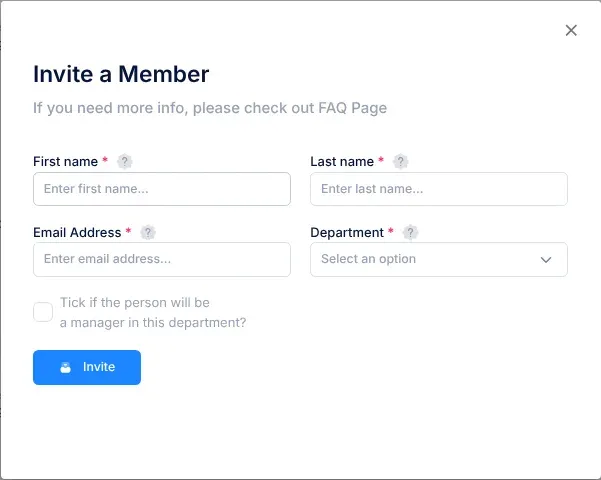
The edition you are reading, and its date, are shown at the bottom of every page and on the cover of the PDF. See How to use this manual.