

Your work record
Hierdie inhoud is nog nie in jou taal beskikbaar nie.
Your work record shows what you actually did, as VirgilTrack recorded it while the work happened: the work you were given and how you carried it out, the work you handed to others, and what you wrote in your weekly reports. None of it is written specially for the record: the counts and dates come from what VirgilTrack recorded. You can issue it as a PDF, with a code that a future employer can check online.
Open your work record
Section titled “Open your work record”Select Work Record in the menu on the left. You can also open it from Settings, then Your account, with Open my work record.
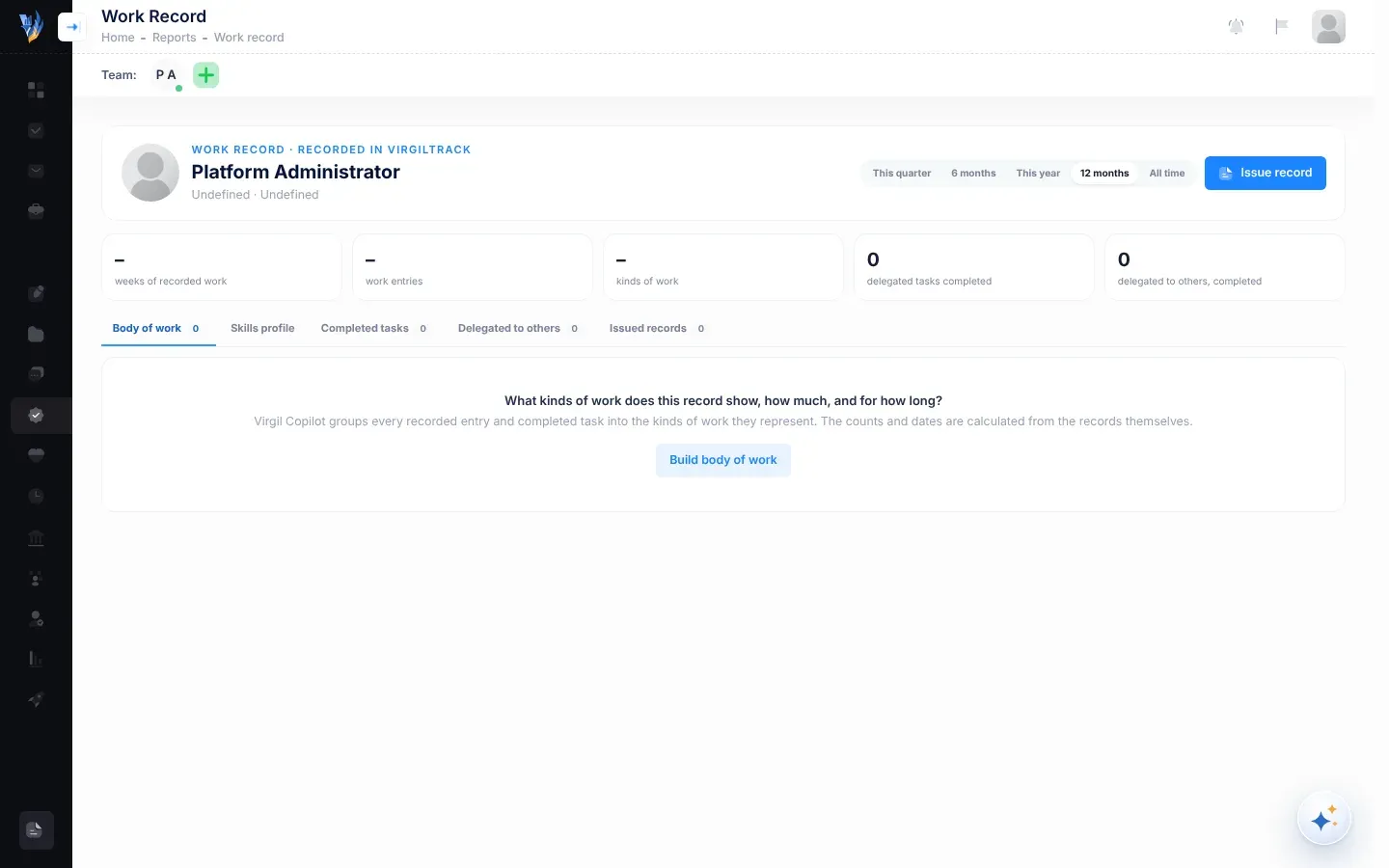
Choose the period
Section titled “Choose the period”Select a period at the top: This quarter, 6 months, This year, 12 months or All time. The record shows the last 12 months unless you change it.
The figures
Section titled “The figures”| Figure | What it counts |
|---|---|
| weeks of recorded work | Weeks in which you recorded work. |
| work entries | Your weekly report points and finished tasks that the body of work is built from. |
| kinds of work | How many kinds of work the body of work found. |
| delegated tasks completed | Work given to you that you finished in the period. |
| on time | The share of that work you finished by its due date. Shown once you have finished at least three pieces of work; until then, this figure shows how much work you delegated that others finished. |
The first three figures show a dash (–) until the body of work has been built.
The tabs
Section titled “The tabs”| Tab | What it shows |
|---|---|
| Body of work | The kinds of work you do, how much, and for how long. See Body of work. |
| Skills profile | What you know, and where your recorded experience is limited. See Skills profile. |
| Completed tasks | Each piece of work given to you that you finished: strategy tasks, risk controls and calendar tasks given to you by name. |
| Delegated to others | Work you handed to someone else that they finished. |
| Issued records | The records issued so far, with their codes. See Issue your record. |
Completed tasks and Delegated to others
Section titled “Completed tasks and Delegated to others”Each line shows the work’s name, a letter for its kind, and Done or Late. Underneath, you see who delegated it (or, on Delegated to others, who did it), when it was due and completed, how many days it took, how often it was rescheduled, and how many comments it has. If someone wrote how the work was done, that note is shown too.
Select the work’s name to open it.
A work record only lists finished work. If some of your work is still open, a line under the list says how many pieces aren’t shown.
Body of work
Section titled “Body of work”The first time, select Build body of work. Virgil Copilot reads your weekly report points and finished tasks, and groups them into the kinds of work they represent.
Each kind of work shows:
- how it runs: Ongoing (in at least half the weeks over a long period), Recurring (repeatedly) or Focused period;
- how many weeks and entries it covers, how many tasks were completed, and the months it spans;
- a short summary, with the specific things it includes;
- one of your entries, word for word, with its date.
The counts and dates come from the records themselves. Only the grouping and the summaries are written by Virgil.
Skills profile
Section titled “Skills profile”Select Build skills profile. Built from your body of work, it shows:
- What they know: areas of skill, each rated Extensive, Solid or Some, with the work that shows it;
- Limited recorded exposure: areas where your recorded work is thin.
Building either one builds both. It can take a moment.
Issue your record
Section titled “Issue your record”Issuing freezes the record as it is now, gives it a code, and downloads the PDF.
-
Choose the period you want the record to cover.
-
Select Issue record.
If the body of work and skills profile haven’t been built yet, VirgilTrack builds them first. The button says Preparing… while it works.
-
Save the PDF that downloads, for example “Work record - Petrus Amutenya - VT-7KQ3-M9XD-2HPA.pdf”.
You see “Issued VT-7KQ3-M9XD-2HPA. Share the PDF or the link: an employer can check it online.” The record appears on the Issued records tab.
The PDF has your name and job title, the code, the period and the issue date, then your skills profile, your body of work, the work you completed and the work you delegated. Its footer has the link to check it online.
Share and check a record
Section titled “Share and check a record”On Issued records, each record shows its code, the period it covers, and when and by whom it was issued. A withdrawn record is marked Withdrawn. Each record has:
- Copy link: copies the link to its check page, so you can paste it into an email or application. You see “Check link copied.”
- PDF: downloads the PDF again, exactly as it was issued.
- Withdraw: cancels the record. VirgilTrack asks “Why are you withdrawing this record?”; the reason is shown to anyone who opens its link. If you leave the reason empty, the record isn’t withdrawn. Only the person who issued it, or the CEO, can withdraw it.
Anyone with the link can check the record online, without signing in. The link is printed at the foot of every page of the PDF. The check page shows the record as it was issued, with one of these messages:
| Message | What it means |
|---|---|
| “✓ Genuine. This record was issued by VirgilTrack from the activity it recorded, and it hasn’t been changed since.” | The record can be trusted. |
| “This record was withdrawn on …” | The record was withdrawn, with the reason. |
| “Warning: this record has been altered since it was issued. Do not rely on it.” | The stored record no longer matches what was issued. |
| “Record not found” and “No work record exists with this code. Check the code on the document.” | No record has that code. |
Who can see your work record
Section titled “Who can see your work record”- You.
- The person you report to.
- Managers of your department.
- Your organisation’s CEO.
If you can see other people’s records, choose the person from the list at the top. You appear first, marked “(you)”. Opening a record you aren’t allowed to see shows “You can’t view this person’s record.”
If something goes wrong
Section titled “If something goes wrong”| What you see | Why | What to do |
|---|---|---|
| “You are not authorized to view this page.” | The Work Record screen currently only opens for platform administrators. | Ask your administrator. |
| “The AI isn’t configured on this server.” | Virgil isn’t available in your organisation’s VirgilTrack, so the body of work and skills profile can’t be built. | Ask your administrator. |
| “The analysis couldn’t finish just now. Try again in a moment.” | Virgil couldn’t finish reading the record. | Try again in a moment. |
| “Nothing here for this period.” | No finished work in the period you chose. | Choose a longer period, such as All time. |